

Overview
Hightouch lets you pull data stored in your Google BigQuery warehouse and push it to downstream destinations. Connecting Hightouch to BigQuery requires some setup in both platforms. It’s recommended to set up a service account with the correct permissions in BigQuery before configuring the connection in Hightouch.You may need to allowlist Hightouch’s IP addresses to let our systems connect to your warehouse. Reference our networking docs to determine which IP addresses you need to allowlist.
BigQuery credential setup
Create a project and enable BigQuery API
- Login to the Google Developers Console.
-
Configure the Cloud Platform:
- If you don’t have a project already, create one.
- Once you have a project, enable the BigQuery API for it.
- Copy your Project ID for later use.
-
Find the location of your BigQuery dataset or sets. You can find this by querying the
INFORMATION_SCHEMA.SCHEMATAview or by visiting the Google Cloud web console and clicking on a BigQuery dataset in the Explorer panel. You need both Project ID and Data location when connecting Hightouch to BigQuery.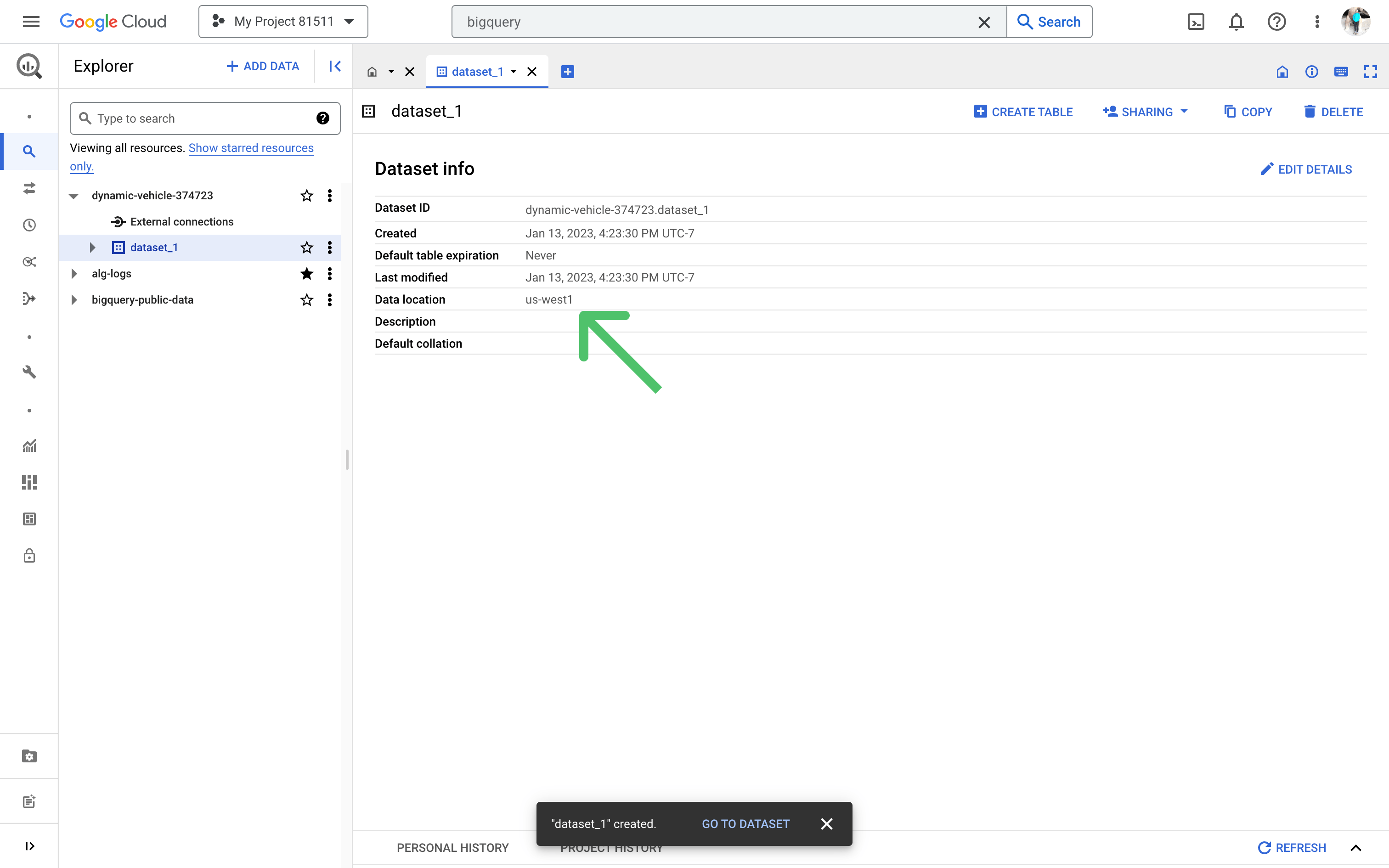
Make sure billing is
enabled on
your project, otherwise Hightouch can’t write into the cluster.
Create a service account
To create a service account, follow the setup instructions in our Google Cloud Provider (GCP) documentation.
Grant access
By default, your GCP service account doesn’t have permission to read data from BigQuery.
You can set up your service account to have full access to your project using a predefined role.
Otherwise, you can create a custom role and provide limited access according to a user-specified list of permissions.Grant permission to read data from tables and views:You can then decide which datasets, tables, or views your GCP service account has access to by granting access to a resource in the Google Cloud web console.
For every resource you would like to use in Hightouch, select your BigQuery service account as the Principal and the
Grant full access
You can grant full access by assigning thebigquery.user and bigquery.dataViewer roles to your service account.
You can do this in the Google Cloud web console or by running these snippets in the Cloud Shell.Grant permission to read metadata and list tables:Grant limited access
If you don’t want to grant full access to your BigQuery service account, you can opt to grant limited access instead. You can do this by assigning thebigquery.dataViewer role only to the specific datasets, tables, or views you want to use in Hightouch.Since you are assigning the bigquery.dataViewer role only to specific resources, you need to assign the bigquery.user role and grant the bigquery.tables.get permission at the project level.
For this, you can create a custom role in the Google Cloud web console based on an existing predefined role (bigquery.user), which you can name custom.bigquery.user.
When setting up the custom role, click Add permissions to add the bigquery.tables.get permission to this custom role.Then assign this role to your service account at the project level.
You can do this in the Google Cloud web console or by running this snippet in the Cloud Shell:Hightouch needs to be able to list the schemas and tables in your BigQuery
project when creating a model. Therefore, the
source connection test fails if you don’t grant the
bigquery.tables.get permission at the project level.bigquery.dataViewer role as the Role.Hightouch lists all tables in your BigQuery project when creating a model
using the table selector. However, Hightouch can
only query data from tables assigned the
bigquery.dataViewer role. Tables
that weren’t assigned this role return an error if you attempt to query them.Connection configuration
To get started, go to the Sources overview page and click the Add source button. Select BigQuery and follow the steps below.Configure your service account
Select the GCP credentials you previously created or click Create new. To learn more about these credentials, see the Google Cloud Provider (GCP) documentation.Configure your source
Enter the Project ID for the project you enabled the BigQuery API for and the Dataset location.Choose your sync engine
For optimal performance, Hightouch tracks incremental changes in your data model—such as added, changed, or removed rows—and only syncs those records. You can choose between two different sync engines for this work. The Basic engine requires read-only access to BigQuery. Hightouch executes a query in your database, reads all query results, and then determines incremental changes using Hightouch’s infrastructure. This engine is easier to set up since it requires read—not write—access to BigQuery. The Lightning engine requires read and write access to BigQuery. The engine stores previously synced data in a separate schema in BigQuery managed by Hightouch. In other words, the engine uses BigQuery to track incremental changes to your data rather than performing these calculations in Hightouch. Therefore, these computations are completed more quickly.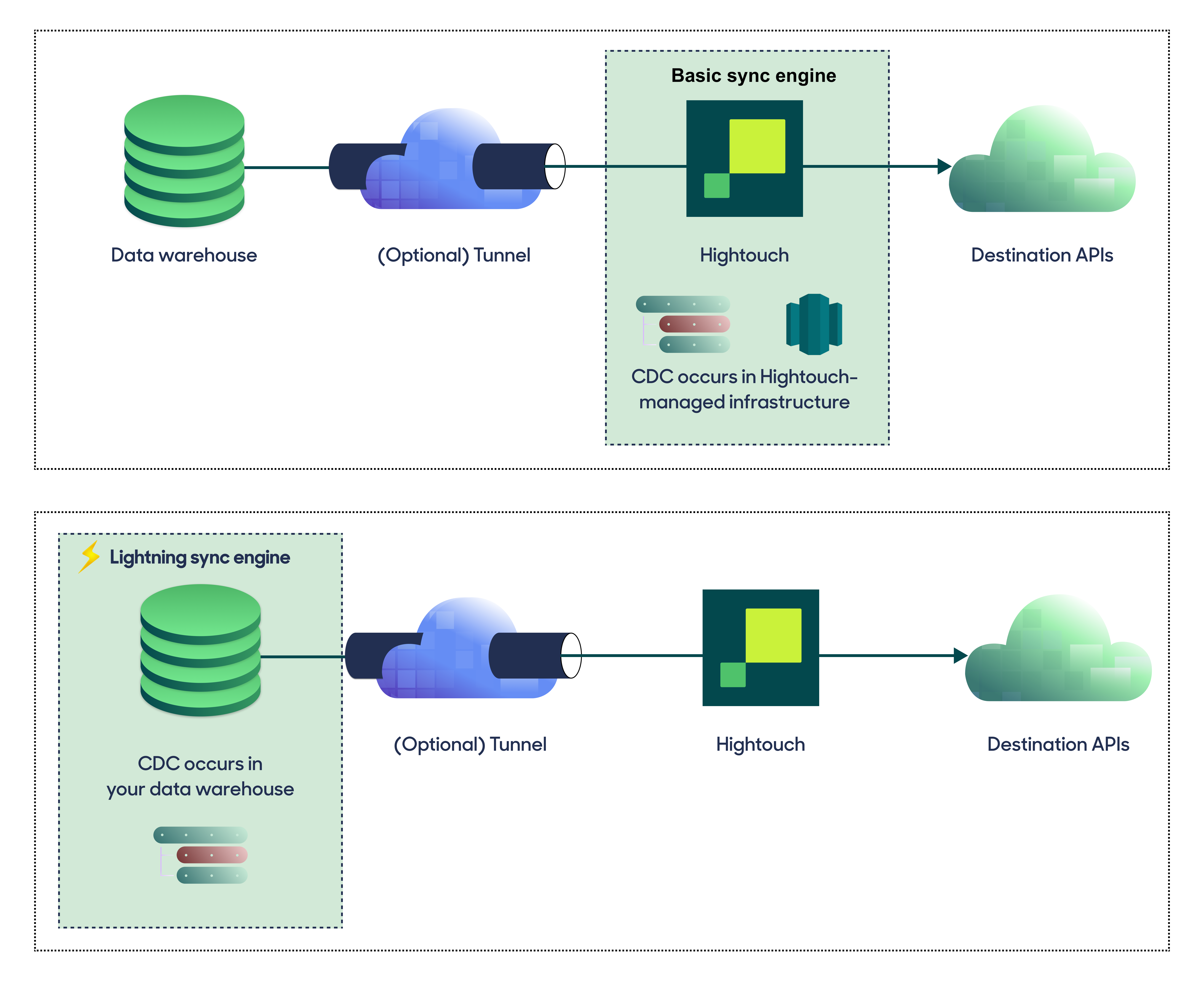
Basic versus Lightning engine comparison
The Lightning sync engine requires granting write access to your data warehouse, which makes its setup more involved than the Basic sync engine. However, it is more performant and reliable than the Basic engine. This makes it the ideal choice to guarantee faster syncs, especially with large data models. It also supports more features, such as Warehouse Sync Logs, Match Booster, and Identity Resolution.Hightouch can use Warehouse Export with BigQuery. Instead of streaming every row through Hightouch, it has BigQuery write query results directly into Google Cloud Storage, which Hightouch then reads. This speeds up syncs of large models. Warehouse Export runs automatically when your sync engine and storage support it, and Hightouch falls back to standard export when they don’t, so your syncs keep running either way.BigQuery currently exports to Google Cloud Storage only, so Warehouse Export doesn’t run when your workspace storage is Amazon S3.If Warehouse Export runs into a fixable configuration problem, such as a storage-integration or bucket-permission issue, Hightouch stops using it for the affected syncs so it isn’t retried on every run, and shows this on the sync and on this source’s configuration page. After you resolve the problem, re-enable Warehouse Export from an individual sync, or for all of this source’s syncs at once from the source configuration page, and Hightouch uses it again on the next run.A one-off problem on a single run, such as a row that exceeds the Warehouse Export size limit, isn’t treated as a configuration issue: that run falls back to standard export and says so on the run summary, and Hightouch automatically retries Warehouse Export on the next run.For best performance, configure self-hosted workspace storage (Business tier) in Google Cloud Storage. Keeping your workspace data in GCS aligns with BigQuery’s native export paths and region constraints, which matters most for large models.
Lightning engine permissions
To enable the Lightning engine, you need to provide your service account additional permissions to create schemas and read/write data. Run the following snippet to provision thehightouch_planner and hightouch_audit schemas, which are used for storing logs of previously synced data.
Test your connection
When setting up a source for the first time, Hightouch validates the following:- Network connectivity
- BigQuery credentials
- Permission to list schemas and tables
- Permission to write to
hightouch_plannerschema - Permission to write to
hightouch_auditschema
Create models
Once your source configuration has passed the necessary validation, your source setup is complete. Next, you can set up models to define which data you want to pull from BigQuery. The BigQuery source supports these modeling methods:- writing a query in the SQL editor
- using the visual table selector
- leveraging existing dbt models
- leveraging existing Looker Looks
- leveraging existing Sigma workbooks
If you store the Lightning sync engine schema in a different BigQuery project,
you can only use SQL models.
You must enable the Lightning sync engine to store sync logs in your warehouse.
Tips and troubleshooting
If you run into an issue this page doesn’t cover, .Hashed values are displayed as objects of bytes
When previewing your model or when syncing your data to the destination, you might see an object of bytes, such as:No matching signature for operator {…} for argument types: {…}, {…}.
An example of the error message isNo matching signature for operator != for argument types: DATE, TIMESTAMP.
This error means that your model definition is using the named operator, for example, != to compare two incompatible types, for example, a date to a timestamp.
To resolve the issue, ensure your model columns are properly typed or revise your model query.
Unable to process number due to [big.js]
An example of the error message isUnable to process number due to [big.js] Imprecise conversion: [big.js] Imprecise conversion
This error occurs when one or more values have a very high precision, for example 123.12345678910. Hightouch attempts to convert the value to a number (based on the data type selection of your model). An error occurs if the number can’t be precisely represented by a JavaScript number.
To resolve the issue, ensure the values in your model columns have a lower precision. Additionally, if your value doesn’t need to be a number datatype, casting the value to a string datatype can also resolve this issue.
Dataset was not found in location
You may encounter this error if you customized the Lightning engine cache location in the source configuration. When using a customized location, you must use fully qualified table names (project_id.dataset.table) in model queries. This requires using the SQL editor to create your model, because all other modeling methods (table selector, dbt, Looker, Sigma) aren’t compatible with this setup.
Otherwise, this error can happen if your dataset is located in a region other than US (such as EU). By default, BigQuery creates new schemas in the US region, so running the Lightning engine permissions SQL snippet (shown in the source setup UI) creates them in that region. If your dataset is not in the US region (for example, it might be in EU), this causes a region incompatibility between the main dataset and those two schemas, which results in that error message. To fix this, you need to manually check the schema details in BigQuery and update their region/location value to be the same as the main dataset.