

Supported syncing
For more information about sync modes, refer to the sync modes docs.
Setup
If you don’t have a product catalog already, navigate to Meta Commerce Manager and click “Add Catalog” to create one.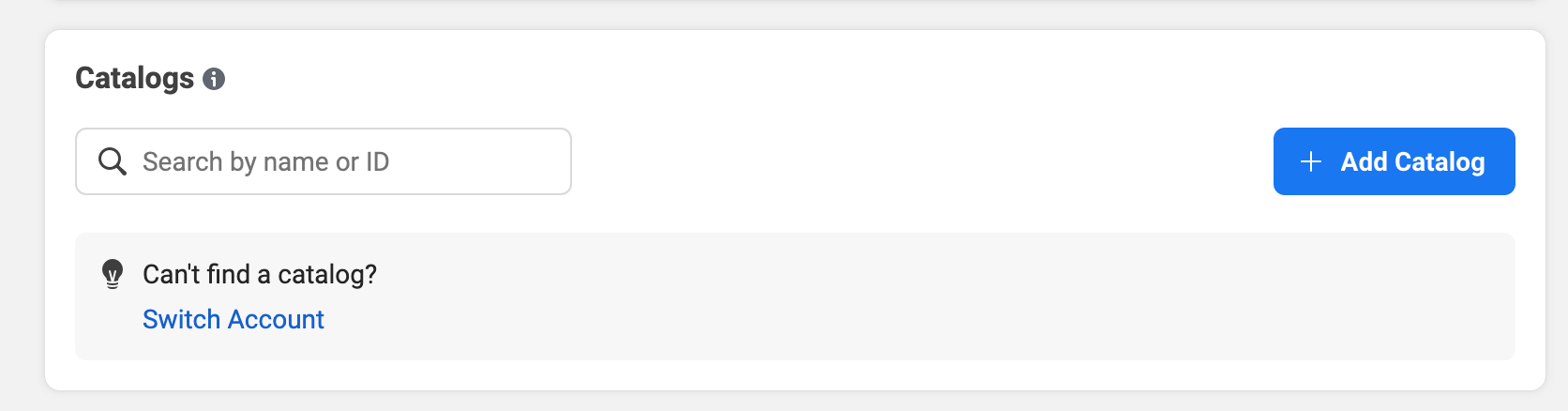
Connect to Meta Product Catalog
Go to the Destinations overview page and click the Add destination button. Select Meta Product Catalog and click Continue. You can then authenticate Hightouch to your Meta Product Catalog either with a system user token or with OAuth. Since the OAuth flow requires you to manually refresh this connection every 60 days, we strongly recommend using a system user token for indefinite access.Authenticate with a system user token
When authenticating with a system user token you can choose to either use an existing one or create a new one for the Hightouch integration. To use an existing system user token, you must meet the following prerequisites:- The system user whose token you’d like to use has
Adminaccess. - You’ve created an app to add as an assigned asset to the system user.
- You’ve assigned the ad account where your catalog lives for to the system user.
ads_management, business_management, and catalog_management permissions. Hightouch needs business_management to list catalogs and run the test connection. Without it, these operations fail with (#100) Requires business_management permission to access the field.
Authenticate with OAuth
For the Authentication method, select Log in to Meta and log into your Meta account. Once successful, you will be redirected back to Hightouch to enter a descriptive name for your destination and complete setup.Sync configuration
Once you’ve set up your Meta Product Catalog destination and have a model to pull data from, you can set up your sync configuration to begin syncing data. Go to the Syncs overview page and click the Add sync button to begin. Then, select the relevant model and the Meta Product Catalog destination you want to sync to.Catalog items
Hightouch syncs records to any Meta catalog item type. When you configure the sync, select the item type you’re updating:- Product item
- Vehicle
- Home listing
- Hotel
- Hotel room
- Flight
- Destination
Record matching
Hightouch matches records from your source to your Meta catalog by the item ID in Upsert mode.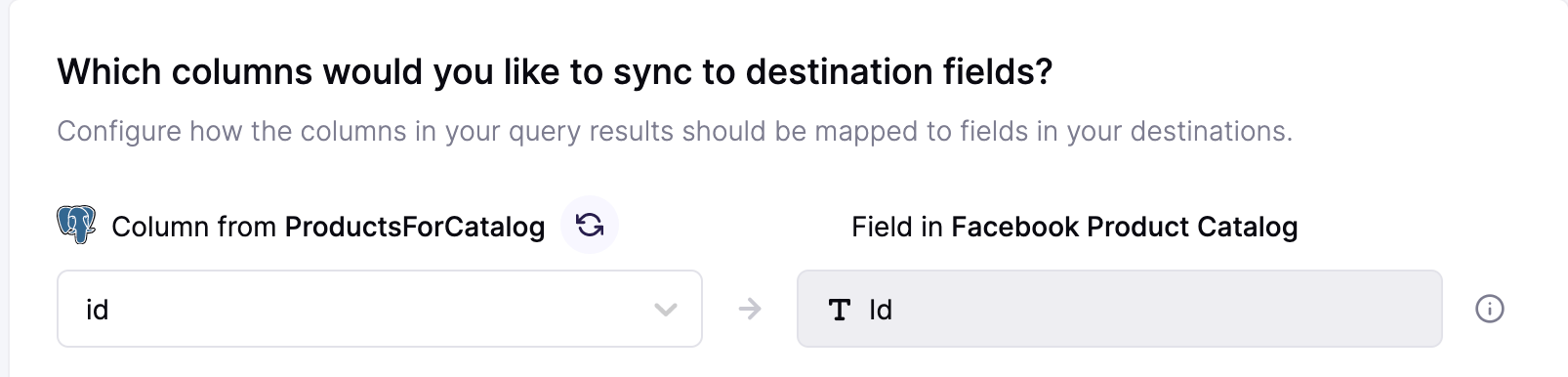
Field mappings
You can sync columns from your source to Meta catalog’s default and custom fields. Hightouch automatically detects existing custom fields from your Meta catalog account.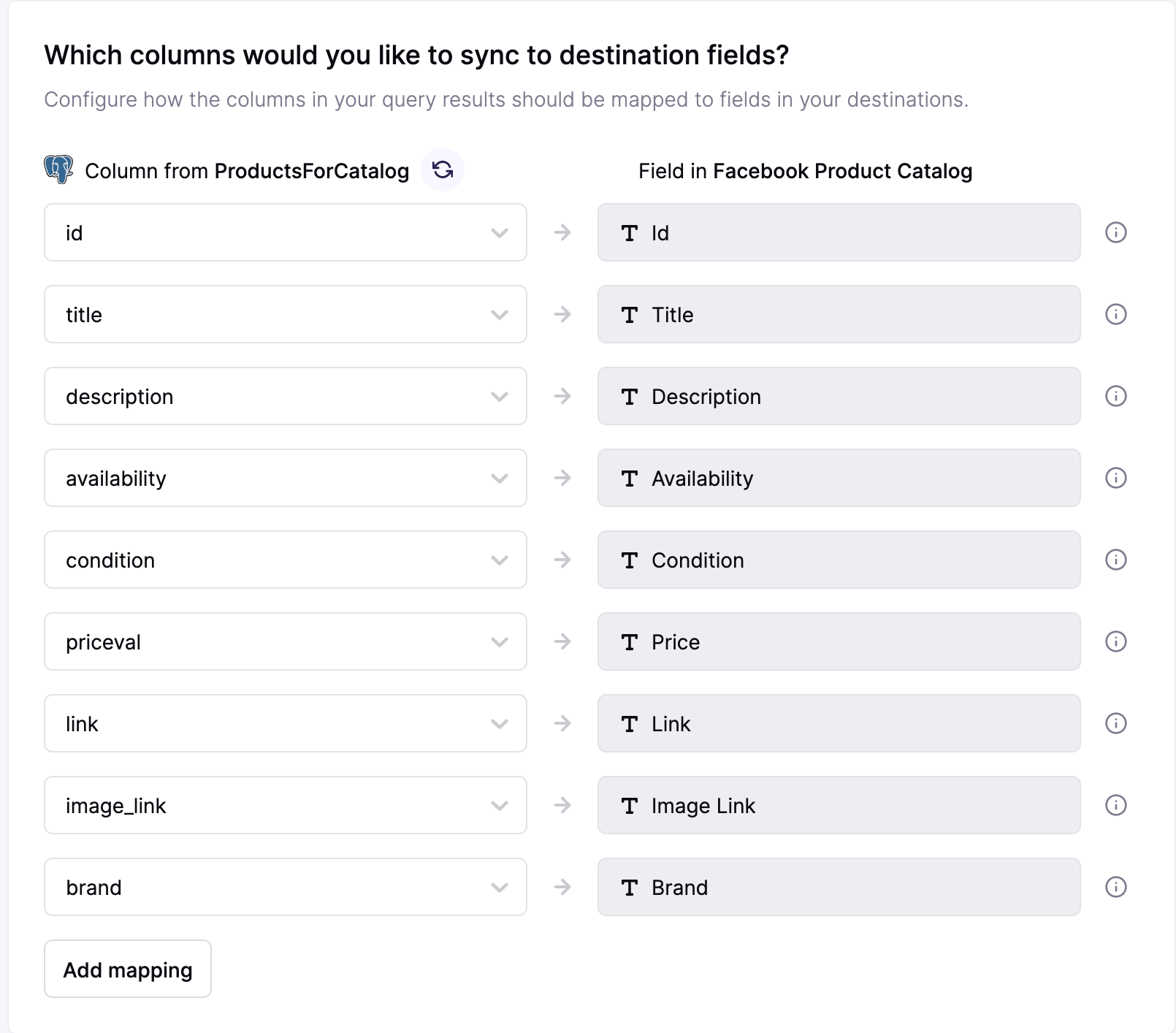
Tips and troubleshooting
To see the exact API requests and responses from each sync run, use the live debugger. To get notified by Slack, PagerDuty, SMS, or email when a sync fails, set up sync alerts. If you run into an issue this page doesn’t cover, .For a list of error codes and their meanings, see the error codes reference.
Validate your setup
After a sync runs, open your catalog in Meta Commerce Manager and confirm your items appear with the expected fields for the item type you synced.Common errors
400 - (#100) Requires business_management permission
The full error may look like:400 - {"error":{"message":"(#100) Requires business_management permission to access the field.","type":"OAuthException","code":100}}.
This error occurs when your access token is missing the business_management permission. Hightouch needs this permission to list catalogs and run the test connection.
If you authenticated with a system user token, regenerate the token in Meta Business Settings → Users → System Users with the ads_management, business_management, and catalog_management permissions selected, then reconnect the destination in Hightouch.
If you authenticated with OAuth, click Reconnect and approve all requested permissions when prompted.