

Overview
Besides the ability to track first-party customer data, Segment offers robust integrations with the most popular SaaS tools. With our Segment integration, you can automatically sync enriched customer data from your data warehouse with Segment to send this data to downstream tools that Hightouch doesn’t already integrate with.Supported syncing
For more information about sync modes, refer to the sync modes docs.
Connect to Segment
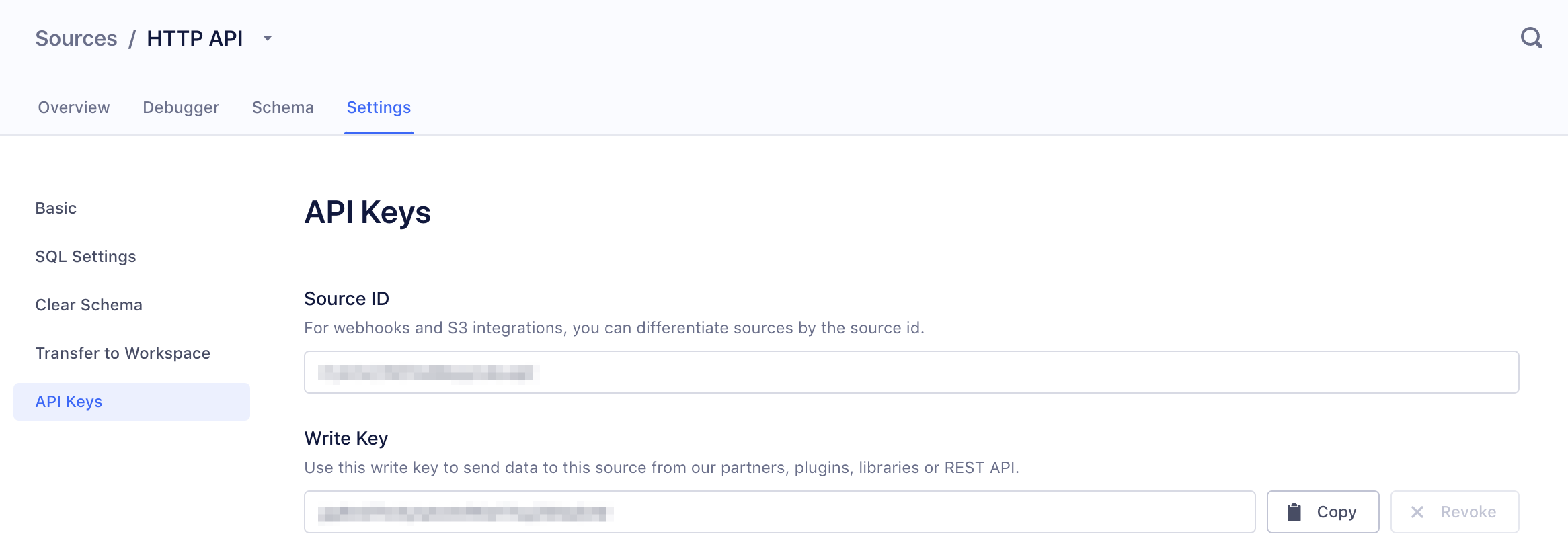
Go to the Destinations overview page and click the Add destination button. Select Segment and click Continue. You can then authenticate Hightouch to Segment using a Segment Write Key. To retrieve the write key for your Segment destination in Hightouch:- Create a new HTTP API source in Segment using these instructions.
- Navigate to Source Settings > API Keys and copy the Write Key.
Sync configuration
Once you’ve set up your Segment destination and have a model to pull data from, you can set up your sync configuration to begin syncing data. Go to the Syncs overview page and click the Add sync button to begin. Then, select the relevant model and the Segment destination you want to sync to.User and anonymous IDs
You need to include send either the user or anonymous ID to Segment to identify the user associated with the event.Field mapping
You can sync columns from your source into user (identify) or event (track) properties.Sending initial results (Track events only)
For the two track event types, Hightouch lets you choose whether to:- Send the initial set of results as track events as Entered / Added events
- Or, only send the changes between the results in the subsequent syncs as track events
Event names and timestamps (Generic track events only)
For the generic track mode, there are further settings that are needed to determine which event name Hightouch sends to Segment for each added, changed, and removed record.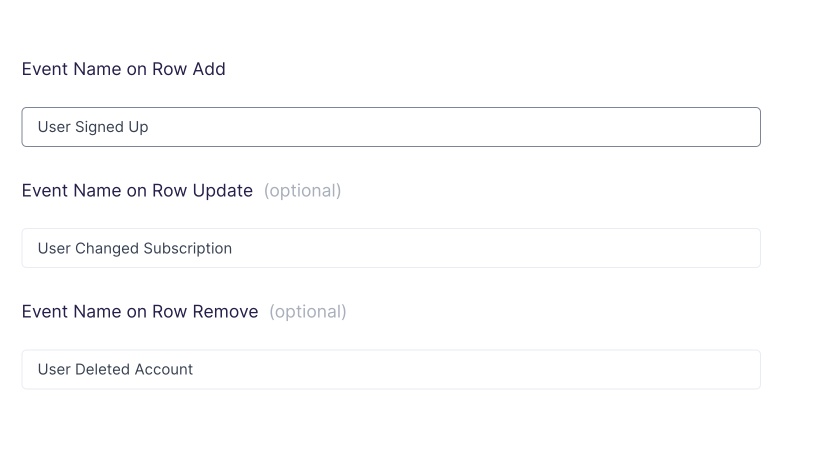
- A “User Signed Up” event when a record is added to the query results
- A “User Changed Subscription” event when a record is changed in the query results
- A “User Deleted Account” event when a record is removed in the query results
Tips and troubleshooting
To see the exact API requests and responses from each sync run, use the live debugger. To get notified by Slack, PagerDuty, SMS, or email when a sync fails, set up sync alerts. If you run into an issue this page doesn’t cover, .Common errors
Large payload issues
Segment returns a400 Bad Request error if your batch payload exceeds the limitations. You can find more information in Segment’s documentation. Adjust your batch configuration accordingly.