Overview
We designed the HTTP Request destination to be as flexible as possible. We want our customers to build their own integrations with third-party APIs, internal tools, and other services not yet supported in our growing catalog of 250+ native destinations. This destination empowers you to integrate Hightouch with almost any API without writing code. Using our visual interface, you can exercise granular control over HTTP endpoints, request payloads, rate limits, concurrency limits, error handling, and more. Under the hood, the HTTP Request destination leverages Hightouch’s powerful sync engine, so you continue to benefit from the security and observability features available in all our native destinations. This article provides a technical overview of how the HTTP Request destination works. Skip to the guided tutorial showing how to create a custom integration with Algolia’s REST API if you want to follow along with an example.Setup
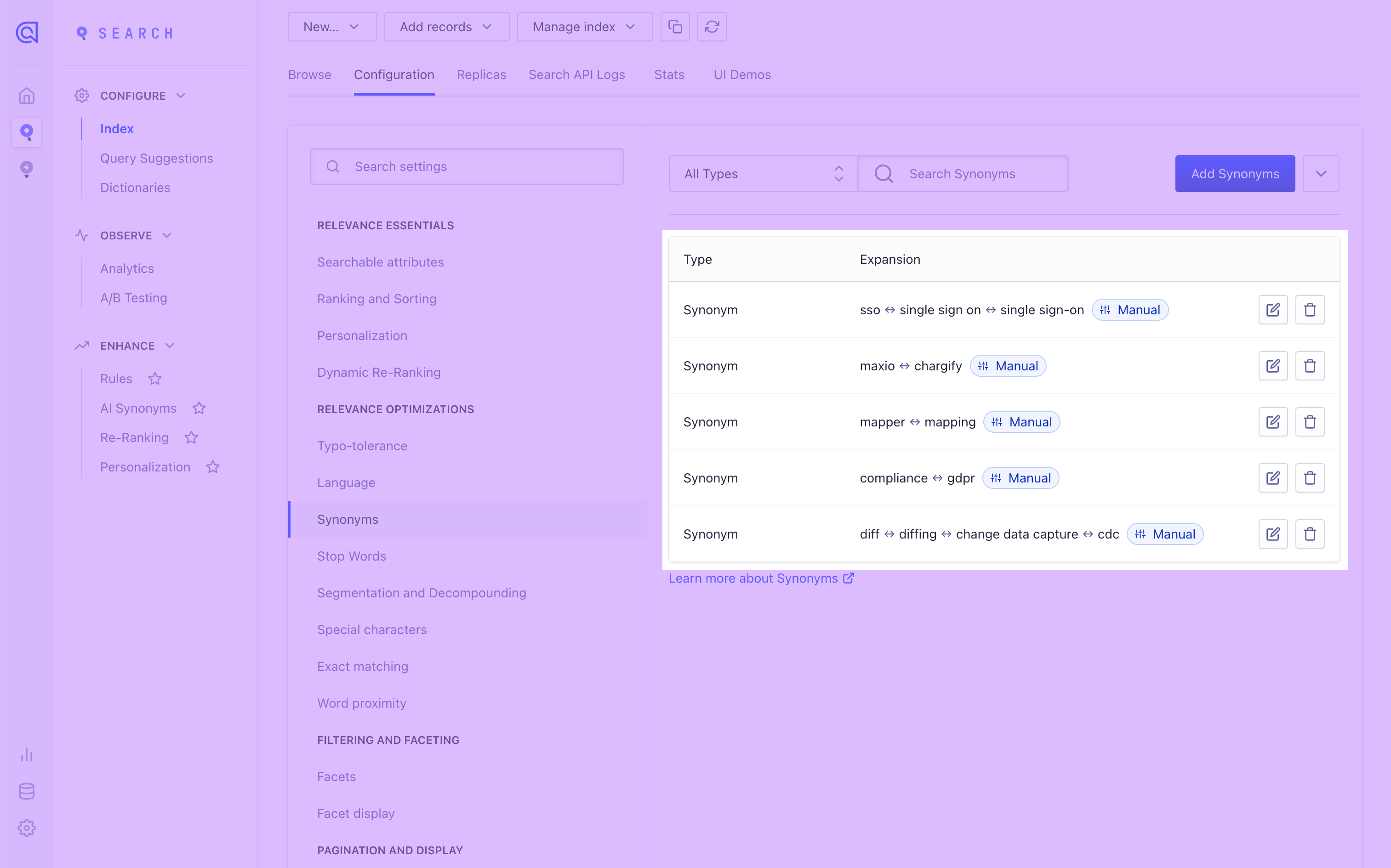
Hightouch queries your data source and monitors the query results for added rows, changed rows, and/or removed rows. When configuring the HTTP Request destination, you specify which of these events should trigger an HTTP request. For each trigger, you then specify an endpoint, payload, and other parameters. To help Hightouch play nicely with other services, you can also specify constraints such as rate limits, concurrency limits, and error handling logic. You can configure all this in the Hightouch app—no code required.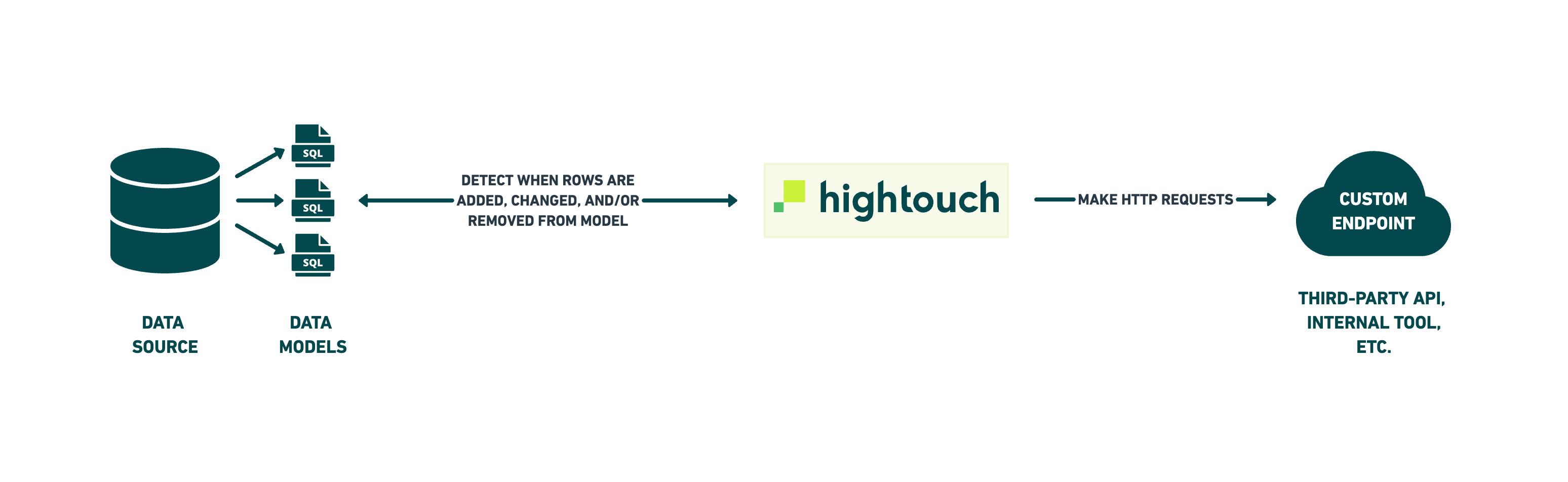
Create a new destination
Go to the Destinations overview page and click the Add destination button. Select HTTP Request and click Continue. Next, the UI prompts you to enter a base URL, HTTP headers, and certificate. Only the base URL is required.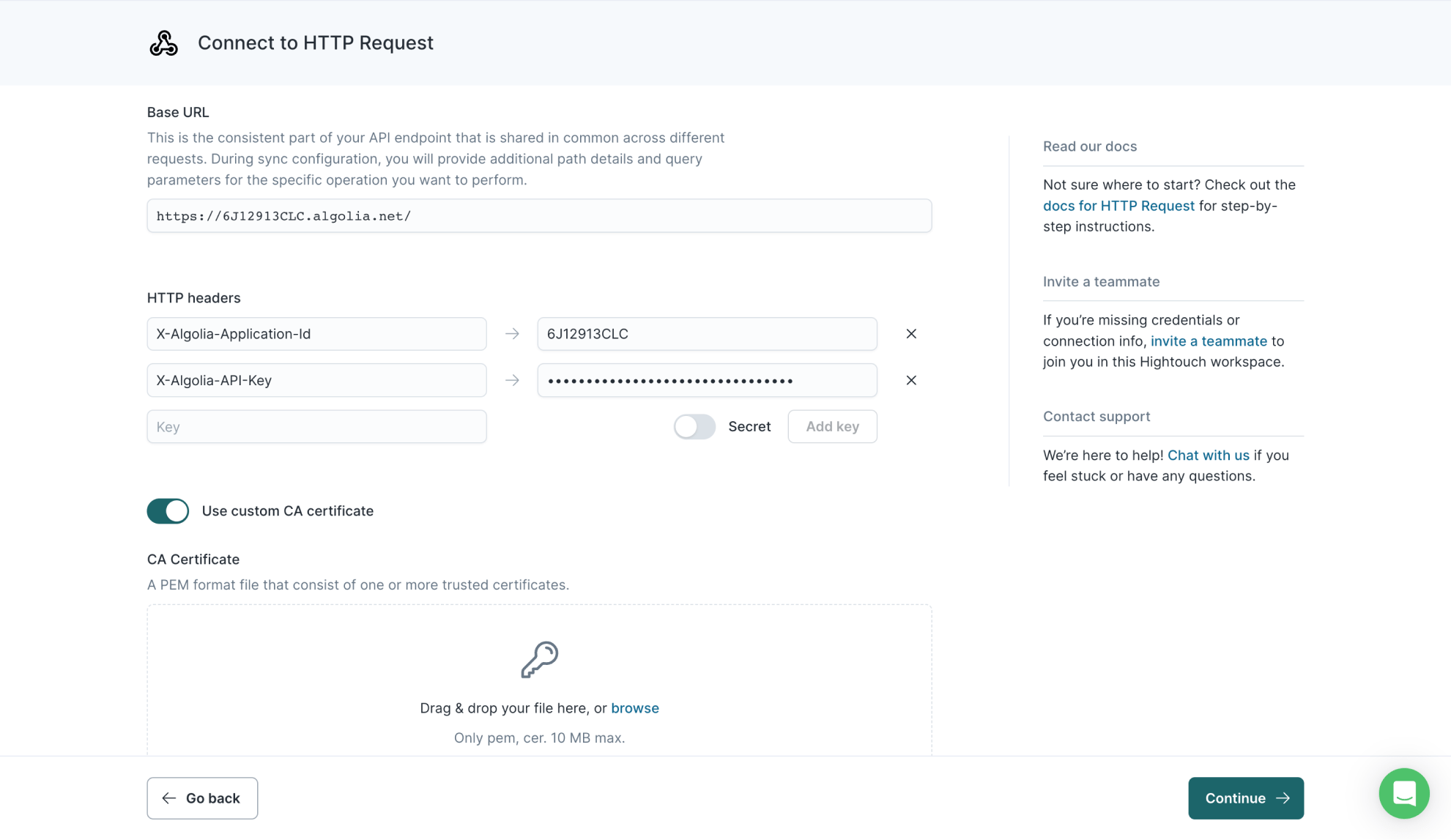
Add base URL
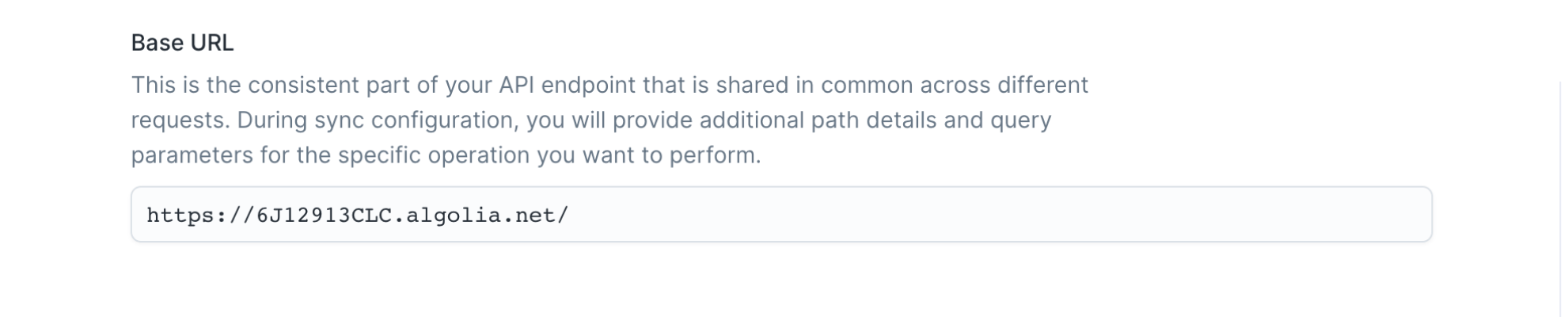
The base URL is the static part of the API endpoint you plan on making requests to. For example, if you plan on using the Algolia REST API, the base URL would behttps://{Application-ID}-dsn.algolia.net.
During sync configuration, you provide additional path details and query parameters for the specific operations you want to perform.
Add HTTP headers
You can optionally provide headers to include in each outbound HTTP request. These headers often include access tokens used for authentication. To enter a header, enter its key name in the input. If you want a header property to be obscured in the UI and encrypted in storage, select the Secret checkbox. Click Add key, then enter the key’s value in the input that appears to the right. Repeat this for as many headers as you want to add.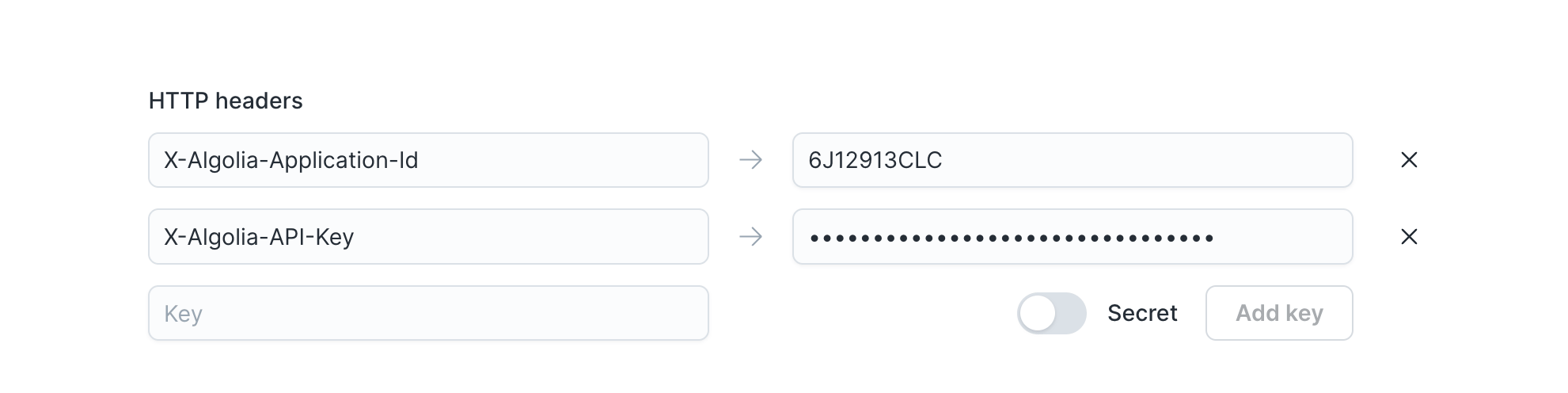
If you need to fetch a new token during each sync, consider using
OAuth for authentication. You can also consider using one of our
serverless function destinations, for example, AWS
Lambda.
Add certificates
You can optionally add a custom CA, SSL, or TLS certificate. Enable the relevant toggle and upload your certificate files. Certificates can have a maximum size of 10 MB.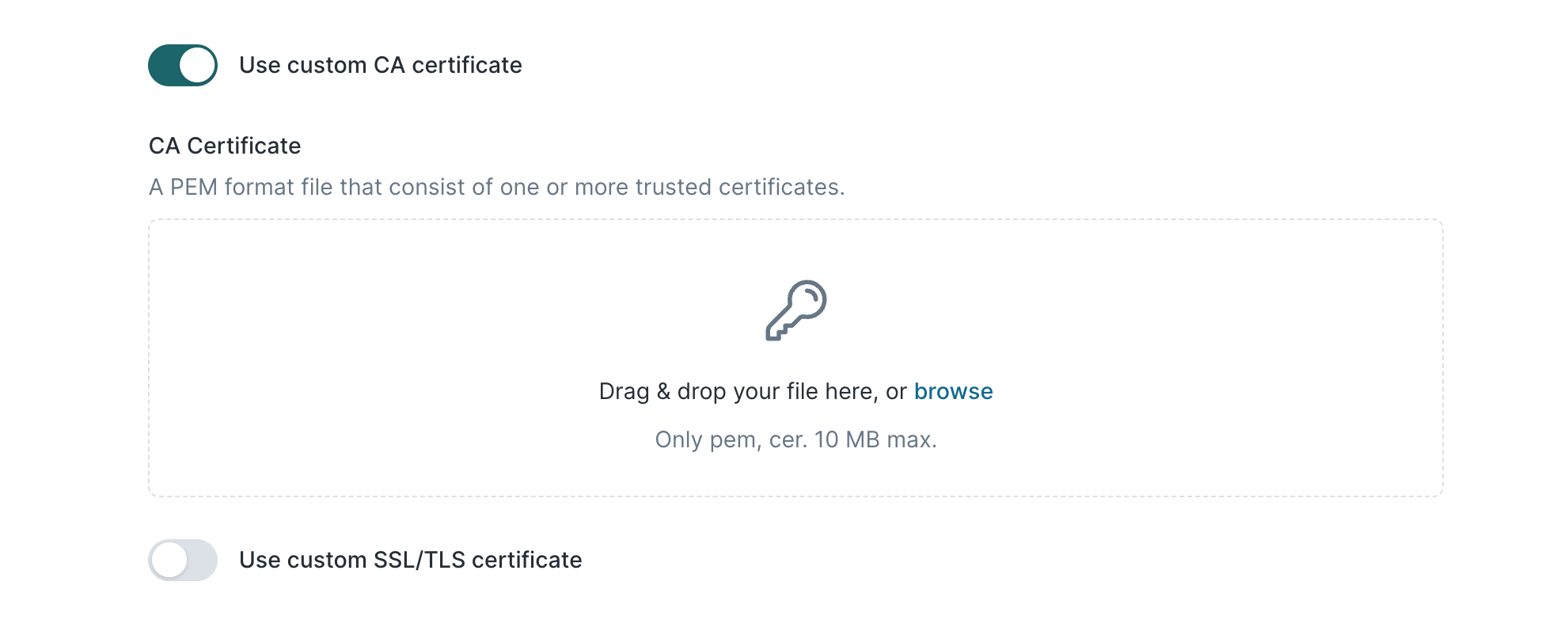
OAuth
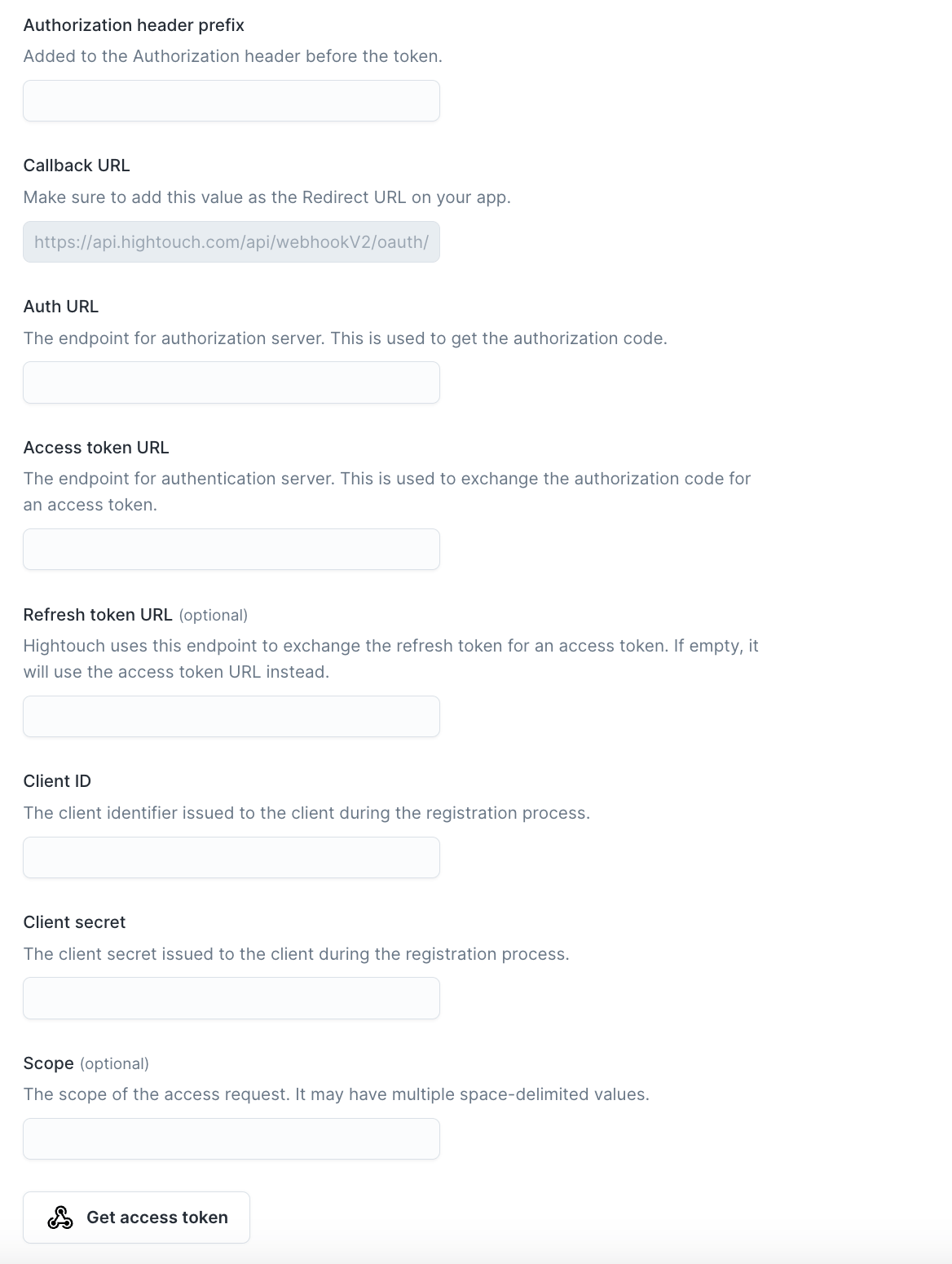
We also support OAuth authentication. OAuth implementations can vary between providers, so we recommend using a tool like Postman to test the token refresh process end-to-end. Once you’ve confirmed that you’re able to fetch access tokens and authorize requests using Postman, you can copy your Postman configuration into Hightouch verbatim. Hightouch supports the following grant types: When setting up OAuth, you’ll need to provide the following information:- Authorization header prefix (optional): Specify the prefix for the Authorization header (for example, “Bearer”).
- Auth URL: Required for authorization code grant type. The URL used to get the authorization code.
- Access token URL: The URL used to get an access token.
-
Refresh token URL (optional): If different from
Access token URL, provide theRefresh token URL. - Client ID: The client identifier issued during the registration process.
- Client Secret: The client secret issued during the registration process.
- Scopes (optional): If your OAuth provider requires specific scopes.
- Client authentication: Choose to include the credentials as a header or in the request body.
Callback URL to your OAuth app: https://api.hightouch.com/api/webhookV2/oauth/callback.
Advanced configurations
During the OAuth flow, multiple requests are made to retrieve or refresh access tokens. Configure the following options to include additional headers, URL parameters, or values in the request body.- Authorization request URL parameters: URL parameters sent in the Auth URL for the authorization code grant type.
- Token request: Additional parameters and values sent with the request to the Access token URL.
- Refresh request: Additional parameters and values sent with the refresh token request to the Refresh token URL or Access token URL if no refresh URL is provided.
Sync configuration
Once you’ve created your HTTP Request destination and have a model to pull data from, you can set up your sync configuration to begin syncing data. Go to the Syncs overview page and click the Add sync button to begin. Then, select the relevant model and the HTTP Request destination you previously set up.Choose request triggers
In this first step, you tell Hightouch when to trigger HTTP requests. You then configure each trigger separately. This lets your integration have different behaviors depending on whether a row is added, changed, and/or removed. Most APIs use different endpoints and HTTP methods for creating, updating, and deleting resources.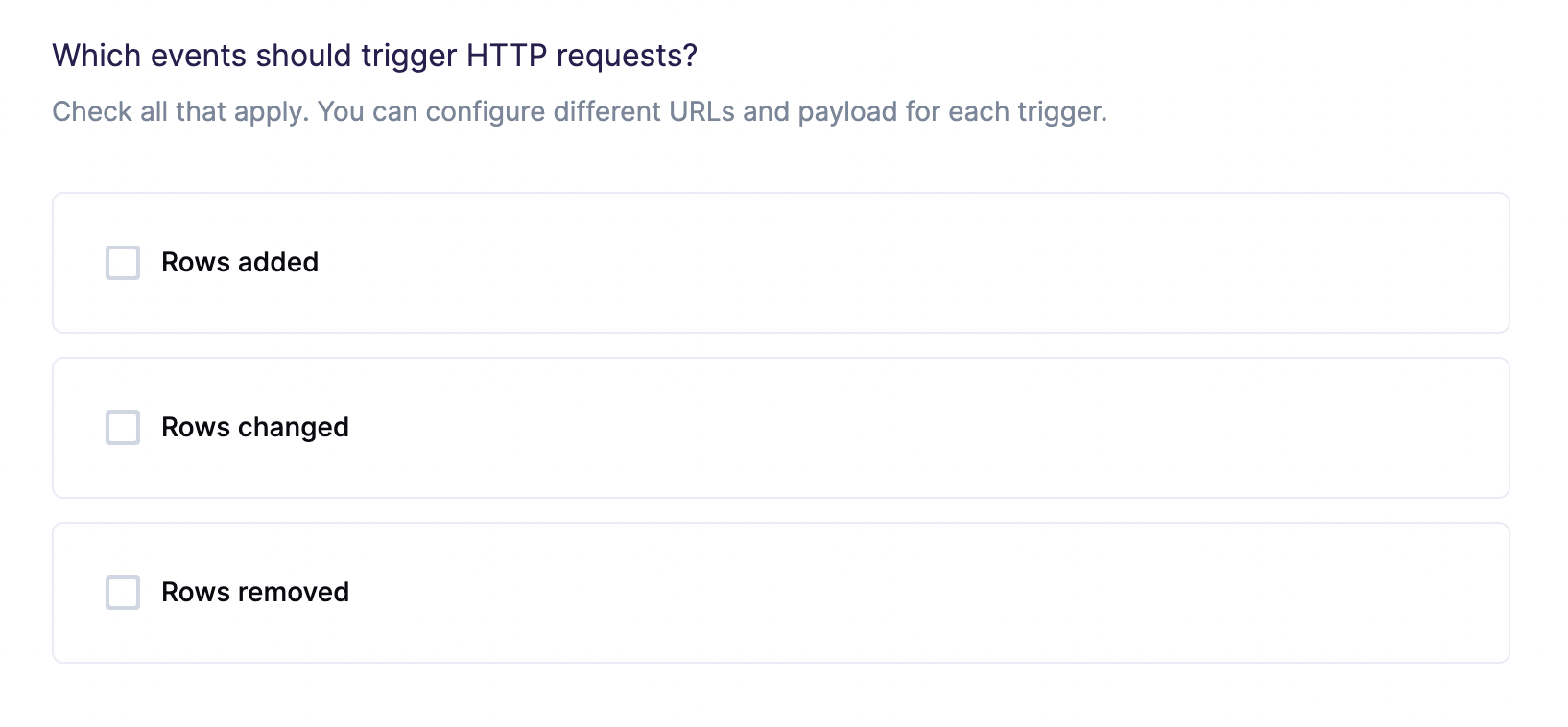
The number of operations displayed on the run details
page only counts the operations for the
request triggers you configured. For example, if you only configured the
Rows added trigger, the run details page doesn’t display information
related to changed or removed rows.
Batch configuration
You can send a single row or batch of multiple rows in each HTTP request.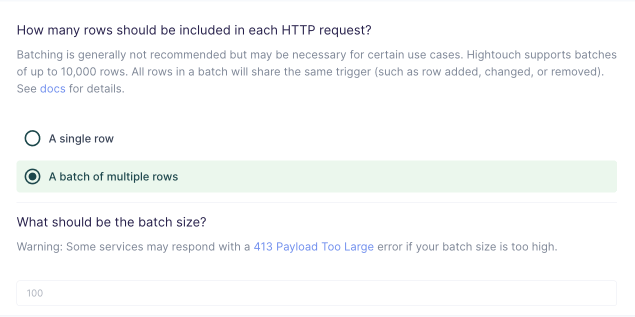
When using the JSON editor, make sure to correctly
configure your payload for batch requests.
Specify webhook endpoint
In this step, you tell Hightouch how to send HTTP requests to your internal system, third-party API, or other web service. Hightouch supportsGET, POST, PUT, PATCH, and DELETE requests to any endpoint.

POST https://api.stripe.com/v1/customers.
If you provide a dynamic URL, Hightouch generates a different URL for each HTTP request by incorporating data from your model. For example, Stripe’s REST API requires you to reference an ID when deleting specific objects. You could incorporate the objectID into the URL template like this: DELETE https://api.stripe.com/v1/customers/{{customer_id}}.
Hightouch uses the Liquid templating language to generate dynamic content.
How to use Liquid templates
The Liquid templating language supports variable injection, control flow, iteration, filters, and more. Details are available in the Liquid docs. To insert a value from your model, use{{row.column_name}}, where column_name references any column in your model. For example, {{row.first_name}} or {{row.email_address}}.
To change the output of a Liquid object, you can append a filter with a single pipe (|):
{{ row.column_name | filter }}.
For example, let’s say the value of the first_name column in a row is "Alice". The Liquid template {{ row.first_name | upcase }} would generate {{ "Alice" | upcase }} → ALICE.
You can also chain multiple filters together like this: {{ row.product_id | remove: "0" | prepend: "SKU_"}} → {{ "000123" | remove: "0" | prepend: "SKU_"}} → SKU_123.
Customize request payload
In this step, you tell Hightouch how to build the request payload using data from your model. Hightouch supports JSON and XML payloads, as well as URL encoded forms. You can also send an empty body, if needed.
Use JSON editor
With the JSON editor, you can compose any JSON object using the Liquid template language. This is particularly useful for complex payloads containing nested objects and arrays, which can sometimes be difficult to model entirely in SQL.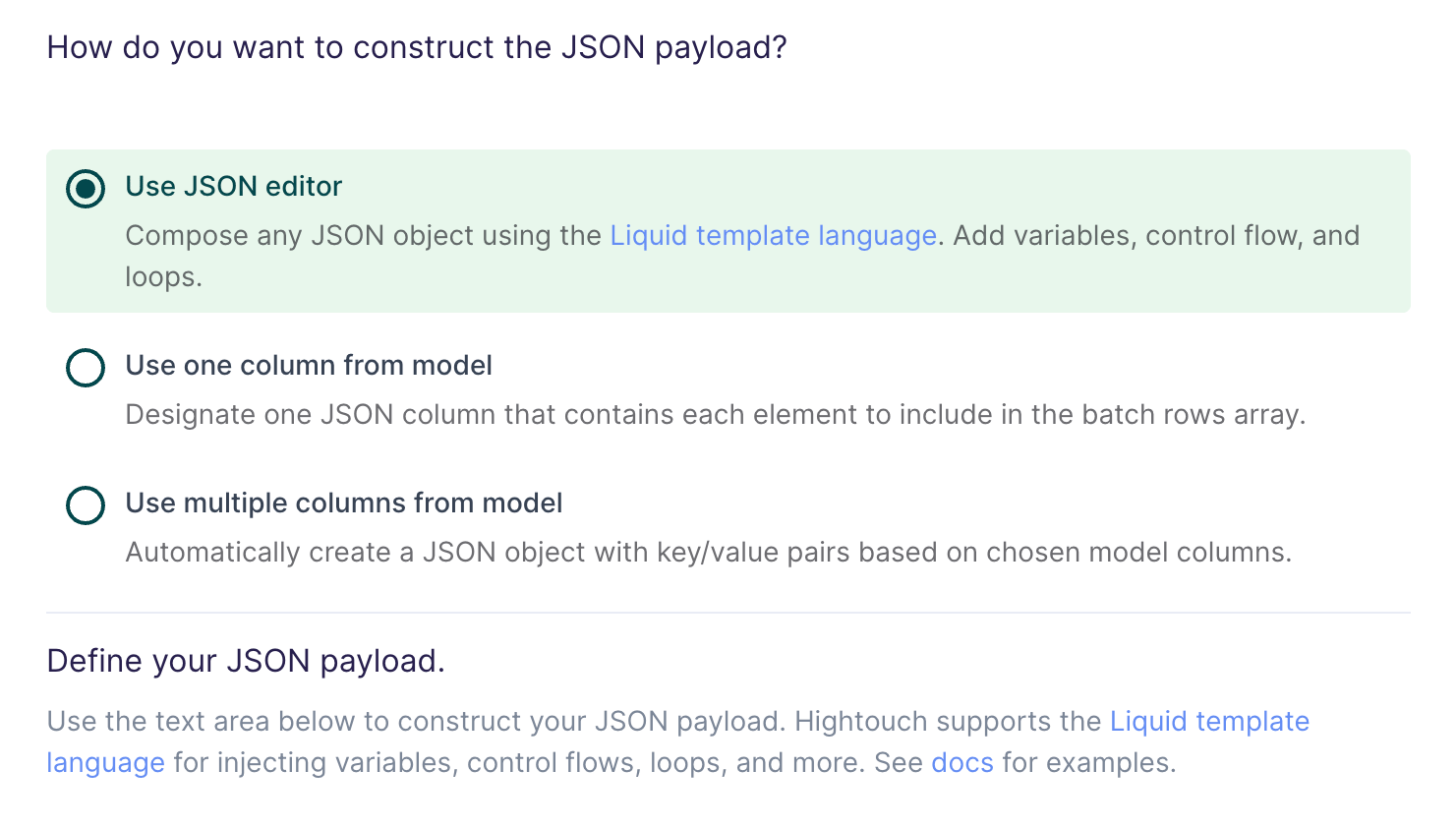
And you want your HTTP request to have a payload like this:
When injecting strings into your JSON request body, be sure to surround the
Liquid tag in double quotes.
Preview the rendered payload
As you edit, the payload editor highlights your Liquid syntax on top of the JSON or XML you’re writing. Select the Preview tab to see the payload rendered with a sample row from your model, so you can confirm the output before you save. If a sample hasn’t loaded yet, select Load preview to fetch one from your model. Rendering errors appear inline so you can fix template issues as you go.Batching with the JSON editor
When batching is enabled, the context is changed from a single record (row) to multiple records (rows).
With multiple rows, you likely want to use loops to build your payload.
Suppose your data model looks like this:
And you want your HTTP request to have a payload like this:
Don’t worry about unnecessary trailing commas when evaluating loops in your
payload template. Hightouch automatically strips trailing commas to conform
with the JSON specification.
Using Hightouch metadata inside a Liquid template
In addition to using the{{row.column_name}} syntax to access row-level data, you can also tap into metadata about your Hightouch syncs and models.
This metadata is provided via the context variable. The following table lists the available metadata options.
Use one column from model
If you’re already storing JSON data in your source, or if you have the ability to construct a JSON object using SQL, you can select one column in your model that already contains the full request payload.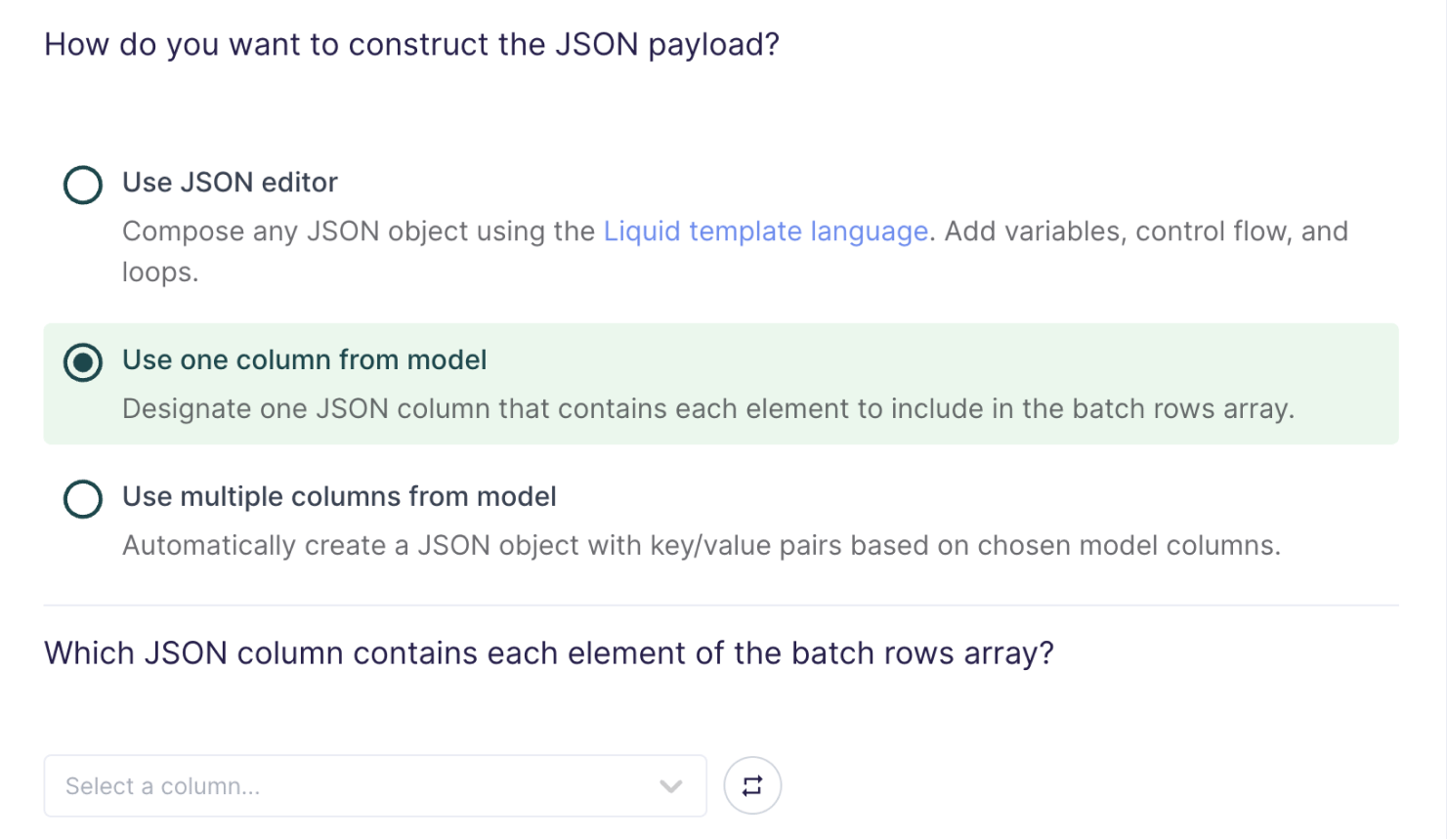
Batching with one column from model
When batching is enabled, the payload is an array where each element is a row value from the selected column. For example, if you select a column that includes a JSON object as each row value, the batch payload would be an array of those JSON objects.Use multiple columns from model
For the simplest use cases, Hightouch can construct a JSON object with key/value pairs based on multiple columns in your model.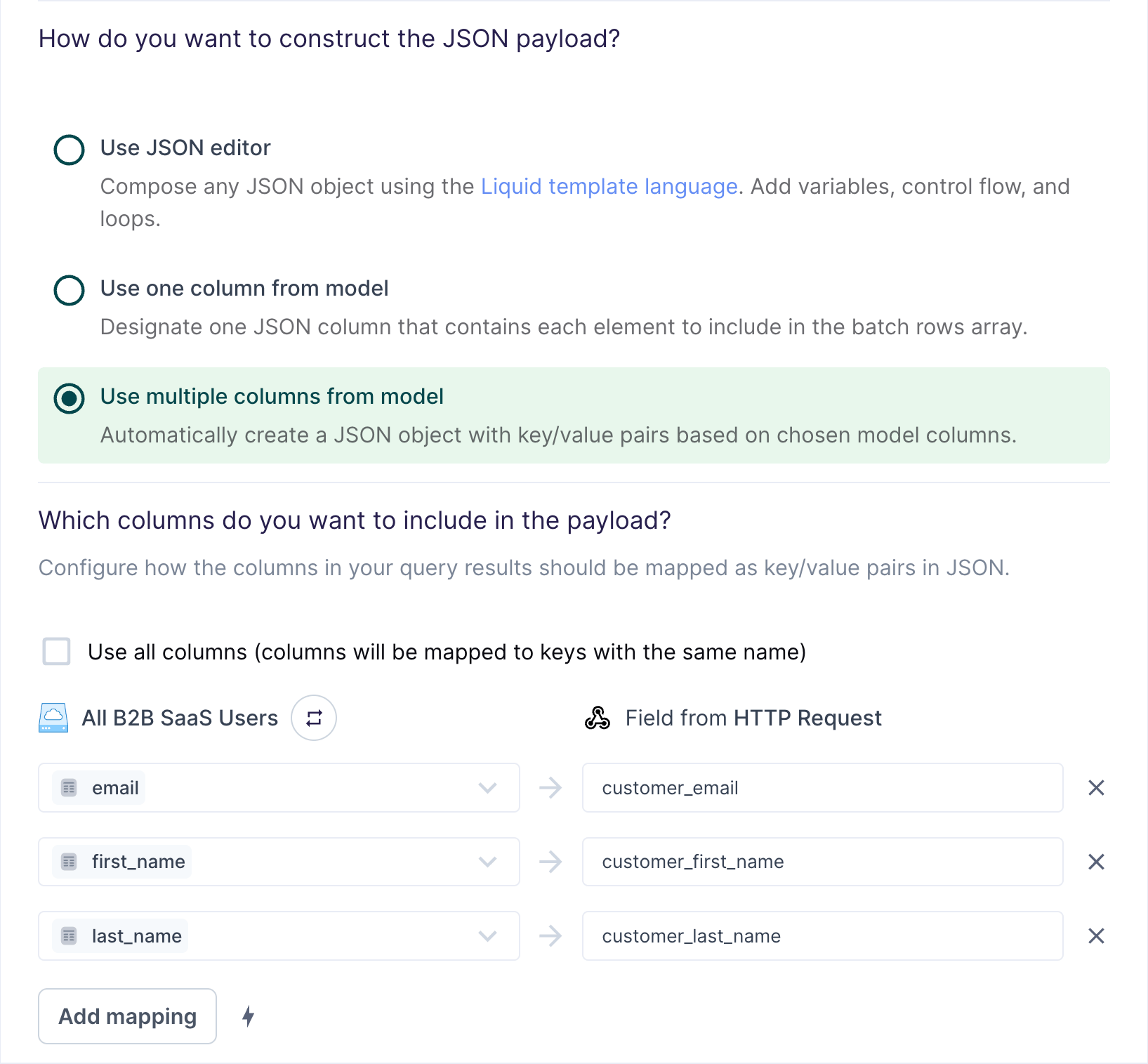
The field mapping in the preceding screenshot would generate the following payload for the first row:
Batching with multiple columns from model
When batching is enabled, the payload is sent as an array. Suppose your model looks like this:
The field mapping in the preceding screenshot would generate the following payload for the first batch:
Configure rate limiting and concurrency
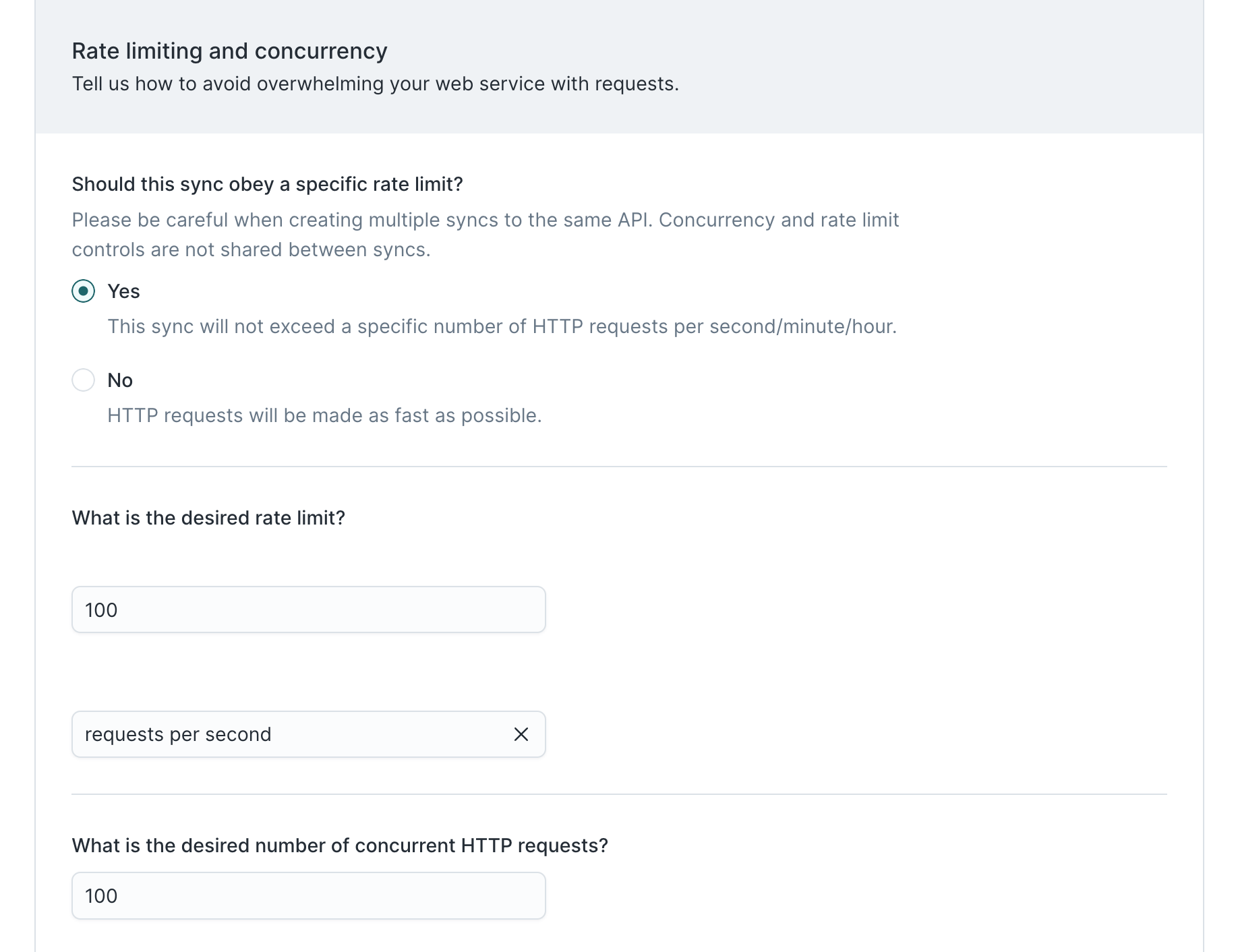
In this step, you configure rate limits and concurrency. In other words, you tell Hightouch how to avoid overwhelming your HTTP endpoint with requests.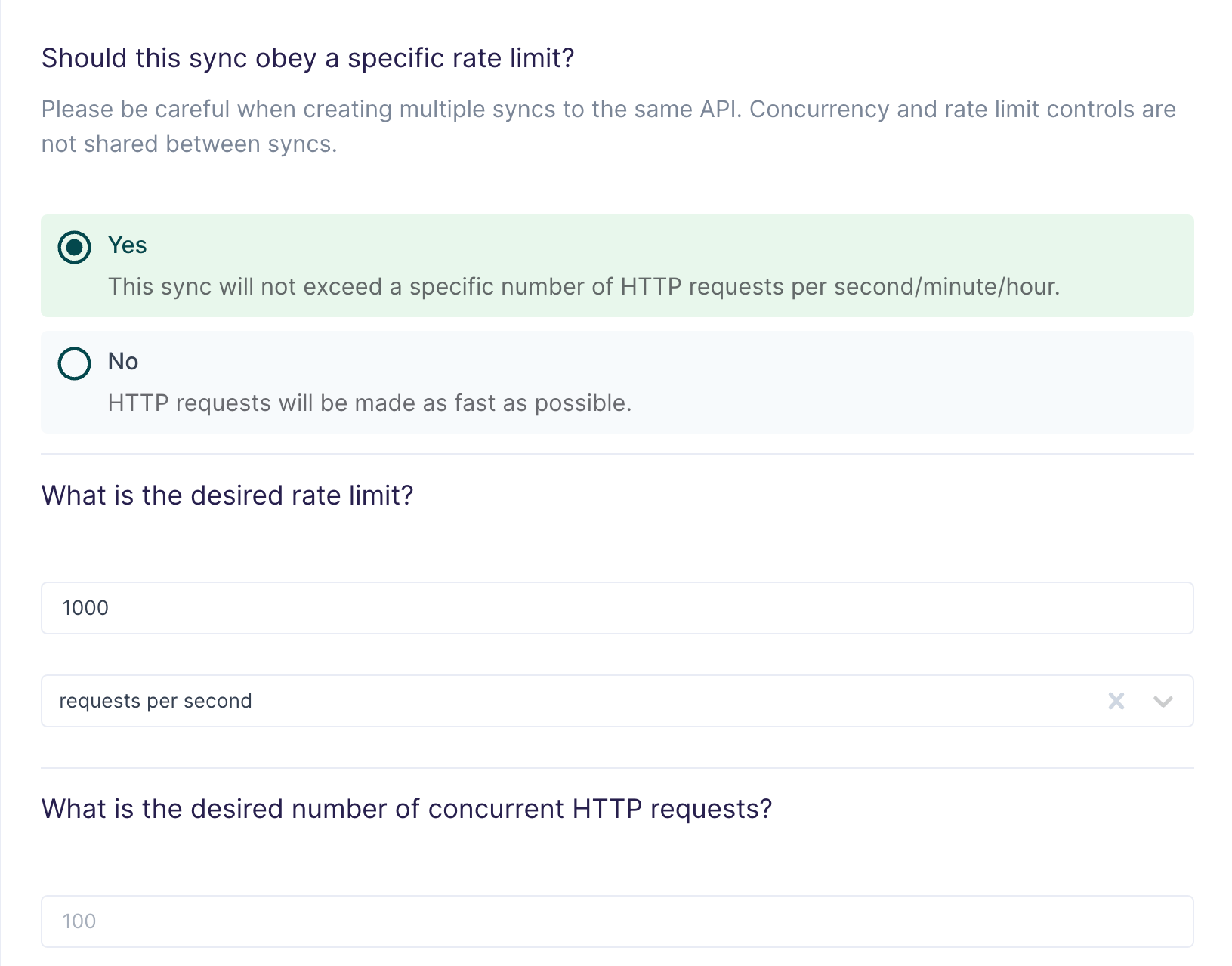

Concurrency and rate limit controls aren’t shared between syncs and don’t
persist across sync runs.
Configure error handling
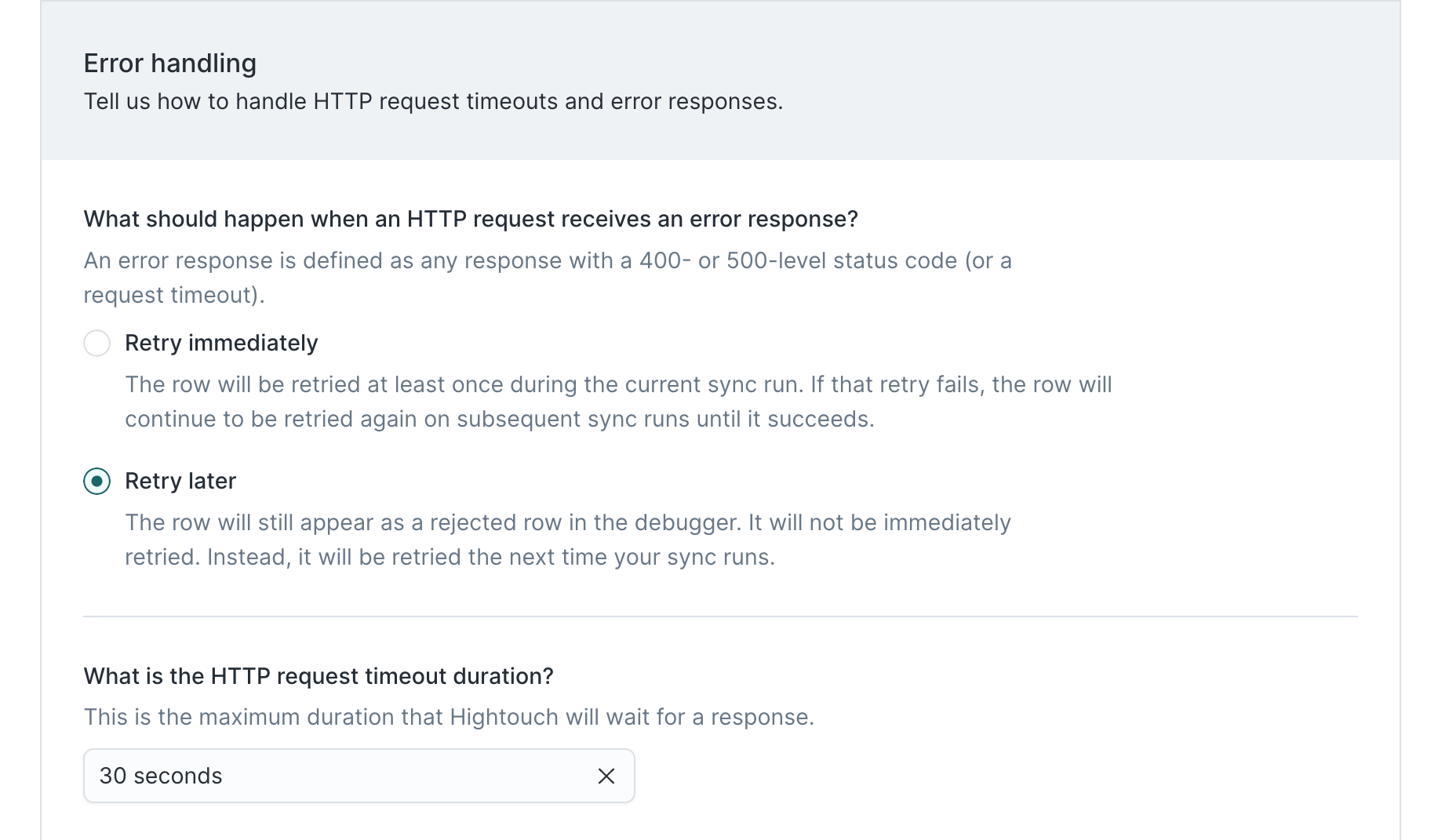
In this step, you tell Hightouch how to handle errors, such as HTTP request timeouts and error responses.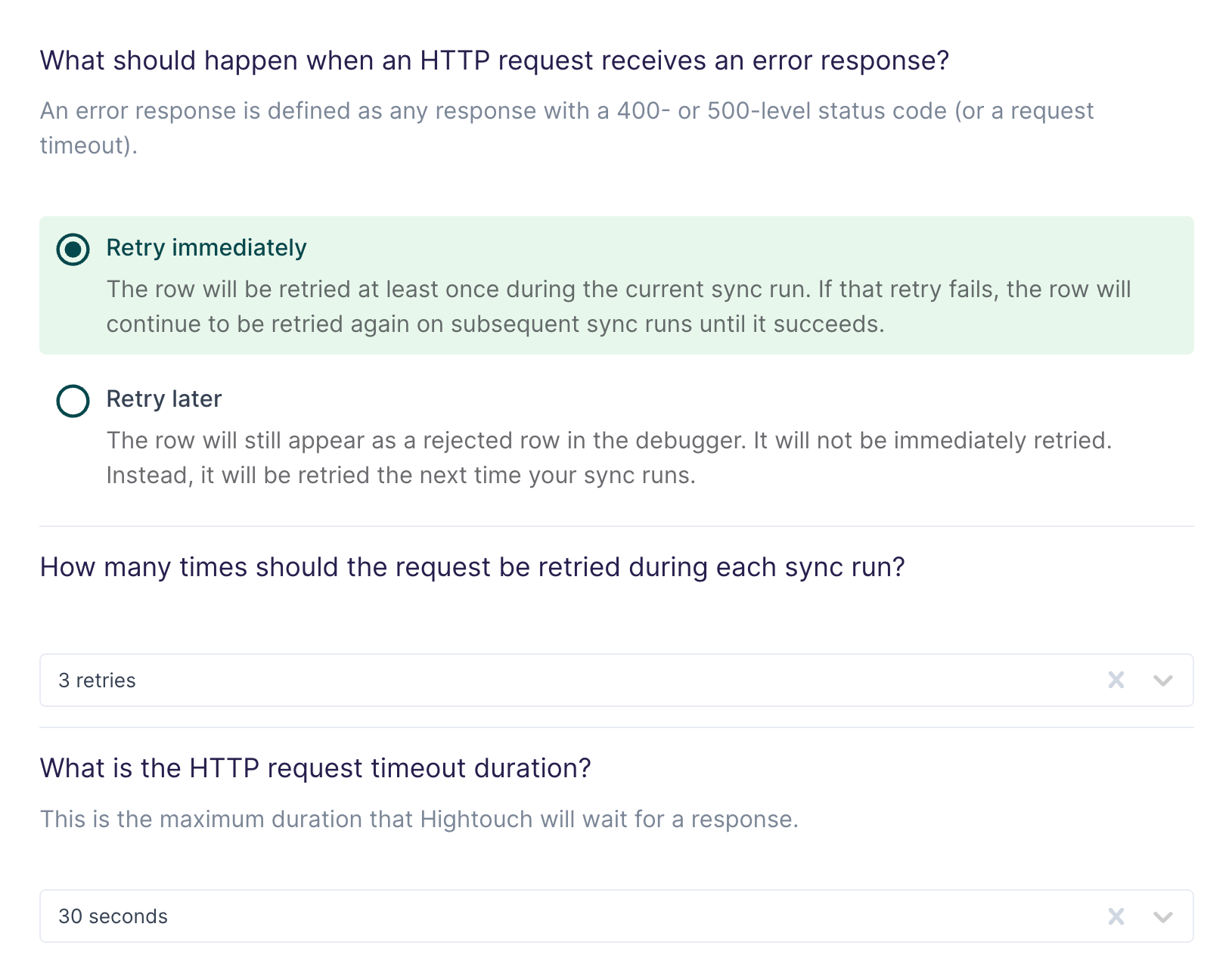
Any HTTP response with a 400- or 500-level status code is considered an error.
Configure initial sync behavior
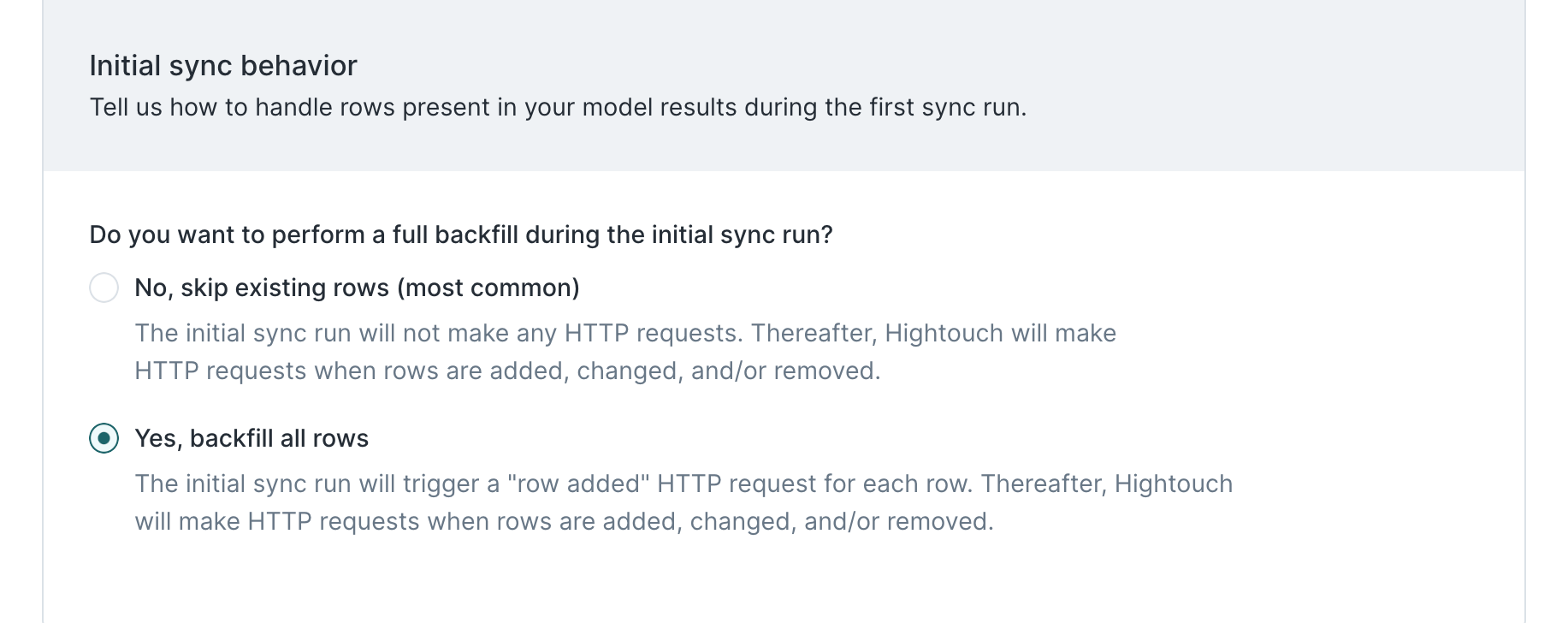
In this step, you tell Hightouch how to handle rows present in your model results during the first sync run.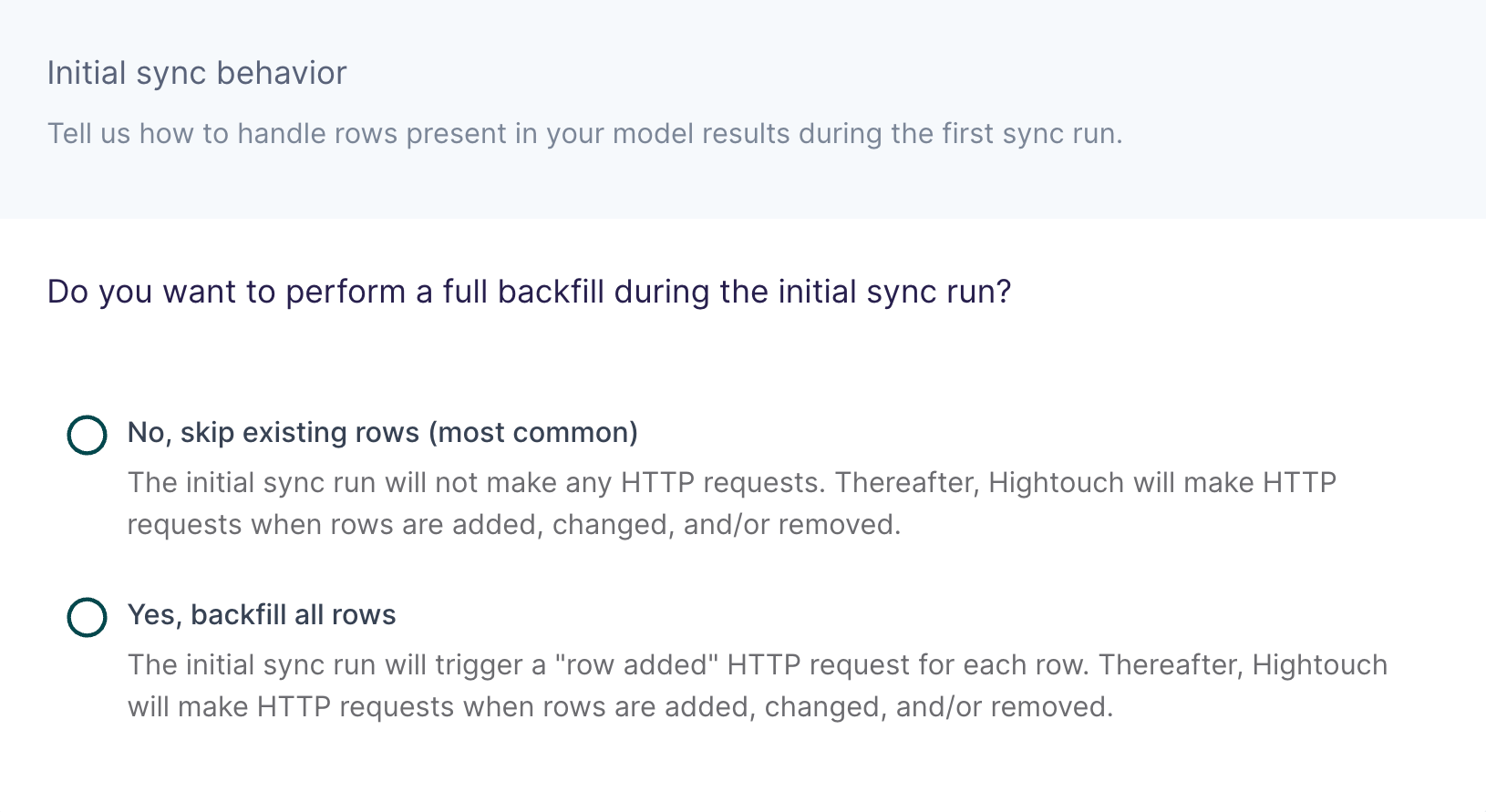
Limitations
This destination can’t perform complex operations that involve lookups or multiple requests chained together. If you need to perform such complex operations, consider using one of our serverless function destinations: AWS Lambda, Google Cloud Functions, or Azure Functions. You could also build your own integration using our Embedded Destination framework.Tutorial
This guided tutorial uses the HTTP Request destination to integrate Hightouch with Algolia’s REST API. Specifically, it gives instructions for how to sync synonyms in a search index for each row added to a data model. Hightouch provides an Algolia integration that allows you to index records and events, but not synonyms, rules, or other Algolia objects.Destination configuration
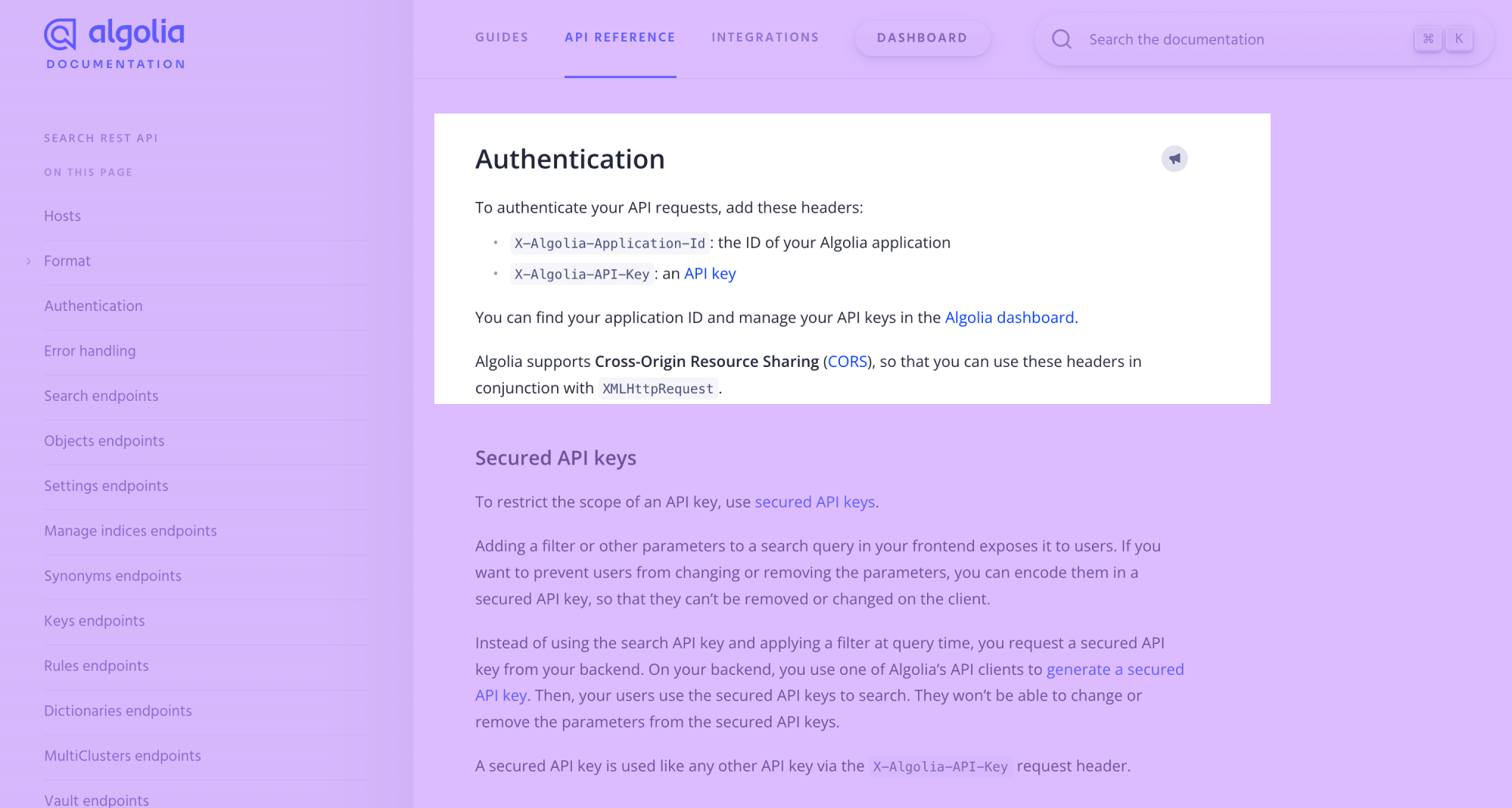
First, we go to the Destinations overview page and click the Add destination button. Then, we select HTTP Request and click Continue. Next, the UI prompts us to enter a base URL, HTTP headers, and certificate. Algolia’s Search API has the same host URL for searching, adding objects, and adding settings like synonyms.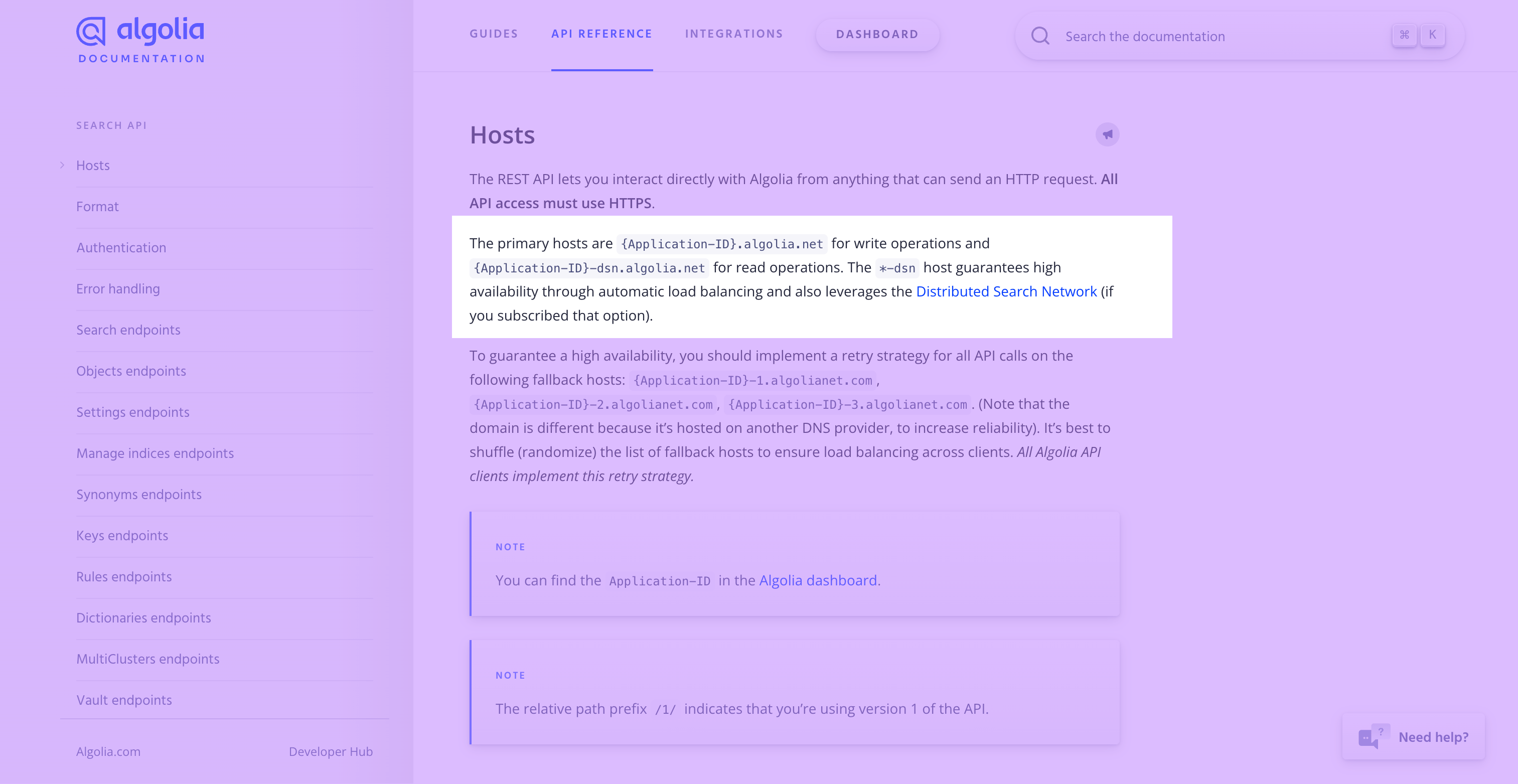
X-Algolia-Application-Id: the ID of your Algolia applicationX-Algolia-API-Key: an API key
Create synonyms
Next, we need to understand Algolia’s API for adding synonyms to a search index. According to Algolia’s API reference, we can add multiple synonyms by making aPOST request to the /1/indexes/{indexName}/synonyms/batch endpoint.
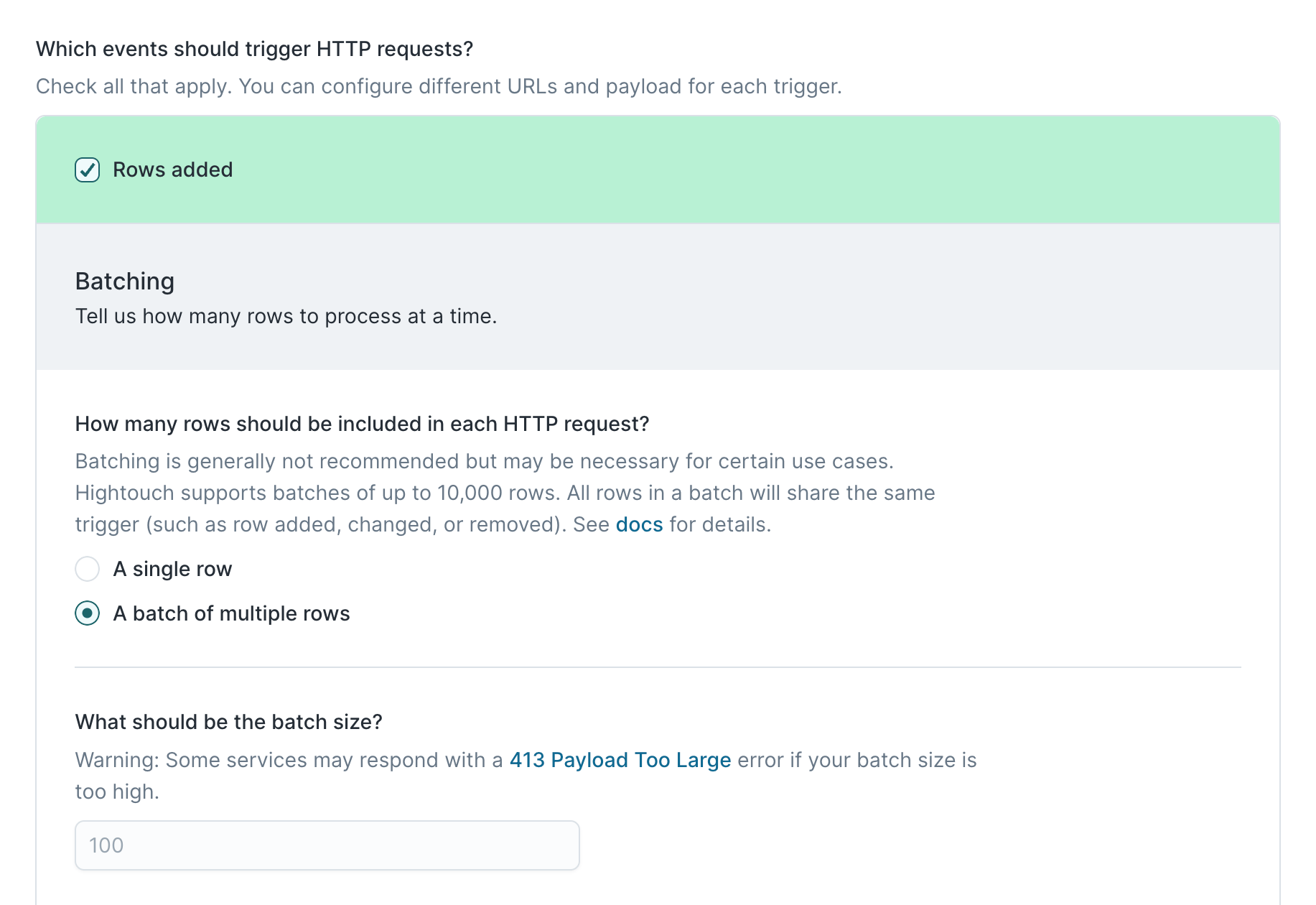
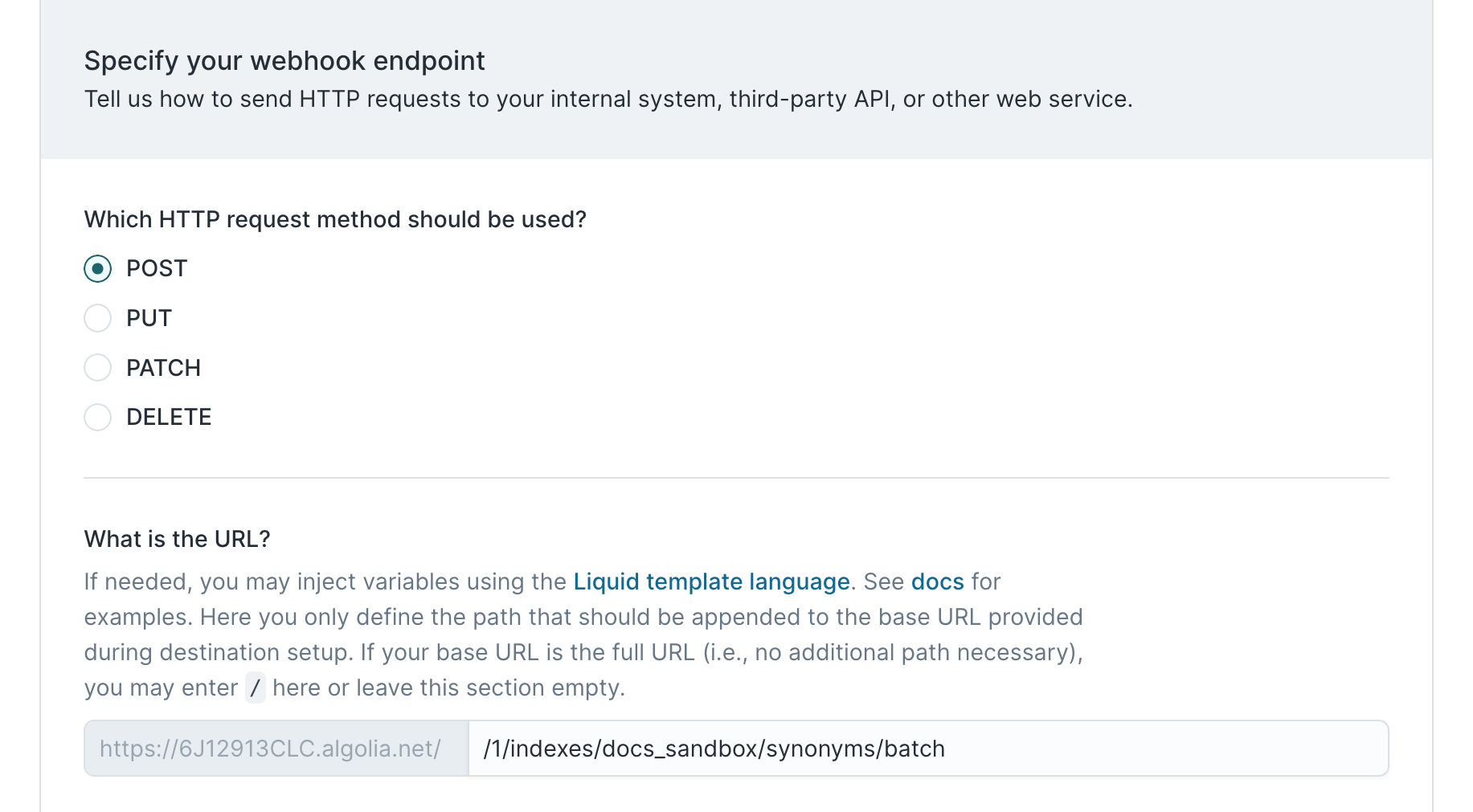
Here’s how we can configure the rows added trigger in Hightouch to match this:
- Select to add a batch of multiple rows in each request, we can leave the default batch size of 100
- Select POST as the HTTP method
- Enter
/1/indexes/{indexName}/synonyms/batchas the URL
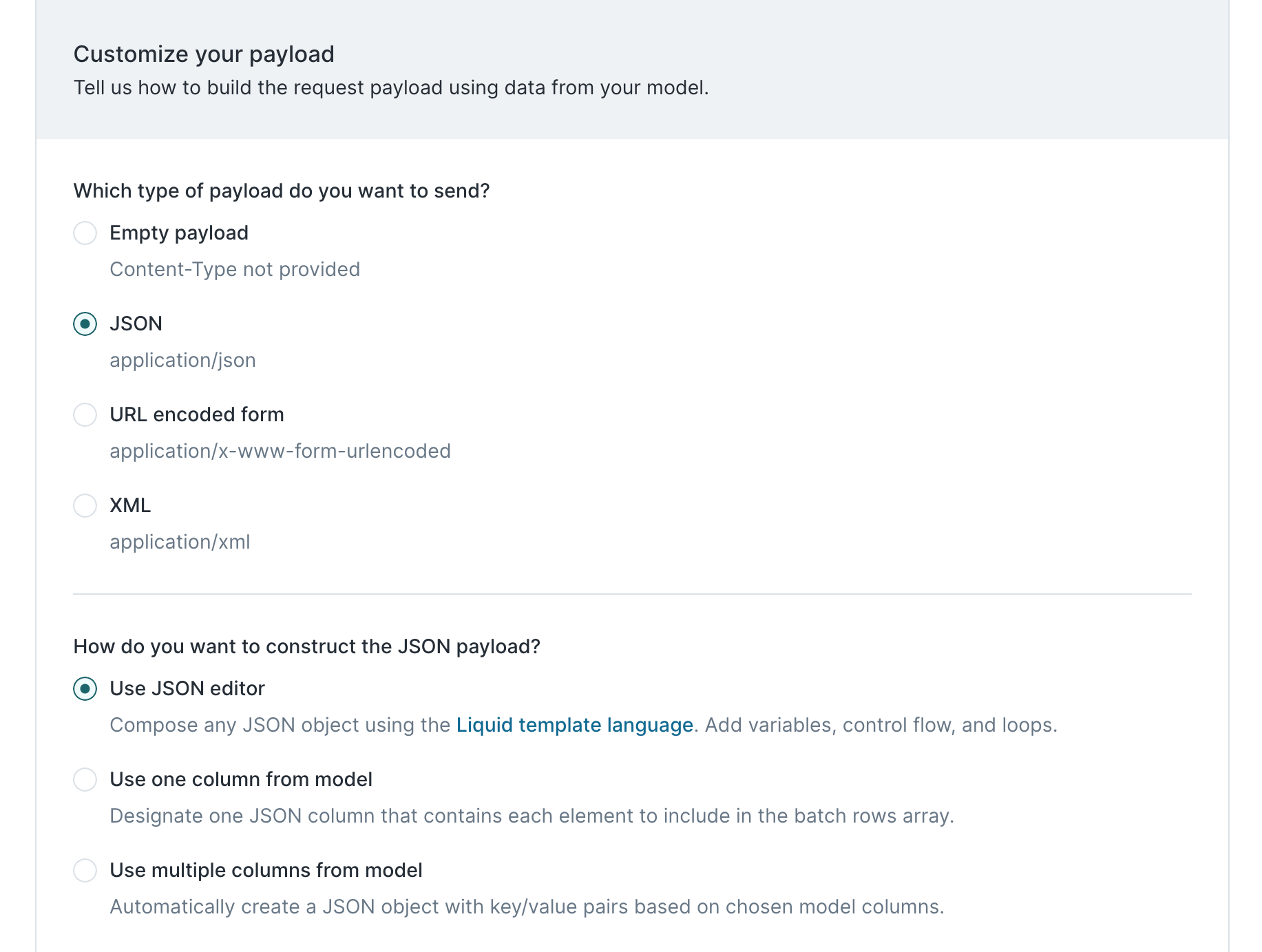
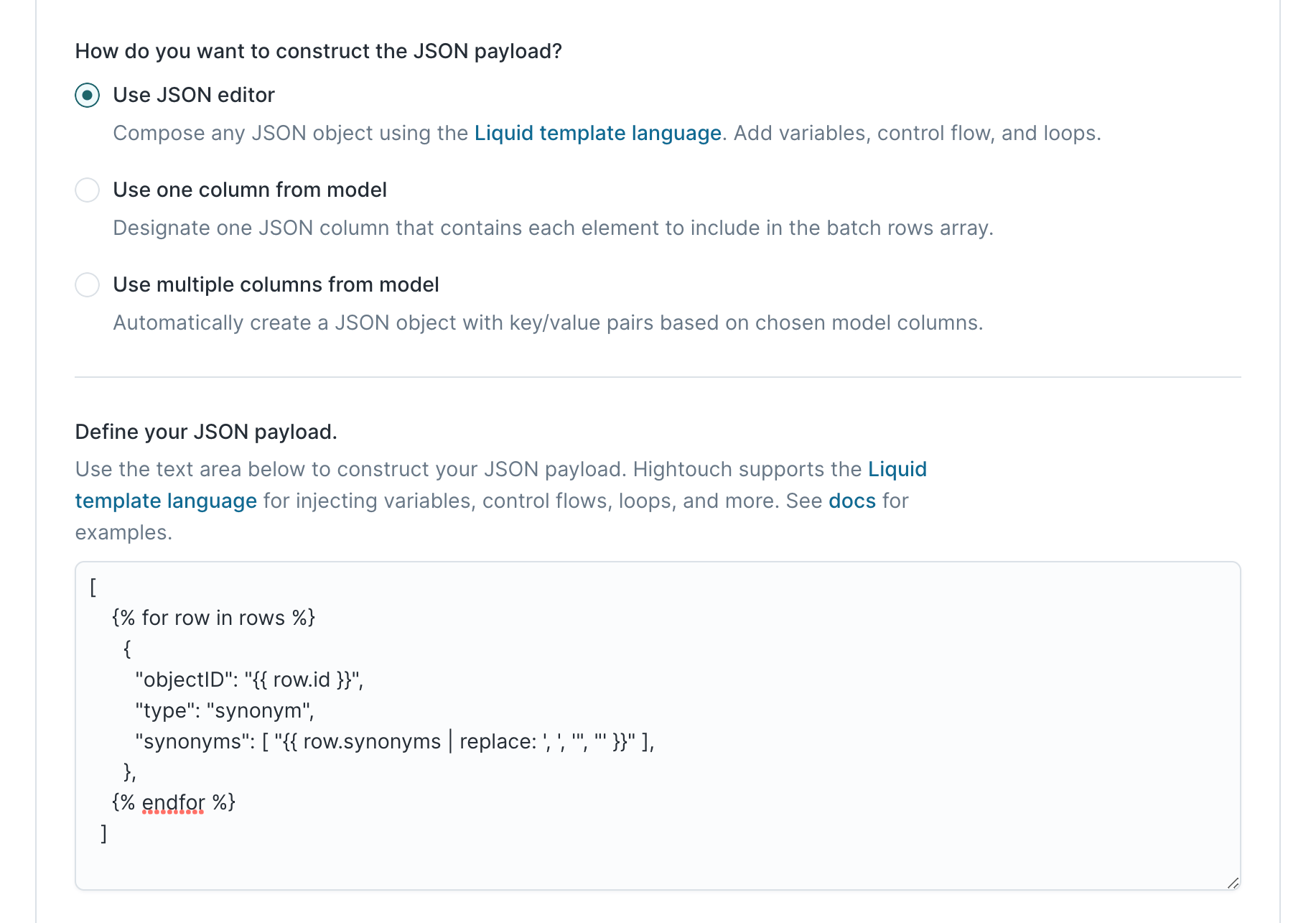
Algolia’s synonym batch endpoint reference tells us that the synonym batch endpoint expects a JSON array of synonyms with a specific format.
This example uses the Liquid
replace
function to create a
properly formatted array from a comma-separated string. If the data type in
the model results is already an array, this transformation isn’t necessary.