

Overview
Power your The Trade Desk platform with up-to-date data straight from your data warehouse. Sync first-party data or use highly customizable postback URLs to handle data your way. Keeping your data updated equips your team with the necessary tools they need to deliver a top of the line advertising experience.Supported syncing
Connect to The Trade Desk
You need to enter different credentials depending on whether you’re syncing events, CRM data segments, or first-party data segments. If you plan to use multiple sync types, enter the necessary credentials for all of them. Entering all the required credentials lets you use the same destination setup for every Trade Desk sync. Once you have entered your inputs, press the Test Connection button to check you have inputted valid credentials.Postback events credentials
For Hightouch to sync postback events, you need to enter a root postback URL.Conversion events credentials
For Hightouch to sync real-time conversion events, you need the following:- Advertiser ID
Offline conversion events credentials
For Hightouch to sync offline conversion events, you need the following:- Advertiser ID
- Offline data provider ID
- Offline data provider secret key
CRM data segment credentials (not recommended)
For Hightouch to sync data to your CRM data segments, you need the following:- Advertiser ID
- Environment - select either your
ProductionorSandboxenvironment - API token
First-party data segment credentials
For Hightouch to sync data to your first-party data segments, you need the following:- Advertiser ID
- Environment - select a server location of your choice
- Advertiser secret key
Third-party data segment credentials
For Hightouch to sync data to your third-party data segments, you need the following:- Data provider ID
- Environment - select a server location of your choice
- Data provider secret key
Event opt-out or deletion credentials
For Hightouch to sync opt-out or deletion requests, you need different credentials depending on the data type:- First-party data (Advertiser): Requires the Advertiser ID and Advertiser secret key from your first-party data credentials
- Third-party data: Requires the Data provider ID and Data provider secret key from your third-party data credentials
- Merchant data: Requires the Data provider ID and Data provider secret key from your third-party data credentials
Sync configuration
Syncing postback events
Hightouch supports inserting impression data as events to The Trade Desk.Field mapping
You can sync columns from your source to The Trade Desk event custom fields.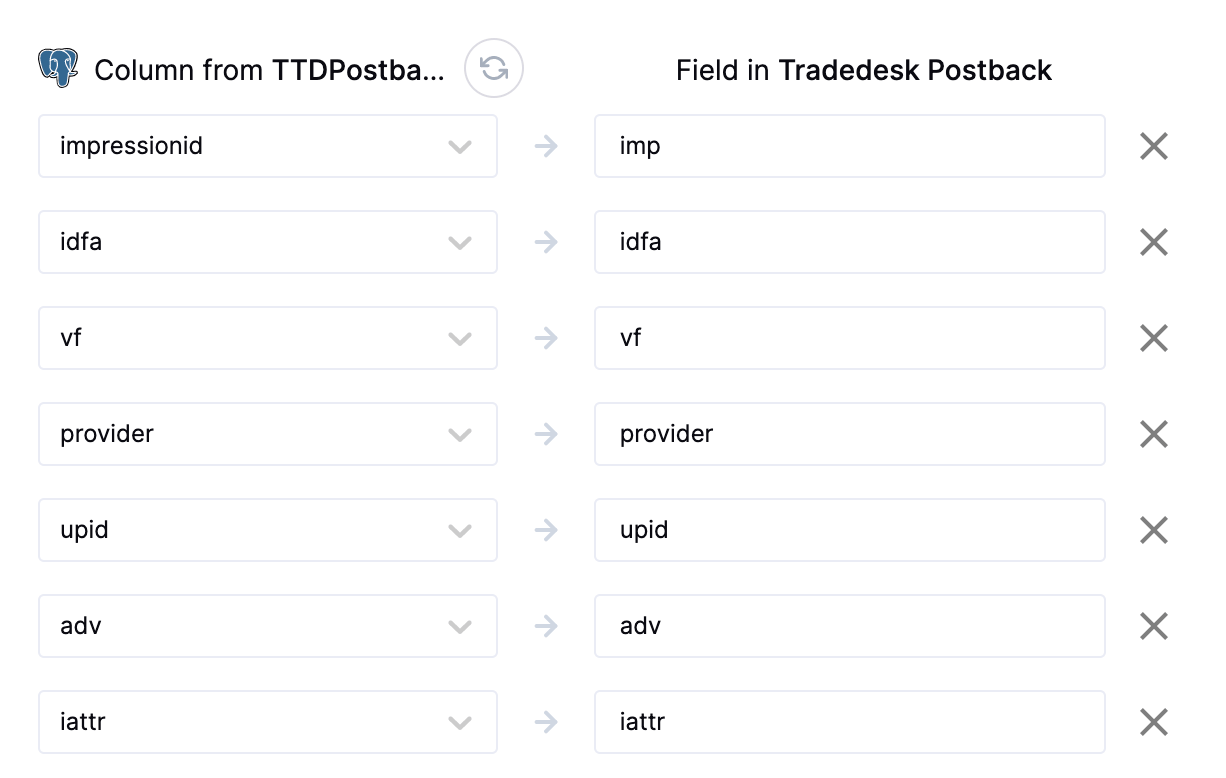
Syncing real-time conversion events
Sync data from any source to The Trade Desk Ads as real-time conversion events.Field mapping
Hightouch lets you sync event properties via field mappings.Custom mappings
You can also map additional custom data using The Trade Desk’s ten sequentially numbered custom dynamic properties to provide additional conversion metadata (t1-t10).
ID Express
ID Express is available to all Customer Studio and Match Booster customers. If
you do not have access to this feature, contact your rep to inquire about
eligibility.
Using ID Express
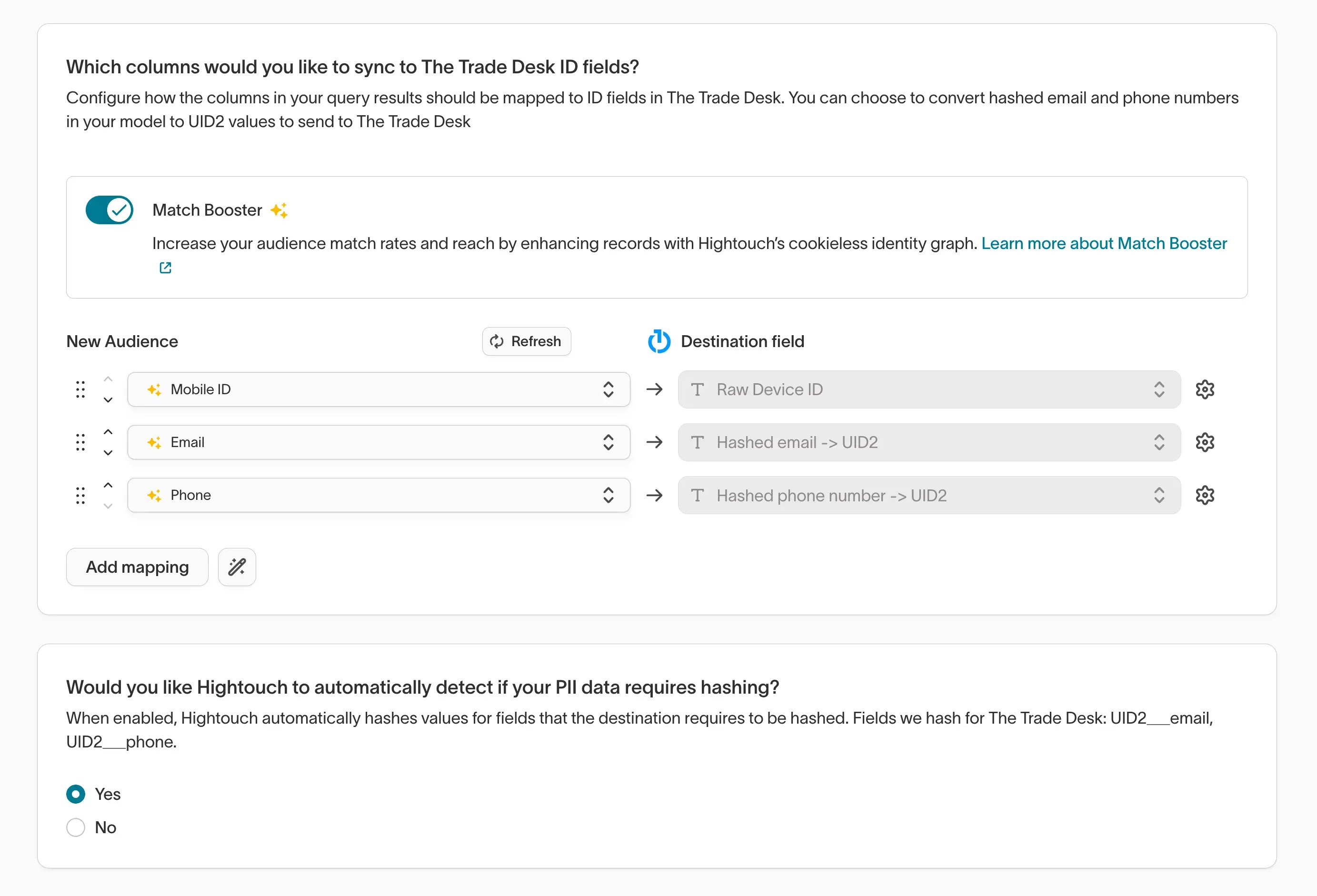
To use ID Express, map the appropriate email or phone number fields to the ID Express mappings in the configuration interface:Hashed email → UID2Hashed phone → UID2
How ID Express works
At sync time, Hightouch translates the hashed email and phone number values that you provide into UID2s before sending them to The Trade Desk. Hightouch then shares only the UID2 identifiers downstream with The Trade Desk, excluding the email and phone data. If non-PII identifiers like MAIDs and TDIDs are also mapped, Hightouch recombines those identifiers with the UID2s and sends all of them to The Trade Desk to maximize match rates.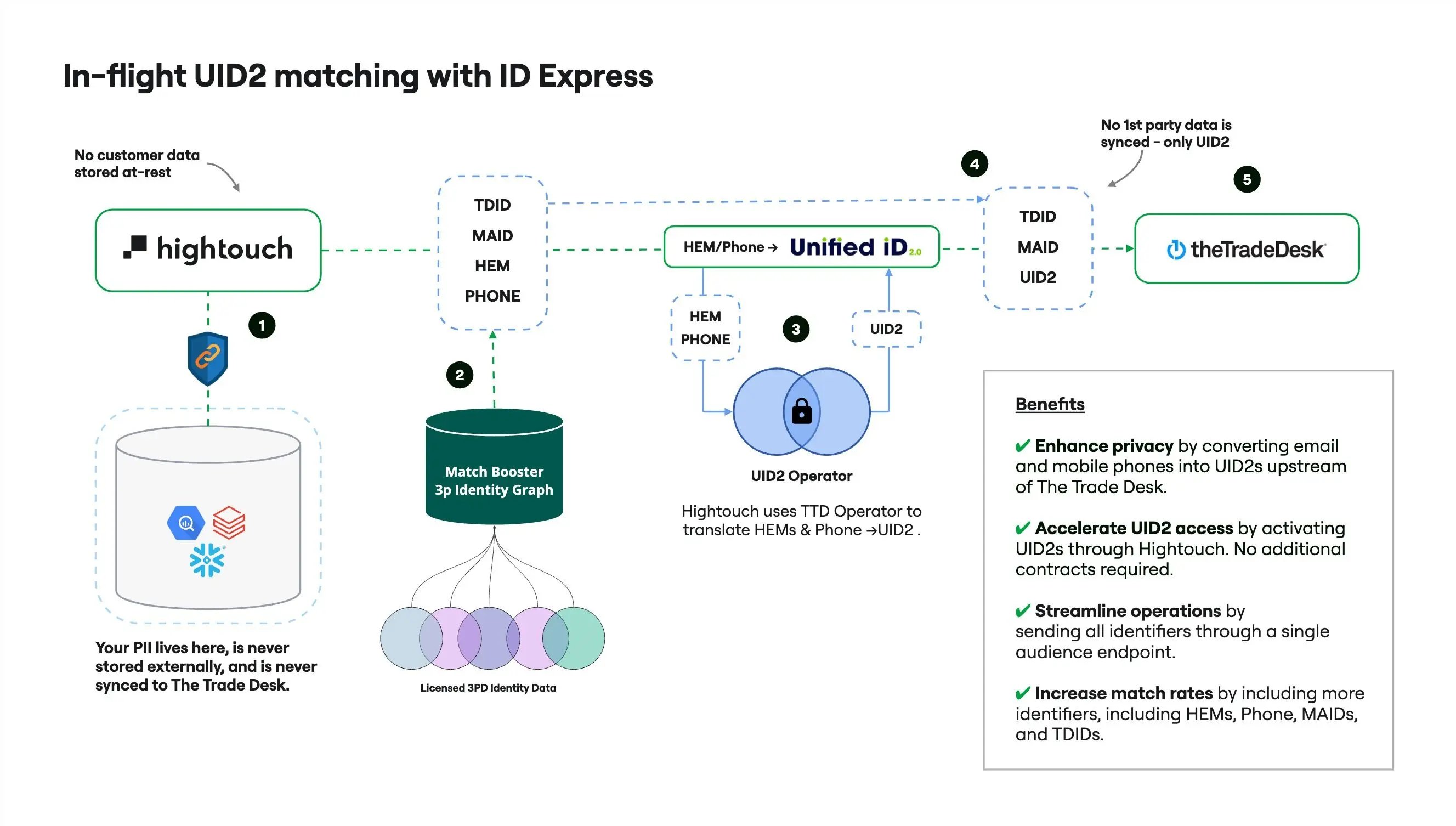
Syncing offline conversion events
Sync data from any source to The Trade Desk as offline conversion events.Offline conversion event types
Select which offline conversion event type you’d like to send to The Trade Desk:- First party: these events are used in retargeting, campaign optimization, and measurement.
- Third party: send events to an advertising partner’s seat in The Trade Desk. You can set your conversion feed, CPM rate, and advertiser access for self-service monetization as well.
- Merchant: these events are used for retail use-cases, including SKU-level reporting for retailers and monetization by sharing conversion-based audience and measurement feeds
Order ID is a required field for each event. You also have the ability to include line items with each event.
For third party events, provide the advertiser ID you’d like to share these events with in the sync configuration. You can also set the CPM rate and media cost for these events in the sync configuration.
Offline tracking tags
An offline tracking tag is required for each offline conversion event in The Trade Desk. This offline tracking tag must be associated with the same offline data provider ID that is in the destination configuration. Select whether you’d like to use the same tracking tag for all rows in your sync, or map the tracking tag ID from a column in your source. You can optionally create a new offline tracking tag with the former option. Provide the name for your new offline tracking tag, and ensure that you have provided an API token in your destination configuration.Field mapping
At least one ID and the timestamp is required for each offline event. If you provide anImpressionId, no other IDs are required.
Hightouch supports the following ID types for offline conversion events:
Custom mappings
You can also map additional custom data using The Trade Desk’s ten sequentially numbered custom dynamic properties to provide additional conversion metadata (t1-t10).
Syncing CRM data segments
Hightouch supports inserting and removing your data to your CRM data segments in The Trade Desk. CRM data is first-party data that includes all client information collected and shared across your organization.User identifiers
To identify which users to add or update in an CRM data segment, select model columns and the corresponding Trade Desk fields. You can match on any of the following Trade Desk fields:- Email (SHA256)
- Phone
- Phone (SHA256)
If you map an identifier field that contains an array of values, Hightouch automatically fans out each element into a separate record when syncing to The Trade Desk. Learn more about array identifier fan-out.
Creating a new segment
In your sync configuration, you can tell Hightouch to create a new data segment for you. You can optionally assign a custom name to your segment. If no name is provided, Hightouch defaults to using your model name. You also need to select which region you would like to create your CRM data segment in. This is based on the origin of the PII.Using an existing segment
Additionally, instead of creating a new data segment Hightouch can also sync users to existing segments that are already populated in your The Trade Desk account.PII hashing
You can enable PII hashing if you wish for Hightouch to detect whether your data requires normalization and hashing based on the chosen record mapping. For example, if you selectEmail (SHA256) and the model column selected with the email data is unhashed, Hightouch hashes the value for you.
TTL
Data synced into The Trade Desk has a Time-To-Live (TTL) value. This is the amount of time the data remains active in the segment. The default recommended value by The Trade Desk is 90 days. If you wish to customize this interval, you can choose a column or enter the number of days (between 0 and 180) you want your data to live in the segment for.Full Resync interval
This is the interval Hightouch will use to schedule a full resync of your data to The Trade Desk. The Trade Desk recommends a full data refresh every 30 days, however you can choose to retain hashed data for up to 90 days or process it once.Syncing CRM data conversions
Hightouch supports syncing up-to-date query results as conversions to CRM Data segments in The Trade Desk. This sync type is designed specifically for conversion tracking and differs from CRM data segments by requiring a timestamp for each conversion event and only supporting insert operations.User identifiers
To identify which users to send conversion events for, select model columns and the corresponding Trade Desk fields. You can match on any of the following Trade Desk fields:- Email (SHA256)
- Phone
- Phone (SHA256)
If you map an identifier field that contains an array of values, Hightouch automatically fans out each element into a separate record when syncing to The Trade Desk. Learn more about array identifier fan-out.
Creating a new conversion segment
In your sync configuration, you can tell Hightouch to create a new conversion segment for you. You can optionally assign a custom name to your segment. If no name is provided, Hightouch defaults to using your model name. You also need to select which region you would like to create your CRM data segment in. This is based on the origin of the PII.Using an existing conversion segment
Instead of creating a new conversion segment, Hightouch can also sync conversion events to existing conversion segments already populated in your The Trade Desk account.PII hashing
You can enable PII hashing if you wish for Hightouch to detect whether your data requires normalization and hashing based on the chosen record mapping. For example, if you selectEmail (SHA256) and the model column selected with the email data is unhashed, Hightouch hashes the value for you.
Field mappings
CRM data conversions require a timestamp for each conversion event. You can also include additional conversion parameters:Custom mappings
You can also map additional custom data using The Trade Desk’s ten sequentially numbered custom dynamic properties to provide additional conversion metadata (TD1-TD10).
First and third party data segments
Hightouch supports inserting your data to first and third party data segments in The Trade Desk.Field mappings
You can sync columns from your model to The Trade Desk on the following fields:- Trade Desk GUID: The Trade Desk 36-character GUID (including dashes) for a user.
- Raw Device ID: the raw device ID for this user, sent in 36-character GUID format, including dashes. Use iOS IDFA or Android’s AAID.
- UID2: The 256-bit UID2 as a base64-encoded string.
- UID2Token: The encrypted UID2 token.
- EUID: The user’s European Unified ID as a 44-character base64-encoded SHA-256 string. This ID is case-sensitive.
- EUIDToken String The encrypted EUID token.
- RampID: The 49-character or 70-character RampID, previously known as IdentityLink. This must be a RampID from LiveRamp that is mapped specifically for The Trade Desk. For details about mapping a RampID, see LiveRamp documentation.
- ID5: Data providers holding these IDs should engage with ID5 directly to obtain the necessary decryption keys. For details see the ID5 site. NOTE: The ID5 ID must be in decrypted form.
- netID: A 70-character base64-encoded string. For details see the netID Developer Portal.
- FirstId: A first-party cookie typically set by publishers in France. For details see the First-id site.
- Hashed email → UID2: A SHA-256–hashed email address that Hightouch automatically converts into a Unified ID 2.0 (UID2) identifier during sync execution. If your email attribute is unhashed, Hightouch hashes it before translation.
- Hashed phone → UID2: A SHA-256–hashed phone number that Hightouch automatically converts into a Unified ID 2.0 (UID2) identifier during sync execution. If your phone attribute is unhashed, Hightouch hashes it before translation.
If you map an identifier field that contains an array of values, Hightouch automatically fans out each element into a separate record when syncing to The Trade Desk. Learn more about array identifier fan-out.
Creating a new segment
In your sync configuration, you can tell Hightouch to create a new data segment for you. You can optionally assign a custom name to your segment. If no name is provided, Hightouch defaults to using your model name.Using an existing segment
Instead of creating a new data segment Hightouch can also sync users to existing segments already populated in your The Trade Desk account.Full resync interval
Data synced into The Trade Desk has a Time-To-Live (TTL) value. This is the amount of time the data remains active in the segment. The default value recommended value by The Trade Desk is 30 days. If you wish to customize this interval, enter the number of days you want your data to live in the segment for. After it expires, Hightouch triggers a full resync on your next sync run to keep your data refreshed in The Trade Desk.Data taxonomy
When creating a new third-party segment, you can create a corresponding element in your third-party data taxonomy in The Trade Desk. See The Trade Desk’s data taxonomy design documentation for more details. To create a new data element, you need to update your destination configuration with a long-lived API token. Provide the following details when creating a new data element:- Provider Element ID: the identifier for your segment. Hightouch defaults to the sync ID.
- Parent Element ID: the identifier of the folder where this segment should live. Defaults to Root.
- Display name
- Description
Configure third-party data access
You can make this segment available to partners and advertisers by setting a data rate for it. See The Trade Desk’s data rates documentation for more on third-party audience availability and data rate levels. In your sync configuration, provide:- Advertiser ID: the advertiser you want to share this segment with.
- CPM Rate: the rate, in USD, you want to charge for this segment.
- Percent of Media Cost Rate: the percentage of media cost to use alongside the CPM rate cap, entered as a decimal (for example,
0.12for 12%).
Syncing event opt-out or deletion
Hightouch supports opt-out or full deletion of customer data from The Trade Desk. This sync type allows you to manage customer privacy requests by either opting out customer IDs from being used in campaigns or completely deleting their data from your seat in The Trade Desk.Data types
Select which type of data you’d like to send opt-out or deletion requests for:- First-party data (Advertiser): Opt-out or delete customer data from first-party advertiser campaigns
- Third-party data: Opt-out or delete customer data from third-party data segments
- Merchant data: Opt-out or delete customer data from merchant campaigns
Required configuration
Depending on the data type you select, you’ll need to provide additional configuration:- Third-party data:
Brand IDis required - Merchant data:
Merchant IDis required - First-party data: Uses the
Advertiser IDfrom your destination configuration
User identifiers
Configure how the columns in your query results should be mapped to ID fields for opt-out or deletion requests. You can map to the following Trade Desk ID fields:Trade Desk GUIDRaw Device IDUID2UID2TokenEUIDEUIDTokenRampIDID5netIDFirstId
Opt-out vs. full deletion
By default, this sync type performs an opt-out operation, which prevents the customer’s data from being used in campaigns while retaining the data in your datasets. If you enable the full delete option, Hightouch will delete the customer’s ID from your datasets entirely, including:- Data segments
- REDS feeds
- All other associated data in The Trade Desk
Sync mode
This sync type only supports insert mode. Each sync run will process the rows in your model as new opt-out or deletion requests.Tips and troubleshooting
To see the exact API requests and responses from each sync run, use the live debugger. To get notified by Slack, PagerDuty, SMS, or email when a sync fails, set up sync alerts. If you run into an issue this page doesn’t cover, .Matched users count
Below only applies to the CRM data segment sync type. Hightouch retrieves the audience metadata from The Trade Desk in real-time. The matched user count reflects the active IDs based on a 7-day look back window where the ID came up for bidding.Common errors
403 - You are not authorized to access Provider ‘hightouch’
The Trade Desk returns this error when a CRM data segment sync uses an Advertiser ID or API token that isn’t allowed to create CRM data segments for thehightouch provider.
To fix it:
- Check that the Advertiser ID, Environment, and API token in your destination settings are correct.
- If they are, ask your Trade Desk account manager to enable CRM data segment creation for the
hightouchprovider for that advertiser and API login.