

Supported syncing
For more information about sync modes, refer to the sync modes docs.
Connect to AppsFlyer
Go to the Destinations overview page and click the Add destination button. Select AppsFlyer and click Continue. You can then authenticate Hightouch to AppsFlyer by entering the following fields depending on your use case: To sync S2S events:- AppsFlyer V2 S2S key to use AppsFlyer’s
api3events endpoint. Follow these instructions in AppsFlyer’s docs to create a S2S key. - Dev key (legacy) to use AppsFlyer’s
api2events endpoint. As of December 2023, AppsFlyer has deprecatedapi2. We recommend updating your configuration to use the S2S key for best performance. If you choose to use a dev key, follow these instructions in AppsFlyer’s docs
api2 to api3, see AppsFlyer’s announcement here.
To sync to audiences:
- AppsFlyer V2 API key: You can create a V2 API key by following these instructions.
Sync configuration
Once you’ve set up your AppsFlyer destination and have a model to pull data from, you can set up your sync configuration to begin syncing data. Go to the Syncs overview page and click the Add sync button to begin. Then, select the relevant model and the AppsFlyer destination you want to sync to.Syncing server-to-server events
You can use server-to-server events to send mobile events that occur outside the app from your servers to AppsFlyer. Appsflyer’s API requires the following event parameters:app_ideventNameeventValue
Appsflyer app ID
The app ID is the identifier used in the AppsFlyer dashboard. Insert it exactly as it appears on the dashboard. You can either provide a static value or select to use a column from your model. Hightouch syncs the static or column value as theapp_id path parameter the API requires.
Event name
Providing an event name is required to send an event to the Appsflyer API. You can either provide a static value or select to use a column from your model. Hightouch syncs the static or column value as theeventName body parameter the API requires.
Event timestamp
You can optionally select a column that contains timestamps of when events occurred. If this field is empty, Appsflyer uses the time the event arrives at the server.Field mapping
Hightouch lets you map model columns to event metadata. Some of the metadata fields you can map to include:- AppsFlyer ID
- IDFV
- IP
- Operating system
Event value mapping
Each event must contain a JSONeventValue, for example:
eventValue field expects.
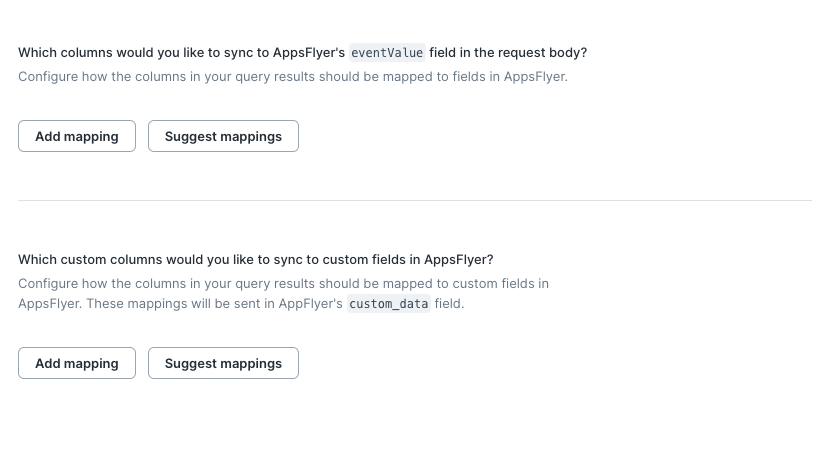
Custom mappings
You can also map additional custom data that Hightouch sends to the AppsFlyer platform as JSON using thecustom_data field.
Syncing audiences
This sync type lets you update which users belong to an audience. You must use an existing audience in AppsFlyer.Record matching
To identify which users to add or update in an audience, select model columns and the corresponding AppsFlyer fields. You can match on the following fields:- App ID
- IDFV
- IDFA
- GAID
- OAID
- IMEI
- CUID
- Phone
- Braze ID
- Amplitude ID
- GAID
- OAID
- IMEI
- CUID
- Braze ID
- Amplitude ID
- IDFV
- CUID
- Braze ID
- Amplitude ID
Select an existing audience or create a new one
You can create a new audience or use an existing one. When creating a new audience, you can optionally enter a name; otherwise, Hightouch defaults to the name of the associated model. To use an existing audience, you need to enter the audience’simport_key.
To get an audience’s import_key follow these instructions:
- In the AppsFlyer left-side panel, go to Integration > Audiences.
- Click on the name of the audience you want to update.
- Select the Import tab.
- In the Import using API section, choose Add new devices/users
- Copy the
import_keyin the API request body.