Overview
Deliver even more relevant ads by combining data from various sources within your data warehouse to build custom audiences for LinkedIn Ads. By keeping your custom audiences updated automatically, you can avoid showing irrelevant ads.Supported syncing
For more information about sync modes, refer to the sync modes docs.
Connect to LinkedIn Ads
Go to the Destinations overview page and click the Add destination button. Select LinkedIn Ads and click Continue. You can then authenticate Hightouch to LinkedIn Ads using OAuth.Authenticate with OAuth
For the Authentication method, select Log in to LinkedIn Ads and log into your LinkedIn Ads account. Once successful, you will be redirected back to Hightouch to enter a descriptive name for your destination and complete setup.Sync configuration
Once you’ve set up your LinkedIn Ads destination and have a model to pull data from, you can set up your sync configuration to begin syncing data. Go to the Syncs overview page and click the Add sync button to begin. Then, select the relevant model and the LinkedIn Ads destination you want to sync to.Syncing audiences
To get started, select an ad account to sync your data to, then select which audience object you want to sync data to: Company or User. Hightouch supports automatically creating a new audience for your sync. You can specify a custom name for this audience, or Hightouch will use the name of the model.Sync mode
This integration supports Upsert mode. New users will be inserted into the LinkedIn audience. Users that are removed from the model will be removed from the audience.Field mapping
The sync configuration has two field mapping sections:- ID fields: These are the primary identity keys that LinkedIn uses to match users, such as hashed email or Google Advertising ID (GAID). These values become
userIdsin the LinkedIn API payload. You must map at least one ID field. - Additional fields: These are supplemental fields—such as first name, last name, title, company, and country—that improve LinkedIn’s match rate but aren’t primary identifiers.
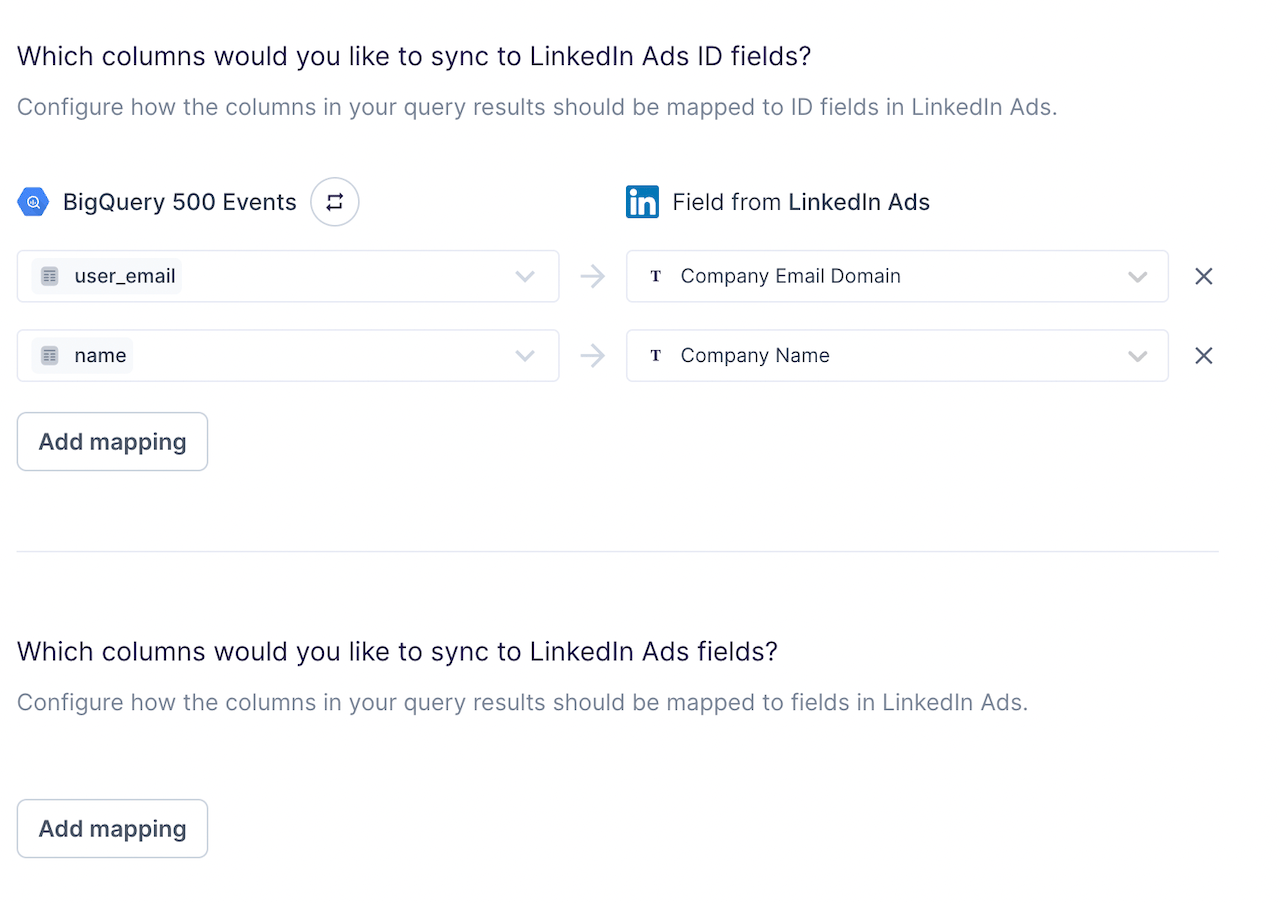
If you map an identifier field that contains an array of values, Hightouch automatically fans out each element into a separate record when syncing to LinkedIn. Learn more about array identifier fan-out.
Syncing conversions
Sync data from any source to LinkedIn as conversion events. Create a conversion rule in LinkedIn Campaign Manager. Select “Conversions” in your sync in Hightouch.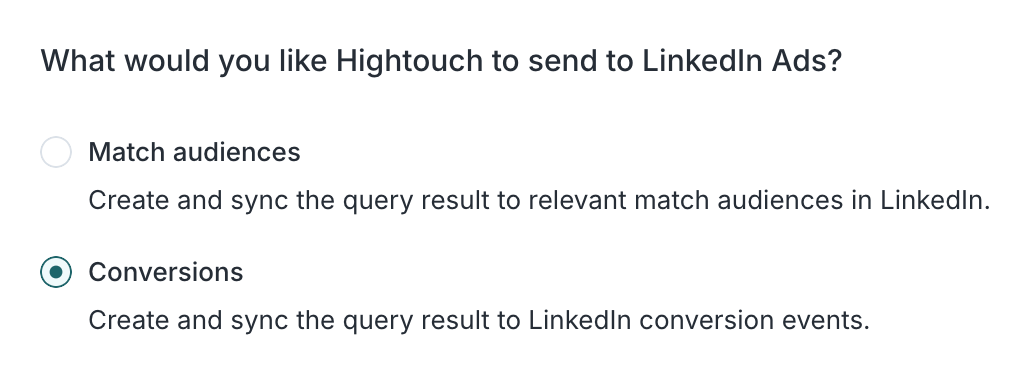
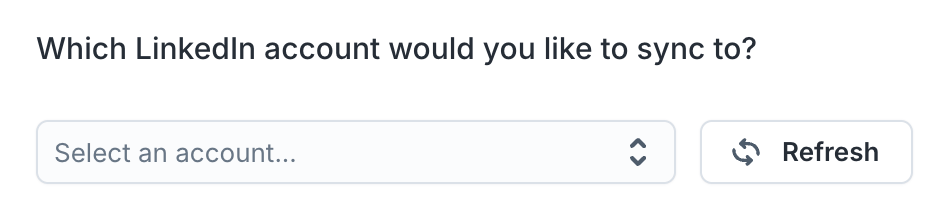

Record matching
You can match rows from your model to conversions in LinkedIn on the following user fields:- Email (SHA256)
- LinkedIn tracking UUID
- Acxiom ID
- Oracle moat ID
- IP address (IPv4)
- Google Advertising ID (GAID)
Handling PII and hashing
You can enable PII hashing if you want Hightouch to automatically detect, normalize, and hash fields that require it. For example, if you map to aEmail (SHA256) field and the model column with the email data is unhashed, Hightouch hashes the value for you.
By default, Hightouch automatically detects if the following fields require hashing:
- Email (SHA256)
- Email (SHA512)
View conversion tracking and reporting metrics
Once your sync is set up and published, you can view conversions tracking and reporting metrics in your LinkedIn Campaign Manager.Tips and troubleshooting
To see the exact API requests and responses from each sync run, use the live debugger. To get notified by Slack, PagerDuty, SMS, or email when a sync fails, set up sync alerts. If you run into an issue this page doesn’t cover, .For Hightouch platform error codes related to LinkedIn, see Error codes: LinkedIn.
Matched users count
Below only applies to the audiences sync type. Hightouch retrieves the audience metadata from LinkedIn Ads in real-time. The matched number displayed in Hightouch should reflect what you see in LinkedIn Ads. Note that the matched numbers are approximated to maintain privacy thresholds. Hightouch takes the matched count to calculate a match rate for your sync, where applicable. The calculation breakdown:matched_user_count / # of rows queried in the latest sync run
The match rate is not calculated when:
- syncing to an existing segment because the total number of records to ever be uploaded to the segment is unknown
- removed users from your model is not removed in LinkedIn Ads because the matched user count would be inflated in the calculation
- Your audience model is too small. Most ad platforms do not display the matched number unless there’s at least one thousand matched users to maintain privacy thresholds.
- The upload is still processing. We recommend waiting at least 72 hours from the first sync run for numbers to settle.
- Your data isn’t cleaned or hashed properly. Hightouch normalizes and hashes your data according to destination requirements, but it’s still good to make sure that the data is as clean as possible. Note that Hightouch cannot clean your data if you opt to hash it yourself. In that case, ensure you follow the data cleaning requirements for LinkedIn Ads.
Common errors
400 - MISSING_REQUIRED_FIELD
You may receive a400 - type=MISSING_REQUIRED_FIELD because the sync is sending a required field null values.
You can resolve this error by either:
- Removing rows containing
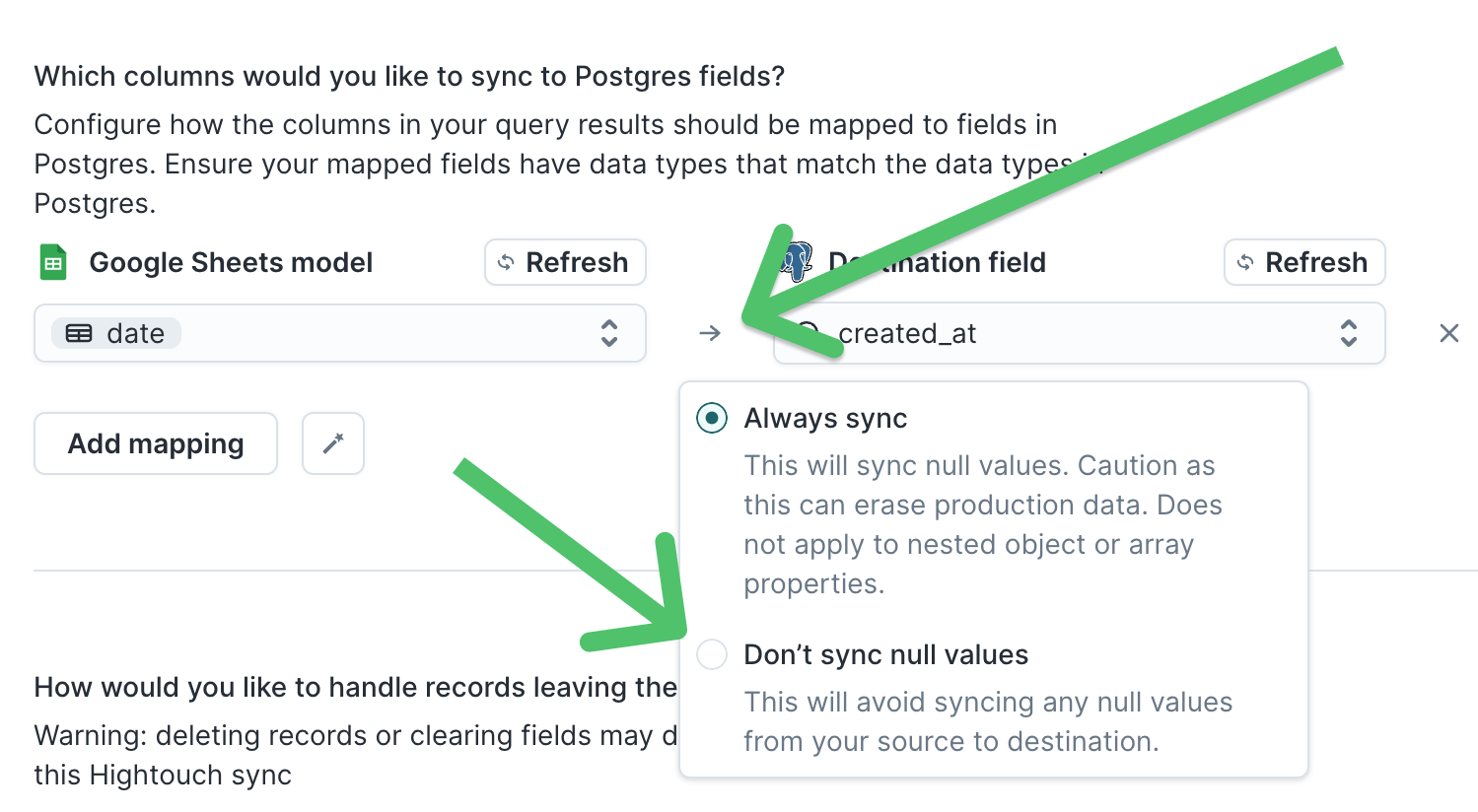
nullvalues from your model’s query results - Replacing any
nullvalues in your model’s query results with another value - Using the advanced mapper to ignore any
nullvalues