

Overview
Hightouch lets you pull data stored in SingleStore and push it to downstream destinations. Most of the setup occurs in the Hightouch UI, but you need access to SingleStore for information like your hostname, database, and credentials.You may need to allowlist Hightouch’s IP addresses to let our systems connect to your warehouse. Reference our networking docs to determine which IP addresses you need to allowlist.
Connection configuration
To get started, go to the Sources overview page and click the Add source button. Select SingleStore and follow the steps below.Choose connection type
Hightouch can connect directly to SingleStore over the public internet or via an SSH tunnel. Since data is encrypted in transit via TLS, a direct connection is suitable for most use cases. You may need to set up a tunnel if your SingleStore instance is on a private network or virtual private cloud (VPC).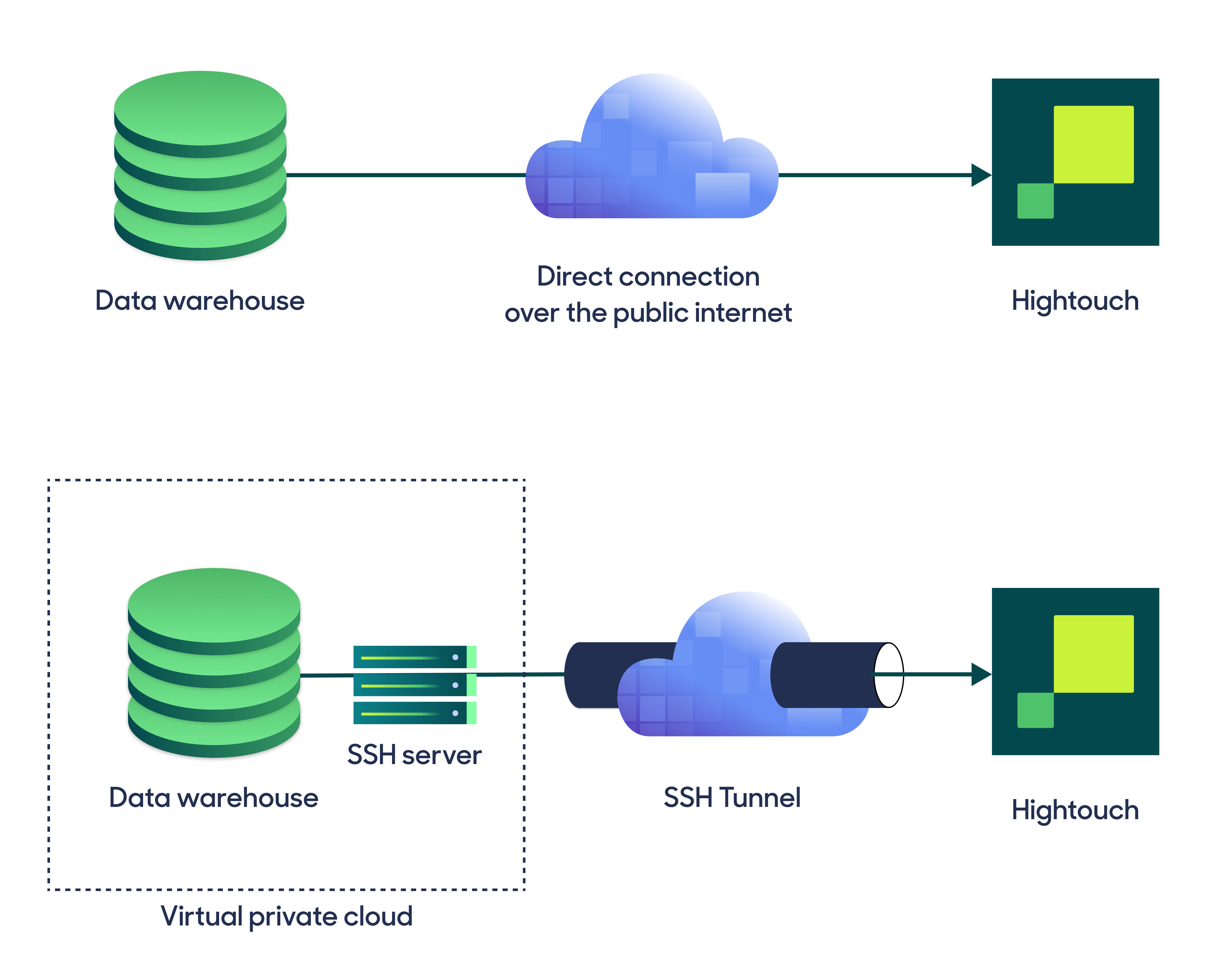
Configure your source
Enter the following required fields into Hightouch:- Host: The hostname or IP address of your SingleStore.
- Port: The port number of your SingleStore. The default is 3306, but yours may be different.
- Database: The name of the database in your SingleStore.
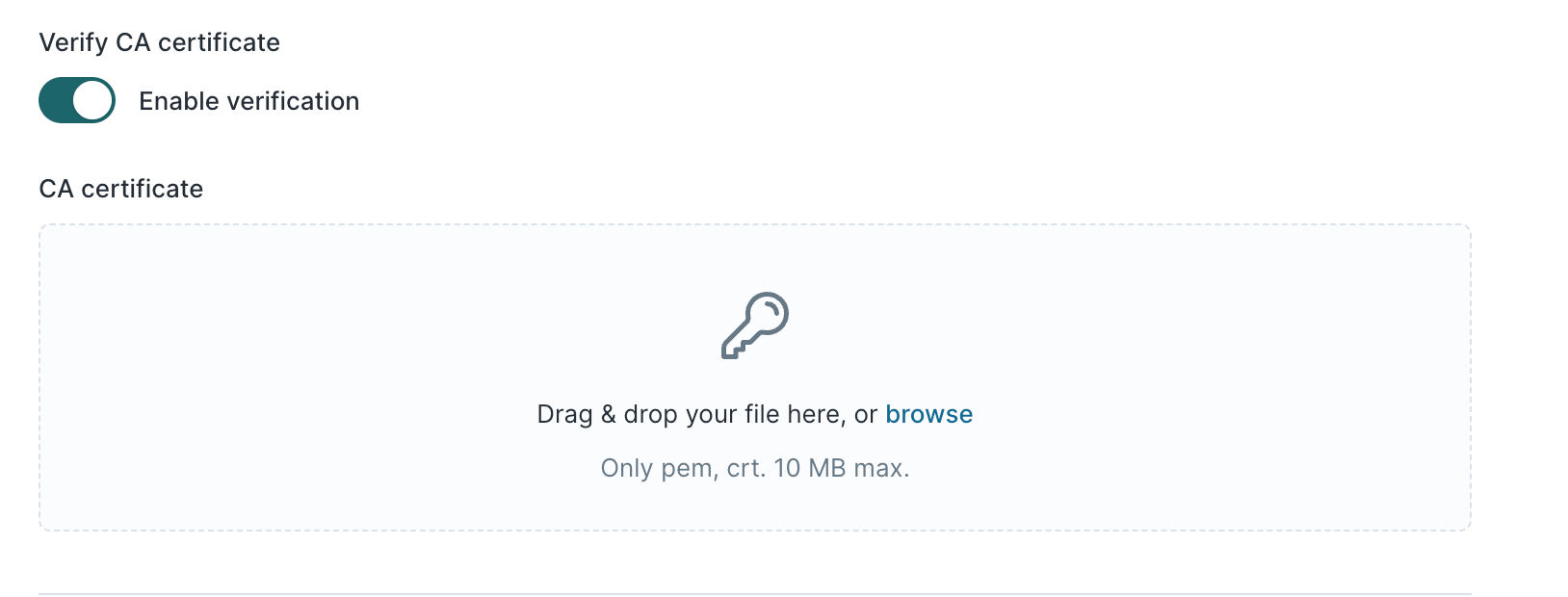
- Verify CA Certificate: Enable CA Certificate verification for a more secure connection.
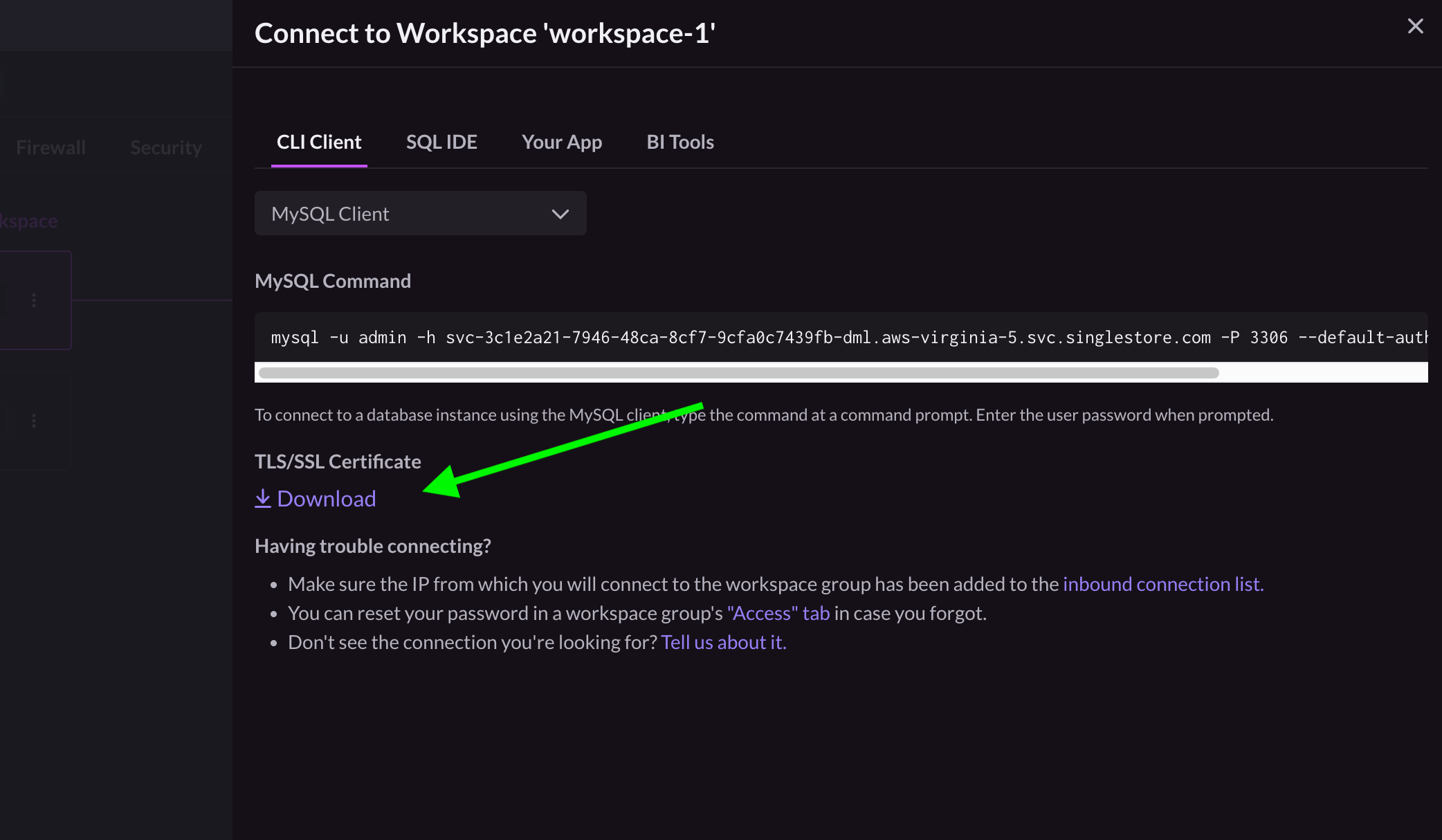
Provide your credentials
Enter the following fields into Hightouch:- User: A dedicated user for Hightouch.
- (Optional) Password: The password for the user specified above.
Test your connection
When setting up SingleStore as a source for the first time, Hightouch validates your credentials and access to your database. Once the test passes, click Continue to finish setup.Create models
Once your source configuration has passed the necessary validation, you’ve completed setting up SingleStore as a source. Next, you can set up models to define which data you want to pull from SingleStore. The SingleStore source supports these modeling methods:- writing a query in the SQL editor
- using the visual table selector
- leveraging existing dbt models