

For more information about sync modes, refer to the sync modes docs.
Connect to Notion
Go to the Destinations overview page and click the Add destination button. Select Notion and click Continue. You can then authenticate Hightouch to Notion by logging into Notion. Next, select which Notion pages you want to give Hightouch access to. Once successful, you will be redirected back to Hightouch to enter a descriptive name for your destination and complete setup.Sync configuration
Once you’ve set up your Notion destination and have a model to pull data from, you can set up your sync configuration to begin syncing data. Go to the Syncs overview page and click the Add sync button to begin. Then, select the relevant model and the Notion destination you want to sync to.Database selection
After selecting your desired sync mode, select the Notion database you want to sync data to.Record matching
To match rows from your model to database rows in Notion, you need to select a model column and corresponding Notion field. It’s best to select a unique identifier for record matching, otherwise the intended records may not be updated properly. Refer to the record matching docs for more information.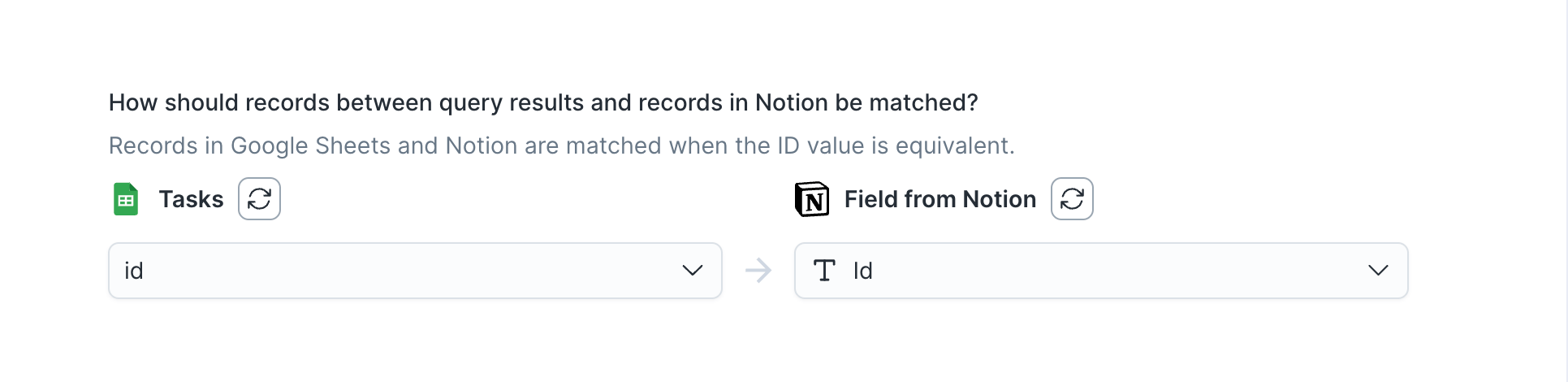
Field mapping
You can sync model columns to Notion’s database properties. Hightouch automatically detects existing database properties from your Notion databases.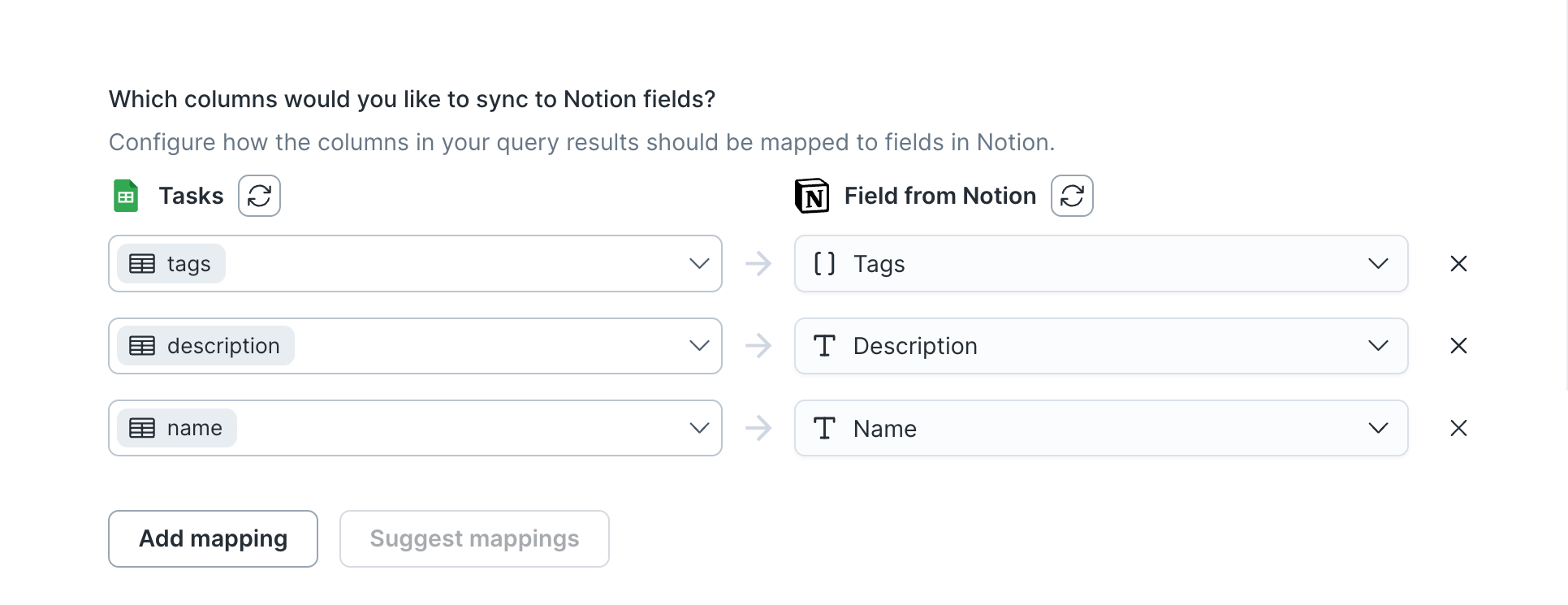
Supported Notion properties
Hightouch supports the following Notion database properties when field mapping.CheckboxDate: Hightouch supports a single date, and not a date rangeEmailMulti SelectNumber: If a number field is passed an invalid number, Hightouch attempts to convert it to a number. If the conversion result is invalid, the sync errors.PhoneRich TextSelectTitleURL
Delete behavior
The delete behavior you select dictates what to do when a row no longer appears in your model’s query results. You have the following options:Delete is only available on Upsert mode and Clear is available for
Upsert and Update mode.
Tips and troubleshooting
To see the exact API requests and responses from each sync run, use the live debugger. To get notified by Slack, PagerDuty, SMS, or email when a sync fails, set up sync alerts. If you run into an issue this page doesn’t cover, .Common errors
Database not appearing in dropdown
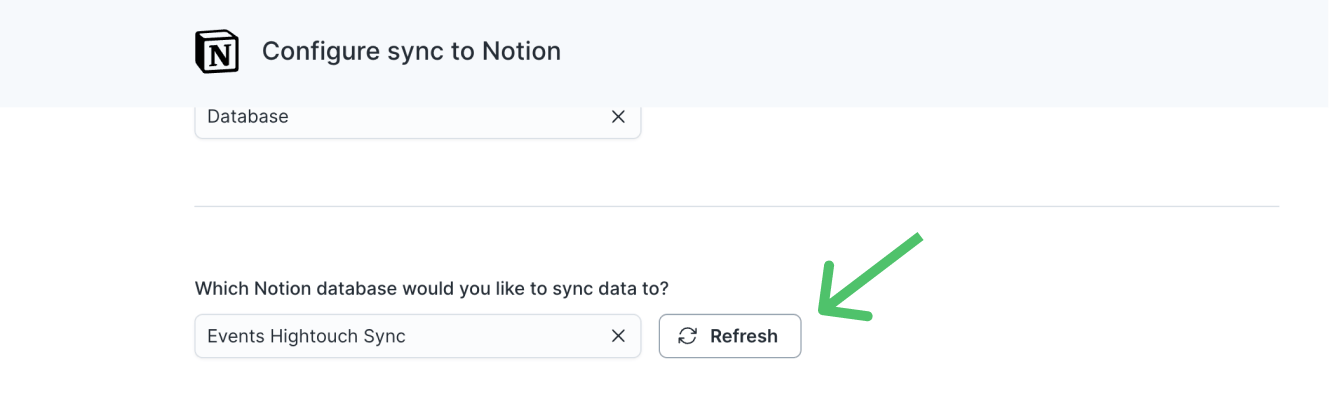
If the page containing the database within Notion has restricted access, the database won’t appear in the dropdown menu of the sync configuration, even if Hightouch is explicitly granted access during authentication. You may also receive a404 - Could not find database with ID: {...} error in the record matching section of your sync configuration, or when attempting to sync to Notion.
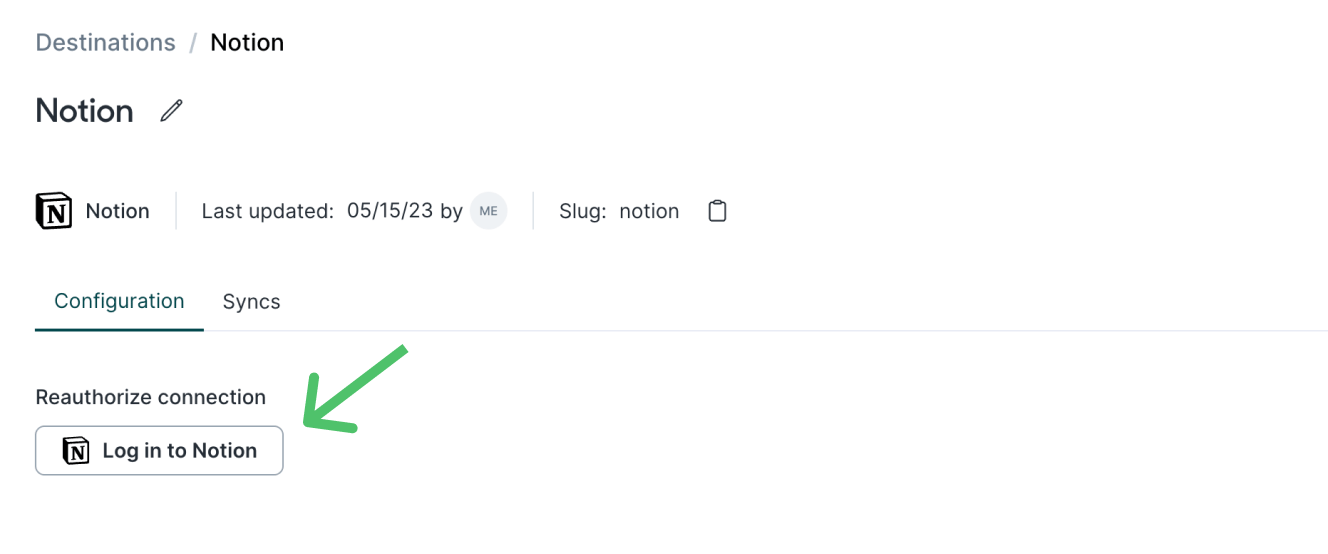
To fix this, go to the Destinations overview page and select your Notion destination.
Click Log in to Notion and add access to any required pages.
Column not appearing for record matching
Hightouch only supports record matching on text fields in Notion. Convert the field type to text in Notion, or create a new text field.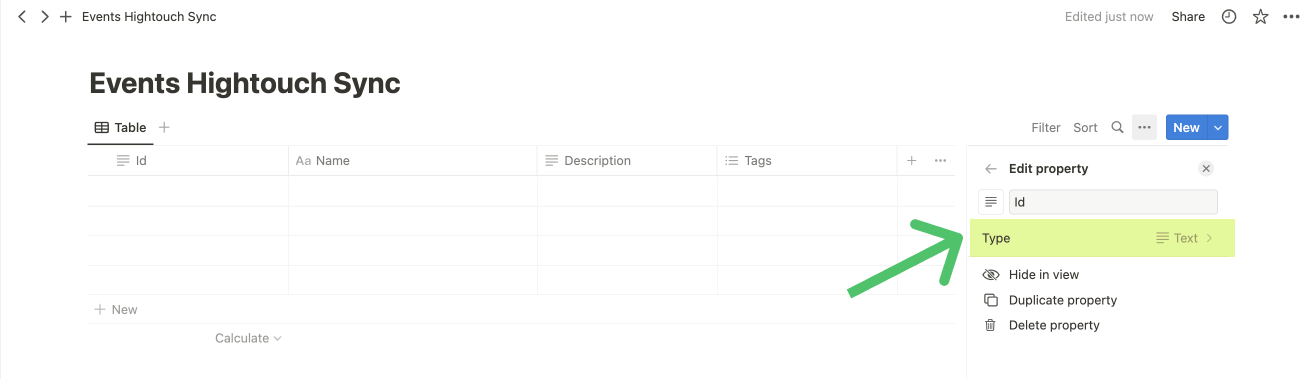
400 - body failed validation {…} should be defined, instead was undefined
This error occurs if you try to syncnull values to Select or Multi-select fields in Notion.
To resolve this, check the Don’t sync null values option in the template mapper or remove rows containing null values from your model’s query results.
You need to do this option for all field mappings to Select or Multi-select fields in Notion, if you believe the mapped model columns might contain null values.