Supported syncing
For more information about sync modes, refer to the sync modes docs.
Connect to Jira
Go to the Destinations overview page and click the Add destination button. Select Jira and click Continue. You can then authenticate Hightouch to Jira by entering your Jira Domain, Username, and API Token from your Jira account:- the Jira Domain is the text before
.atlassian.netin the URL, - Username is the email you use to login to Jira,
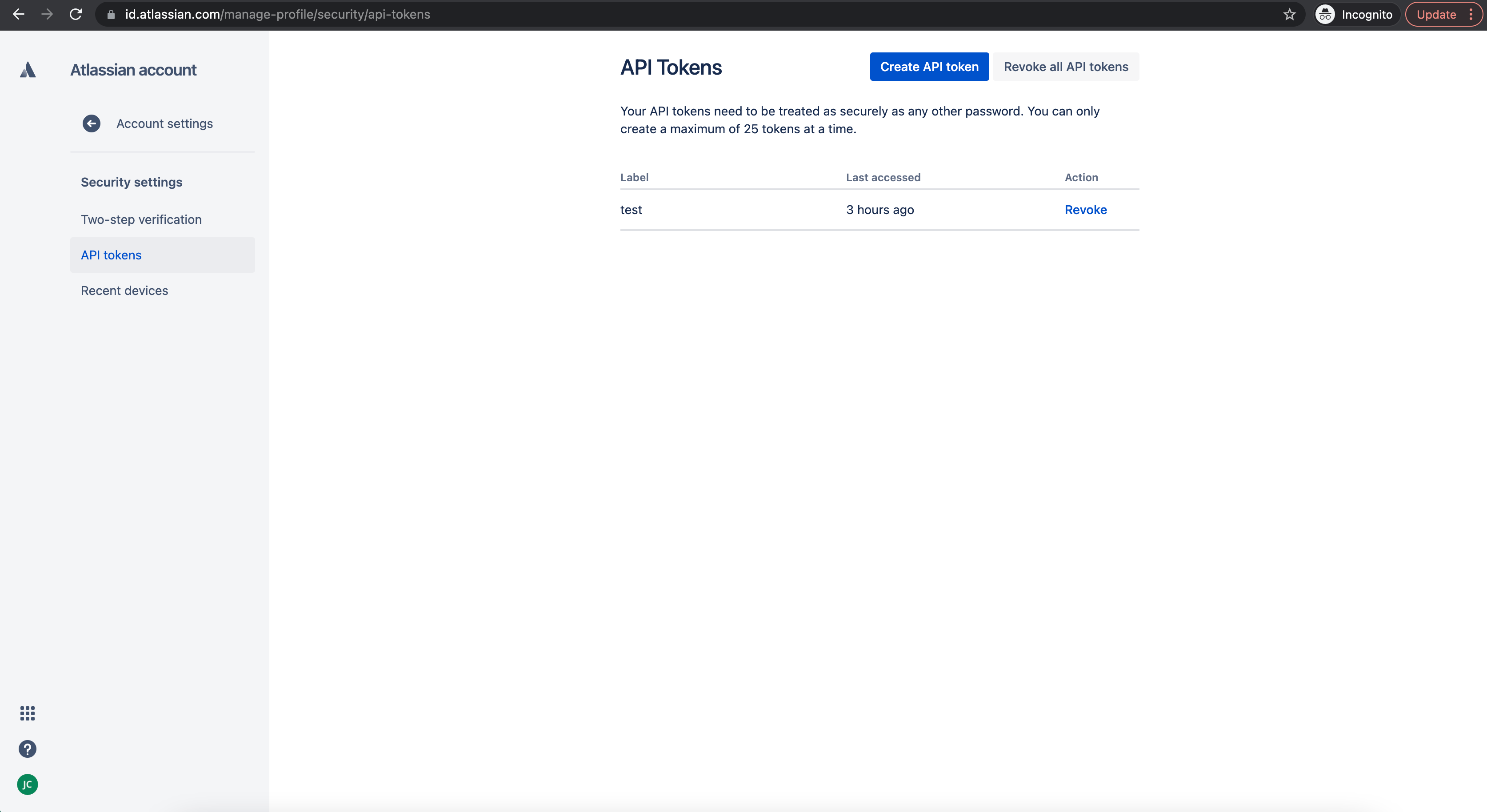
- and if you don’t already have an API Token, you can create one in your Jira account by navigating to Account Settings > Security > Create and manage API tokens.
Sync configuration
Once you’ve set up your Jira destination and have a model to pull data from, you can set up your sync configuration to begin syncing data. Go to the Syncs overview page and click the Add sync button to begin. Then, select the relevant model and the Jira destination you want to sync to.Syncing issues and ideas
Hightouch supports syncing to Jira issues and Product Discovery ideas. If you want to sync to Product Discovery ideas, select a Product Discovery Project in your sync configuration and use Insert mode.Record matching
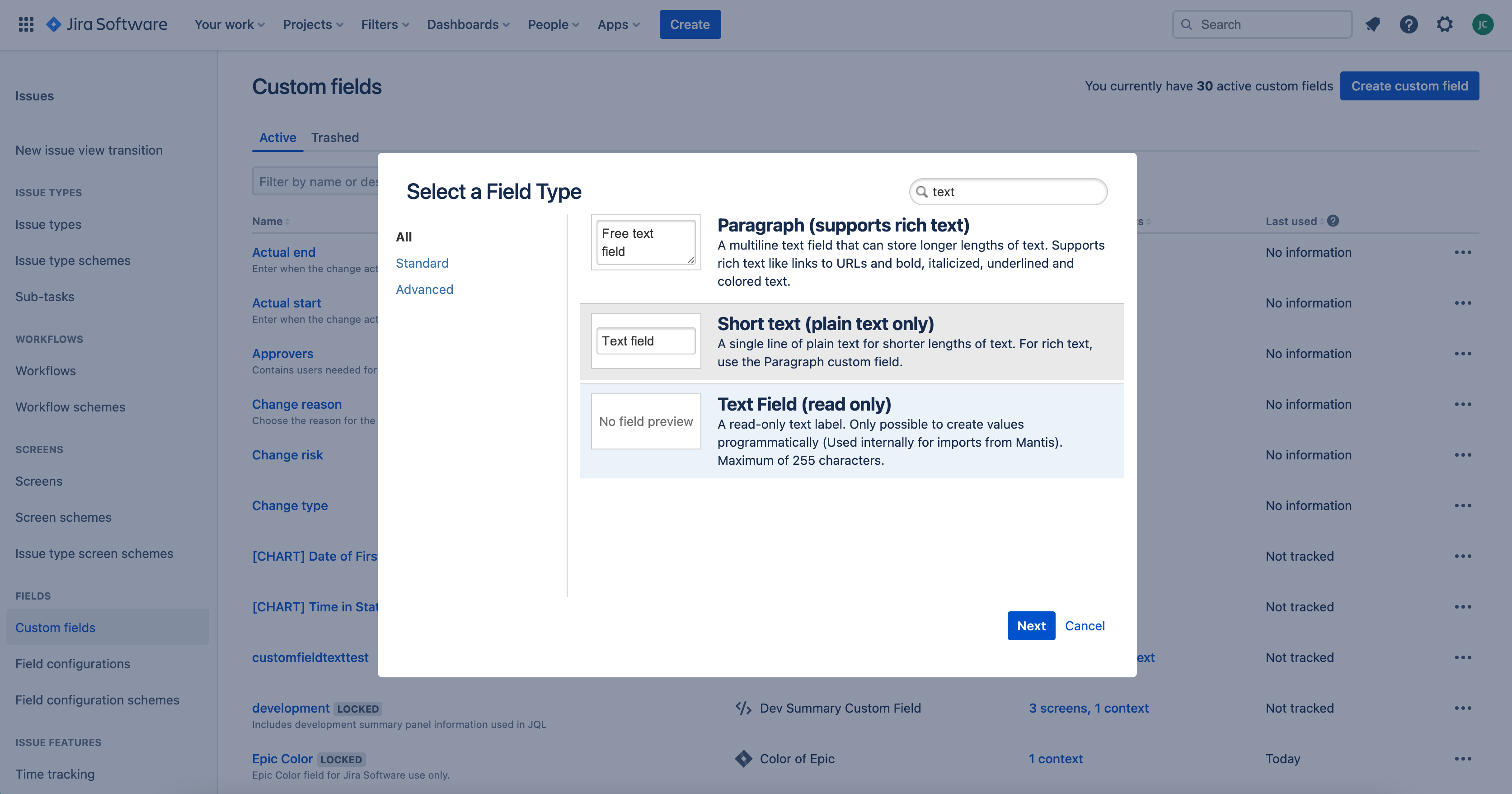
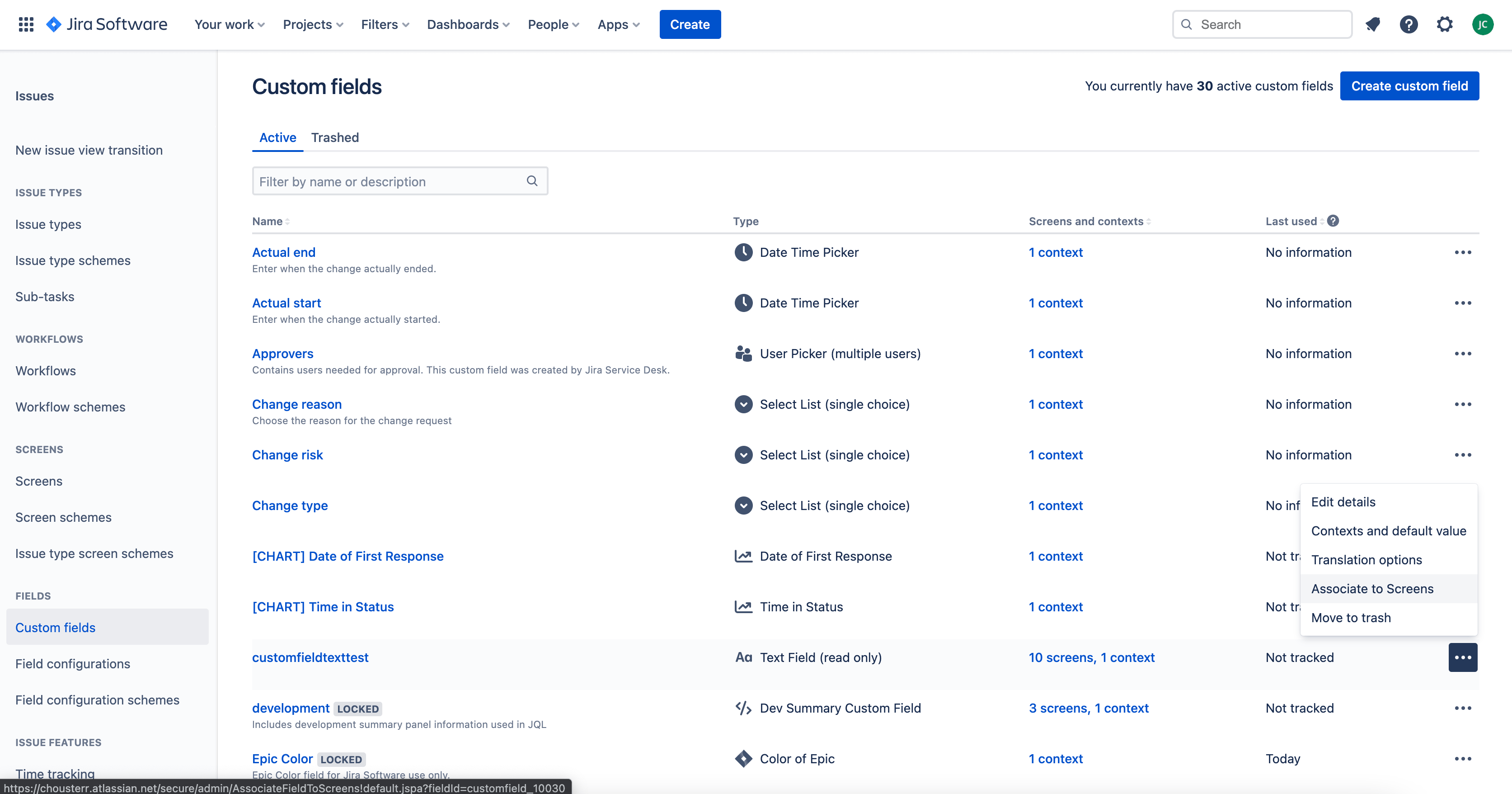
Upsert and Update mode are only supported for Jira issues. They require you to create a custom field in Jira to use for record matching in Hightouch. This field needs to be set to the Text Field (read only) type.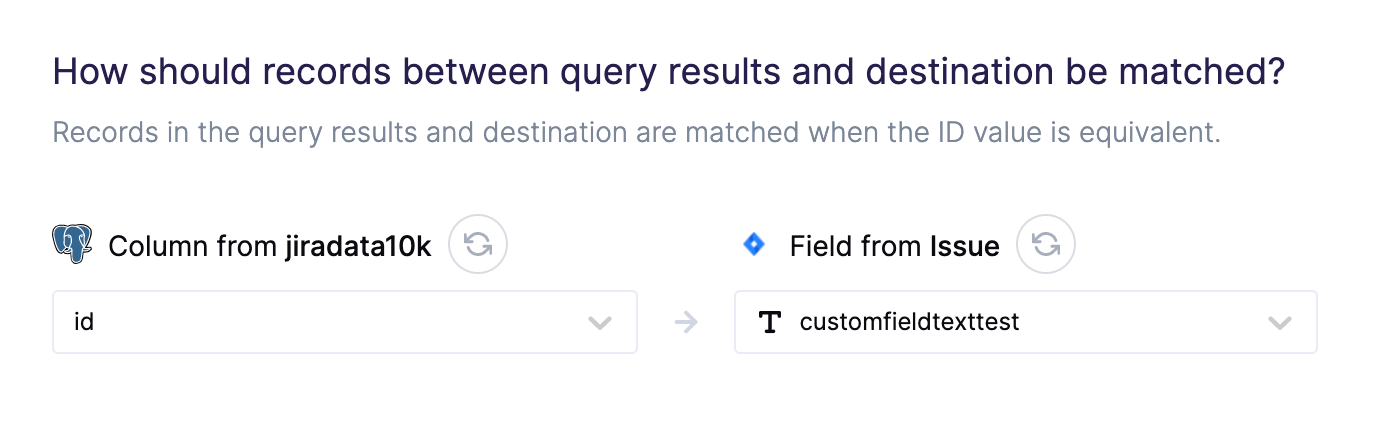
-
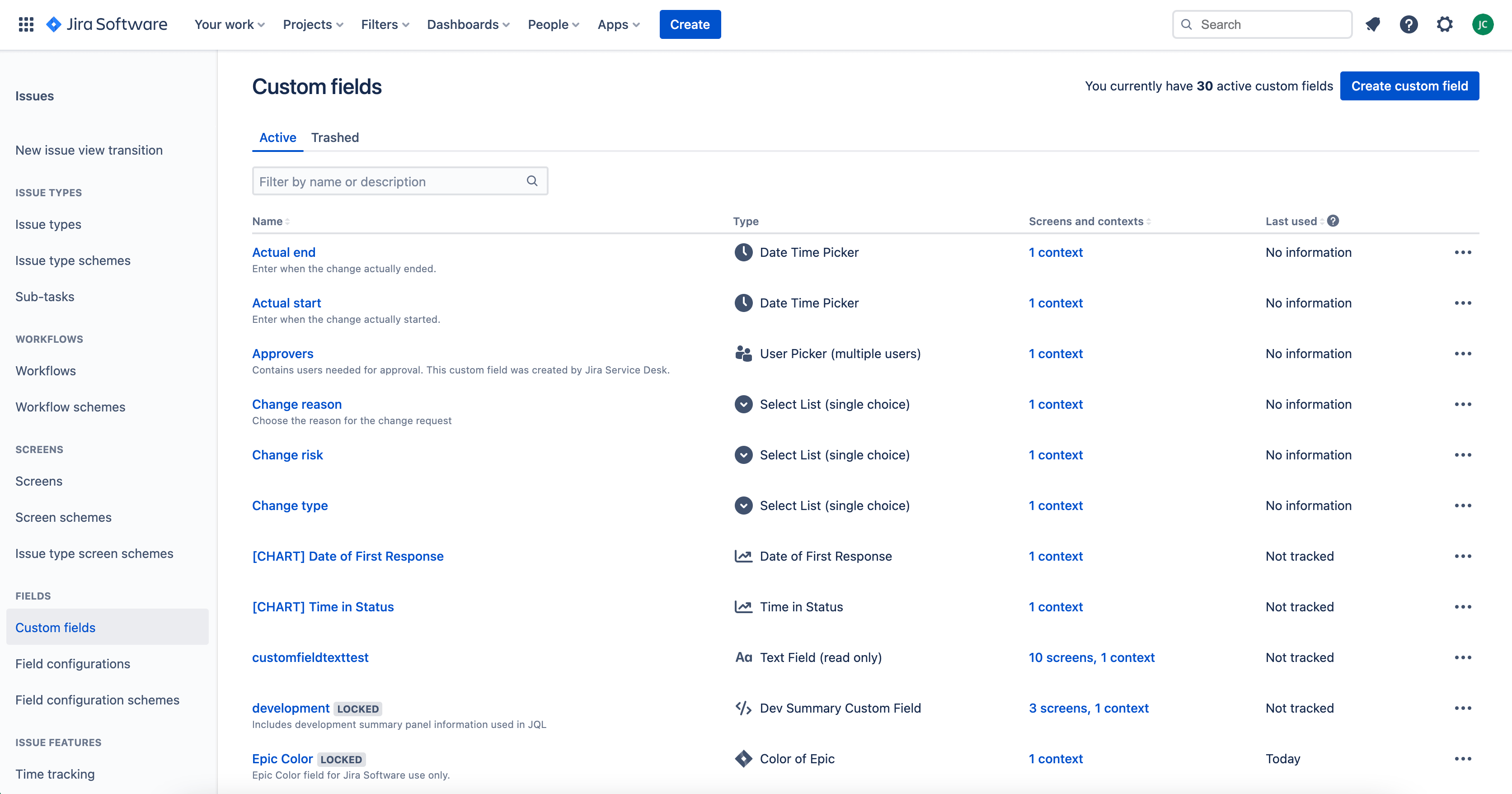
Navigate to Settings > Issues > Custom Fields.
-
Click Create custom field and select the Text Field (read only) field type.
Field mapping
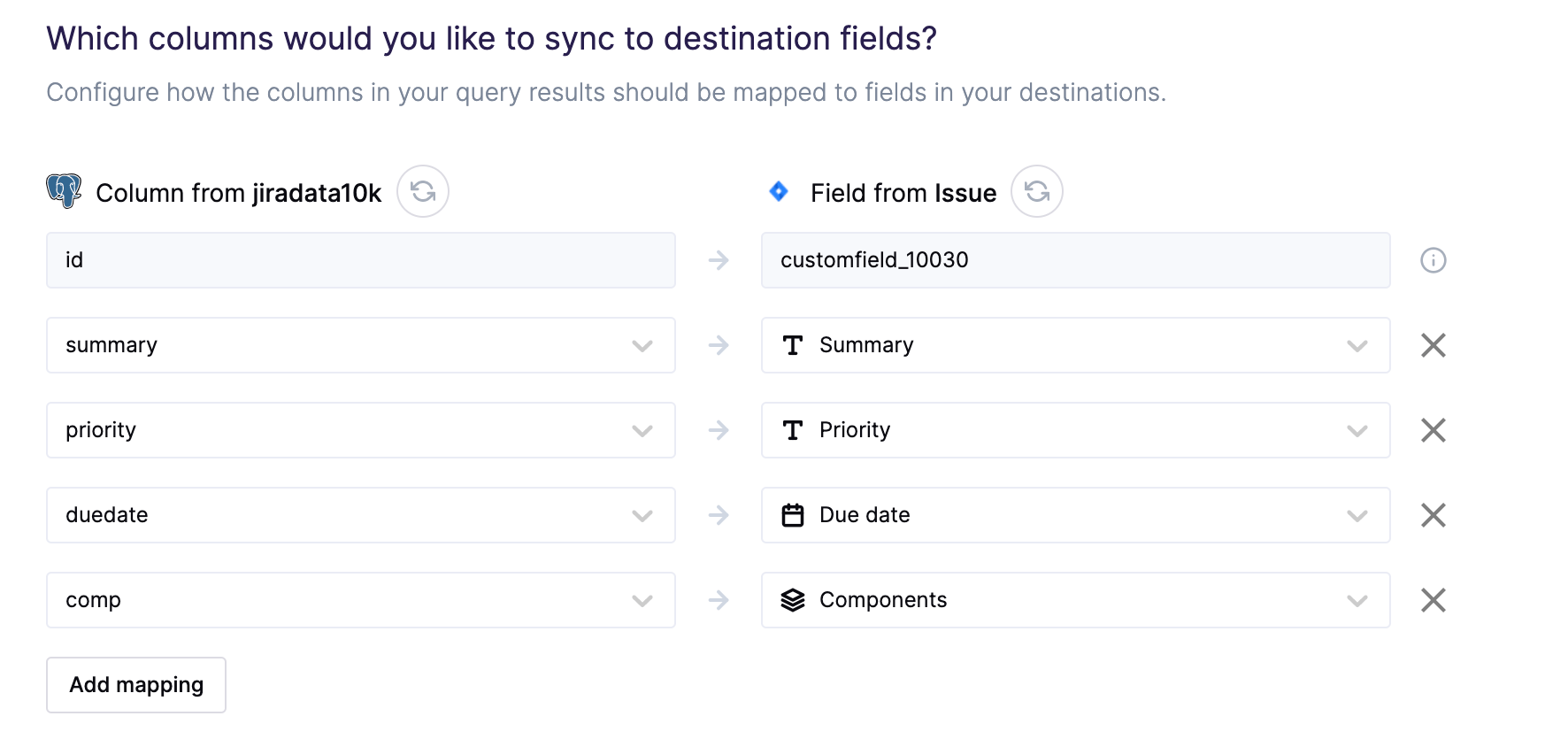
You can map model columns to all Jira issue fields that are available to the Project and Issue Type you selected in your sync configuration. To sync successfully, ensure the Description field is in Atlassian Document Format and that these other fields are of these types:parent>idpriority>name(for example, Highest, High, Medium, Low, or Lowest)creator>accountIdassignee>accountIdreporter>accountId
Hightouch doesn’t currently support syncing to Status fields, so this needs to be done manually in the Jira dashboard. Please if you’re interested in this feature.