

Anaplan is a premium destination and is only available on Business tier plans.
Overview
With the Anaplan destination, you can automate file uploads and trigger import actions in Anaplan. You can sync a variety of data from your warehouse, such as purchase orders, customer data, and more.Supported syncing
For more information about sync modes, refer to the sync modes docs.
The order of rows and columns in synced data may differ from how they appear in your model. This is expected behavior and applies to all sync modes. Learn more about row and column ordering.
Connect to Anaplan
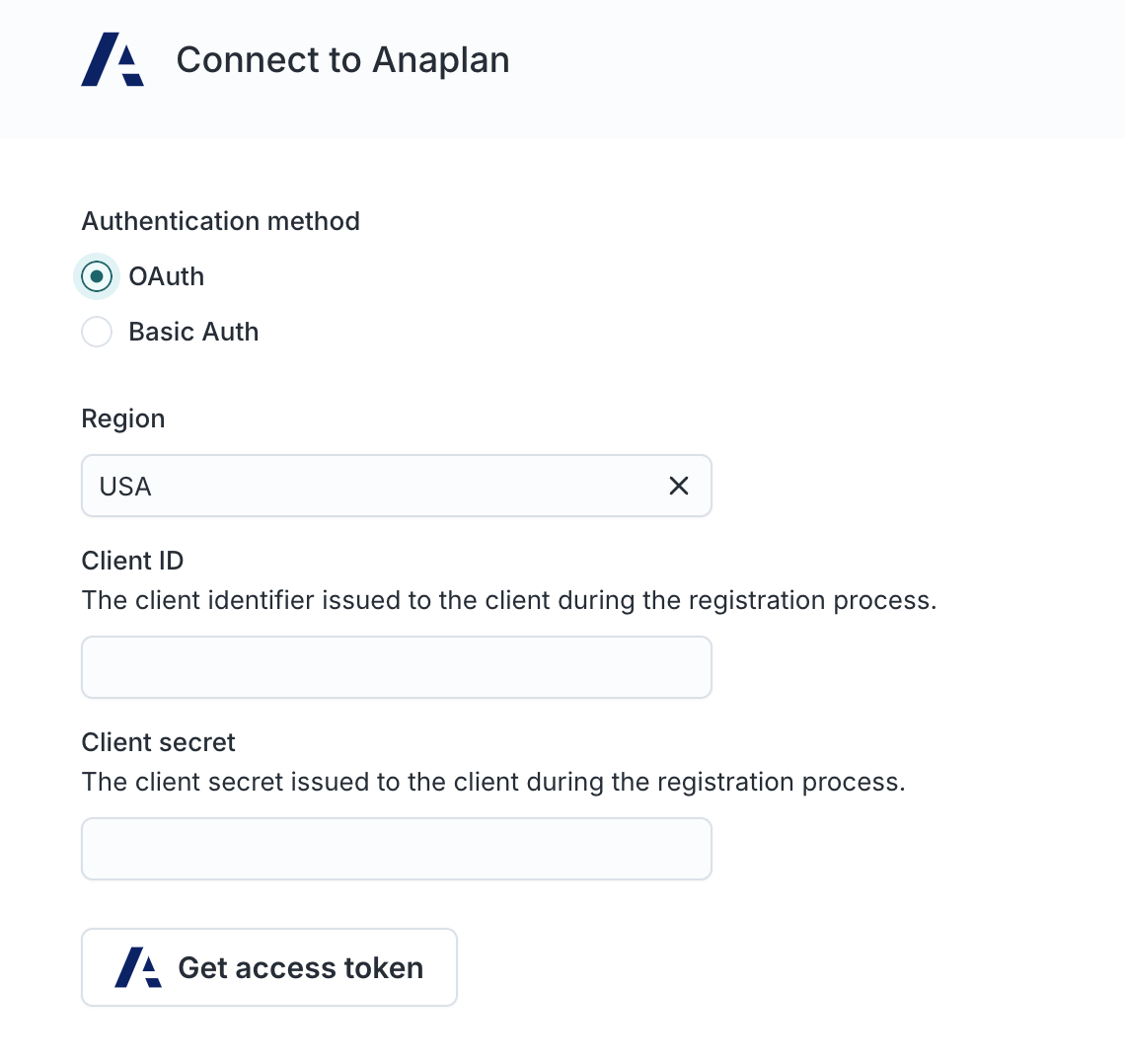
Select an authentication method: OAuth or basic auth (username and password).OAuth
Setup Anaplan OAuth client
Hightouch supports Anaplan OAuth clients that have the typeAuthorization code grant with both non-rotatable and rotatable refresh tokens.
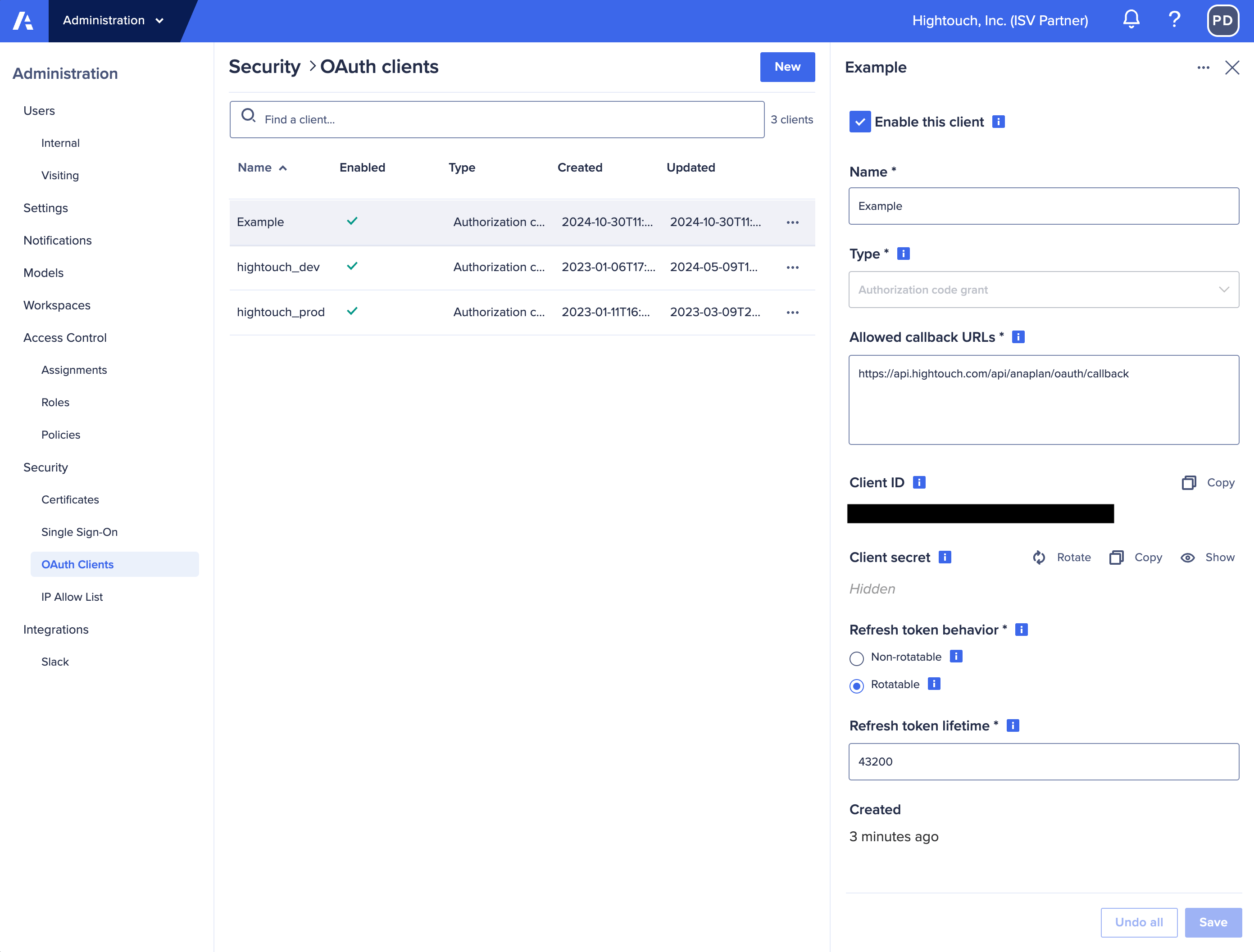
- Non-rotatable: The refresh token used for getting access tokens do not expire for as long as you allow the connection.
- Rotatable: The refresh token used for getting access tokens changes every time a new access token is retrieved.
Connecting with Hightouch
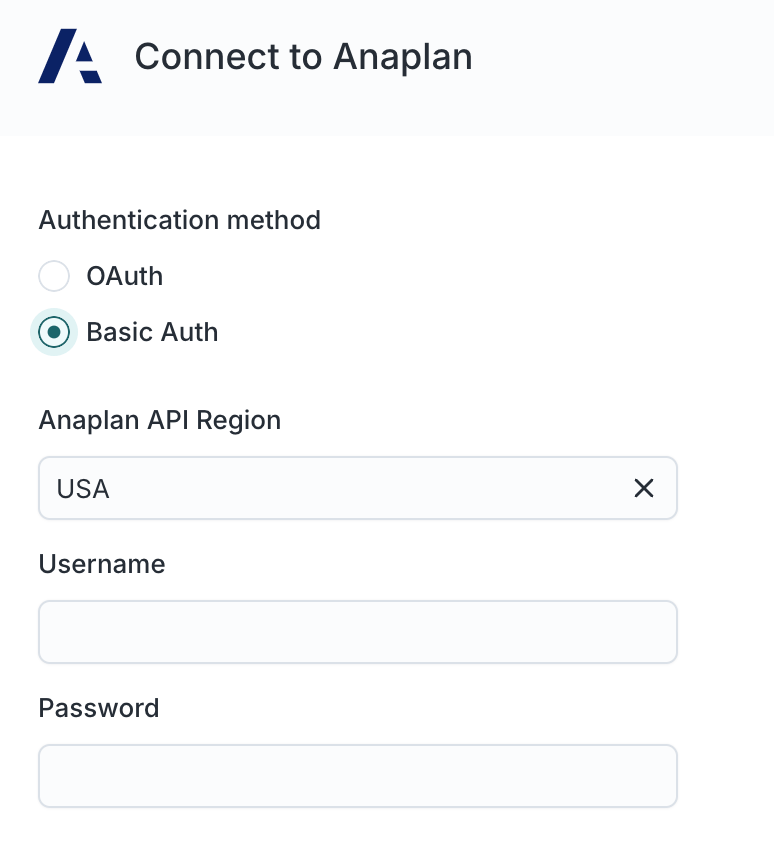
Basic auth
Before you begin
Before creating a sync, set up the following in Anaplan:Create an import data source
You must create a data source in Anaplan for Hightouch to upload data into. Go to your model’s Model settings → Actions → Import Data Source and create a new import data source by uploading a placeholder CSV.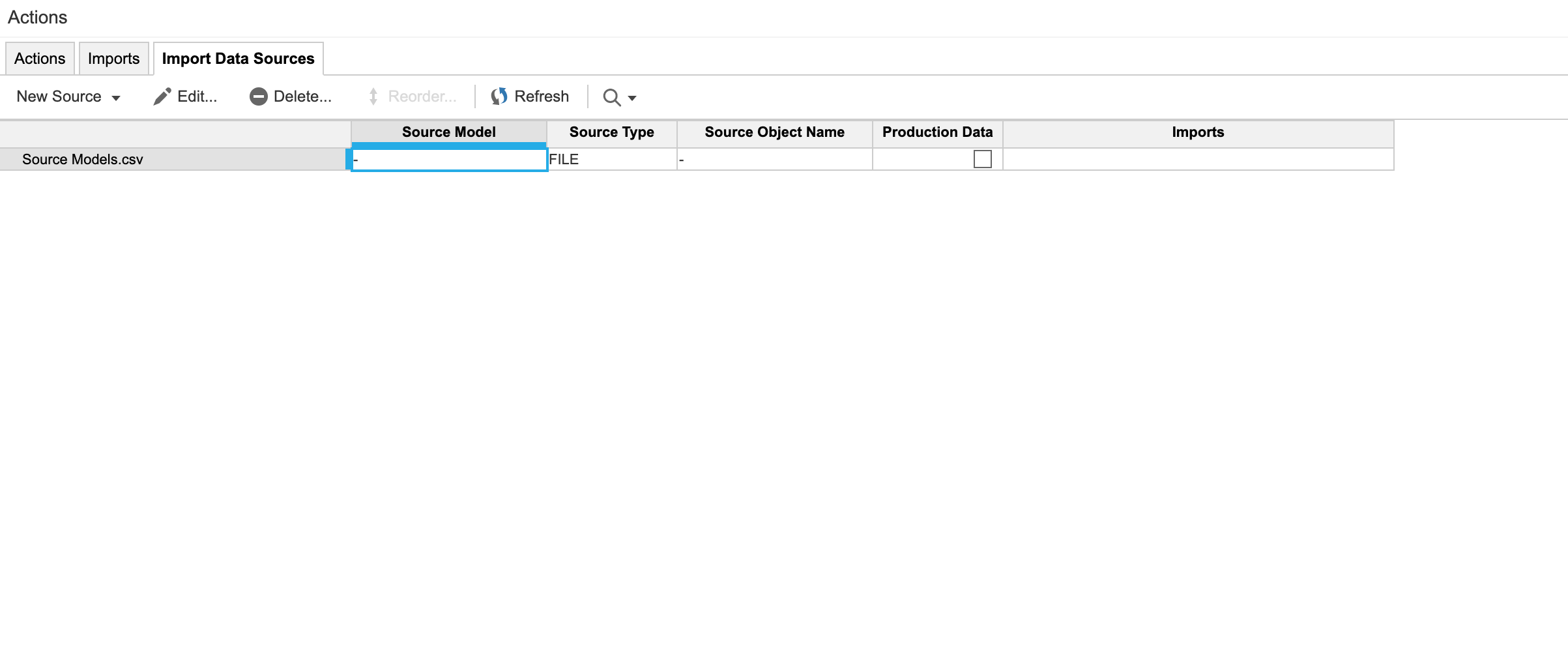
Create an import (optional)
You can optionally create imports based on the data source and trigger them after the upload completes. Go to a list and select Import. After selecting the placeholder data source, you can create an import that can then be selected in Hightouch.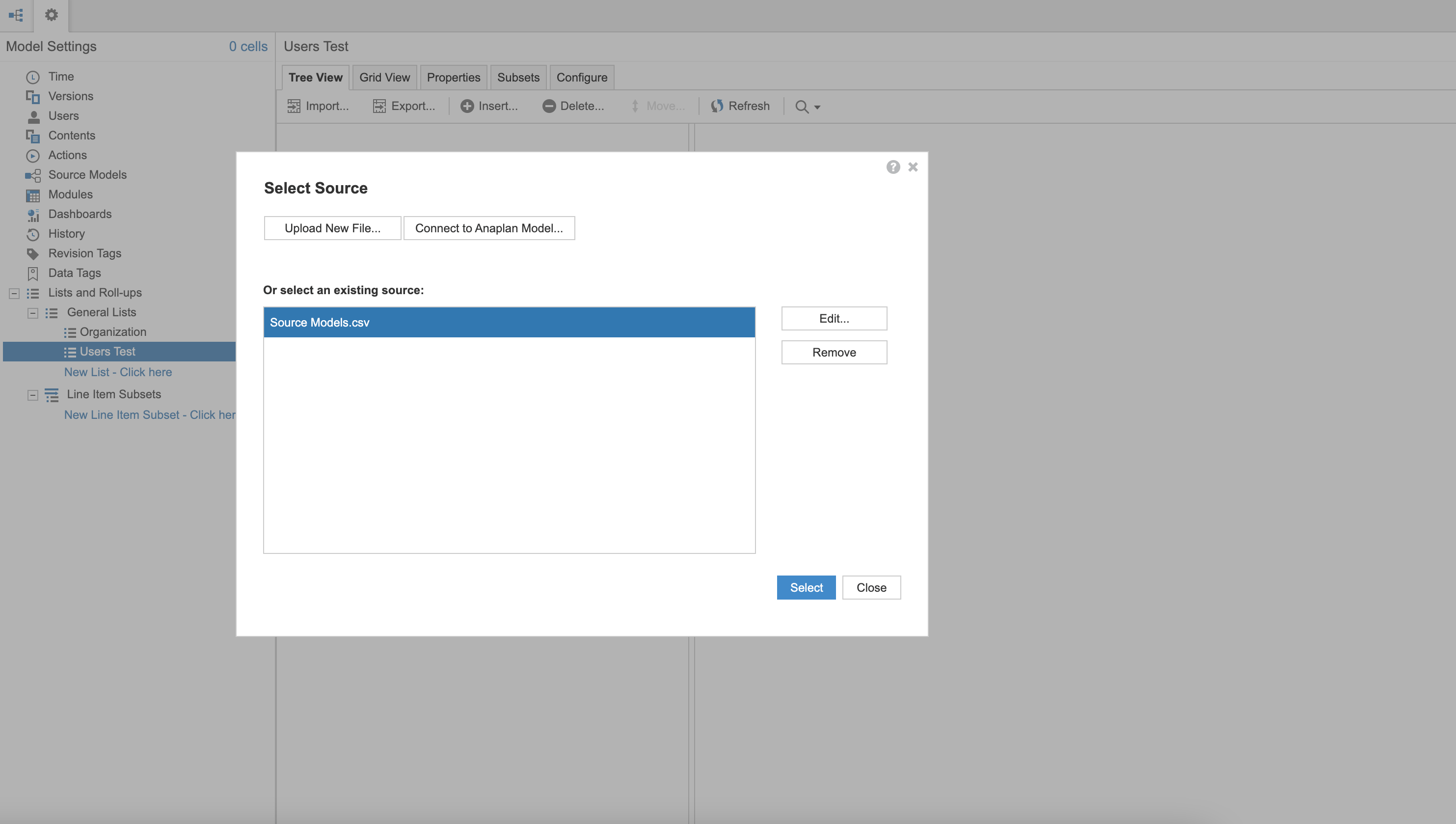
Sync configuration
Records
Use this sync type to upload data from your warehouse to an Anaplan import data source and optionally trigger imports.Configure record matching
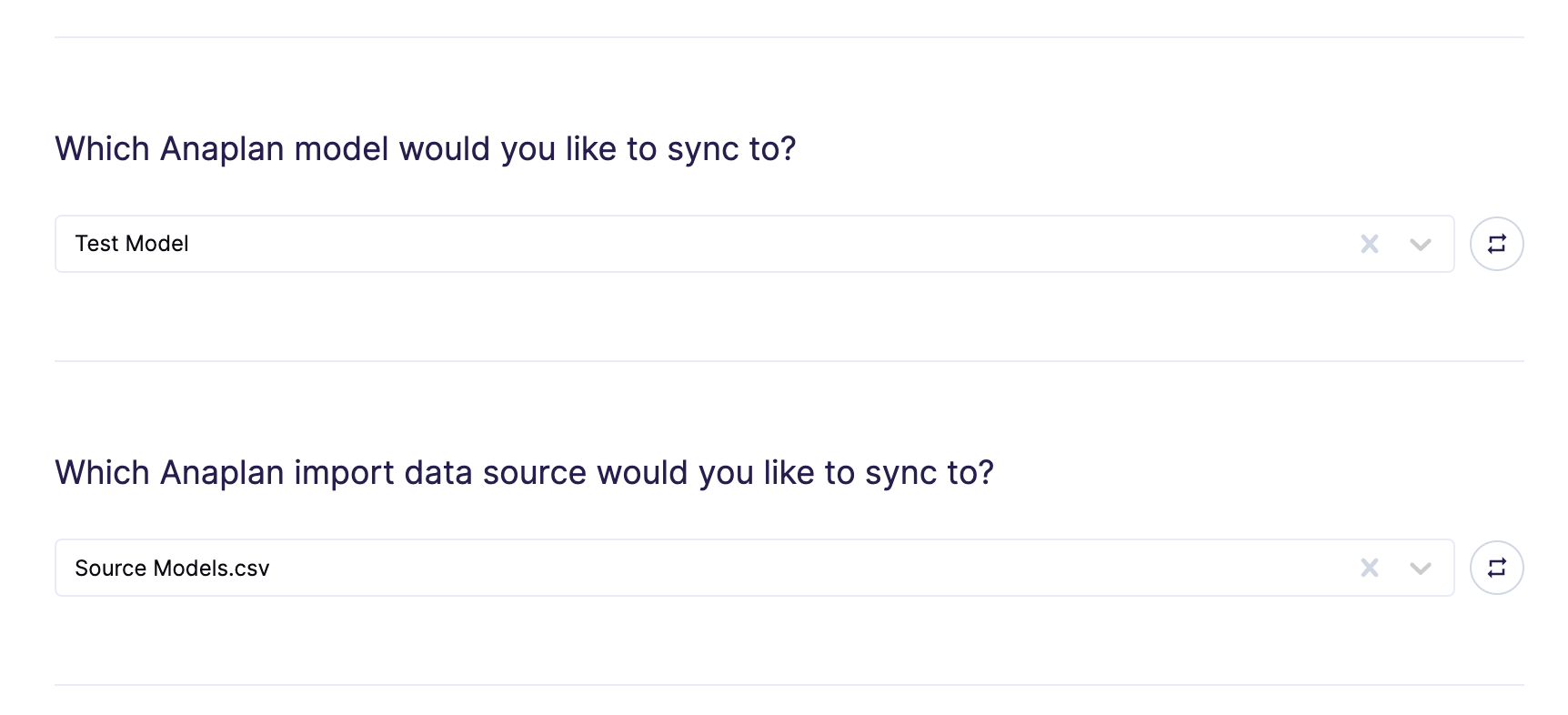
Select the model and data source that you created (or an existing one). Hightouch overwrites the import data source on each sync run. You can choose between two modes:- Insert: The data source is overwritten with only the rows that have been added since the last run.
- All: The data source is overwritten with the full results of the query in this run.
Configure triggered imports
You can select one or more imports to trigger after the data source upload completes. By default, Hightouch triggers these imports in parallel and waits for all imports to finish before completing the sync.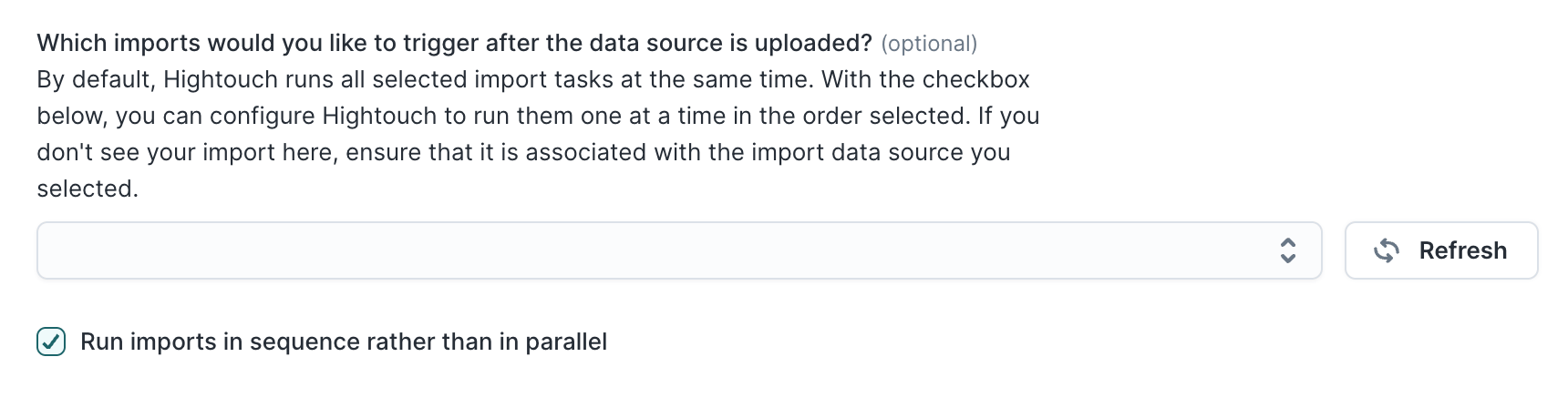
Map fields
Map the columns in your Hightouch model to columns in your Anaplan data source.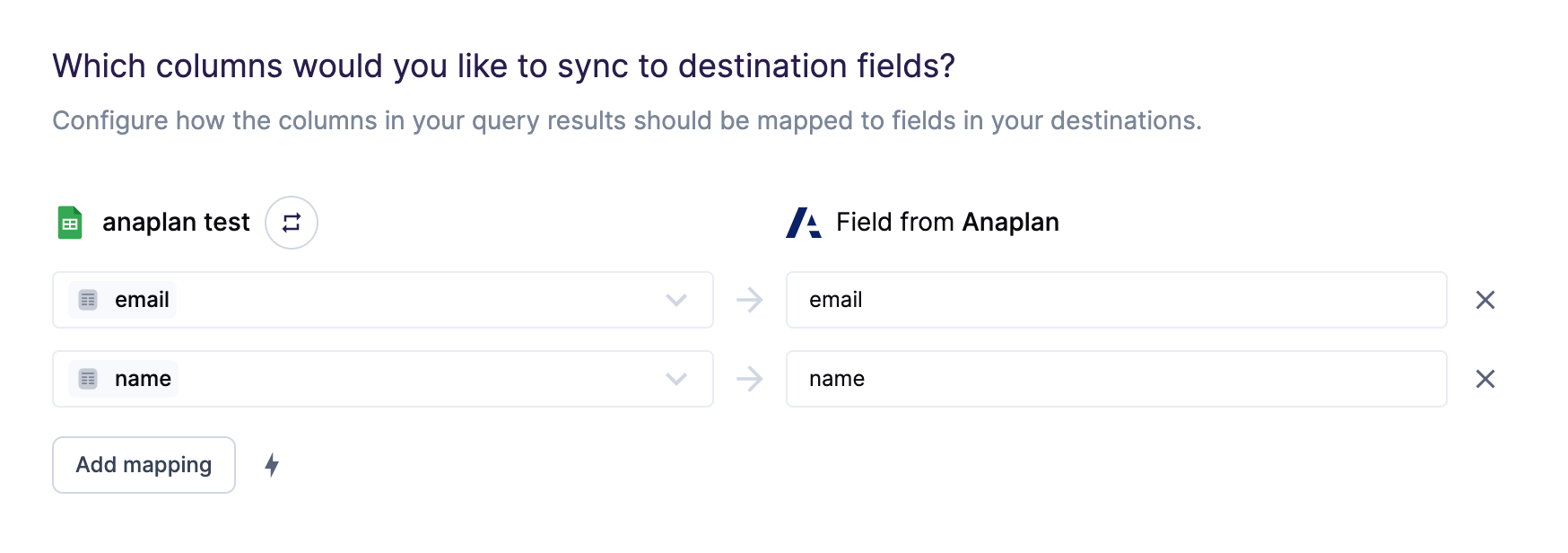
Tips and troubleshooting
To see the exact API requests and responses from each sync run, use the live debugger. To get notified by Slack, PagerDuty, SMS, or email when a sync fails, set up sync alerts. If you run into an issue this page doesn’t cover, .For Hightouch platform error codes related to Anaplan, see Error codes:
Anaplan.
Validate your setup
After your first sync completes, verify the data in Anaplan:- Go to your model’s Model settings → Actions → Import Data Source and open the data source you configured. Confirm the file contents match the rows and columns from your Hightouch model.
- If you configured triggered imports, go to the imports page and check that the import status shows success. Failed imports typically indicate a column mismatch between the file and the target list.
- Open the target list or module in Anaplan and spot-check that values landed in the correct fields. Column name or ordering mismatches are the most common cause of sync failures — if data appears in the wrong columns, compare your Hightouch field mapping order against the import data source column order.
Common errors
Connection failures
If your Anaplan connection fails during setup or stops working after initial configuration:- Basic auth: Verify that your username and password are correct and that the account hasn’t been locked. If your organization enforces SSO, confirm that the Anaplan user account has SSO disabled for API access — SSO-only accounts can’t authenticate via basic auth. If your Anaplan workspace uses an IP allow list, confirm that Hightouch’s IP addresses are included.
- OAuth: Confirm that your client ID and secret match the OAuth client configured in Anaplan. If you’re using rotatable refresh tokens, the connection expires after the
Refresh token lifespanperiod you set in Anaplan — re-authenticate the destination in Hightouch when this happens. - Region mismatch: Confirm that the region selected in Hightouch matches your Anaplan workspace region. Using the wrong region causes authentication to fail silently.