Setup
To find your API keys, navigate to your profile and create a private API key.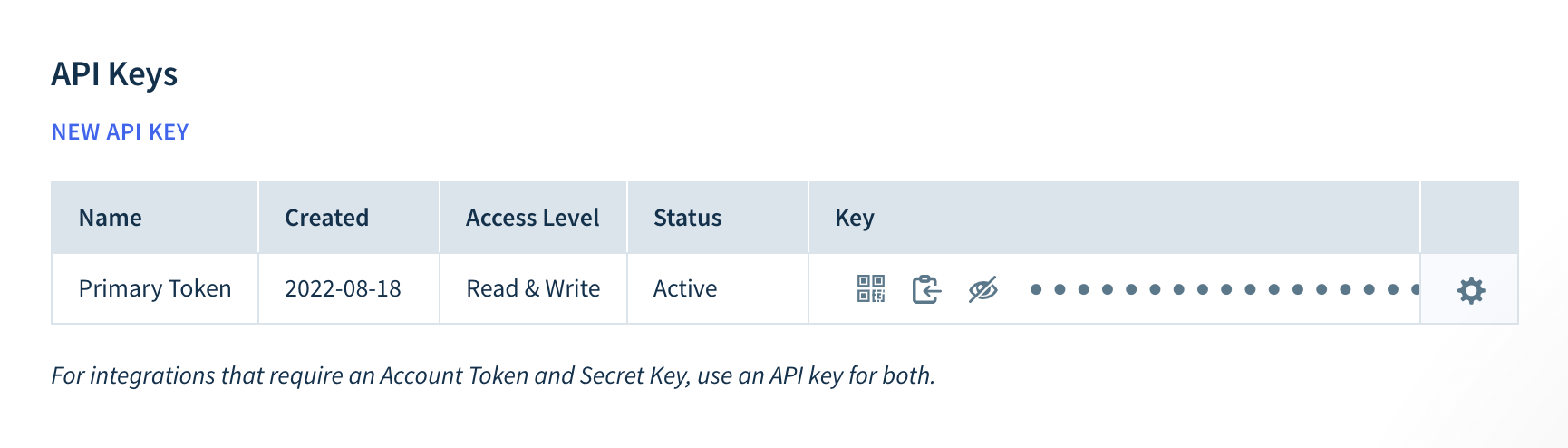
Syncing
Hightouch supports syncing to the following ChartMogul Objects:CustomersInvoicesTransactions
Sync modes
This integration supports Upsert, Update, and Insert modes forCustomers objects and Insert mode for Invoices and Transactions objects.
- Upsert: Upsert mode pushes new objects to ChartMogul and updates fields that change in your warehouse.
- Update: Update mode updates particular fields on existing objects in ChartMogul.
- Insert: Insert mode pushes new objects to ChartMogul, and doesn’t update the objects as they change in your warehouse.
Record matching
Customers
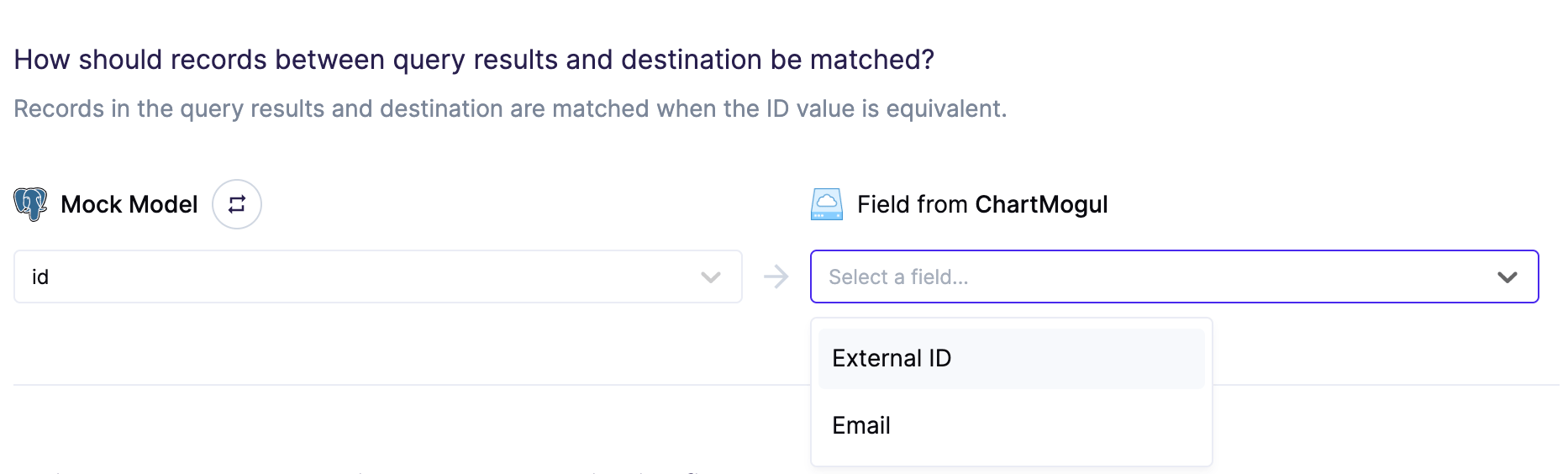
In Upsert mode, records can be matched from your source to ChartMogul byExternal ID or Email.
External ID or ChartMogul’s Customer UUID.
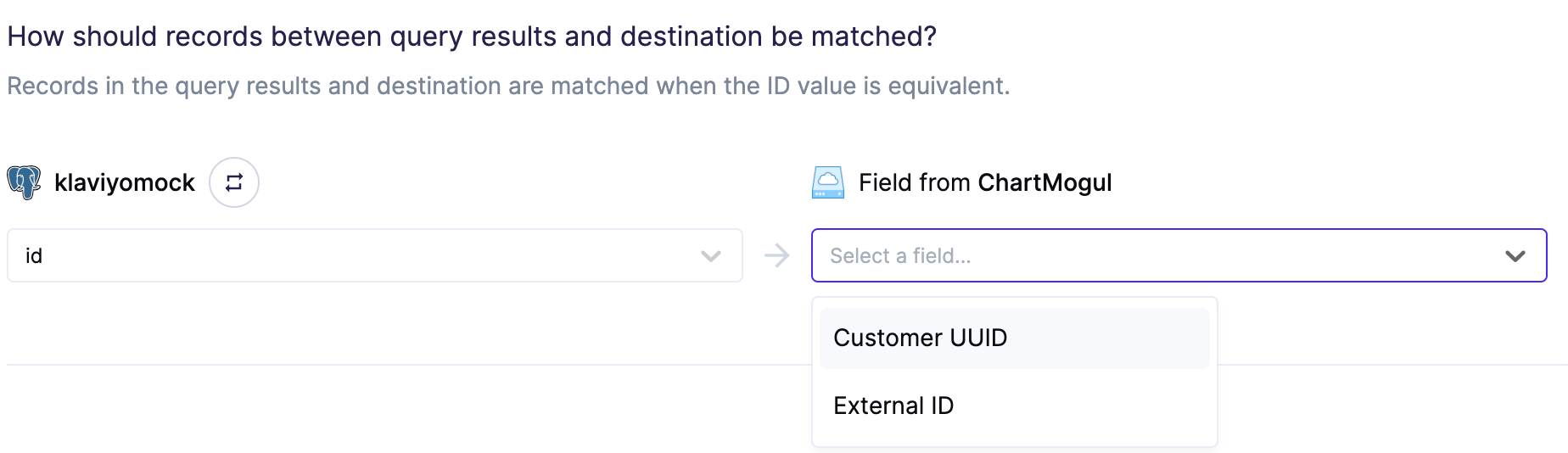
ChartMogul doesn’t consider
Email as a unique identifier, so upserting
records will apply to all matching emails.Field mapping
Customers
You can sync columns from your source to ChartMogul’s default and custom attributes. When syncing with Upsert or Insert mode,Data Source UUID, Name, and External ID
(depending on if External ID was selected in the Record Matching section) are required fields in order for the sync to run successfully. When syncing with Update mode, Name
is a required field in order for the sync to run successfully. To know more about Customer fields, refer to the ChartMogul docs.
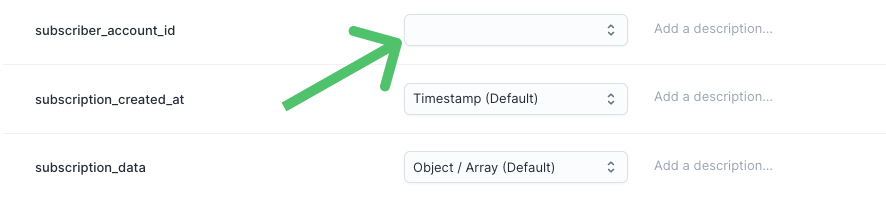
Additionally when syncing custom attributes with Upsert or Insert mode, Hightouch automatically transforms your data to match the required
format that ChartMogul expects for the custom field. For example, say you want to enrich a customer profile by inserting age as a custom attribute, where the object is:
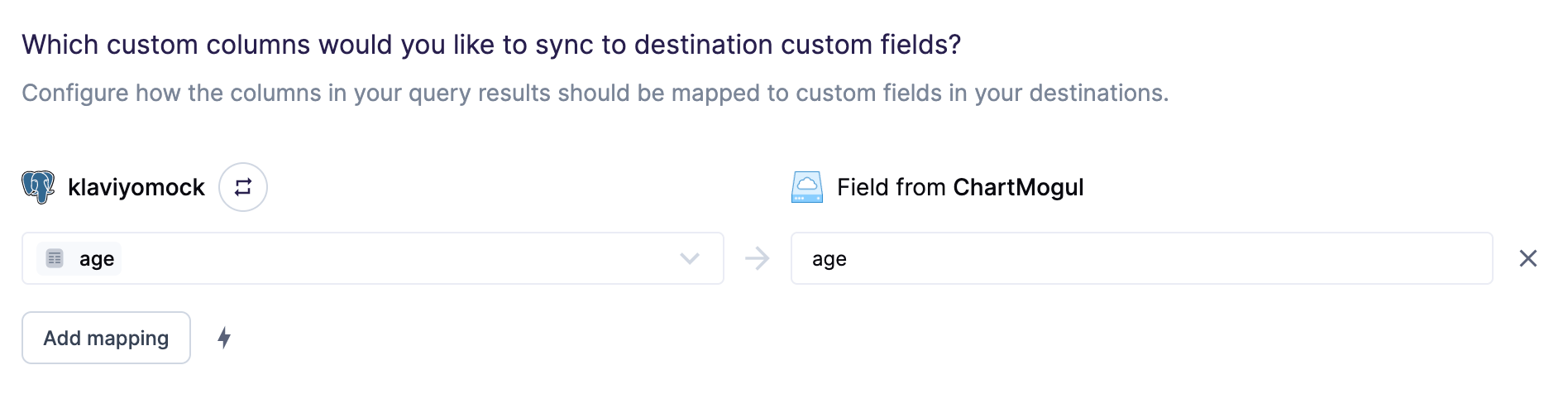
type of the record value and transform the object for you to the expected custom field format:
Invoices
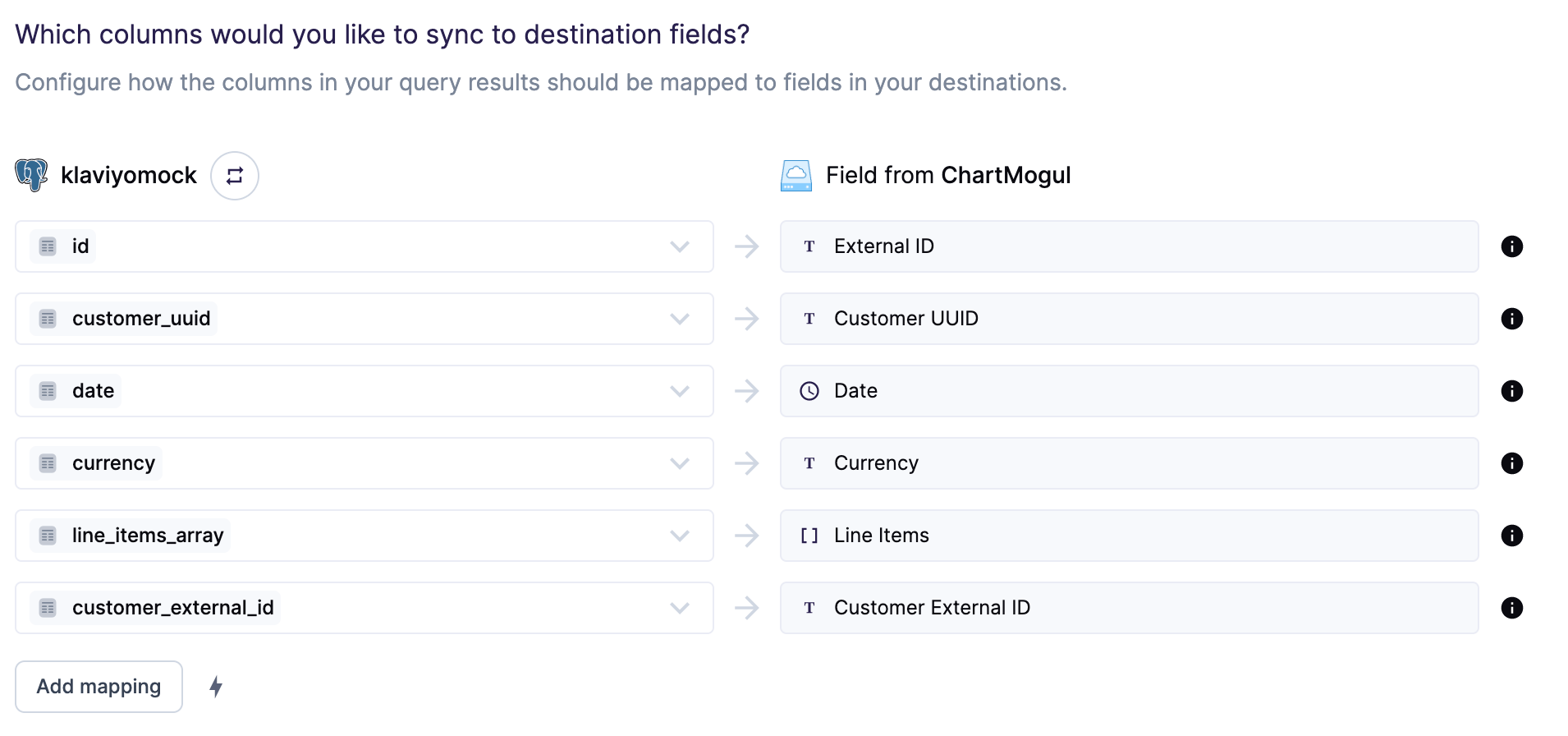
You can sync columns from your source to ChartMogul’s default and custom attributes.Customer UUID, External ID, Date, Currency, Line Items, and
Customer External ID are required fields in order for the sync to run successfully. To know more about Invoice fields, refer to the ChartMogul docs.
Transactions
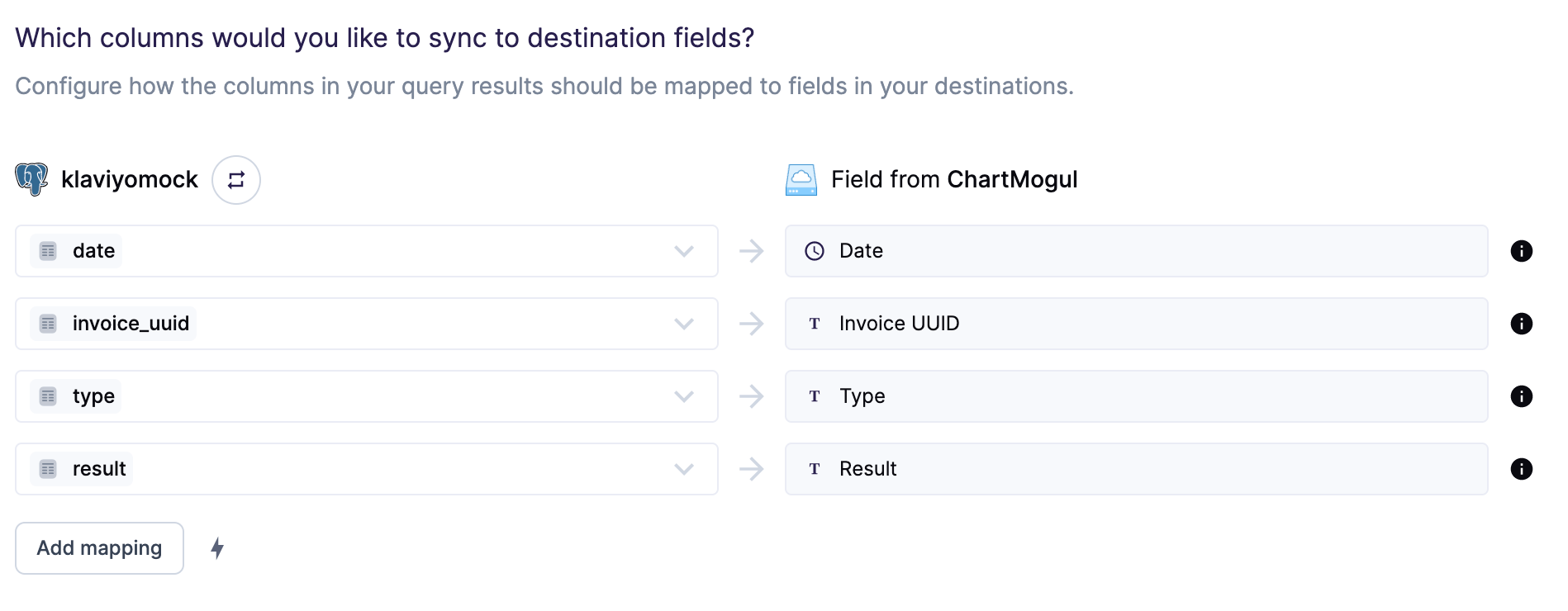
You can sync columns from your source to ChartMogul’s default and custom attributes.Invoice UUID, Date, Type, and Result are required fields in order
for the sync to run successfully. To know more about Transaction fields, refer to the ChartMogul docs.
Delete mode
Customers
You can choose what Hightouch’s behavior is when records leave the query result set. The default is doing nothing, but you can also set Hightouch to delete theCustomer record.
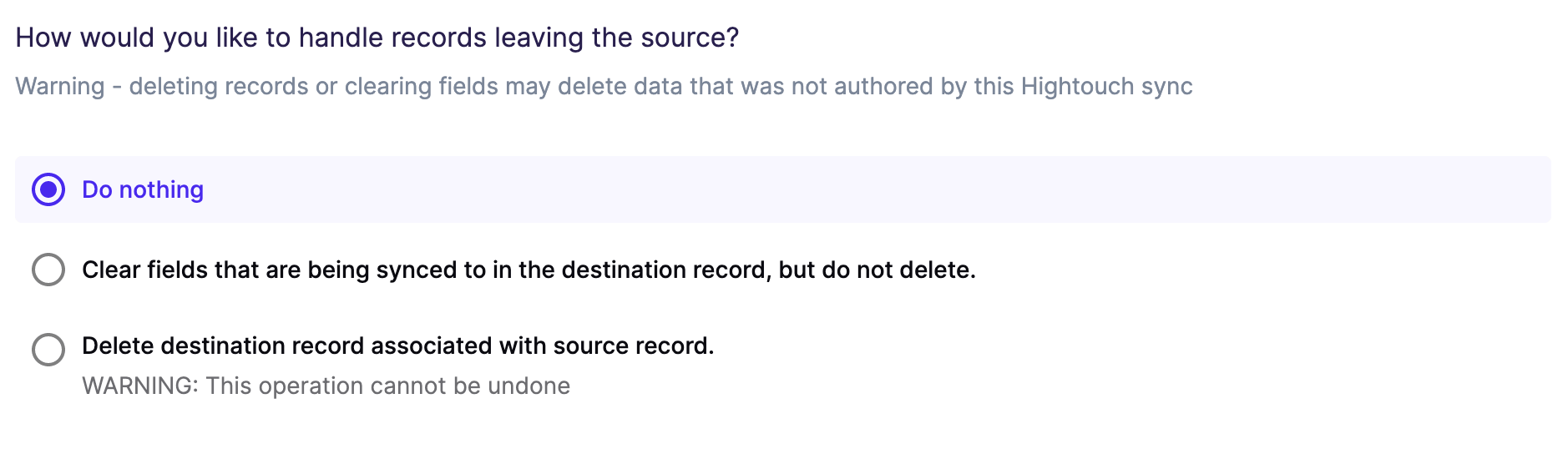
ChartMogul doesn’t allow custom attributes to be cleared, so Hightouch will
sync
"null" to the field instead.Tips and troubleshooting
To see the exact API requests and responses from each sync run, use the live debugger. To get notified by Slack, PagerDuty, SMS, or email when a sync fails, set up sync alerts. If you run into an issue this page doesn’t cover, .Common errors
write ECONNRESET
You may receive thewrite ECONNRESET error if the model columns used for record matching or mapping don’t have an associated data type in Hightouch.