

Supported syncing
For more information about sync modes, refer to the sync modes docs.
Connect to Sage Intacct
Go to the Destinations overview page and click the Add destination button. Select Sage Intacct and click Continue. You can then authenticate Hightouch to Sage Intacct. Enter the following required fields into Hightouch:- Sender ID: Enter a valid Sender ID.
- Sender Password: Enter a valid Sender Password.
- Company ID: Enter a valid Company ID.
- User ID: Enter a valid User ID.
- User Password: Enter a valid User Password.
Sync configuration
Once you’ve set up your Sage Intacct destination and have a model to pull data from, you can set up your sync configuration to begin syncing data. Go to the Syncs overview page and click the Add sync button to begin. Then, select the relevant model and the Sage Intacct destination you want to sync to.Syncing AR Adjustment
Sync data from any source to the AR Adjustment objectField mapping
Hightouch lets you sync AR Ajustment fields via field mapping. You can map data from any of your model columns to the default AR Adjustment fields. Ensure your model columns data types match the data types of the fields you want to sync to.Syncing AR Payment
Sync data from any source to the AR Payment objectField mapping
Hightouch lets you sync AR Payment fields via field mapping. You can map data from any of your model columns to the default AR Payment fields. Ensure your model columns data types match the data types of the fields you want to sync to.Syncing Contact
Sync data from any source to the Contact objectRecord matching
You can match rows from your model to Contact in Sage Intacct on any column in your model and any field in Sage Intacct. Ensure the data types of the model column and Sage Intacct field you select match. Refer to the record matching docs for more information.In Insert mode, Sage Intacct automatically generates an identifier for every new record synced, so there is no need to match an existing record.
Field mapping
Hightouch lets you sync Contact fields via field mapping. You can map data from any of your model columns to the default Contact fields. Ensure your model columns data types match the data types of the fields you want to sync to.Delete behavior
The delete behavior you select dictates what to do when a row no longer appears in your model’s query results. You have the following options:Syncing Customer
Sync data from any source to the Customer objectRecord matching
You can match rows from your model to Customer in Sage Intacct on any column in your model and any field in Sage Intacct. Ensure the data types of the model column and Sage Intacct field you select match. Refer to the record matching docs for more information.In Insert mode, Sage Intacct automatically generates an identifier for every new record synced, so there is no need to match an existing record.
Field mapping
Hightouch lets you sync Customer fields via field mapping. You can map data from any of your model columns to default and custom Customer fields. Ensure your model columns data types match the data types of the fields you want to sync to.Delete behavior
The delete behavior you select dictates what to do when a row no longer appears in your model’s query results. You have the following options:Syncing Invoice
Sync data from any source to the Invoice objectRecord matching
You can match rows from your model to Invoice in Sage Intacct on any column in your model and any field in Sage Intacct. Ensure the data types of the model column and Sage Intacct field you select match. Refer to the record matching docs for more information.In Insert mode, Sage Intacct automatically generates an identifier for every new record synced, so there is no need to match an existing record.
Field mapping
Hightouch lets you sync Invoice fields via field mapping. You can map data from any of your model columns to default and custom Invoice fields. Ensure your model columns data types match the data types of the fields you want to sync to.Delete behavior
The delete behavior you select dictates what to do when a row no longer appears in your model’s query results. You have the following options:Syncing Journal Entry
Sync data from any source to the Journal Entry objectField mapping
Hightouch lets you sync Journal Entry fields via field mapping. You can map data from any of your model columns to the default and custom Journal Entry fields. Ensure your model columns data types match the data types of the fields you want to sync to. Formatting entries Hightouch recommends using the array builder inline mapper to map properties that the Sage Intacct SDK expects.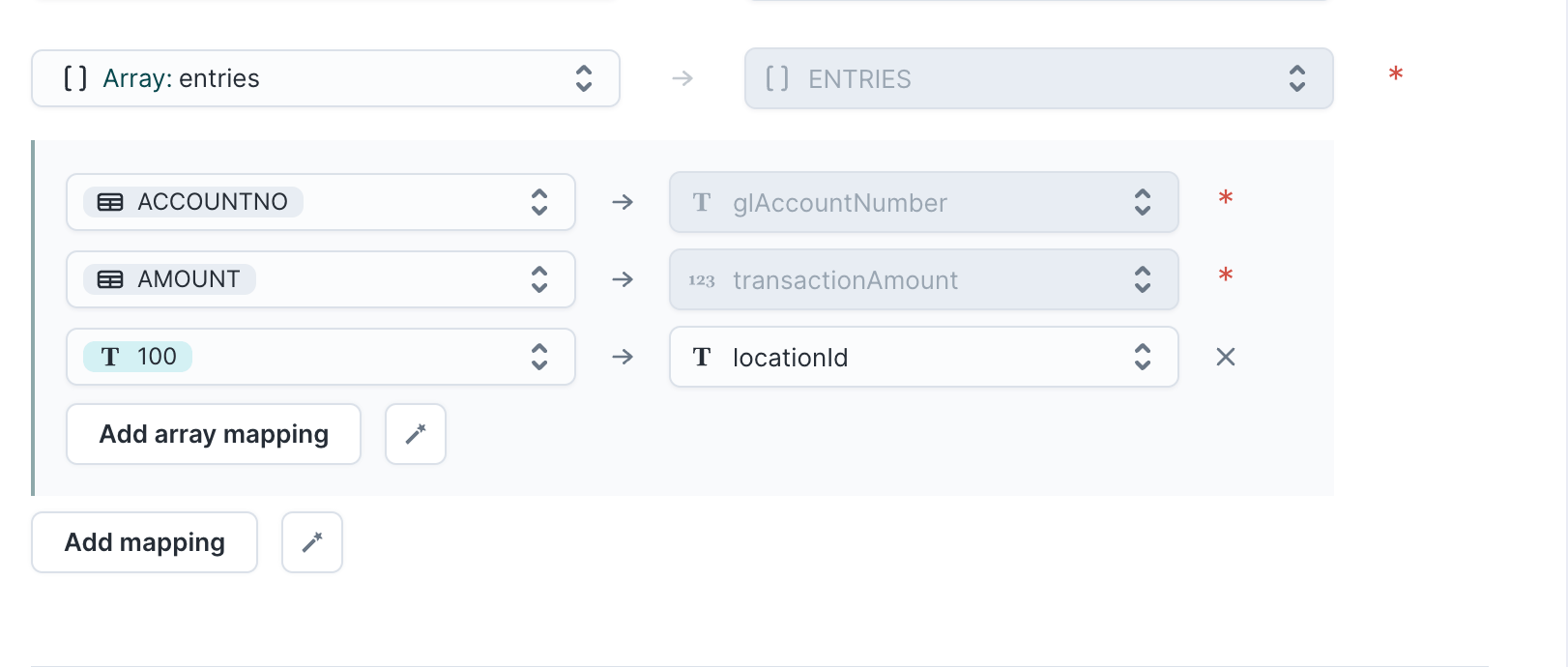
The Sage Intacct SDK automatically determines the
TR_TYPE based on the AMOUNT of the entry, so there’s no need to map this field. To represent whether an entry is a debit or credit, use a positive or negative AMOUNT value, respectively. The sum of all entries in the array will be zero. The absolute value of the AMOUNT should not be used.Syncing Transaction
Sync data from any source to the Transaction objectRecord matching
You can match rows from your model to Transaction in Sage Intacct on any column in your model and any field in Sage Intacct. Ensure the data types of the model column and Sage Intacct field you select match. Refer to the record matching docs for more information.In Insert mode, Sage Intacct automatically generates an identifier for every new record synced, so there is no need to match an existing record.