

Overview
Hightouch lets you pull data stored in your Lakebase data warehouse and push it to downstream destinations. Most of the setup occurs in the Hightouch UI, but you need access to your Lakebase instance for information like your host, port, database name, and credentials.You may need to allowlist Hightouch’s IP addresses to let our systems connect to your warehouse. Reference our networking docs to determine which IP addresses you need to allowlist.
Connection configuration
Hightouch officially supports Lakebase versions 1.0 and above. While some features may still work with earlier versions, compatibility isn’t guaranteed, and future updates might introduce changes affecting older versions. To get started, go to the Sources overview page and click the Add source button. Select Lakebase and follow the steps below.Choose connection type
Hightouch can connect directly to Lakebase over the public internet or via an SSH tunnel. Since data is encrypted in transit via TLS, a direct connection is suitable for most use cases. You may need to set up a tunnel if your Lakebase instance is on a private network or virtual private cloud (VPC).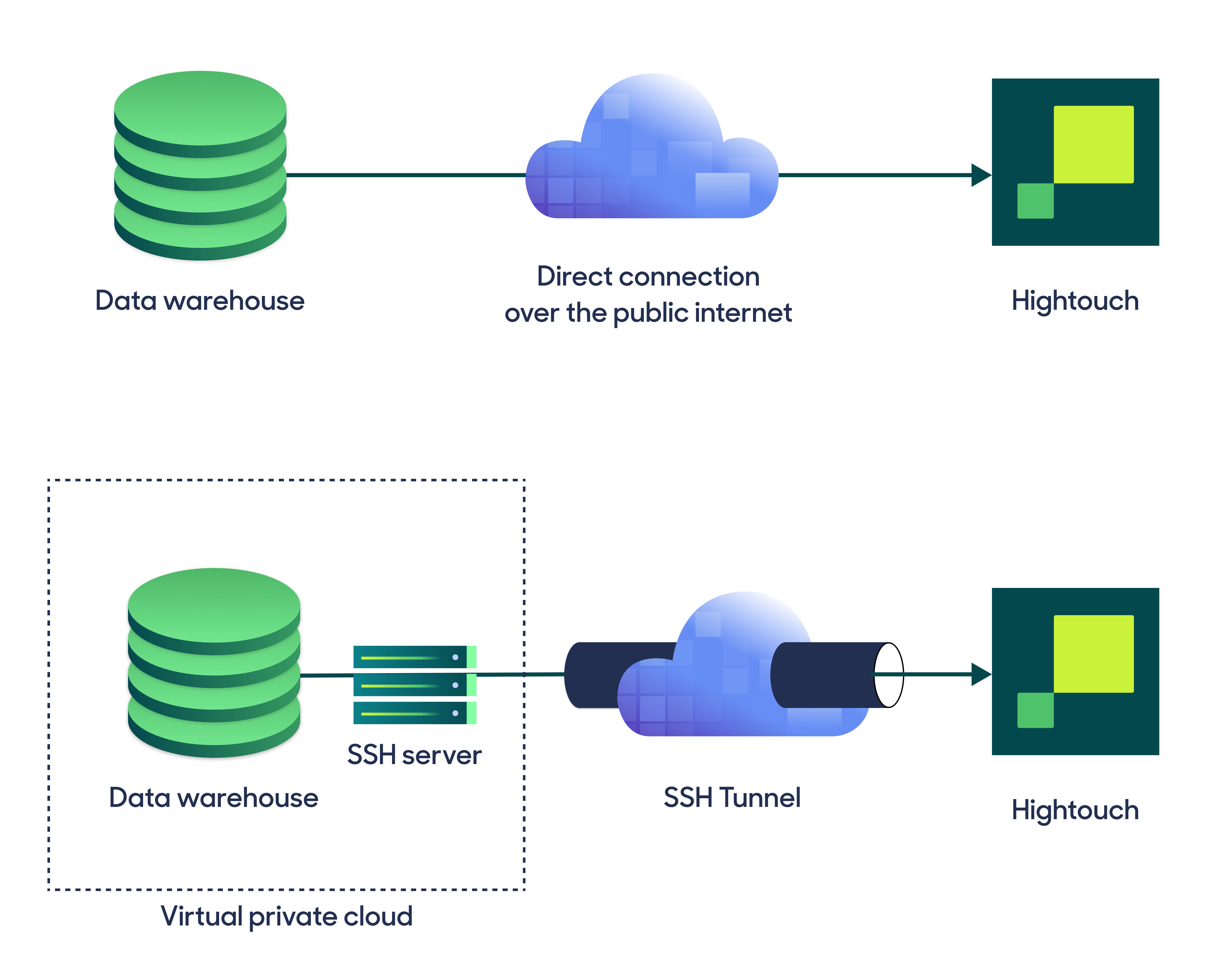
Configure your source
Enter the following required fields into Hightouch:- Host: The hostname or IP address of your Lakebase server.
- Port: The port number of your Lakebase server. The default port number is 5432, but yours may be different.
- Database: This specifies the database to use when Hightouch executes queries in Lakebase.
Choose your sync engine
For optimal performance, Hightouch tracks incremental changes in your data model—such as added, changed, or removed rows—and only syncs those records. You can choose between two different sync engines for this work. The Basic engine requires read-only access to Lakebase. Hightouch executes a query in your database, reads all query results, and then determines incremental changes using Hightouch’s infrastructure. This engine is easier to set up since it requires read—not write—access to Lakebase. The Lightning engine requires read and write access to Lakebase. The engine stores previously synced data in a separate schema in Lakebase managed by Hightouch. In other words, the engine uses Lakebase to track incremental changes to your data rather than performing these calculations in Hightouch. Therefore, these computations are completed more quickly.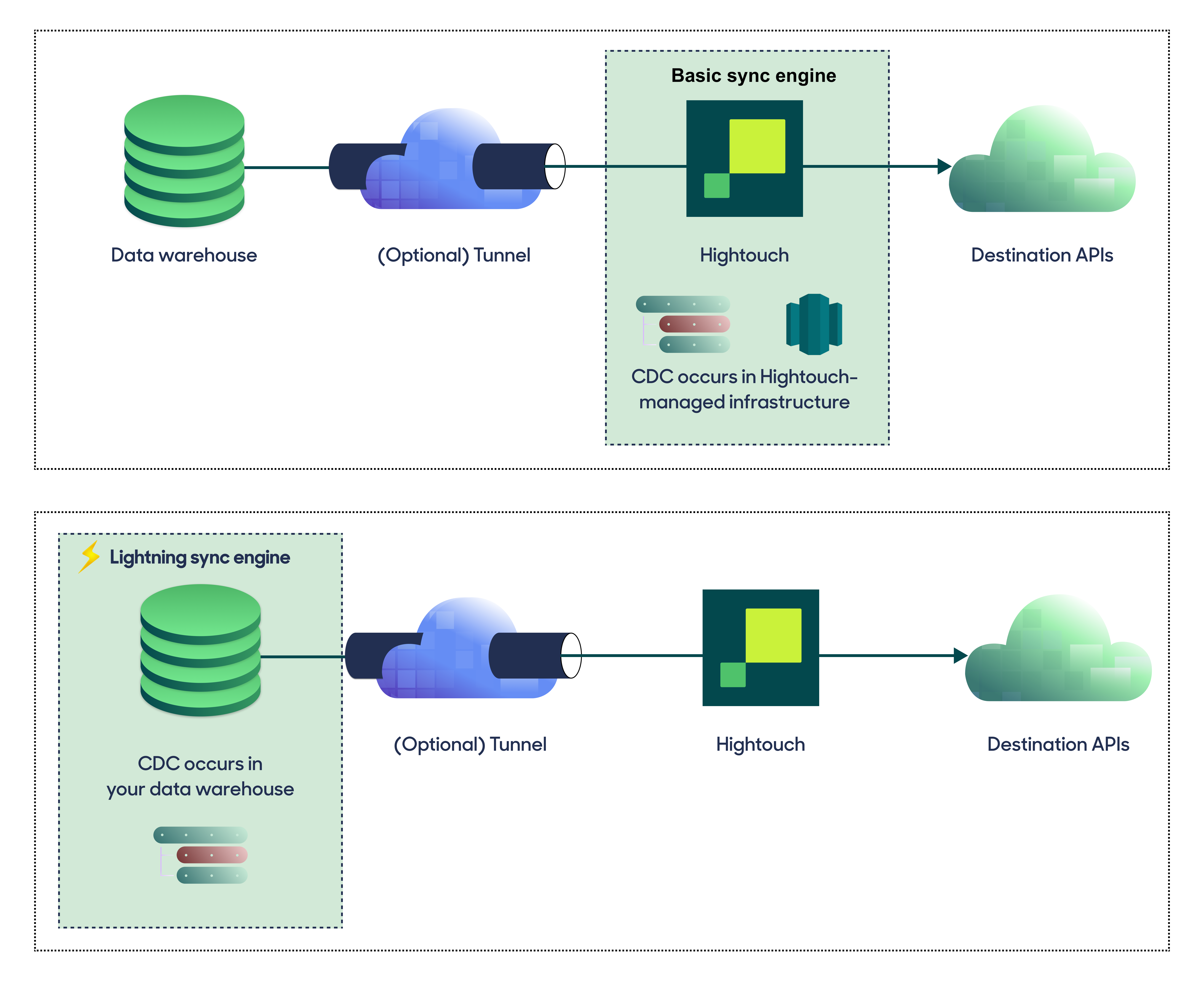
Basic versus Lightning engine comparison
The Lightning sync engine requires granting write access to your data warehouse, which makes its setup more involved than the Basic sync engine. However, it is more performant and reliable than the Basic engine. This makes it the ideal choice to guarantee faster syncs, especially with large data models. It also supports more features, such as Warehouse Sync Logs, Match Booster, and Identity Resolution.Lightning engine setup
To set up the Lightning engine, you need to grant Hightouch write access to Lakebase. You can do so by running the following SQL snippet.hightouch_planner and hightouch_audit) for storing logs of previously synced data.
Provide credentials
Enter the following fields into Hightouch:- User: This can be your personal Lakebase login or a dedicated user for Hightouch. At minimum, this user must have read access to the data you wish to sync. If using the Lightning sync engine, you must also grant this user additional permissions as described above.
- Password: The password for the user specified above.
Test your connection
When setting up a source for the first time, Hightouch validates the following:- Network connectivity
- Lakebase credentials
- Permission to list schemas and tables
- Permission to write to
hightouch_plannerschema - Permission to write to
hightouch_auditschema
Create models
Once your source configuration has passed the necessary validation, your source setup is complete. Next, you can set up models to define which data you want to pull from Lakebase. The Lakebase source supports these modeling methods:- writing a query in the SQL editor
- using the visual table selector
- leveraging existing dbt models
- leveraging existing Looker Looks
- leveraging existing Sigma workbooks
You must enable the Lightning sync engine to store sync logs in your warehouse.