Supported syncing
For more information about sync modes, refer to the sync modes docs.
Connect to Monday
Go to the Destinations overview page and click the Add destination button. Select Monday and click Continue. Authenticate Hightouch to Monday by entering your API token from your Monday account. If you don’t have an API token, follow the instructions on Monday to access API tokens depending on your role. Ensure your API token has write access to the board you are syncing to.Sync configuration
Once you’ve set up your Monday destination and have a model to pull data from, you can set up your sync configuration to begin syncing data. Go to the Syncs overview page and click the Add sync button to begin. Then, select the relevant model and the Monday destination you want to sync to. Select which board you’d like to sync to. Each sync sends data to one board.Sync mode
Hightouch supports Update and Insert mode by using Monday’s GraphQL API with version 2023-10. Update mode uses thechange_multiple_column_values mutation.
Insert mode uses the create_item mutation.
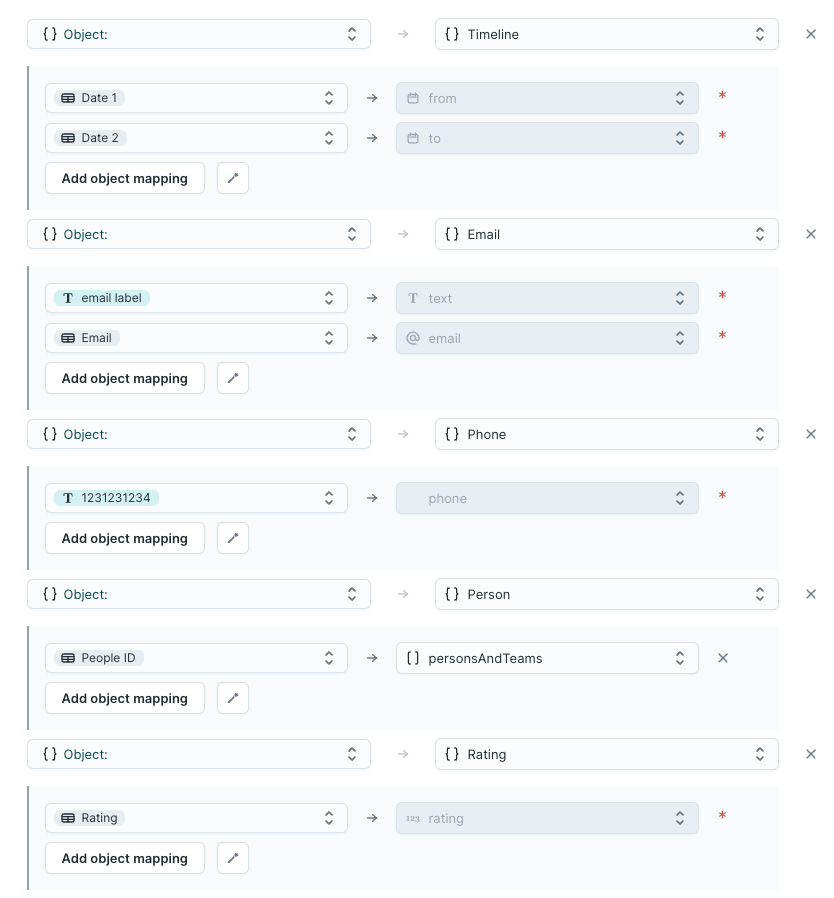
Field mapping
Hightouch supports the following column types:- Checkbox
- Country
- Date
- Dependency
- Hour
- Link
- Location
- Name
- Numbers
- People
- Phone
- Rating
- Status
- Tags
- Text
- Timeline
- Week
- World Clock