Supported syncing
For more information about sync modes, refer to the sync modes docs.
The order of rows and columns in synced spreadsheets may differ from how they appear in your model. This is expected behavior and applies to all sync modes. Learn more about row and column ordering.
Connect to Microsoft Excel
Go to the Destinations overview page and click the Add destination button. Select Microsoft Excel and click Continue. You can then authenticate Hightouch to Microsoft Excel by logging into your Microsoft Excel account. Once successful, you will be redirected back to Hightouch to enter a descriptive name for your destination and complete setup.Sync configuration
Once you’ve set up your Microsoft Excel destination and have a model to pull data from, you can set up your sync configuration to begin syncing data. Go to the Syncs overview page and click the Add sync button to begin. Then, select the relevant model and the Microsoft Excel destination you want to sync to.Sync mode
Your first configuration is the sync mode. You can select either:- Mirror: if you want the full result set to overwrite a particular sheet’s contents
- Snapshot: if you want to create a new sheet on every sync; the created worksheet’s name is composed of the model name and sync run timestamp, for example,
Model Name: YYYY-MM-DD T hh mm ss.
Drive and workbook selection
You can select any drives the user you authenticated with has access to. When selecting a workbook, you can either select the workbook from a dropdown or choose to enter a workbook ID. Once you’ve selected the workbook, its worksheets populate the next dropdown.Field mapping
You can choose to sync all columns or select only certain model columns to sync to your Excel worksheet. When syncing all columns, the column names in Excel mirror the column names in your source. When selecting specific columns, you can enter new columns names. If you’d like to rename columns, even if you want to sync all columns, you need to map each one individually.Custom cell range
By default, Hightouch inserts data in a worksheet starting at cell A1. The inserted data clears and updates the entire sheet. You can optionally select a range of cells to insert the data to. This capablity lets your preserve formulas or notes in your spreadsheet’s margins. When entering a range into the Custom Cell Range use the formatA1:Z1000, where A1 is the top left cell to insert data into and Z1000 is the bottom right cell.

Tips and troubleshooting
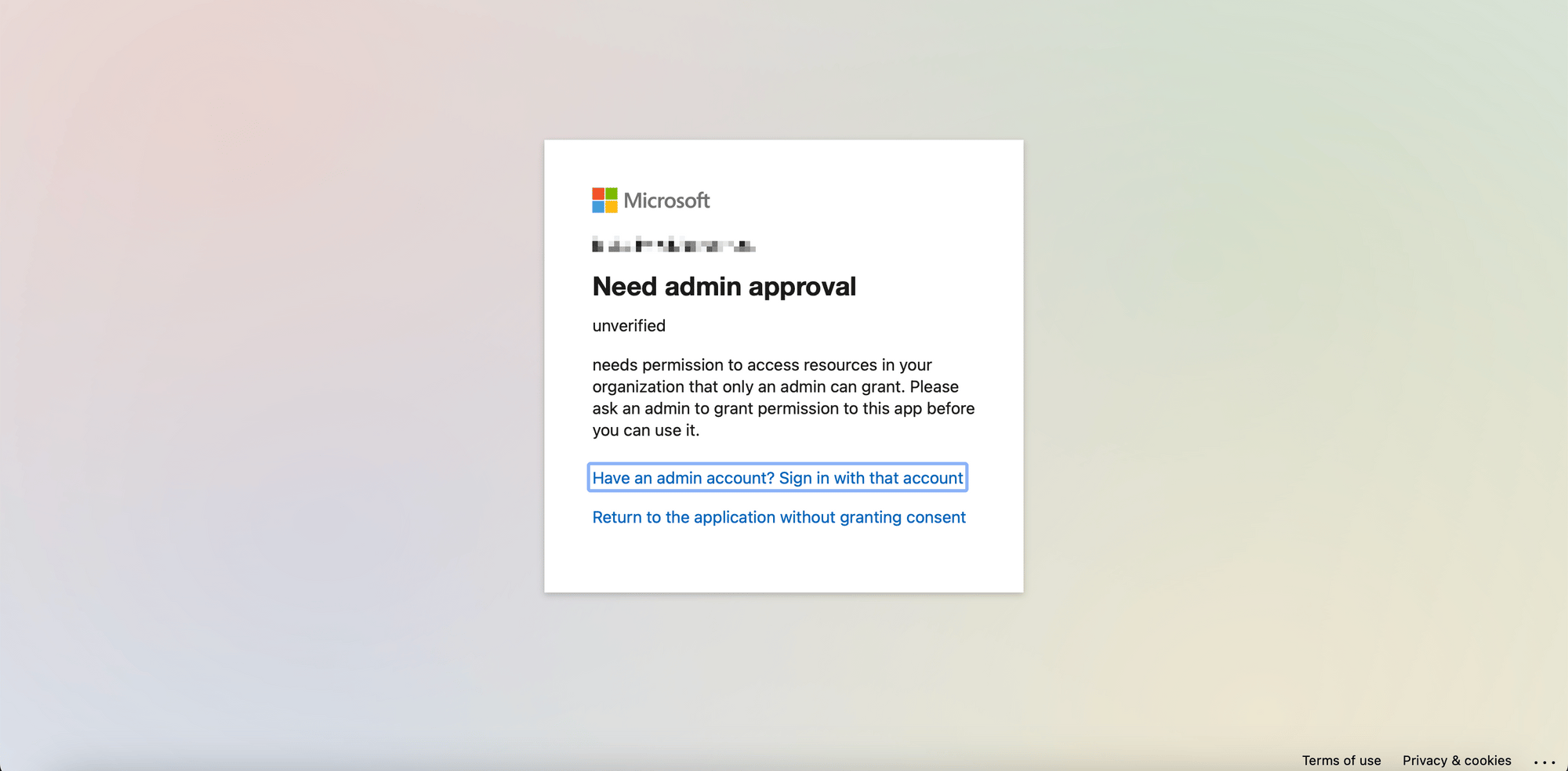
To see the exact API requests and responses from each sync run, use the live debugger. To get notified by Slack, PagerDuty, SMS, or email when a sync fails, set up sync alerts. If you run into an issue this page doesn’t cover, .Need admin approval
If you see a Need admin approval page appear when accessing Microsoft’s OAuth login flow, your Azure Active Directory user account might not have the necessary permissions to connect applications to your organization.