

Overview
With the Slack destination, Hightouch can serve as a notifier for various data-related events or changes. This is a very flexible integration that you can use for many different use cases, such as:- notifying your Customer Success teams when product usage for a key account suddenly drops
- notifying an Account Executive when product usage surpasses a certain threshold
- sending a daily summary of the number of sign-ups compared to the same day in the previous month
- sending a daily summary on the adoption of a core feature
Supported syncing
The order of rows and columns in messages may differ from how they appear in your model. This is expected behavior and applies to all sync modes. Learn more about row and column ordering.
Slack error alerting
To learn more about setting up Slack as your error alerting tool, see the Alerting page.Connect to Slack
Authenticating with OAuth
Use OAuth to connect Slack by navigating to Destinations > Create New > Slack. Click Connect and log in with your desired Slack account. Once you have selected your desired workspace, click Allow and you will see an Authorization successful screen in Hightouch. Finish your setup by clicking the continue button and naming your destination.Adding the Hightouch bot to a channel
In order for Hightouch to message your channel, you need to ensure the Hightouch bot is added as an integration. Follow the steps below to add the bot to your channel. Adding the Hightouch bot can be done by typing/invite @hightouch in the Slack composer. If that doesn’t work you can also add the Hightouch bot by following these steps:
-
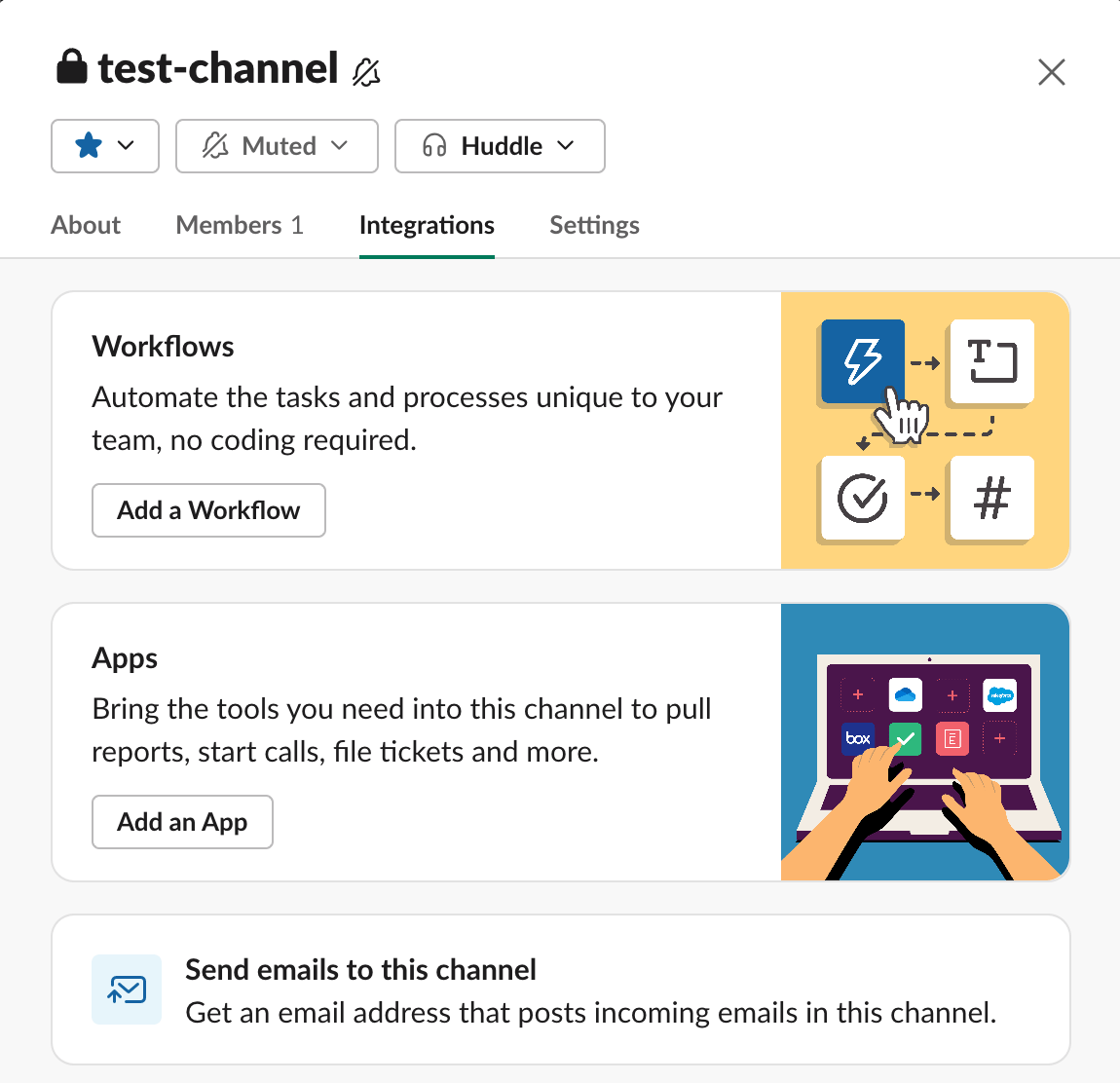
Go to your channel and click the dropdown button (∨) next to the channel name.

-
Click Integrations > Add an App.
-
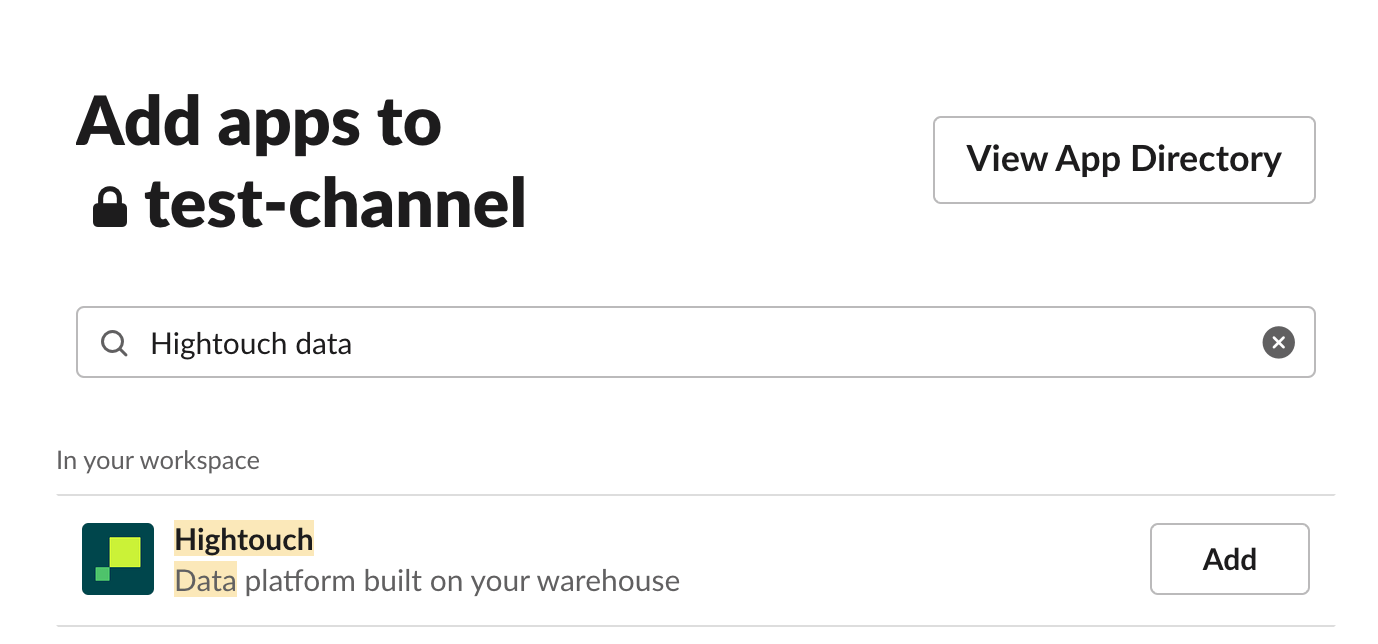
Search for Hightouch and click Add next to the Hightouch app name.
-
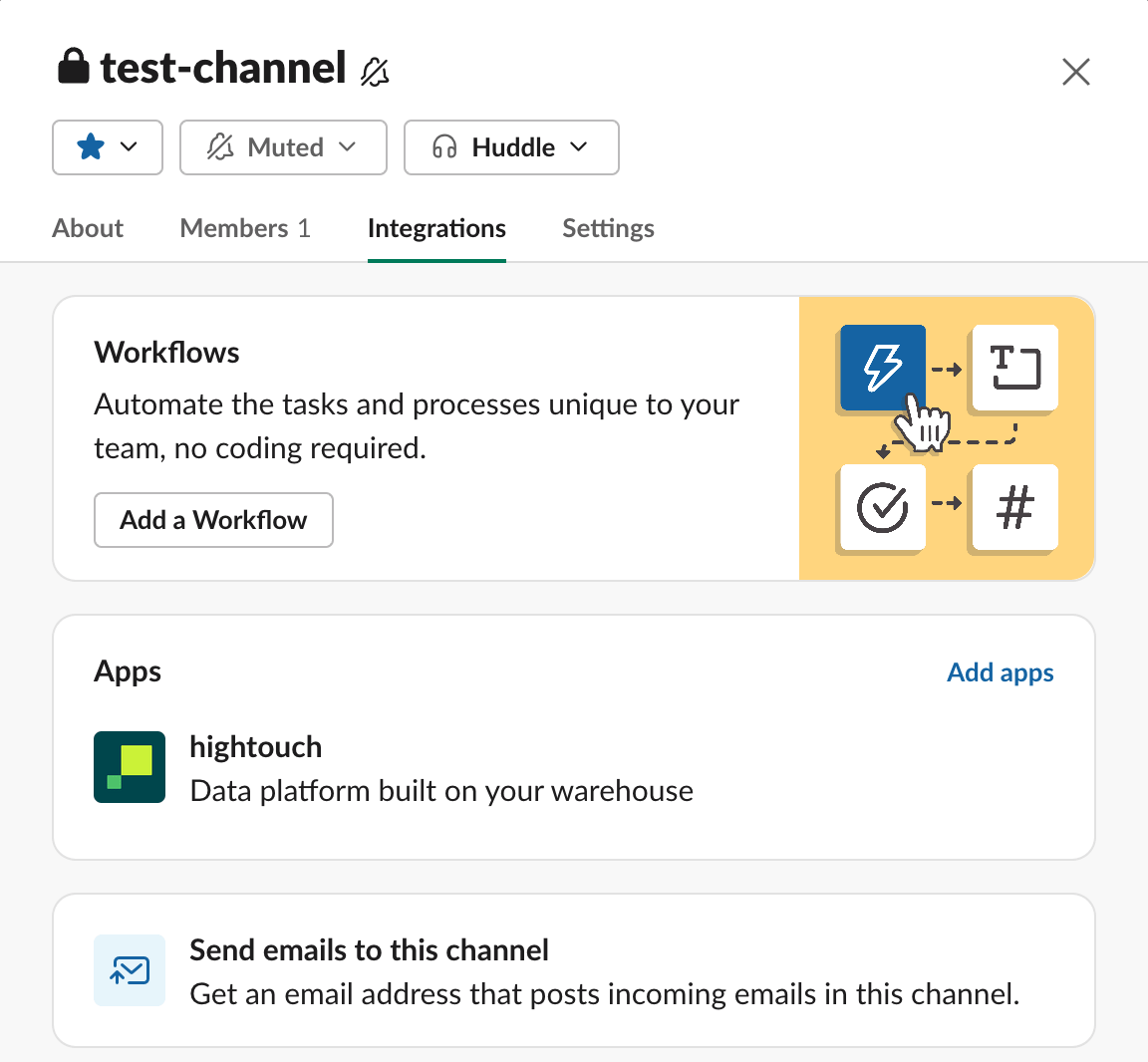
The Hightouch bot should now appear in the channel settings.
Sync configuration
Once you’ve set up your Slack destination and have a model to pull data from, you can set up your sync configuration to begin syncing data. Go to the Syncs overview page and click the Add sync button to begin. Then, select the relevant model and the Slack destination you want to sync to.Syncing messages
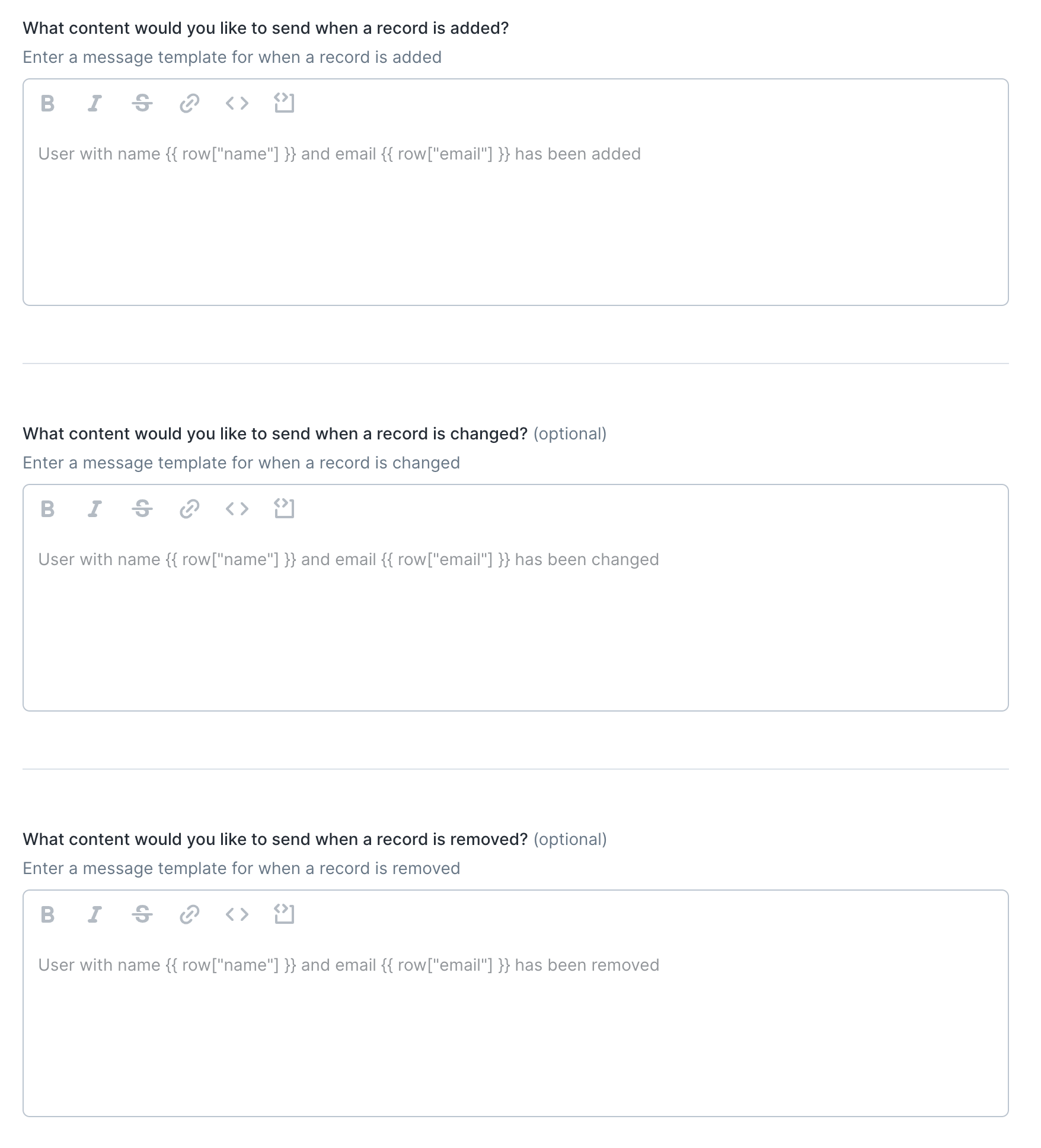
Hightouch supports sending messages based on rows that have been added, changed, or removed since the last sync run. Each row is sent as an individual message and can be templated with Liquid. You can also send messages to different Slack channels.Channel selection
After adding the Hightouch bot to a Slack channel, you can select it from this dropdown menu or enter a channel ID manually. You can also enable the Use column toggle to select a model column instead of a Slack channel name. The model column selected in the dropdown menu must contain the correct Slack channel ID for every row in your model. This also allows you to dynamically set the target channel, by inserting different Slack channel IDs for different rows in your model.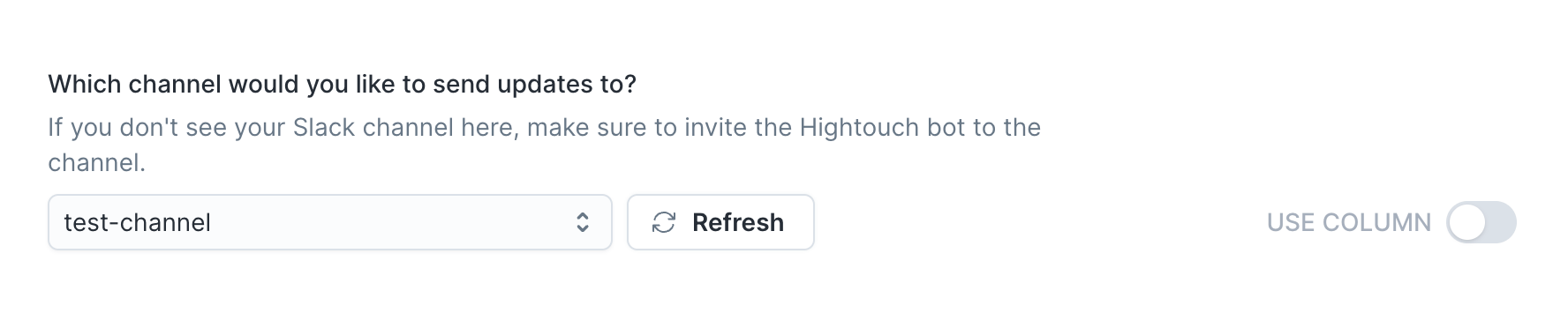
Private channels
Private channels are hidden from the dropdown. To send to a private channel you can manually enter the channel ID.Check out the Common
errors section if you
don’t see your Slack channel in this menu.
Added, changed, and removed messages
Hightouch allows you to send different messages based on the row type:- when a row is added to your query results, Hightouch will send the row added content.
- when a row is changed in your query results, Hightouch will send the row changed content.
- when a row is deleted from your query results, Hightouch will send the row deleted content.
Check out the Common errors section if your
column name contains spaces.
Syncing batch messages
The batch message sync mode is similar to the normal message mode, except it sends all rows in the query result rather than only added, changed, or removed rows. This sync mode is ideal if you want to write a template and have Hightouch push a message containing all rows to Slack, formatted as a single message. This mode also allows you to specify how many rows are sent per message, which can range from 1 to 50. With 1 row per message, it behaves similar to the message sync mode since it creates multiple messages in Slack. Whereas 50 rows per message is similar to the table sync mode.Channel selection
The batch message sync mode only supports sending your messages to a single channel, unlike the message mode.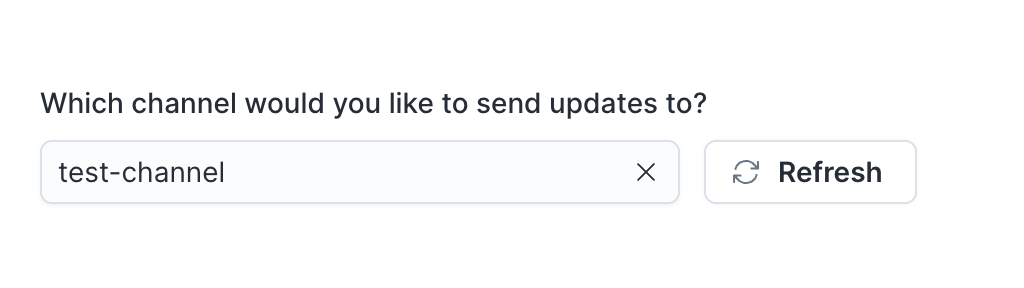
Private channels
Private channels are hidden from the dropdown. To send to a private channel you can manually enter the channel ID.Header, body, and footer content
For each message, Hightouch allows setting the header, body, and footer content. The header and footer are optional, whereas the message body is required. The body is repeated for every row in your model. This content can be templated and also supports the Slack Block Kit.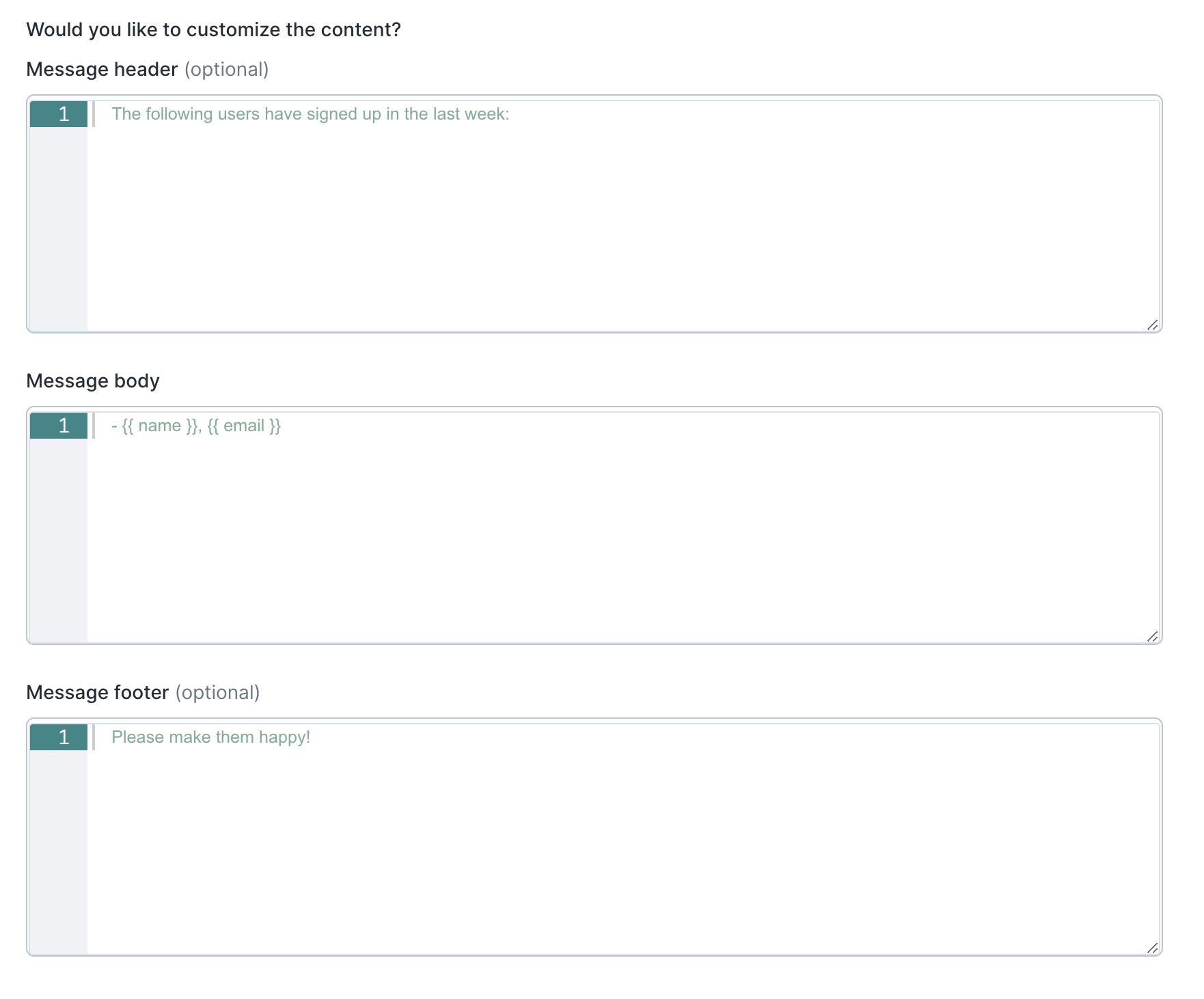
Check out the Common errors section if your
column name contains spaces.
Syncing tables
The table sync mode is similar to the batch message mode. It sends all of your query results as a table-formatted message to Slack. This mode is only recommended for small datasets.Syncing CSV files
The CSV sync mode is similar to the batch message and table modes. It sends all of your query results as a CSV file attached to a Slack message.Templating messages
Liquid templating is supported for the message and batch message sync modes. This allows you to include model columns as part of the message body to insert dynamic values in your Slack messages. Here is an example message making use of Liquid to include model columns in a message:Tagging Slack users (@…)
Hightouch supports tagging users by either their Slack User ID or by email:- Tagging by User ID: tag by user ID by writing
<@{{ userId }}>whereuserIdis the column that contains the user’s Slack ID. If theuserIdis a static value, you can write something like<@UL53466SY>. - Tagging by Email: tag by email by writing
<@{{ email | slack_user_lookup }}>where email is the column that contains the user’s email used in Slack. If the email is a static value, you can write something like<@{{ "example@gmail.com" | slack_user_lookup }}>.
Inserting URLs
You can insert URLs by highlighting a section of your template and pasting the URL. Otherwise, you can build URLs directly by following this format:<URL link|URL text>.
For example, a URL that points to a Salesforce organization’s page could look like this: <https://www.salesforce.com/organization/{{ org_id }}/view|Salesforce Organization>
We recommend using the second method when building dynamic URLs with liquid templating.
Unfurling links and blocking unfurl
By default, Slack automatically unfurls (displays a preview of) URL links in your messages. To prevent automatic unfurling, surround the URL with backticks (`), for example:
`https://www.hightouch.com/`
The backtick is usually located
above the tab key on the left-hand side of the keyboard.
Formatting text for app for Slack surfaces
Slack provides an extensive guide to formatting surfaces in the app for Slack with instructions on how to:- format text
- insert emojis
- mention users and channels
- format dates, quotes, and lists
Slack Block Kit
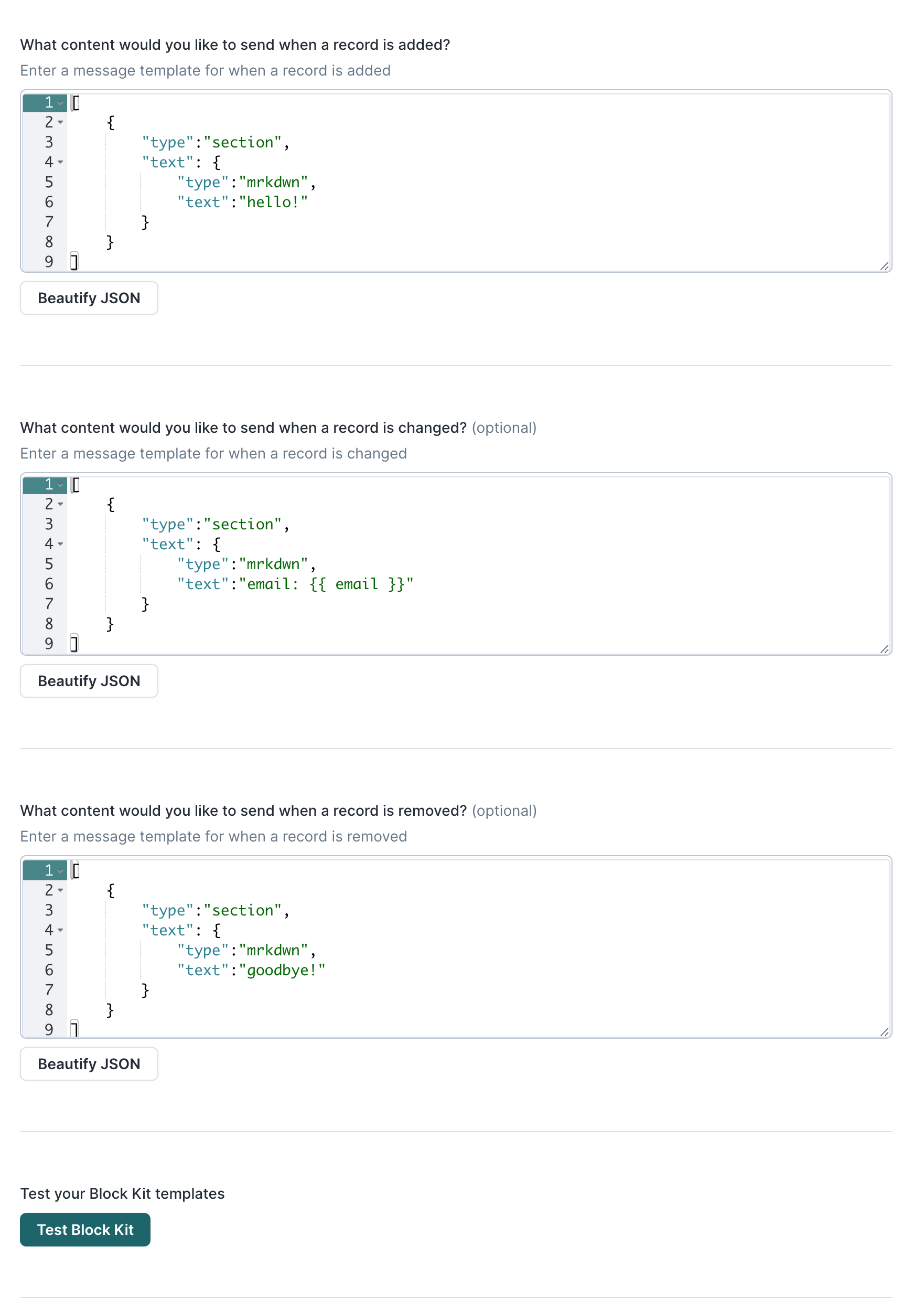
To enable the Slack Block Kit, select Slack Block Kit for the content type. Make sure to use Slack’s Block Kit Builder to draft your message content.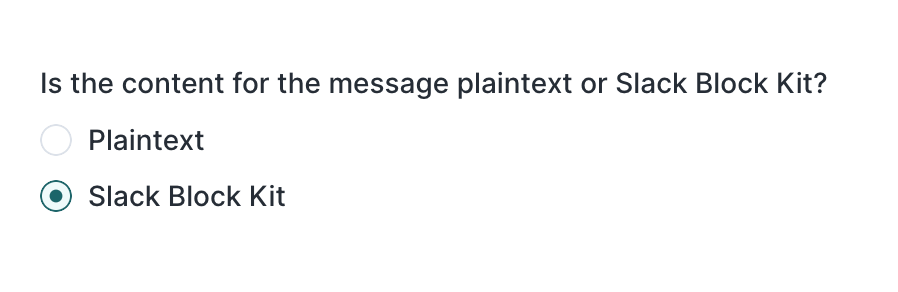
Customizing bot appearance
Hightouch also allows you to customize how the Hightouch bot is displayed when sending messages to your Slack channel. You can find these fields in your sync configuration:
Keep in mind that users in the channel will be able to see the real bot name and image by clicking on it.
Tips and troubleshooting
To see the exact API requests and responses from each sync run, use the live debugger. To get notified by Slack, PagerDuty, SMS, or email when a sync fails, set up sync alerts. If you run into an issue this page doesn’t cover, .For Hightouch platform error codes related to Slack, see Error codes: Slack.
Common errors
Slack channel not appearing in sync configuration
If your Slack channel isn’t appearing in the channel selection menu, make sure that you added the Hightouch bot to the channel. If this still doesn’t work, try reauthorizing your Slack destination in Hightouch. As a next troubleshooting step, remove the Hightouch app for Slack from your Slack workspace by visiting the Hightouch app page, opening the Configuration tab, and clicking Remove App.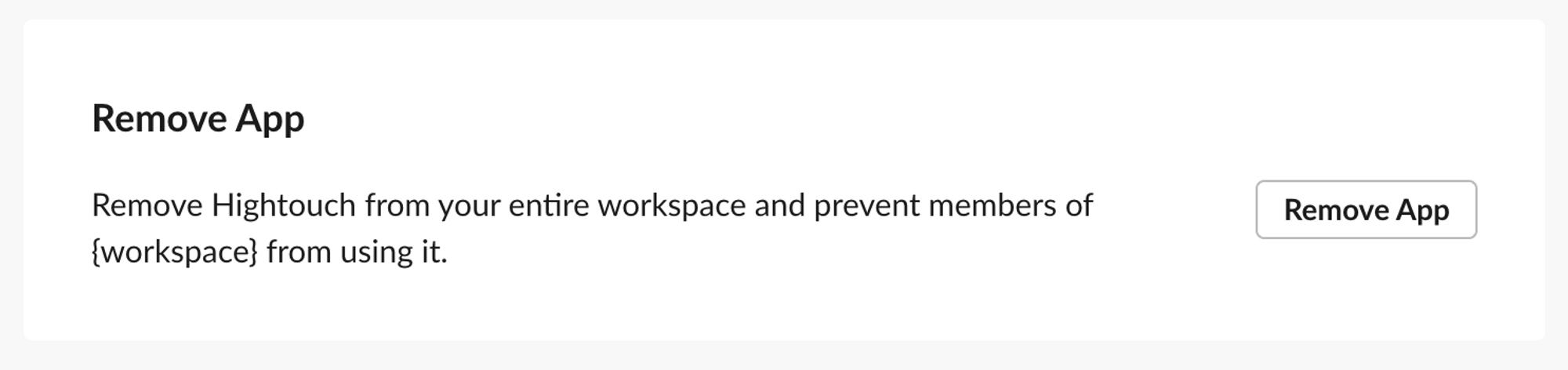
Invalid_blocks
Using"plain_text" instead of "mrkdwn" in your Slack Block Kit syntax is the most common cause of this error.
You can find examples of the correct syntax to use in the Slack Block Kit section of this page.
Cannot read properties of undefined (reading ‘length’)
You may receive theCannot read properties of undefined (reading 'length') error when syncing batch messages.
If you’re using the Slack Block Kit as the content type, your sync might return this error instead:
Parsing failed with error SyntaxError: Unexpected end of JSON input.
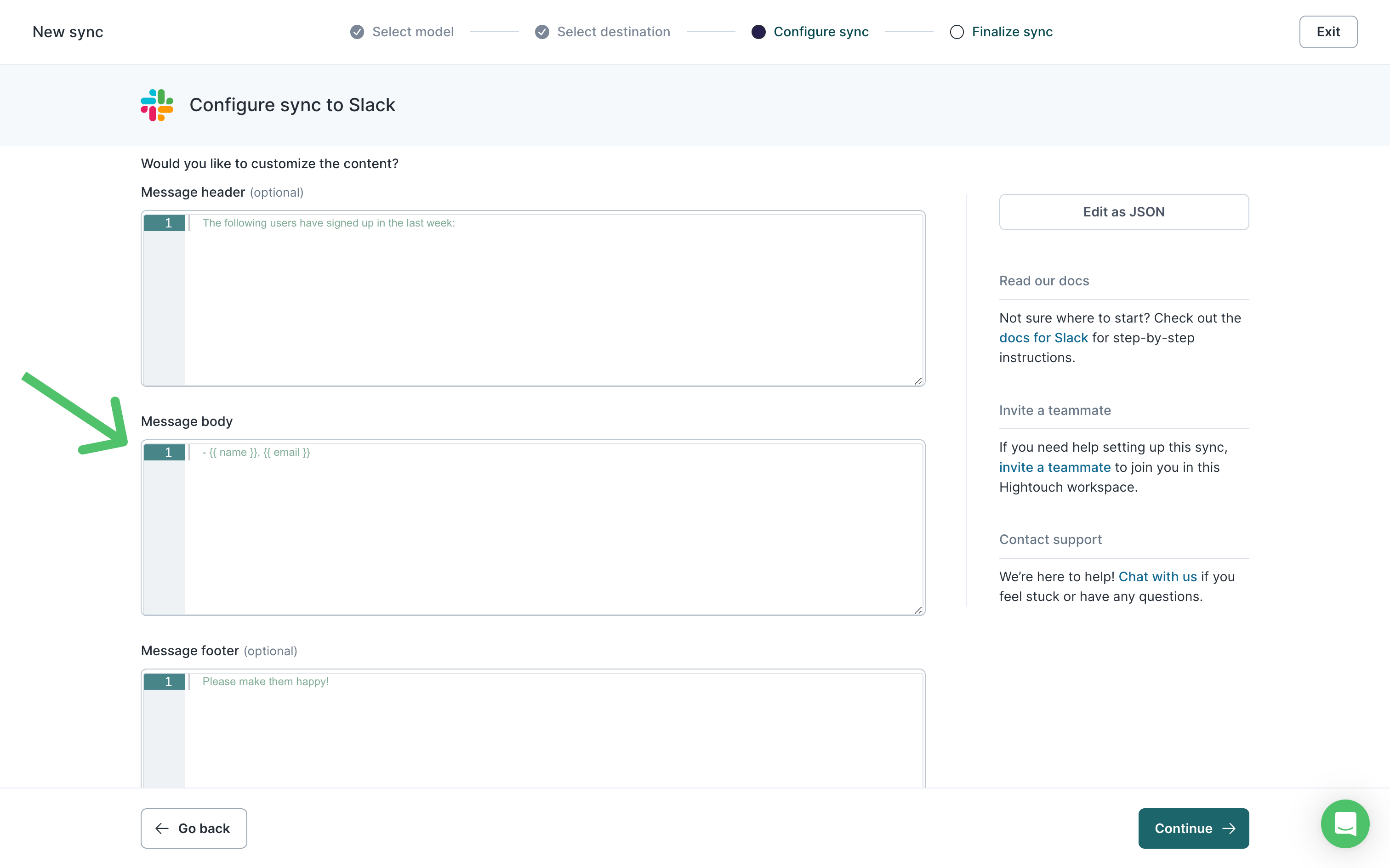
In either case, make sure to insert body content in the sync configuration.
Header and footer content is optional.
ParseError: unexpected token
The full error message may look like,unexpected token at "name", line:1, col:13. You may receive this error because a column header that is being referenced in your message contains a space. For example:
- Rename your column so that the name does not contain spaces, for example,
firstNameorfirst_name. An example will look like:
- If you cannot change the column’s name then you can use this language of liquid templating. An example will look like: