

Overview
Providing relevant and timely campaigns relies on fresh and accurate data in your MoEngage account. By automatically syncing customer data from your data warehouse into MoEngage, you don’t need to worry about data consistency or staleness. Instead, you can focus on building world-class customer experiences.Supported syncing
For more information about sync modes, refer to the sync modes docs.
Connect to MoEngage
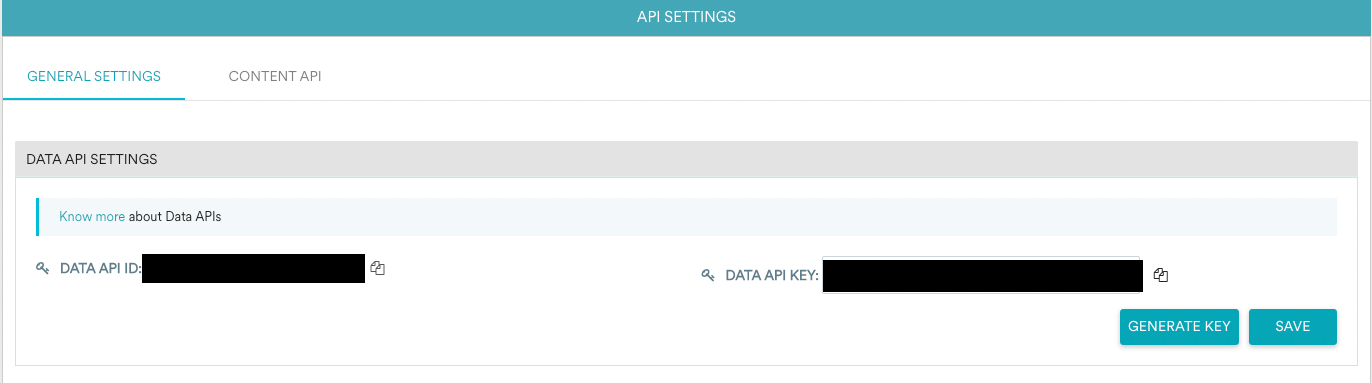
Go to the Destinations overview page and click the Add destination button. Select MoEngage and click Continue. You can then authenticate Hightouch to MoEngage. You need to provide the following information:- API ID: You can find this in your MoEngage dashboard under Settings > APIs > General.
- API Secret: You can find this in your MoEngage dashboard under Settings > APIs > General.
- Business Events API Key: This is required for syncing business events. You can find this in your MoEngage dashboard under Settings > APIs > General.
- Region: Select the region your MoEngage account is hosted in.
Sync configuration
Once you’ve set up your MoEngage destination and have a model to pull data from, you can set up your sync configuration to begin syncing data. Go to the Syncs overview page and click the Add sync button to begin. Then, select the relevant model and the MoEngage destination you want to sync to.Syncing users
This sync type lets you sync data to MoEngage user profiles.Record matching
You can match rows from your model to users in MoEngage on their User ID.Field mapping
Hightouch lets you sync user fields via field mapping. You can map data from any of your model columns to standard or custom user attributes in MoEngage. MoEngage expects custom properties to follow asnake_case format.
Delete behavior
The delete behavior you select dictates what to do when a row no longer appears in your model’s query results. You have the following options:Syncing events
This sync type lets you send events to MoEngage. Hightouch treats any records added to your model as new events to be sent to MoEngage. When creating a sync for events, you can specify the name of the event being tracked. You can either input a static name, or use a column from your model. You can also select a column that is used as the timestamp of when the event happened. If this field is empty, Hightouch will use the time of when the event arrives at the server.Record matching
You can match rows from your model to users in MoEngage on their User ID.Field mapping
You can map data from your model columns to event properties. Any mappings from this section will be synced as attributes in the event. MoEngage expects custom properties to follow asnake_case format.
Syncing segments
This sync type lets you add or remove users from MoEngage cohorts. You can either sync to an existing cohort or create a new one.Users must already exist in MoEngage before they can be added to a cohort.