

Supported syncing
For more information about sync modes, refer to the sync modes docs.
Connect to EnjoyHQ
Go to the Destinations overview page and click the Add destination button. Select EnjoyHQ and click Continue. You can then authenticate Hightouch to EnjoyHQ by entering an EnjoyHQ API key. To retrieve an API key in EnjoyHQ, go to Manage integrations and select the API card in the Other section.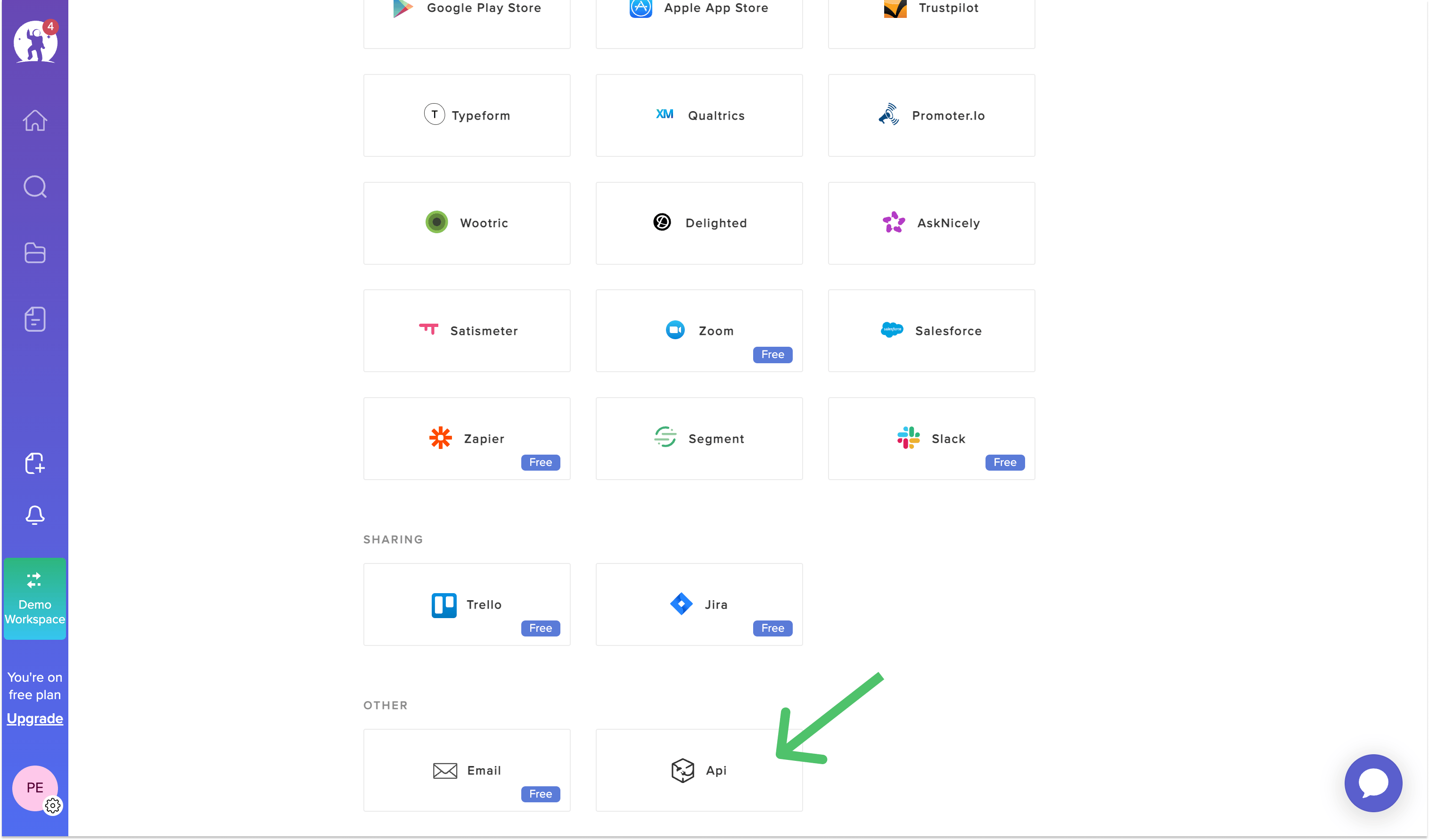
Sync configuration
Once you’ve set up your EnjoyHQ destination and have a model to pull data from, you can set up your sync configuration to begin syncing data. Go to the Syncs overview page and click the Add sync button to begin. Then, select the relevant model and the EnjoyHQ destination you want to sync to.Syncing documents
Create and update documents.Record matching
To match rows from your model to documents in EnjoyHQ, you need to select the model column that contains values that match the Foreign ID field.Field mapping
You can map data from any of your model columns to fields in EnjoyHQ. EnjoyHQ requires the following fields, so you must map them in order to complete your configuration:- Content
- Source