

Shopify will be deprecating their REST
API and recommends their
new GraphQL API. Hightouch
supports using these new GraphQL endpoints for new syncs, and existing syncs
can be updated to use the GraphQL endpoints.
Overview
This destination lets you send customer, product, and fulfillment information from your data warehouse to Shopify so you never have to worry about stale inventory information or incorrect customer or product details.GraphQL vs REST API
Shopify will be deprecating their REST API in favor of their new GraphQL API. For more detailed information on this update, and how object types and inputs have changed, refer to this Shopify resource. Hightouch allows syncs to use either protocol for the time being, and you can change between the two protocols to see the differences between them. Most notably, the GraphQL endpoints use new object types Product Variant and Product Option that were previously coupled together for the REST API. They are now separate Object types to sync to based on existing Products in your shop.Supported syncing
Connect to Shopify
Go to the Destinations overview page and click the Add destination button. Select Shopify. To connect your Hightouch app to Shopify, you need to create a custom app in your Shopify account.Shopify requires that custom apps made after January 1, 2026 be authenticated
to using Client credentials. Custom apps made before January 1, 2026 can
be authenticated to using an Admin API access token. If you are creating a
new custom app, please use the Client credentials flow. If you have an
existing custom app, you may use the Admin API access token flow.
Create Client credentials for your custom app
-
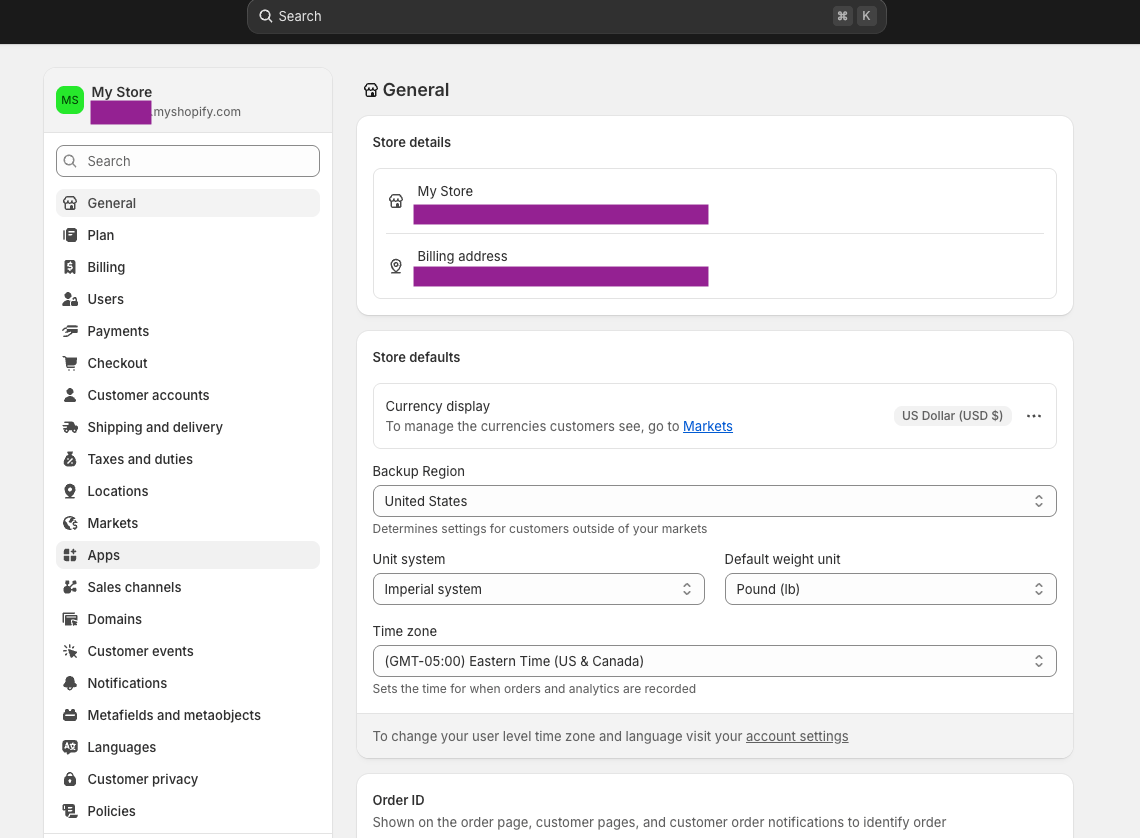
In your Shopify store’s home page, click Apps on the sidebar.
-
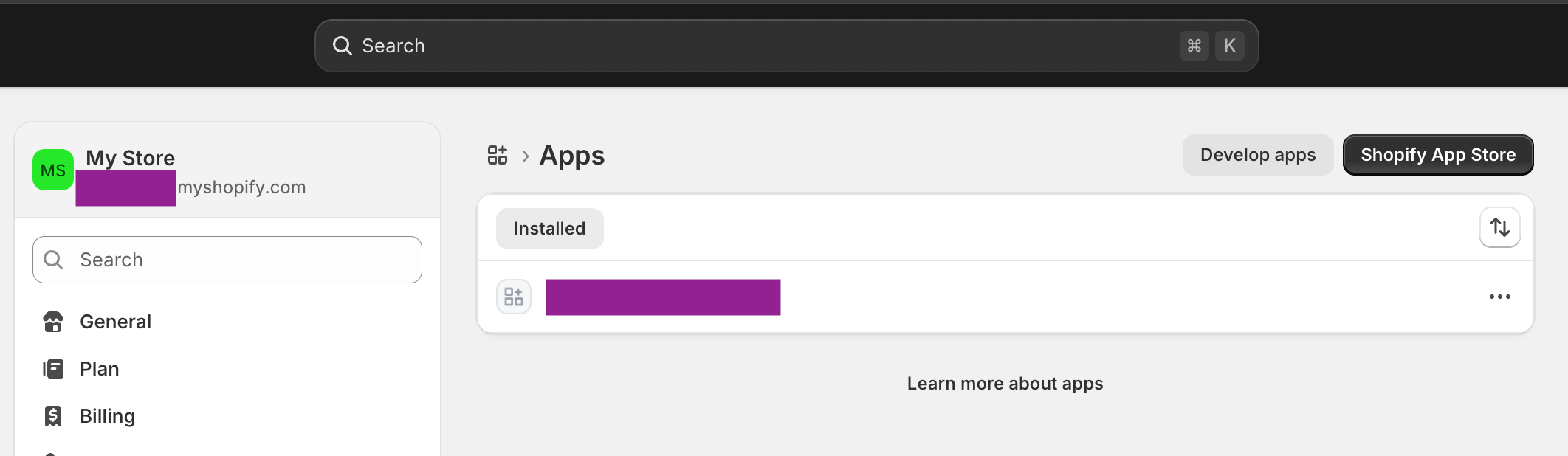
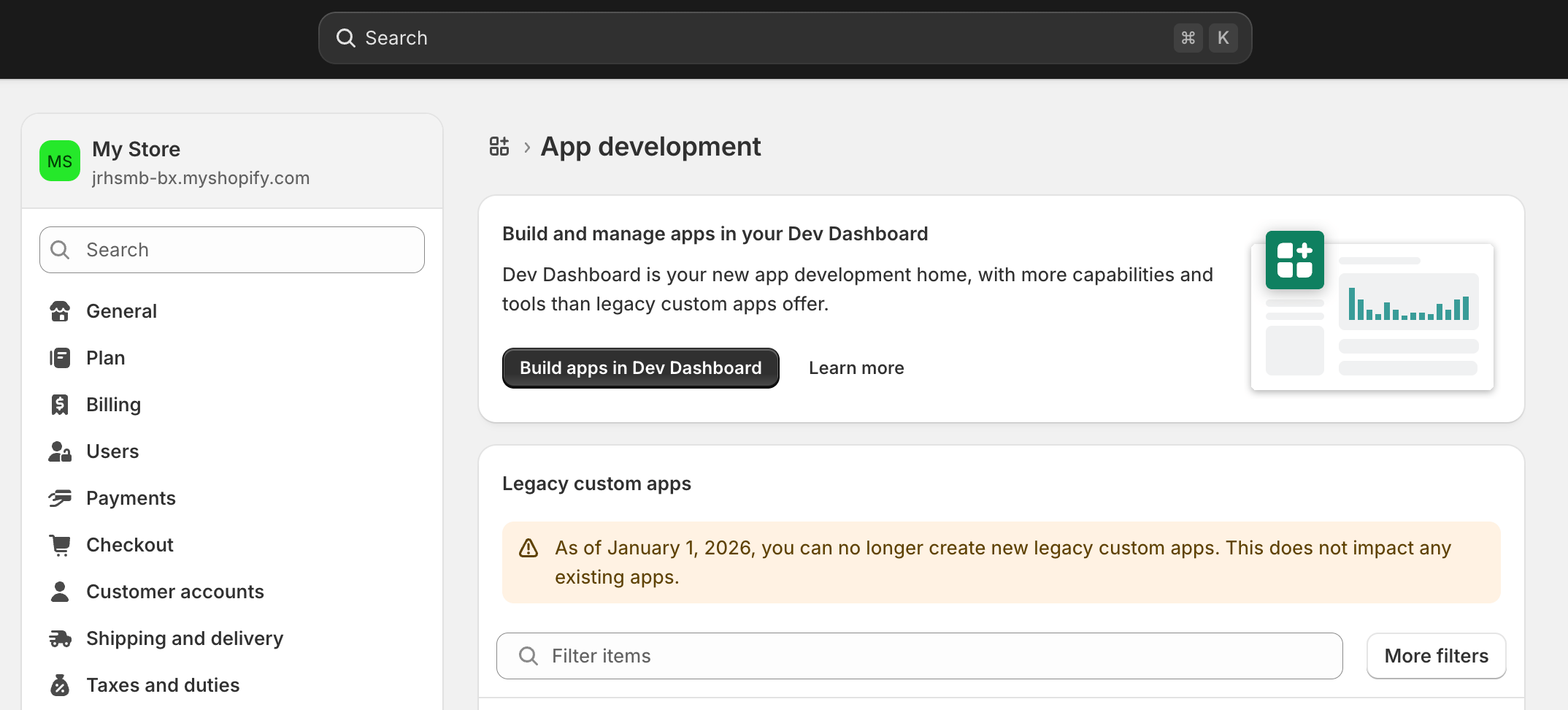
Click on Develop apps and then select Build apps in Dev Dashboard.
-
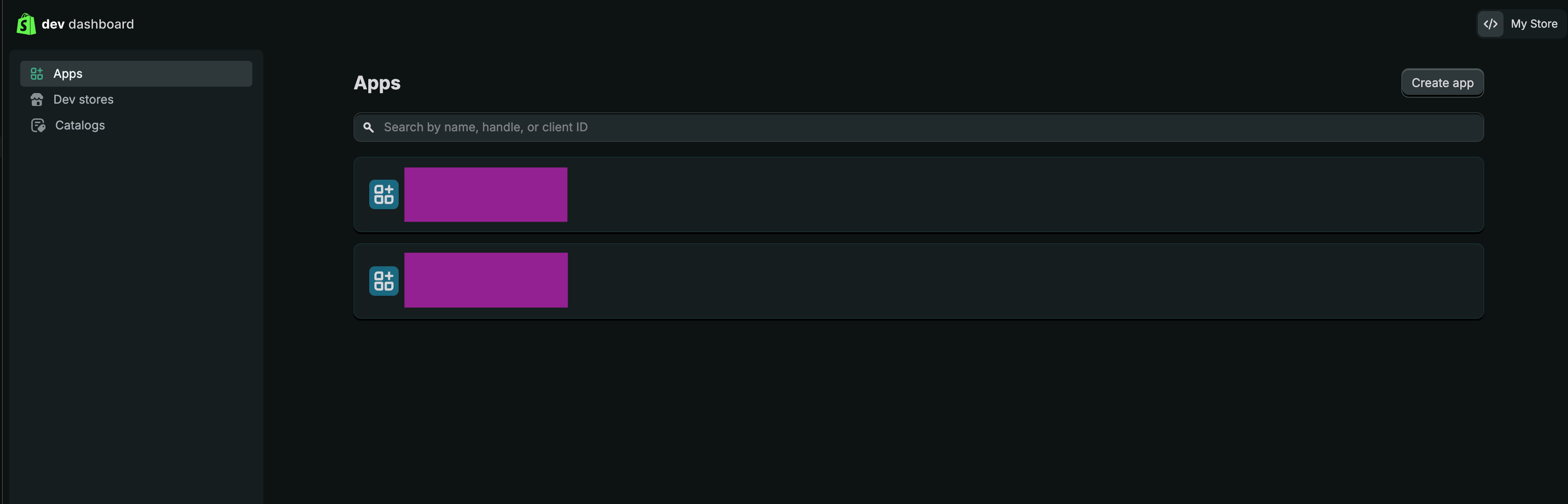
Click Create app and go through the flow using the Start from Dev Dashboard option.
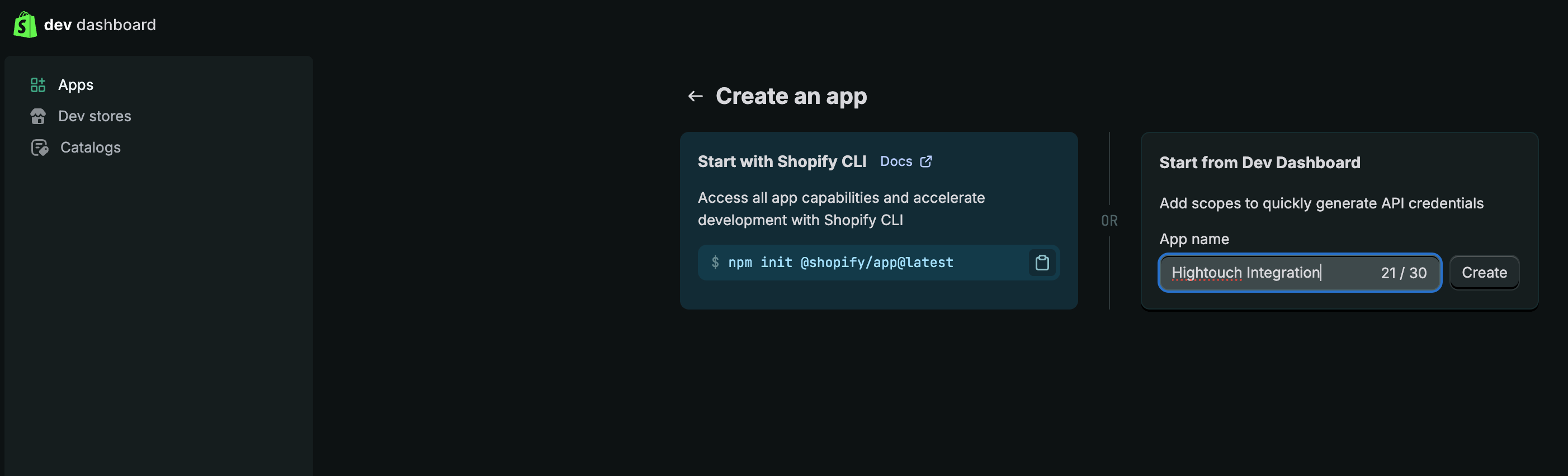
- Add to the Access > Scopes section the scopes:
- Click Release and under the Settings tab you will find your Client ID and Client secret.
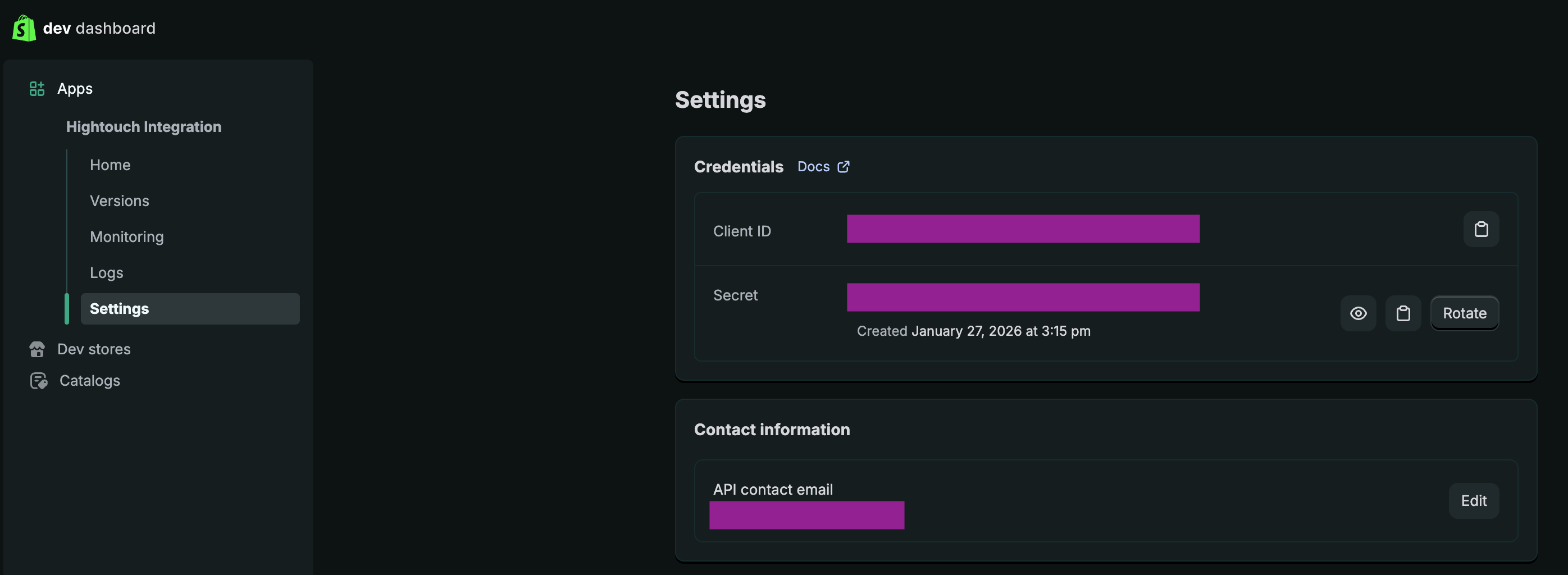
Create an Admin API access token for your custom app
- In your Shopify store’s admin, click Apps in the left sidebar.
- From the dropdown which appears, select Apps and sales channel settings.
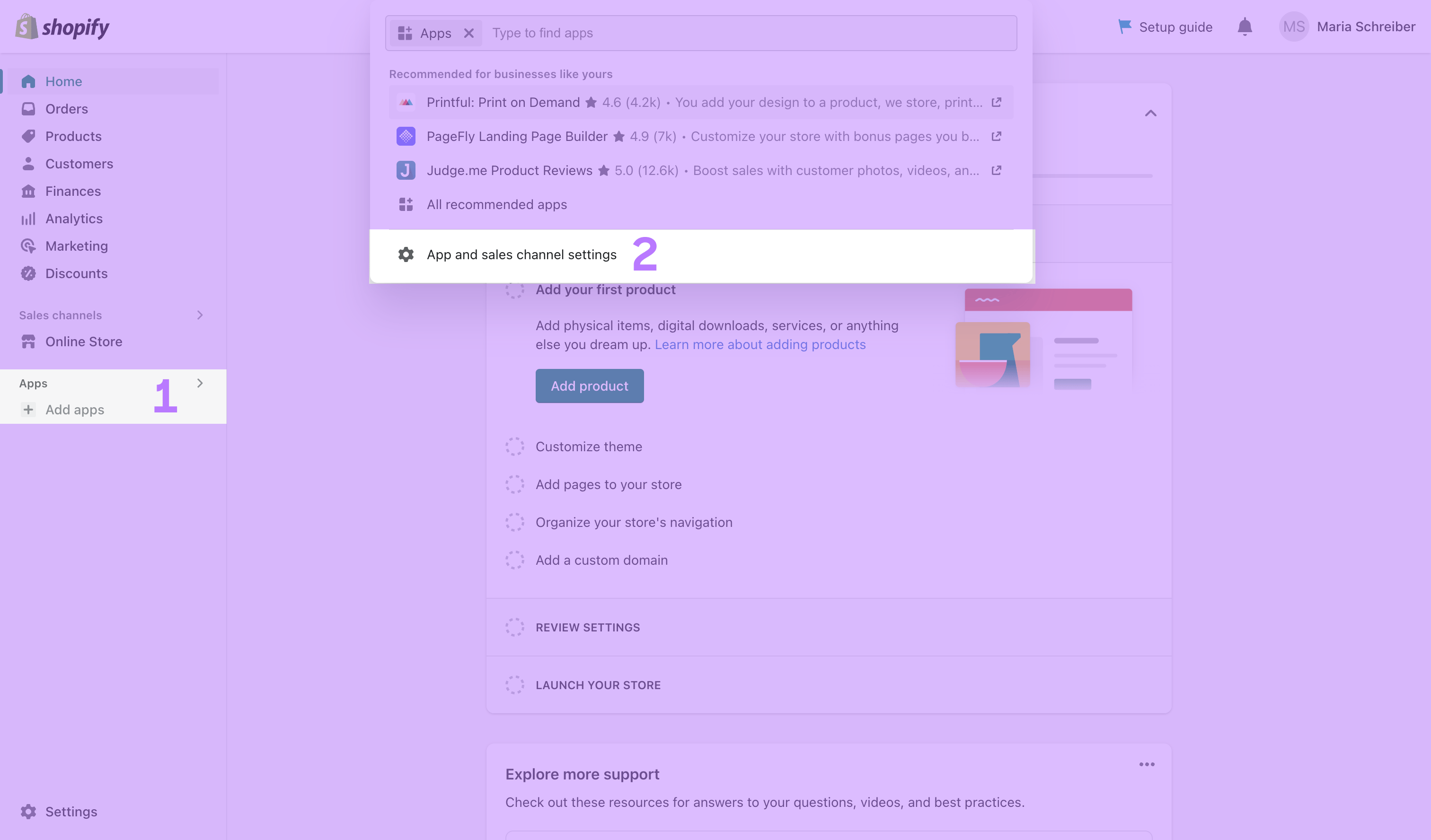
- Click Develop apps for your store.
- On the next screen, click Create an App in the top right corner. Give it a descriptive name, for example, “Hightouch integration.” Then click Create app.
- Under Configuration tab, select Configure to configure the Admin API Integration.
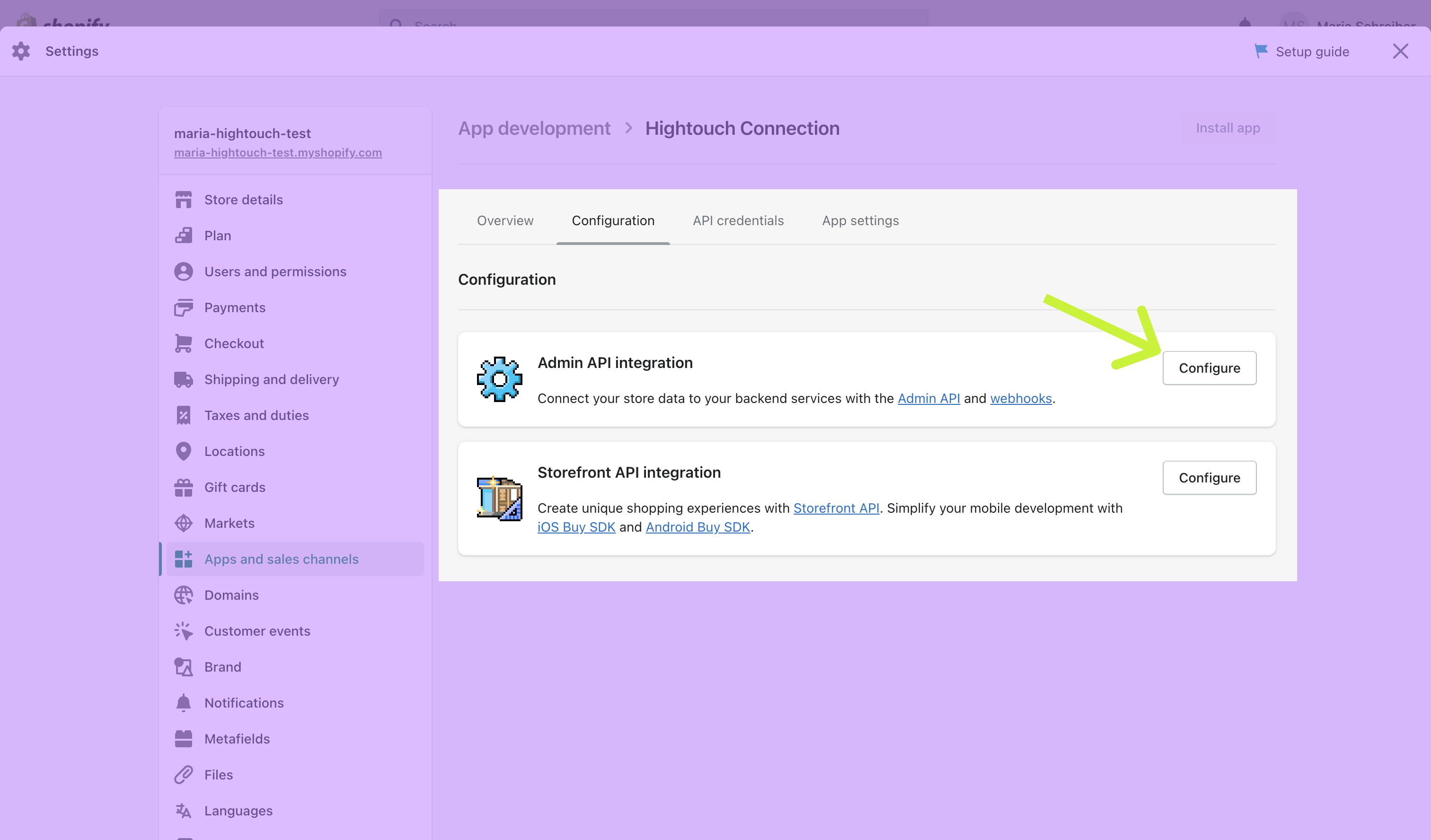
- Select the following Admin API access scopes:
write_customersread_customerswrite_discountsread_discountswrite_inventoryread_inventorywrite_price_rulesread_price_ruleswrite_productsread_productsread_locationswrite_assigned_fulfillment_ordersread_assigned_fulfillment_orderswrite_merchant_managed_fulfillment_ordersread_merchant_managed_fulfillment_orderswrite_fulfillmentsread_fulfillmentswrite_ordersread_orders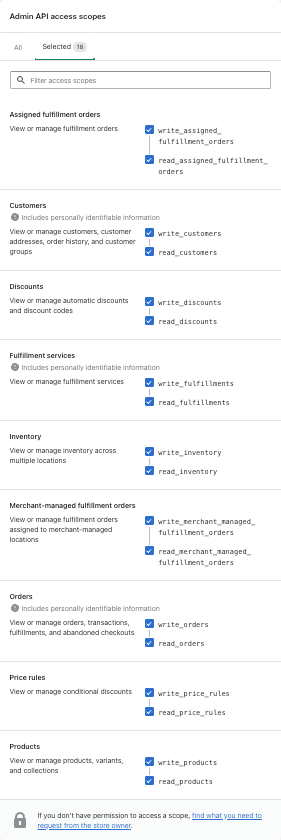
- Click Save in the bottom right of the screen.
- In API Credentials tab, click Install app, and then Install in the modal that appears.
- Your Admin API Access Token is now available. Copy and save your Admin API access token in a secure place.
Sync configuration
Once you’ve set up your Shopify destination and have a model to pull data from, you can set up your sync configuration to begin syncing data. Go to the Syncs overview page and click the Add sync button to begin. Then, select the relevant model and the Shopify destination you want to sync to.Objects
Hightouch supports syncing to these Shopify objects with the following sync modes:
Check out the sync modes docs to learn more.
Record matching
Based on the Shopify object, database records can be matched from your source to your Shopify workspace by a unique property.Field mapping
You can sync columns from your source to Shopify’s default and custom fields.Delete behavior
For Products (for the REST API protocol only), you can choose what Hightouch’s behavior is when a record leaves the query result set.Events
Hightouch supports syncing to these Shopify events with the following sync modes:Field mapping
You need to include at least the Fulfillment ID, Order ID, and Status in your sync. Other field mappings are optional.Actions
Hightouch supports syncing to these Shopify events with the following sync modes:Field mapping
Each action requires you to include at least the Fulfillment Order ID. Some actions require additional fields:Tips and troubleshooting
To see the exact API requests and responses from each sync run, use the live debugger. To get notified by Slack, PagerDuty, SMS, or email when a sync fails, set up sync alerts. If you run into an issue this page doesn’t cover, .For Hightouch platform error codes related to destinations, see Error
codes.
Validate your setup
After you configure your sync, run a test to confirm data flows correctly:- Start with a small test audience or a single record.
- Trigger a manual sync from the Syncs overview page.
- After the sync completes, verify the data in Shopify:
- For customer syncs, go to Customers in Shopify Admin and search for the test customer. Confirm that the mapped fields appear with the expected values.
- For product syncs, go to Products and verify the synced product attributes.
- If the sync shows errors, check the sync run log in Hightouch for specific API error messages.