

Overview
To get the most out of a tools like Chargebee, you’ll need to update customers and custom fields. Chargebee has a tedious process of having to update each customer individually. Hightouch solves this problem by letting you define your customers and it’s custom fields on top of your data warehouse or production database. This ensures that your Chargebee will always remain in sync with your entire data stack.Why subscription billing should be based on top of the warehouse
- You can sync analytics as custom fields to your Chargebee customers. This allows you to prioritize a subset of certain customers more easily.
- You no longer have to check and compare your data between Chargebee and your business tools.
Supported sync methods
Hightouch supports syncing data to a Chargebee customer.Sync customers to Chargebee
Matching source to destination records
When matching records, it’s preferred to match it through Chargebee’s customer ID. However, if your source has no access to the ID, it may match with other fields, such as email, last name, etc.Modes
- Upsert: This mode will update existing customers or insert the customer if they do not already exist.
- Update: This mode will just update existing customers.
Custom fields
You are able to update Chargebee’s custom fields through our destination custom field mapping. When referencing the Chargebee custom field within Hightouch, use the API name of the custom field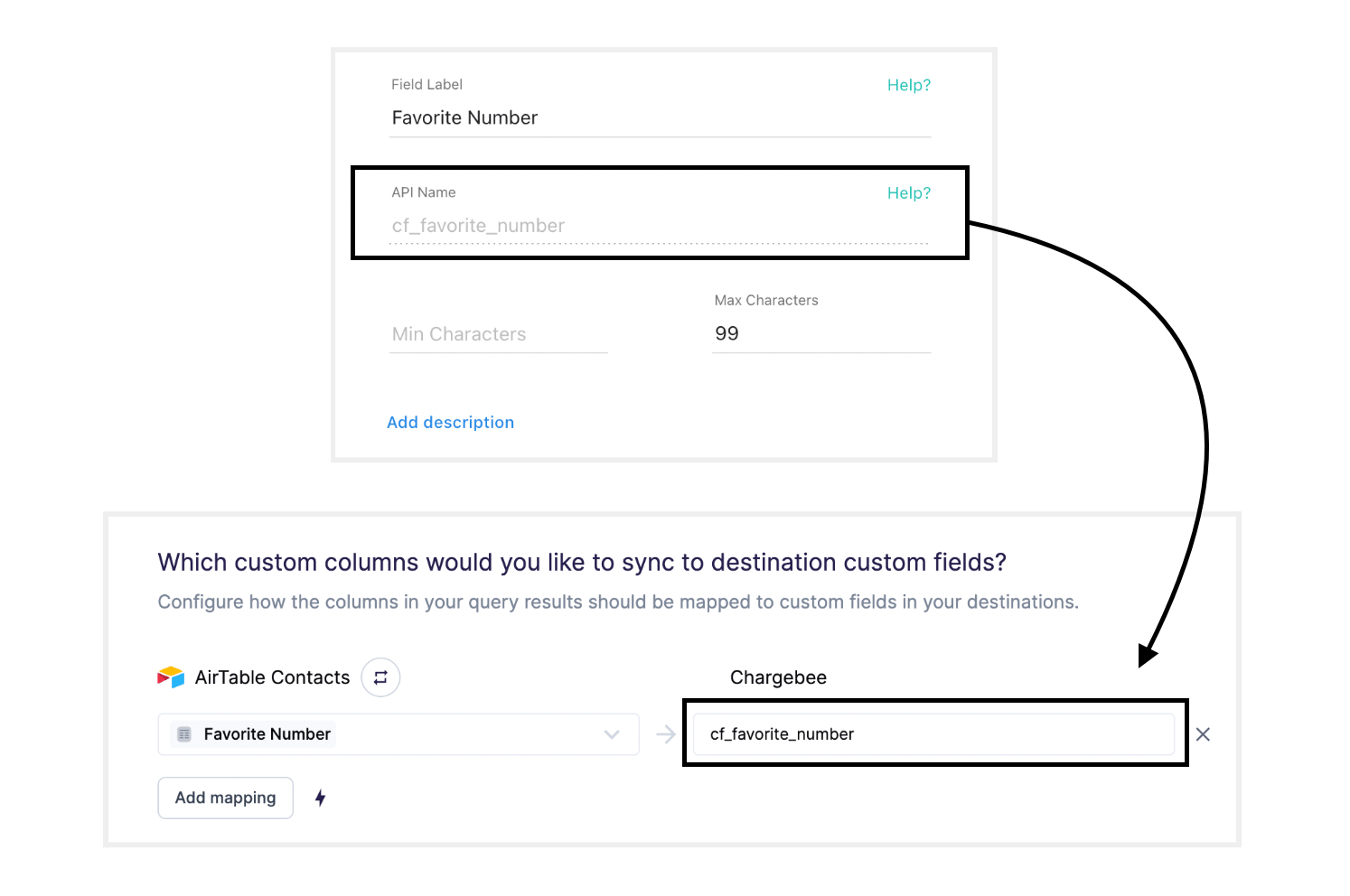
Rate limits
Something to keep in mind, as you process all your rows of data is that Chargebee limits the amount of times we can update the rows within their product per minute. This is completely dependent on which tier plan you have with Chargebee and if you’re using live/test site. More Information On Chargebee’s Rate LimitSetup
Connect to Chargebee
Creating API token
- Log in to Chargebee
- Click on Settings
- Click on Configure Chargebee tab
- Click on the API keys section
- Click on Add API key
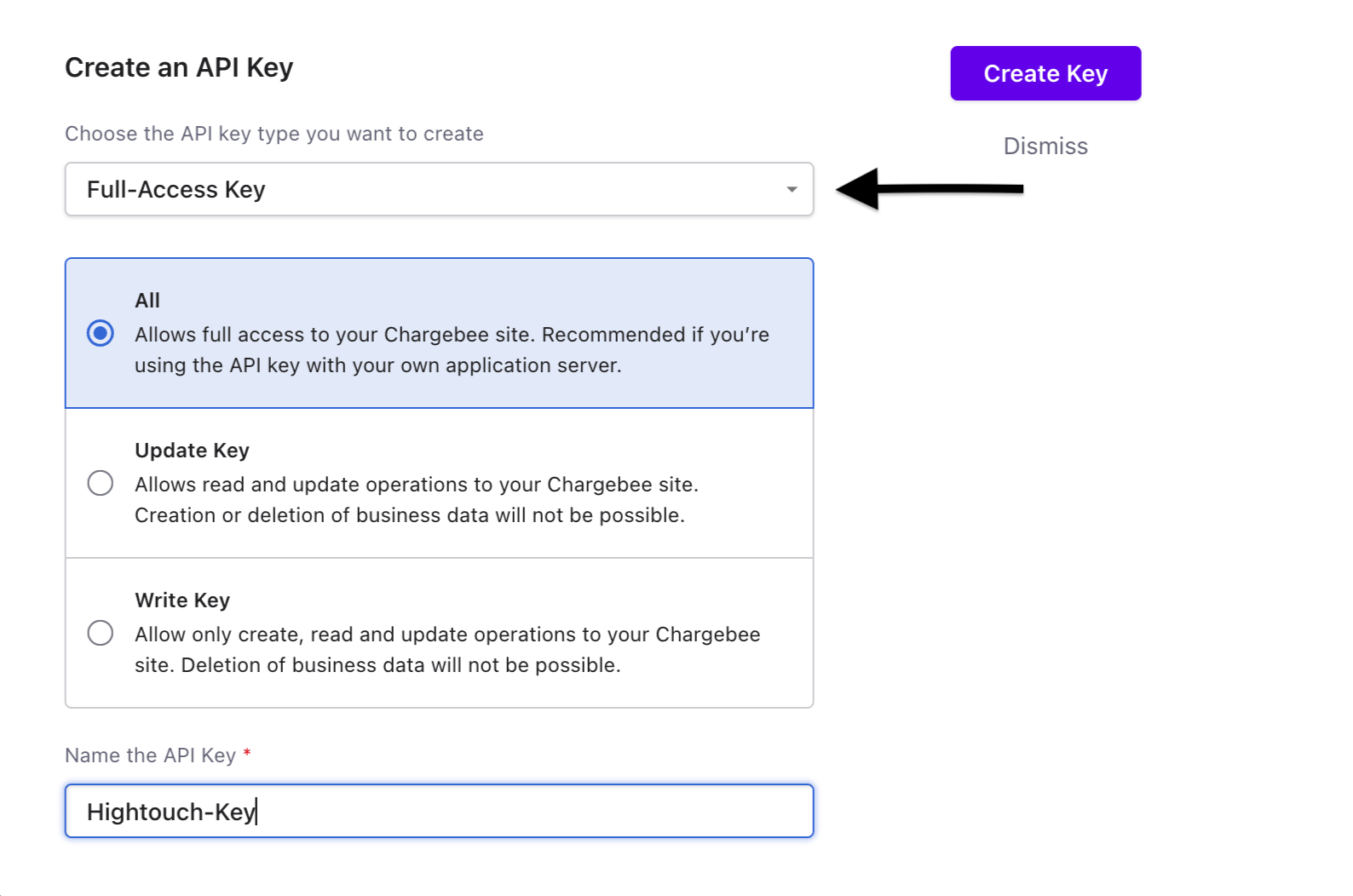
- Select the Full-Access Key type, then All permissions, then give a name
- Click Create Key and copy the newly created token
Adding destination in HT
- Log in to Hightouch or create a free Hightouch account
- Click on Destinations in the left sidebar
- Click on Add destination in the top right corner
- Select Chargebee in the destination catalog and click Continue to proceed
- Type in your site name into the Site field (Hint: It’s the subdomain when you’re on the Chargebee app)
- Paste your API token into the API Access Token field and click Continue to proceed
- Give your destination a name and unique slug (for example, “Chargebee Production” and
chargebee-production) - Click Finish to create your Chargebee destination.
Connect to your data source
Hightouch sits on top of your data warehouse and can read from Snowflake, Redshift, BigQuery, Databricks, Postgres, MySQL, and many other data sources. You can even fetch data from Google Sheets and Airtable. Hightouch can help activate your data wherever it resides. We’ve written dedicated guides for each supported data source. Take your pick:- Connect to Airtable
- Connect to Amazon Athena
- Connect to Amazon Redshift
- Connect to ClickHouse
- Connect to Databricks
- Connect to Elasticsearch
- Connect to Firebolt
- Connect to Google BigQuery
- Connect to Google Sheets
- Connect to Looker
- Connect to Metabase
- Connect to MySQL
- Connect to PostgreSQL
- Connect to Rockset
- Connect to SFTP
- Connect to Snowflake
- Connect to SQL Server
- Connect to Trino
If you’re missing the credentials necessary to connect to your data source,
try inviting your teammates to Hightouch. You can have unlimited collaborators
in your workspace.
Connect to a sample database instead
Waiting for credentials to your data warehouse? No problem. You can connect to one of our sample datasets to get started right away. For the rest of this tutorial, we’ll use the B2B SaaS sample source, which contains ausers table with names, emails, locations, and other user attributes. This sample source is available when you log in for the first time—no setup required.