Supported syncing
For more information about sync modes, refer to the sync modes docs.
Connect to Cendyn
Go to the Destinations overview page and click the Add destination button. Select Cendyn and click Continue. You can then authenticate Hightouch to Cendyn. Enter the following fields into Hightouch:- Base URL
- Property ID
- Subscription ID
Sync configuration
Once you’ve set up your Cendyn destination and have a model to pull data from, you can set up your sync configuration to begin syncing data. Go to the Syncs overview page and click the Add sync button to begin. Then, select the relevant model and the Cendyn destination you want to sync to.Syncing objects
Sync data from any source to Cendyn profiles, reservations, or transactions.Record matching
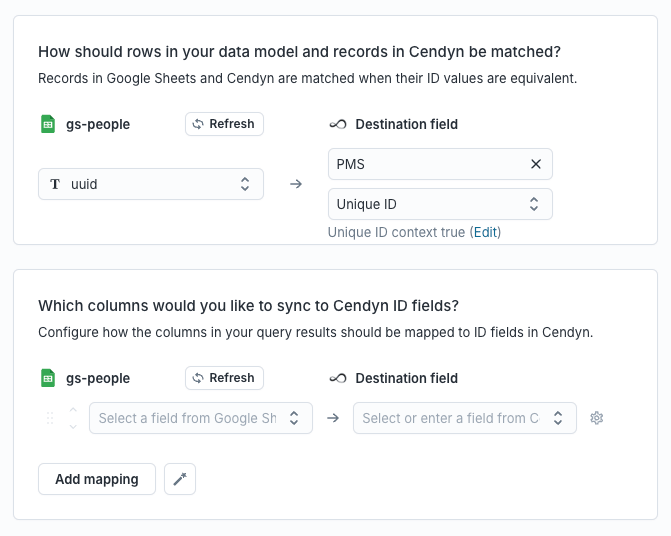
To match rows from your model to objects in Cendyn, you need to select the model column that contains values that match IDs in the Cendyn objects’ Unique IDs array. The value entered as theDestination field will be used as the unique ID type. After entering the type, you will be prompted to enter the context of the unique ID.
In the image below, the unique ID’s type is PMS and its context is true.