Microsoft Dynamics 365 is a premium destination and is only available on Business tier plans.
Supported syncing
For more information about sync modes, refer to the sync modes docs.
Connect to Microsoft Dynamics 365
Go to the Destinations overview page and click the Add destination button. Select Microsoft Dynamics 365 and click Continue. You can then authenticate Hightouch to Microsoft Dynamics 365.Authenticate with oauth
For the Authentication method, select Log in to Microsoft Dynamics 365 and log into your Microsoft Dynamics 365 account. Once successful, you will be redirected back to Hightouch to enter a descriptive name for your destination and complete setup. You must enter your Web API endpoint in Hightouch to complete the setup. See How to get your Web API endpoint for information on how to get it.Access level recommendations
We recommend that you authenticate with a user that has the correct access to the environment that you will be working on.Authenticate with client credentials
Enter the following required fields into Hightouch:Setting up your app registration
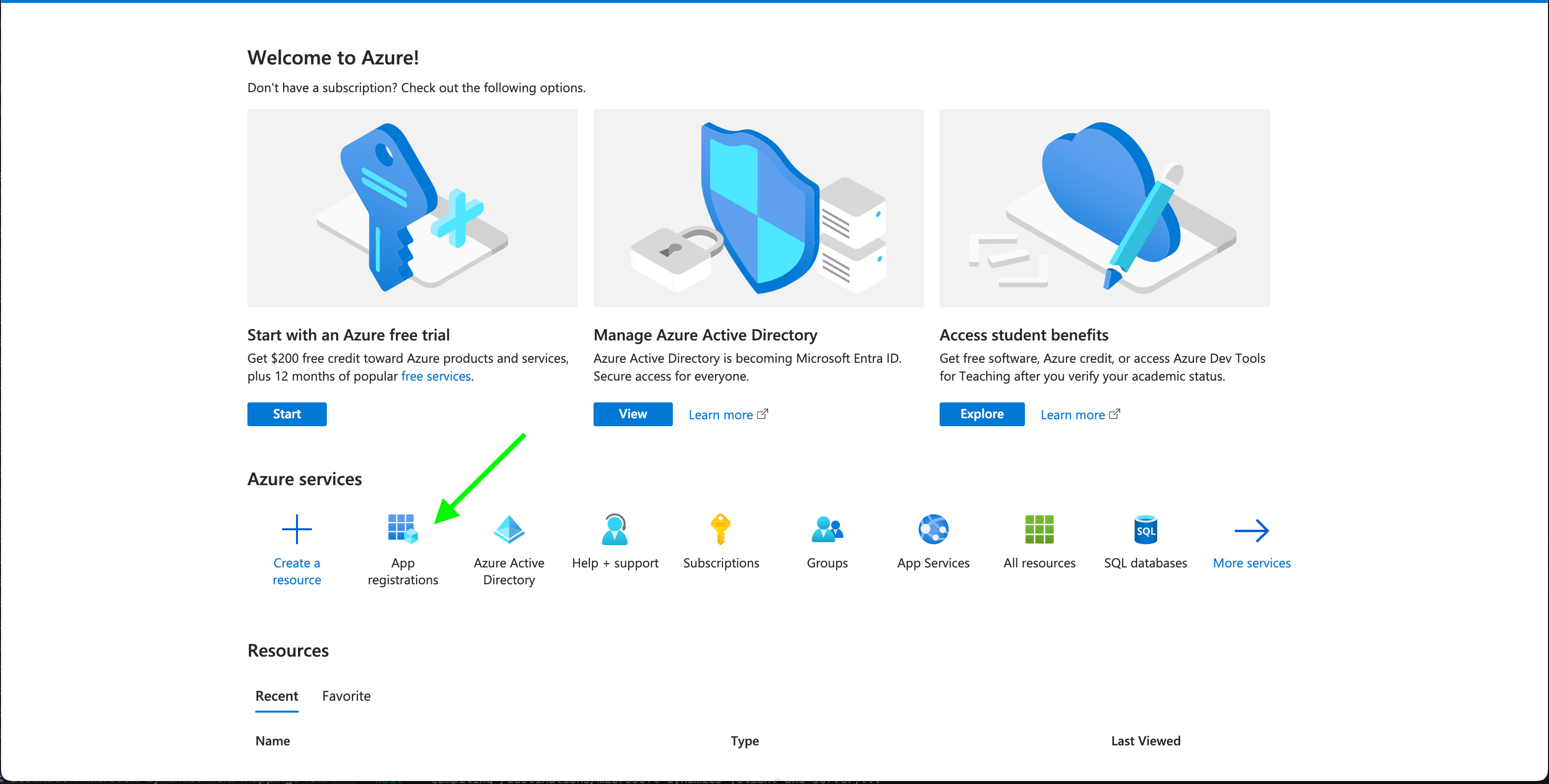
- Go to Azure Ad portal > App registrations.
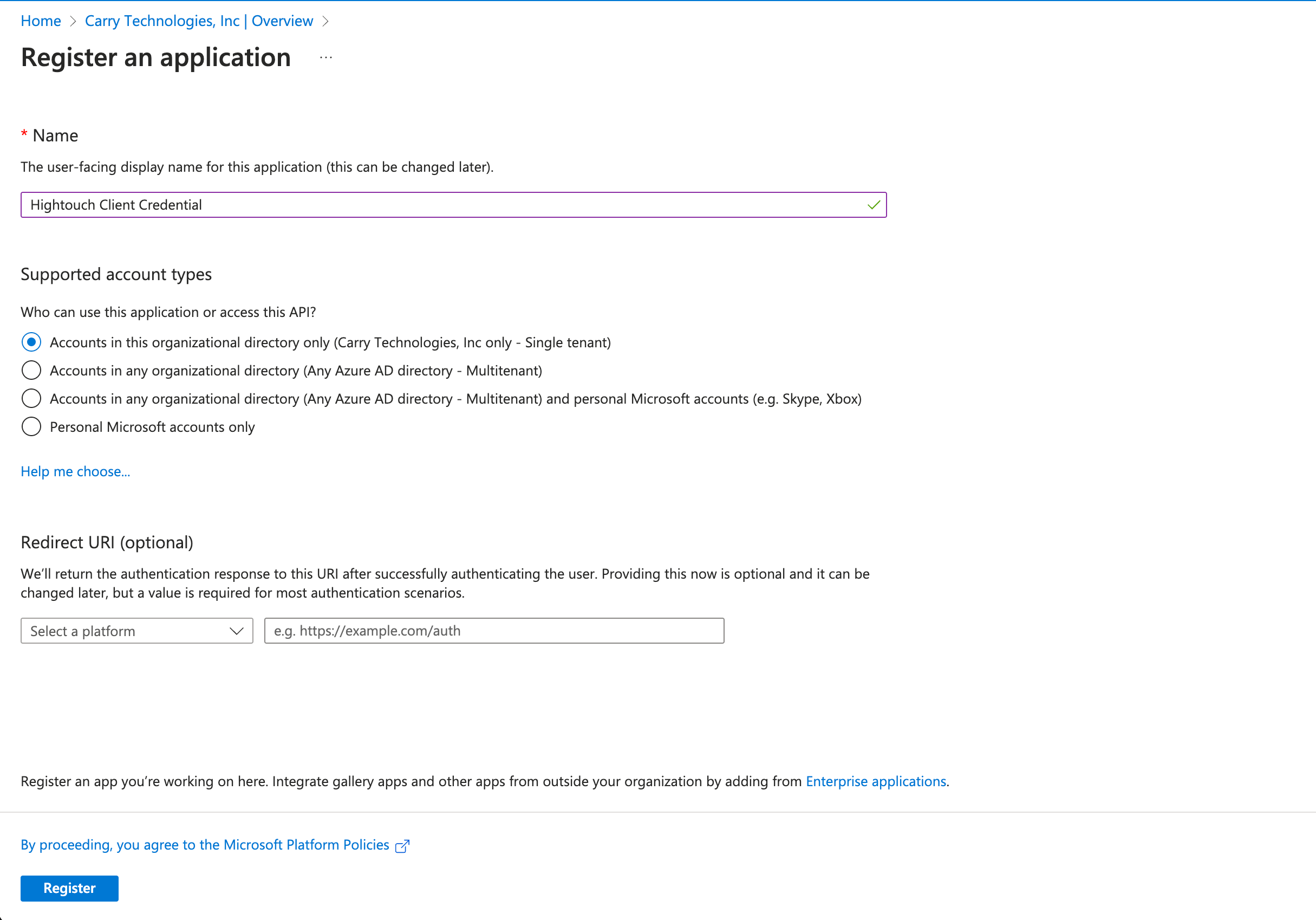
- Create a single tenant app registration.
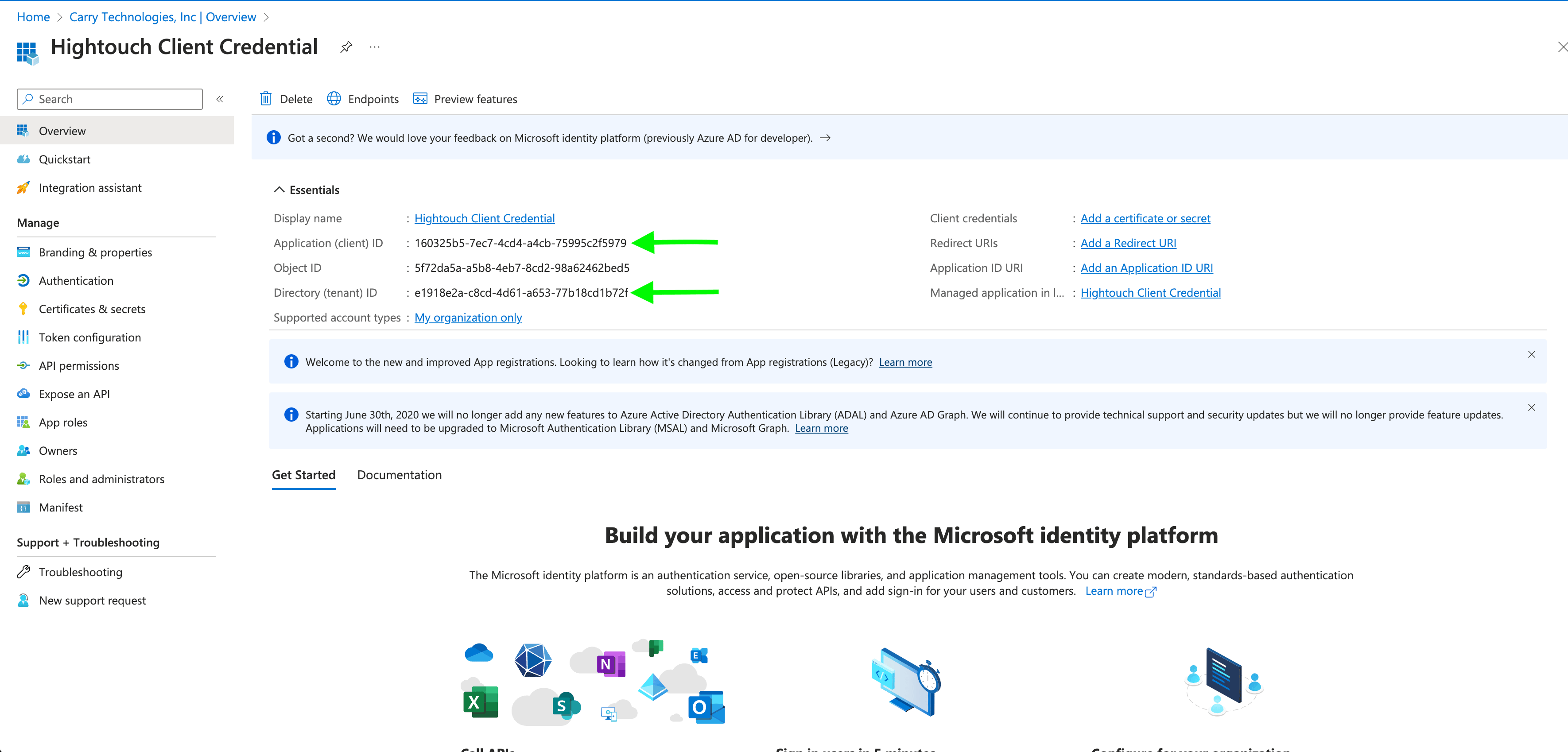
- Once an app registration is created, copy the Tenant ID and Client ID in Hightouch.
- To get a Client Secret, navigate to Certificates & secrets > New client secret.
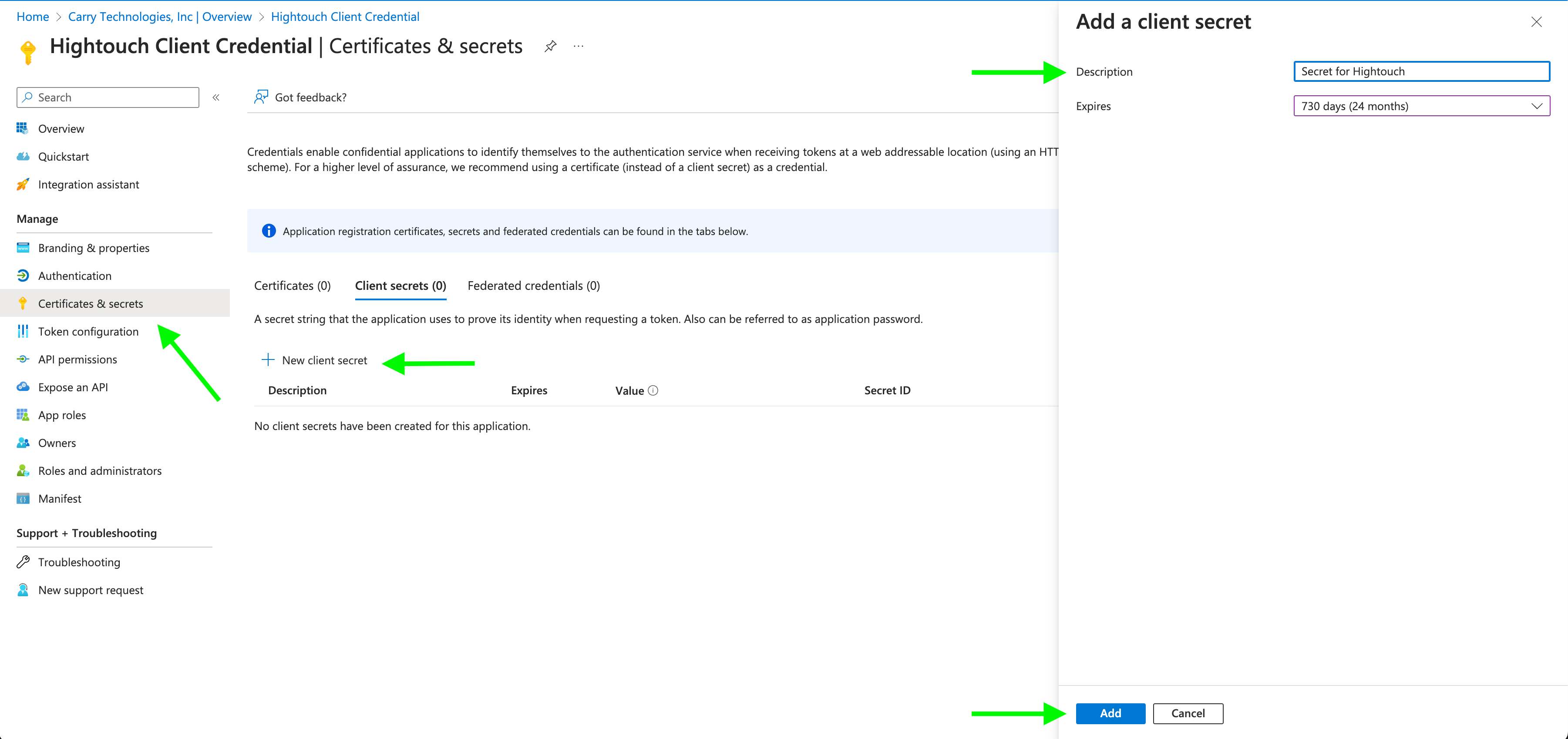
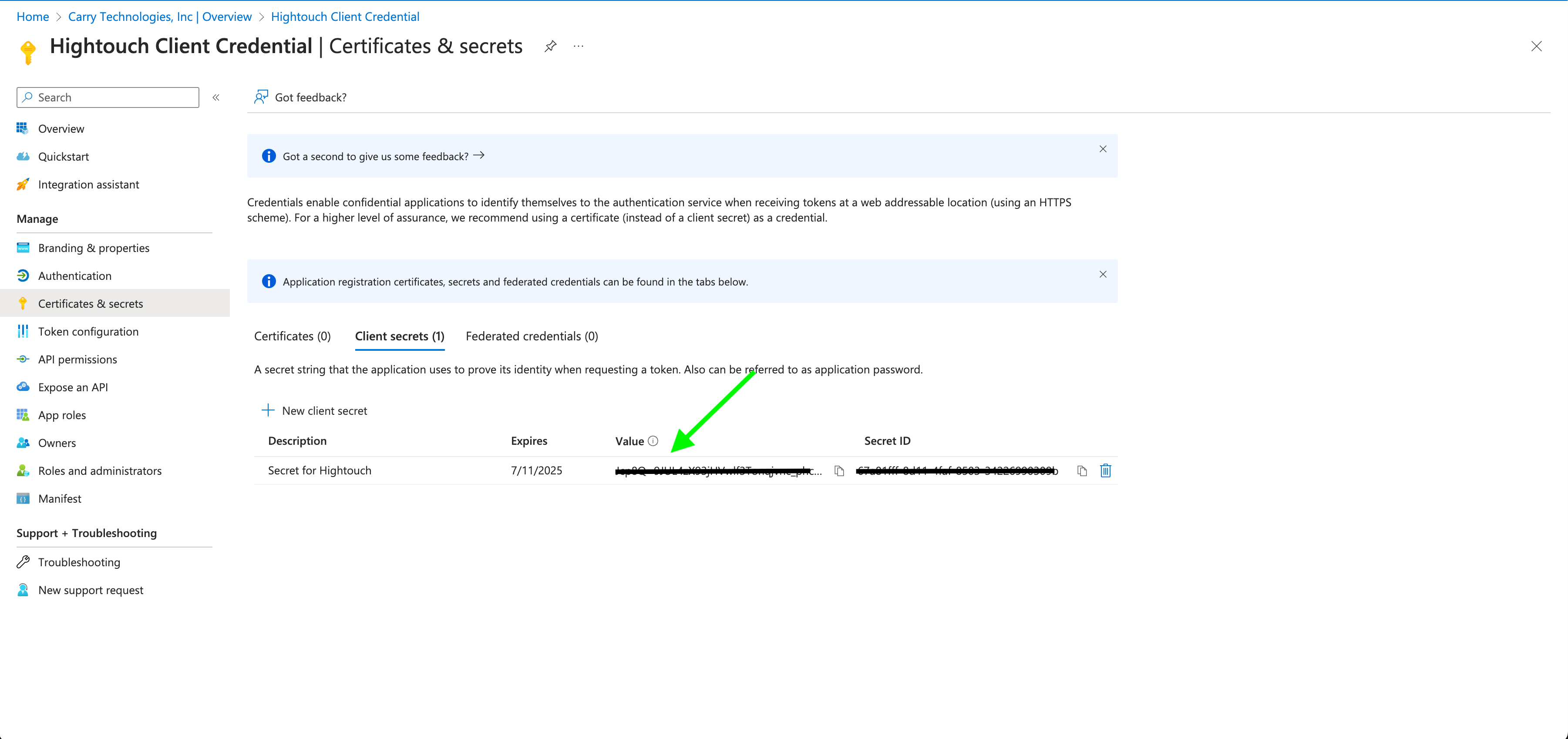
- In order to use the created app registration with Microsoft Dynamics 365 API, You must grant API permission to it by going to API Permissions > Add Permissions then select Dynamics CRM and add the
user_impersonationpermission.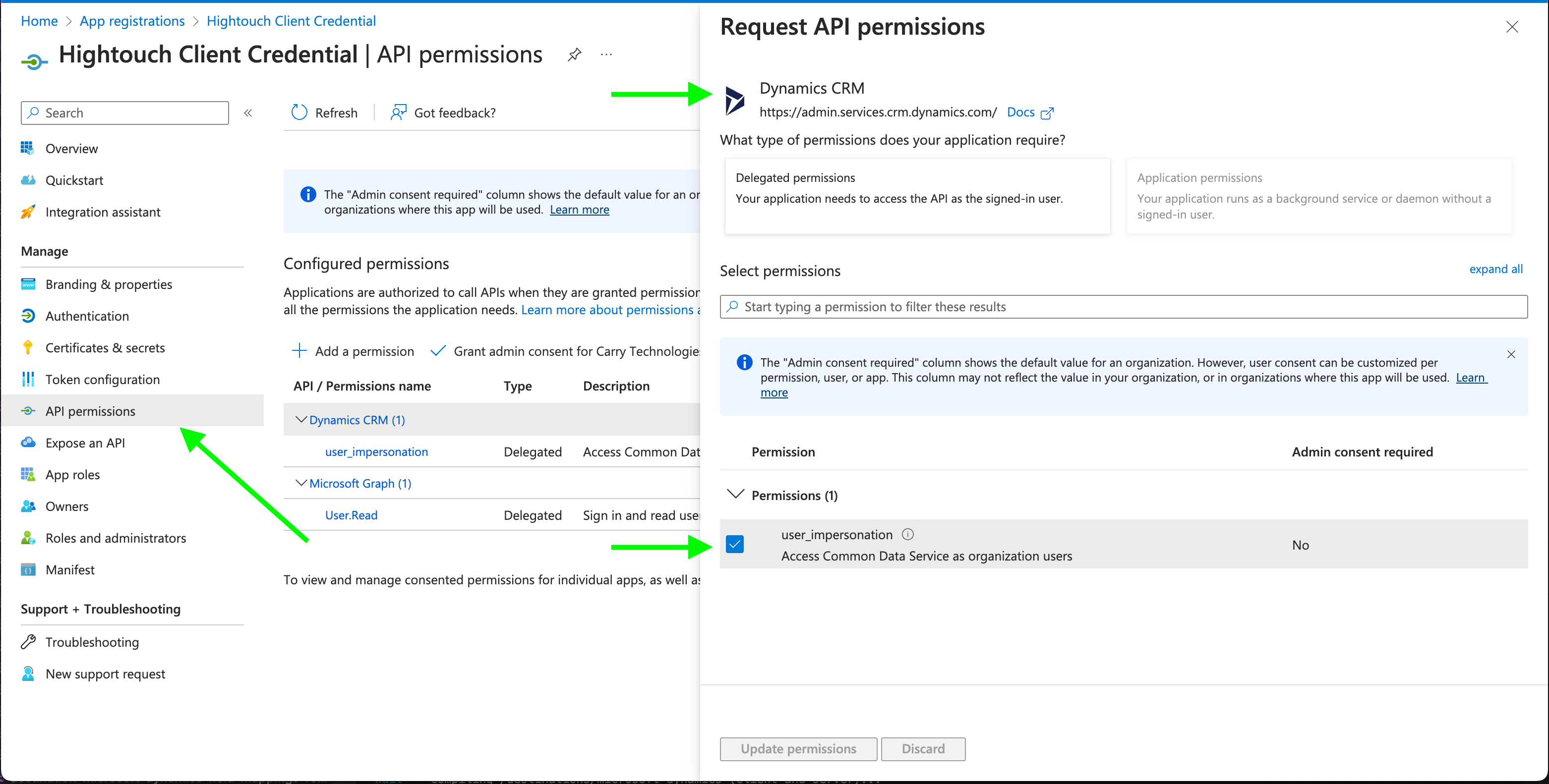
- Finally, create a non-interactive application user with the app registration in the Power Platform admin center with
Service Writerrole. To do this Environments > [the environment you want to connect] > Settings > Application users > New app user.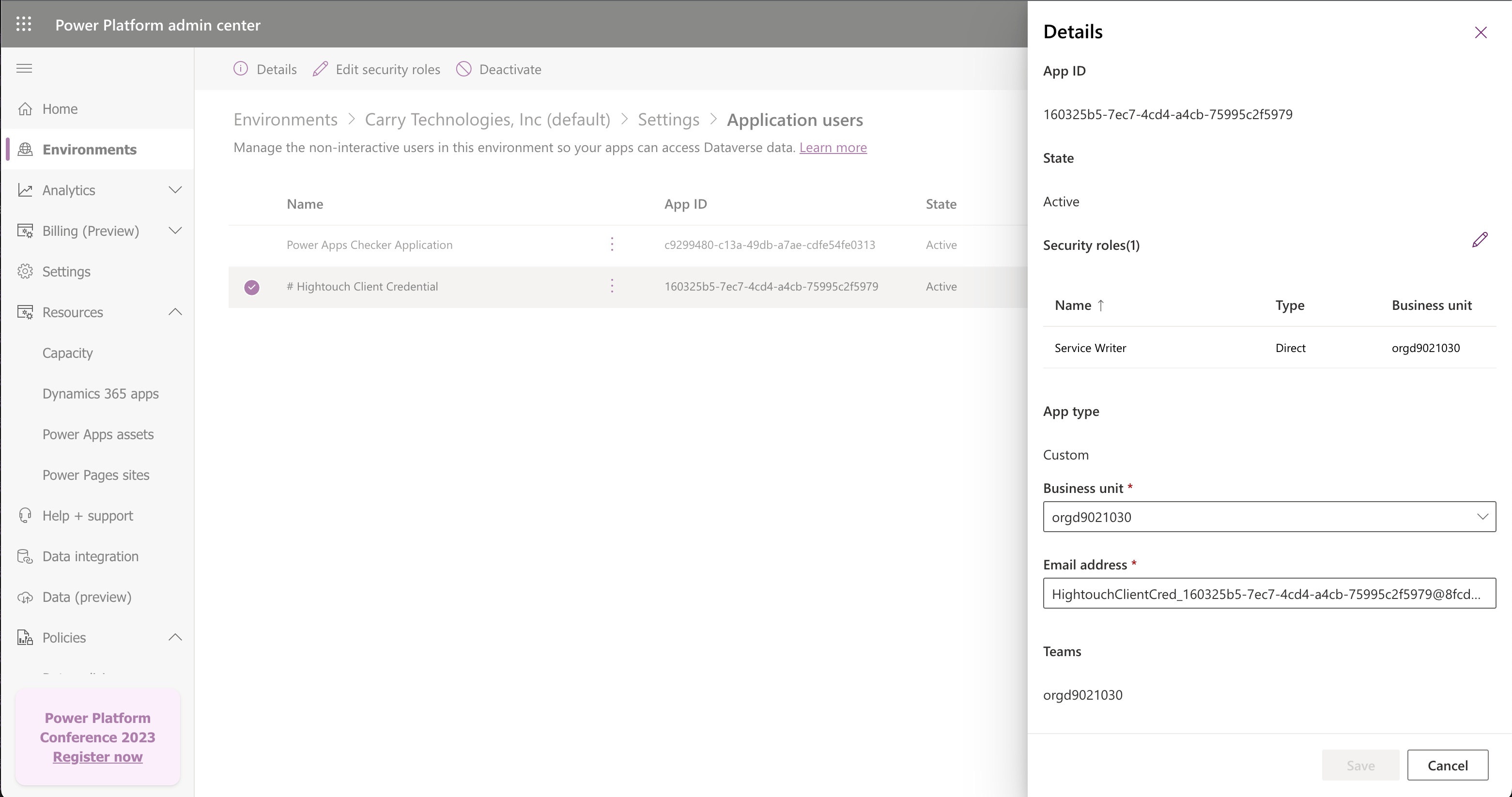
How to get your Web API endpoint
In order to complete your Dynamics 365 connection setup, you will need to provide your service URL. Follow these steps to get your Web API endpoint:- Sign in to your Microsoft Power Apps.
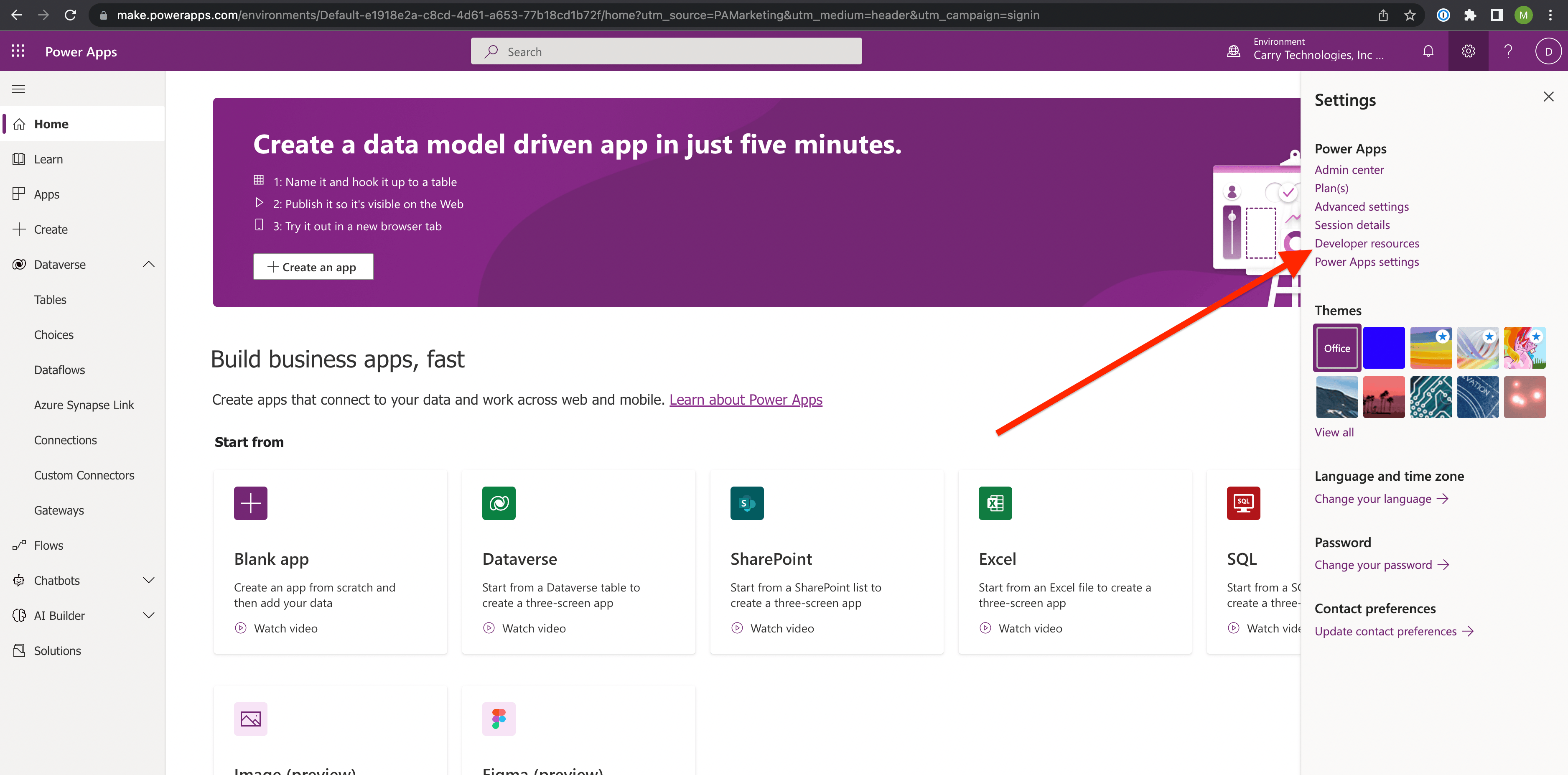
- Click the settings icon on the top right corner to open the settings sidebar.Then, click on Developer resources.
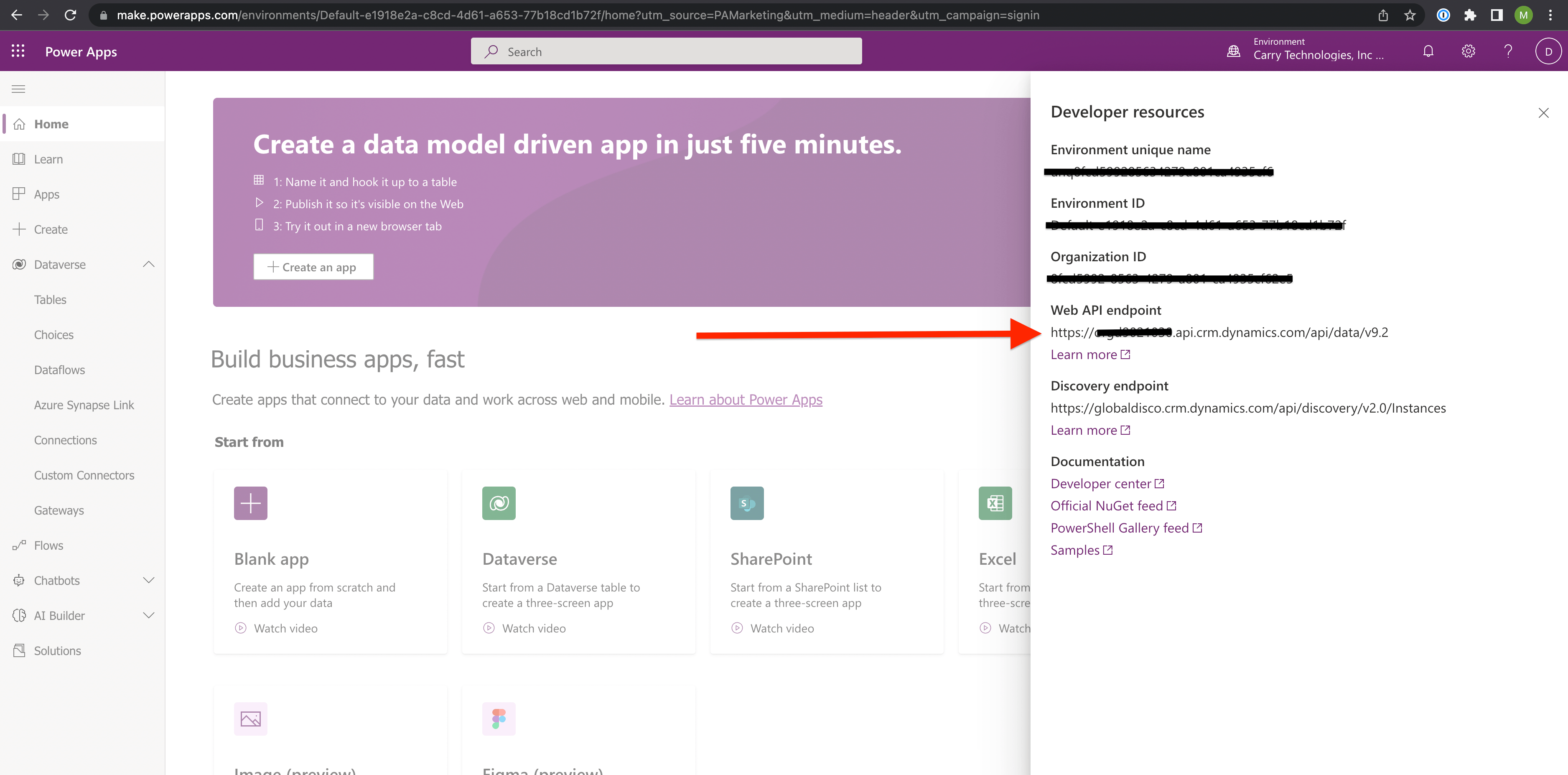
- Copy the Web API endpoint then go back to Hightouch and paste the URL where it’s required.
Before you begin
Before you set up a sync, we recommend you to skim through these concepts to gain an insight on how to effectively sync your data into Microsoft Dynamics 365.Dataverse
Dataverse is the source of truth for your Dynamics 365 applications. Microsoft Dynamics 365 destination will sync your data into the Dataverse which will then allows you to use the data directly in your Dynamics 365 applications. For more information about Dataverse see Microsoft’s documentation.What is a GUID?
GUID is the auto-generated primary key in your Dataverse tables. You are allowed to use GUID to match query results in Hightouch with rows in your Dataverse tables by default.What are alternate keys?
Alternate keys are custom unique identifiers that can be derived from one or more columns in your Dataverse table. it’s a flexible way to set up a unique identifier in your Dataverse table to be use for record matching between your query results in Hightouch and your rows in Dataverse. In most cases, you won’t have access to Dataverse GUID in your external data warehouse for record matching so alternate keys are convenient solution.Steps to setup and use an alternate key
- Sign in to your Microsoft Power Apps.
-
In the Power Apps, navigate to tables in Dataverse.
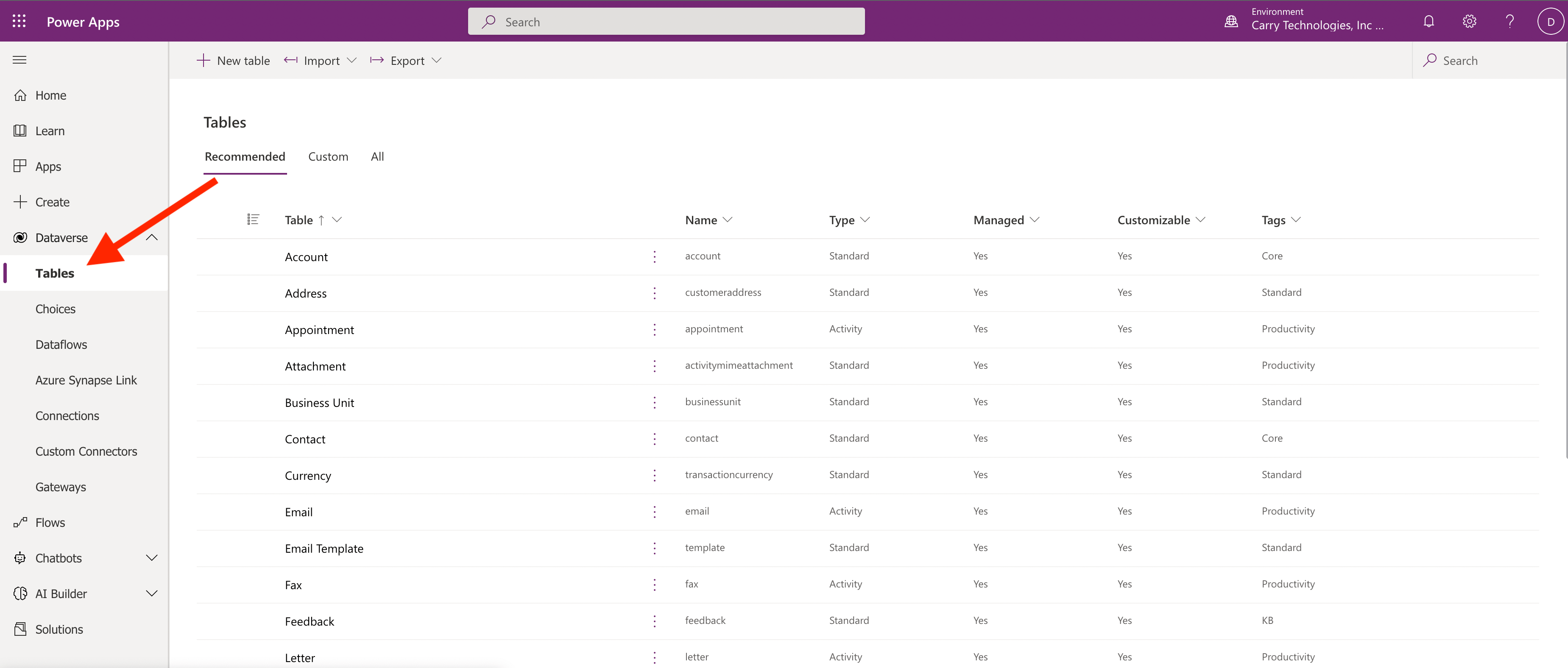
Accounttable. -
Once you are in the table view, select
keysto open the alternate keys view.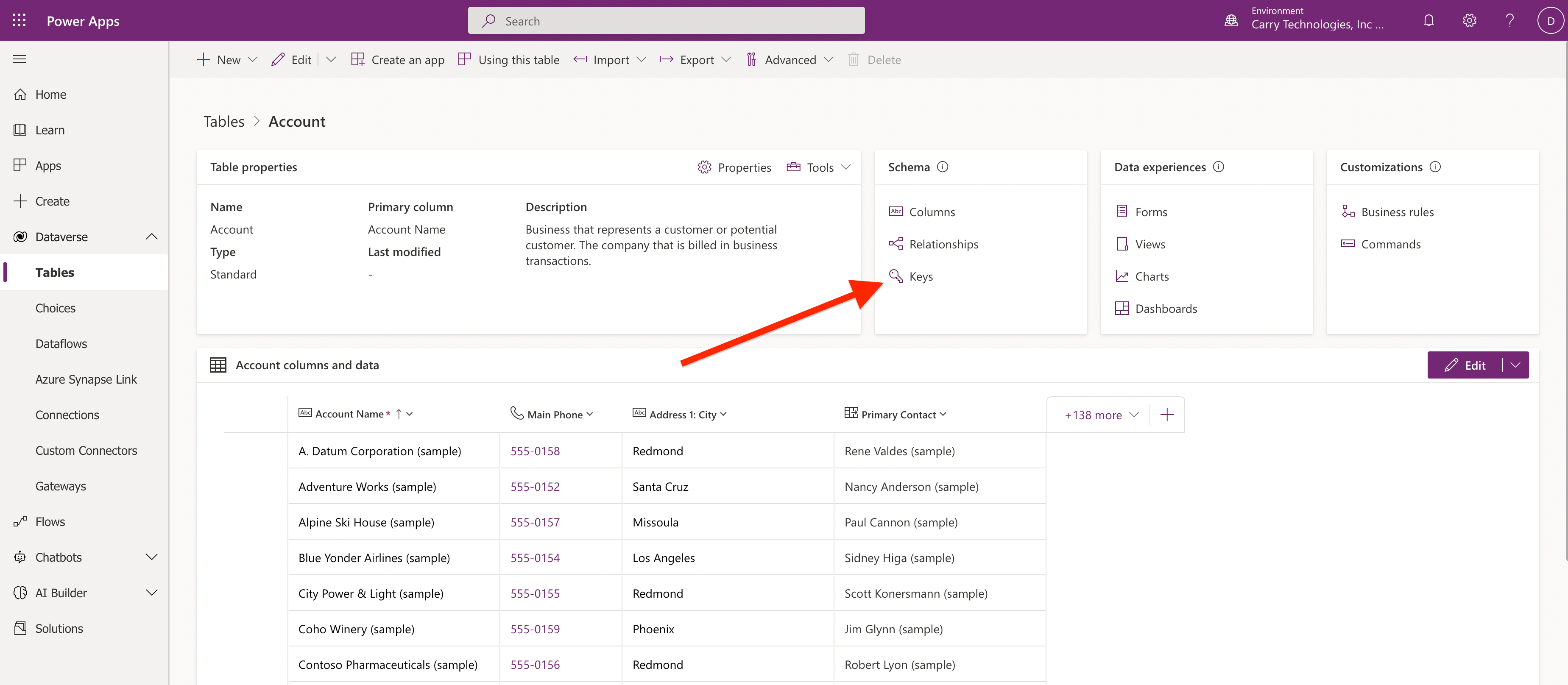
-
In the keys page:
(1) Click
New Keythen in the pop-up on the right, enter the configuration for the key you are about to create. (2) Enter a label for this key. This label is the label that will be displayed in Hightouch’s ID mapping section. (3) Select a column that you want to use as an alternate key. Note that alternate keys must be unique and must meet the requirements described in the Dynamics 365 docs. If you do not have a column that meets these requirements, you can manually add a column and use it. In our example below, We’re using a column that we created calledCustom External ID.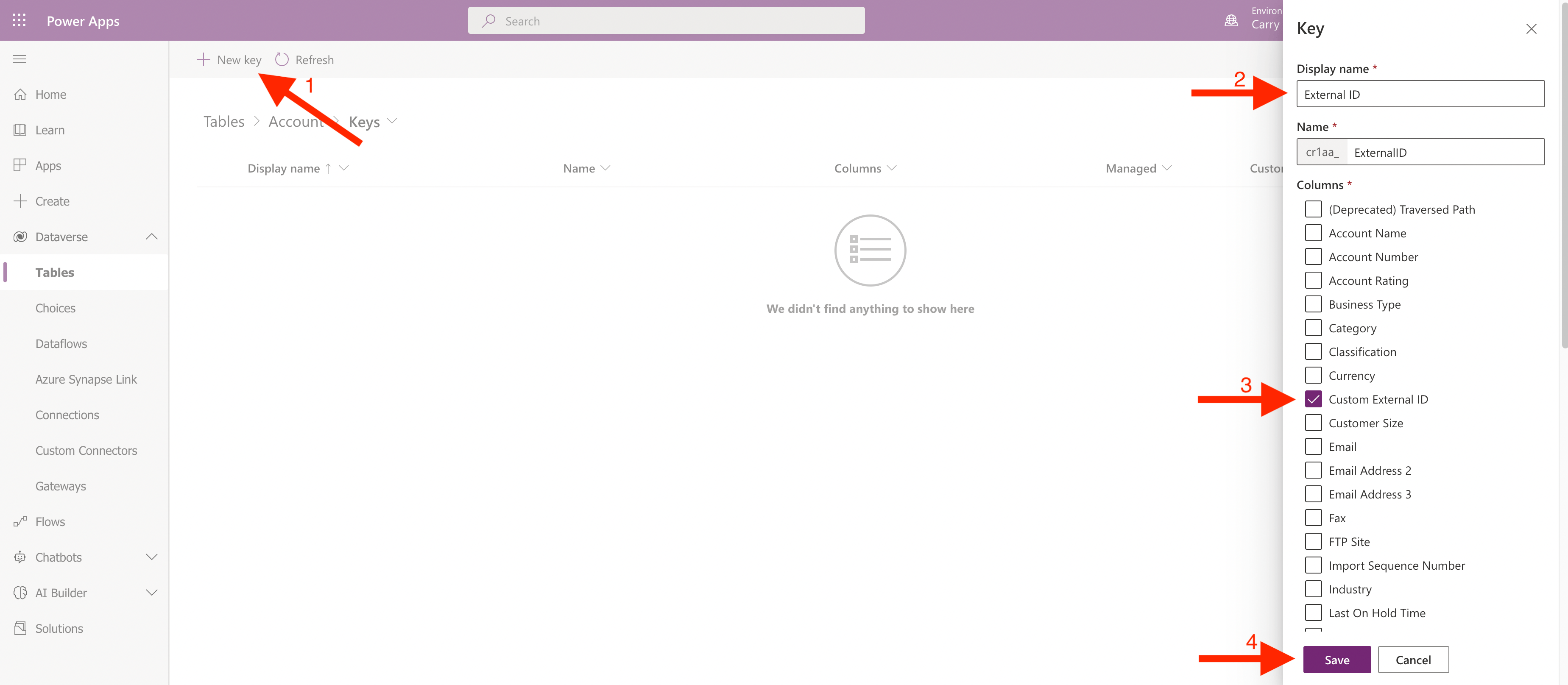
-
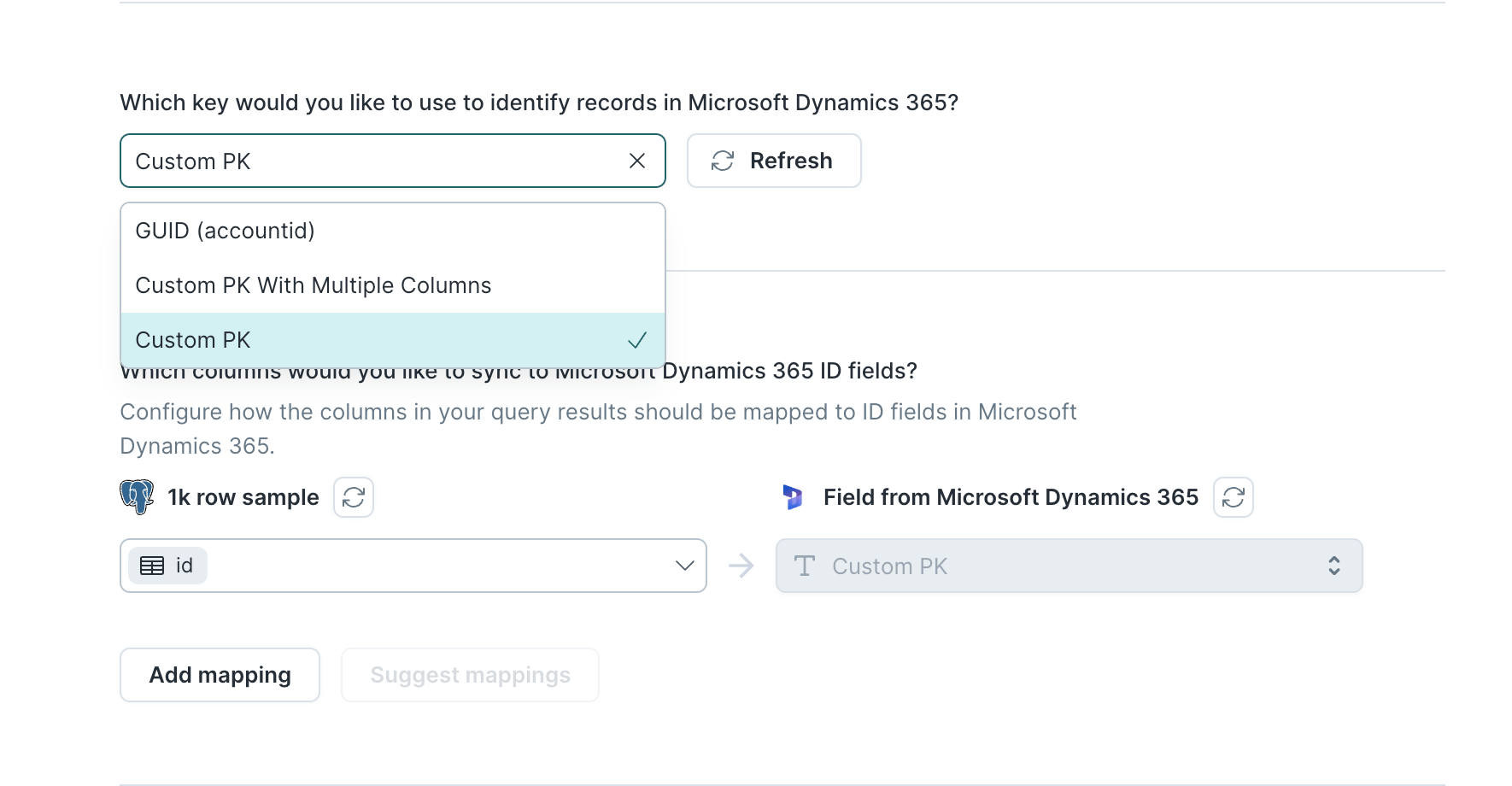
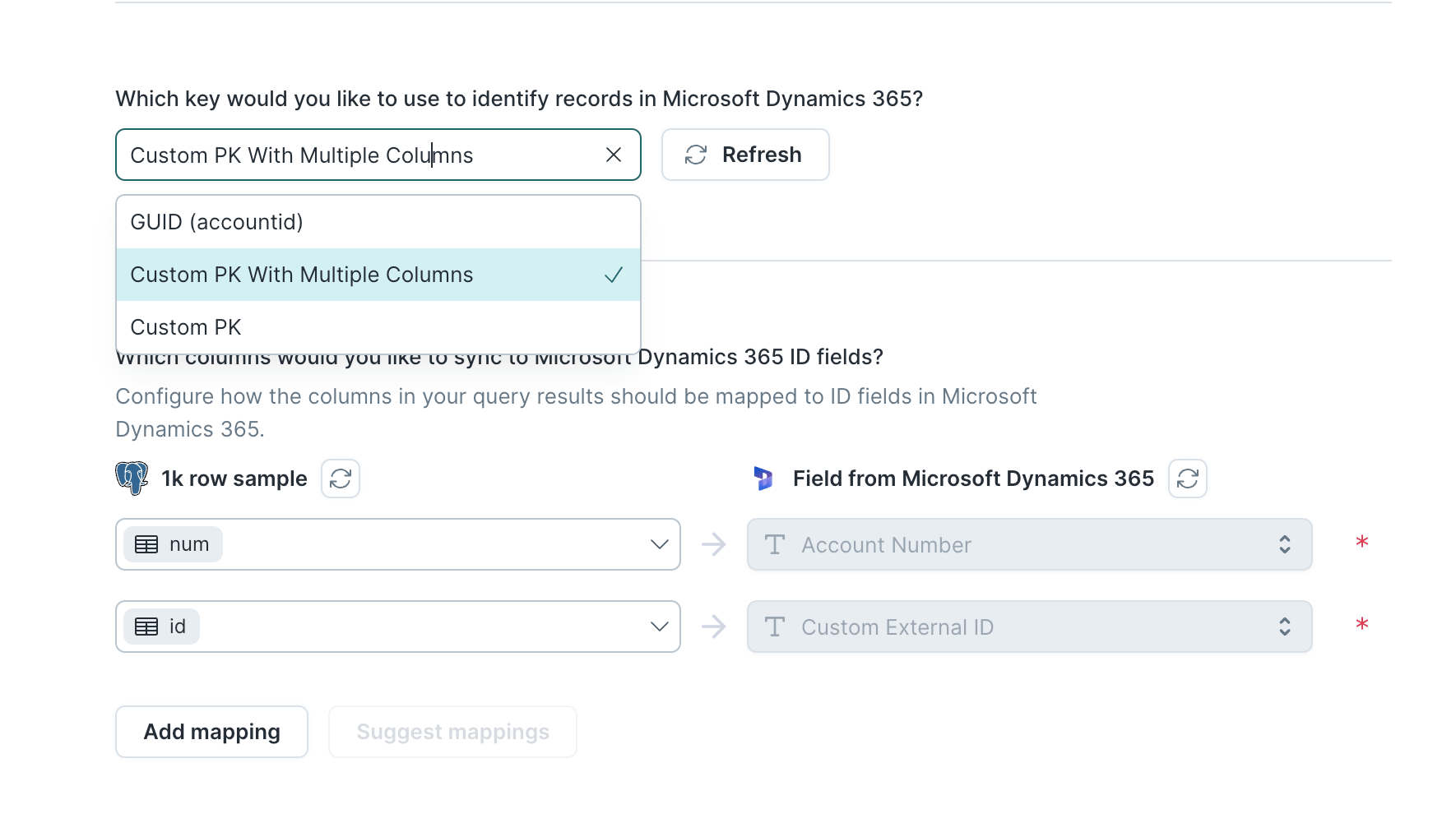
The created alternate keys will appear as an option in the identifier section of your Hightouch sync configuration. Select the name of your alternated key then map the columns for that alternate key in the ID fields mappings section below.
Sync configuration
Once you’ve set up your Microsoft Dynamics 365 destination and have a model to pull data, you can set up your sync configuration to begin syncing data. Go to the Syncs overview page and click the Add sync button to begin. Then, select the relevant model and the Microsoft Dynamics 365 destination you want to sync.Syncing objects
Sync data from any source to Microsoft Dynamics 365 objects.Record matching
To match rows from your model to objects in Microsoft Dynamics 365, you need to select a model column and corresponding Microsoft Dynamics 365 field. You can match on any of the following Microsoft Dynamics 365 fields:In Insert mode, Microsoft Dynamics 365 automatically generates an
identifier for every new record synced, so there is no need to match an
existing record.
Field mapping
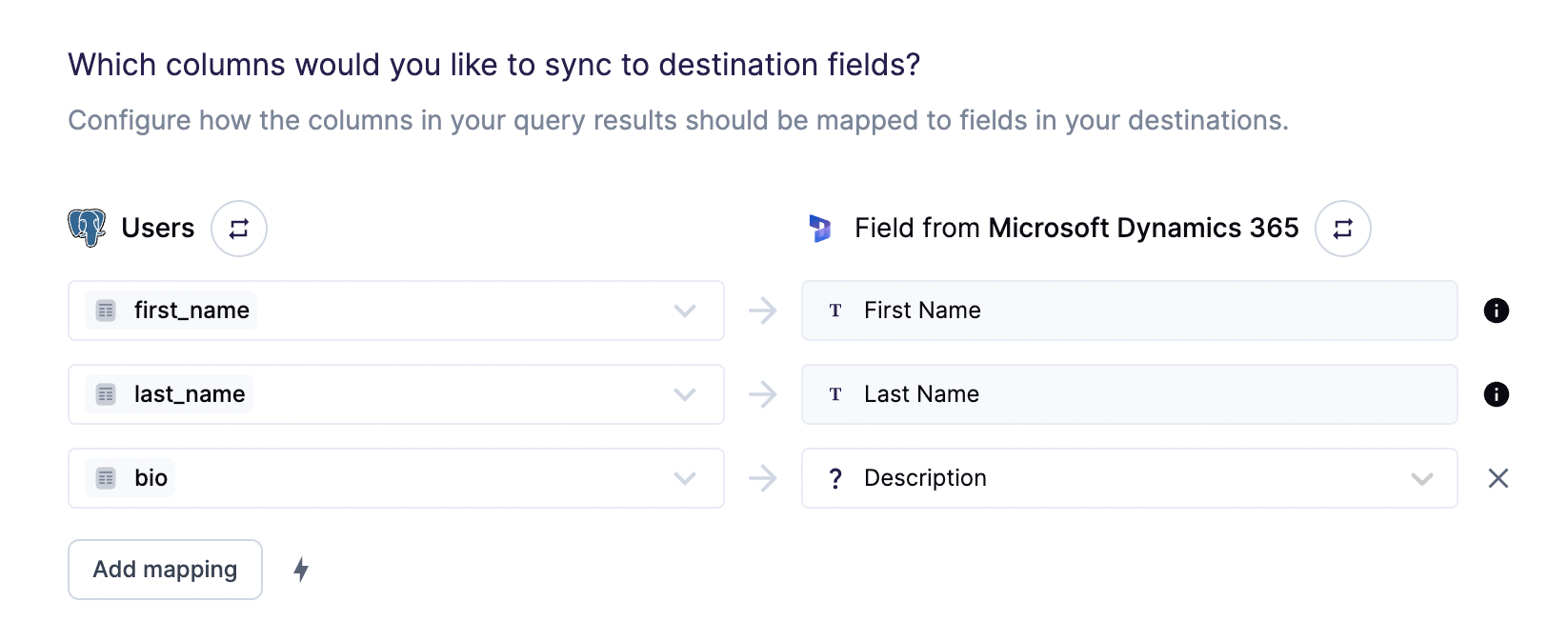
Hightouch lets you sync object fields via field mapping. You can map data from any of your model columns to the default object fields. Field types Ensure your model columns data types match the data types of the fields you want to sync to. Microsoft Dynamics 365 destination will not automatically cast your data to the data types they are expected to be in your table in Dataverse. This means that you are responsible for casting them to the valid type they need to be in. The image below shows an example of fields we pulled from Dataverse along with their types. The icons on the left indicate the type of the column. As you may notice, there are icons with?. This indicates that the type is either complex or unexplored by Hightouch. Reference the Dynamics 365 docs for more details on types.
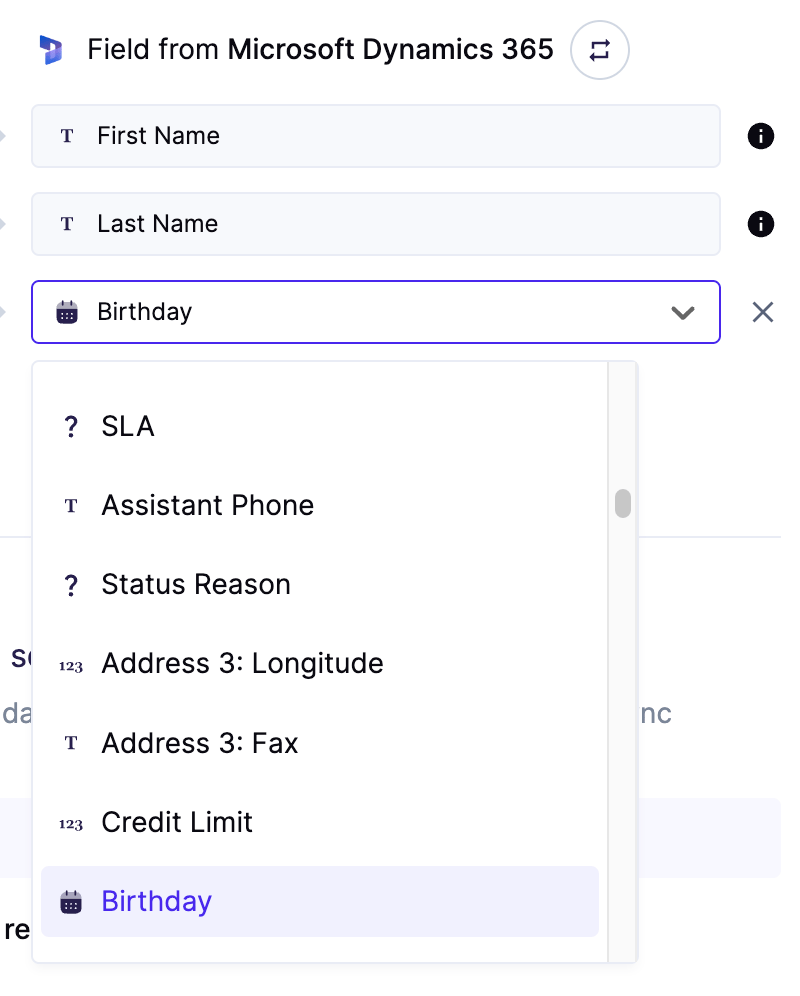
First Name and Last Name appear to be read-only in the destination side while Description is editable.
These read-only fields are fields that are marked as Business required in Dataverse.
This means that whenever you create a sync, you must send data for these fields.
Delete behavior
The delete behavior you select dictates what to do when a row no longer appears in your model’s query results. You have the following options:Best practices
Validate your configuration
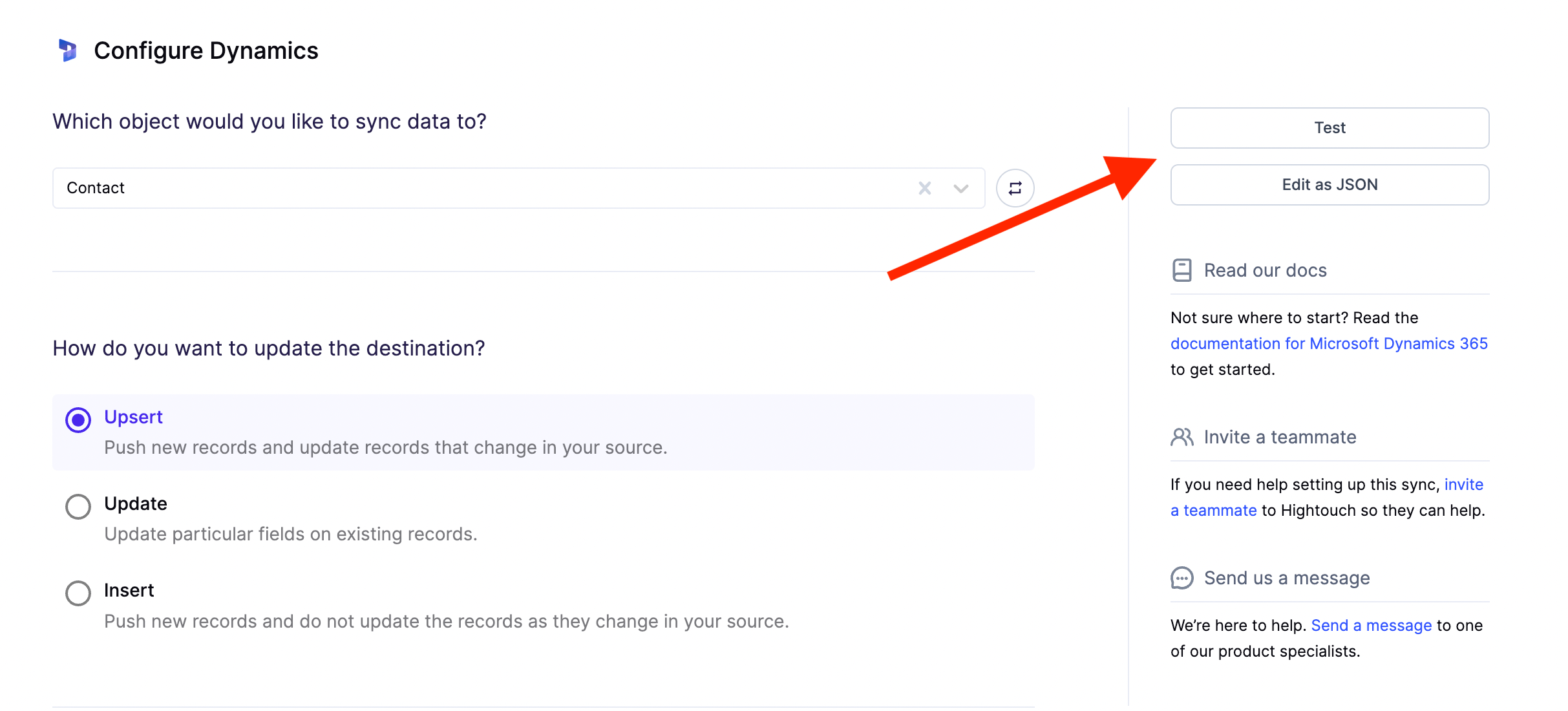
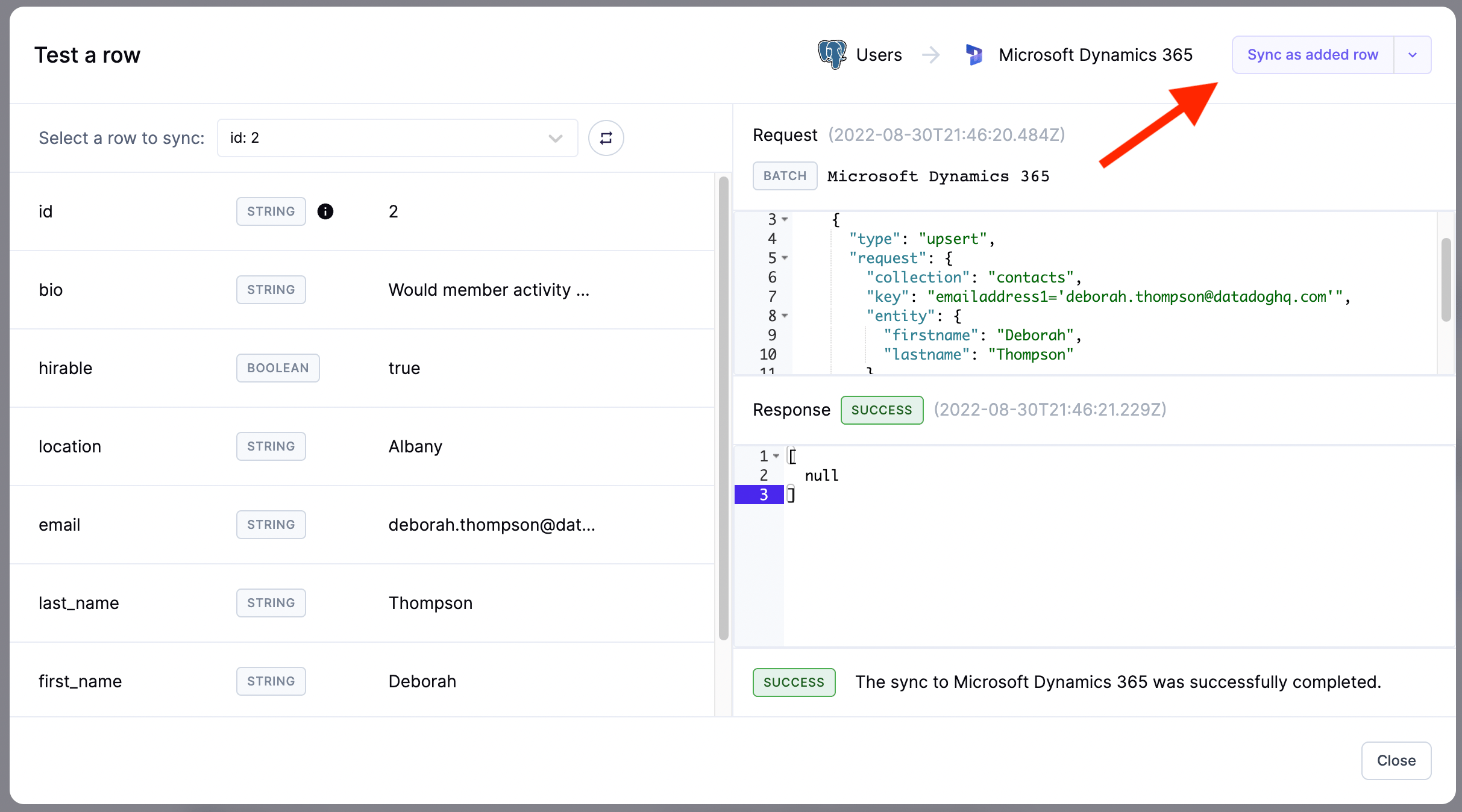
To validate that your configuration is working, we highly recommend that your to run a test. Click onTest button to open the test pop-up.
Sync as added row to make the request.
Tips and troubleshooting
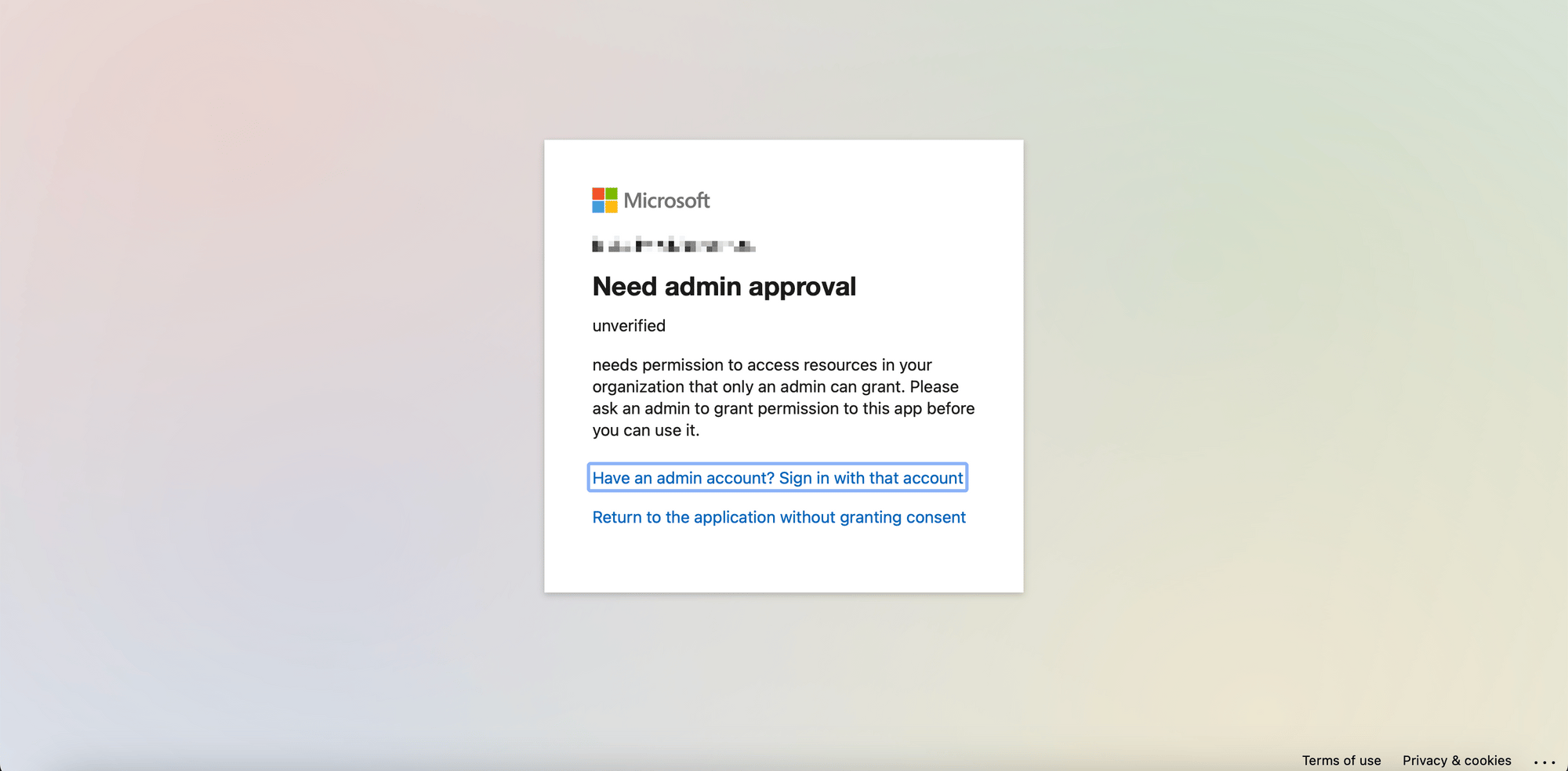
To see the exact API requests and responses from each sync run, use the live debugger. To get notified by Slack, PagerDuty, SMS, or email when a sync fails, set up sync alerts. If you run into an issue this page doesn’t cover, .Need admin approval
If you see a Need admin approval page appear when accessing Microsoft’s OAuth login flow, your Azure Active Directory user account might not have the necessary permissions to connect applications to your organization.