

Overview
Hightouch lets you pull data stored in Iceberg Tables through your Snowflake warehouse and push it to downstream destinations.You can connect Snowflake to Hightouch using Snowflake Partner Connect to bypass the setup steps outlined below. You can learn more about this in Snowflake’s documentation.
Snowflake credential setup
To allow Hightouch access to Snowflake, it’s best to create a user specifically provisioned with access to the required tables and schemas. You can also use a personal Snowflake login for your credentials, as long as it has the correct permissions. You can use the following SQL template to create a service account with the necessary roles and permissions with some considerations:- This snippet provides an example of creating a service account; you may need to alter it depending on your Snowflake implementation details.
- RSA key pair authentication setup is detailed in the Provide credentials section.
- If you want Hightouch to access multiple databases, run the snippet multiple times, changing
ht_databaseeach time. - If you want Hightouch to have read-only access, omit the last line of the query.
- The snippet includes lines for creating a new warehouse and database for Hightouch to use; if you already have databases and warehouses you intend to use, omit these lines.
- Iceberg tables have limited support for timestamps with timezones. We recommend setting the default timezone of the Hightouch user to
UTCto maintain consistent behavior.
If you opt to use the Lightning engine, you must grant additional permissions.
Connection configuration
You may need to allowlist Hightouch’s IP addresses to let our systems connect to your Snowflake account. Reference our networking docs to determine which IP addresses you need to allowlist.You can also securely connect to your Snowflake account using AWS PrivateLink. AWS PrivateLink is a Business Tier feature.
Configure your source
Enter the following required fields into Hightouch:- Account identifier: You can find this identifier at the beginning of your Snowflake URL, for example, (
https://ACCOUNT_IDENTIFIER.snowflakecomputing.com). Only enter theACCOUNT_IDENTIFIERand not the full URL. - Warehouse: This specifies the warehouse to use when Hightouch executes queries in Snowflake.
- Database: This specifies the database to use when Hightouch executes queries in Snowflake.
- External volume: This specifies the integration point between Snowflake and your cloud provider’s storage.
- Base location: This specifies the prefix within the External Volume where Iceberg tables will be created.
Account identifier format may differ based on Snowflake account age.For example, older Snowflake accounts often have identifiers that look like
ACCOUNT_LOCATOR.CLOUD_REGION_ID.CLOUD, whereas newer Snowflake accounts have identifiers that look like ORGNAME-ACCOUNT_NAME.For more details, visit Snowflake’s account identifier docs.Choose your sync engine
For optimal performance, Hightouch tracks incremental changes in your data model—such as added, changed, or removed rows—and only syncs those records. You can choose between two different sync engines for this work. The Basic engine requires read-only access to Snowflake Iceberg. Hightouch executes a query in your database, reads all query results, and then determines incremental changes using Hightouch’s infrastructure. This engine is easier to set up since it requires read—not write—access to Snowflake Iceberg. The Lightning engine requires read and write access to Snowflake Iceberg. The engine stores previously synced data in a separate schema in Snowflake Iceberg managed by Hightouch. In other words, the engine uses Snowflake Iceberg to track incremental changes to your data rather than performing these calculations in Hightouch. Therefore, these computations are completed more quickly.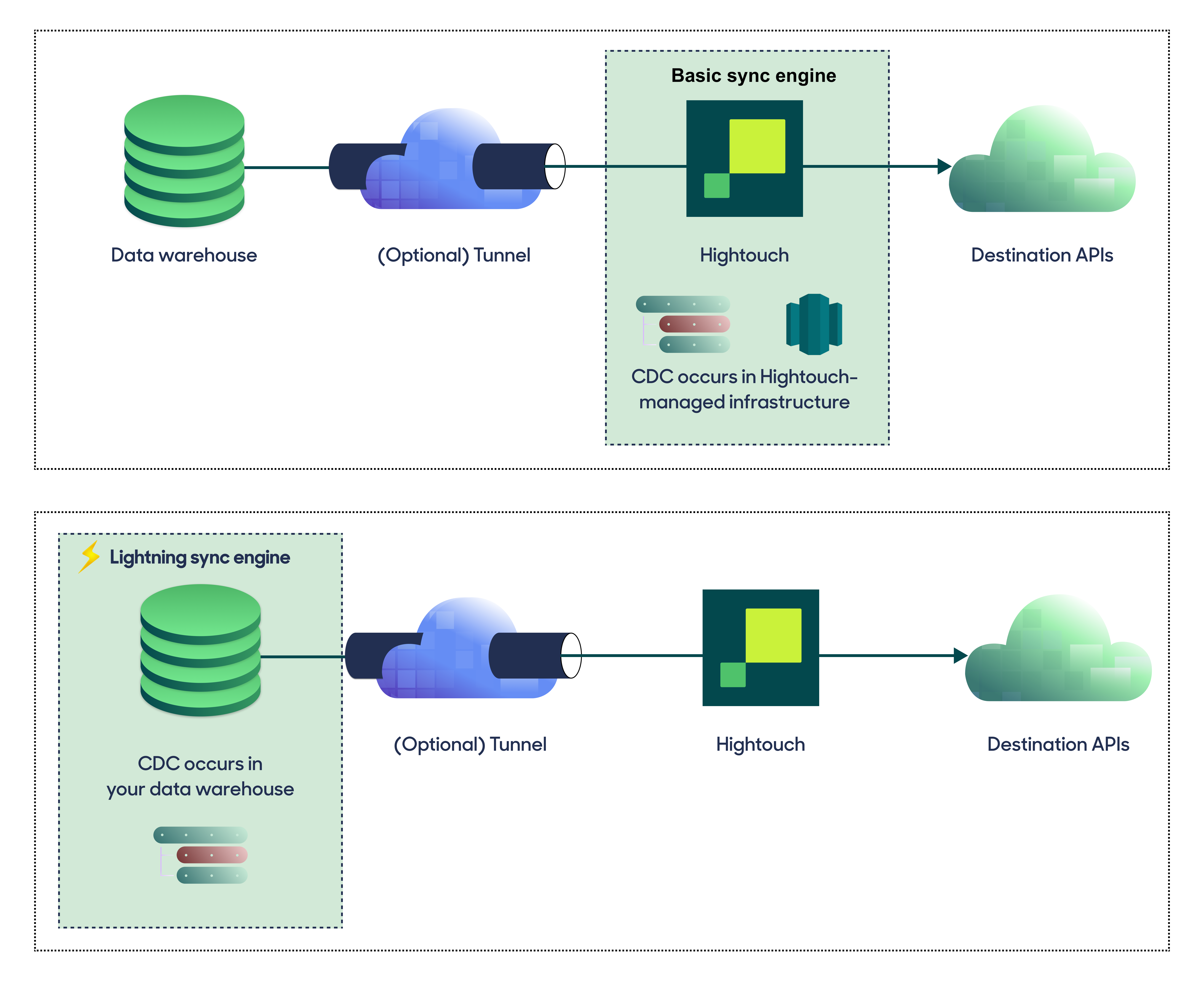
Basic versus Lightning engine comparison
The Lightning sync engine requires granting write access to your data warehouse, which makes its setup more involved than the Basic sync engine. However, it is more performant and reliable than the Basic engine. This makes it the ideal choice to guarantee faster syncs, especially with large data models. It also supports more features, such as Warehouse Sync Logs, Match Booster, and Identity Resolution.Hightouch can use Warehouse Export with Snowflake Iceberg. Instead of streaming every row through Hightouch, it has Snowflake Iceberg write query results directly into Amazon S3 (or your configured cloud storage), which Hightouch then reads. This speeds up syncs of large models. Warehouse Export runs automatically when your sync engine and storage support it, and Hightouch falls back to standard export when they don’t, so your syncs keep running either way.Snowflake exports to Amazon S3, so your workspace storage must be S3.If Warehouse Export runs into a fixable configuration problem, such as a storage-integration or bucket-permission issue, Hightouch stops using it for the affected syncs so it isn’t retried on every run, and shows this on the sync and on this source’s configuration page. After you resolve the problem, re-enable Warehouse Export from an individual sync, or for all of this source’s syncs at once from the source configuration page, and Hightouch uses it again on the next run.A one-off problem on a single run, such as a row that exceeds the Warehouse Export size limit, isn’t treated as a configuration issue: that run falls back to standard export and says so on the run summary, and Hightouch automatically retries Warehouse Export on the next run.As with Snowflake, if your account blocks inline-credential unloads you can point Warehouse Export at a named external stage backed by a storage integration. See the Snowflake source docs for the setup steps.
Lightning engine setup
To set up the Lightning engine, ensure that the service account you previously created has the appropriate permissions. Specifically, append these commands to the service account creation:Provide credentials
Enter the following fields into Hightouch:- Username: This can be your personal Snowflake login or a dedicated user for Hightouch. When using the Basic engine, this user must have read access to the data you wish to sync. If using the Lightning engine, you must also grant the permissions described in the preceding snippet. Note: Use the “Login name”, which may differ from the Snowflake username.
- Role (optional) - Use this field to specify the role Hightouch should use when executing queries in Snowflake. If left blank, Hightouch uses the user’s default role.
- RSA key pair (recommended)
- Password
Snowflake is deprecating password authentication in favor of RSA key pair authentication or multi-factor authentication. Hightouch connections configured with password authentication continue to work only if Snowflake permits it. For details, see Snowflake’s MFA rollout guide. Check your Snowflake account for the rollout timeline.
RSA authentication
Generate a private key and public key by running the following commands in your terminal:ALTER USER command to assign the public key to your Hightouch Snowflake user:
Authentication Method of the Snowflake Source settings, drag and drop or upload the private key you just generated into the Private key file field.
Test your connection
When setting up a source for the first time, Hightouch validates the following:- Network connectivity
- Snowflake credentials
- Permission to list schemas and tables
- Permission to write to
hightouch_plannerschema - Permission to write to
hightouch_auditschema
Create models
Once your source configuration has passed the necessary validation, your source setup is complete. Next, you can set up models to define which data you want to pull from Snowflake. The Snowflake Iceberg source supports these modeling methods:- writing a query in the SQL editor
- using the visual table selector
You must enable the Lightning sync engine to store sync logs in your warehouse.
Tips and troubleshooting
If you run into an issue this page doesn’t cover, .Connection timeout
When initially testing your connection, you may receive a connection timeout error. Once a connection is established, subsequent API requests should happen more quickly, so it’s best to retry the tests if they first fail. You can do this by clicking Test again.Network error: Could not reach Snowflake
You may receive this error if the input for Account identifier is invalid. Instead of using the complete Snowflake URL, for example,https://ACCOUNT_IDENTIFIER.snowflakecomputing.com,
ensure that you’re only using the ACCOUNT_IDENTIFIER part of the URL, for example, companyname-xu12345 or companyname-xu12345.us-east-1.