Setup
After selecting Auth0 from our Destinations catalog, you will be prompted to enter your Auth0 domain, Client ID, and Client secret from your registered machine-to-machine (M2M) application for Hightouch. You should find this by navigating to your Auth0 dashboard -> Applications dropdown -> Applications -> select corresponding Hightouch M2M. This particular M2M will give Hightouch permission to connect with your Management API and update your users.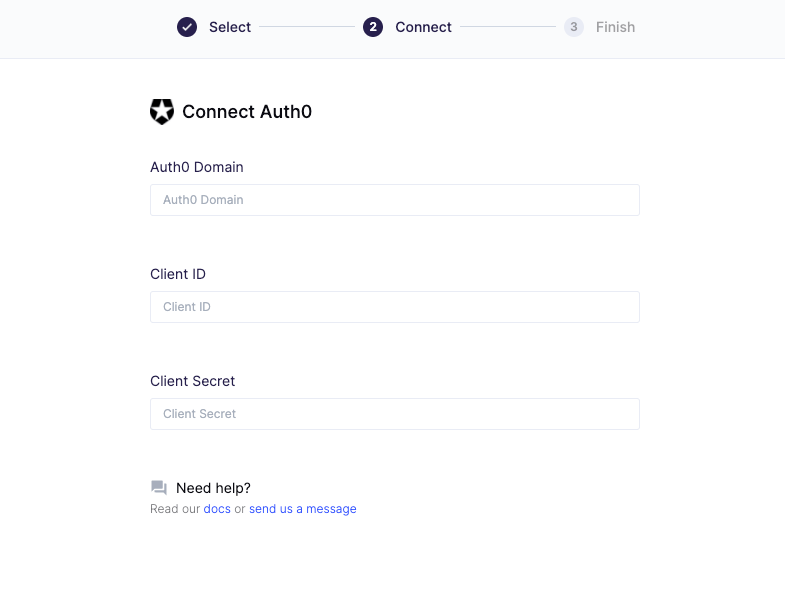
Registering your M2M for Hightouch
If you do not have a registered M2M for Hightouch, refer to this Auth0 doc on how to get started. You will then need to select the following configuration:- Select the Auth0 Management API
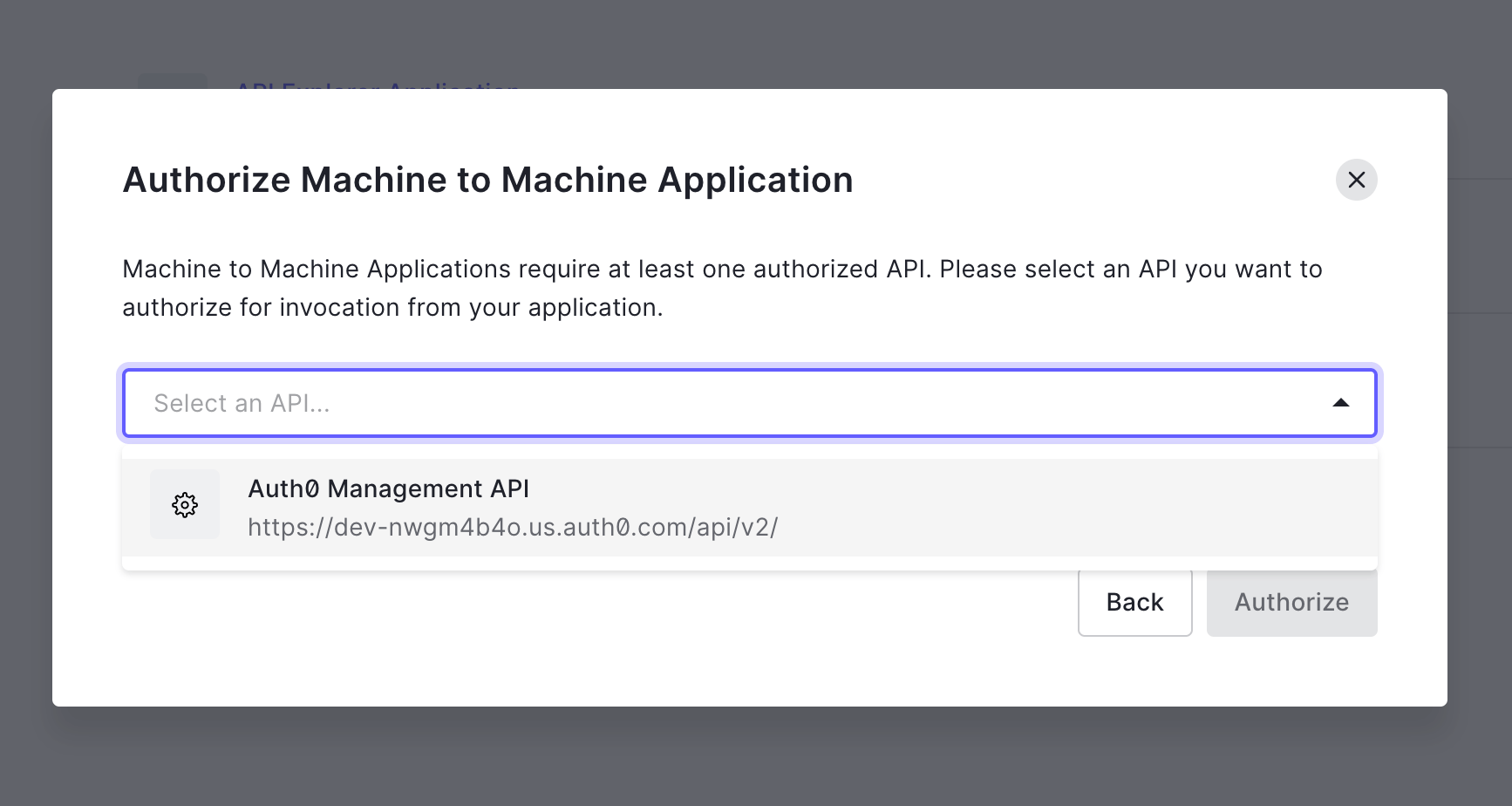
- Check the update:users permission.
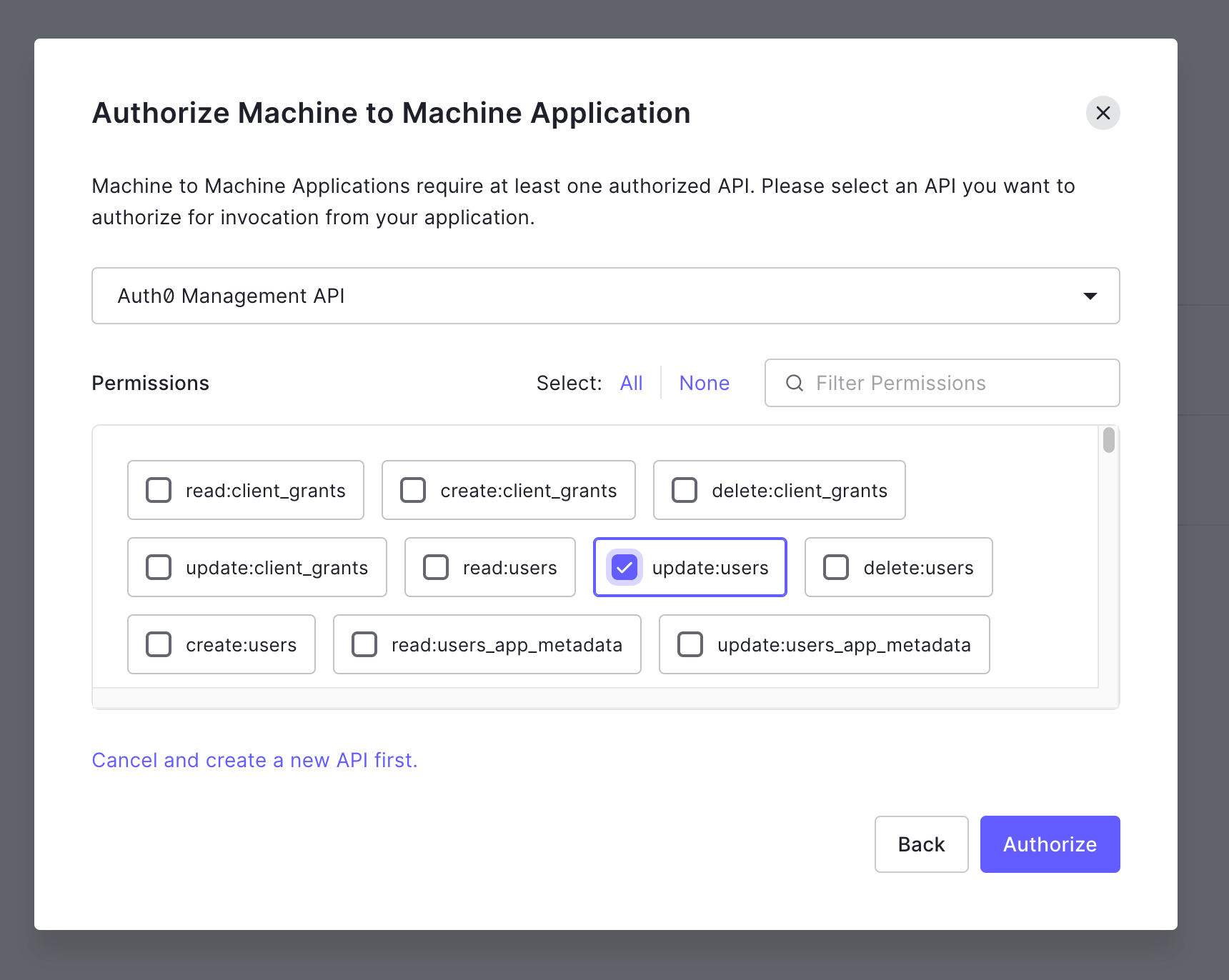
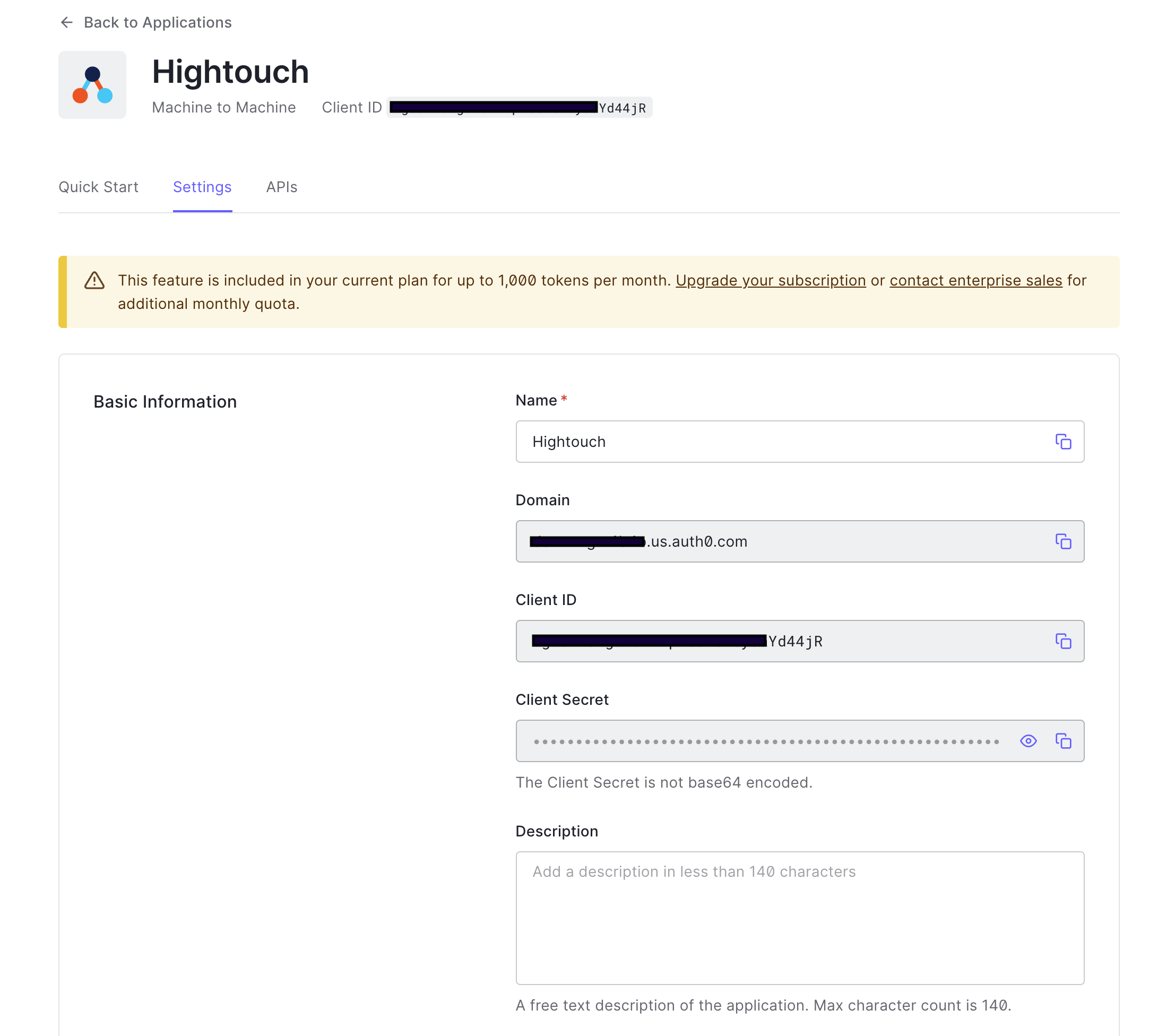
Keep in mind you might have to go back and add to the permissions for
potential future features.
Syncing rows
Hightouch supports syncing to the following Auth0 objects:Users
Sync modes
This integration only supports Update mode. In this mode, the destination will update the mapped attributes and metadata to the user objects. It will not add new users.Record matching
Records can be matched from your source to Auth0 workspace by the external user’s ID only.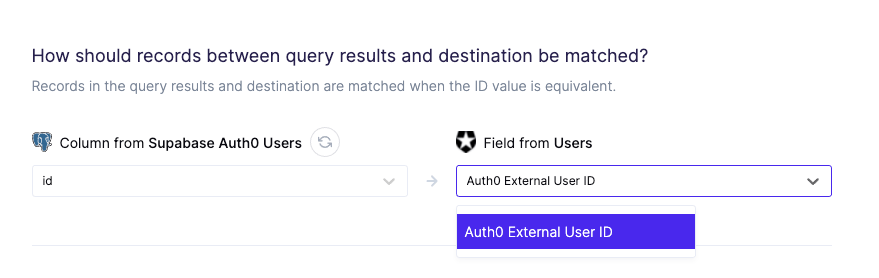
Field mapping
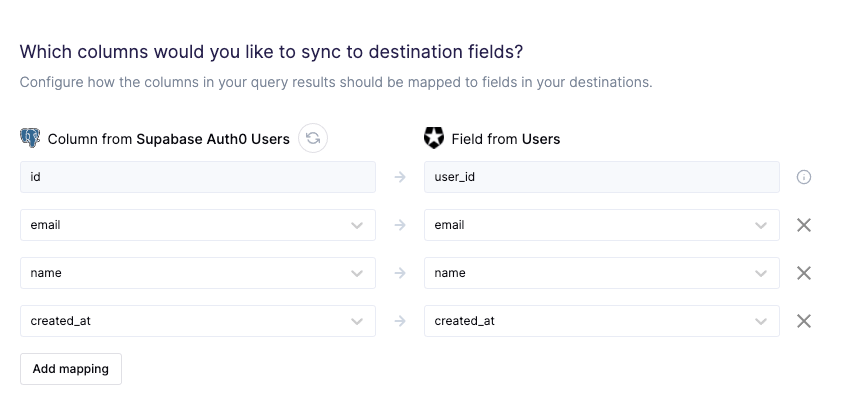
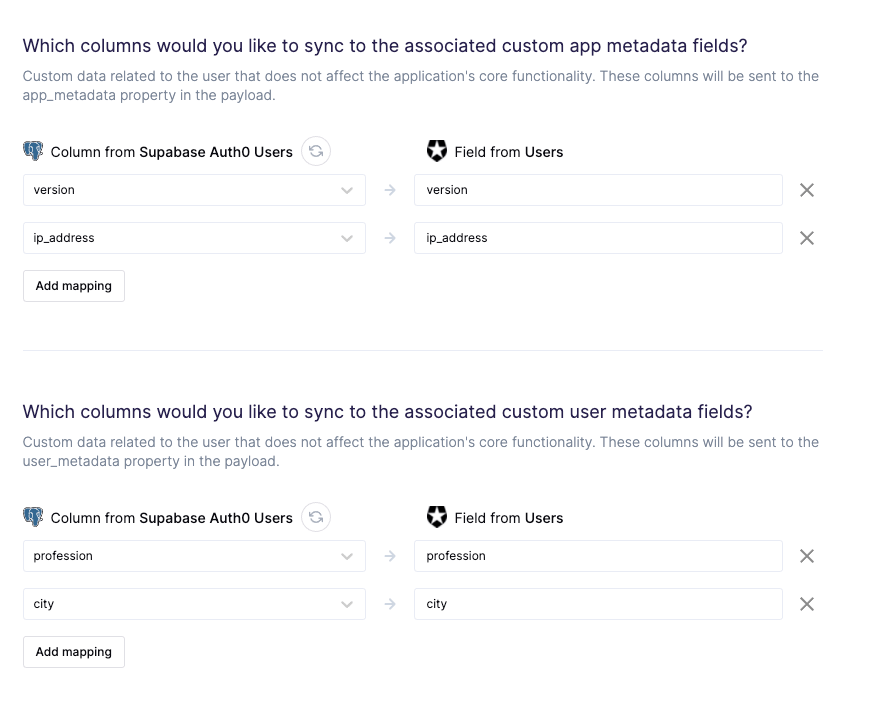
You can sync columns from your source to Auth0’s user attributes, including the app and user’s metadata. You can view this list for the supported Auth0 user attributes. The app and user metadata holds custom data so can take any shape or form.