

Connect to SQL Server
You may need to allowlist Hightouch’s IP addresses to let our systems connect to your SQL Server instance. Reference our networking docs to determine which IP addresses you need to allowlist.You can also securely connect to your SQL Server instance using AWS PrivateLink or GCP Private Service Connect. AWS PrivateLink and GCP Private Service Connect are Business Tier features.
SSH tunneling
Hightouch can connect directly to SQL Server over the public internet or via an SSH tunnel. Since data is encrypted in transit via TLS, a direct connection is suitable for most use cases. You may need to set up a tunnel if your SQL Server instance is on a private network or virtual private cloud (VPC). Hightouch supports both standard and reverse SSH tunnels. To learn more about SSH tunneling, refer to Hightouch’s tunneling documentation.The connection string method doesn’t currently support SSH tunneling. Please if you’re interested in this feature.
Azure firewall setup
By default, Azure protects your SQL Server from any external IP address from connecting to your SQL Server. Follow these steps to add Hightouch’s IP addresses to the firewall:- Log into your Azure Console Dashboard.
- Click on SQL databases under Services.
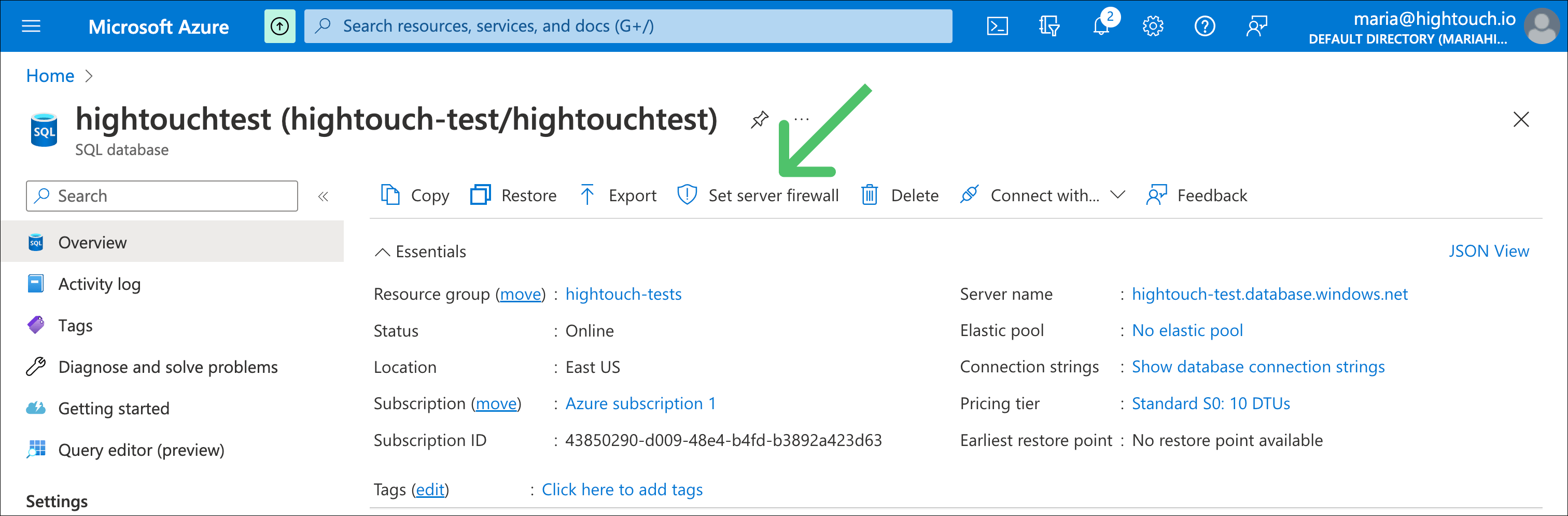
- Select the SQL database you want to update.
- Select Set server firewall .
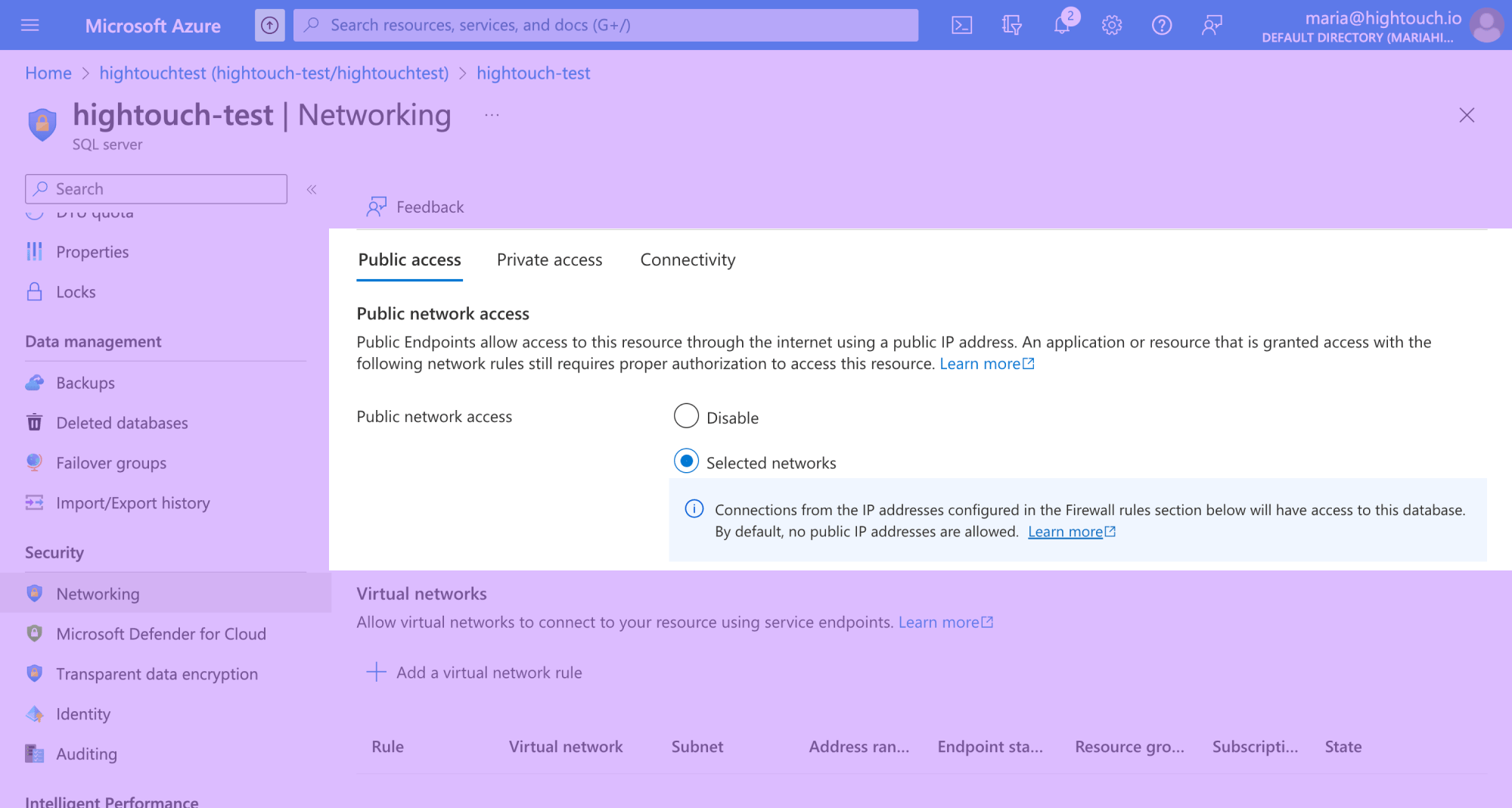
- Under Public network access, select Selected networks.
- Scroll to Firewall rules and click Add a firewall rule.
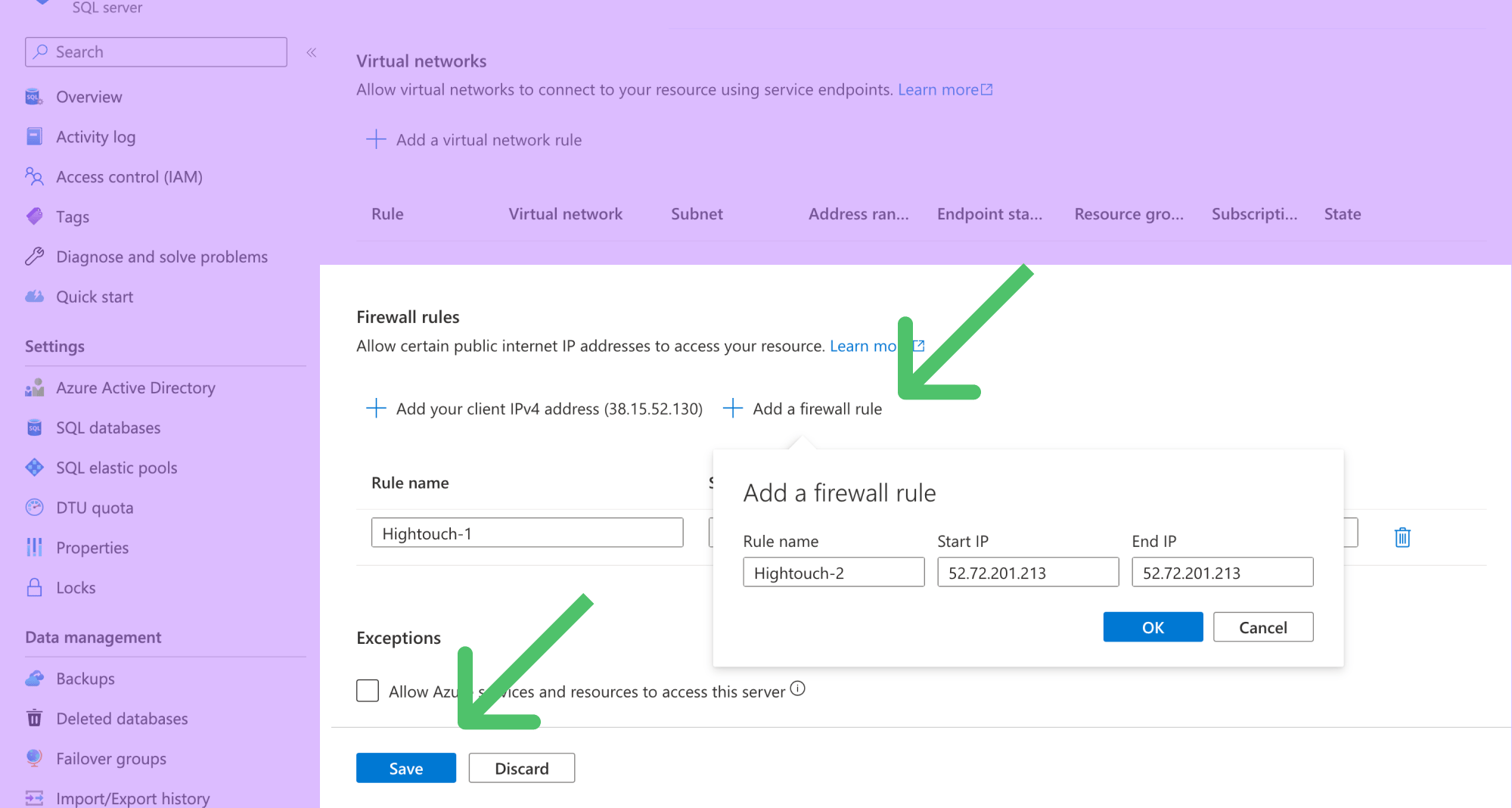
- Allowlist the Hightouch IP addresses for your region.
- Click the Save button on the bottom left.
Required permissions
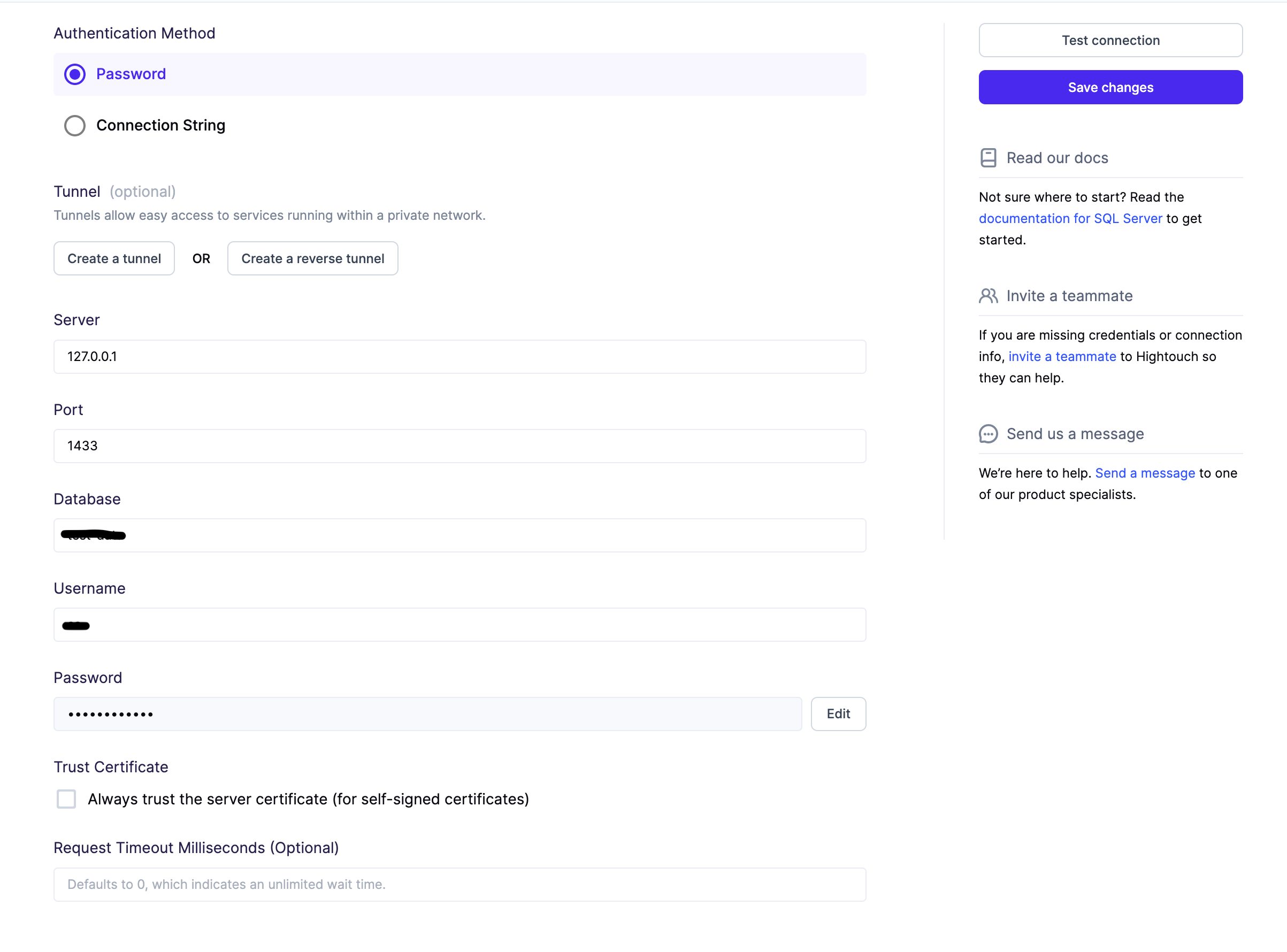
Both setup options require:- Server name (IP address or Azure hostname)
- Port number (1433 by default)
- Database name
- SQL Server Username
- SQL Server Password
- Add/update/delete rows in your sync’s table.
- View these tables:
(*These are used for gathering metadata to set up the sync.)
INFORMATION_SCHEMA.COLUMNSINFORMATION_SCHEMA.TABLE_CONSTRAINTSINFORMATION_SCHEMA.CONSTRAINT_COLUMN_USAGESYS.COLUMNS
SELECT query.
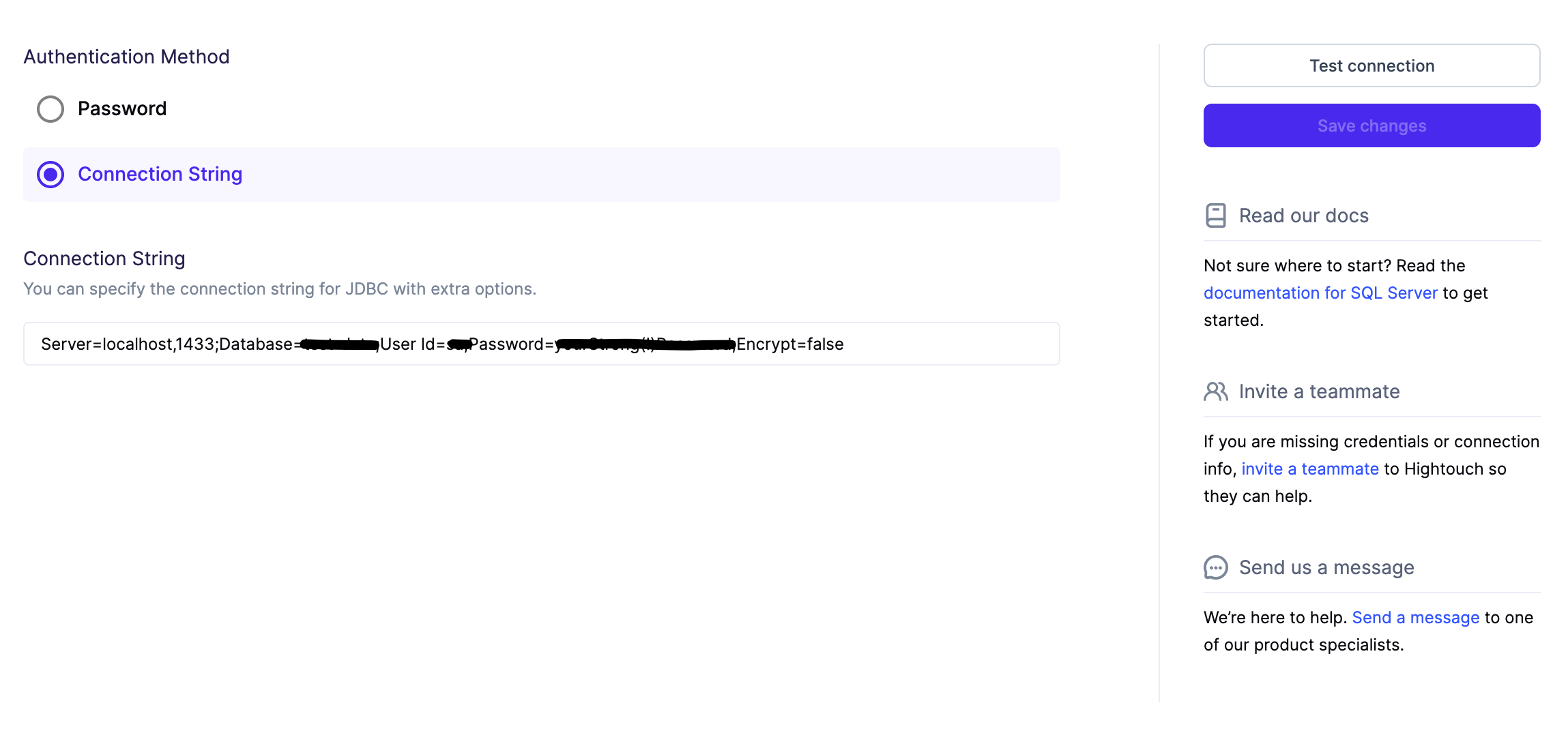
Password form
Connection string
Connection string must be in this format:Server=server;Database=database;User Id=username;Password=password;Encrypt=boolean
Sync configuration
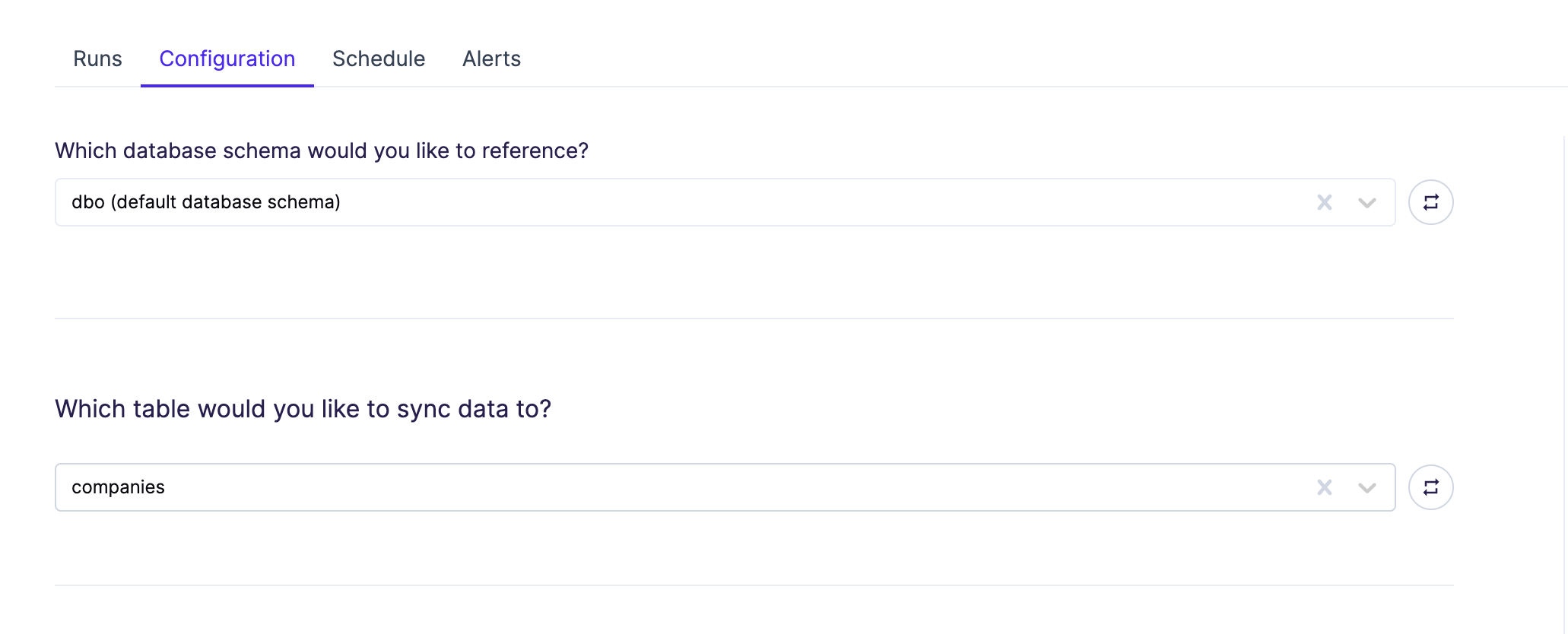
Hightouch supports Upsert mode with the option to delete removed rows. Select the schema and table you want to sync to. A common schema to use is the database’s default,dbo.
Record matching
Records can be matched from your source to your database table using any primary key or unique column. Hightouch only shows columns that are of thePRIMARY KEY or UNIQUE type in the dropdown.
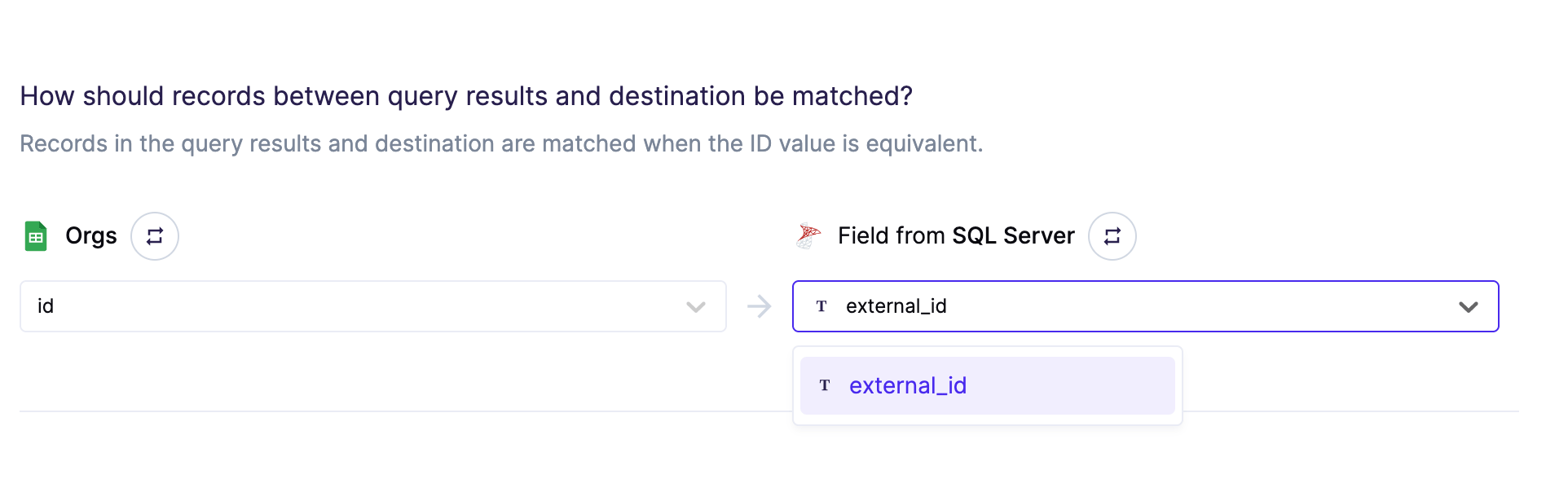
IDENTITY columns as those can’t be edited or set
when inserting.
If there are no fields in the dropdown, you must add a primary key or unique constraint to your table in SQL Server. Then, click the refresh icon to access the newly created column.
Field mapping
Select the fields from your source that you want to sync to SQL Server.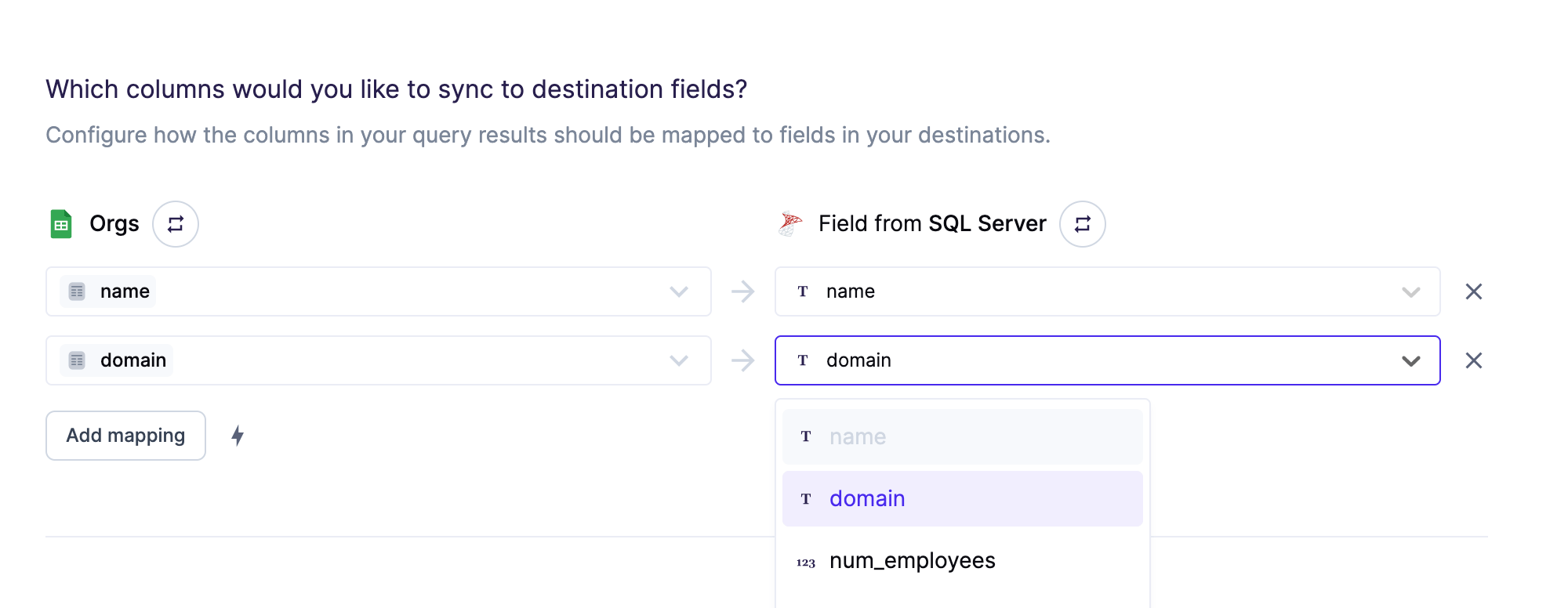
Tips and troubleshooting
To see the exact API requests and responses from each sync run, use the live debugger. To get notified by Slack, PagerDuty, SMS, or email when a sync fails, set up sync alerts. If you run into an issue this page doesn’t cover, .Common errors
Cannot open server ‘hightouch-test’ request by login
If you see the following error message, you need to update your firewall settings in your Azure Console.”Invalid time” error
This error occurs when incorrectly formatted data is sent to a SQL Servertime field.
To resolve this issue, you need to reformat your model column data. For example, if your model column contains values formatted like hh:mm:ss, you need to use the template mapper to change the data’s format to:
column_name with the name of your time column.
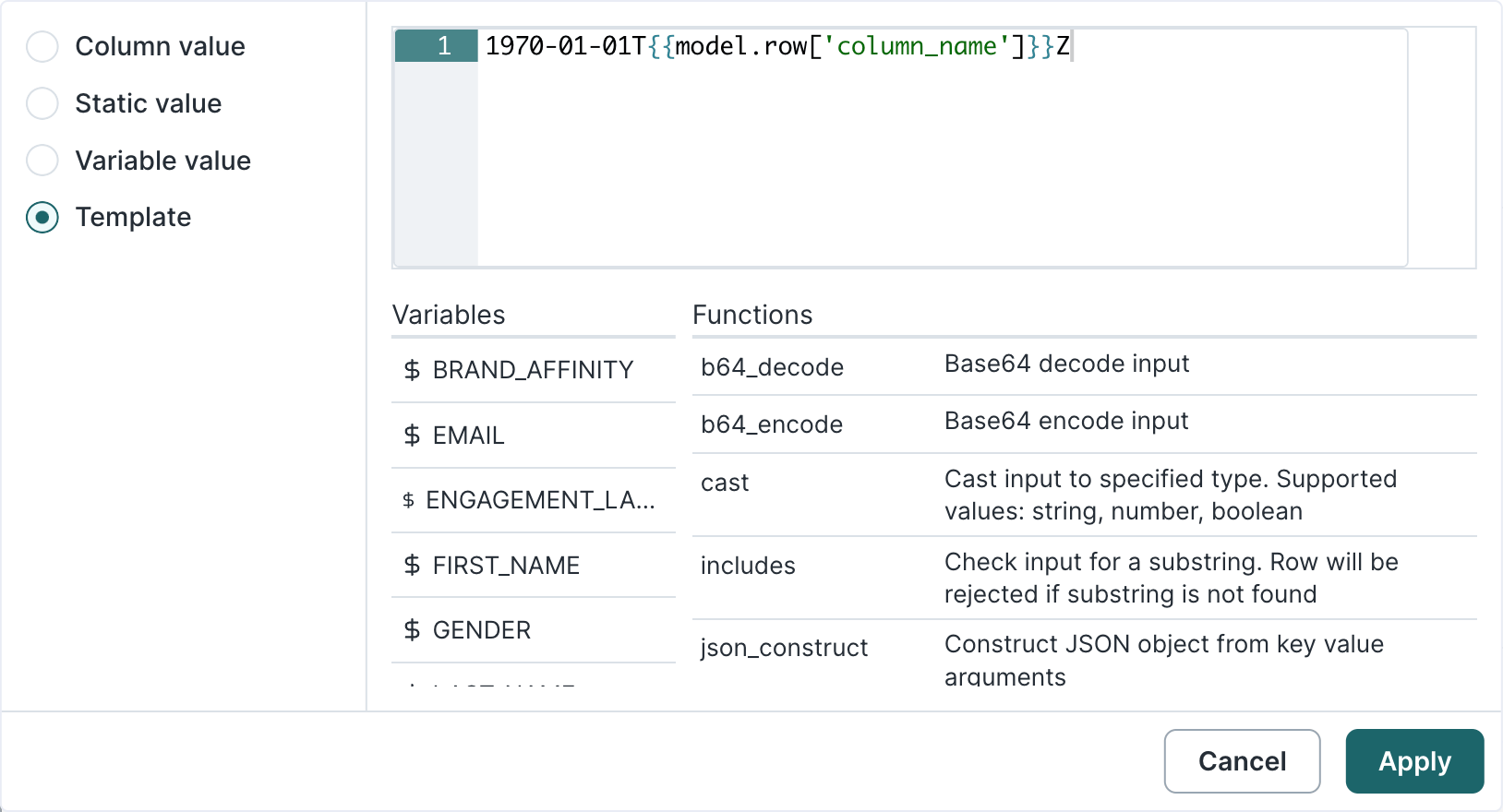
hh:mm:ss.nnnnnnn format SQL Server expects.