

Supported syncing
For more information about sync modes, refer to the sync modes docs.
Connect to Google Analytics
Go to the Destinations overview page and click the Add destination button. Select Google Analytics and click Continue. You can then authenticate Hightouch to Google Analytics by entering a Google Analytics API Secret. To generate an API secret, navigate to Admin > Data Streams > choose your stream > Measurement Protocol > Create. If you don’t have any existing data streams you need to create one first. If you are syncing anonymous audiences, you must additionally authenticate via OAuth to grant Hightouch theanalytics.edit scope. This is needed to create new audiences in GA4.
Sync configuration
Once you’ve set up your Google Analytics destination and have a model to pull data from, you can set up your sync configuration to begin syncing data. Go to the Syncs overview page and click the Add sync button to begin. Then, select the relevant model and the Google Analytics destination you want to sync to.Syncing events
Hightouch supports sending following Google Analytics event types: Firebase app events require an associated Firebase app ID (firebase_app_id) and app instance ID (app_instance_id). You can find the firebase_app_id in the Firebase console in Project Settings > General > Your Apps > App ID. You can retrieve the app_instance_id through the Firebase SDK.
If you are having issues syncing your Firebase app events, check out Google’s troubleshooting docs.
Gtag.js events require an associated measurement ID (measurement_id) and client ID (client_id). You can find the measurement_id in the Google Analytics UI in Admin > Data Streams > choose your stream > Measurement ID. You can retrieve the client_id using these examples from Google.
If you are having issues syncing your Gtag.js events, check out Google’s troubleshooting docs.
Refer to Google Analytics required parameters for more information.
Measurement ID
Your measurement ID in Google Analytics is an identifier for a web data stream. It typically starts withUA, MO, or G followed by 10-20 characters, for example UA-12345678-9. You can find your measurement ID by following the Find your Measurement ID link in Google’s docs.
You can also use the steps outlined in the preceding section.
Event name
Google Analtyics requries an event name for all events. You can either provide a static value or select to use a column from your model data. Hightouch syncs the static or column value as theevents[].name parameter Google Analytics requires. See Google’s events reference for all event name options.
Event timestamp
Optionally, you can decide to select a model column that contains your event timestamps. Timestamps should be in ISO 8601 format or Unix timestamps in milliseconds, which are automatically converted to the format required by Google Analytics.Field mapping
Field mapping is where you select which event parameters you want to send to Google Analytics. You can map data from any of your model columns to event parameters in Google Analytics. Ensure your model column data type matches the data type of the parameter you want to sync to. Different event types require different parameters. For example,purchase events require the following parameters:
currency(string)value(number)transaction_id(string)items(array with additional required parameters)
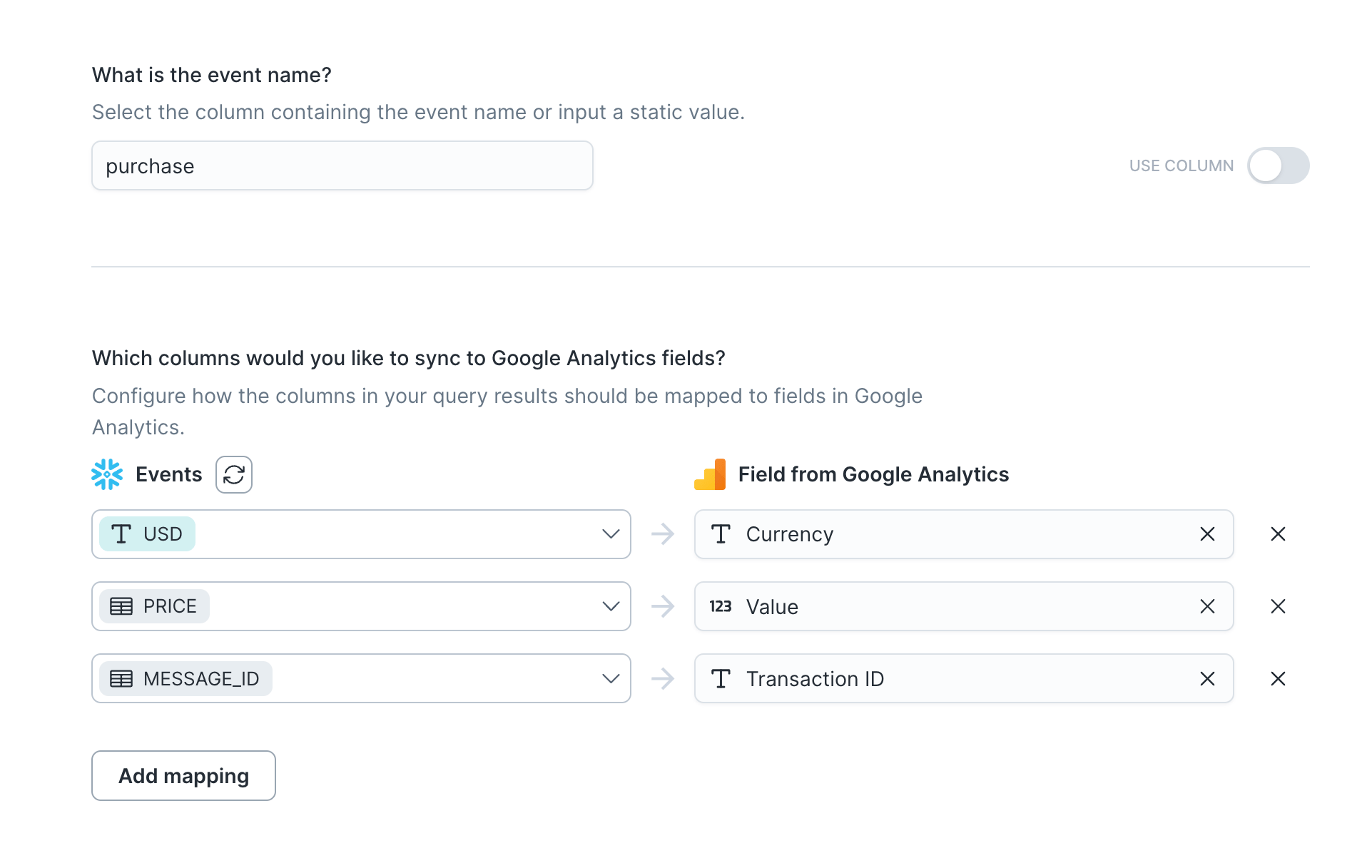
currency.
See Google’s events reference for the suggested parameters for each event.
Syncing audiences
Create anonymous audiences based on user properties in GA4. Hightouch creates anonymous audiences in GA4 by first creating a new custom dimension based on the name of your audience. The custom dimension will be in the formatHT_<audience name>.
Once the dimension is created, Hightouch creates an audience using the new custom dimension as a filter. Hightouch will send events with the custom dimension value set to 1 in user properties, and filter based on that value. Anonymous users with the custom dimension property set will be included in your anonymous audience.
When a record is removed from your audience, the custom audience value is set to -1 and therefore removed from your audience.