Overview
Hightouch integrates with RabbitMQ so you can send data from your warehouse as messages to a RabbitMQ broker without writing and maintaining code, letting you build a custom connector to your internal systems. Hightouch supports all managed RabbitMQ brokers (Amazon MQ, CloudAMQP, etc.) and can also connect to self-hosted instances.Connect to RabbitMQ
Connect to your RabbitMQ server
For Hightouch to connect to your RabbitMQ server, you need to enter the connection parameters of your RabbitMQ URI. These parameters include the protocol used, server connection details (host address and port), authentication credentials (username and password) and vhost. You also need to enter your Management Portal URL for Hightouch to query the queues in your RabbitMQ server,.- Protocol: Select the protocol used for your RabbitMQ server. This is either
amqporamqps. - Host: Enter your host address to establish the underlying TCP/IP connection to the server.
- Port: Enter your port number to establish the underlying TCP/IP connection to the server.
- VHost: Enter you vhost. The default value is
/. - Management Portal: Enter your management portal URL. This can usually be found on the details page for your hosted RabbitMQ solution.
- Username and Password: Enter your RabbitMQ server username and password.
Syncing data
Once you’ve connected your RabbitMQ server to Hightouch, you can configure a sync that send messages whenever rows are added, changed, or removed in your model.Configure your events trigger
Hightouch monitors your data model for added, changed, and removed rows. In this step, you specify which of these events should trigger message publishing.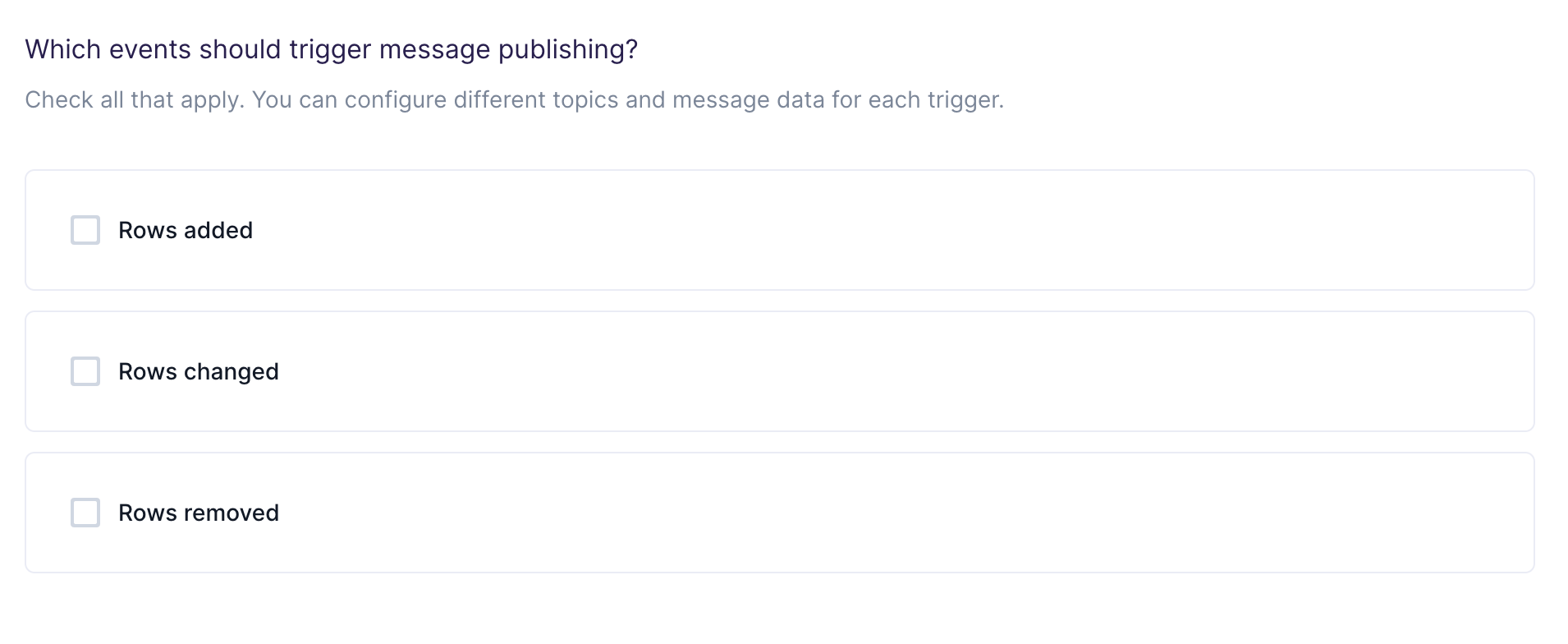
Choose your queue
In this step, you choose which queues to publish the messages to. Hightouch allows you to sync to existing queues that are already in your RabbitMQ. Suppose you want to sync to multiple existing queues but don’t want to create a new sync for every queue. As long as your model has a column associated to queue names in your RabbitMQ server, Hightouch can sync to multiple RabbitMQ queues in just one sync. To enable this feature, toggle USE COLUMN, and select a column in your model containing the queue name rows.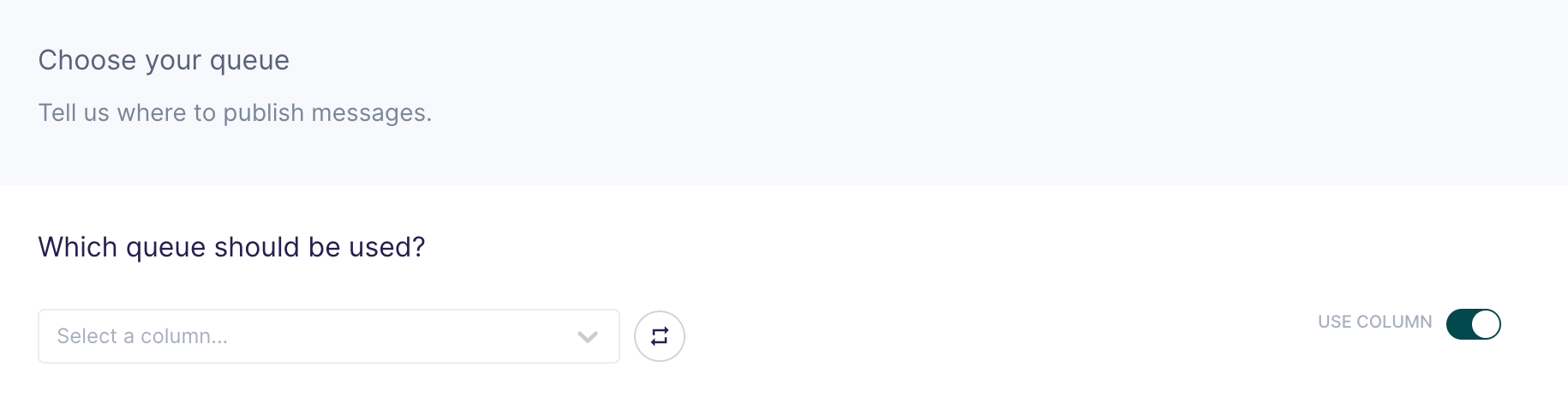
When syncing to multiple queues, if a queue name in the selected column of
your model doesn’t exist in RabbitMQ, then the sync for that message will
fail.
Customize your message
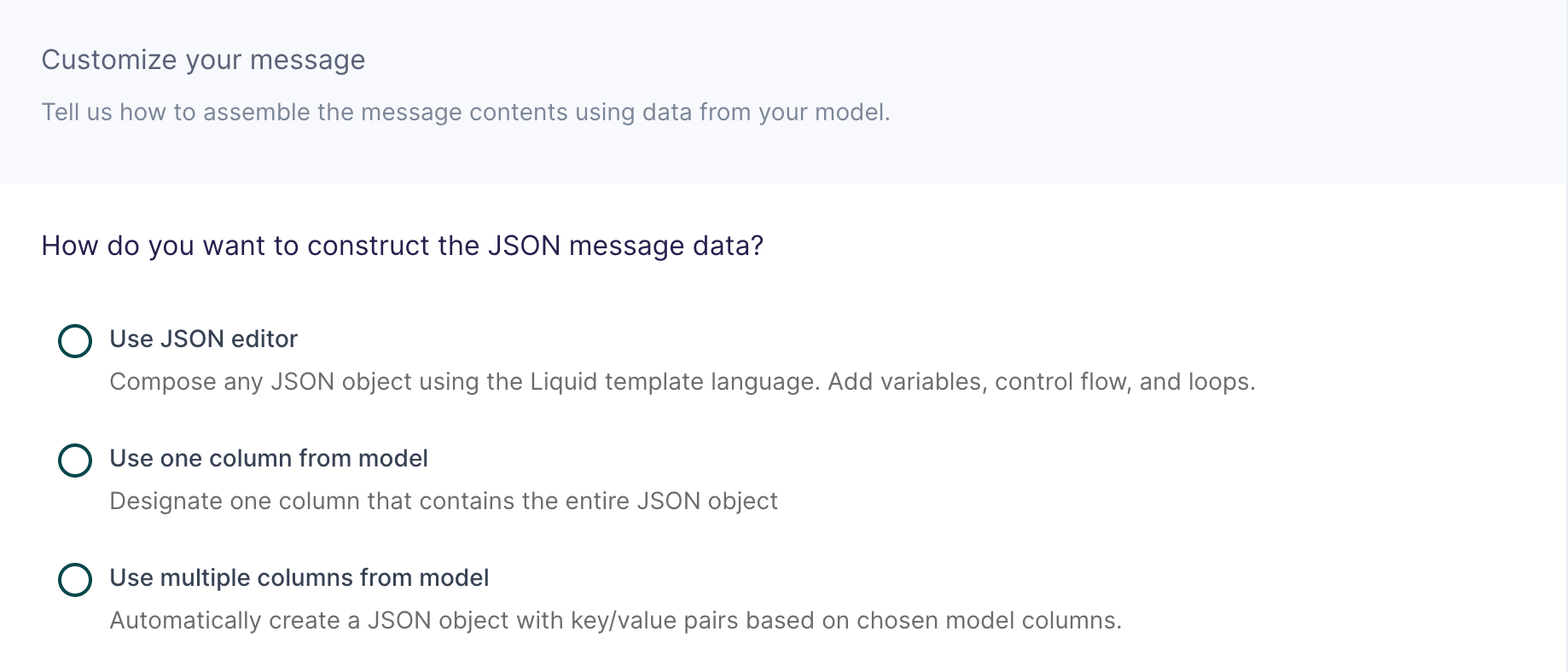
Use JSON editor
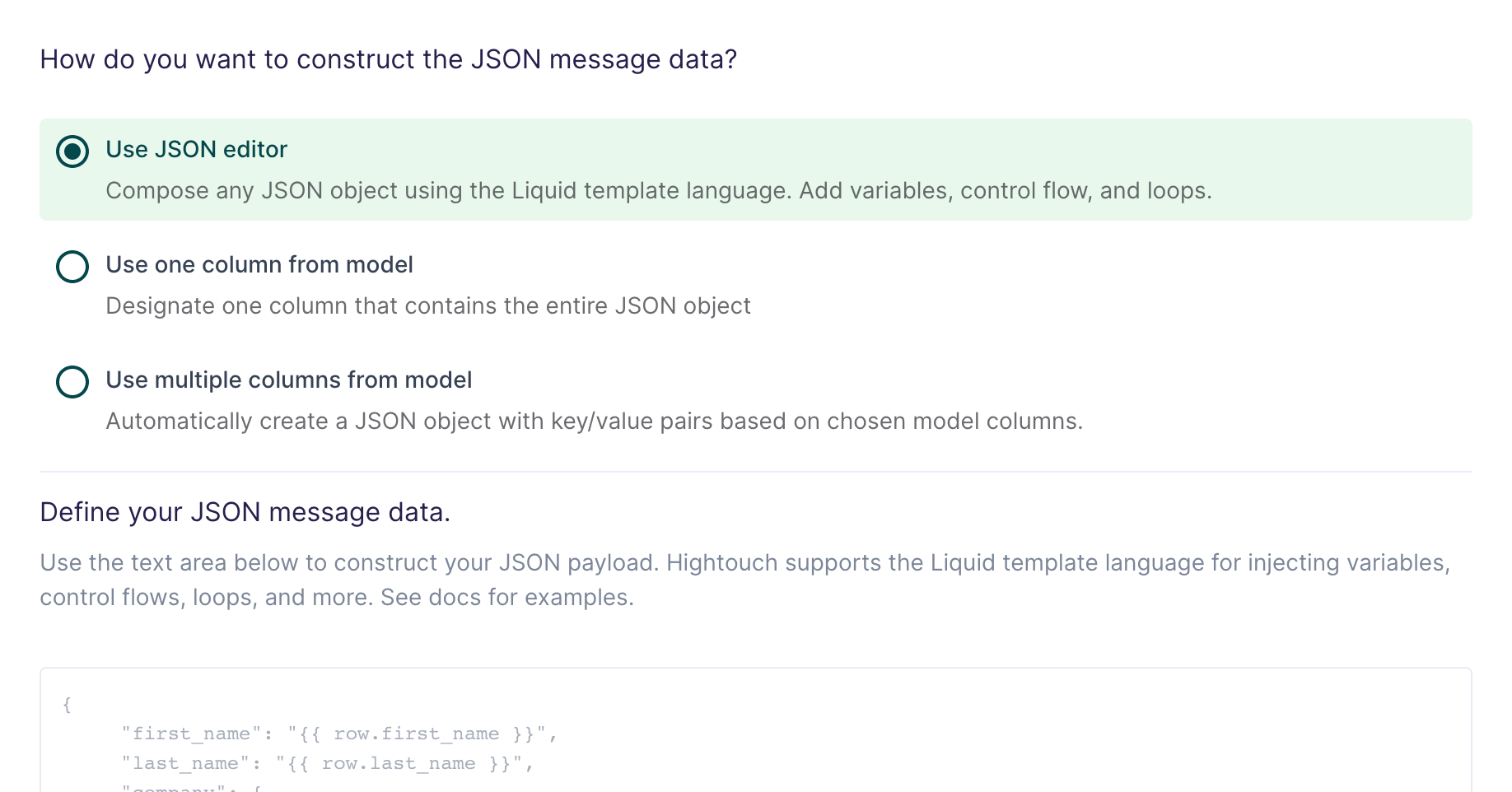
And you want your message data like this:
{{row.column_name}}. You can also use advanced Liquid features to incorporate control flow and loops into your dynamic message data.
When injecting strings into your JSON object, be sure to surround the Liquid
tag in double quotes.
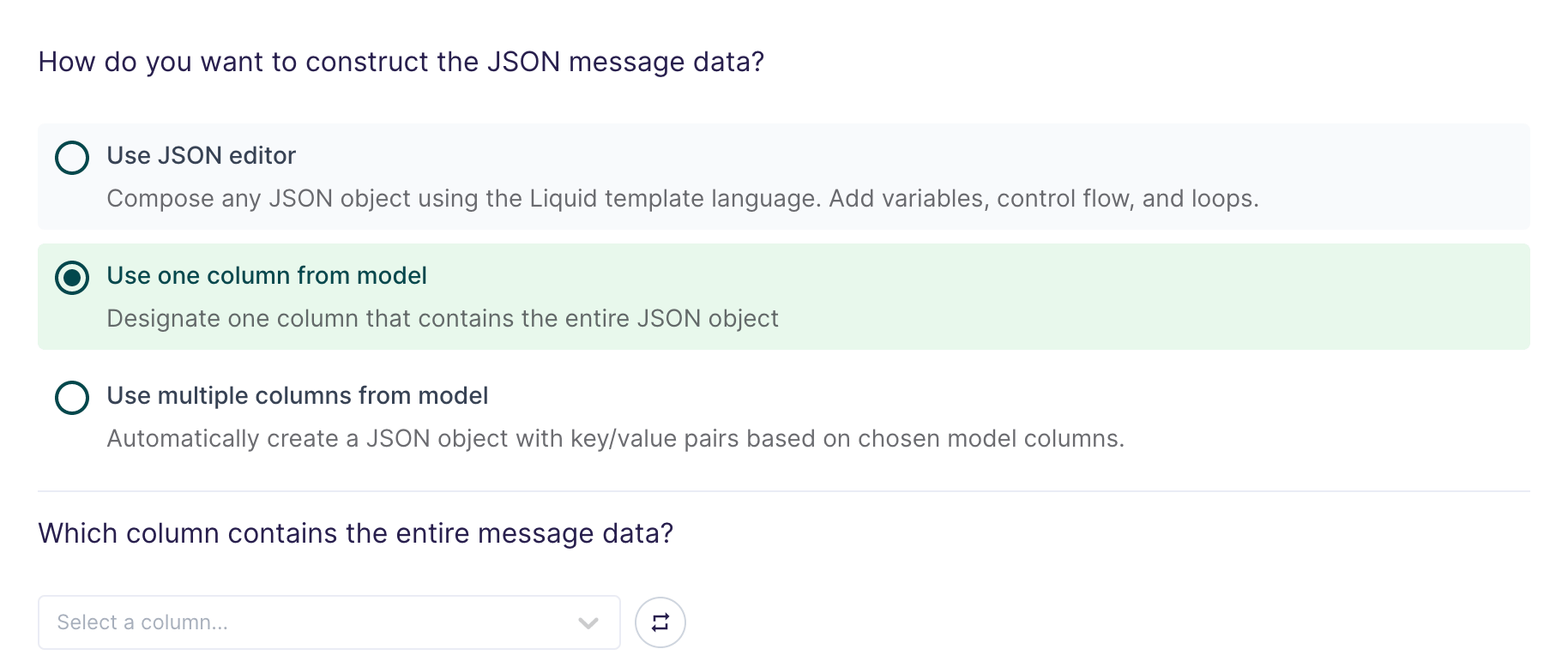
Use one column from model
Use multiple columns from model
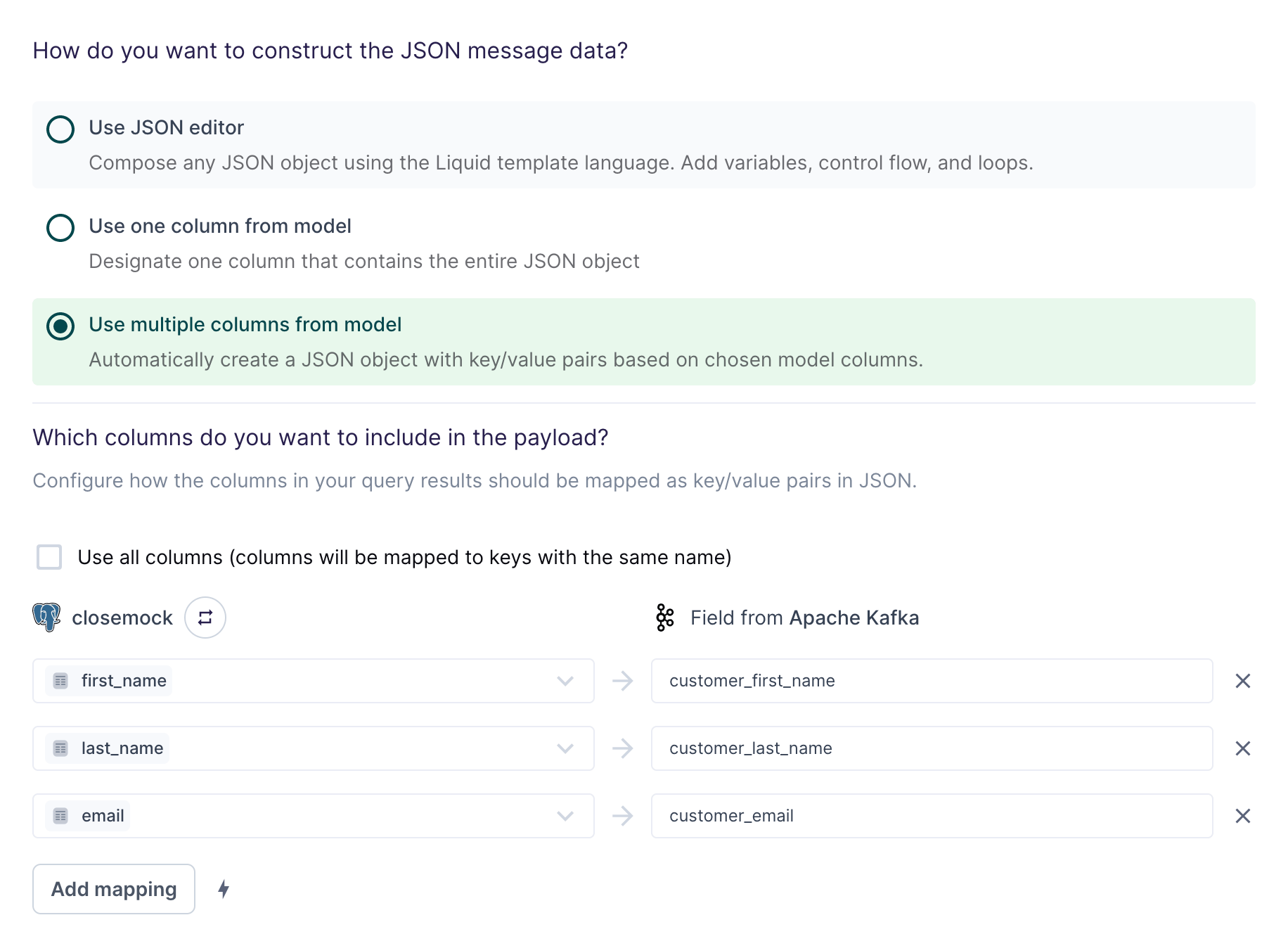
The field mapping in the screenshot above would generate the following message data for the first row:
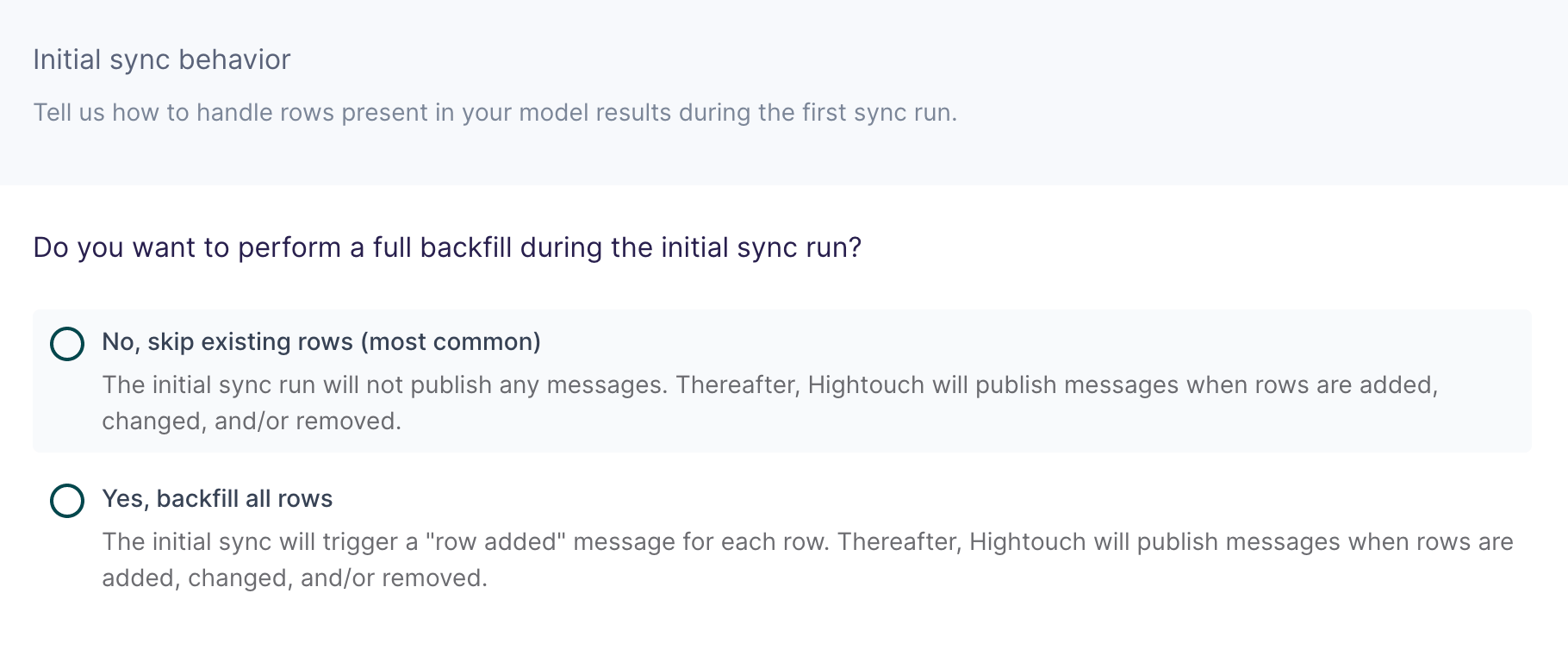
Configure initial sync behavior
In this step, you tell Hightouch how to handle rows present in your model results during the first sync run. Certain workflows may require performing a backfill of all rows during the initial sync. For other use cases, you might only want to send messages in response to future data changes.