Supported syncing
For more information about sync modes, refer to the sync modes docs.
Connect to Firestore
You can decide whether to set up Firestore with Firebase or with Google Cloud Platform. The following sections outline the necessary setup for either service.Firebase
To find the credentials, navigate to Firestore and select your project. In the left-hand sidebar, click the wheel icon next to Project Overview and select Project settings from the menu. Once on the Project setting screen, select the Service accounts tab. Make sure you are on the Firebase Admin SDK. You will need to click the Generate new private key button to download a JSON file of the credentials.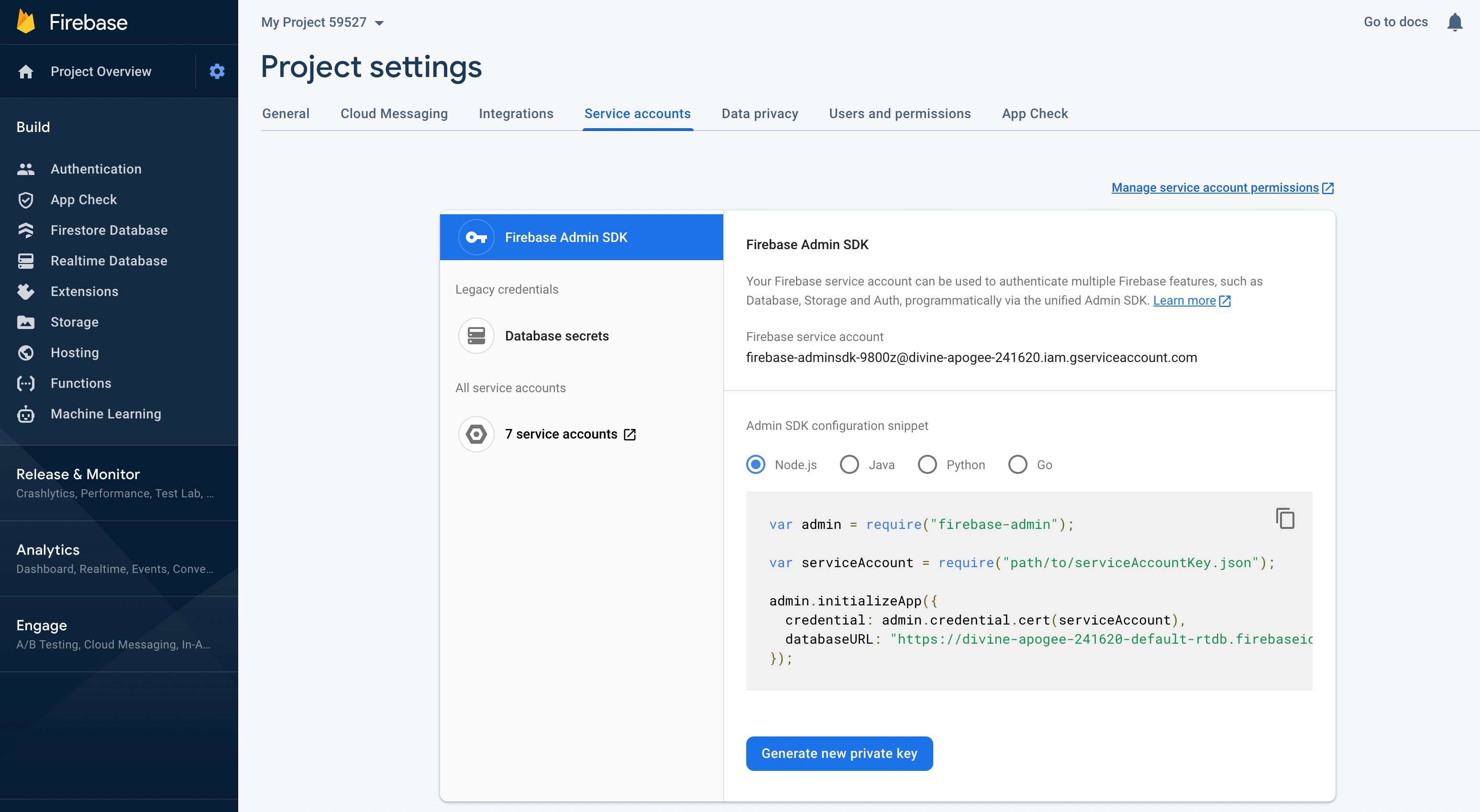
\n character as well, as that is still part of the private key.
Google Cloud Platform
To find the credentials, navigate to Google Cloud Platform. In the header, next to Google Cloud Platform, click the Select a project dropdown and select a project. If you do not have Firestore set up within this project, you will be taken to the Get started screen. Click the Select Native Mode button.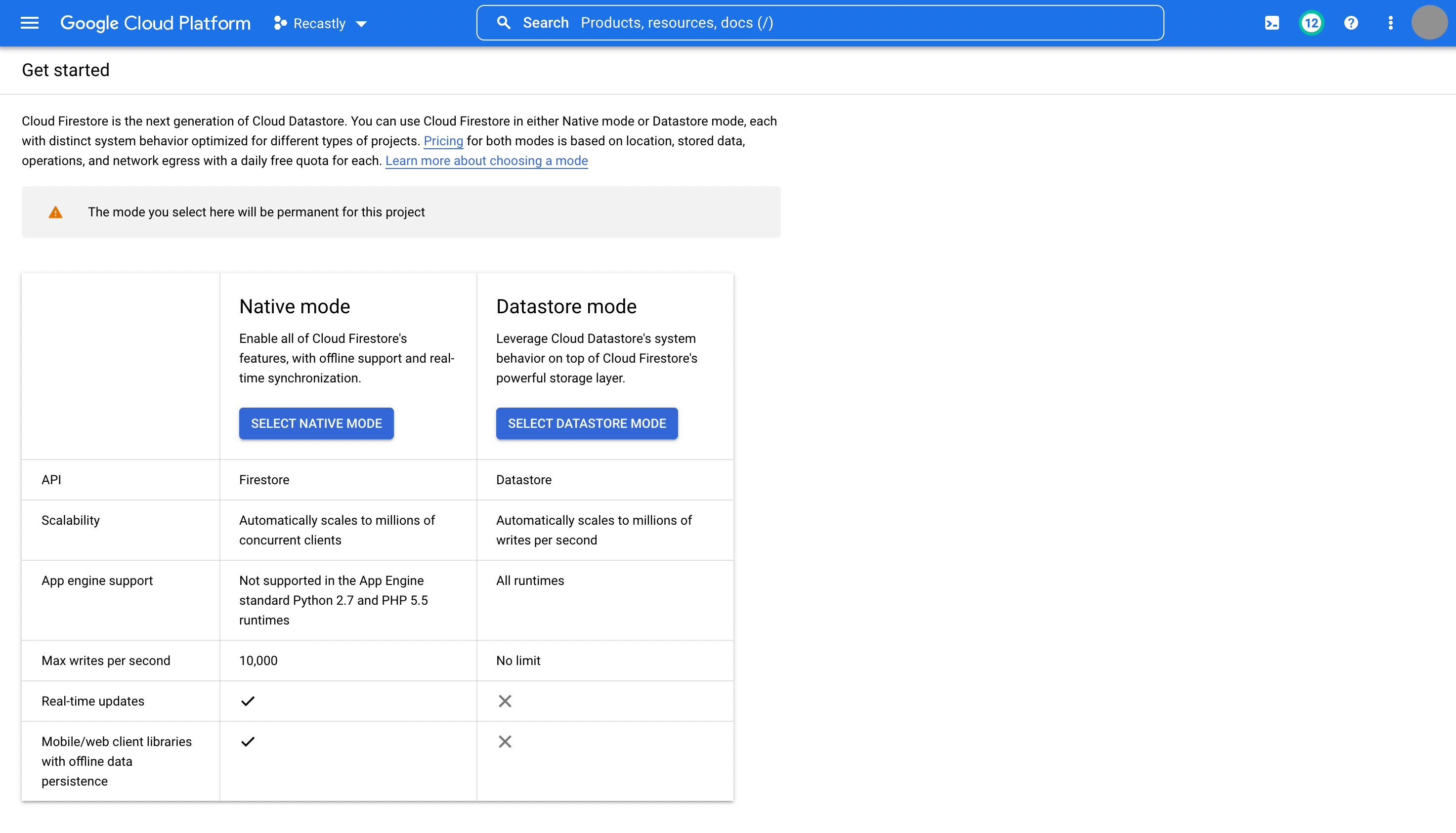
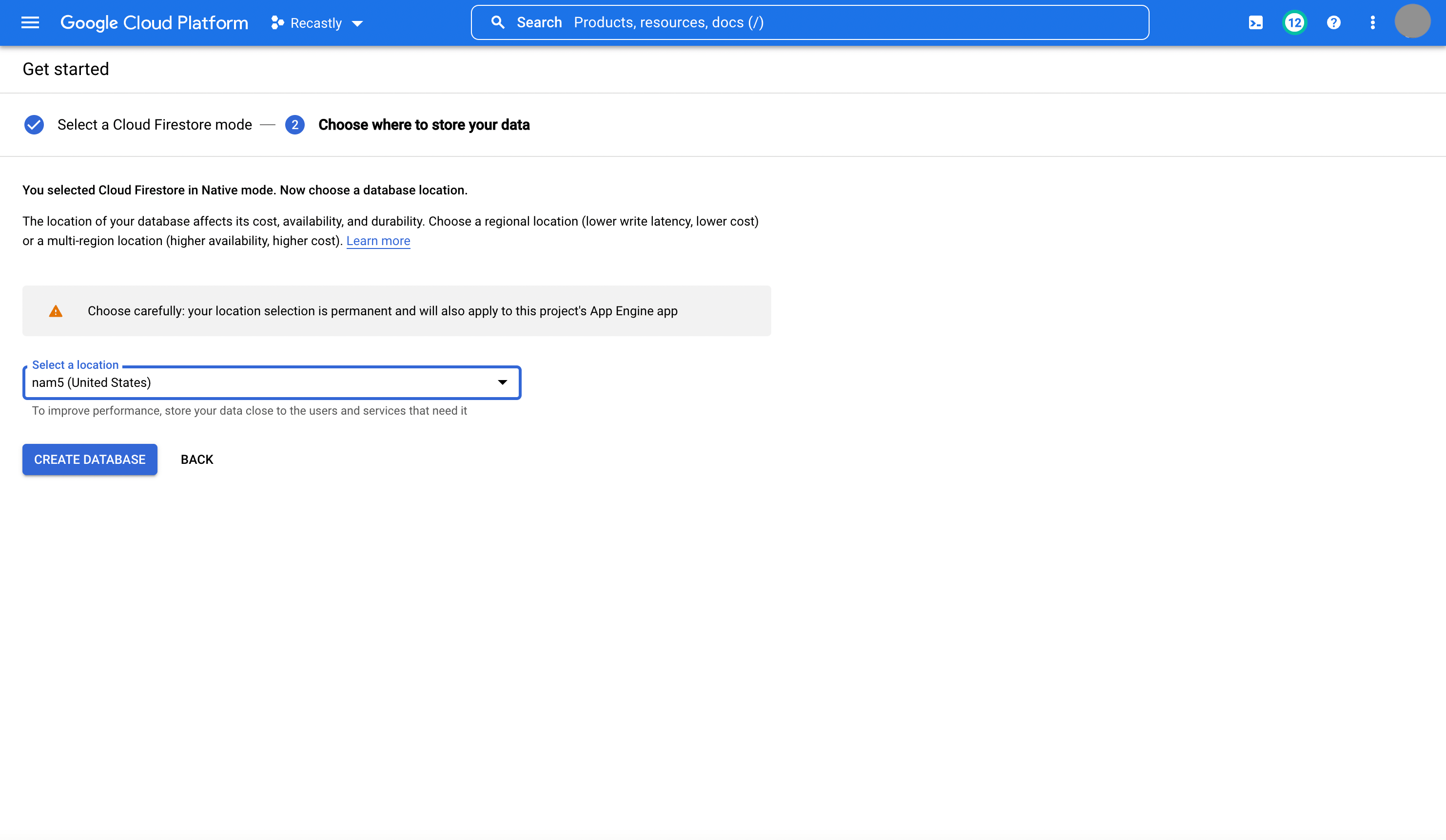
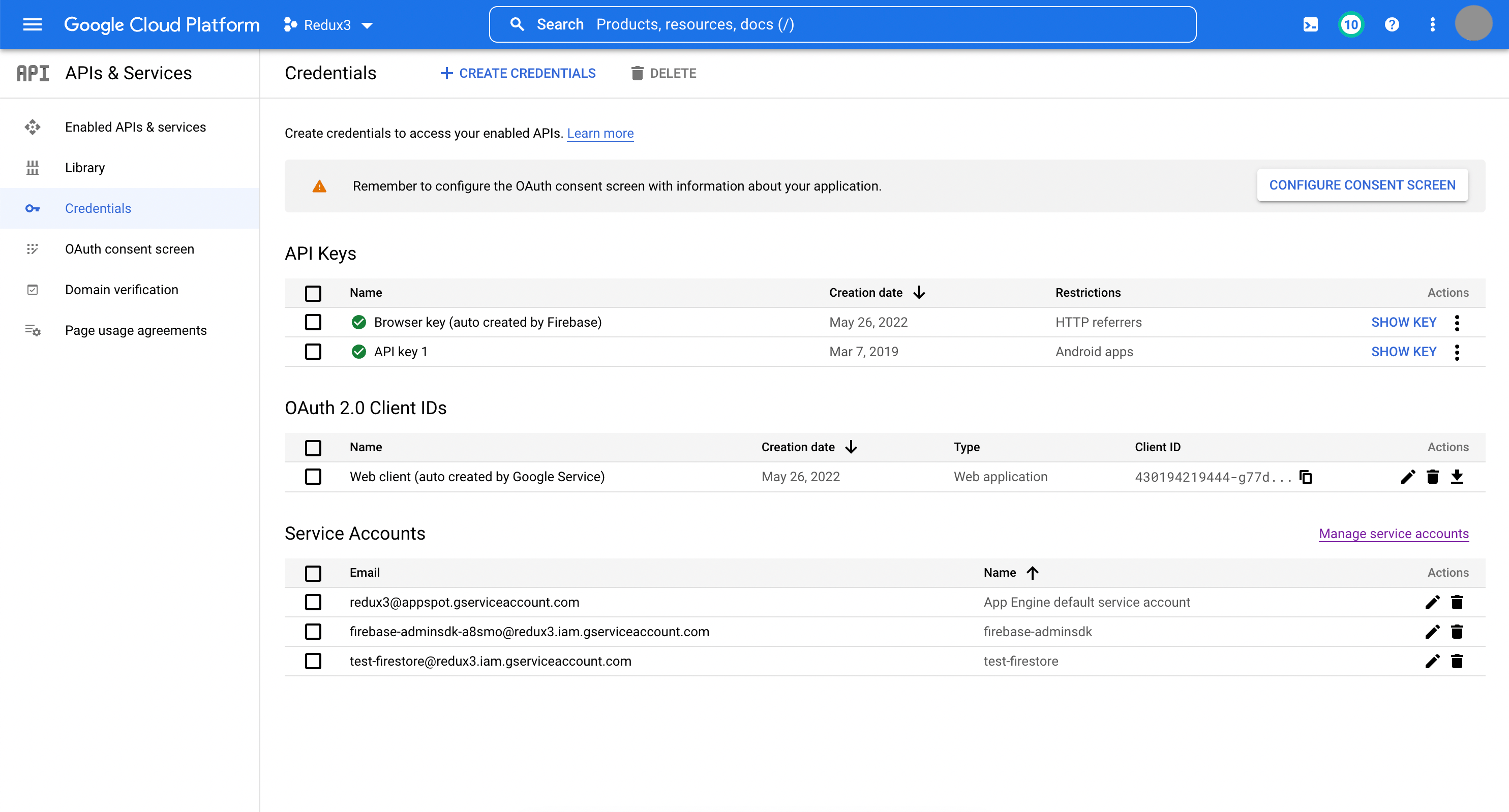
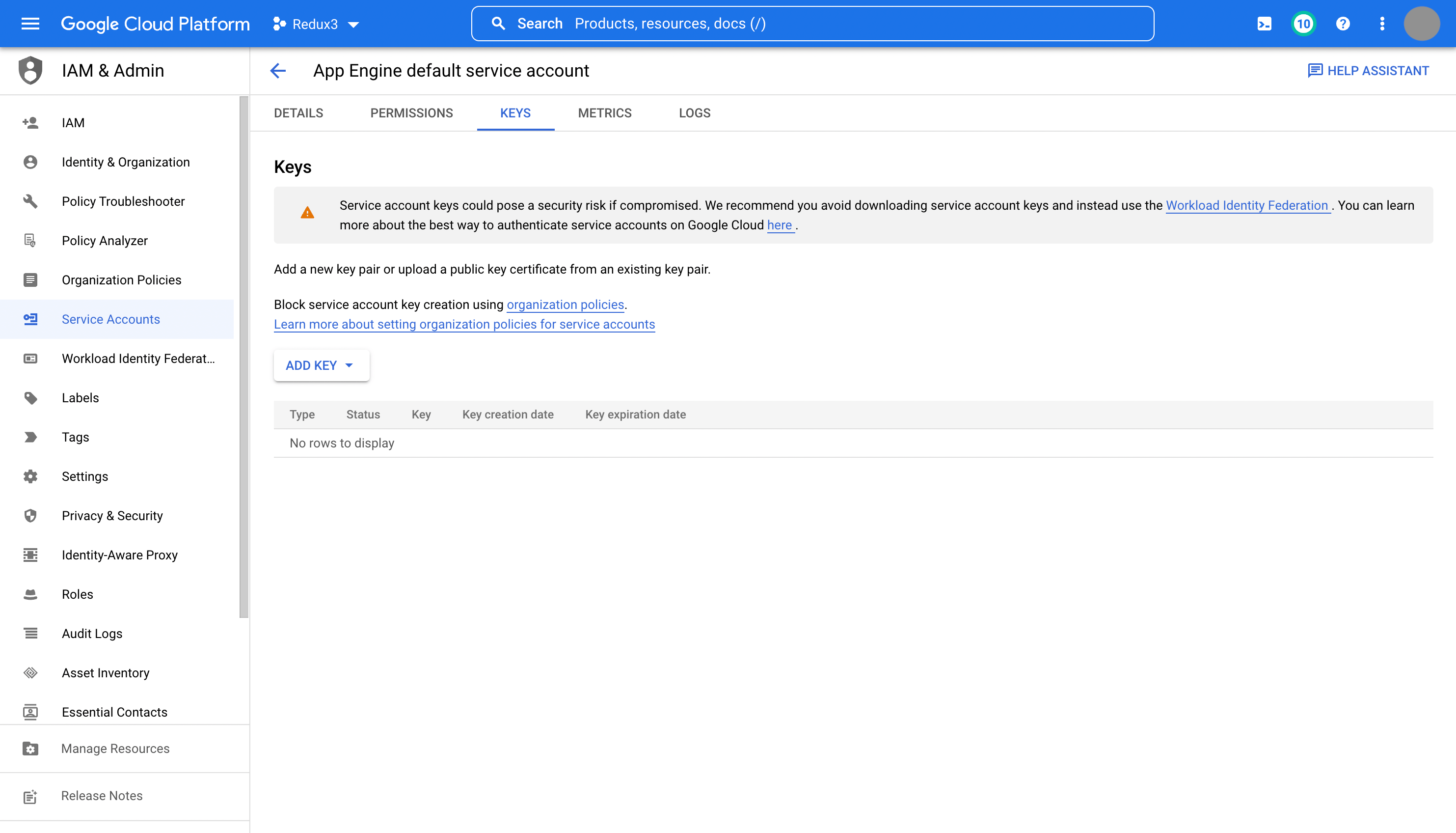
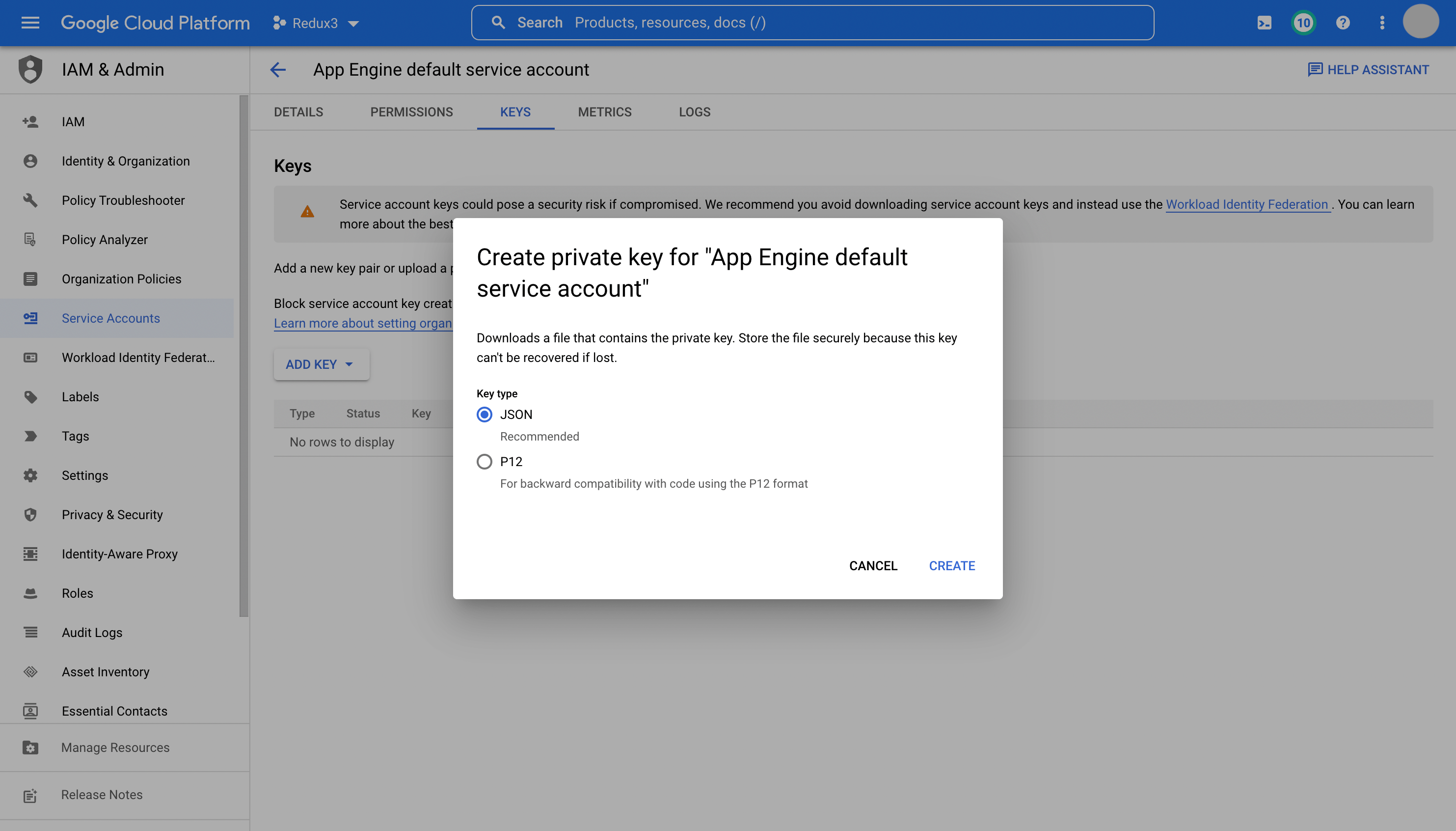
\n character as well, as that is still part of the private key.
Custom database name
Firestore defaults to the(default) database. If your setup requires a custom database name enter it in the Database Name field in Hightouch during setup.
Sync configuration
Sync modes
Hightouch supports the Upsert sync mode. During the Upsert mode, new rows will be inserted into Firestore and existing rows will be kept up-to-date within Firestore.Record matching
Records can be matched from your source to Firestore by any unique property.Columns to sync
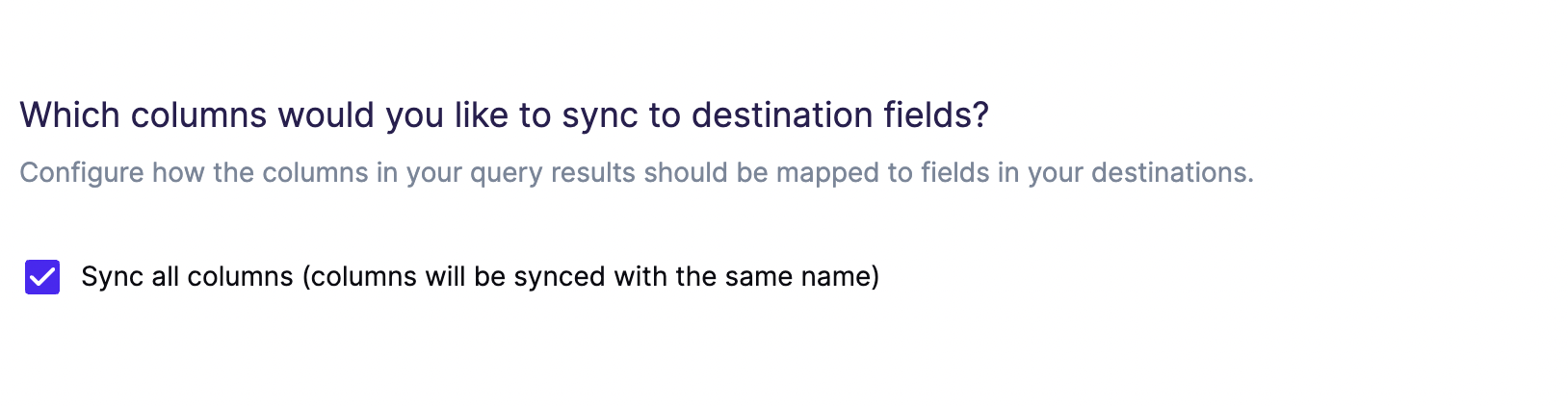
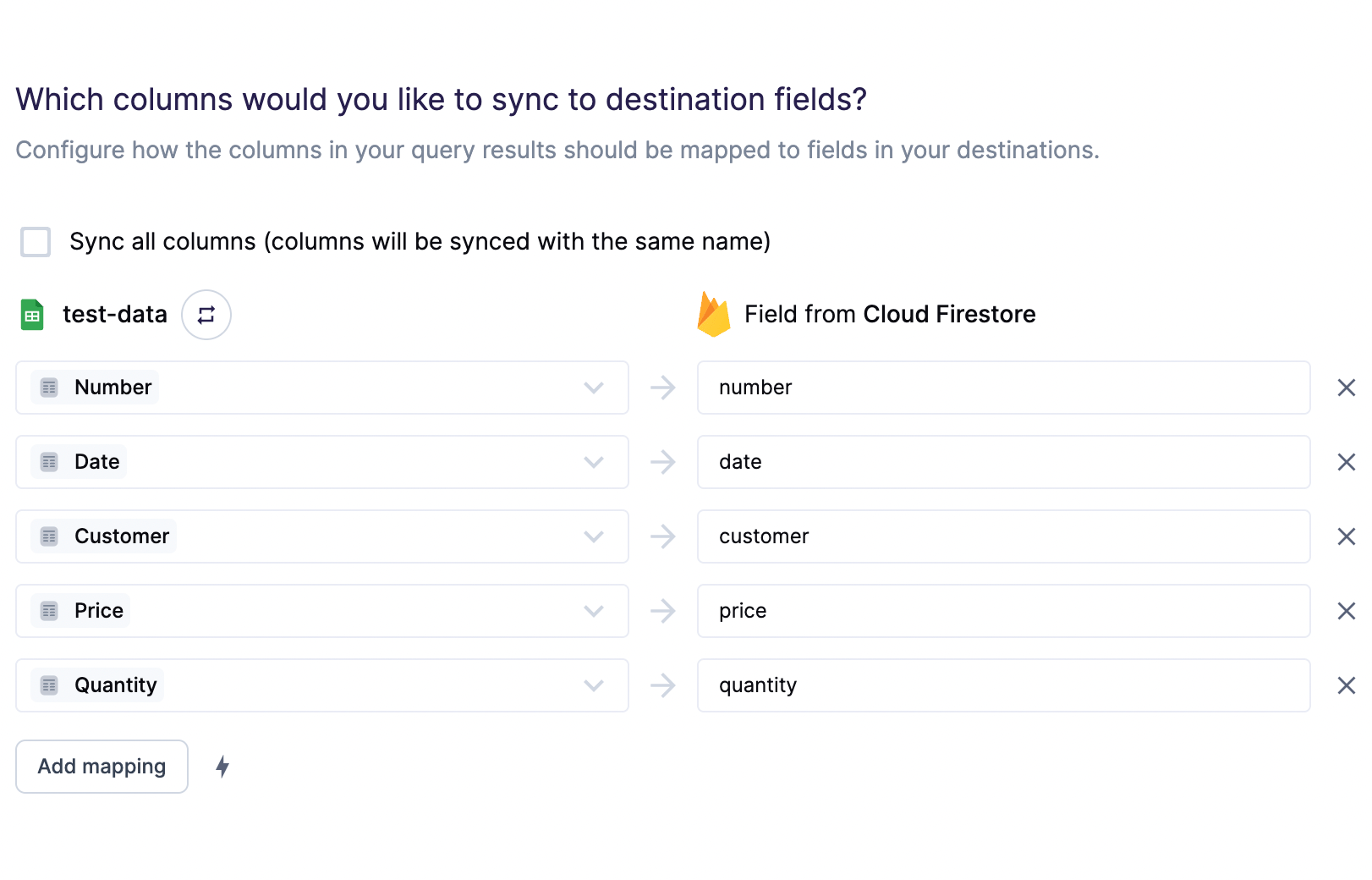
For Firestore, we give you the ability to send all columns as they are represented in your model.