

Overview
Hightouch lets you pull data stored in Microsoft SQL Server and push it to downstream destinations. Connecting Hightouch to Microsoft SQL Server may require some setup in both platforms. If using an Azure provisioned Microsoft SQL Server, you need to configure your firewall settings.You may need to allowlist Hightouch’s IP addresses to let our systems connect to your SQL Server instance. Reference our networking docs to determine which IP addresses you need to allowlist.You can also securely connect to your SQL Server instance using AWS PrivateLink or GCP Private Service Connect. AWS PrivateLink and GCP Private Service Connect are Business Tier features.
Azure firewall setup
This section only applies when connecting to SQL Server instances hosted in Azure. By default, Azure protects your SQL Server from any external IP address from connecting to your SQL Server. Follow these steps to add Hightouch’s IP addresses to the firewall:- Log into your Azure Console Dashboard.
- Click on SQL databases under Services.
- Select the SQL database you want to update.
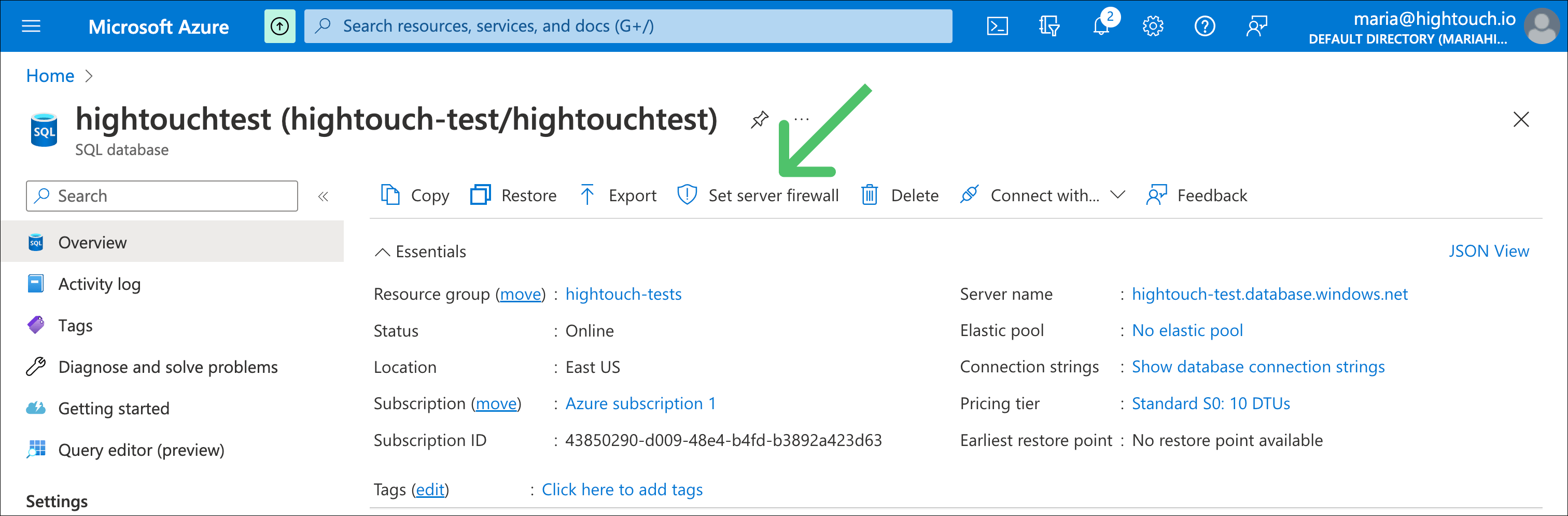
- Select Set server firewall .
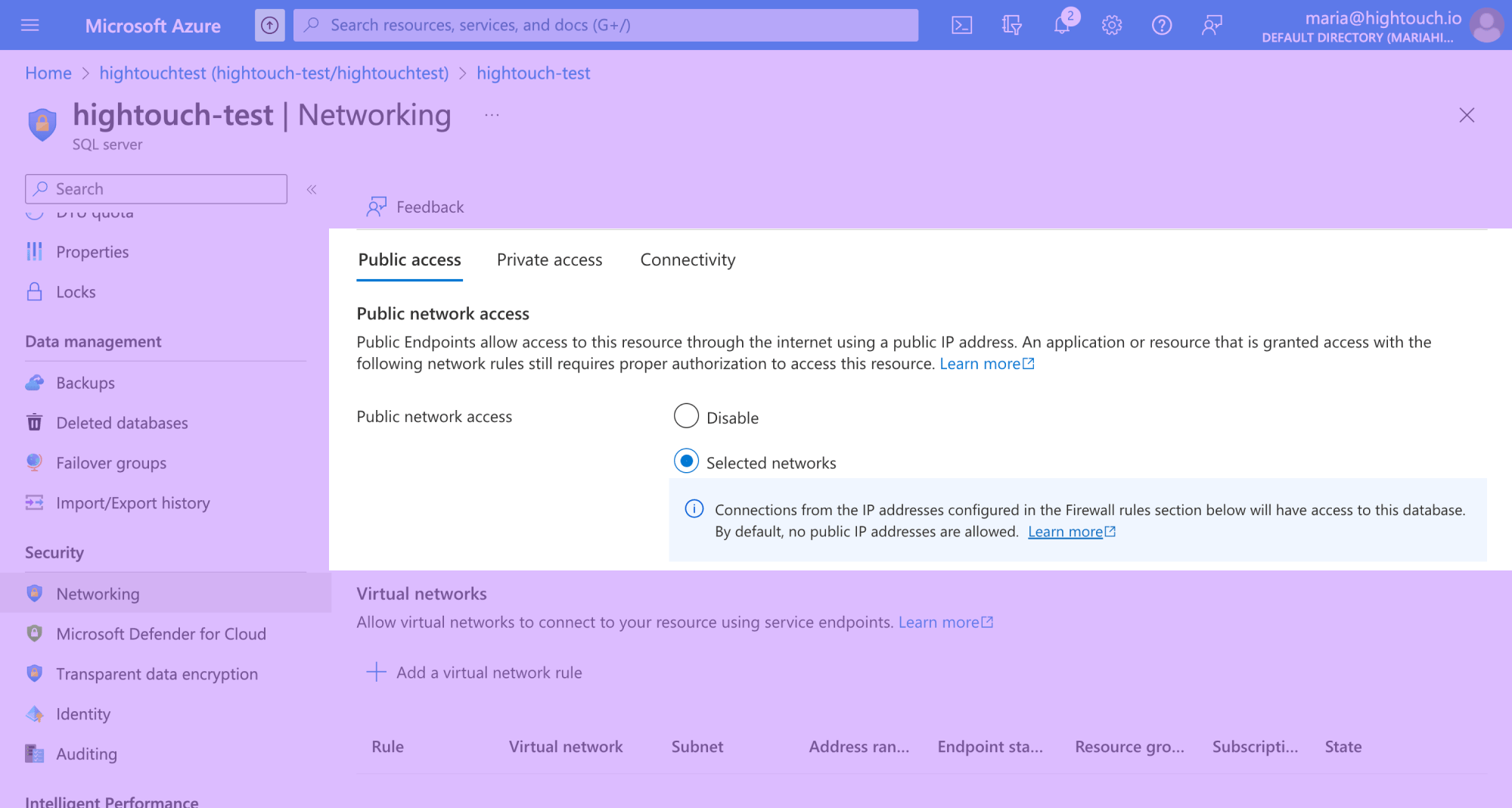
- Under Public network access, select Selected networks.
- Scroll to Firewall rules and click Add a firewall rule.
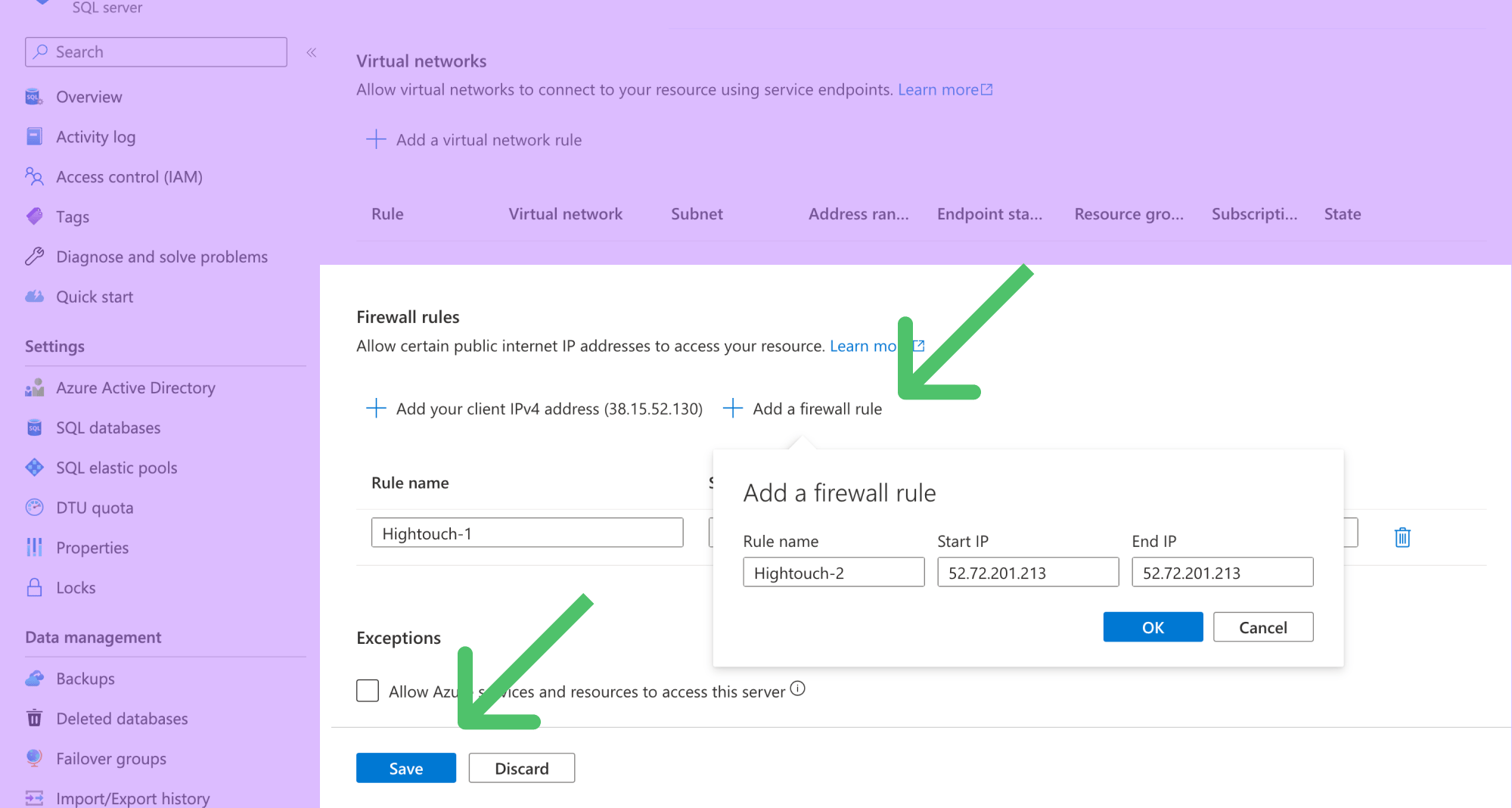
- Allowlist the Hightouch IP addresses for your region.
- Click the Save button on the bottom left.
Connection configuration
In Hightouch, go to the Sources overview page and click the Add source button. Select Microsoft SQL Server and follow the steps below.Choose authentication method
When creating a SQL Server source, you can either enter the Host, Port, Database, User, and Password by selecting Password or you can provide the full URI Connection string.Connection string
Enter your connection string in this format:Server=server;Database=database;User Id=username;Password=password;Encrypt=boolean.
Once you’ve entered your connection string and clicked Continue, you can skip to the Test your Connection section of this doc.
Choose connection type
Hightouch can connect directly to true over the public internet or via an SSH tunnel. Since data is encrypted in transit via TLS, a direct connection is suitable for most use cases. You may need to set up a tunnel if your true instance is on a private network or virtual private cloud (VPC).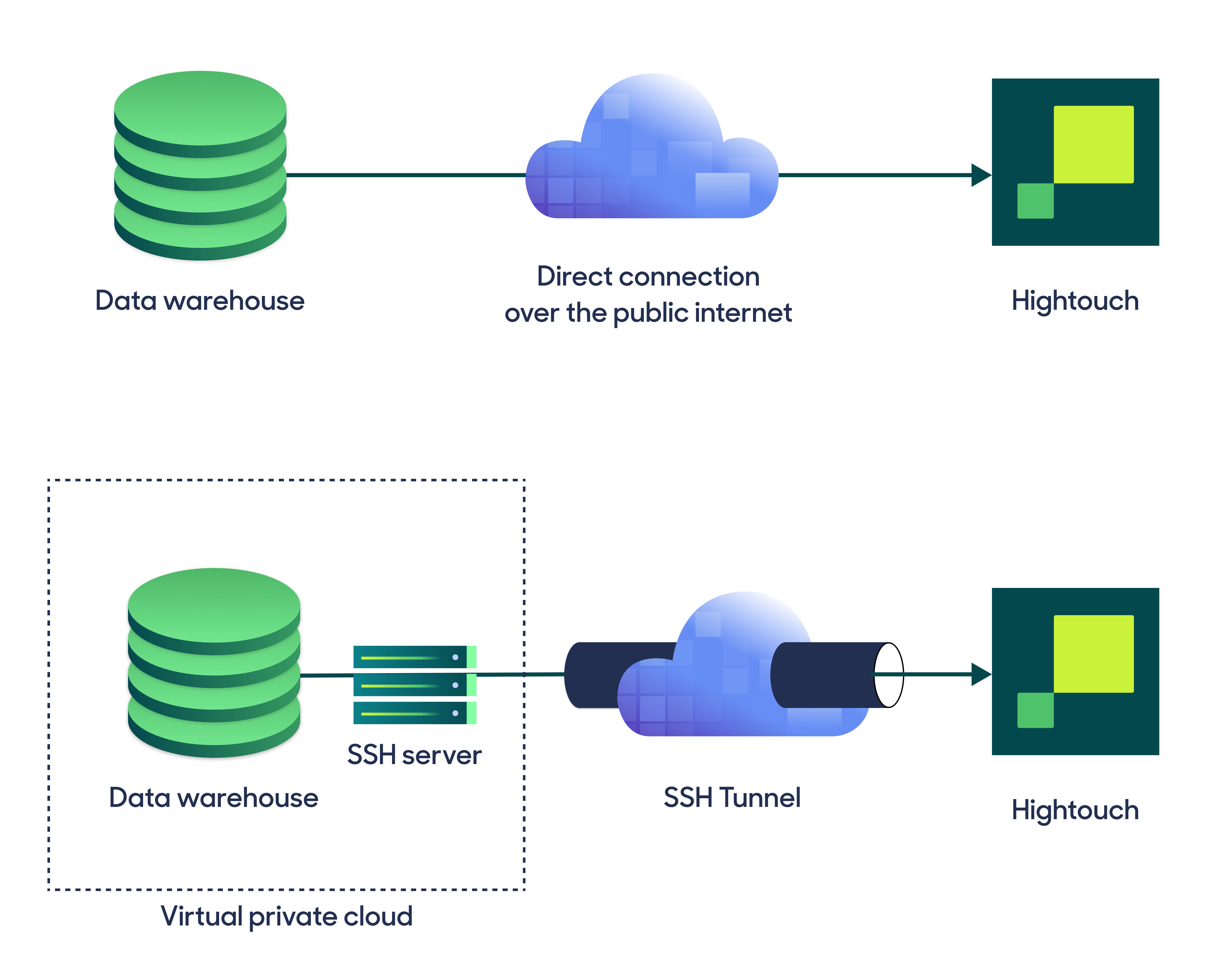
Configure your source
Enter the following required fields into Hightouch:- Host: The hostname or IP address of your Microsoft SQL Server. If using the hostname, make sure to only insert the hostname and not the full URL (remove the leading
http://and the final/). - Port: The port number of your Microsoft SQL Server. The default is 1433, but yours may be different.
- Database: The name of the database in your Microsoft SQL Server.
- User: This can be your personal Microsoft SQL Server login or a dedicated user for Hightouch.
- (Optional) Password: The password for the user specified above.
Test your connection
When setting up Microsoft SQL Server as a source for the first time, Hightouch validates your credentials and access to your database. Once the test passes, click Continue to finish setup. If you see the following error message, you need to update your firewall settings in your Azure Console.Create models
Once your source configuration has passed the necessary validation, you’ve completed setting up Microsoft SQL Server as a source. Next, you can set up models to define which data you want to pull from Microsoft SQL Server. The Microsoft SQL Server source supports these modeling methods:- writing a query in the SQL editor
- using the visual table selector
- leveraging existing dbt models