

Setup
After selecting Zuora from our Destinations catalog, you will be prompted to enter your Zuora Base URL, Client ID, and Client Secret. Use this table from Zuora to select the correct Zuora URL, and follow these steps to create an OAuth Client in Zuora that will provide you with the required Client ID and Secret.Syncing
Hightouch supports syncing to the following Zuora objects:AccountsSubscriptionsUsage
Sync modes
Here are the possible modes for how to alter Outreach objects:- Upsert: pushes new objects to Zuora and updates fields that change in your warehouse.
- Supported for
AccountsandSubscriptions.
- Supported for
- Update: updates particular fields on existing objects in Zuora. It doesn’t add new objects.
- Supported for
Accounts,Subscriptions, andUsage.
- Supported for
- Insert: adds new objects in Zuora.
- Supported for
Usage.
- Supported for
Record matching
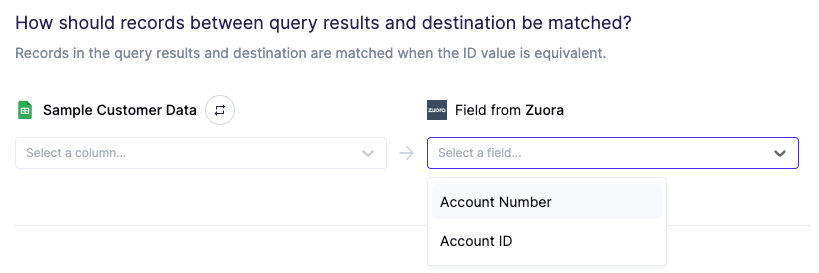
Records can be matched from your source to your Zuora workspace by the given fields in the dropdown. The following are supported record ID’s for each object:Accounts:Account Number,Account IDSubscription:Subscription Number,Subscription IDUsage:Usage Record ID
Field mapping
You can sync columns from your source to Zuora’s object properties, including custom fields.Required fields
Each object / action pair will have their own required properties to be mapped. These required properties will be in their own mapping section during sync configuration. Be sure to scroll down to our Zuora Object Notes to see which fields are required, and their respective data types.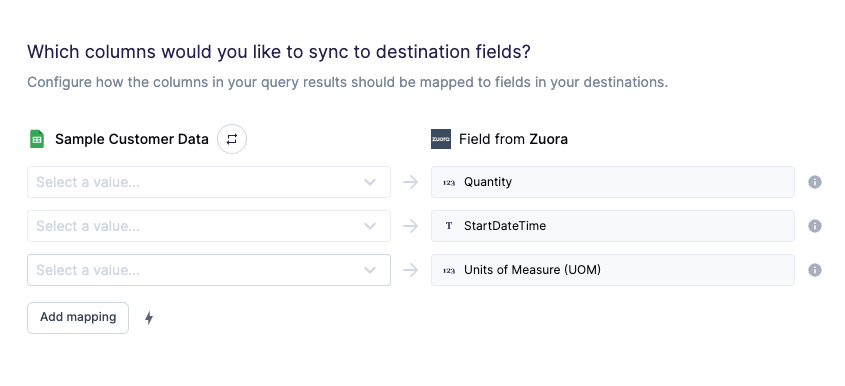
Optional and custom fields
Any optional built-in fields or custom fields sent to Zuora will be mapped in the custom mappings section of sync configuration. Scroll down to our Zuora Object Notes to see Zuora’s optional built-in fields, and their respective data types.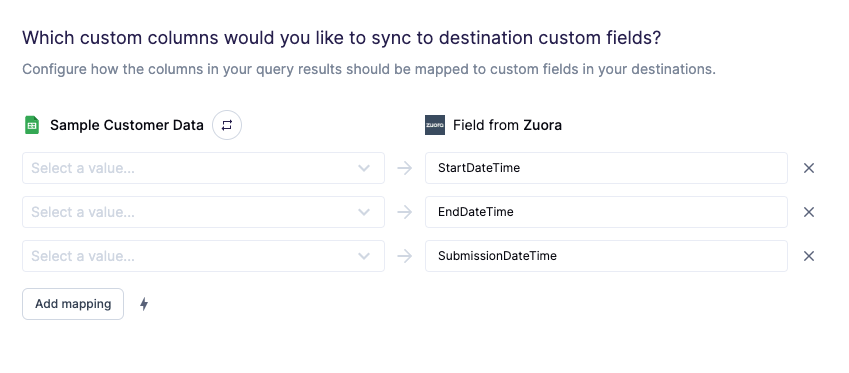
Helpful tip:
Use our advanced mapper to fill in static values for numbers or string values that may be consistent across your sync, that may not have a column in your data warehouse. See the example below.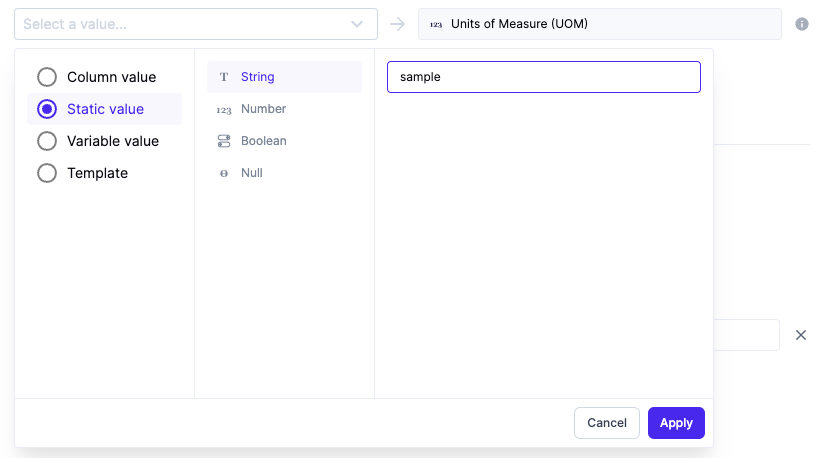
Zuora object notes
Accounts
The following fields can be used forAccounts for each respective action.
Upsert
Upsert
Update
Update
- By default,
autoPayis set tofalsefor insertedAccounts, unless it’s defined in the mappings for your sync.- If you would like to set
autoPayto true, you must include either apaymentMethod,creditCard, orhmpCreditCardPaymentMethodIdin your mappings.
- If you would like to set
- If either the
workEmailorpersonalEmailfields are included in mappings, the account’s email delivery preference is automatically set totrue. - To see more information on any respective field, view the Zuora API docs for Creating an account or Updating an account via the API.
Subscriptions
The following fields can be used forSubscriptions for each respective action.
Upsert
Upsert
Update
Update
- Only the fields to be changed should be specified. If an empty field is submitted with this operation, the corresponding field in the account is emptied.
- To see more information on any respective field, view the Zuora API docs for Creating a subscription or Updating a subscription via the API.
Usage
The following fields can be used forUsage for each respective action.
Insert
Insert
Update
Update
- Any field with a type of
string <date-time>must be in the format"YYYY-MM-DDTHH:mm:ss". - To see more information on any respective field, view the Zuora API docs for Creating a usage record or Updating a usage record via the API.