

Google Ad Manager 360 is a premium destination and is only available on Business tier plans.
Supported syncing
The Google Ad Manager 360 (GAM 360) destination allows you to batch upload identifiers to audience segments in bulk by sending your desired segments to an Ad Manager cloud storage bucket. The segments appear as a CSV file, which you can then use in GAM 360.
Hightouch can create the audience segment in Ad Manager for you, or upload identifiers to a segment you created yourself in the Ad Manager console. See Audience segment.
The integration supports these sync modes:
- Insert: Insert mode creates a CSV file with the rows that were added since the last sync.
- All: All mode creates a CSV file with all the rows in the query results, every time the sync runs.
Before you begin
Before you can use Hightouch to batch upload your identifiers to GAM 360, ensure you’ve completed these steps, taken from Google Ad Manager Help:- Locate and submit your network code. Find your network code in Ad Manager under Admin → Global settings → Network code.
- If you want to upload to a segment you created yourself, create an active first-party audience segment to associate the identifiers with. If you don’t want this segment to collect users using your own inventory, select “Publisher Managed” as the Population method. Skip this step if you want Hightouch to create the segment for you.
- Create a Google Group that contains all Google Accounts that will have access to upload and view files.
Expect to wait up for 24 hours from the time of segment creation to the time
when you can perform batch upload. This applies whether you create the segment
in the Ad Manager console or Hightouch creates it for you.
Connect to Google
Go to the Destinations overview page and click the Add destination button. Select Google Ad Manager 360 and click Continue. Hightouch supports two authentication methods:
Both methods upload files with a service account, so you provide service account credentials either way.
Service account
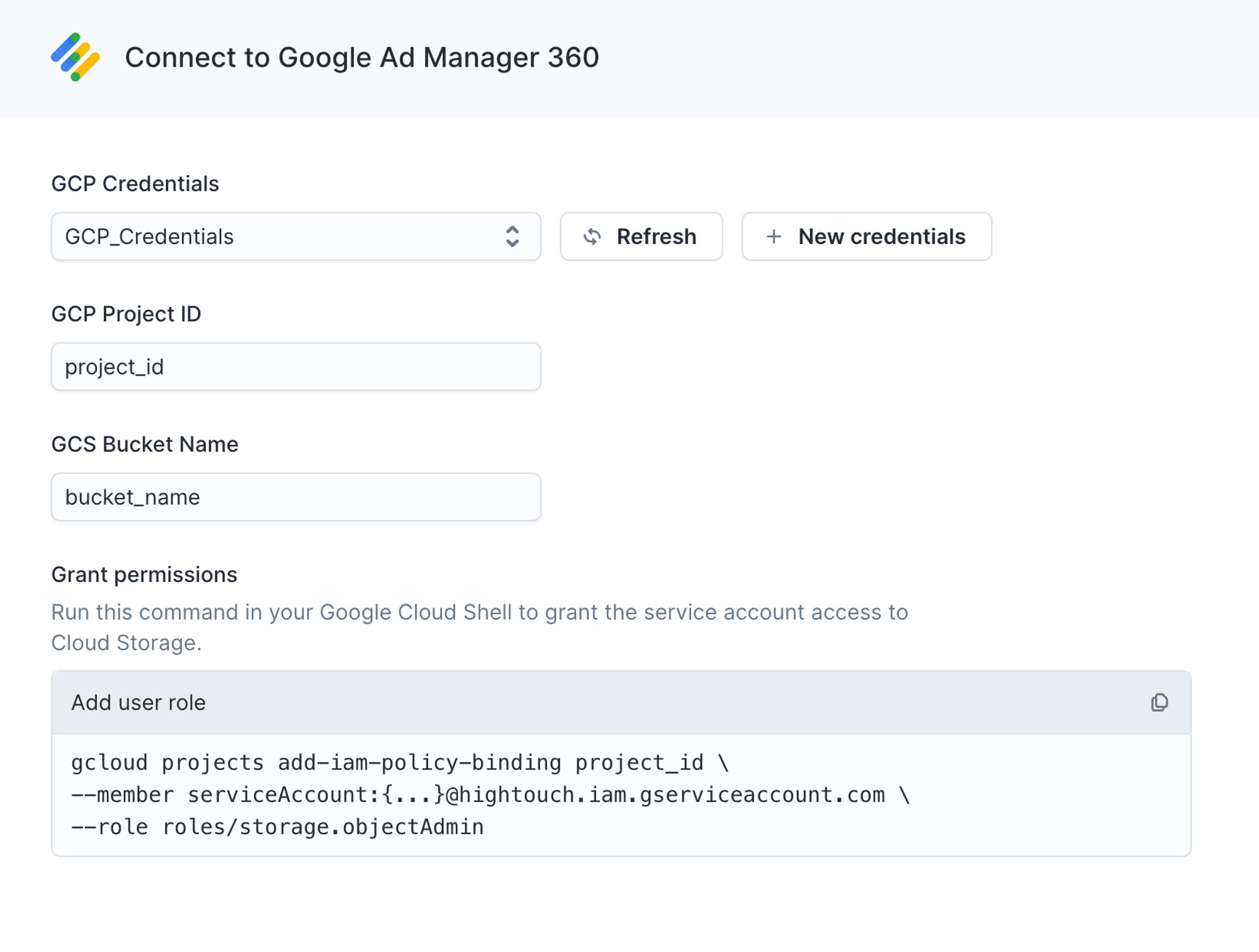
Enter your:- GCP credentials: if you need to create a cloud credential, consult our documentation
- GCP Project ID: you can follow these steps to find it
- GCS Bucket Name: this be should just be the name of the bucket, not a URL
Google account
Click Log in to Google Ad Manager 360, sign in with a Google Account, and grant Hightouch access. The account you authorize must have access to your Ad Manager network with permission to manage audience segments. After you authorize, enter your:- GCP credentials: the service account Hightouch uses to upload identifier files
- GCP Project ID
- GCS Bucket Name
- Ad Manager Network Code: the network Hightouch creates audience segments in. Find it in Ad Manager under Admin → Global settings.
Grant bucket access
For either method, run thegcloud command shown under Grant permissions to grant Hightouch’s service account the Storage Object Admin role. To run this command, you need to install the gcloud CLI tool. Otherwise, if you use Google Groups, you can also assign this role to a group member by using the Admin console or Google Groups.
Sync configuration
Once you’ve set up your Google Ad Manager 360 destination and have a model to pull data from, you can set up your sync configuration to begin syncing data. Go to the Syncs overview page and click the Add sync button to begin. Then, select the relevant model and the Google Ad Manager 360 destination you want to sync to.Syncing data sets
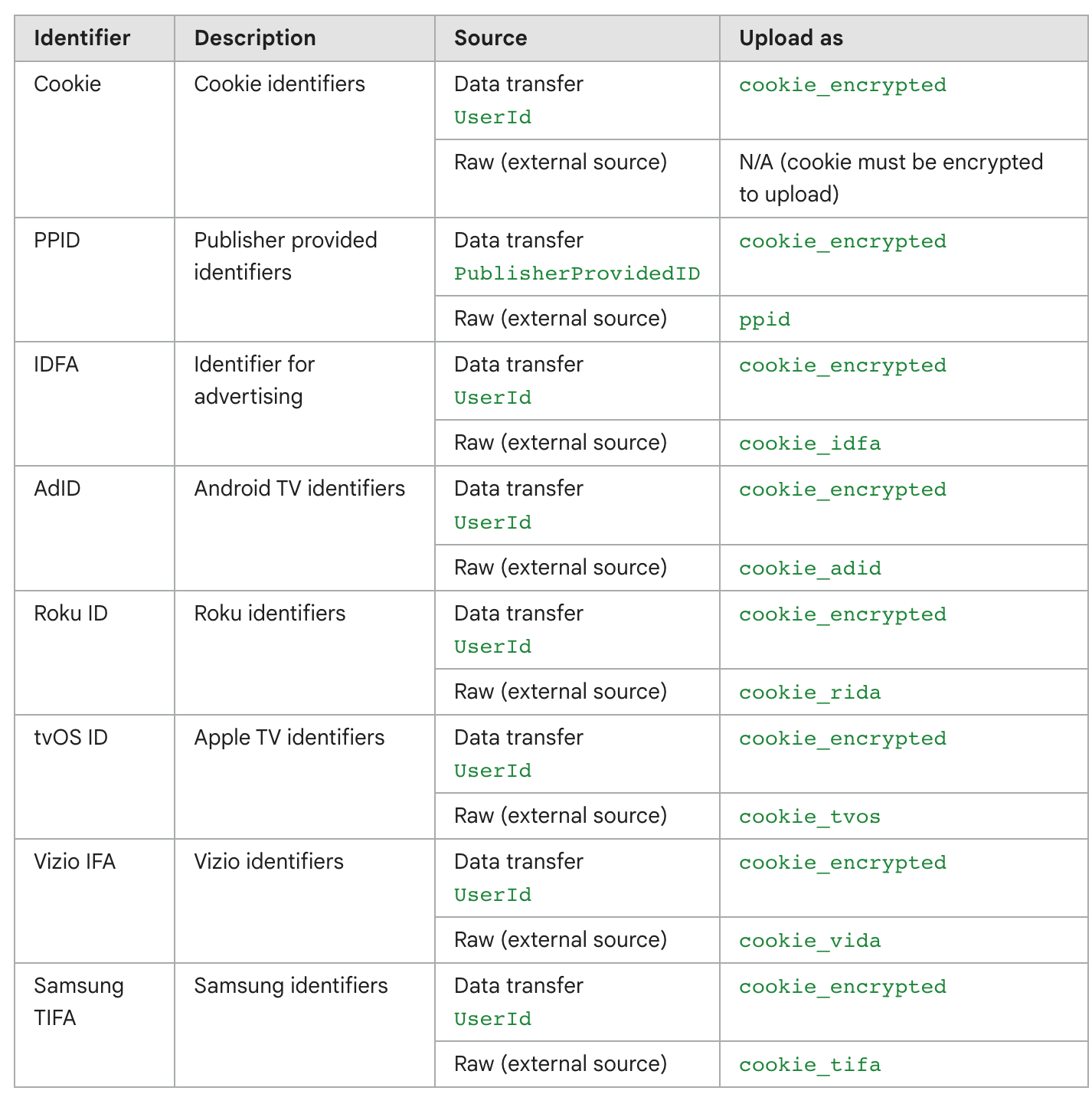
List of identifiers
The GAM 360 destination supports several different identifier types. In the first mapping section, select the column corresponding to the list of identifiers you want to batch upload on the left. On the right, select the type of identifiers that are being uploaded to each segment.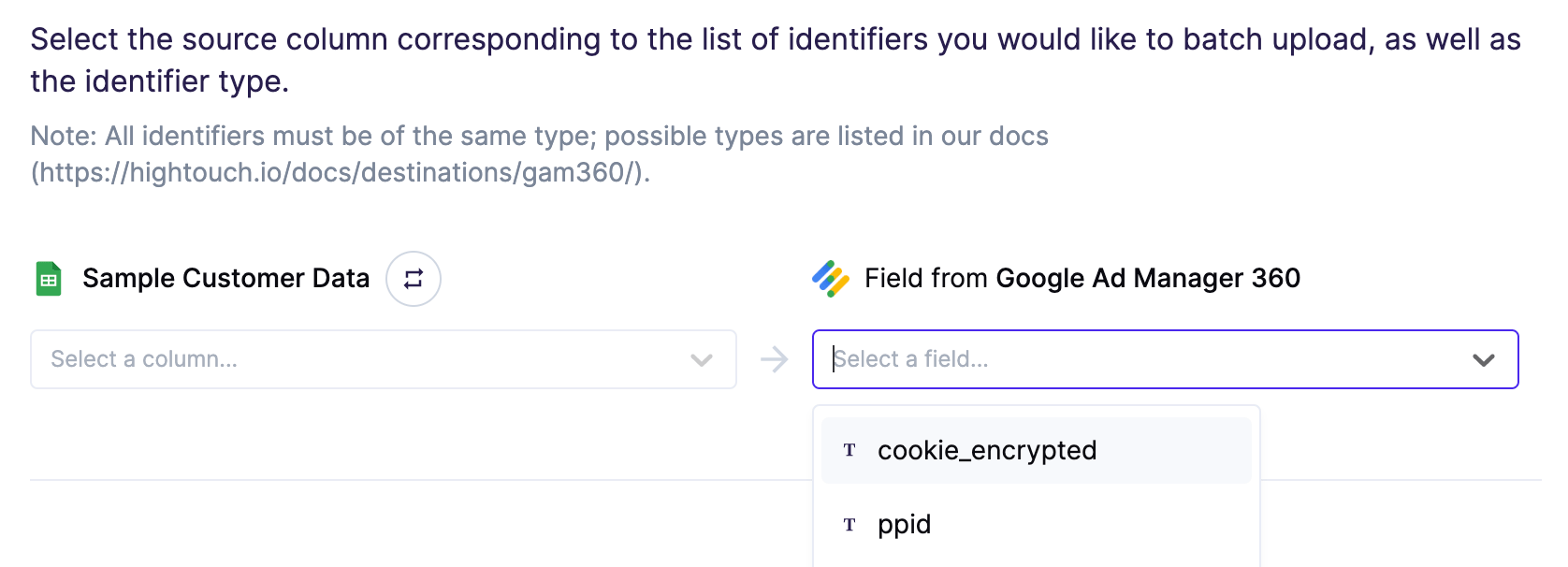
Audience segment
In the Audience segment section, choose whether Hightouch creates the audience segment in Ad Manager or uploads identifiers to a segment you created yourself.Create the segment automatically
Turn on Automatically create the audience segment in Google Ad Manager. On the first sync run, Hightouch creates a first-party audience segment in your Ad Manager network and uses its ID as thelist_id in every upload. Later runs reuse that same segment.
This option requires the Google account authentication method and an Ad Manager network code. Hightouch creates the segment through the Ad Manager AudienceSegmentService.
Hightouch creates the segment with no rule, so it collects no users from your own inventory. Membership comes only from the identifiers Hightouch uploads. This matches selecting “Publisher Managed” as the population method in the Ad Manager console.
Two optional fields control the segment Hightouch creates:
- Segment name — Name for the segment in Ad Manager. Defaults to the model name.
- How long should users remain in the segment? — Number of days a user stays in the segment after each upload, from 1 to 540. Defaults to 540.
Use an existing segment
Leave Automatically create the audience segment in Google Ad Manager turned off. Then denote the audience segment IDs with which the identifiers from the previous section should be associated. You can either specify a column from your model to associate each identifier with a different segment, or a static value to associate all identifiers with the same segment. Use the toggle on the right of the field to flip between these two options.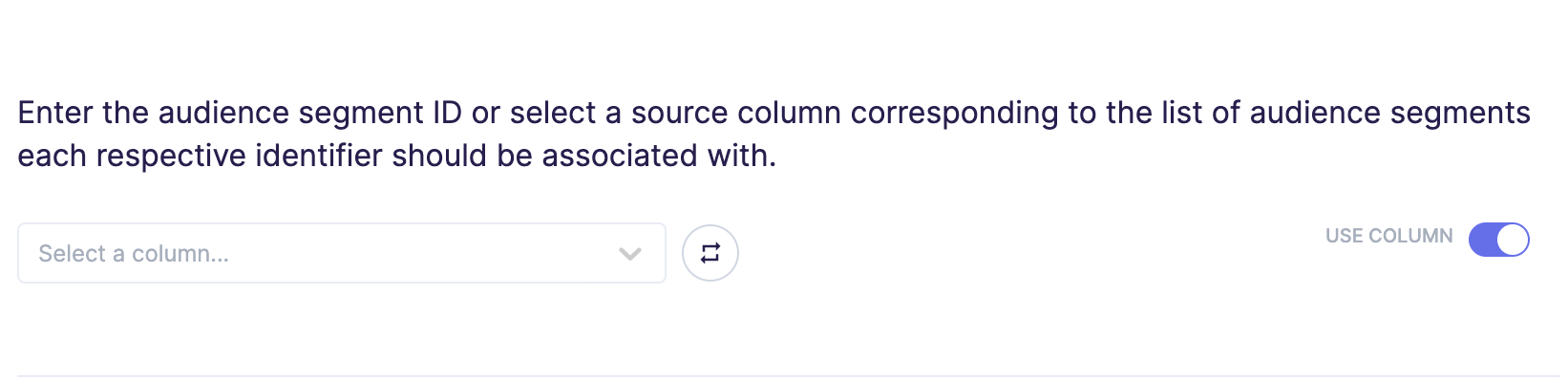
Enter filename
The filename field lets you specify the parent directory and the name of the file you want to use for your results. You can include timestamp variables in the filename, surrounding each with{}.
Hightouch supports these timestamp variables:
YYYY: Represents the full year in four digits.YY: The last two digits of the year.MM: Two-digit month format (01-12).DD: Two-digit day format (01-31).HH: Two-digit hour format in 24-hour clock (00-23).mm: Two-digit minute format (00-59).ss: Two-digit second format (00-59).ms: Three-digit millisecond format.X: Unix timestamp in seconds.x: Unix timestamp in milliseconds.
upload/{YYYY}-{MM}-{DD}-{HH}-{mm}-result.json to dynamically include the year, month, date, hour, and minute in each uploaded file. Hightouch would insert each file in the upload directory, which would need to already exist in your bucket.
You can also use other variable values to include sync metadata in the filename:
{model.id}{model.name}{sync.id}{sync.run.id}
If a file already exists at the path you entered at the time of a sync,
Hightouch overwrites it.
Set filename offset
By default, Hightouch uses the timestamp of the sync run to fill in timestamp variables. You can optionally include an offset in seconds. For example, if you want the filename’s date to be 24 hours before the sync takes place, enter ‘-86400’ (24 hours * 60 minutes * 60 seconds).
Empty file results
In insert mode, you can select how Hightouch should handle empty results files. Empty result files can occur if your model’s query results haven’t changed since the last sync. You can select whether to skip empty files. If you skip empty files, it means Hightouch won’t export any files if your model’s query results haven’t changed since your last sync.Example exported file
Example file content for encrypted cookie IDs:Tips and troubleshooting
To see the exact API requests and responses from each sync run, use the live debugger. To get notified by Slack, PagerDuty, SMS, or email when a sync fails, set up sync alerts. If you run into an issue this page doesn’t cover, .For Hightouch platform error codes related to Google Ad Manager 360, see Error
codes: Other destinations.
Validate your setup
If you let Hightouch create the segment, confirm the segment exists in Ad Manager under Audiences after the first sync run. Membership stays at zero until the propagation window elapses and a later run uploads identifiers, so check the member count again the following day. If you use an existing segment, confirm thelist_id in the exported file matches the segment ID in Ad Manager.
Common errors
The Google Ad Manager audience segment was created recently
Automatic segment creation requires the Google account method
An Ad Manager network code is required
A Google Ad Manager list ID is required
Ad Manager API errors
When automatic segment creation fails, Ad Manager’s own error appears in the sync logs, for example:NETWORK_NOT_FOUND means the network code is wrong or the Google Account you authorized doesn’t belong to that network.
Solution: Verify the network code in your destination settings, and confirm the authorized Google Account has access to that Ad Manager network with permission to manage audience segments. For other codes, see Ad Manager’s API error reference.