Supported syncing
Hightouch can create and update both contacts and company objects within the Intercom Contacts Model and Intercom Company Model respectively.
For more information about sync modes, refer to the sync modes docs.
Connect to Intercom
Go to the Destinations overview page and click the Add destination button. Select Intercom and click Continue. You can then authenticate Hightouch to Intercom with OAuth. Click Log in to Intercom and log into your Intercom account.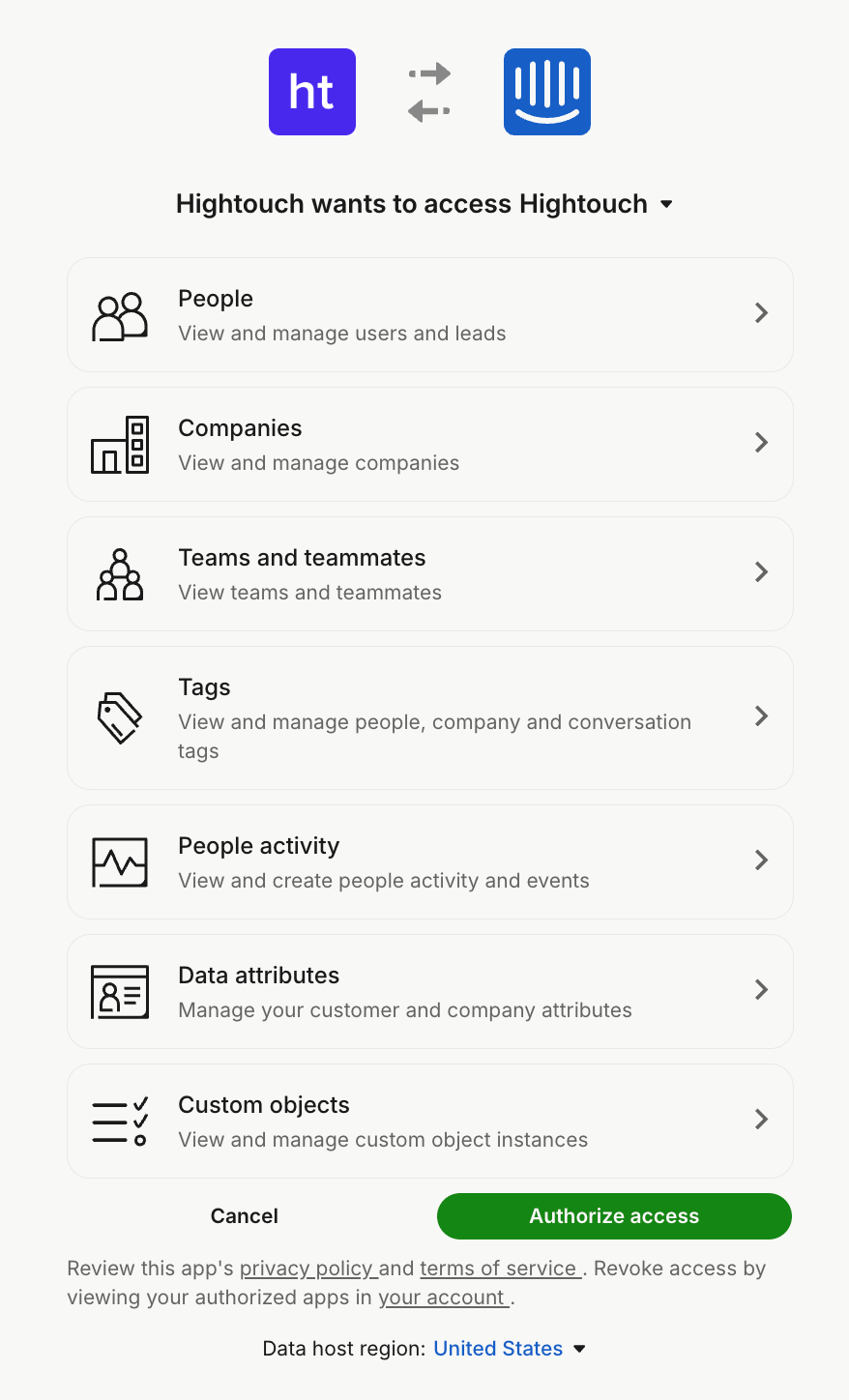
On Intercom’s authorization screen, select the region that matches your Intercom workspace from the Data host region dropdown before you select Authorize access: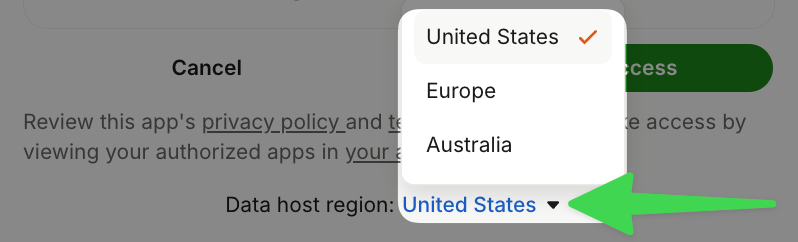
Sync configuration
Once you’ve set up your Intercom destination and have a model to pull data from, you can set up your sync configuration to begin syncing data. Go to the Syncs overview page and click the Add sync button to begin. Then, select the relevant model and the Intercom destination you want to sync to.Syncing contacts
Contact objects allow you to represent and provide information on individual users. All contact objects are represented as users or leads as marked by the role attribute.When looking at the People list or when creating an audience, the number of contacts (users) displayed might differ from the number of rows processed by your sync. This is because Intercom automatically filters out unsubscribed contacts from your contact list.
Record matching
To match rows from your model to objects in Intercom, you need to select a model column and corresponding Intercom field. You can match on any of the following Intercom fields:- External User ID
Field mapping
You can map data from any of your model columns to contact fields in Intercom. Ensure the data type of your model column matches the data type of the field you want to sync to.Associations
You can associate companies to contacts using this configuration section. To do so, select a column from your model to match the associated object. Hightouch uses this column to look up the associated object’s ID and make the connection between the two objects. For example, if you wanted to associate a company to your contact, you select Company from the right dropdown. Then, select a field to match the company on, for example Company ID.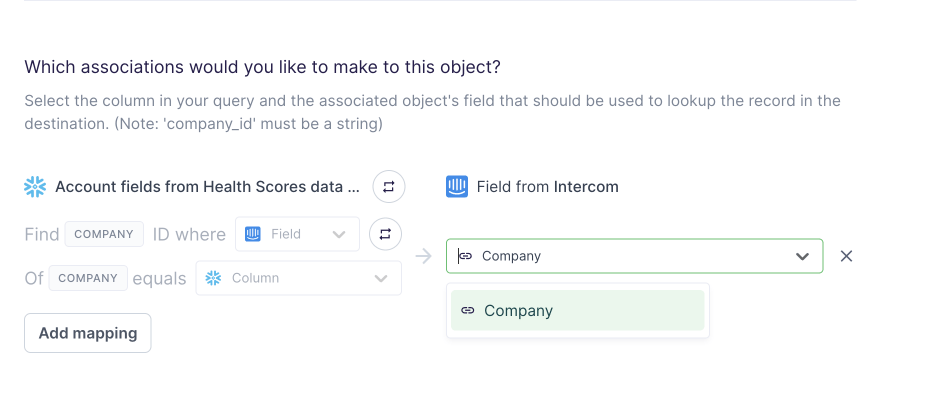
Delete behavior
The delete behavior you select dictates what to do when a row no longer appears in your model’s query results. You have the following options:Syncing companies
Company objects allow you to represent and provide information on organizations using your product. Each company has its own description and can be associated with contacts. Company objects’ Company ID can’t be updated. If you need to change a company object’s Company ID you need to delete it and recreate it with a new Company ID.Record matching
To match rows from your model to records in Intercom, you need to select the model column that contains values that match the Company ID field. If there isn’t a company with the matching Company ID, Hightouch creates a new company.Field mapping
You can map data from any of your model columns to company fields in Intercom. Ensure the data type of your model column matches the data type of the field you want to sync to.Associations
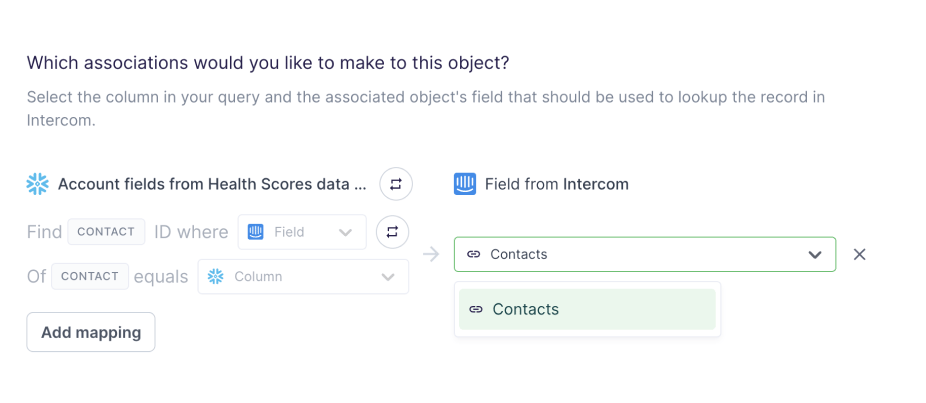
You can associate contacts to companies using this configuration section. To do so, select a column from your model to match to the associated object. Hightouch uses this column to look up the associated object’s ID and make the connection between the two objects. For example, if you wanted to associate a company to your contact, you select Contact from the right dropdown. Then, select a field to match the contact on, for exampleuser_id.
Delete behavior
The delete behavior you select dictates what to do when a row no longer appears in your model’s query results. You have the following options:Syncing events
When syncing events, Hightouch treats any records added to your source as new events and sends them to Intercom when your sync runs.Event name
Providing an event name is required to log an event in Intercom. You can either provide a static value or select to use a column from your model. Refer to Intercom’s event docs for guidance on event naming.Event timestamp
You can optionally select a column that contains timestamps of when events occurred. If this field is empty, Hightouch uses the time the event arrives at the server.Field mapping
You can select model columns to sync to native and custom event parameters in the field mapping section.Tags
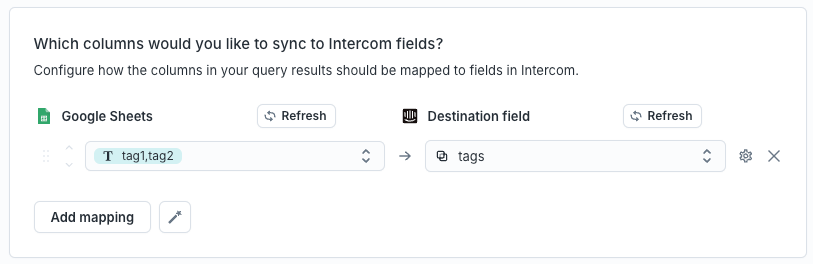
You can manage tags on companies and contacts in Intercom using Hightouch. The data in your source should contain the name of one or more tags for each row. For multiple tags, your source can contain an array or a comma-separated string of tag names.