

Warehouse Sync Logs are only available on Business tier plans.
Before you begin
- The Lightning sync engine enabled on a supported source.
When to use Warehouse Sync Logs
The live debugger is the right tool for inspecting one run’s rows, and it keeps row-level data for seven days. Reach for Warehouse Sync Logs when you need durable history you can query across many runs — for example, to:- Categorize errors across syncs with regular expressions and surface unexpected ones.
- Filter previously failed rows out of a model with a
JOIN. - Aggregate history to find rows that change the most — flapping rows can signal data-integrity issues.
- Track how a model’s or audience’s membership changed over time, such as how an ad campaign’s targeted users shifted over its duration.
Set up Warehouse Sync Logs
Warehouse Sync Logs build on the Lightning sync engine, so enable that on your source first. Logs are off for every sync until you turn them on, either for a whole source or for a single sync. Hightouch supports Warehouse Sync Logs on these sources:Required permissions
The user that connects your source to Hightouch must be able to write to thehightouch_audit schema. Setting up the Lightning sync engine grants this, so you shouldn’t need any additional permissions.
Enable logs for a source
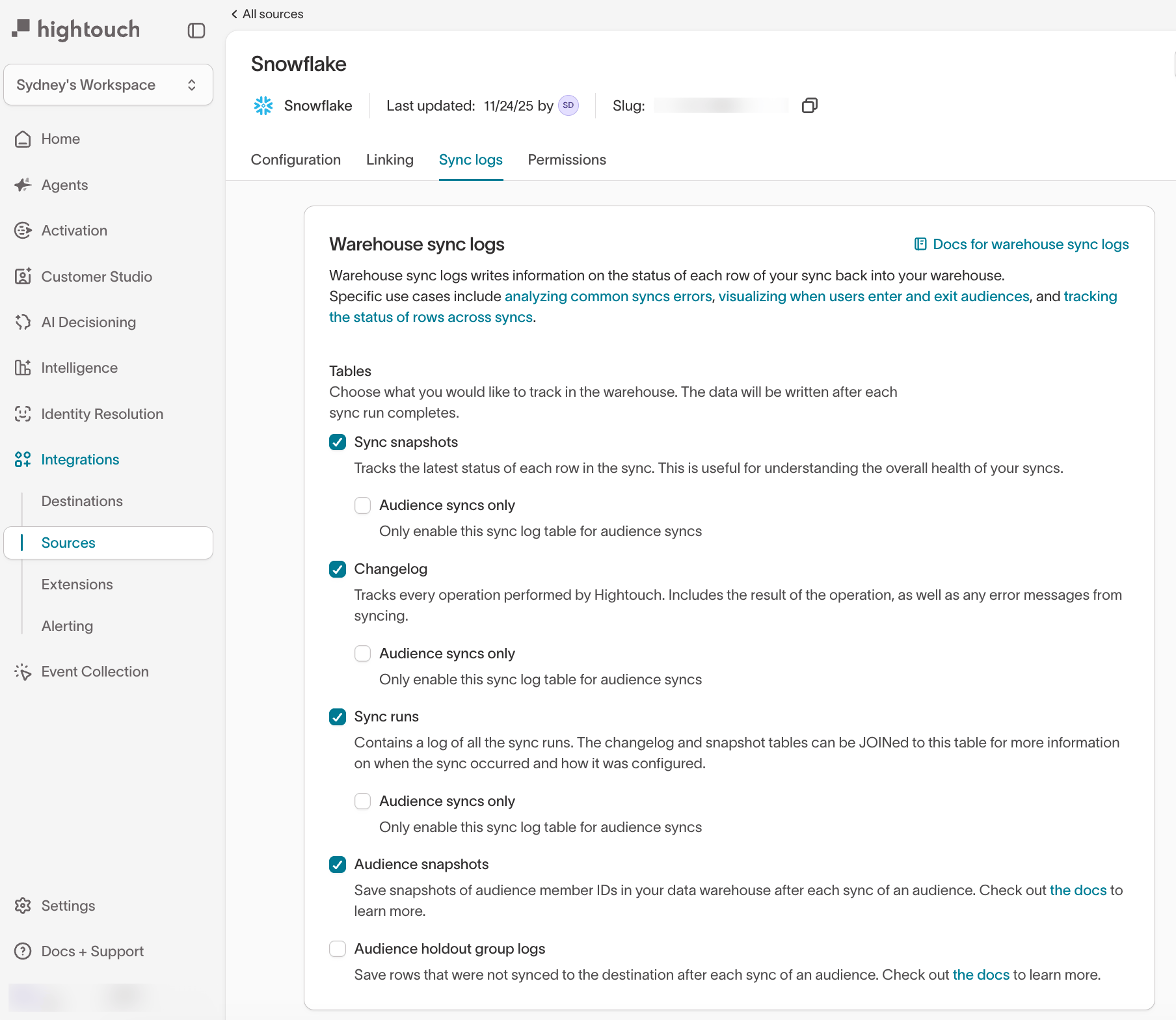
Enable logs on a source to capture every sync that uses it. This keeps logs available whenever you need to debug, which saves time when a sync fails unexpectedly.- Go to Integrations > Sources and select your source.
- Click the Sync logs tab.
- Select the tables to write: Sync snapshots, Changelog, Sync runs, and optionally Audience snapshots and Audience holdout group logs. The first three each have an Audience syncs only sub-option that limits logging to audience syncs.
- Save.
Enable logs for a single sync
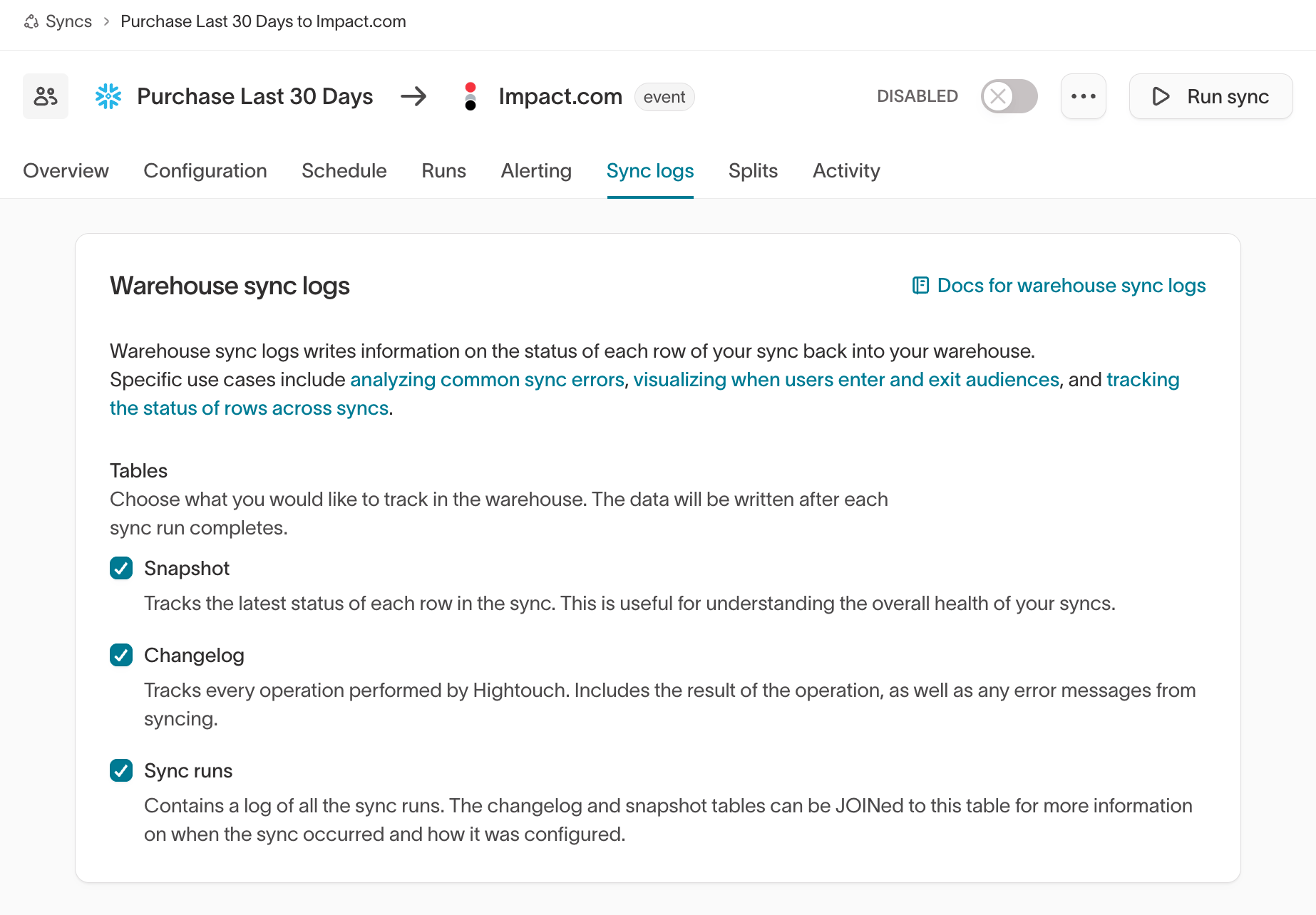
Enable logs on one sync when you only need history for a specific workflow and want to limit storage.- Open the sync and click the Sync logs tab.
- Select the tables to write: Snapshot, Changelog, and Sync runs.
Confirm it worked
After the sync’s next run, query the sync runs table to confirm Hightouch is writing logs:Schema
Hightouch writes sync logs into three tables in thehightouch_audit schema:
- Changelog — one row for every operation Hightouch performs, with the result and any error message.
- Snapshot — each row’s latest status in your model. Similar to the changelog, but easier to query when you only need current state.
- Sync runs — a log of every sync run.
JOINit to the changelog and snapshot tables for details on when a run occurred and how it was configured.
sync_id column to tell which rows belong to which sync. See Detailed schema for every column.
For how Hightouch handles PII and retention in these tables, see table
removal on the Lightning sync
engine page.
Example queries
These examples are written for Snowflake; adapt them for other sources. Hightouch’s dbt package has more.Get the most common sync error
Group and count rows byfailure_reason to find the most common error:

Track when users entered and exited a model
Track when users enter and exit a model — useful with Customer Studio audiences and a BI tool:
Get the current rows in all models
Find the most recently synced rows that didn’t fail, across all models — useful for listing current members of Customer Studio audiences: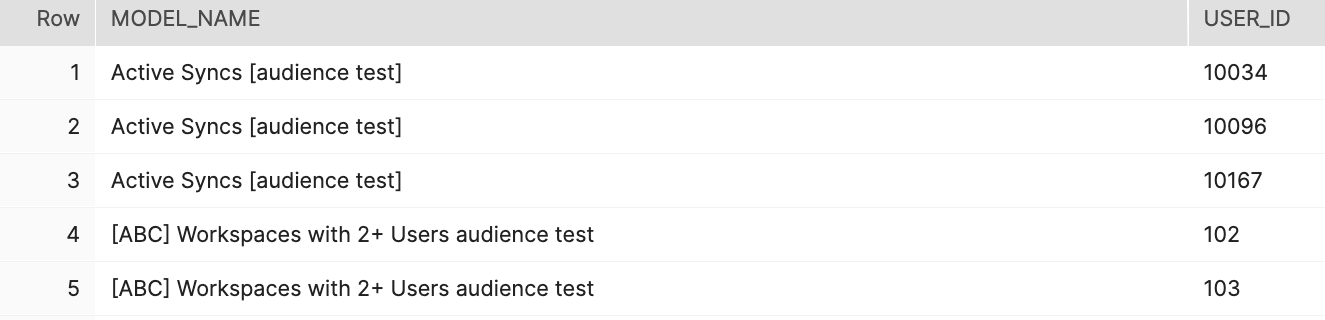
Detailed schema
Hightouch writes to thesync_changelog, sync_snapshot, and sync_runs tables after each sync. If you enabled audience snapshots, you’ll also find a hightouch_planner.audience_membership table — see the audience snapshot docs for its schema.
Changelog table
Thehightouch_audit.sync_changelog table is a log of all changes across all sync runs. A row synced in multiple runs has multiple entries.
Snapshot table
Thehightouch_audit.sync_snapshot table stores each row’s current status as of the most recent run, even if the row wasn’t synced in that run. After each run, the old statuses are dropped and replaced.
Sync runs table
Thehightouch_audit.sync_runs table stores metadata about each run. JOIN it to the sync_changelog table on sync_run_id, and to the sync_snapshot table on sync_id.
FAQ
What’s the performance impact of enabling Warehouse Sync Logs?
Low. Logs reuse data the Lightning sync engine already produces, and Hightouch writes the rows only after syncing to the destination, so there’s no effect on destination throughput. Pruning entries from the log tables is safe and doesn’t affect future syncs, though pruned rows aren’t rewritten.What are the limitations in Redshift?
Because Redshift doesn’t support strings longer than 65,535 bytes, Hightouch can’t store JSON of arbitrary length in the logs. It attempts to store model data in thefields column of sync_changelog and sync_snapshot, but if the model has long strings or many fields, some values may be truncated. Truncated values in those columns don’t mean the data was truncated when Hightouch synced to the destination — it’s purely a limitation of the warehouse logs.