

Overview
Hightouch lets you pull data stored in your Amazon Redshift data warehouse and push it to downstream destinations. Most of the setup occurs in the Hightouch UI, but you need access to Redshift for information like your host, port, database name, and credentials.You may need to allowlist Hightouch’s IP addresses to let our systems connect to your Redshift cluster. Reference our networking docs to determine which IP addresses you need to allowlist.You can also securely connect to your Redshift cluster using AWS PrivateLink. AWS PrivateLink is a Business Tier feature.
Connection configuration
To get started, go to the Sources overview page and click the Add source button. Select Amazon Redshift and follow the steps below.Choose connection type
Hightouch can connect directly to Redshift over the public internet or via an SSH tunnel. Since data is encrypted in transit via TLS, a direct connection is suitable for most use cases. You may need to set up a tunnel if your Redshift instance is on a private network or virtual private cloud (VPC).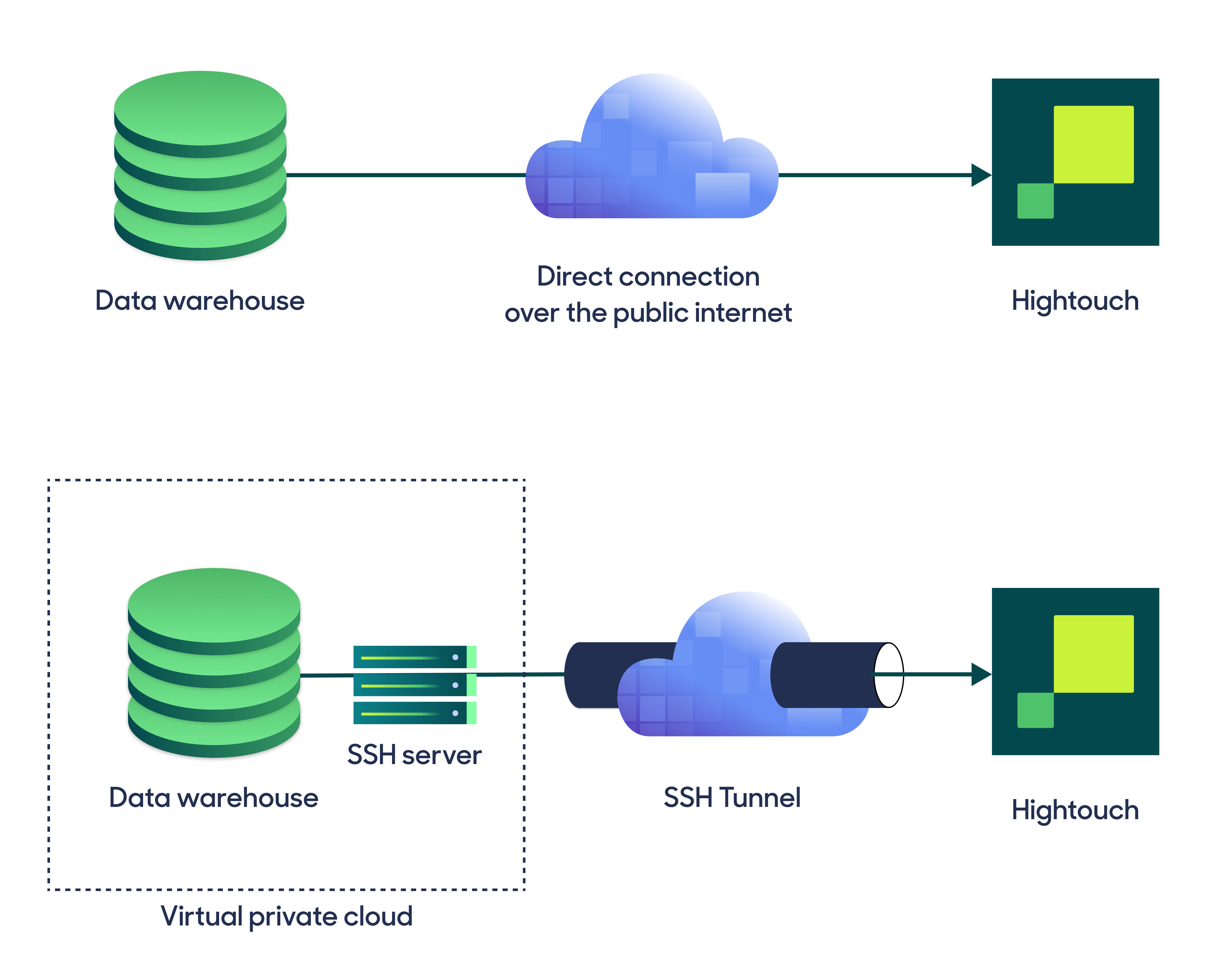
Configure your source
Enter the following required fields into Hightouch:- Host: The hostname or IP address of your Redshift cluster. The hostname can be found by visiting the Redshift web console, navigating to the Clusters panel, and clicking your cluster. Copy the Endpoint string, excluding the port and database name.
- Port: The port number of your Redshift cluster. The default is 5439, but yours may be different. To confirm, visit the Redshift web console, navigate to the Clusters panel, and click your cluster. The port number is shown in the Properties tab.
- Database: The name of the database in your Redshift cluster. Most clusters have only one database. Visit the Redshift web console, navigate to the Clusters panel, and click your cluster. The database name is shown in the Properties tab.
Choose your sync engine
For optimal performance, Hightouch tracks incremental changes in your data model—such as added, changed, or removed rows—and only syncs those records. You can choose between two different sync engines for this work. The Basic engine requires read-only access to Redshift. Hightouch executes a query in your database, reads all query results, and then determines incremental changes using Hightouch’s infrastructure. This engine is easier to set up since it requires read—not write—access to Redshift. The Lightning engine requires read and write access to Redshift. The engine stores previously synced data in a separate schema in Redshift managed by Hightouch. In other words, the engine uses Redshift to track incremental changes to your data rather than performing these calculations in Hightouch. Therefore, these computations are completed more quickly.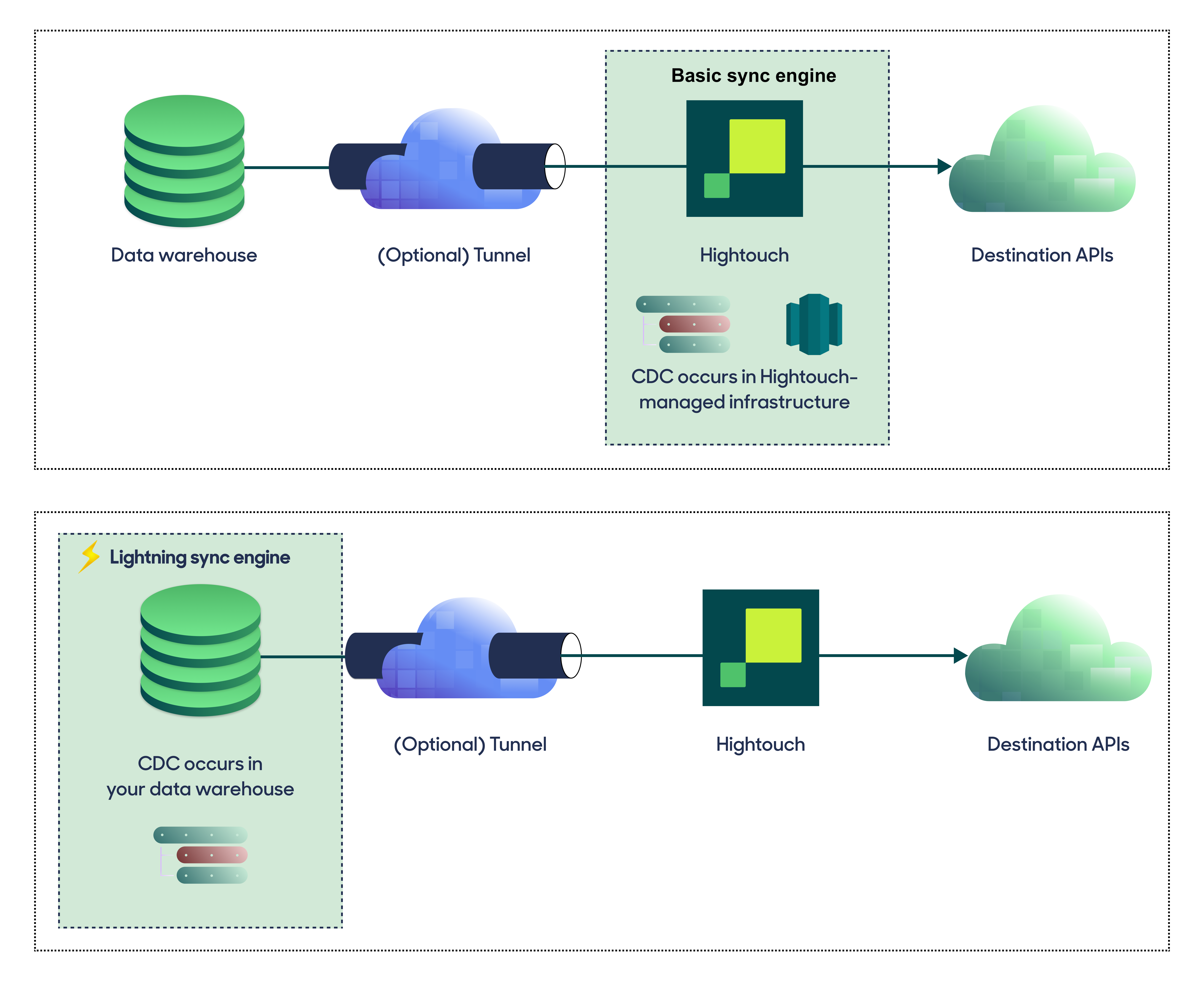
Basic versus Lightning engine comparison
The Lightning sync engine requires granting write access to your data warehouse, which makes its setup more involved than the Basic sync engine. However, it is more performant and reliable than the Basic engine. This makes it the ideal choice to guarantee faster syncs, especially with large data models. It also supports more features, such as Warehouse Sync Logs, Match Booster, and Identity Resolution.Hightouch can use Warehouse Export with Redshift. Instead of streaming every row through Hightouch, it has Redshift write query results directly into Amazon S3, which Hightouch then reads. This speeds up syncs of large models. Warehouse Export runs automatically when your sync engine and storage support it, and Hightouch falls back to standard export when they don’t, so your syncs keep running either way.Redshift exports to Amazon S3 only, so your workspace storage must be S3.If Warehouse Export runs into a fixable configuration problem, such as a storage-integration or bucket-permission issue, Hightouch stops using it for the affected syncs so it isn’t retried on every run, and shows this on the sync and on this source’s configuration page. After you resolve the problem, re-enable Warehouse Export from an individual sync, or for all of this source’s syncs at once from the source configuration page, and Hightouch uses it again on the next run.A one-off problem on a single run, such as a row that exceeds the Warehouse Export size limit, isn’t treated as a configuration issue: that run falls back to standard export and says so on the run summary, and Hightouch automatically retries Warehouse Export on the next run.
Lightning engine setup
To set up the Lightning engine, you need to grant Hightouch write access to Redshift. You can do so by running the following SQL snippet.hightouch_planner and hightouch_audit, for storing logs of previously synced data.
Provide credentials
Enter the following fields into Hightouch:- User: This can be your personal Redshift login or a dedicated user for Hightouch. At minimum, this user must have read access to the data you wish to sync. If using the Lightning sync engine, you must also grant this user additional permissions as described above.
- (Optional) Password: The password for the user specified above.
Test your connection
When setting up a source for the first time, Hightouch validates the following:- Network connectivity
- Redshift credentials
- Permission to list schemas and tables
- Permission to write to
hightouch_plannerschema - Permission to write to
hightouch_auditschema
Create models
Once your source configuration has passed the necessary validation, your source setup is complete. Next, you can set up models to define which data you want to pull from Amazon Redshift. The Amazon Redshift source supports these modeling methods:- writing a query in the SQL editor
- using the visual table selector
- leveraging existing dbt models
- leveraging existing Looker Looks
- leveraging existing Sigma workbooks
You must enable the Lightning sync engine to store sync logs in your warehouse.
Workload management
Amazon Redshift offers powerful and flexible settings for workload management (WLM). Hightouch cannot automatically manage your WLM rules, but does enable the use of WLM to manage resource use by Hightouch by setting query groups. Hightouch will automatically set the query group to eitherht_interactivefor interactive queries which need low latency, such as running model previews or schema discoveryht_batchfor batch operations that run in the background, such as rETL syncs
Tips and troubleshooting
If you run into an issue this page doesn’t cover, .Spectrum nested query error
You may receive aSpectrum nested query error if you are using Amazon Redshift Spectrum as your data source.
Hightouch uses a wrapper query around your model query for obtaining the COUNT of query results. Spectrum has limitations around nested data that this can causes issues with.
To resolve the error, you can try the following:
- Create a materialized view of the results set you want Hightouch to query.
- Add a commented out
-- ORDER BYstatement to your model definition. Hightouch’s Redshift source disables the row counter wrapper query if there’s anORDER BYin the query. However, Redshift Spectrum doesn’t allowORDER BYstatements, hence the need to comment it out. Even commented out, Hightouch disables the wrapper query.