Microsoft Fabric is a comprehensive analytics and data integration solution that includes cloud-based data warehousing as part of its extensive suite of capabilities.
Hightouch lets you pull data stored in Microsoft Fabric and push it to downstream destinations. Connecting Hightouch to Microsoft Fabric requires some setup in both platforms. In Microsoft Fabric, you need to create a service principal and grant it access to your Fabric resource.
Enter the following required fields into Hightouch:
Host: The hostname or IP address of your Microsoft Fabric instance. If using the hostname, make sure to only insert the hostname and not the full URL (remove the leading http:// and the final /).
Port: The port number of your Microsoft Fabric instance. The default is 1433, but yours may be different.
Database: The name of the database in Microsoft Fabric.
Optionally you can enter a Request timeout duration and whether to Trust server certification.
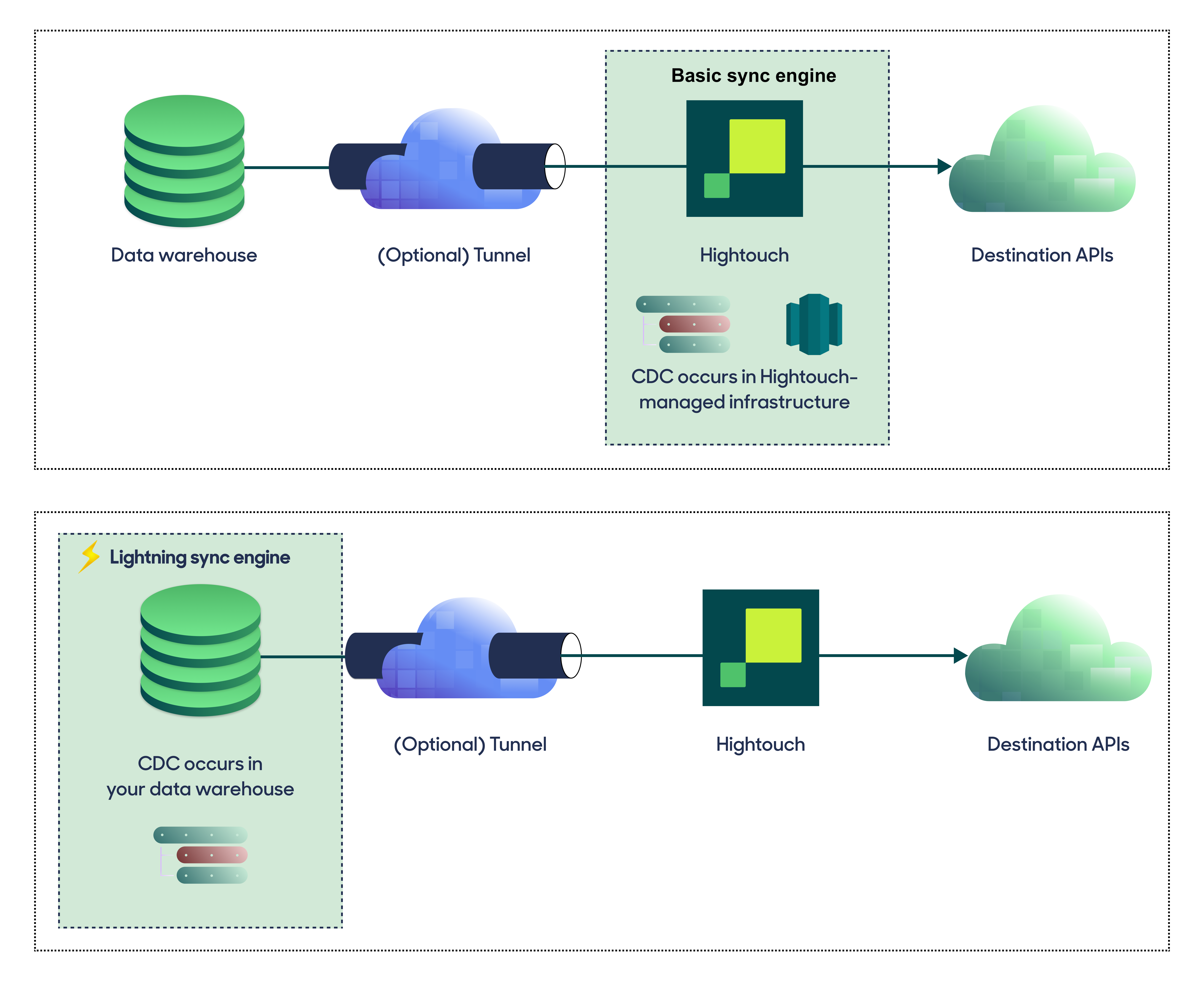
For optimal performance, Hightouch tracks incremental changes in your data model—such as added, changed, or removed rows—and only syncs those records. You can choose between two different sync engines for this work.The Basic engine requires read-only access to Fabric. Hightouch executes a query in your database, reads all query results, and then determines incremental changes using Hightouch’s infrastructure. This engine is easier to set up since it requires read—not write—access to Fabric.The Lightning engine requires read and write access to Fabric. The engine stores previously synced data in a separate schema in Fabric managed by Hightouch. In other words, the engine uses Fabric to track incremental changes to your data rather than performing these calculations in Hightouch. Therefore, these computations are completed more quickly.
Hightouch recommends using the Lightning sync engine when syncing more than 100,000 rows of data.
If you select the Basic engine, you can switch to the Lightning engine later. Once you’ve configured the Lightning engine, you can’t move back to the Basic engine without recreating Fabric as a source.To learn more, including migration steps and tips, check out the Lightning sync engine docs.
The Lightning sync engine requires granting write access to your data warehouse, which makes its setup more involved than the Basic sync engine. However, it is more performant and reliable than the Basic engine. This makes it the ideal choice to guarantee faster syncs, especially with large data models. It also supports more features, such as Warehouse Sync Logs, Match Booster, and Identity Resolution.
Criteria
Basic sync engine
Lightning sync engine
Performance
Slower
Quicker
Ideal for large data models (over 100 thousand rows)
No
Yes
Reliability
Normal
High
Resilience to sync interruptions
Normal
High
Extra features
None
Warehouse Sync Logs, Match Booster, Identity Resolution
Ease of setup
Simpler
More involved
Location of change data capture
Hightouch infrastructure
Fabric schemas managed by Hightouch
Required permissions in Fabric
Read-only
Read and write
Ability to switch
You can move to the Lightning engine at any time
You can’t move to the Basic engine once Lightning is configured
To set up the Lightning engine, run the following commands. Make sure to replace your_service_principal_or_user with the name of the service principal created earlier.
IF NOT EXISTS (SELECT 1 FROM sys.schemas WHERE name = 'hightouch_audit')BEGIN EXEC('CREATE SCHEMA [hightouch_audit]');END;IF NOT EXISTS (SELECT 1 FROM sys.schemas WHERE name = 'hightouch_planner')BEGIN EXEC('CREATE SCHEMA [hightouch_planner]');END;GRANT CONTROL ON SCHEMA::hightouch_audit TO [your_service_principal_or_user];GRANT CONTROL ON SCHEMA::hightouch_planner TO [your_service_principal_or_user];
Then you’ll enter the credentials from the previous service principal creation step
Tenant ID (or Directory ID)
Client ID (or Application ID)
If you chose to create a Client Secret for your service principal, you’ll enter it here.If you instead chose to create a Certificate, enter in your certificate’s Thumbprint and the associated private key. Make sure that the private key is in PEM format and includes the header and footer.
When setting up Microsoft Fabric as a source for the first time, Hightouch validates your credentials and access to your database. Once the test passes, click Continue to finish setup.
Once your source configuration has passed the necessary validation, you’ve completed setting up Microsoft Fabric as a source. Next, you can set up models to define which data you want to pull from Microsoft Fabric.The Microsoft Fabric source supports these modeling methods:
A Microsoft Fabric source can also read other lakehouses and warehouses in the same workspace as the warehouse it connects to. This includes data from other workspaces that you’ve added to a lakehouse as OneLake shortcuts. These tables appear in the table selector. In SQL, reference them with three-part names (database.schema.table), as described in Microsoft’s docs on cross-database queries. Your service principal needs read access to each lakehouse or warehouse you query.You can also use Microsoft Fabric as an event storage destination for Hightouch Events. That connection needs different grants. See Microsoft Fabric prerequisites.
Most issues with the Microsoft Fabric source can be resolved by verifying that your Microsoft Fabric configuration is correct. It must allow external connections via service principal.