What data does Hightouch store?
Hightouch stores data at-rest for two purposes: Depending on your privacy and compliance needs, you can configure Hightouch to store all data-at-rest within your Virtual Private Cloud (VPC), or in a secure, encrypted bucket.- If you’re on the Free, Starter, or Pro tier, Hightouch hosts and manages a secure encrypted bucket on your behalf. For more information, see the managed storage section.
- If you’re on the Business tier, you can self-host storage in your own infrastructure. For more information, see the self-hosted storage section.
Change data capture
To prevent making excessive API requests and send only necessary updates to your destinations, Hightouch uses a process called change data capture (CDC) or diffing. In this process, Hightouch stores query results and execution plans after each sync run. When the next sync run occurs, Hightouch uses these diff files to determine incremental changes that should be sent downstream. By default, Hightouch stores the diff files in a secure encrypted bucket hosted by Hightouch. Business tier accounts can use the Lightning sync engine to compute and stores diffs directly within their data warehouse. To learn more about CDC, check out the change data capture docs.Observability and debugging
In addition to storing previous query results, Hightouch stores row-level log metadata including successes and failures, operations performed, and API request and response payloads. This data powers the in-app debugger and can be stored either in your VPC or Hightouch’s encrypted bucket.Managed storage
If you’re on a Free, Starter, or Pro plan Hightouch stores data-at-rest in a secure, encrypted, Hightouch-managed bucket. For workspaces running in a Hightouch AWS region, this is an Amazon S3 bucket. For workspaces running in a Hightouch Google Cloud region, this is a Google Cloud Storage bucket. No matter your region, all data in Hightouch managed buckets is encrypted at rest. If you require data-at-rest to live entirely in your VPC, see self-hosted storage.Data retention
Data automatically expires from Hightouch-managed buckets after 30 days. If change data capture is done in Hightouch-managed buckets, syncs that have not run in over 30 days will require a Full Resync or Reset CDC sync since Hightouch depends on diffing files to detect changes in the data model.Self-hosted storage
Business tier customers can configure Hightouch to store all customer data-at-rest within their own external storage bucket or blob. Hightouch integrates with these cloud storage providers:- Amazon S3
- Google Cloud Storage (GCS)
- Microsoft Azure Blob Storage
Recommended architecture and security practices
You provide the bucket or container, and Hightouch manages how objects are laid out within it. You can’t configure a prefix or path for Hightouch to use, and its internal layout can change. Control access and isolate environments at the bucket level, not by path. Use the following guidelines to reduce setup issues and simplify operations:- Scope IAM permissions to the specific bucket or container Hightouch uses, and avoid granting access to unrelated buckets or storage accounts.
- Use a dedicated bucket or container per environment (for example, separate
prod,staging, anddevbuckets) to avoid cross-environment access. If you need to isolate individual workspaces, give each its own bucket, since Hightouch can’t restrict a workspace to a path within a shared bucket. - Co-locate storage with your warehouse and destinations when possible to reduce latency and egress costs.
- Prefer private connectivity over public internet paths when available: AWS PrivateLink, Azure Private Link, or Google Private Service Connect. If using public endpoints, maintain strict IP allowlists.
- Use encryption at rest with your standard key-management policy (for example SSE-KMS, CMEK, or customer-managed keys) and ensure key policies grant your Hightouch principal the required access.
- Apply lifecycle rules that auto-expire objects according to your retention policy, and enable storage access logging when required for audits.
- After initial setup or credential rotation, run a small validation sync and confirm data is accessible in the sync debugger before broad rollout.
Changing your storage bucket
If you haven’t yet configured an external bucket, you can set one up self-serve by following the provider-specific instructions above. The setup is self-serve, but can be disruptive to active syncs — review the CDC impact and consider reaching out to support for monitoring if you have a large number of syncs. Once syncs have run with an external bucket configured, changing your storage configuration — for example, moving to a new AWS account, switching regions, or pointing to a different bucket — is a support-assisted operation. There is no self-serve way to change your bucket configuration after syncs have run. to start the process. To help the team plan your migration efficiently, include the following information in your request: Scope:- Workspace name(s) and URL(s) affected
- Whether the workspace is production or non-production
- Cloud provider and region (for example,
AWS us-east-1) - Bucket or container name (for example,
my-company-hightouch-prod)
- For AWS: the IAM role ARN (and external ID, if required) with the permissions listed above
- For GCS: the service account email and confirmation that it has the required permissions (
storage.objects.list,storage.objects.create,storage.objects.get,storage.objects.delete,storage.buckets.get) - For Azure: the storage principal and scope
- Whether you’re using the Lightning sync engine, AI Decisioning, or other features that store artifacts in the bucket
- Whether you’re using Snowflake-integrated features such as Snowflake Warehouse Export — these rely on Snowflake external volumes and stages that also need to be updated to point at the new bucket
- Any lifecycle policies on the old or new bucket that automatically delete objects — particularly planner-state files, which can trigger unexpected full resyncs if expired
- A preferred time window (ideally during low traffic) when syncs can be paused and the configuration updated
What to expect
Hightouch will update your workspace’s storage configuration to point to the new bucket and validate connectivity. The impact on your syncs depends on the sync engine:- Lightning sync engine: CDC state is stored primarily in your data warehouse, not in the bucket. Changing buckets generally does not require re-seeding CDC, but historical debugger logs from the old bucket won’t carry over to the new one.
- Standard sync engine: CDC relies on snapshots and diff files stored in the bucket. After a bucket change, each affected sync will need a one-time full resync or CDC reset to establish a clean baseline in the new bucket. Plan for higher warehouse and API load during these initial runs.
- AI Decisioning: The bucket stores long-lived ML artifacts and interaction logs. Migrating may require copying these artifacts to the new bucket, or AI Decisioning will rebuild state from your warehouse over time. Call this out in your support request so the team can plan accordingly.
- Snowflake-integrated features (Snowflake Warehouse Export and others): If you use features that rely on Snowflake external volumes or stages, the Hightouch team will also update the associated storage integrations to point at the new bucket. Make sure the new bucket’s cloud and region are compatible with your Snowflake account.
Amazon S3
Before getting started, connect Hightouch with your Amazon Web Services account.Create your S3 bucket
In Amazon S3, create your bucket. We recommend the name<company>-hightouch.
Make sure to:
- Block all public access to the bucket.
- Enable Amazon S3 key encryption (SSE-S3). If using SSE-KMS for encryption, you may need to update your IAM policies to grant Hightouch access.
- Prefer bucket policies with IAM condition scoping over ACL-based access controls.
- Disable bucket versioning.
- Configure your bucket object lifecycle, to enhance security and cut down on costs.
Authenticate Hightouch with AWS
Hightouch supports authenticating with AWS using Cross-account roles (via STS AssumeRole), or with an Access Key ID / Secret Access Key that you provide. We strongly encourage you to use Cross-account roles, as it doesn’t require Hightouch to hold any of your secrets. To set up your Hightouch AWS credential, follow our connection instructions. Hightouch needs the following IAM actions to store and retrieve items from your bucket:
You can use the following JSON sample to grant Hightouch access to your bucket. Replace
${bucketName} with your bucket name.
Configure your bucket in Hightouch
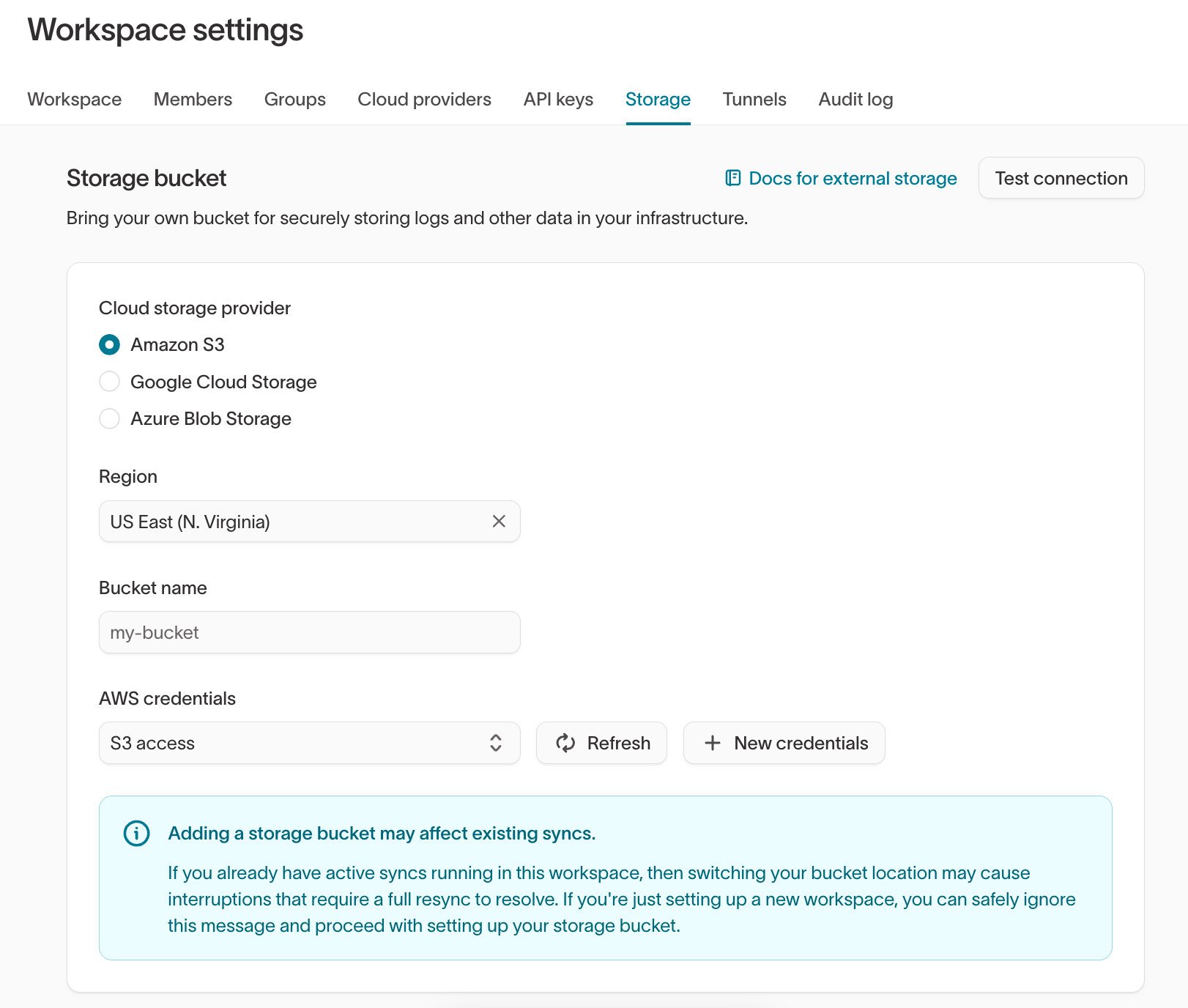
- In Hightouch, on the Storage tab of the Settings page, select Amazon S3 as the Cloud storage provider.
- Select your AWS region, enter your Bucket name, and select the AWS credentials you previously set up.
- Click Save.
Common errors
If you receive aCredentialsError: Missing credentials in configuration error, refer to the troubleshooting tips in the AWS integration docs.
Google Cloud Storage
Before getting started, connect Hightouch with your Google Cloud account.Create a bucket
In the Google Cloud console, create a new bucket. We recommend the name<company>-hightouch-bucket. Copy the bucket name and save it for later.
Configure your bucket object lifecycle, to enhance security and cut down on costs.
Make sure to:
- Enable Uniform bucket-level access and manage access through IAM policies instead of object ACLs.
- Use CMEK where required by your compliance controls, and ensure your service account has access to the key.
- If you use VPC Service Controls, include the bucket and service account in the same perimeter to avoid access denials.
Authenticate with Google Cloud
Hightouch supports authenticating with GCP using Hightouch-managed service accounts, or by using a service account that you control. To set up your Hightouch GCP credential, follow our connection instructions. Hightouch needs the following IAM permissions to store and retrieve items from your bucket:Configure your bucket in Hightouch
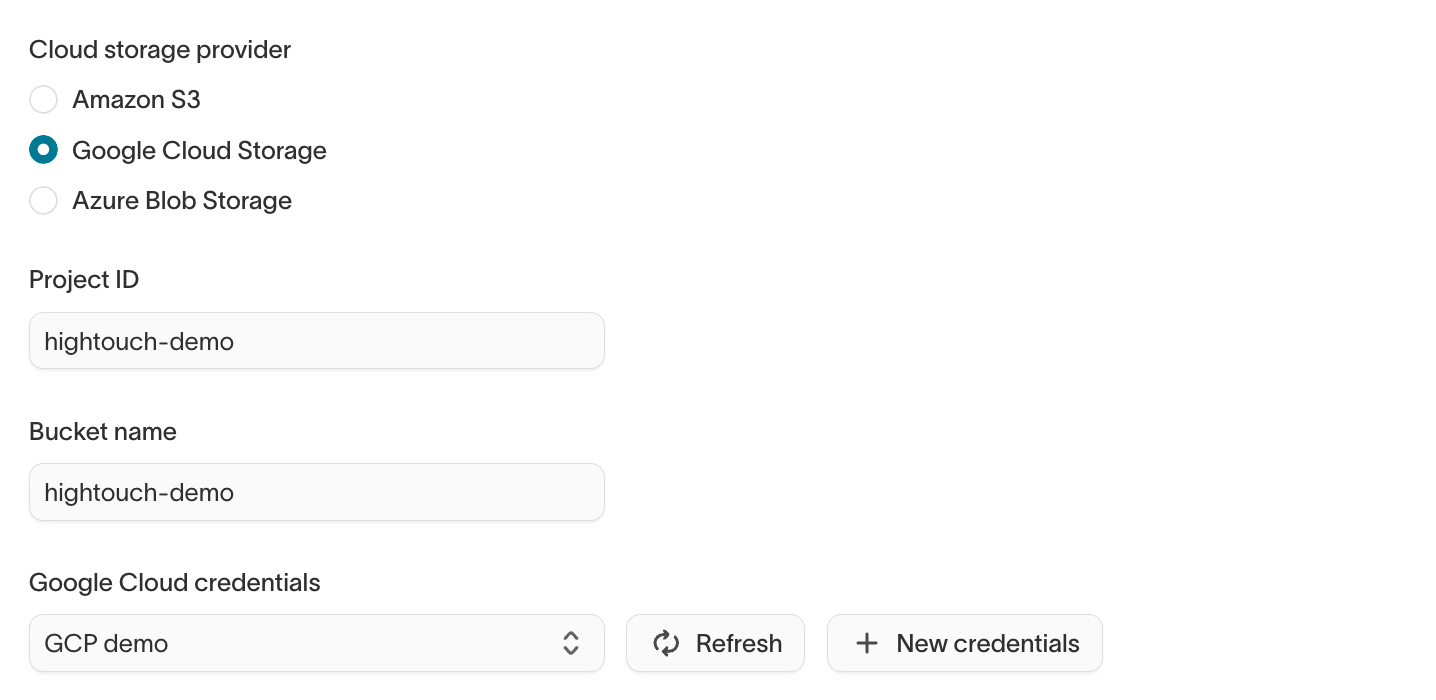
- In Hightouch, on the Storage tab of the Settings page, select Google Cloud Storage as the Cloud storage provider.
- Enter the Project ID and Bucket name and select the Google Cloud credentials you previously set up.
- Click Save.
Microsoft Azure Blob Storage
Before getting started, connect Hightouch with your Azure account.Create a container
In your Azure portal, create a container. We recommend the name<company>-hightouch-container. Copy the container name and save it for later.
Configure your storage lifecycle, to enhance security and cut down on costs.
Authenticate with Azure
Grant the app two roles: the Storage Blob Data Contributor role for the storage account (or container), and the Storage Blob Delegator role at the storage-account level. The delegator role is required for file downloads and previews (such as Data Agents and AI Decisioning CSV exports), which Hightouch serves through signed links — without it, uploads succeed but downloads fail withAuthorizationPermissionMismatch.
Use a Service Principal with RBAC over long-lived SAS tokens when possible, and rotate client secrets or certificates on your normal security cadence.
If you want to create a custom role with more granular permissions, Hightouch needs the following IAM permissions to store and retrieve items from your Blob Storage Container:
"actions"."Microsoft.Storage/storageAccounts/blobServices/containers/read""dataActions"."Microsoft.Storage/storageAccounts/blobServices/containers/blobs/add/action""dataActions"."Microsoft.Storage/storageAccounts/blobServices/containers/blobs/write""dataActions"."Microsoft.Storage/storageAccounts/blobServices/containers/blobs/delete"
"actions"."Microsoft.Storage/storageAccounts/blobServices/generateUserDelegationKey/action"
/) and validate that your processing handles directory entries correctly.
Configure your container in Hightouch
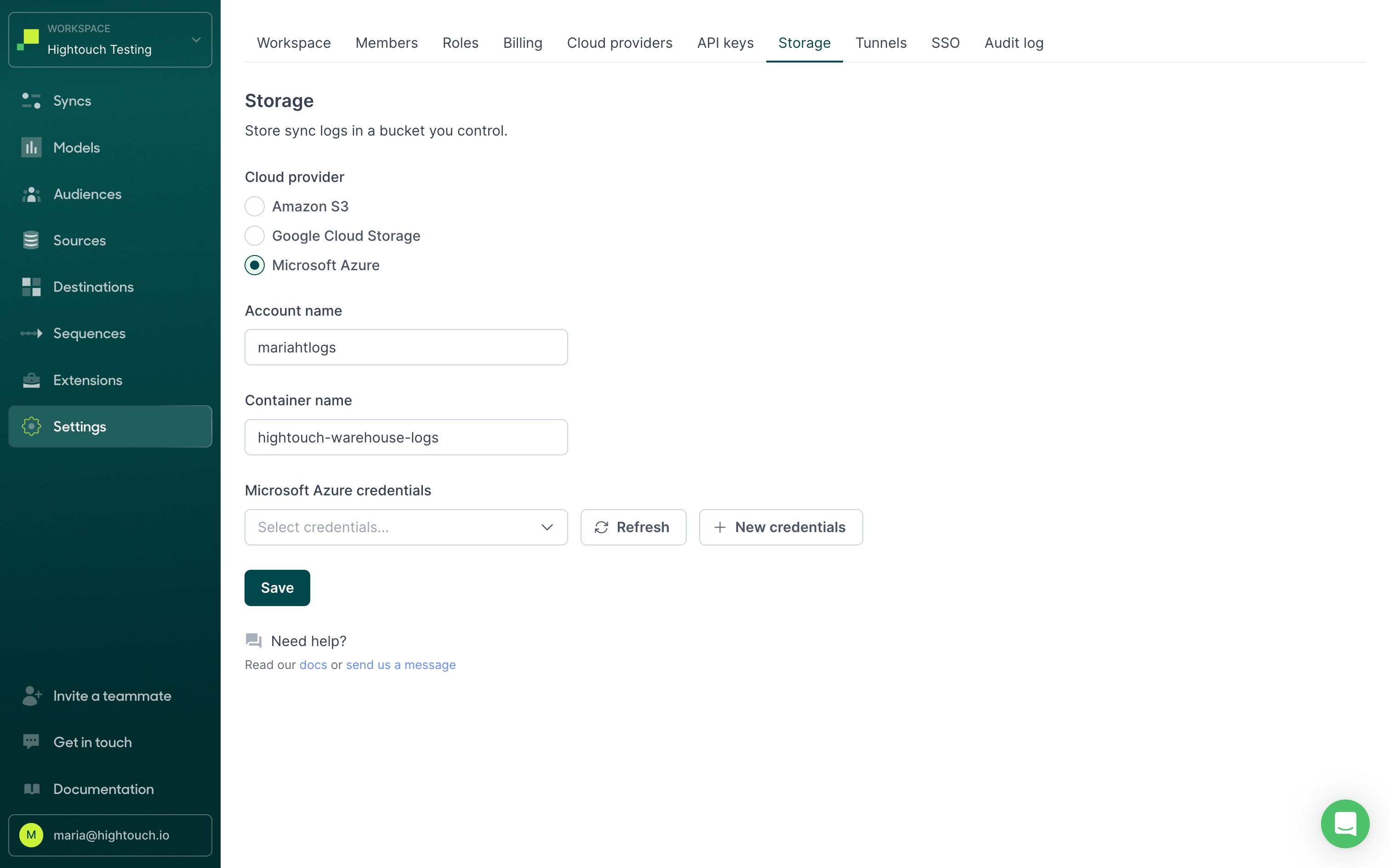
- In Hightouch, on the Storage tab of the Settings page, select Microsoft Azure as the Cloud storage provider.
- Enter the Account name and Container name from the Azure portal (see connecting Hightouch with your Azure account), and select the Azure credentials you previously set up.
- Click Save.
Common errors
Your Azure storage configuration may fail to save for a few reasons:invalid_client: Check that you’ve provided your client secret value, not client secret ID. See the configuration docs for more information.
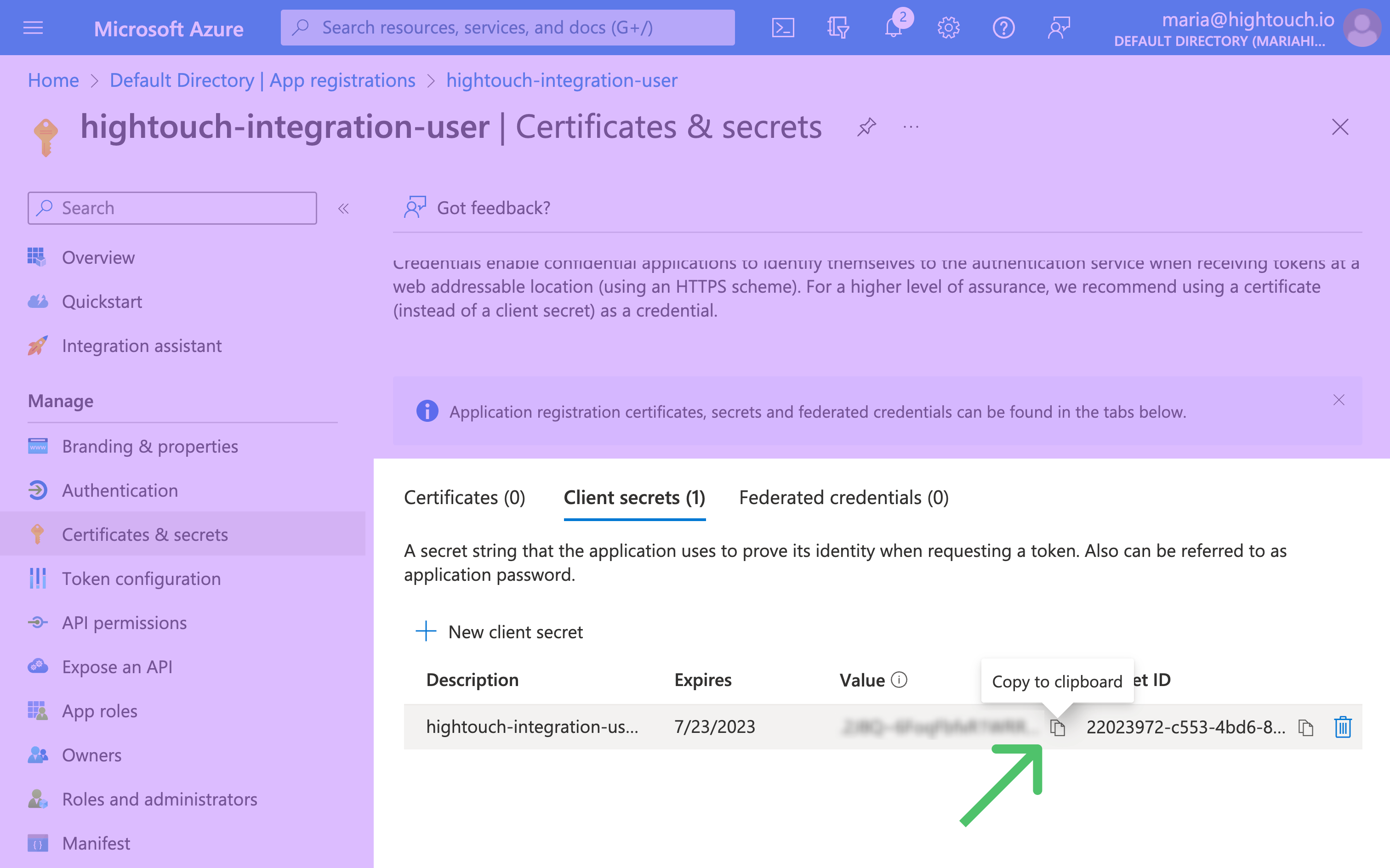
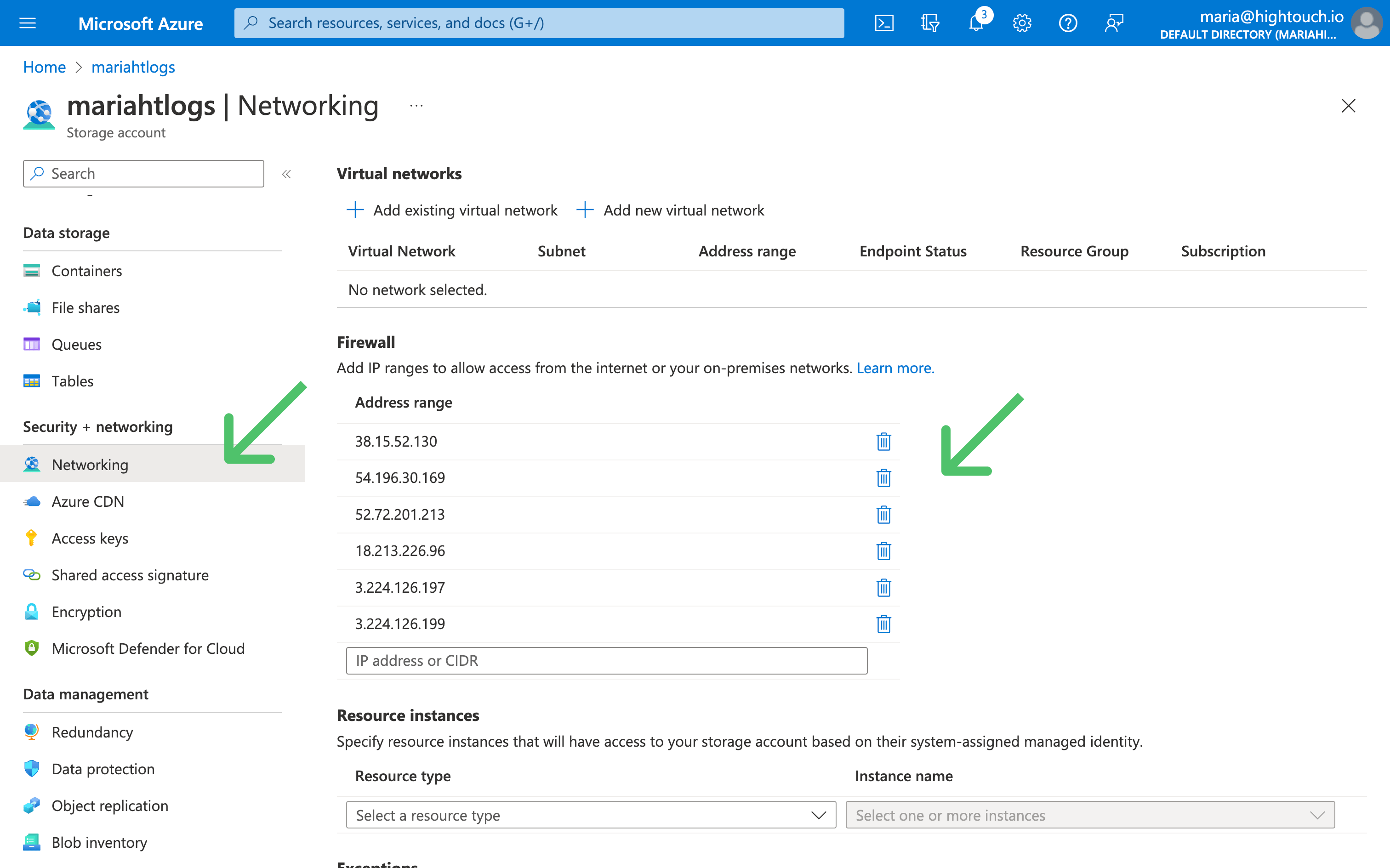
This request is not authorized to perform this operation: Check that Hightouch has adequate access to your storage account. If you’ve configured your storage account’s Network access to be from selected virtual networks and IP addresses, be sure to add Hightouch’s IP addresses to your network rules.