

Salesforce Marketing Cloud is a premium destination and is only available on Business tier plans.
Overview
Salesforce Marketing Cloud (SFMC) is a digital marketing platform that enables businesses to create personalized customer journeys across email, mobile, social, web, and more. This integration allows you to sync your data from Hightouch to SFMC to power personalized marketing campaigns, manage contact data, automate customer journeys, and trigger communications. With the Hightouch SFMC integration, you can:- Sync data to SFMC Data Extensions for segmentation and personalization
- Update contact information for better targeting
- Manage entry and exit from customer journeys based on your data
- Trigger email and SMS messages based on customer behaviors
Supported syncing
Salesforce Marketing Cloud setup
Before you connect Hightouch to Salesforce Marketing Cloud (SFMC), you need to create an installed package in SFMC for Hightouch to use. If you want to sync records to Data Extensions using either mirror mode or upsert mode with file uploads, you also need to create an FTP user.Create installed package in SFMC
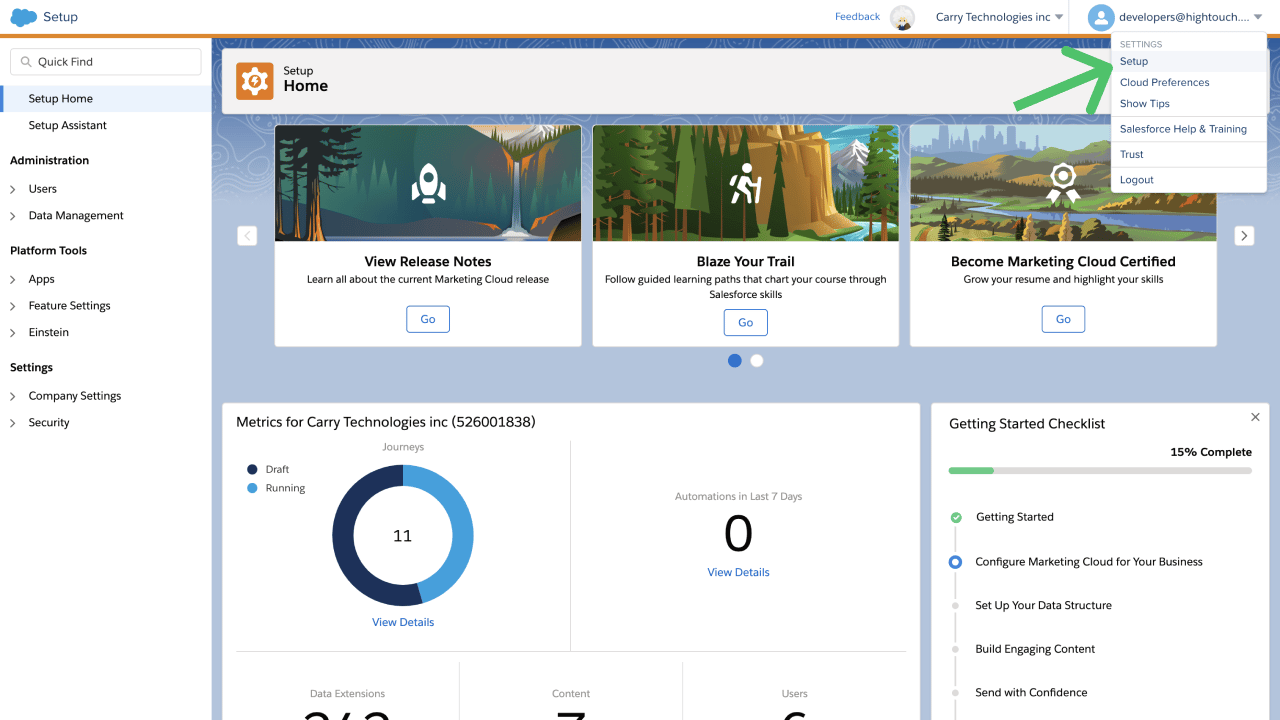
- Log in to your SFMC instance. Go to Setup.
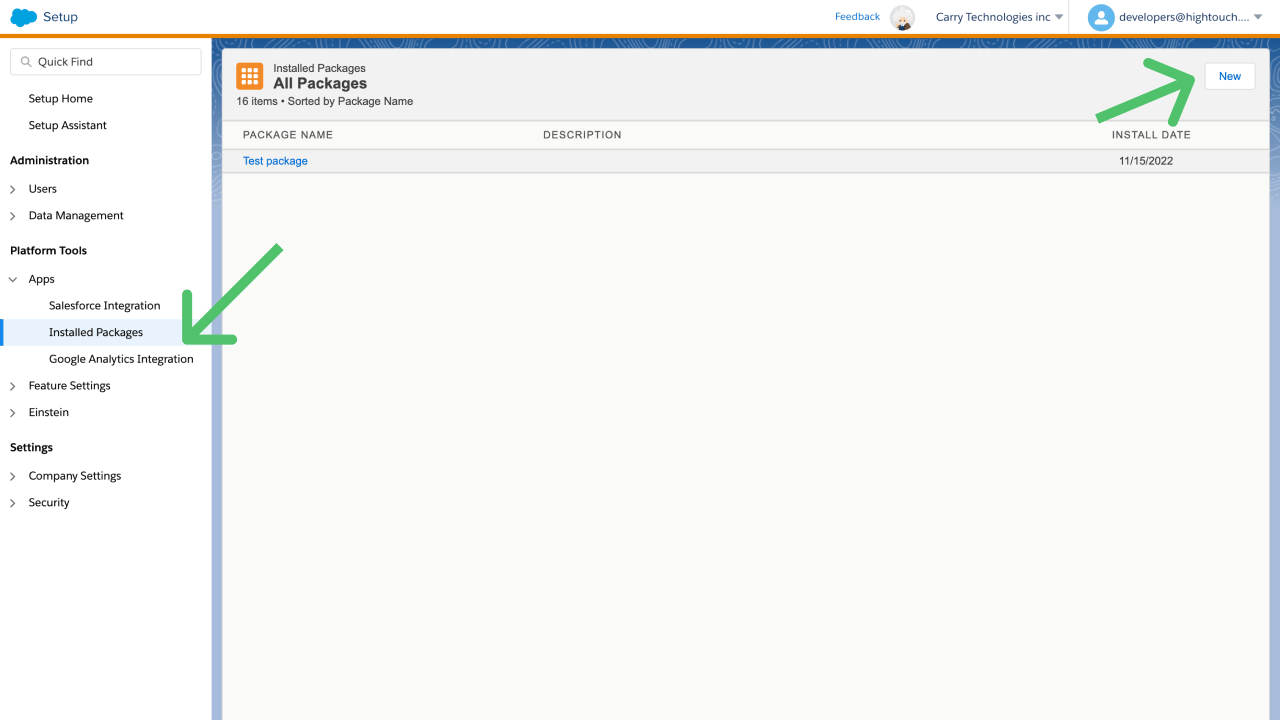
- In the left sidebar, go to Apps → Installed Packages and click New.
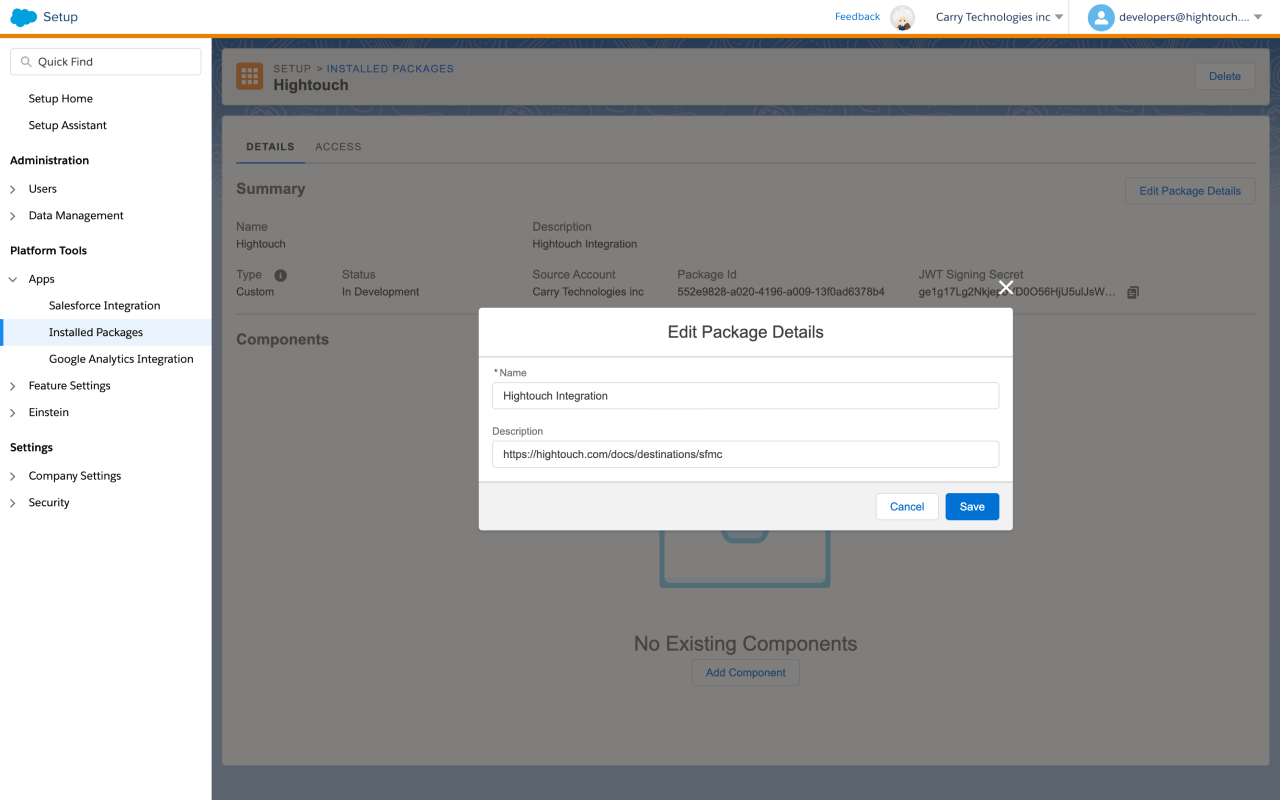
- Name your package, for example, “Hightouch Integration.” Optionally provide a description, and click Save.
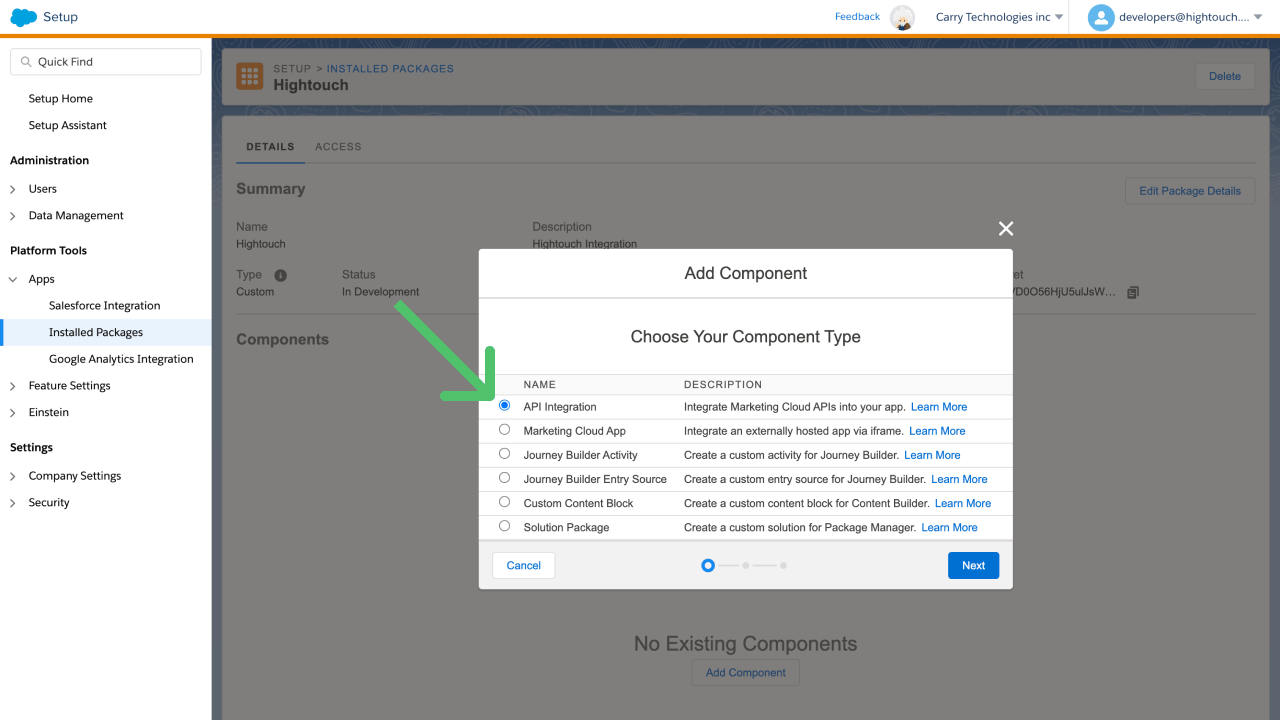
- Click Add Component and select API Integration as the component type. Click Next.
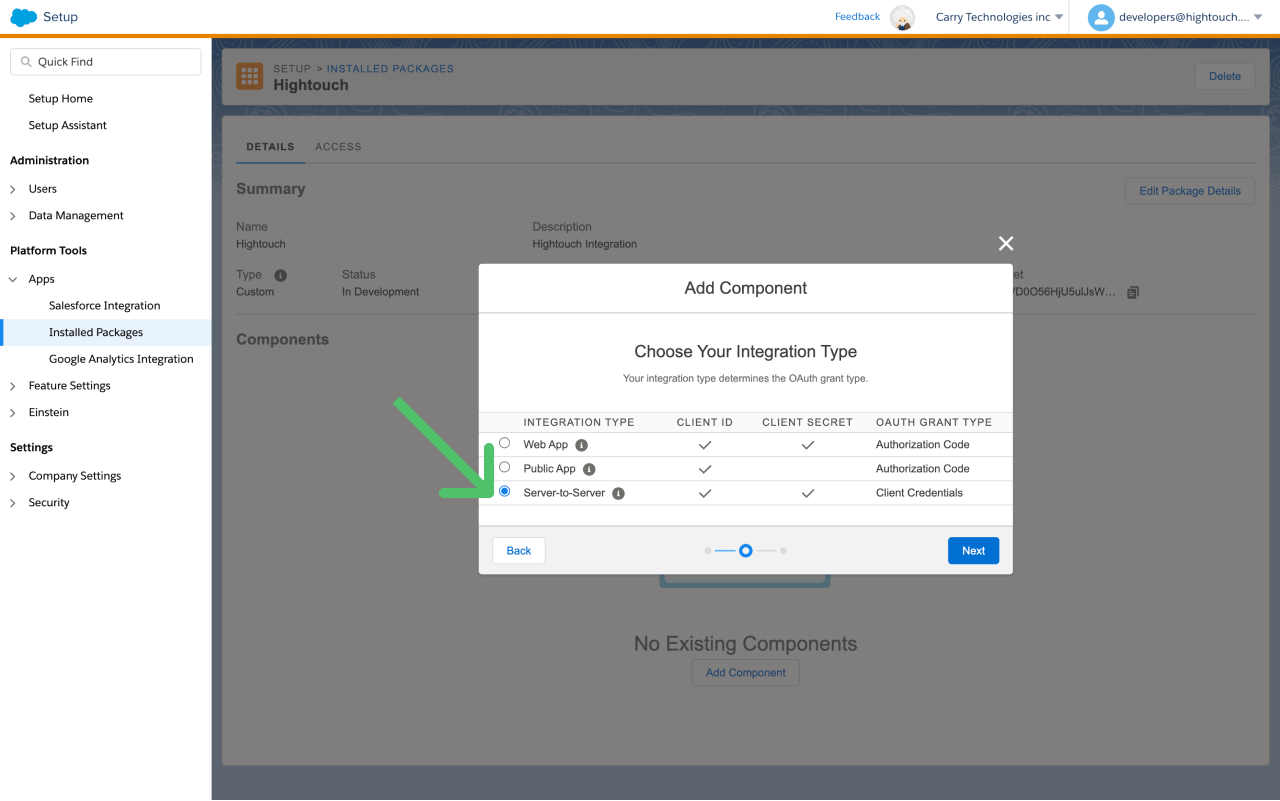
- Select Server-to-Server as the integration type and click Next.
Permissions
These are the minimum scopes for syncing to Contacts, Journeys, and Data Extensions.Carefully select the appropriate permissions based on your specific use case.
- Automation > Journeys: Read, Write, Execute, Activate/Stop/Pause/Resume/Send/Schedule
- Contacts > List and subscribers: Read, Write
- Data > Data Extensions: Read, Write
- Provisioning > Accounts: Read
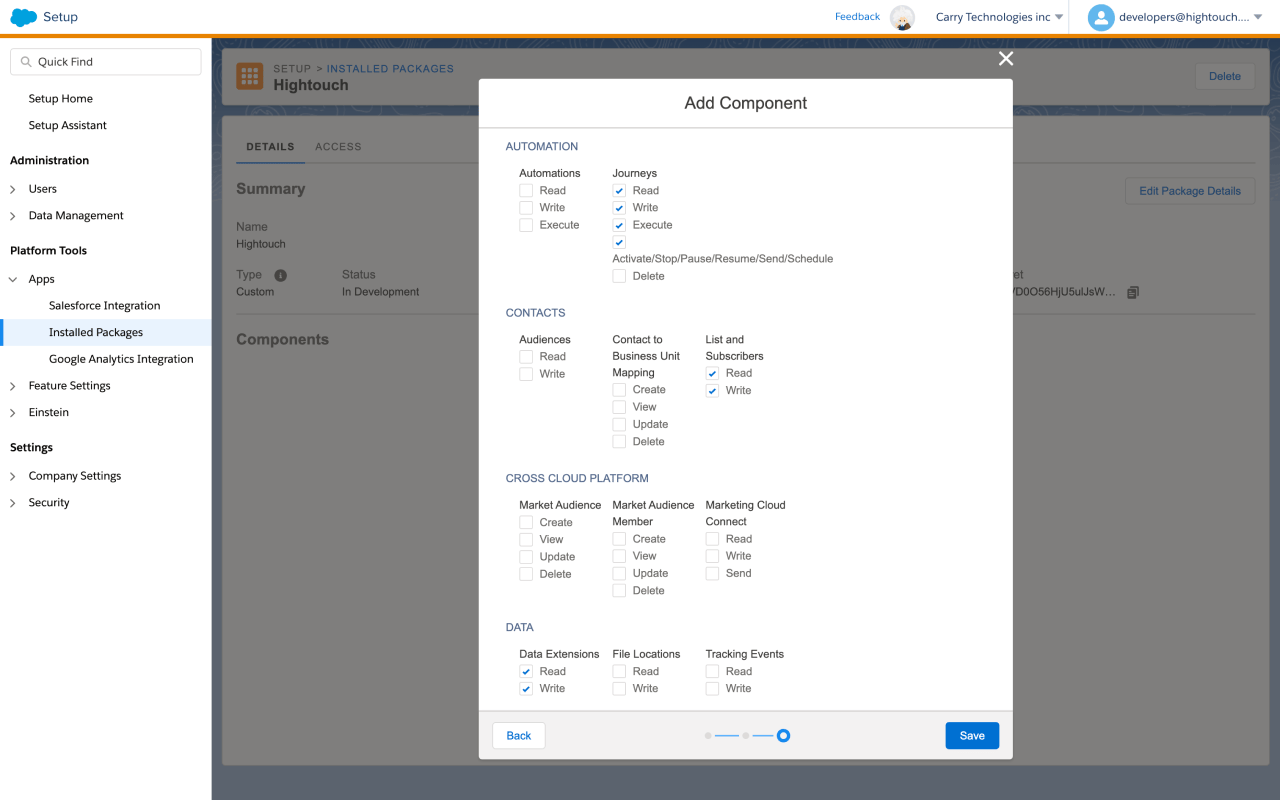
- Data > File Locations: Read, Write
- Automation > Automations: Read, Write, Execute
- Channels > Email: Read
- Channels > SMS: Read
Create FTP user
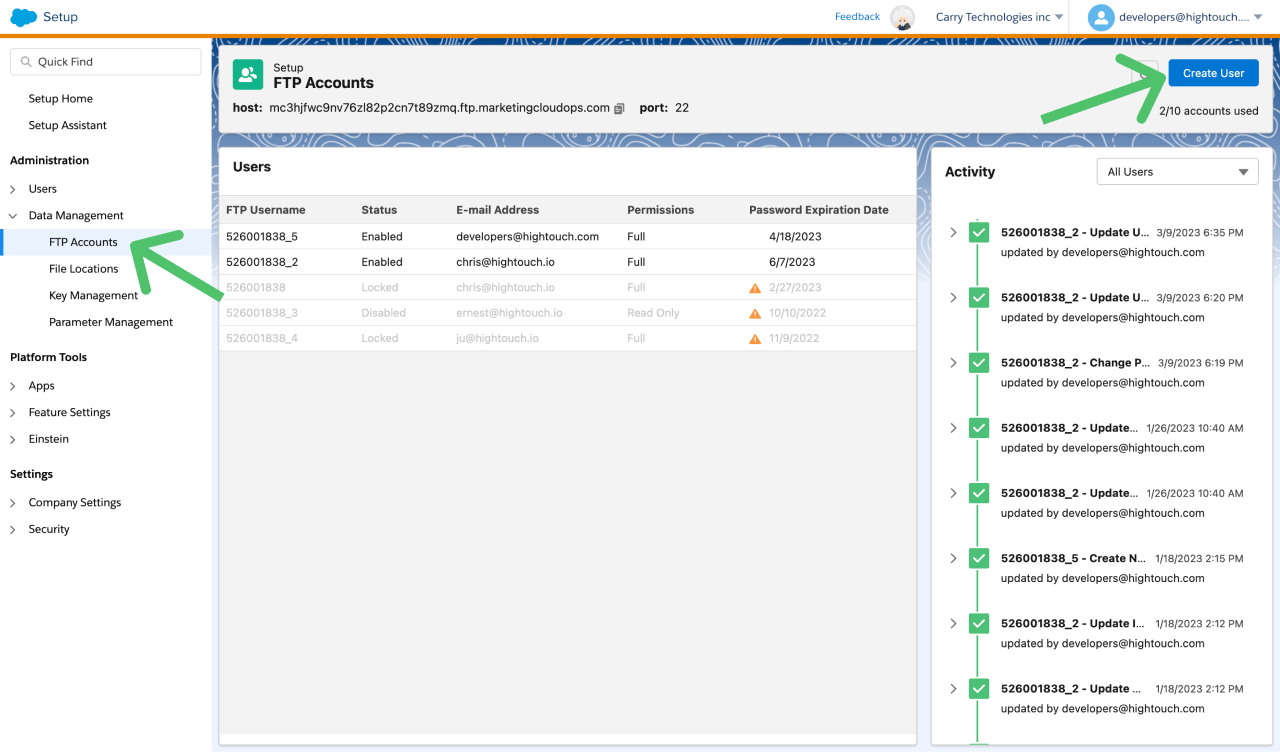
- In your SFMC instance, go to Setup → Administration → Data Management → FTP Accounts and click Create User.
- By default, the FTP Username is your Marketing Cloud Member ID (MID), including the current parent account or child business unit. You can keep the default value.
- Enter an Email Address for the new FTP user. This can be the email account you use to log in to SFMC or another one. You won’t need this address to connect to Hightouch.
- Enter a Password for the user. Password complexity requirements combine Marketing Cloud password policy and server-side FTP password requirements. These policies require a minimum of 12 characters and no reuse of the five most recent passwords. Reenter the password in Repeat Password.
-
The next screen prompts you to choose your authentication method.
-
If you want to use a password, keep this selection.
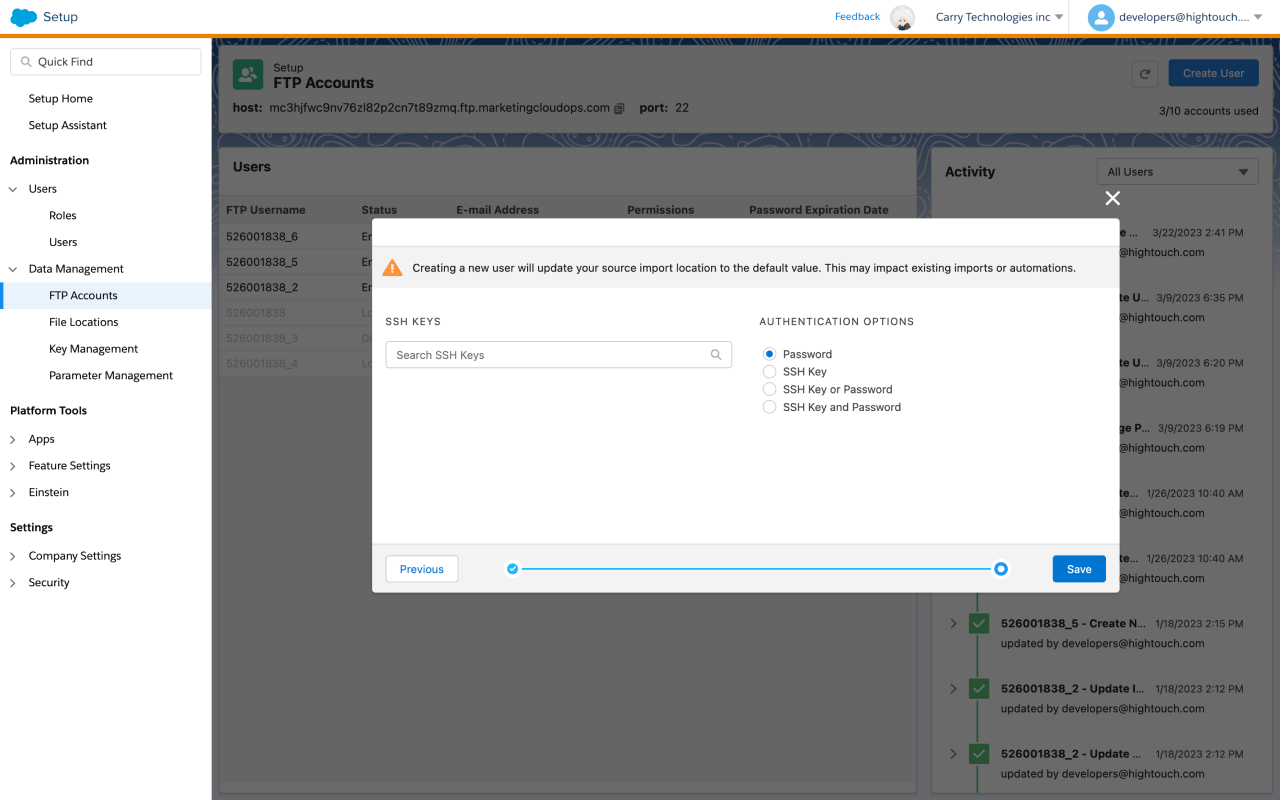
-
If you want to authenticate Hightouch to SFMC using an SSH key, select SSH Key. Follow SFMC’s instructions for how to add a key. Enter the public key into the SFMC and keep the private key for when you connect to Hightouch.
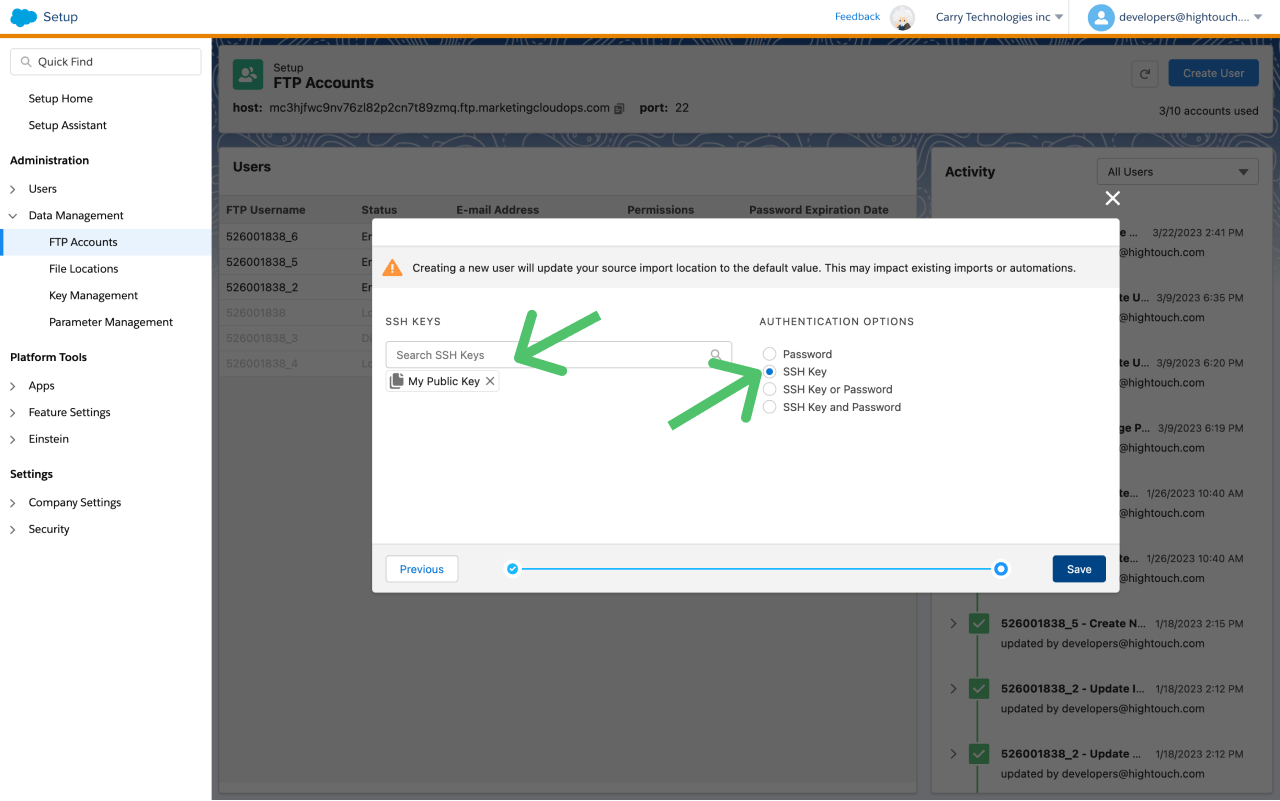
-
If you want to use a password, keep this selection.
- On the next screen, select permissions for your FTP user. At a minimum, provide the user Upload access to the Import directory.
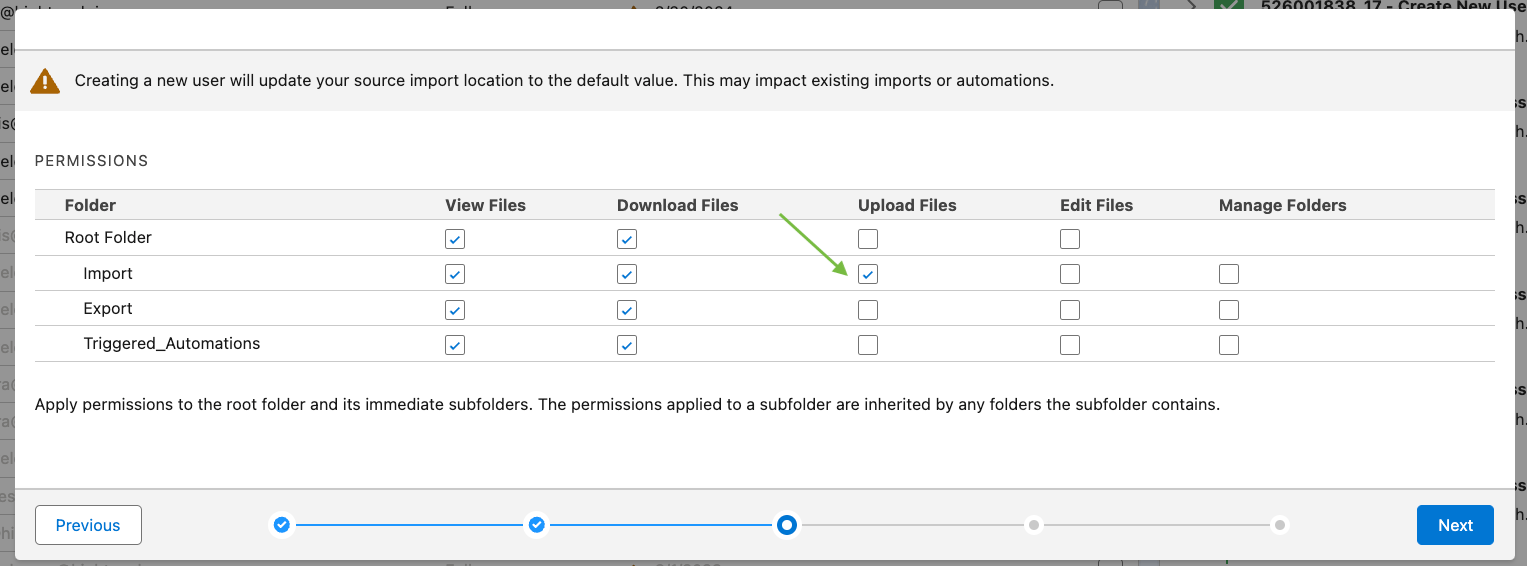
- Allowlisting IP addresses is optional. For additional security, you can enter Hightouch’s IP addresses. Click Next.
- Select a Home Folder. We recommend setting the home folder to the root directory. If you choose to specify a restricted scope, ensure that this FTP user has access to the Import directory.
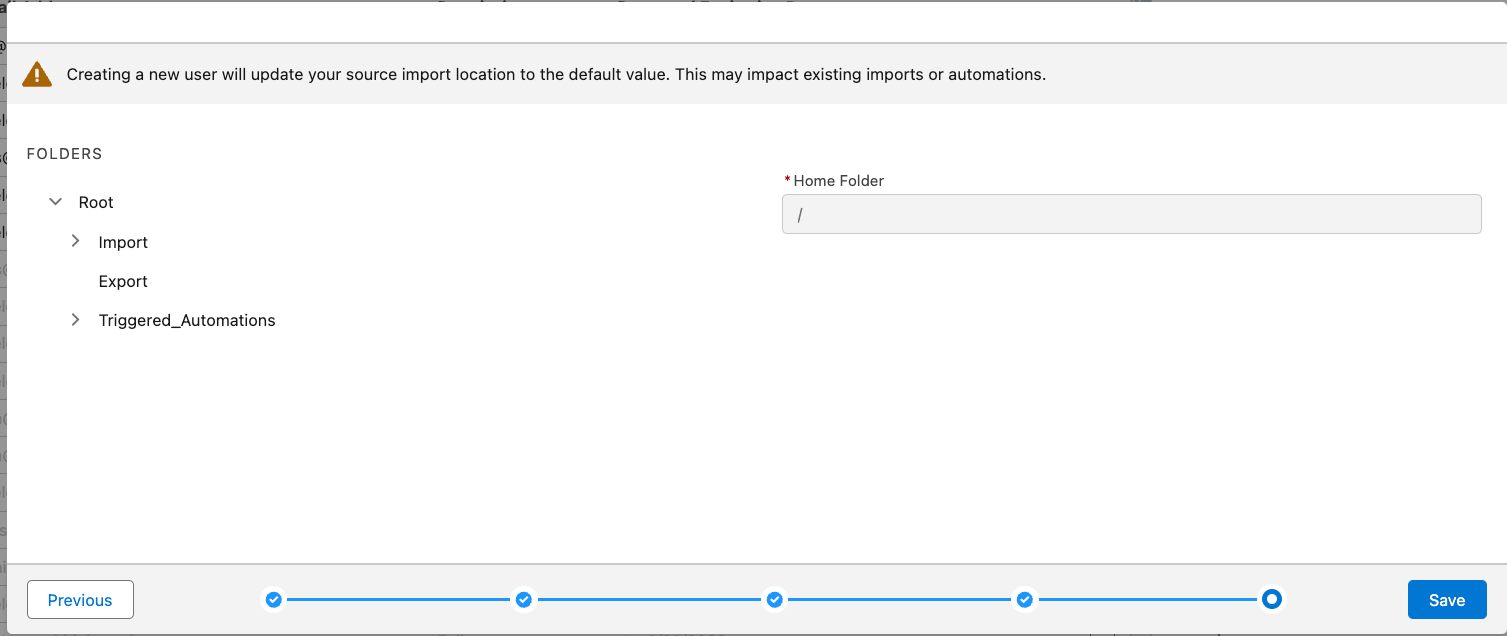
- Make sure to copy your FTP Username and either password or SSH private key for entry into Hightouch. Click Save.
Connect to SFMC
You can now connect SFMC to Hightouch. Go to the Destinations overview page and click the Add destination button. Select Salesforce Marketing Cloud and click Continue.Authentication
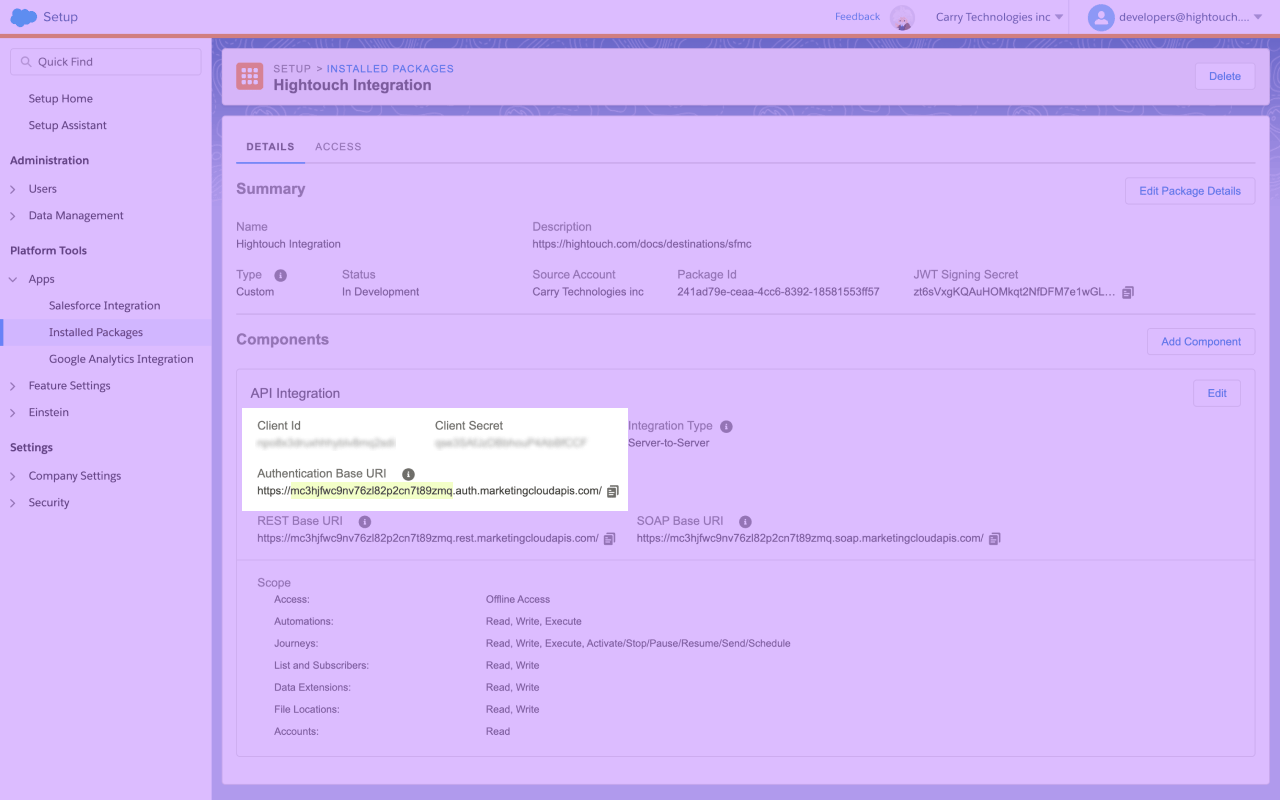
You can authenticate Hightouch to SFMC by entering the Client ID, Client Secret, and Subdomain you copied during package creation.Client secret rotation
Salesforce doesn’t provide an API for rotating client secrets, so you must rotate them in the SFMC interface. SFMC accepts both the staged and the active secret until you activate the staged one, so you can rotate without downtime:- In SFMC, go to Setup → Apps → Installed Packages and open the package Hightouch uses. In the Staged Secret section, select Generate.
- In Hightouch, enter the new secret in the Client Secret field in the destination’s configuration.
- In SFMC, select Activate on the staged secret.
FTP credentials
This section is only required if you want to sync records to Data Extensions
using mirror mode or upsert mode with file
uploads.
- FTP Username: typically a numeric Marketing Cloud MID
- Password or private key
- To use a private key, you must have uploaded the corresponding public key in SFMC
- If using a private key, you must enter the complete private key, starting with
-----BEGIN...PRIVATE KEY-----. - If your private key requires a passphrase, enter it as well
File location
Hightouch supports the following file location types:- ExactTarget Enhanced FTP Import Directory (default)
- Relative Location under FTP Site
- Google Cloud Storage
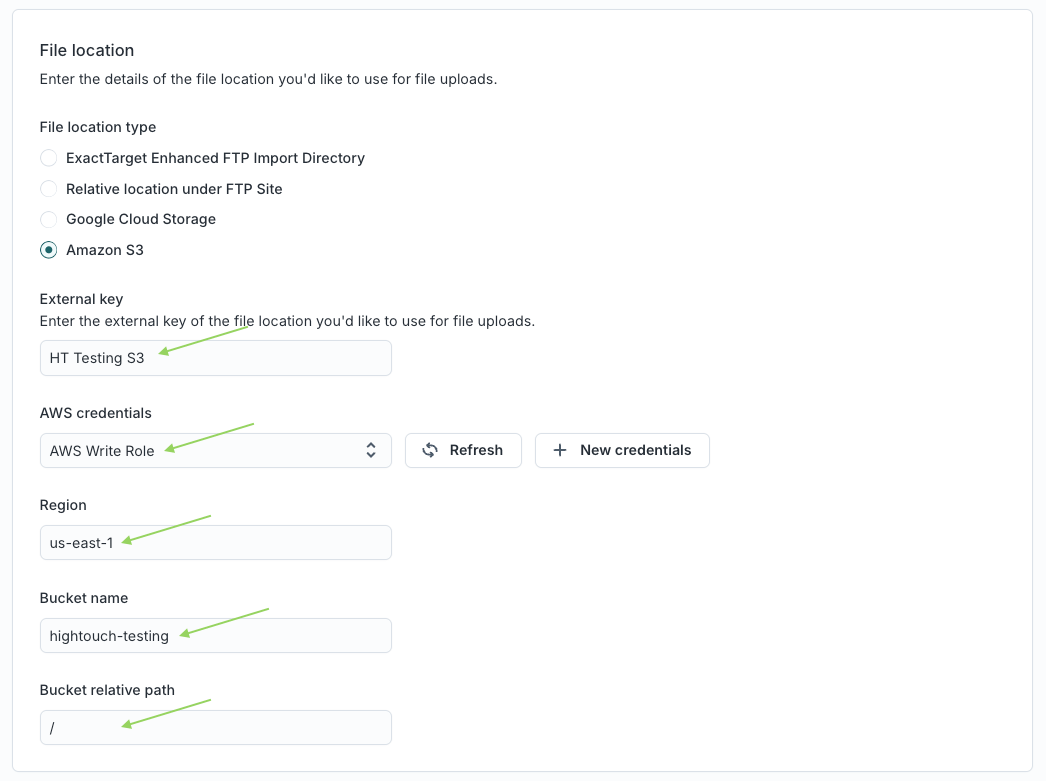
- Amazon S3
ExactTarget Enhanced FTP Import Directory
For ExactTarget Enhanced FTP, if you have chosen a different External Key for this location, enter the External Key to ensure Hightouch is able to access the uploaded files.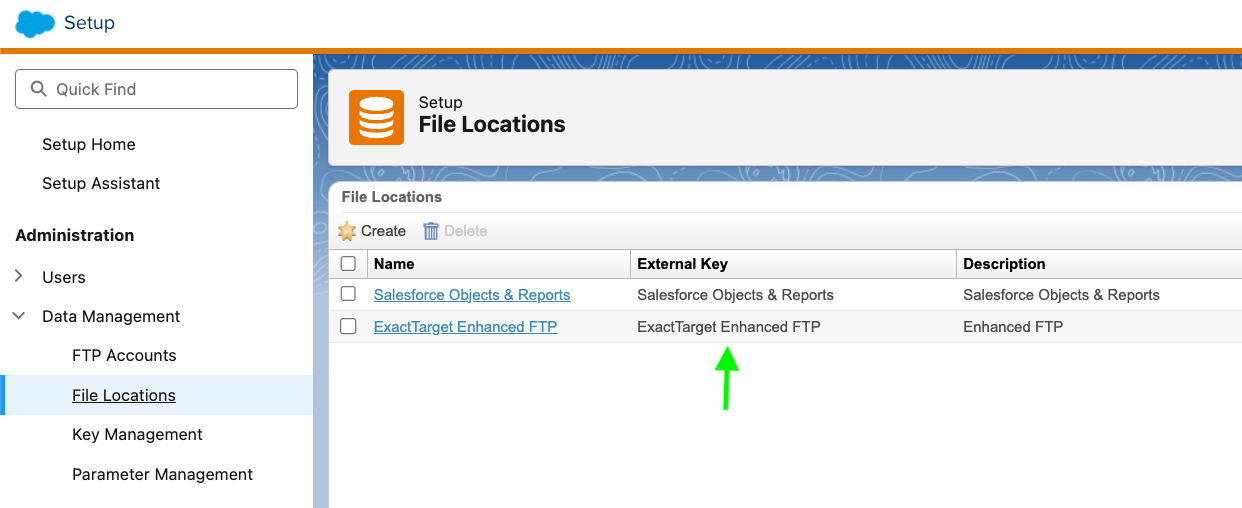
Relative Location under FTP Site
For Relative Location under FTP Site, enter the Relative Folder Path and the External Key to ensure Hightouch is able to access the uploaded files.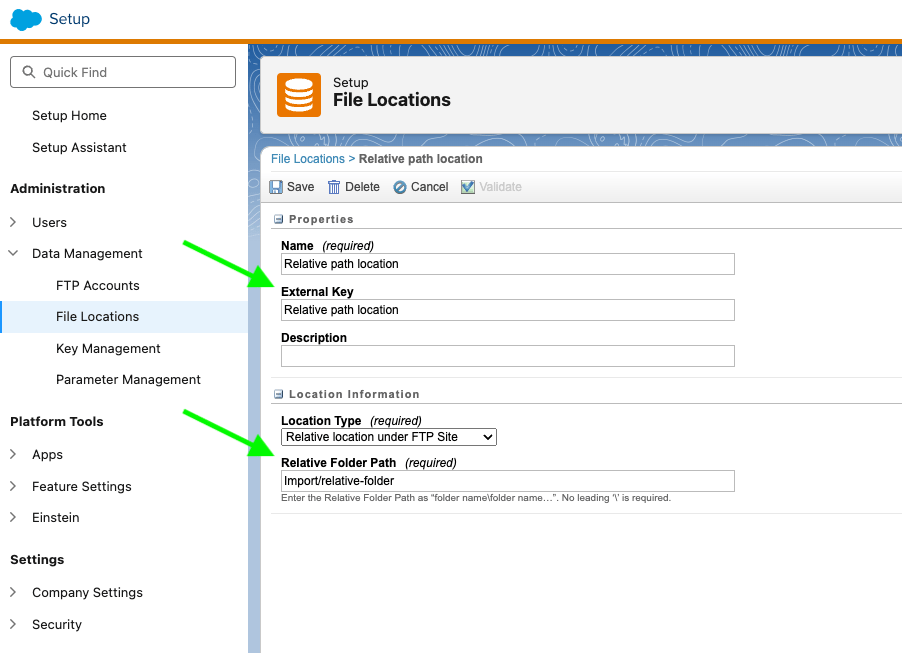
Google Cloud Storage
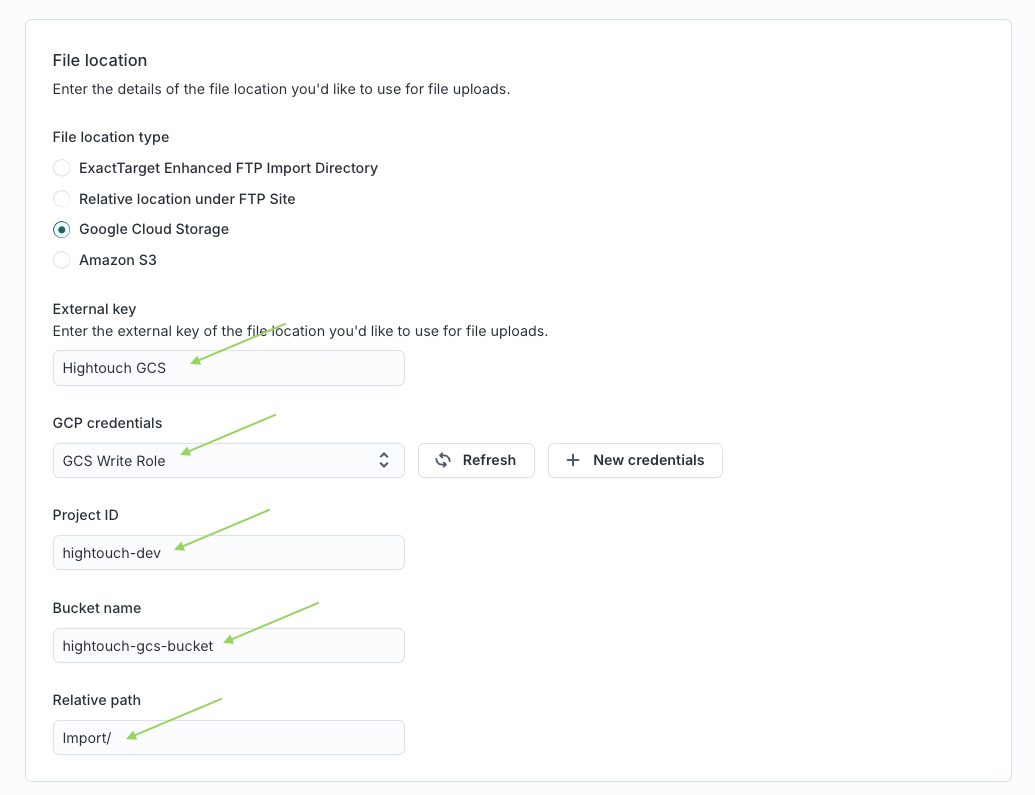
To use the Google Cloud Storage file location in SFMC you will need:- Google Cloud Storage bucket
- Google Service Account with read access to your bucket. This will be used by SFMC to read from your bucket.
- Google Service Account with write access to your bucket. This will be used by Hightouch to upload files.
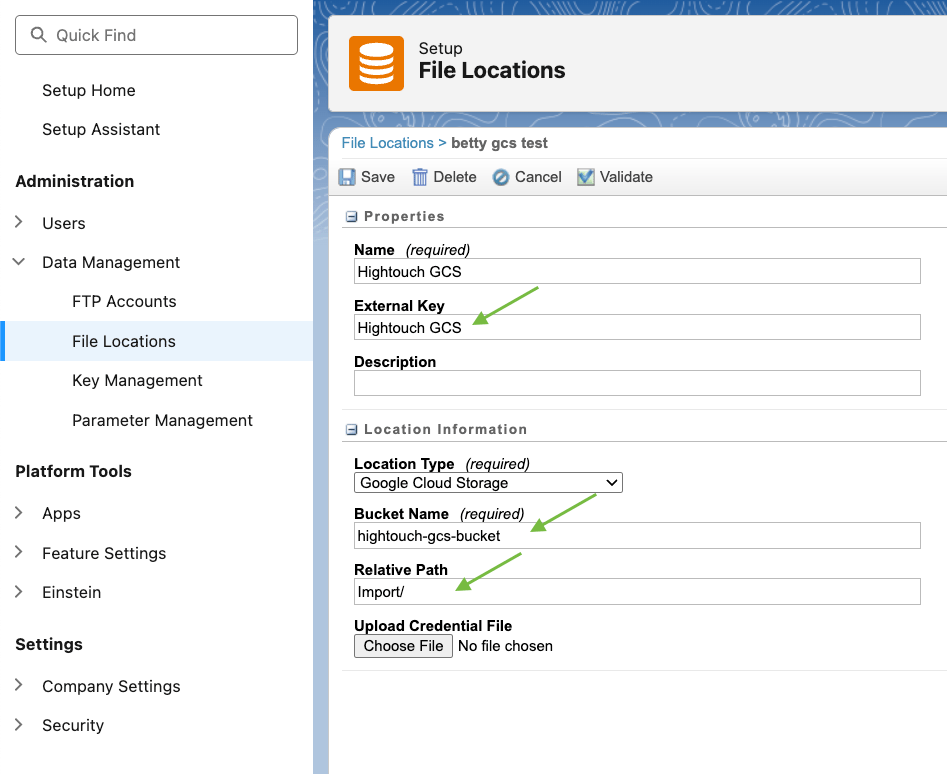
- Go to Setup → Data Management → File Locations and create a new file location.
- Configure your file location’s name and external key.
- Choose Google Cloud Storage for Location Type.
- Enter your GCS bucket name.
- If you would like for files to be uploaded to a specific path in your bucket, enter the path as the Relative Location in your file location.
- Upload your Google Service Account credentials. Ensure that at a minimum this role has read access to your bucket.
Amazon S3
To use the Amazon S3 file location in SFMC you will need:- Amazon S3 bucket
- AWS Credentials with read access to your bucket. This will be used by SFMC to read from your bucket.
- AWS Credentials with write access to your bucket. This will be used by Hightouch to upload files.
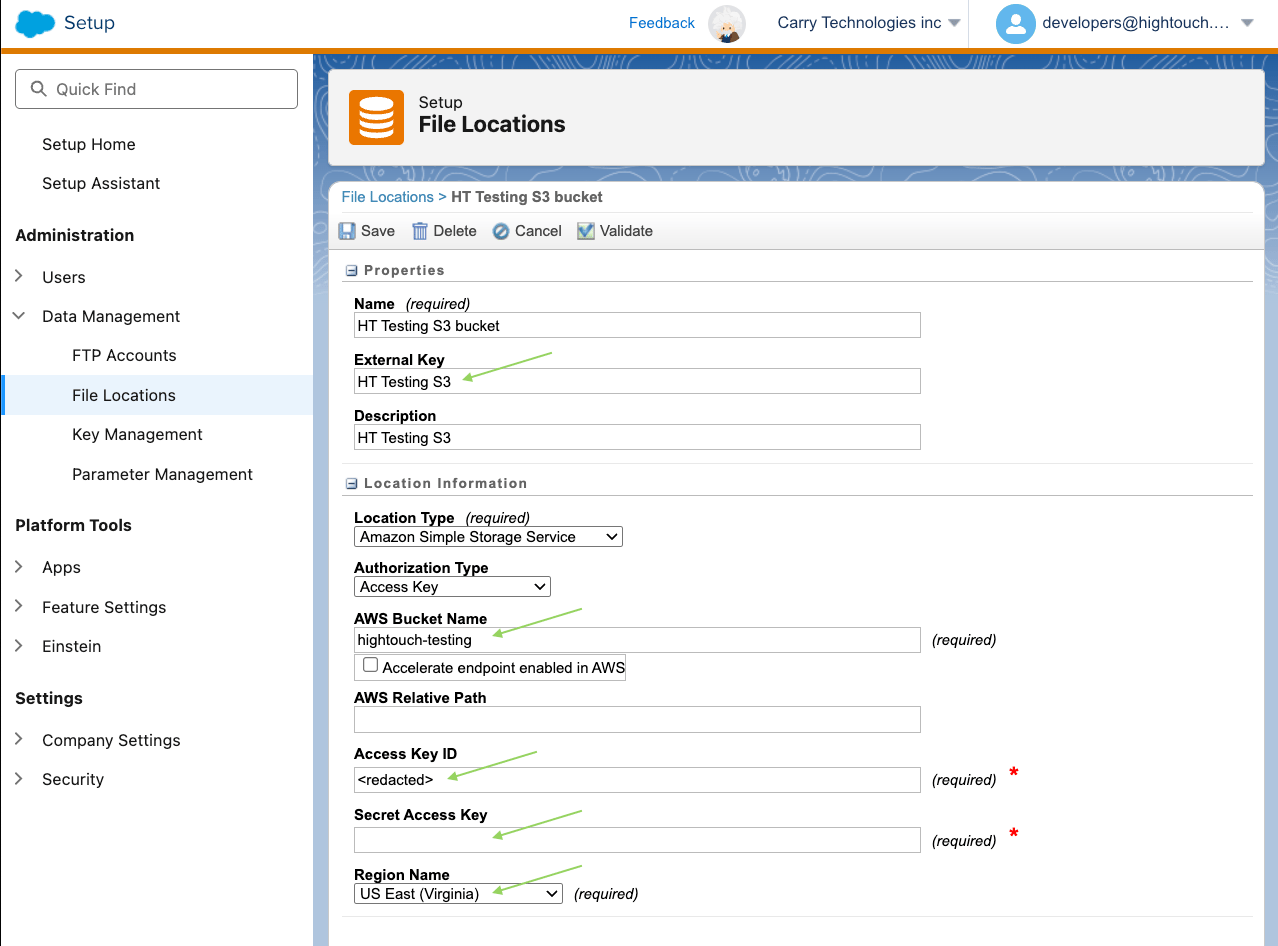
- Go to Setup → Data Management → File Locations and create a new file location.
- Configure your file location’s name and external key.
- Choose Amazon Simple Storage Service for Location Type.
- Choose whether you’d like to authenticate with an Access Key or Access Key with IAM role and enter your AWS credentials. Ensure that at a minimum this account has read access to your bucket.
- Enter your S3 bucket name.
- If you would like for files to be uploaded to a specific path in your bucket, enter the path as the AWS Relative Location in your file location.
Custom scopes
By default, Hightouch requests permission for Journeys, Contacts, and Data Extensions. If you want to use a subset of these features, you can grant a custom subset of scopes in your SFMC package. After you do this, enter a space-separated list of scopes in the Custom scopes field in the Hightouch destination configuration. For example, if you want to sync to Data Extensions via the SOAP API, you can grant the following scopes in your SFMC package:- Data > Data Extensions: Read, Write
- Provisioning > Accounts: Read
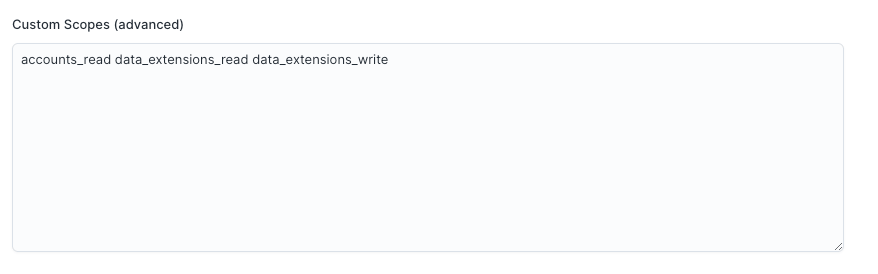
email_read and documents_and_images_read to the field, after you grant them in your SFMC package.
Allowed Business Units
By default, Hightouch can access all Business Units in your SFMC instance that have the installed package enabled. If you want to restrict access to a subset of Business Units, you can enter a space-separated list of Business Unit IDs in the Allowed business unit IDs field in the Hightouch destination configuration. You can find the Business Unit ID, or MID, by clicking on the account dropdown at the top of the SFMC console.
Use SFMC with agents
Agents can read the campaigns, journeys, and email content you’ve built in SFMC when you connect SFMC in Context Hub > Connected data. Context Hub uses the credentials from this destination, so you don’t enter them again. The installed package needs more read permissions for this than syncing does. For the full list, see Connect advertising and lifecycle platforms. If the package is missing a permission, connecting fails with ascope_mismatch error.
Sync configuration
Once you’ve set up your Salesforce Marketing Cloud destination and have a model to pull data from, you can set up your sync configuration to begin syncing data. Go to the Syncs overview page and click the Add sync button to begin. Then, select the relevant model and the Salesforce Marketing Cloud destination you want to sync to. The following sections outline the different types of syncs you can configure with SFMC:Data Extensions
Hightouch supports syncing objects to existing Data Extensions and creating new ones. You can select either Upsert or Mirror mode.- In Upsert mode, you can choose whether to use the SOAP API or file uploads. Hightouch inserts new objects into the Data Extension and keeps all mapped object attributes up-to-date.
- In Mirror mode, you can’t select between SOAP API or file uploads. Hightouch always uses file uploads, SOAP, and an Overwrite import automation in SFMC to overwrite the entire Data Extension with your model’s query results.
Optional configurations
You can optionally choose which Business Unit and which Data Folder you would you like to sync data to. If you leave these configuration empty, Hightouch uses the defaults configured in SFMC.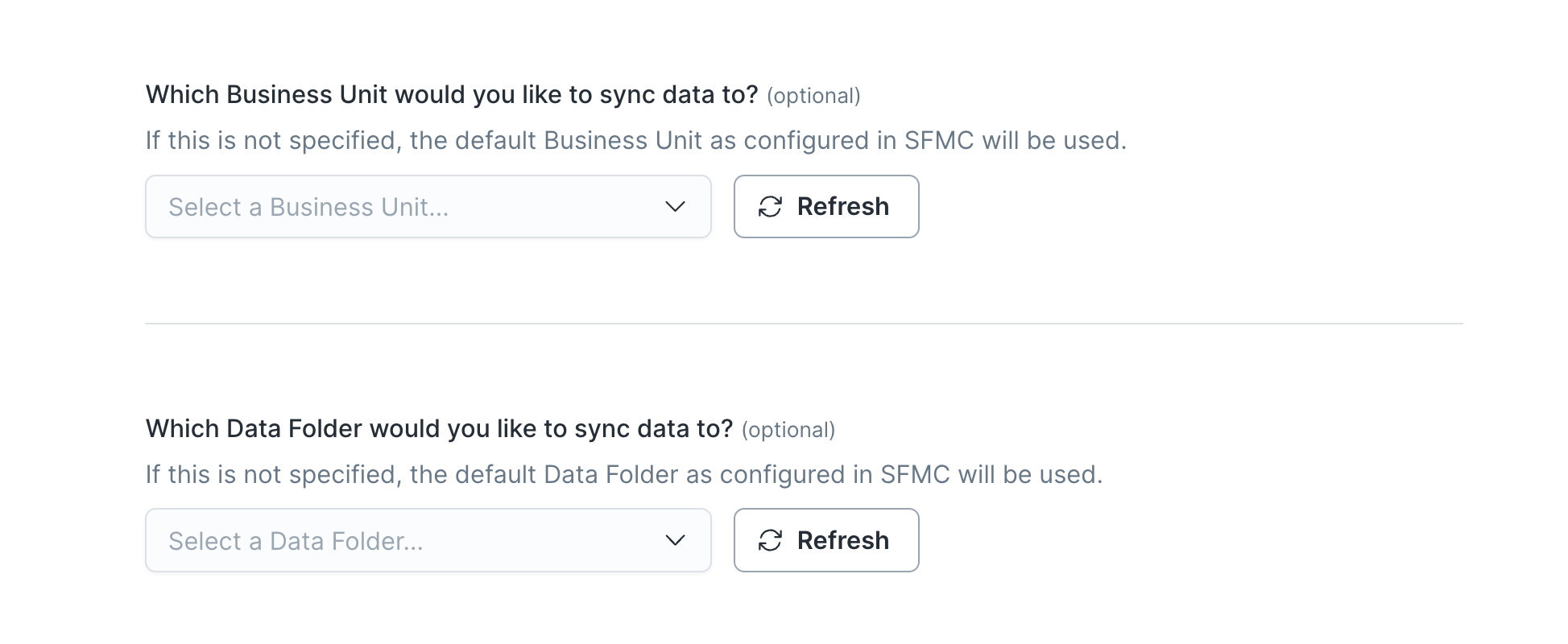
Automatic Data Extension creation
You can optionally choose whether Hightouch should automatically create a Data Extension. If you enable automatic creation, Hightouch creates a Data Extension the first time the sync runs. It doesn’t create new Data Extensions on subsequent runs. If you add columns to the sync config, Hightouch automatically adds them to the Data Extension.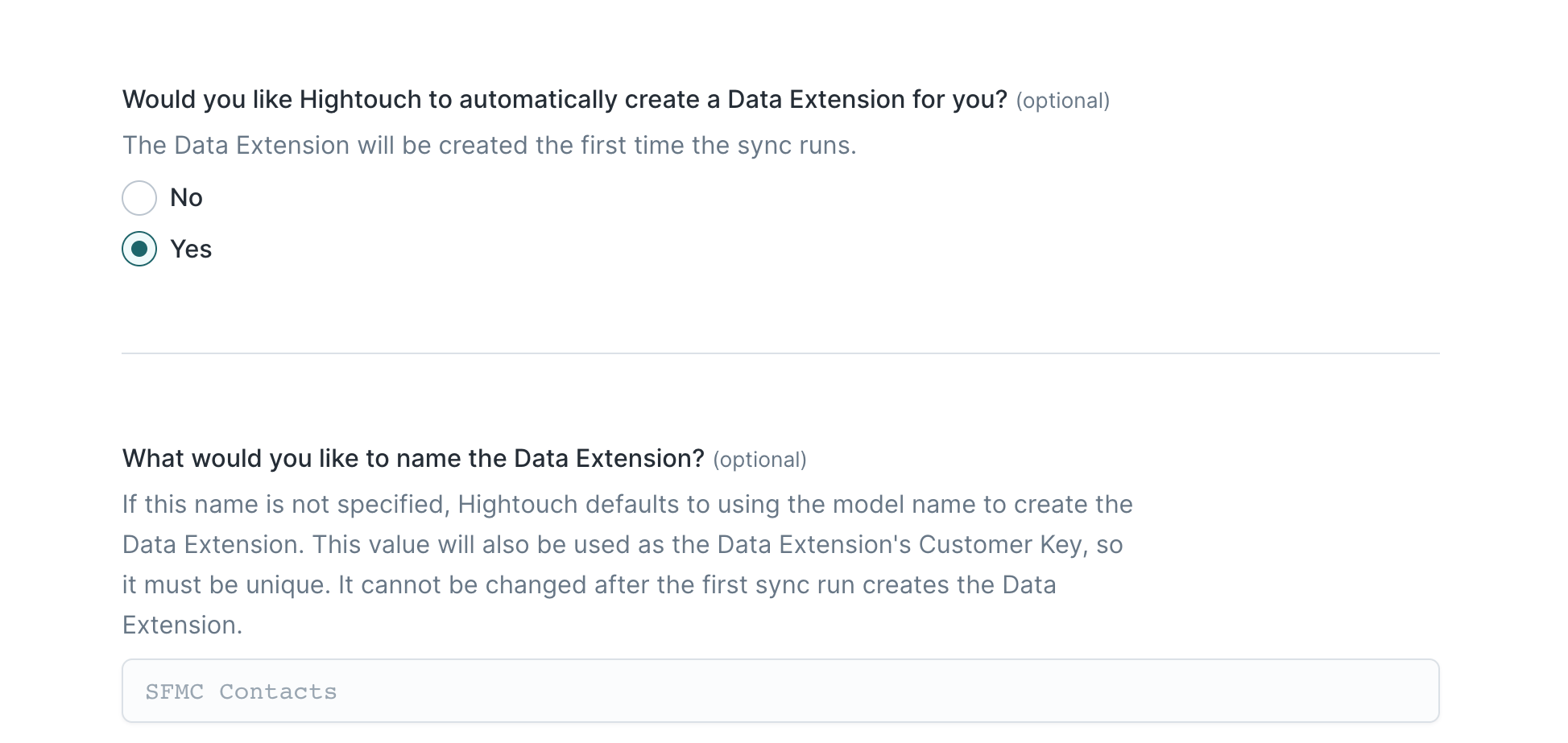
{}.
Hightouch supports these timestamp variables:
YYYY: Represents the full year in four digits.YY: The last two digits of the year.MM: Two-digit month format (01-12).DD: Two-digit day format (01-31).HH: Two-digit hour format in 24-hour clock (00-23).mm: Two-digit minute format (00-59).ss: Two-digit second format (00-59).ms: Three-digit millisecond format.X: Unix timestamp in seconds.x: Unix timestamp in milliseconds.
{model.id}{model.name}{sync.id}{sync.run.id}
Automatic file import via file uploads
By default, Hightouch uses the SOAP API to sync Data Extension options in upsert mode. If you select to use File Upload mode, Hightouch uploads records via file transfer to SFMC, which may lead to better sync performance. While using File Upload mode is generally faster, it provides less visibility into individual records’ sync successes and failures. Generally, blob storage file locations (such as Google Cloud Storage and Amazon S3) are more performant file servers than SFMC’s default option of ExactTarget Enhanced FTP server. To use File Upload mode, ensure:- your SFMC package has the appropriate scopes
- you’ve created an FTP user in SFMC
- you’ve authenticated the FTP user in your destination configuration
- your SFMC file location has read access to your bucket
- the credentials you’ve provided Hightouch has write access to your bucket.
SFMC provides more detailed error responses when using the SOAP API. If you
need to debug errors and the error messages from File Upload mode aren’t
helpful, we recommend trying the SOAP API.
Record matching
You can match objects from your source to your Data Extension on your Data Extension’s primary key. Select the model column that contains these values.Field mapping
You can map any model column to any field in your Data Extension. Make sure that you map all non-nullable fields when syncing new objects to the Data Extension. A non-nullable field is a field that is required to be populated with a value. When creating or editing a record in SFMC, if a non-nullable field is left empty, the system won’t allow the record to be saved and will return an error message. You can check which fields are non-nullable fields in SFMC by inspecting your Data Extensions:- Open the Email Studio in your SFMC account.
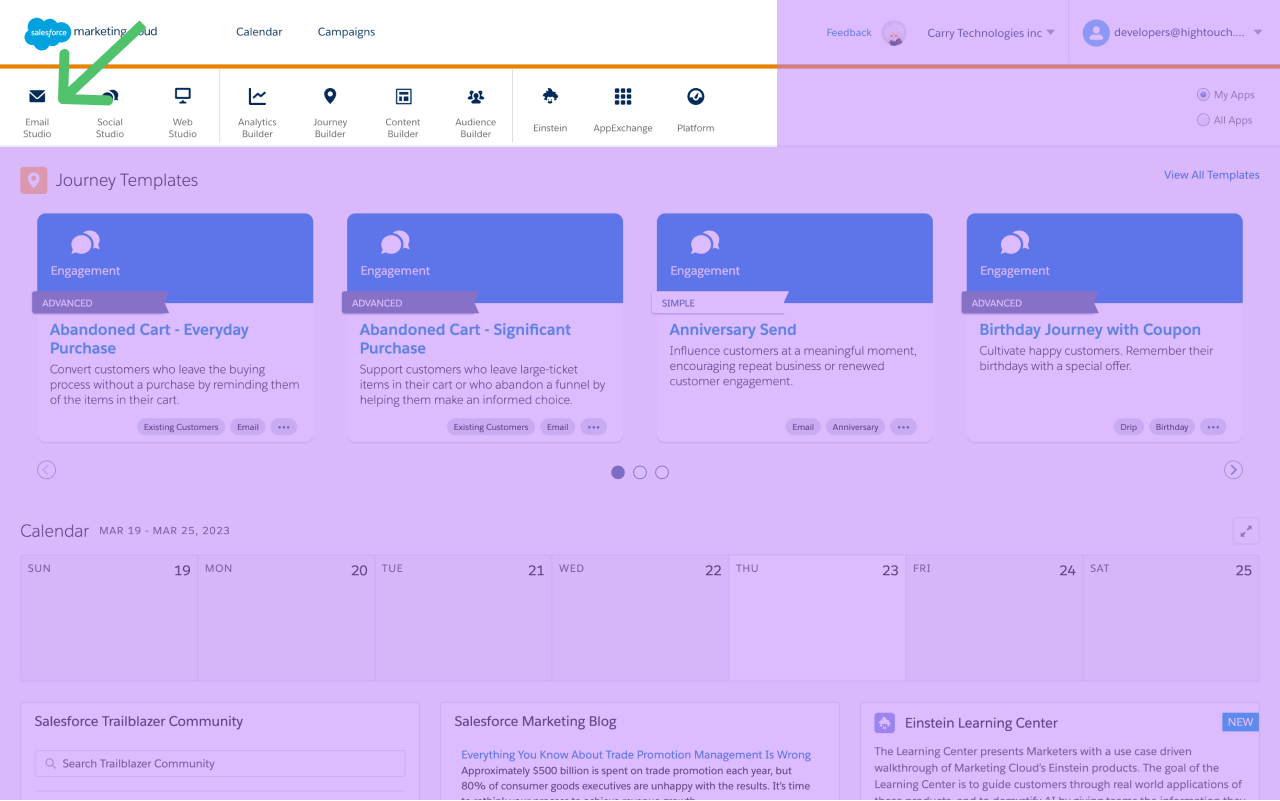
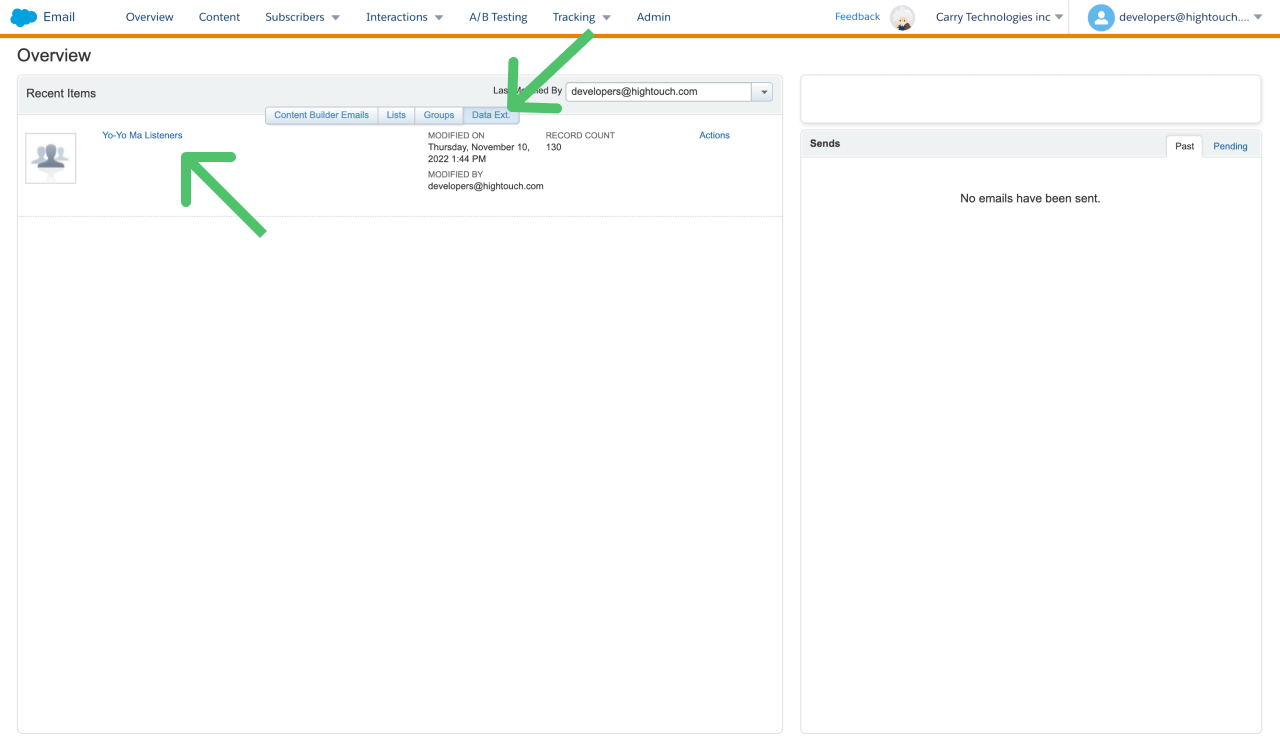
- Select the Data Extension you want to check.
- Inspect the Fields section in the Data Extension to see a list of all fields.
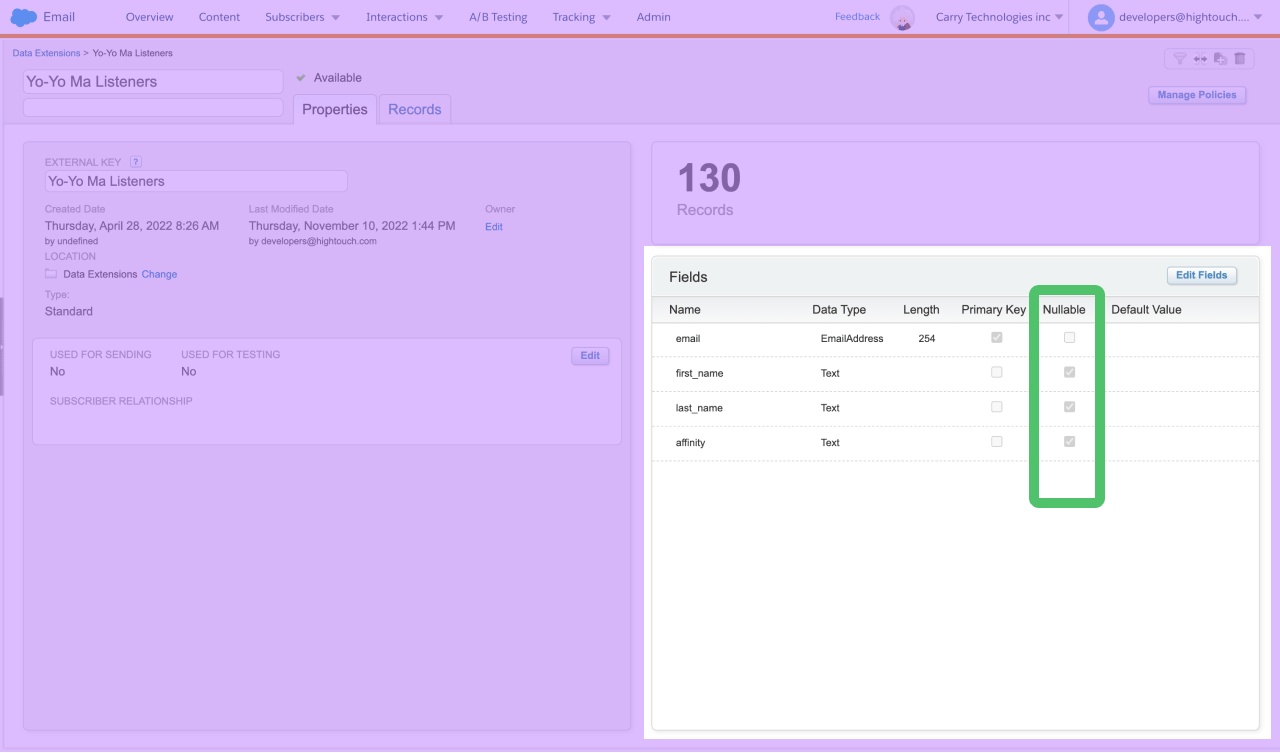
- Look for the Nullable column in the list. This column includes a checkbox for each field.
- If a field doesn’t have a check in the Nullable column, it means that the field is non-nullable and must have a value in it when a record is created or updated. Make sure you map all non-nullable fields.
email is the only field without a check in the Nullable column, it is the only non-nullable field.
In Upsert mode, you can sync records that don’t include all non-nullable fields, but only if the object already exists in the Data Extension.
SFMC requires a minimum of one field mapping when sending data using
SOAP-mode. This can be a placeholder field.
Field creation
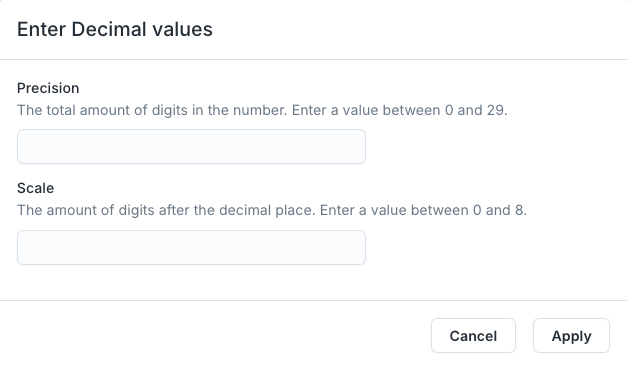
When creating a new Data Extension with Hightouch, you can create new fields and select their types while field mapping. First enter a field name, then select its type.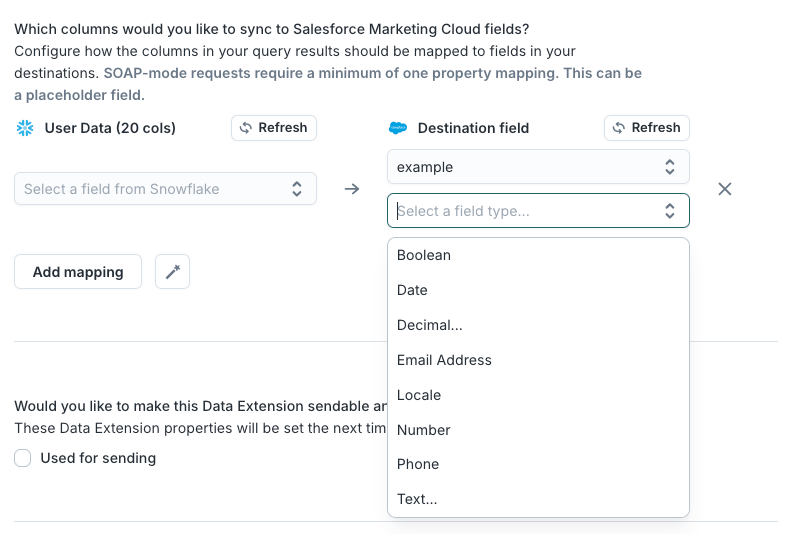
Sendable and testable Data Extensions
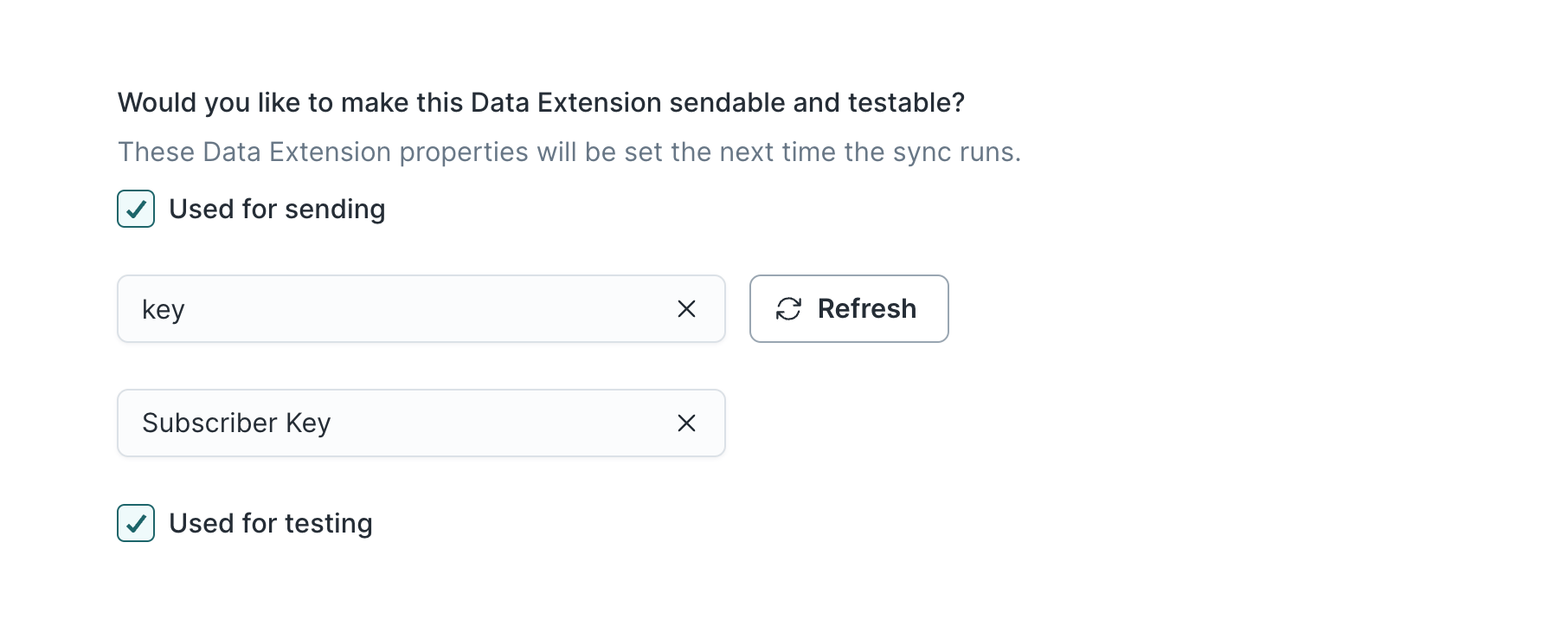
For auto-created Data Extensions, you can select whether the Data Extension is sendable and testable. A sendable Data Extension is a type of Data Extension that can be used to send email messages or other types of communications to subscribers. Sendable Data Extensions are designed to contain subscriber data that can be used in email marketing campaigns, triggered sends, or other types of communications. A testable Data Extension is used to send test emails or other test communications to a small group of recipients, usually internal stakeholders or quality assurance testers. Testable Data Extensions are designed to mimic the structure of a sendable Data Extension, but with a smaller set of test data. To be designated as sendable, a Data Extension must meet certain requirements, including:- It must contain an email address or mobile number field that is marked as the primary sendable field.
- It must contain at least one additional field that is used as a personalization field in the email message.
- It must be mapped to a profile attribute group, which is used to store additional subscriber data that is not included in the sendable Data Extension.
Data Retention Policy
You can set a data retention policy on your Data Extension through Hightouch. Hightouch will not edit existing data policies unless explicitly enabled. You can choose what data should be deleted in your policy:
You can choose the data retention period in days depending on how long you’d like to store your Data Extension and records.
If you choose to reset the retention policy upon each successful sync run, the data retention period will restart whenever data is successfully imported into your Data Extension.
Delete behavior
You can choose how to handle Data Extension when the corresponding rows are deleted in your source.Concurrency
When syncing to SFMC in File Upload mode, you can configure the concurrency used in the FTP upload to SFMC in Advanced options. Enter a value between 1 and 10. Higher concurrency values will increase upload speeds, but can cause disruptions when simultaneously running multiple Hightouch syncs to SFMC. For this reason, the default concurrency is 1. Concurrency options are not available for blob storage file locations.File Retention
By default, Hightouch will delete the CSV files used to populate a Data Extension and the results file from the Import Definition automation from your SFMC FTP server. You can choose to keep files on your SFMC FTP server in Advanced options. Files on the SFMC FTP server will automatically be deleted by SFMC after 21 days. Files are not automatically deleted from your blob storage file locations. We recommend setting a retention policy on your bucket to avoid storing stale CSV files.Notifications
If you would like to receive an email notification when an Import Definition to your Data Extension succeeds, you can enter an email address in Advanced options. In Mirror mode, one email will be sent for each sync run. In Upsert mode, one email will be sent for each batch completion. Depending on your batch size, this could be multiple emails per sync run.Triggering automations
In Mirror mode, if you would like to trigger an automation after the completion of your Data Extension sync run, you can select Yes or No and enter either an External key or an Automation ID. If Yes, an automation will run even if there are failed rows in the sync. If the automation itself fails, the entire sync run is marked as failed.Contacts
This integration supports upserting contacts into Marketing Cloud. In upsert mode, Hightouch inserts new users into SFMC and updates mapped user attributes on existing contacts.Record matching
Hightouch matches rows from your model to Marketing Cloud contacts by Contact Key. Select the model column that contains these values.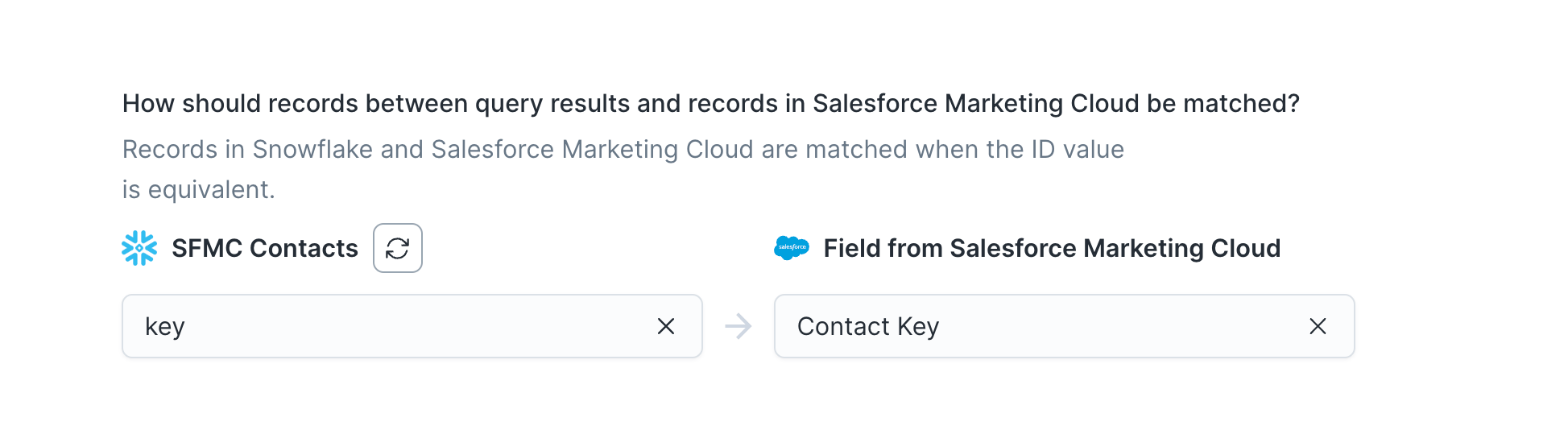
Field mapping
You can sync any model columns to Marketing Cloud’s contact attributes.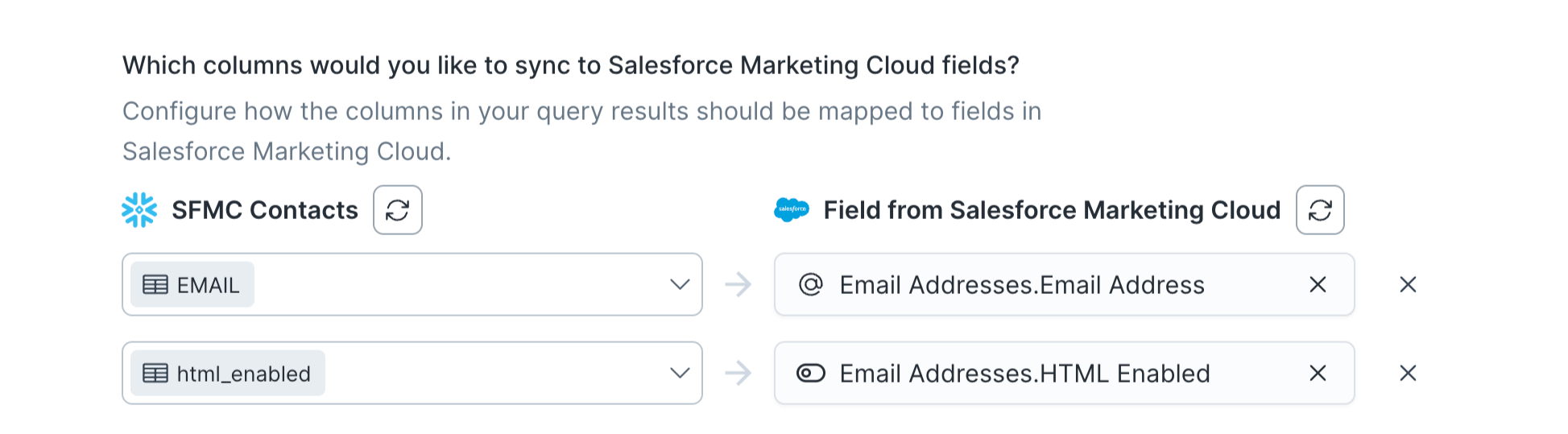
Journeys
Hightouch can manage the entry and exit of contacts in Marketing Cloud journeys based on your model’s query results.- When a record enters your results set, Hightouch adds a contact to the journey via the contact’s Contact Key.
- When a record leaves your results set, Hightouch removes the contact from the journey via the contact’s Contact Key.
Hightouch does not observe duplicate primary key errors. Adding a record with
a primary key that already exists in the journey will be marked as successful.
Similarly, removing a record with a primary key that was already removed from
the journey will also be marked as successful.
Journey selection
Here is an example journey that you could manage with Hightouch: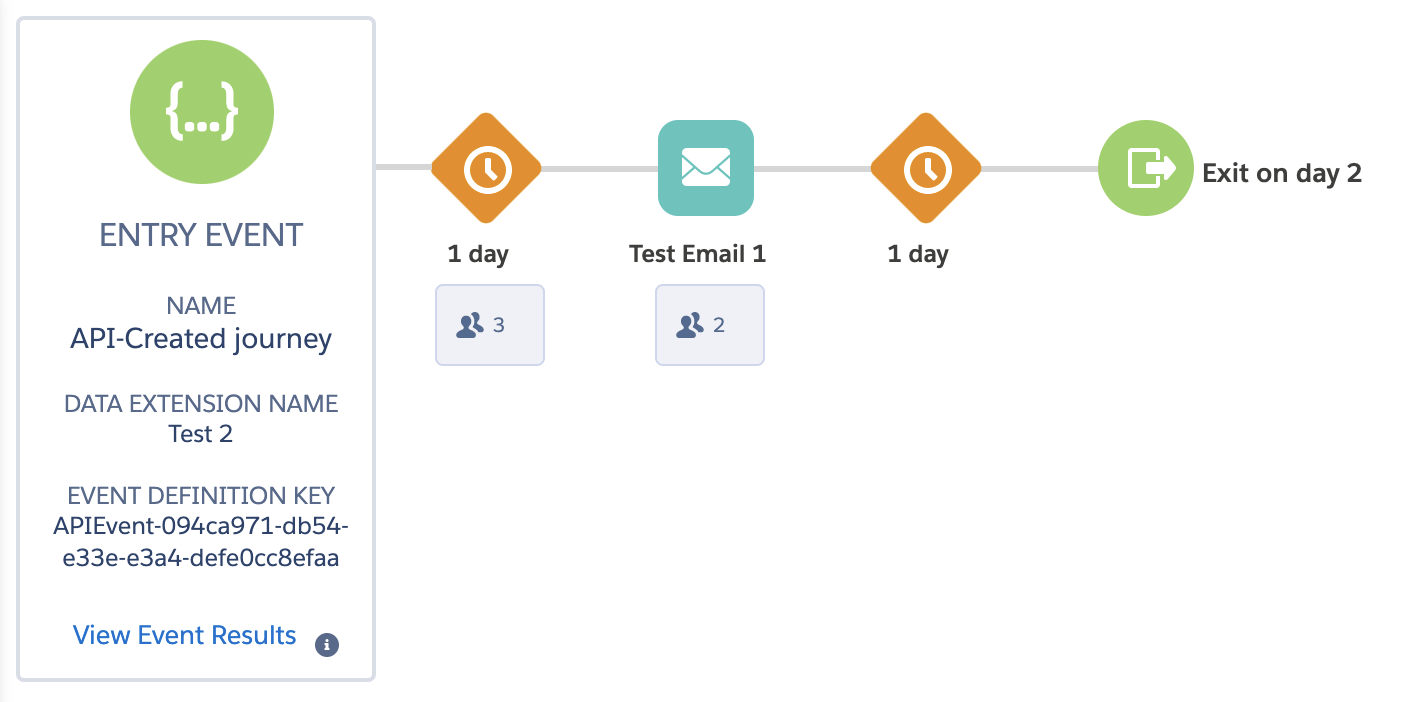
- A multistep journey
- Triggered by an entry event with an associated Data Extension and event definition key

User identifiers
Hightouch enters and exits contacts from the journey via Contact Key. Select the model column that contains these values.Field mapping
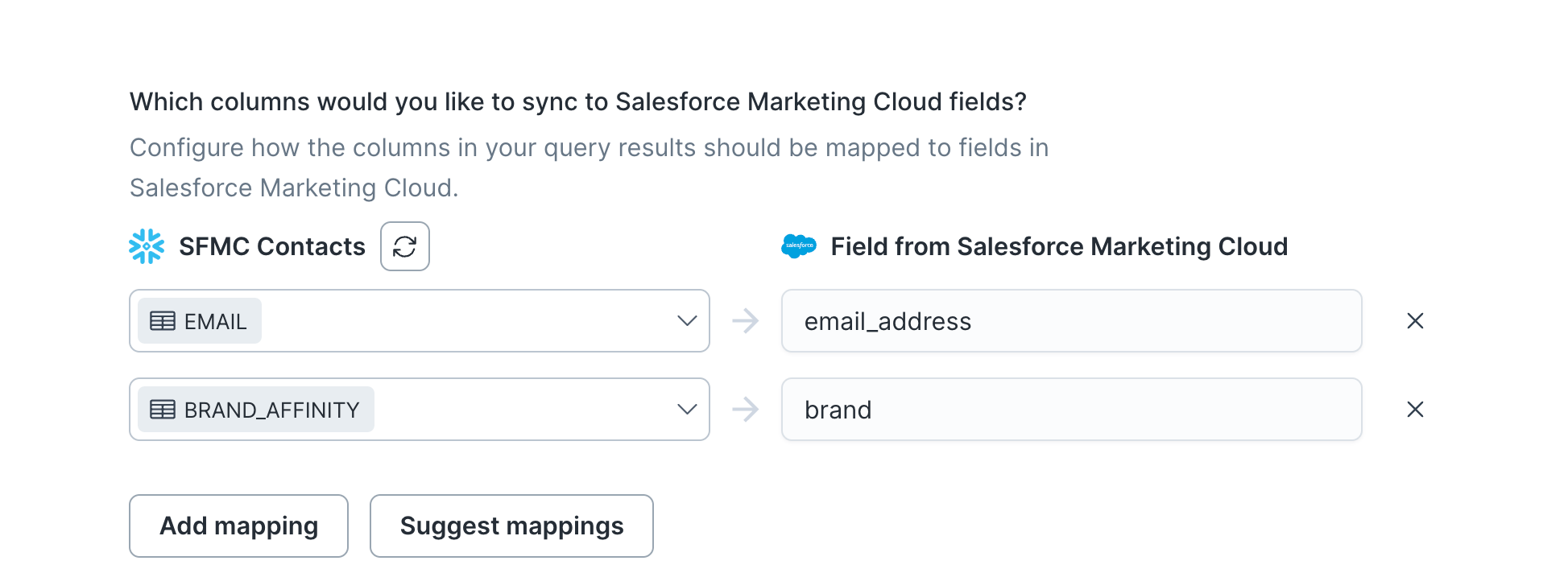
You can use field mapping to map any other columns in your query results to the Data Extension containing your journey’s data.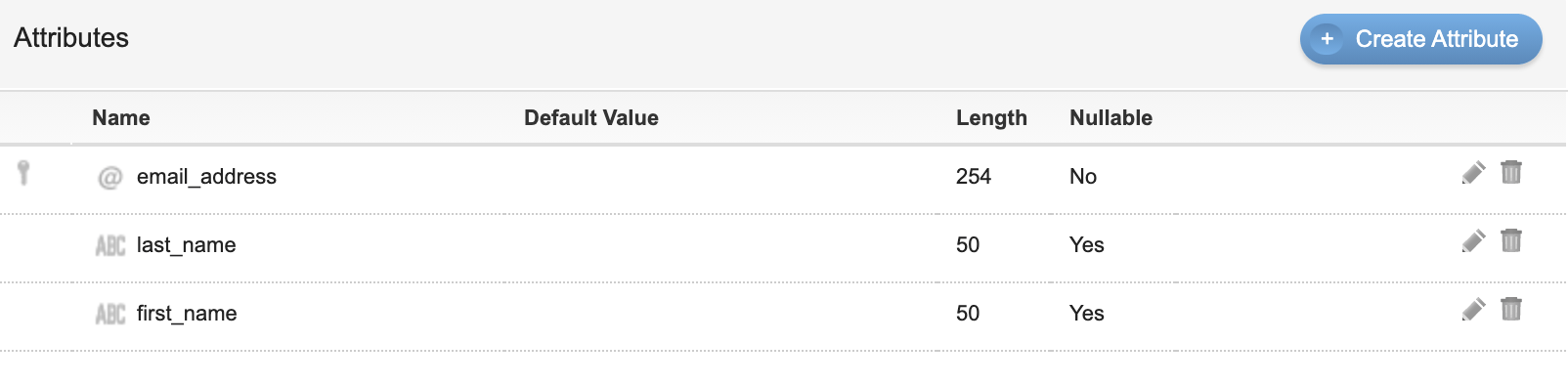
Triggered send
Hightouch can trigger emails to individual subscribers via the Marketing Cloud API. This is useful for sending personalized messages to specific users based on their behavior or attributes. Select an existing Triggered Send definition, then map the model columns to the Triggered Send’s attributes, including email addresses and custom attributes. Hightouch matches rows from your model to Marketing Cloud contacts by Subscriber Key.Tips and troubleshooting
To see the exact API requests and responses from each sync run, use the live debugger. To get notified by Slack, PagerDuty, SMS, or email when a sync fails, set up sync alerts. If you run into an issue this page doesn’t cover, .For Hightouch platform error codes related to SFMC, see Error codes:
SFMC.
Validate your setup
After you configure your sync, run a test to confirm data flows correctly:- Start with a small test audience or a single record.
- Trigger a manual sync from the Syncs overview page.
- After the sync completes, verify the data in SFMC:
- For Data Extension syncs, open the target Data Extension in Audience Builder → Contact Builder → Data Extensions and confirm your records appear with the expected field values.
- For Contact syncs, search for the test contact in Contact Builder and verify attributes.
- For Triggered Send syncs, check the Tracking tab of the Triggered Send to confirm delivery.
- If the sync shows errors, check the sync run log in Hightouch for specific API error messages.
Choosing a sync method for Data Extensions
When syncing Data Extensions, three sync methods are available. Choose based on your volume and debugging needs:- Upsert via SOAP API — Best for smaller datasets or when you need detailed per-row error messages. The SOAP API is limited to approximately 2,000 requests per minute, so large syncs can be slow.
- Upsert via file uploads — Best for large datasets (over 1 million records). Hightouch uploads records via SFTP, which is significantly faster than SOAP. Error messages are less granular.
- Mirror — Best when you need to fully replace the Data Extension contents each sync, such as heavy deletion use cases. Mirror always uses file uploads.
DateTime timezone conversions
SFMC converts all incoming datetime values to UTC and displays them in the account’s configured timezone. This can cause apparent date shifts — for example, a timestamp of2026-06-02 22:00:00 America/Los_Angeles is stored as 2026-06-03 05:00:00 UTC, which may display as June 3 instead of June 2.
To avoid this:
- Add a transformed column in your data source that includes explicit timezone information (for example, an ISO 8601 string with a timezone offset like
2026-06-02T22:00:00-07:00). - Alternatively, use a timezone conversion function in your model query. For example, in Snowflake:
CONVERT_TIMEZONE('America/Los_Angeles', 'UTC', your_timestamp_column).
Common errors
Failed to create Data Extension
Instance validation error: ‘DATA TYPE VALUE’ is not a valid value for DataExtensionFieldType
The event data contains duplicate values for an existing primary key
The Custom Object field selected must have a type of Number or Long Number
Adding a new Data Extension definition is not allowed when doing an update-only operation
FileNotFound: Soap Error (import instance could not be validated)
- Verify the FTP credentials in your destination configuration are correct. Test them by connecting to the SFTP outside of Hightouch.
- Ensure the FTP user has access to the correct file location. If you have multiple business units, create the FTP user in the parent business unit or the same business unit as the target Data Extension.
- Check the FTP user’s home directory in SFMC. If it’s set to something other than
/, files may be written to a nested directory instead of theImport/directory. Set the home directory to/(the default). - If you’re using a blob-storage file location (AWS S3 or GCS), ensure the configured role has read permissions.