

Overview
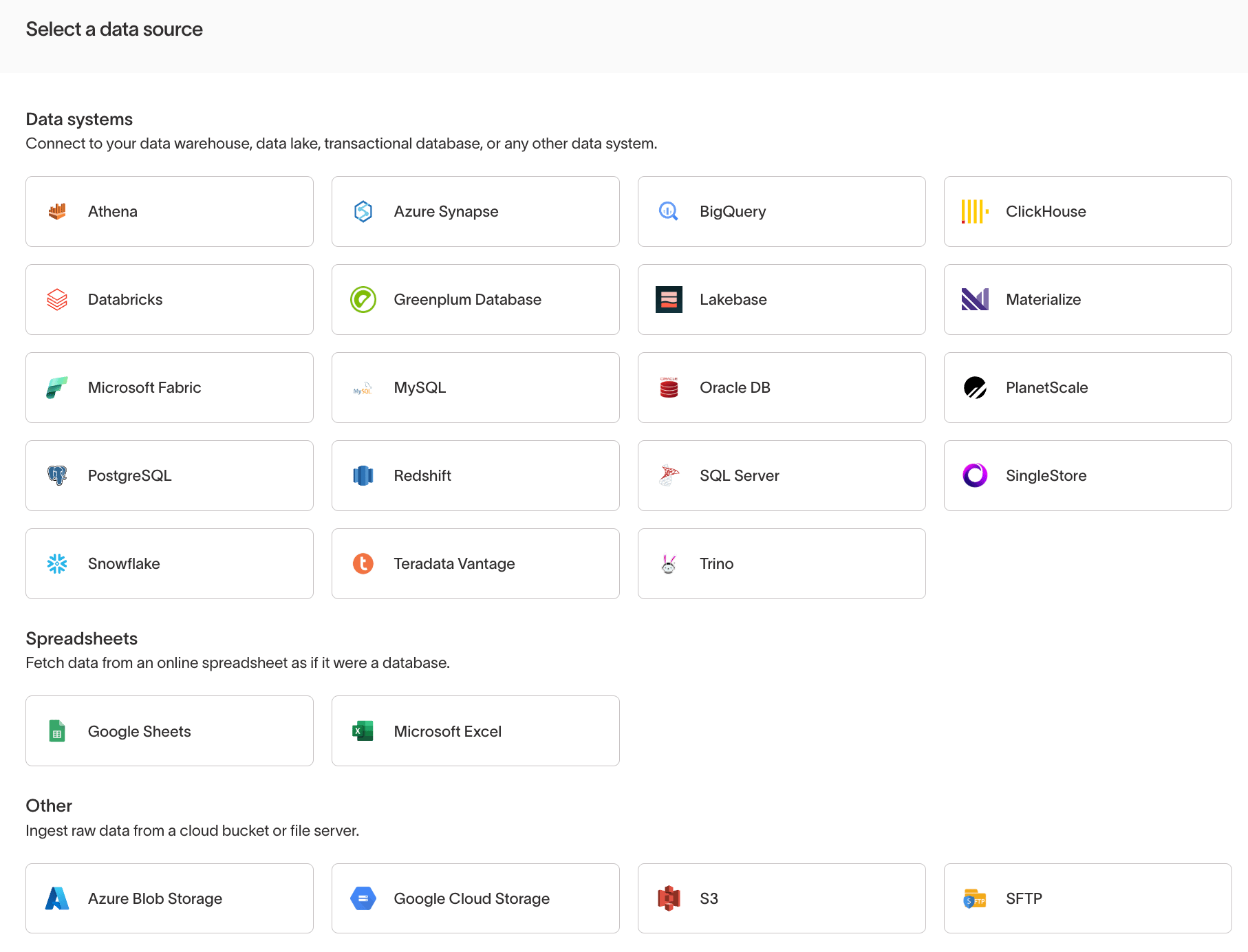
Add a source
To create a new source:- Go to Integrations, then Sources.
- Click Add source.
- Connection method (e.g. username/password, OAuth, API key)
- Host and port (for databases)
- Authentication details
- Permissions required by Hightouch to query data
The exact configuration steps depend on the source type. See catalog and refer
to integration-specific documentation for instructions.
Security and connectivity
Hightouch connects to sources securely:- All data in transit is encrypted with TLS.
- For private networks or VPCs, you can connect via SSH tunnel, AWS PrivateLink, Azure Private Link, or Google Cloud Private Service Connect.
- By default, no customer data is copied into Hightouch storage—queries are run directly against your source.
Permissions
Access to individual sources is controlled through custom roles. Admins can configure source-specific grants in the Source tab of the custom role builder, including per-source read, write, and manage permissions. See Roles for details.How sources fit into data activation
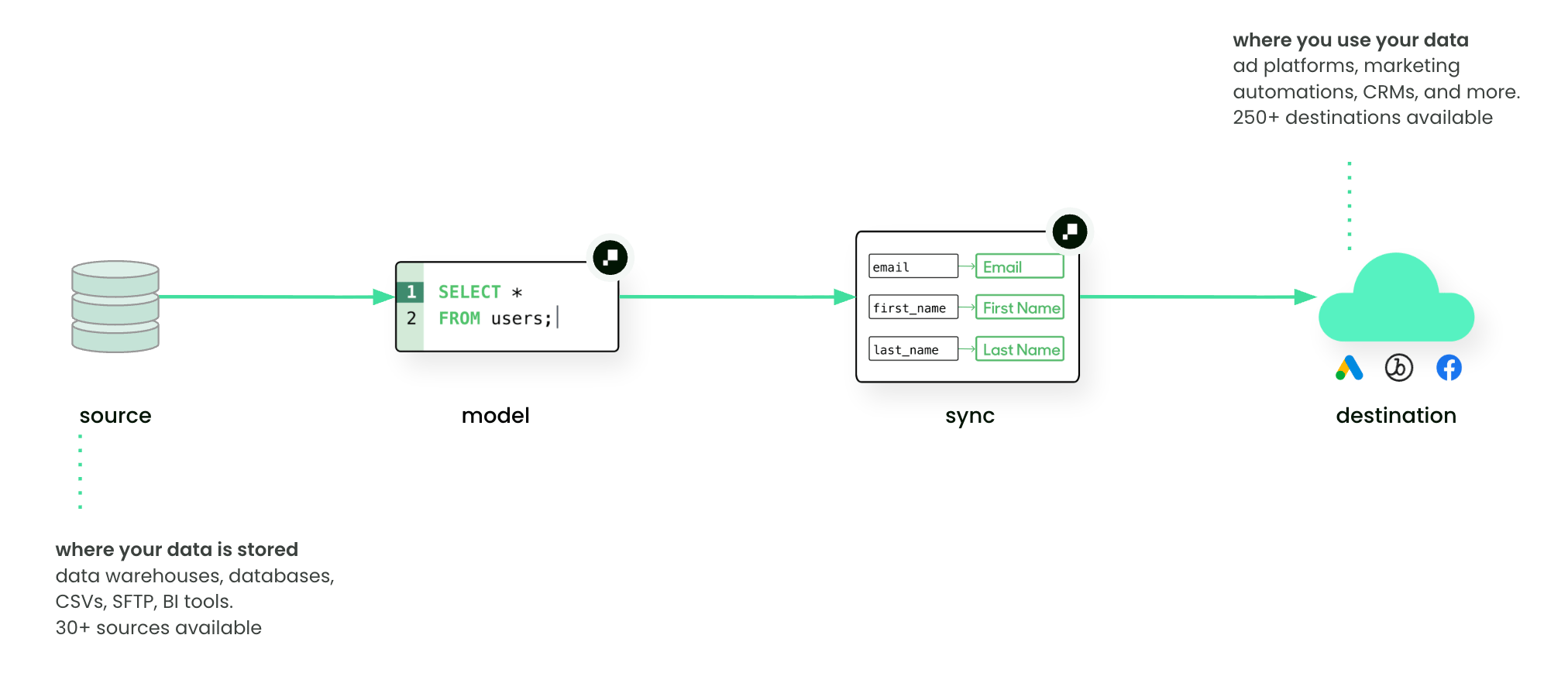
- Data teams: configure sources and expose trusted tables or views.
- Marketers: work with models and schema that are built on top of these sources, without needing to understand the connection details.
- Source: a Snowflake warehouse containing ecommerce data
- Model: SQL query for “users with >3 purchases in last 90 days”
- Sync: send this model to Meta Ads for retargeting
Next steps
- Add your first source
- Learn how to define Models on top of sources
- Configure Syncs to deliver data into destinations