

Overview
Hightouch integrates directly with Apache Kafka to support high-throughput, distributed, or asynchronous workloads, letting you build a custom connector to your internal systems. This destination was designed to be as flexible as possible. Some of its capabilities include:- connecting to multiple brokers
- authenticating with Simple Authentication and Security Layer (SASL)
- using your own certificate authority
- publishing different topics for each message trigger
- defining custom ordering and partition keys
Connect to Apache Kafka
Connect to your Kafka server
For Hightouch to connect to your Kafka server, you need to enter:- a client ID
- your broker information
- authentication method used in your Kafka server configuration
Client ID
The Client ID is a logical identifier of a client application—in this case it’s the Hightouch Apache Kafka destination. It’s used to distinguish each running application of your Kafka server. You can choose to name this anything you want that fits your use case.Brokers
For Hightouch to sync data to the right Kafka Brokers, you need to provide the host and port number in the format{host}:{port}. If you want to configure the destination to connect to multiple brokers, you can input the details separated by a comma. For example, you could enter {host1}:{port1},{host2}:{port2}.
Authentication
Hightouch can connect to your Kafka server either with SASL or directly without authentication. For security purposes, it’s best to configure your Kafka server to require SASL authentication when syncing production data, and to only omit authentication requirements for testing purposes. When configuring your SASL mechanism in Hightouch, you have four options:- PLAIN
- SCRAM SHA256
- SCRAM SHA512
- AWS IAM
PLAIN/SCRAM
For Username and Password, enter your username and password configured in your Kafka server. If you are using a managed Kafka service, your details can usually be found in your environment’s settings or as an API key and secret.AWS IAM
If you want to authenticate via AWS IAM, we assume your Kafka server is configured to use AWS IAM as an authentication method, that is STACK’s Kafka AWS IAM LoginModule or a compatible alternative is installed on all target brokers.- Authorization Identity must be the
aws:useridof the AWS IAM identity. Typically, you can retrieve this value using theaws iam get-useroraws iam get-rolecommands of the AWS CLI toolkit. Theaws:useridis usually listed as theUserIdorRoleIdproperty of the response. - You can find your Access Key ID, Secret Access Key, and Session Token in your AWS account. For more information on AWS IAM credentials and authentication, refer to the official AWS docs.
Syncing data
Once you’ve connected your Kafka server to Hightouch, you’ve completed setup for a Apache Kafka destination in your Hightouch workspace. The next step is to configure a sync that send messages whenever rows are added, changed, or removed in your model.Configure your events trigger
Hightouch monitors your data model for added, changed, and removed rows. In this step, you specify which of these events should trigger message publishing.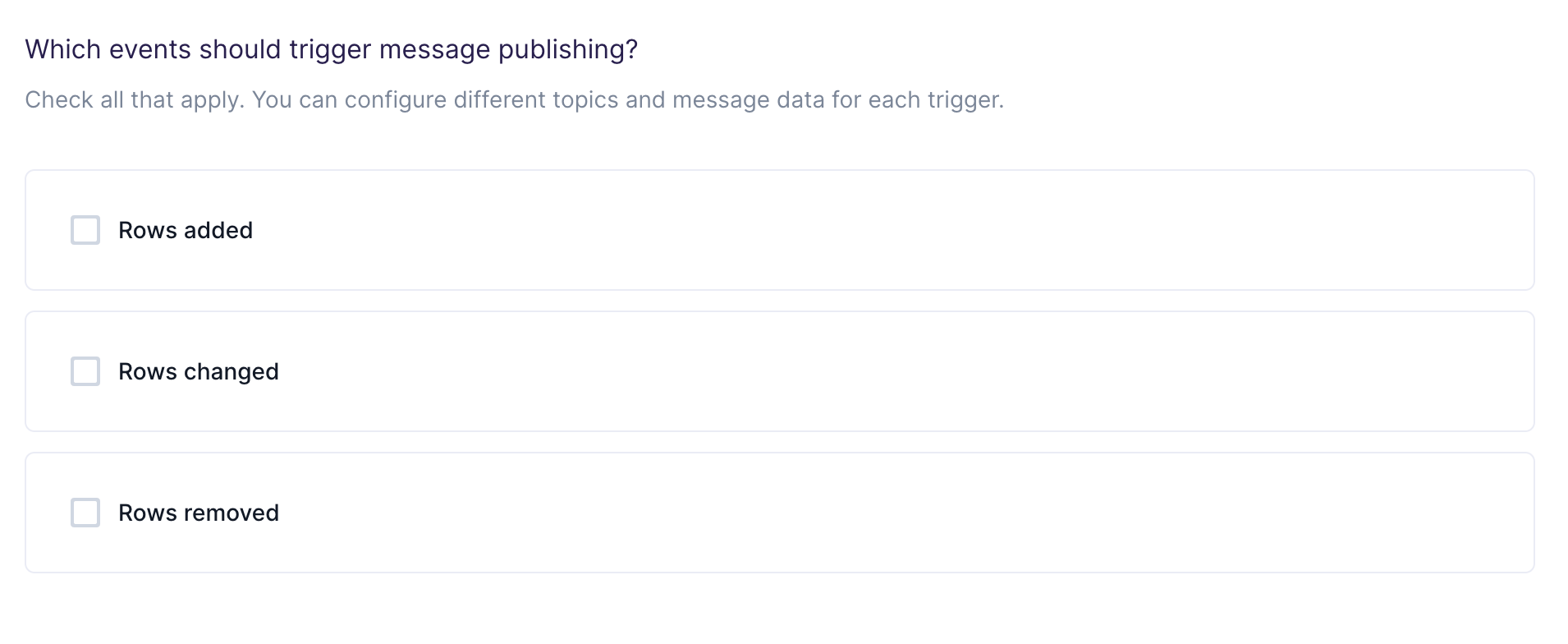
Choose your topic
In this step, you choose which topics to publish the messages to. Hightouch allows you to sync to existing topics that are already in your Kafka cluster. Suppose you want to sync to multiple existing topics but don’t want to create a new sync for every topic. As long as your model has a column associated to topic names in your Kafka cluster, Hightouch can sync to multiple Apache Kafka topics in just one sync. To enable this feature, toggle USE COLUMN, and select a column in your model containing the topic name rows.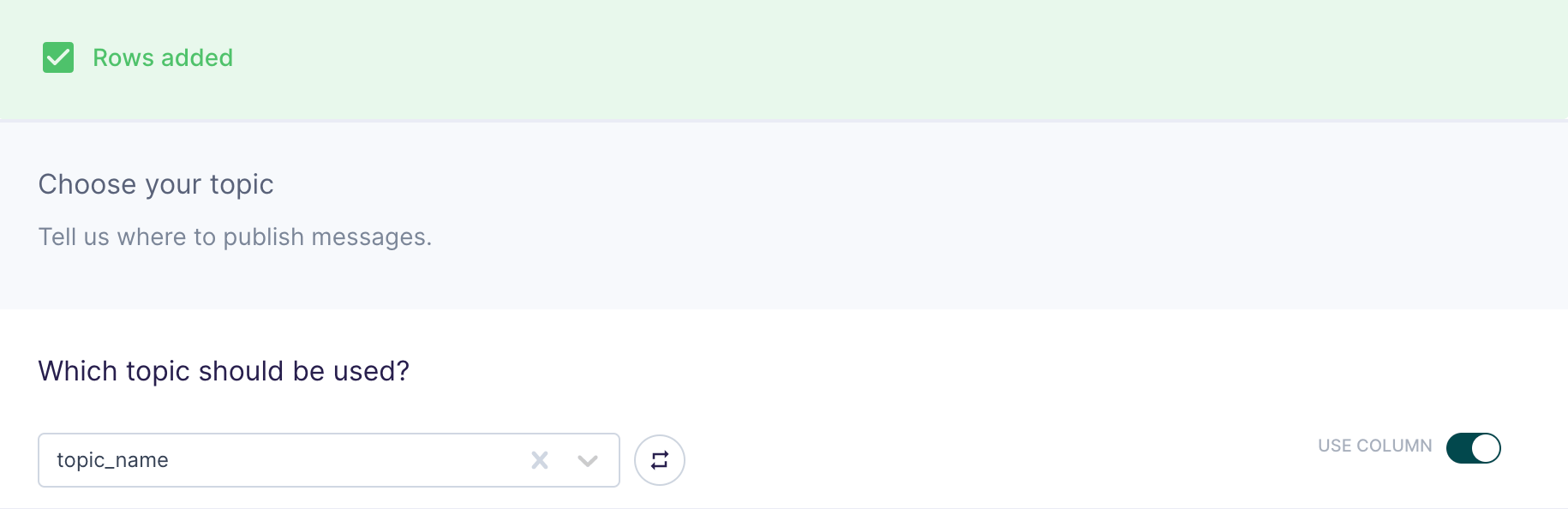
When syncing to multiple topics, if a topic name in the selected column of
your model doesn’t exist in the Kafka cluster, then the entire batch of
messages will fail to sync.
Customize your message
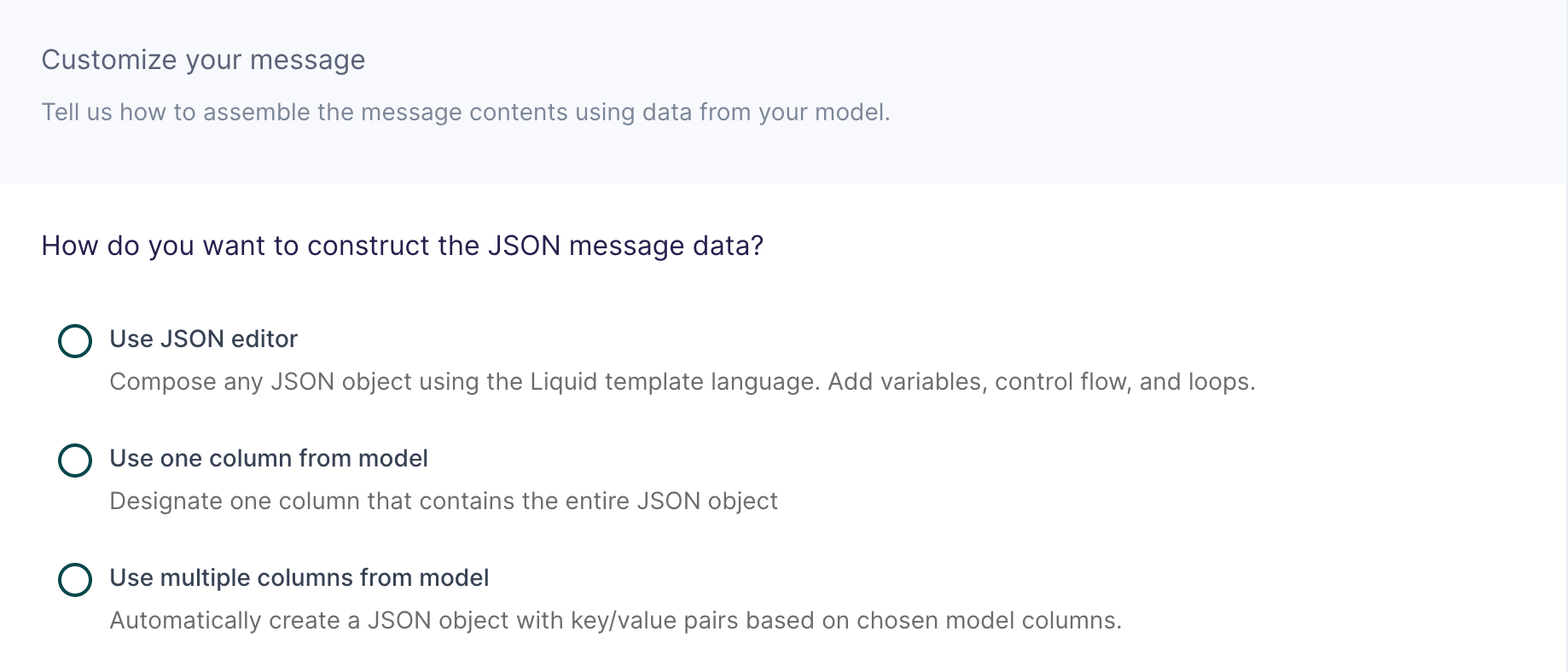
Use JSON editor
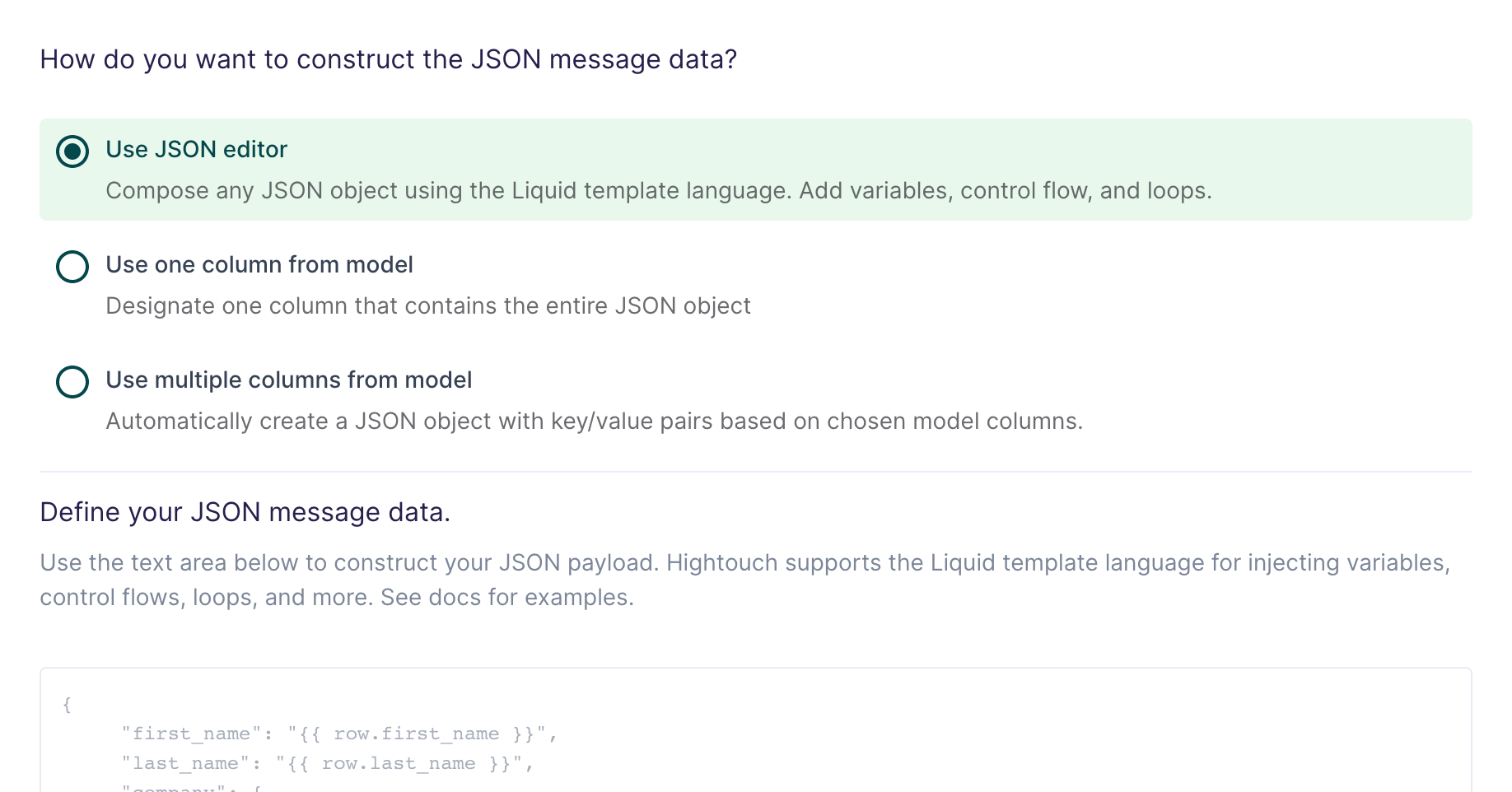
And you want your message data like this:
{{row.column_name}}. You can also use advanced Liquid features to incorporate control flow and loops into your dynamic message data.
When injecting strings into your JSON object, be sure to surround the Liquid
tag in double quotes.
Use one column from model
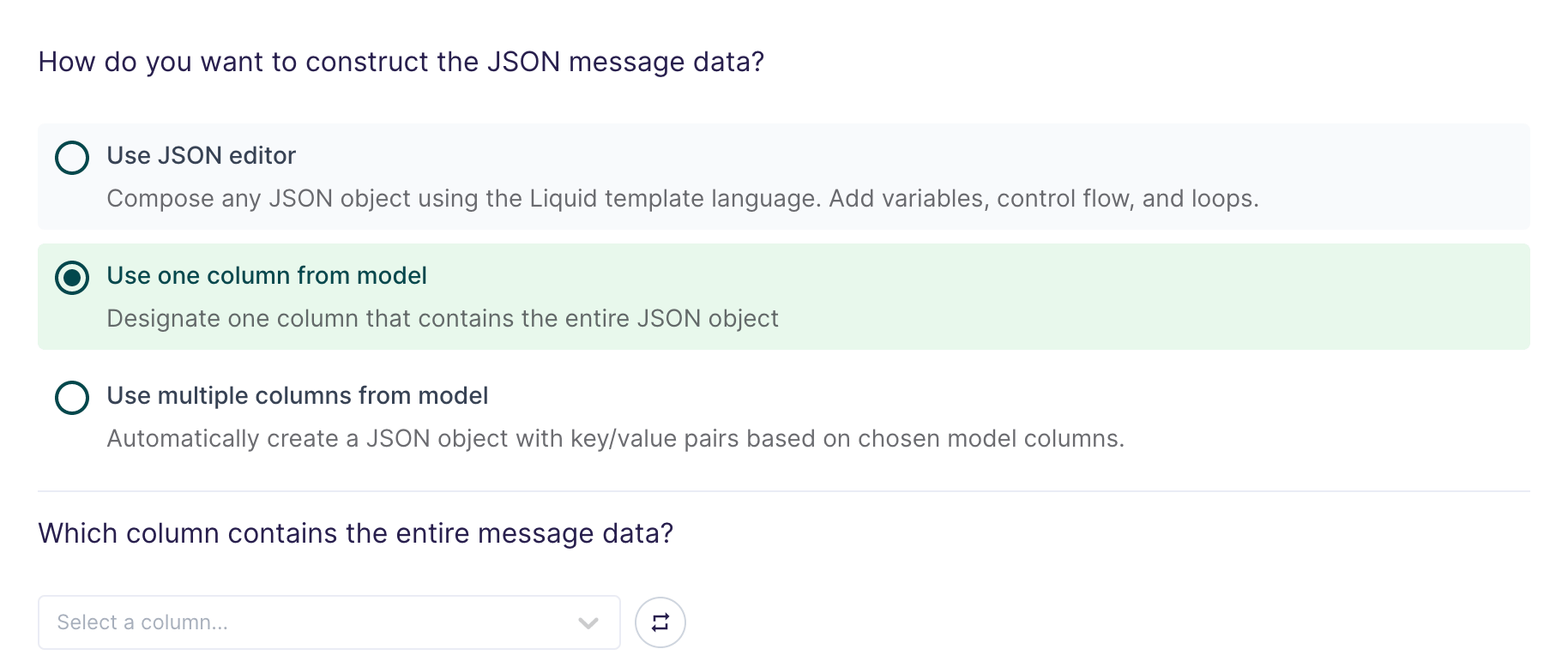
Use multiple columns from model
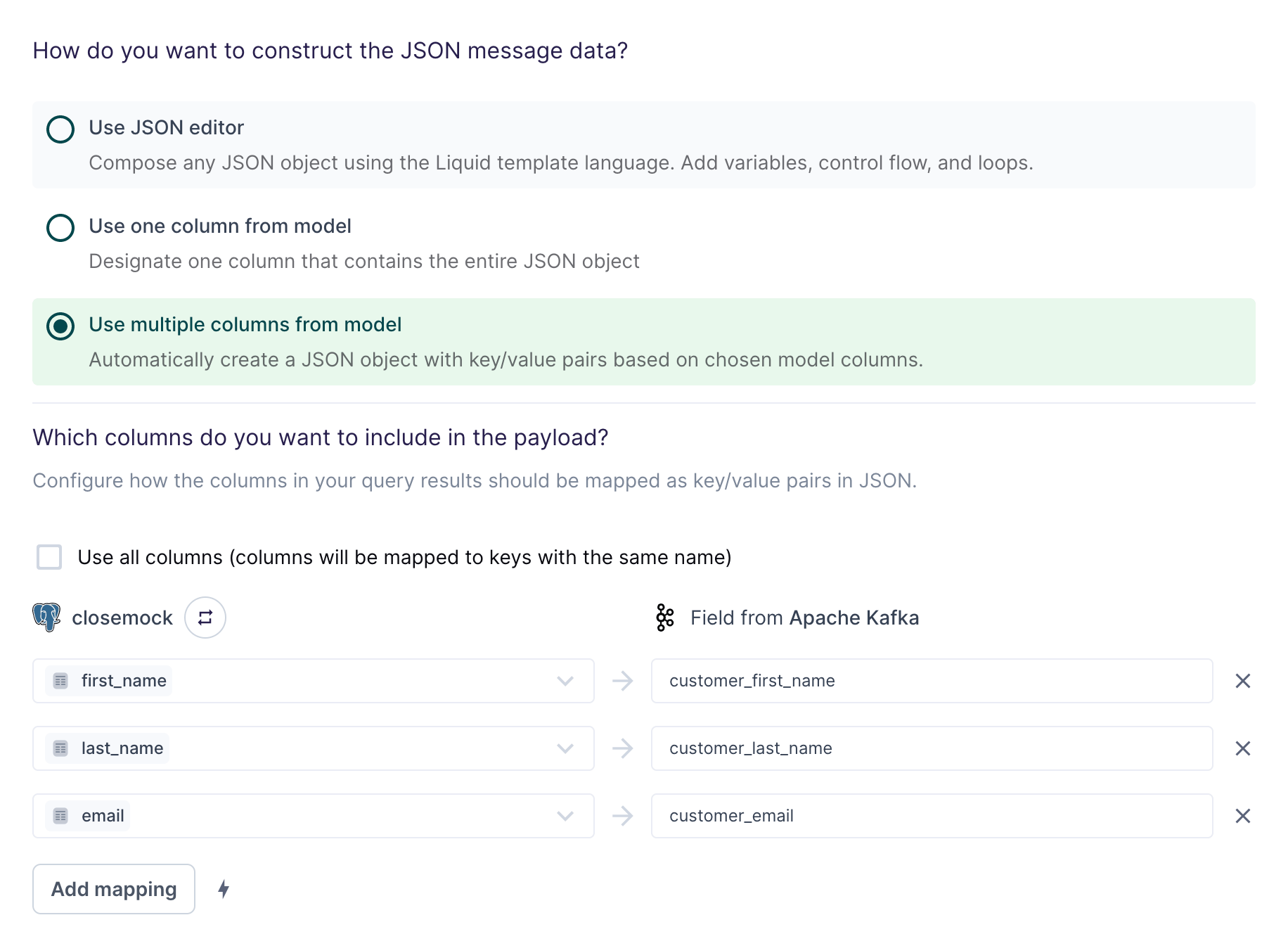
The field mapping in the preceding screenshot would generate the following message data for the first row:
Configure optional message properties
Along with your row data in JSON format, you can optionally include ordering keys to configure the order your Kafka cluster receives message and metadata fields as headers.partition
A number field that determines which partition to send the message to. This field takes precedence over the key field. That is if you provided partition and key, the message will be sent to the partition stated in the partition field and not the key field. Hightouch automatically tries to cast the value to a number. If we can’t cast the value to a number then it is sent as null.
key
If no partition column is selected but a key of string type is selected, then Kafka chooses a partition to send the message to based on a murmur2 hash of the key. For example, if you use an orderId as the key, you can ensure that all messages regarding that order will be processed in order.
If no partition or key is included, then the message will be sent to a partition in a round-robin fashion.
headers
This is an object containing key/value pairs of custom mapping fields.
Configure initial sync behavior
In this step, you tell Hightouch how to handle rows present in your model results during the first sync run. Certain workflows may require performing a backfill of all rows during the initial sync. For other use cases, you might only want to send messages in response to future data changes.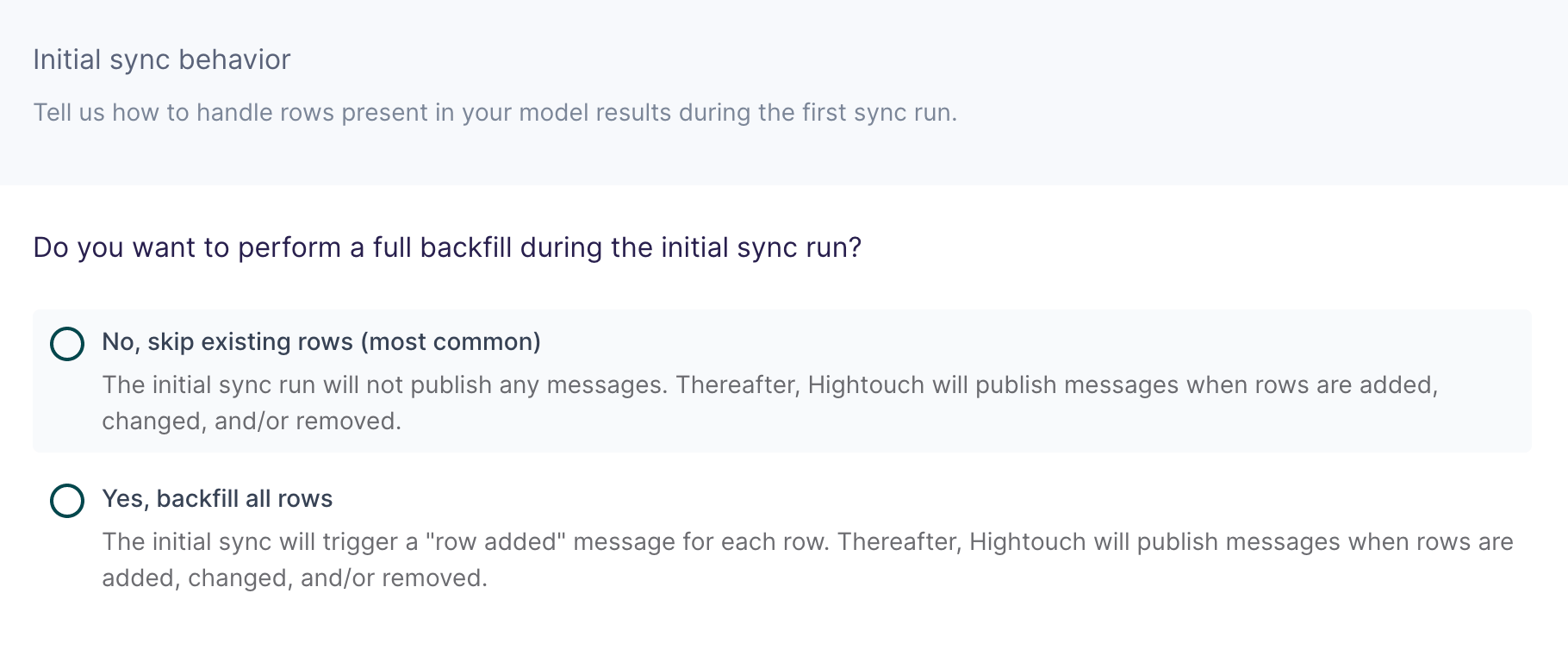
Validate your setup
After you configure your sync, run a test to confirm data flows correctly:- Start with a small test audience or a single record.
- Trigger a manual sync from the Syncs overview page.
- After the sync completes, verify the messages were received by your Kafka consumer. You can use a CLI consumer like
kafka-console-consumeror your existing consumer application to confirm messages appear on the expected topic with the correct payload structure. - If the sync shows errors, check the sync run log in Hightouch for specific error messages.