Supported syncing
For more information about sync modes, refer to the sync modes docs.
The order of rows and columns in synced spreadsheets may differ from how they appear in your model. This is expected behavior and applies to all sync modes. Learn more about row and column ordering.
Connect to Google Sheets
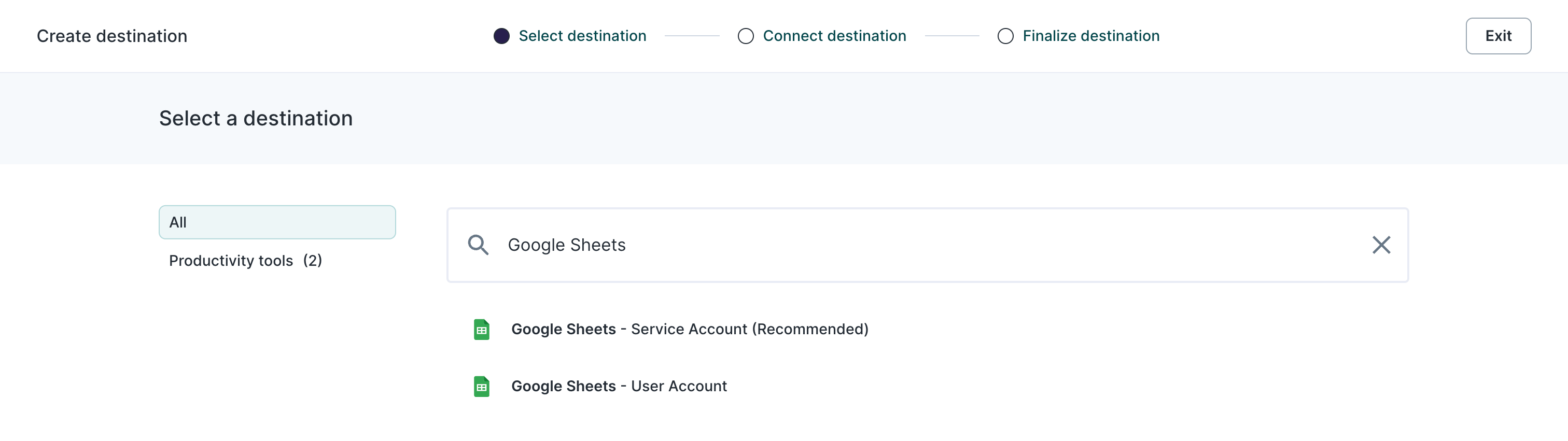
Go to the Destinations overview page and click the Add destination button. Hightouch provides two Google Sheets options:- Google Sheets - User Account: Use this option if you want to authenticate access to Hightouch with a particular user’s login. This gives Hightouch access to any Google Sheet the user has Editor access to. This option uses OAuth for authentication.
- Google Sheets - Service account (Recommended): This option provides fine-grained control over access to your data.
- You can grant service accounts access to specific sheets. This means that only the necessary permissions are granted to the service account, instead of allowing access to all files belonging to a user. This reduces the risk of unauthorized access to sensitive data or functionality.
- Service accounts are designed to represent applications or services, not individuals. You don’t have to worry about disruptions to your syncs if the user who authenticated has their permissions changed or if they leave the organization.
Authenticate with a user account
Select the Google Sheets - User Account destination option and click Continue. Then select to Log in to Google Sheets, select your Google account, and click Allow to the requested permissions.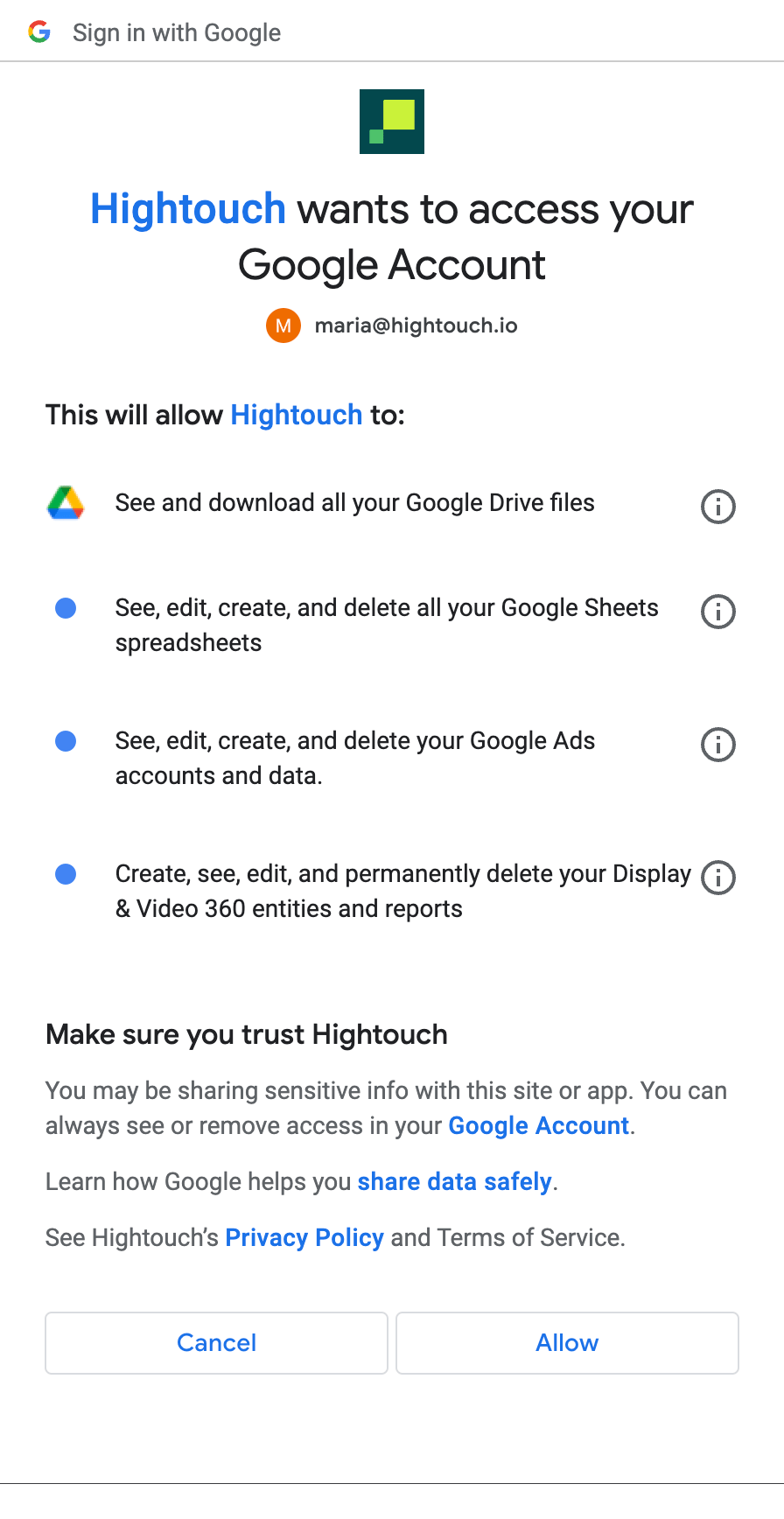
Hightouch uses the same OAuth mechanism for all Google destinations. If you’ve
set up other Google destinations, such as Google Ads, Campaign Manager, or
Display & Video 360, they appear here.
Authenticate with a service account
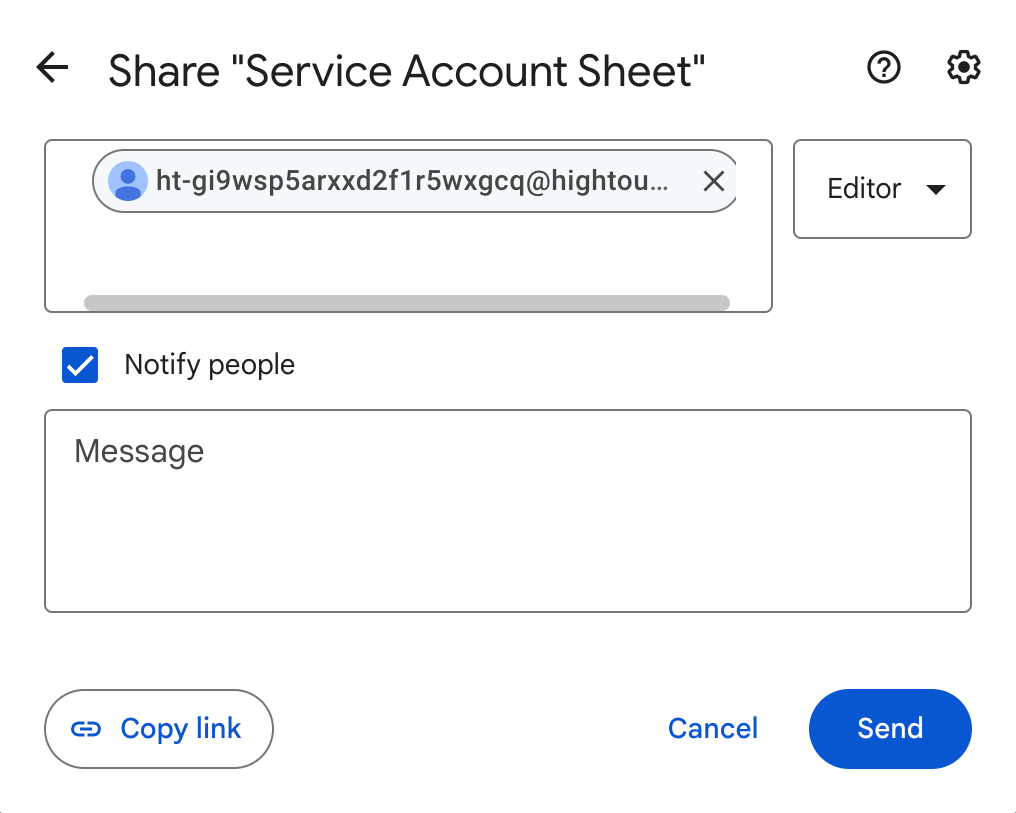
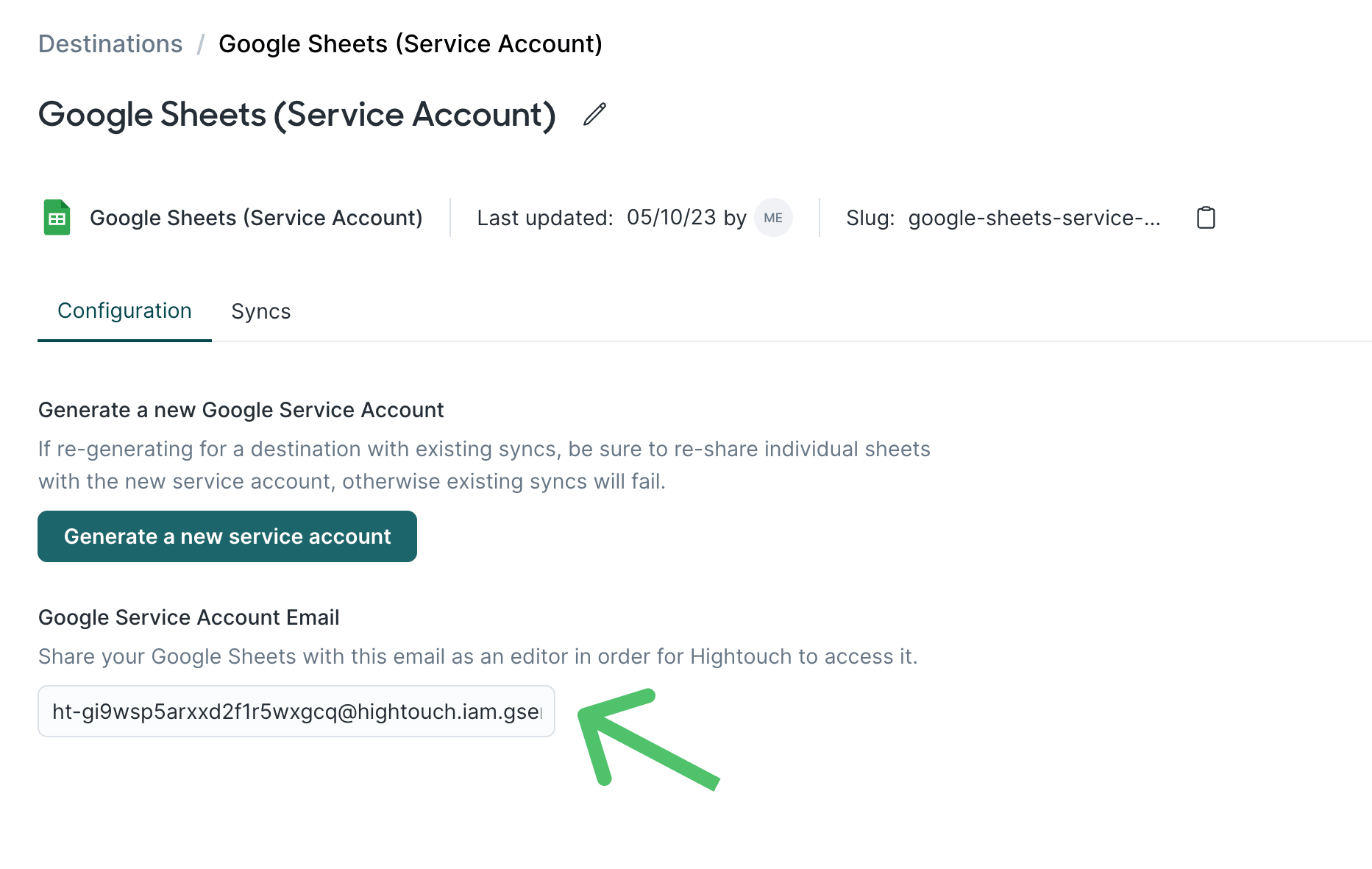
Select the Google Sheets (Service Account) destination option and click Continue. Then, click Generate a service account. Hightouch then generates a Google Service Account Email.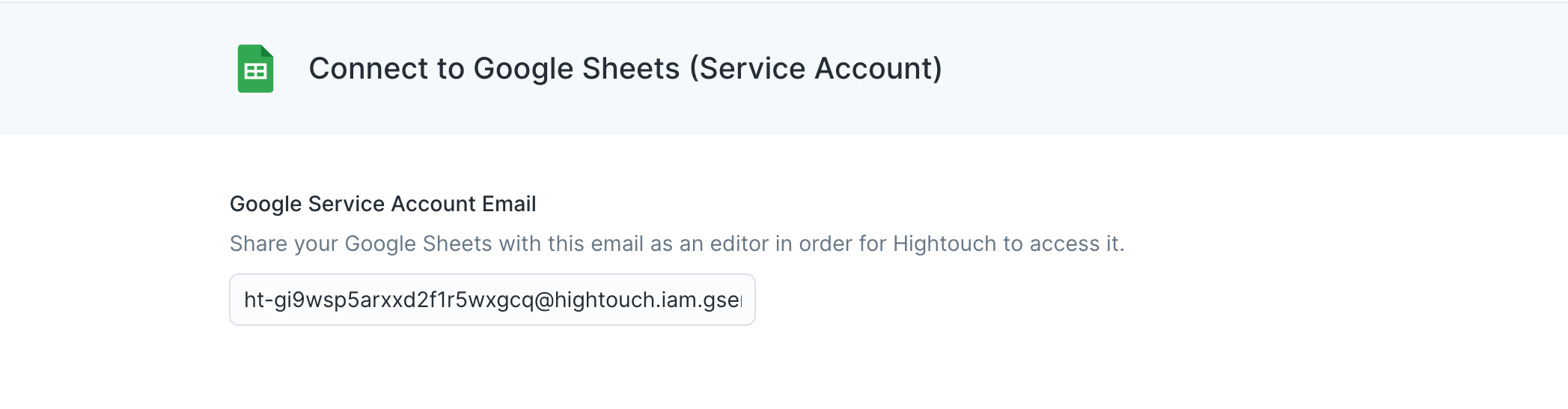
Sync configuration
Once you’ve set up your Google Sheets destination and have a model to pull data from, you can set up your sync configuration to begin syncing data. Go to the Syncs overview page and click the Add sync button to begin. Then, select the relevant model and the Google Sheets destination you want to sync to. The Google Sheets destination allows you to Mirror your data to a spreadsheet or create a new sheet on every sync with Snapshot mode. You can also add data to an existing sheet with Append mode. In this mode, rows added to your model are added to the sheet. Rows changed and removed in your model are ignored. This may result in faster syncs.Sheet selection
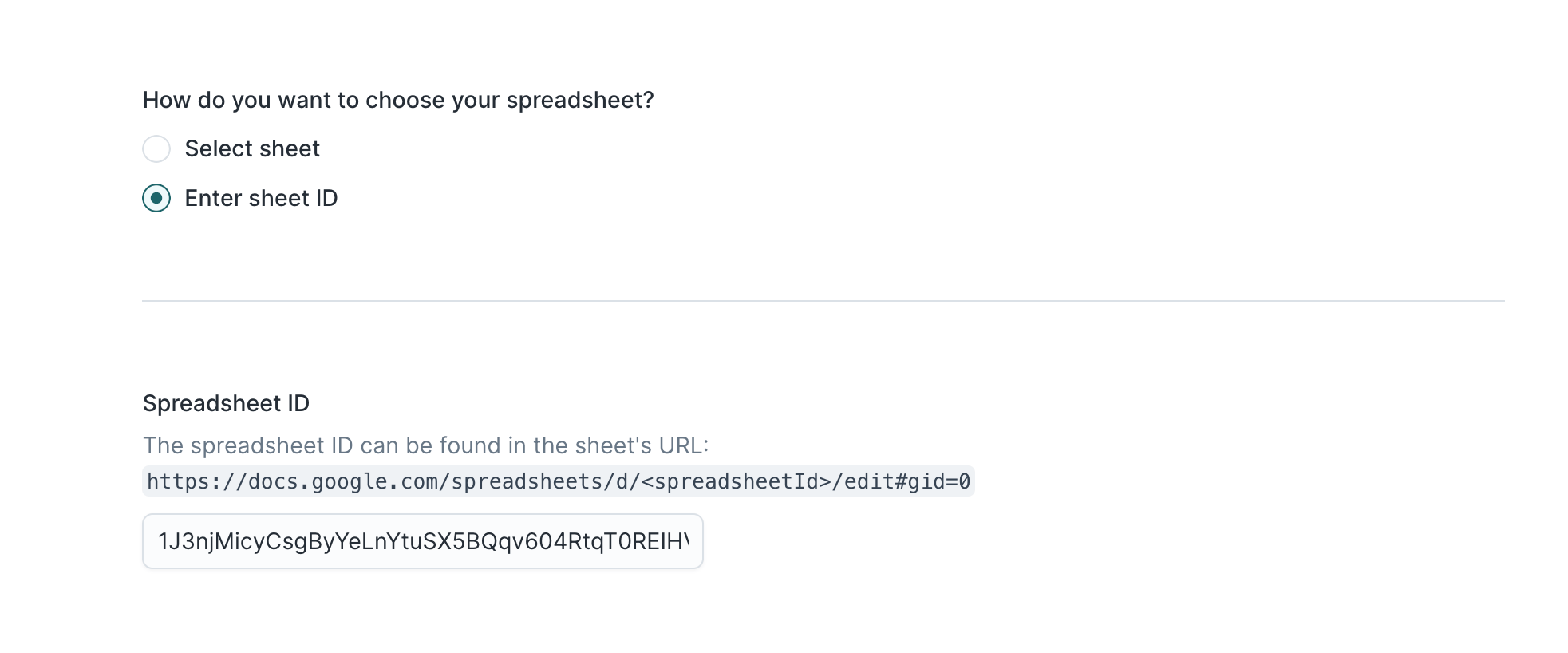
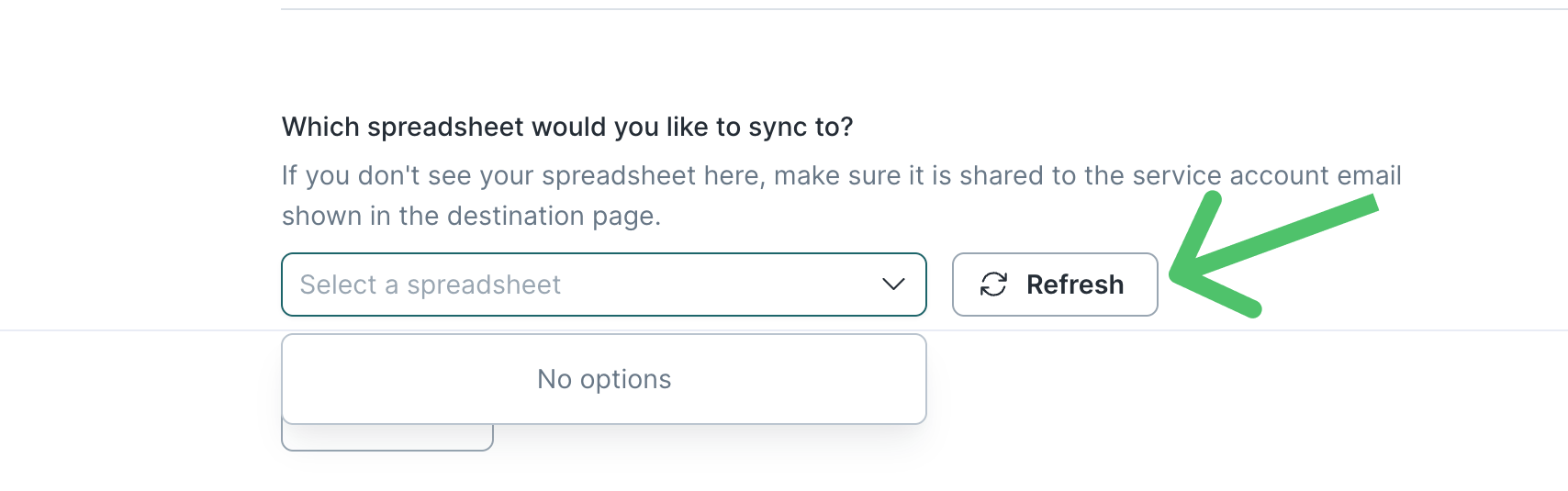
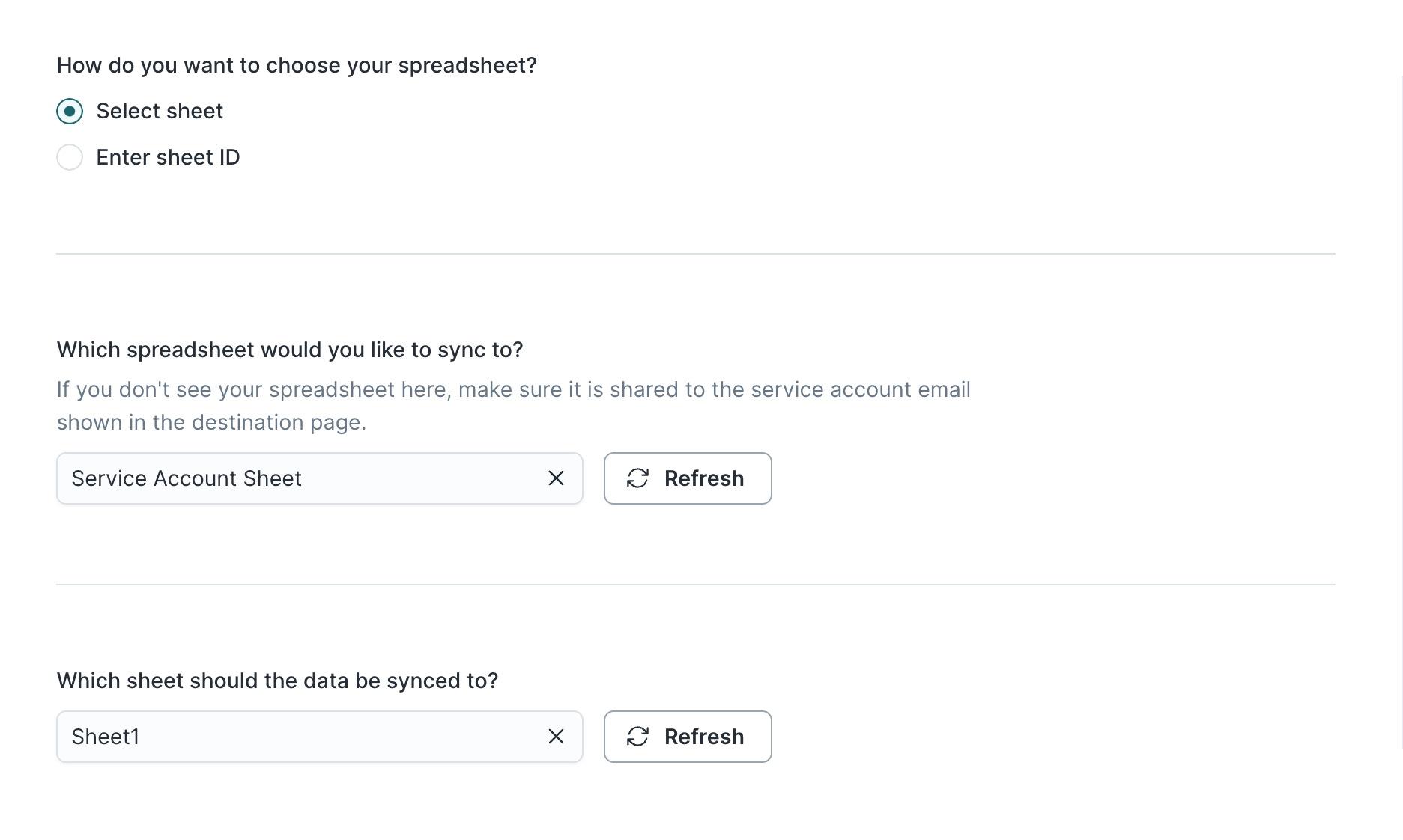
You can choose to select the Google Sheets file you want to update either by its name using the sheets picker (recommended) or inputting the Google Sheet’s ID. You can find your spreadsheet’s ID in its URL:https://docs.google.com/spreadsheets/d/<spreadsheetId>/edit#gid=0
Data format
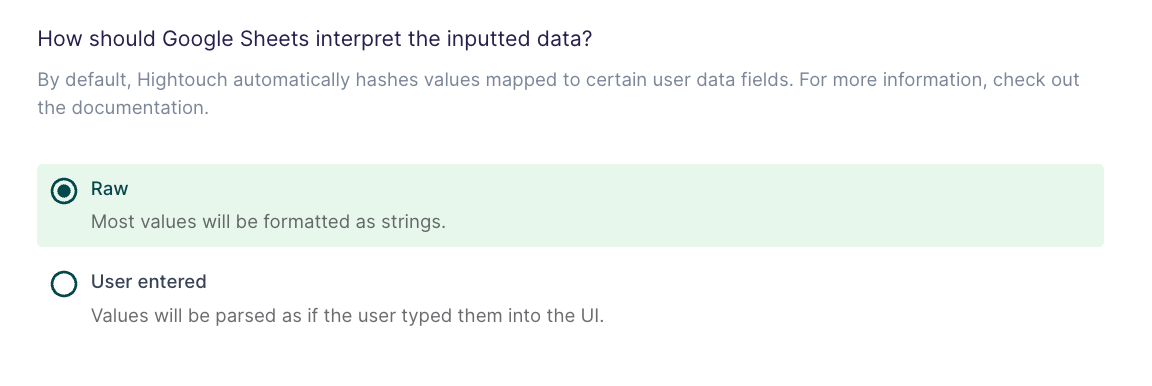
Google Sheets accepts inputted data in two ways:- Raw Won’t parse the values the user has entered and stores values as-is. Keep in mind that Hightouch does some data casting and may send numbers and dates as strings. This process can add a leading apostrophe to values in Google Sheets cells.
- User entered Parses values as if the user typed them into the UI. Numbers stay as numbers, but strings may convert to numbers, dates, etc. following the same rules that apply when entering text into a cell via the Google Sheets UI.
Enable new sheet creation
Google Sheets has a limit of 10 million cells in a sheet. If your sync contains more data than this, you can enable Hightouch to create new sheets with the additional data. For each additional 10 million cells, Hightouch creates a new sheet with the original sheet’s name suffixed with an underscore and a number. For example, “sheetname_1” for the first additional 10 million cells, “sheetname_2” for the second 10 million cells, etc. Ensure these names don’t conflict with existing sheets’ names to avoid them being overwritten. To use this configuration option, ensure the user you authenticated with has access to the spreadsheet’s folder, not just the spreadsheet itself.Hightouch released enabling new sheet creation on June 22, 2023. If you set up
your Google Sheets destination before this date and want to use this option,
you need to reauthorize your connection.
Data range selection
Hightouch supports selecting a manual range in your Google Sheets to write data to. This allows you to preserve formulas, notes, or other data in your spreadsheets’ margins. To use a manual range enter a range into the Custom Cell Range input in the formatA1:Z1000.

Tips and troubleshooting
To see the exact API requests and responses from each sync run, use the live debugger. To get notified by Slack, PagerDuty, SMS, or email when a sync fails, set up sync alerts. If you run into an issue this page doesn’t cover, .For Hightouch platform error codes related to Google Sheets, see Error codes:
Google Sheets.
Rate limits
You may receive an error from Google if you exceed your quota for write requests during a sync:Quota exceeded for quota metric.
For more information, read the Google usage limit documentation.
To avoid this error:
- stagger or schedule your syncs to Google Sheets to run in sequence to avoid simultaneous write requests between syncs
- set up multiple Google Sheets destinations in your workspace so as to reduce the number of syncs that use the same destination
- set up Google Sheets (Service Account) destinations rather than authenticating with a user account
- reach out to Google to request a quota increase
Find sheets originating from an Excel file upload
You may have trouble selecting that Google Sheet that was originally uploaded to Google as an Excel file. If you are the owner of the file, but can’t find the spreadsheet in the sheet selection dropdown, confirm that it’s not an.XLS or .XLSX file.
You can see the file type of a file next to its name in the Google Sheets UI.
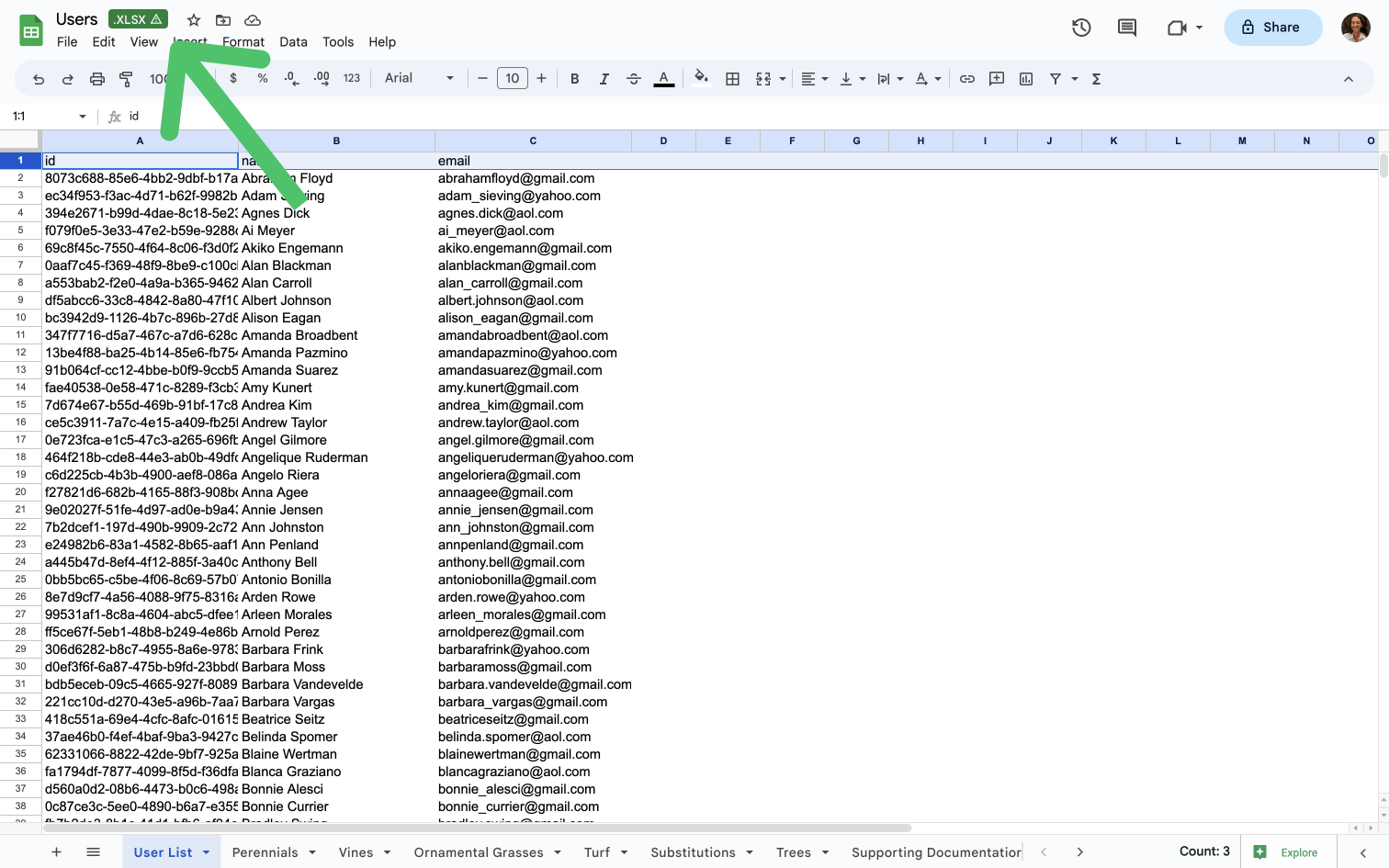
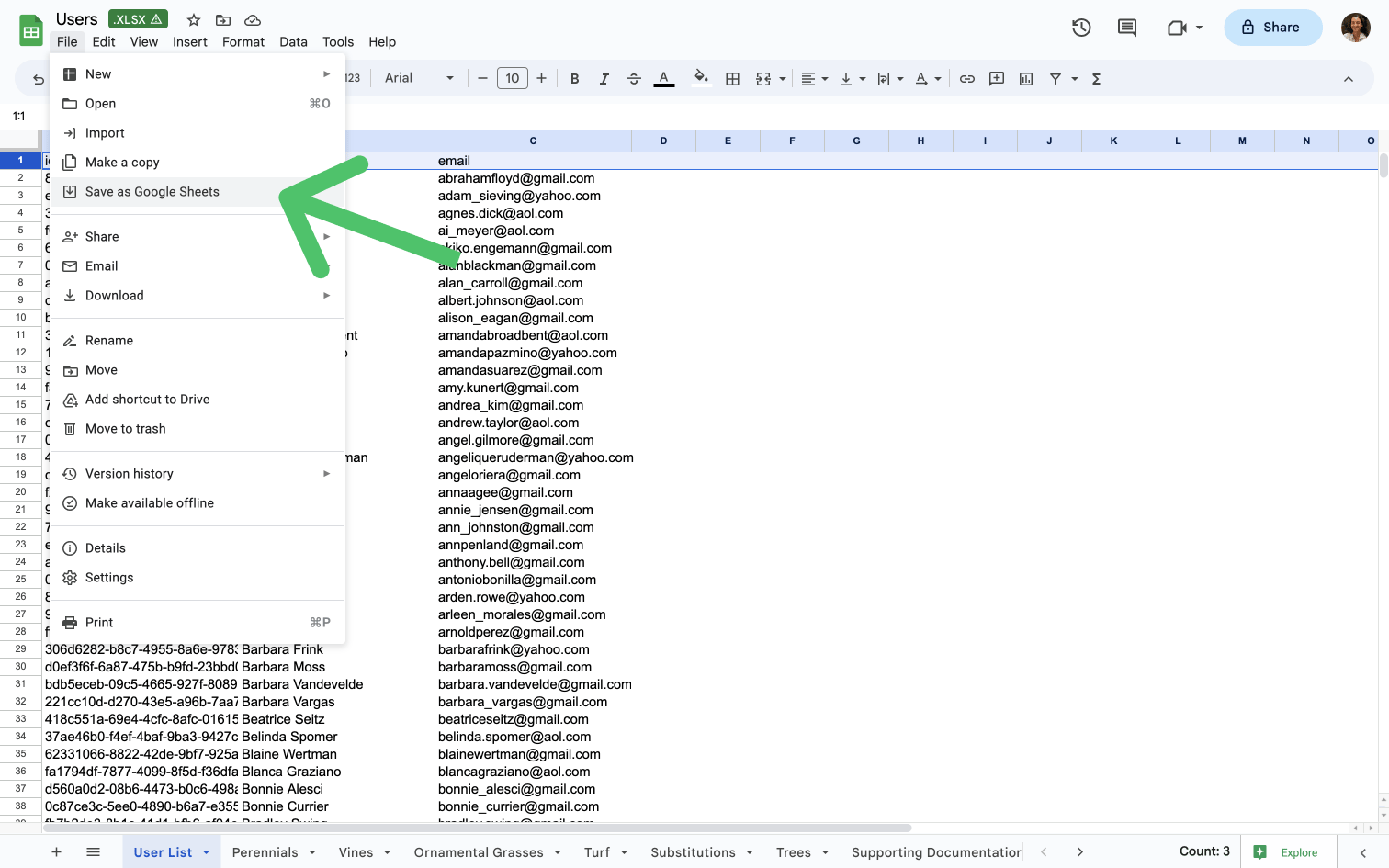
.XLS or .XLSX files. To convert a file to a Google Sheets file, go to File → Save as Google Sheets.
Resolve “This app is blocked” errors
If you see a “This app is blocked” error when trying to authorize Hightouch with your Google account, your Google Workspace admin may need to re-approve Hightouch’s access. This can happen after Google API verification policy changes. To resolve the error:- Go to your Google Account → Data & Privacy → Third-party apps & services.
- Find Hightouch in the list and select See details.
- Select Remove access to revoke the existing authorization.
- Return to Hightouch and re-authorize the Google Sheets destination.
Validate your setup
After your first sync completes, open the target spreadsheet in Google Sheets and confirm:- The expected columns appear in the correct order.
- Row counts roughly match the number of records in your model.
- If using Mirror mode, verify that previous sheet contents were replaced as expected.
- If using Snapshot mode, confirm a new sheet was created with the correct data.
Common errors
Action would increase the number of cells in the workbook above the limit of 10,000,000 cells
Cannot read properties of null (reading ‘properties’)
Internal error encountered
IMPORTRANGE.
Invalid values: list_value