

Supported syncing
For more information about sync modes, refer to the sync modes docs.
Connect to Dynamic Yield
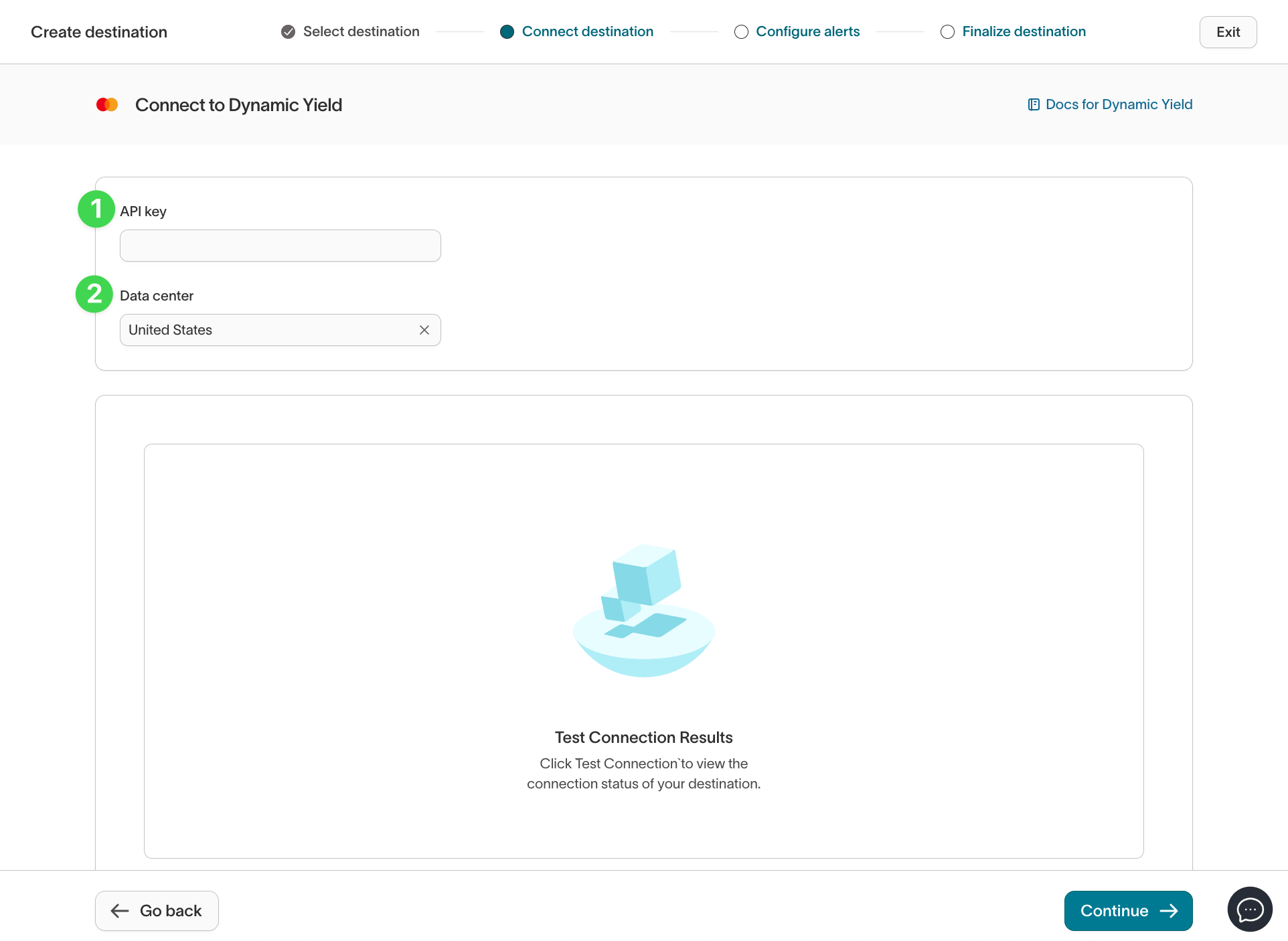
Go to the Destinations overview page and click the Add destination button. Select Dynamic Yield and click Continue. You’ll need to provide a Dynamic Yield API key.Create an API key in Dynamic Yield
- In your Dynamic Yield account, navigate to Settings › API Keys and click New Key.

- Fill out the form:
- Name: Enter a descriptive name, such as
Hightouch Sync Key. - Notes: (Optional) Add details for your team.
- Source: Select
Server-side(required for Hightouch).
- Name: Enter a descriptive name, such as
- Under ACL (Access Control List), check all the following boxes:
- Experience API – Grants Hightouch the ability to update the product catalog and other assets Dynamic Yield uses to run campaigns. This is what lets marketers surface the right products or offers in recommendation modules, banners, and emails.
- User Data Profile – Allows Hightouch to sync customer attributes (like loyalty tier, geography, or purchase history). Marketers use this profile data to build audiences and target campaigns.
- User Data Events – Enables Hightouch to send customer activity signals (like product views, sign-ups, or cart actions) in real time. Marketers use these events for triggering in-session personalization and measuring engagement.
- Click Save and copy the generated API key.
Connect the API key in Hightouch
- In Hightouch, paste the API key in the Connect destination step.
- Select your data center (United States or Europe). See the Experience API Basics guide for details on region-specific endpoints.
Sync configuration
Hightouch supports syncing to the following Dynamic Yield objects:To sync to Product Feed or User Data Feed, your Dynamic Yield API key must
have all three ACL permissions enabled (
Experience API, User Data Profile, and User Data Events).Sync modes
Hightouch supports the following sync modes:- Upsert - pushes new products to Dynamic Yield Product feed or User Data API and updates fields that change in your warehouse.
Product Feed
Feed ID
You can find the feed’s ID by navigating to Assets > Data Feeds and looking for the ID column in the table of available feeds.
Record matching
Dynamic Yield uses productSKU as the product ID for matching records in the feed.

Field mapping
There are several required properties when syncing products to the feed. You can add additional fields in the custom mapping section.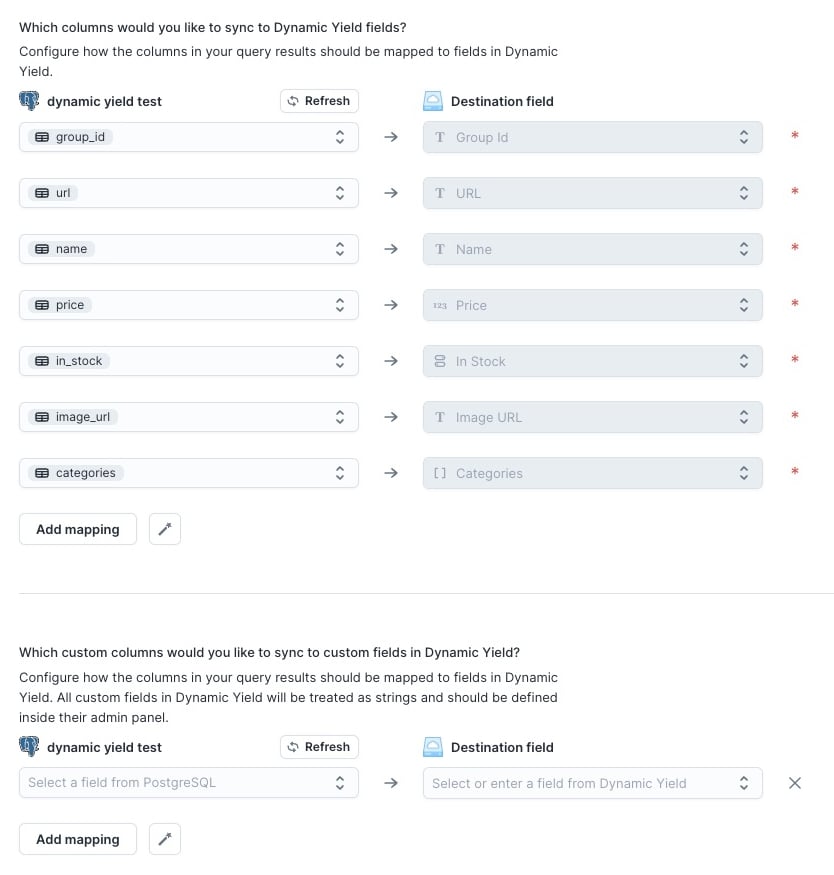
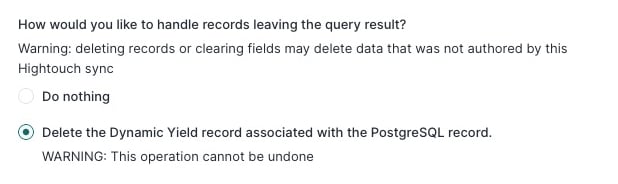
Deleting
You may also opt to remove products from your feed when they are removed from your source. You can do that by selectingDelete the Dynamic Yield record associated with source
User Data Feed
You can find the feed’s ID by navigating to Assets > Data Feeds and looking for the Unique ID column in the table of available feeds.
Record matching
Select the ID for the record from the source. You will also need to enter or select the type of ID used, this would be defined in Dynamic Yield when you setup the feed, i.e., hashed email.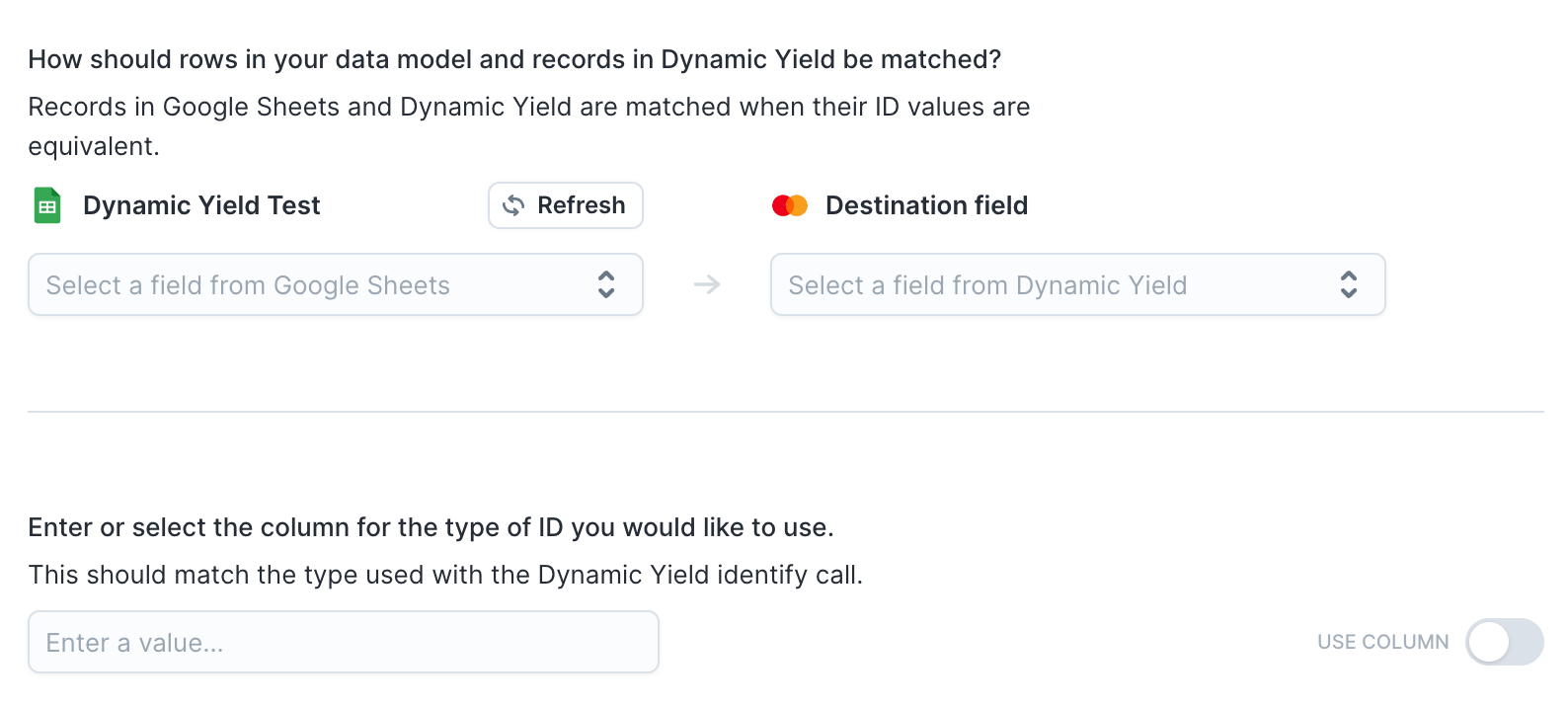
Field mapping
To map fields for the user object, copy the feed schema from the Dynamic Yield admin into Hightouch. The fields will automatically be generated for mapping.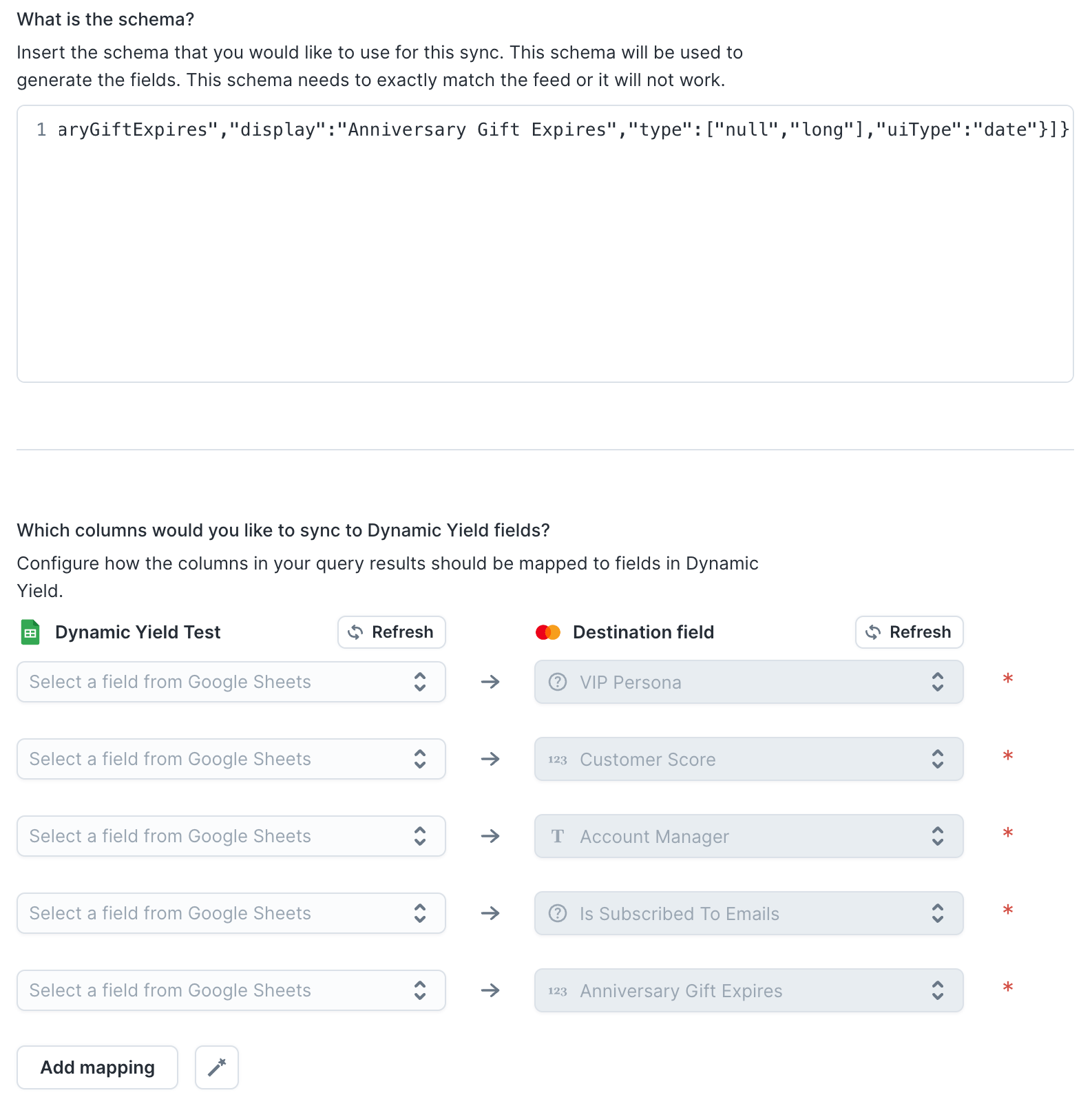
Deleting
You may also opt to remove products from your feed when they are removed from your source. You can do that by selectingDelete the Dynamic Yield record associated with source