

Supported syncing
For more information about sync modes, refer to the sync modes docs.
Connect to Poplar
Go to the Destinations overview page and click the Add destination button. Select Poplar and click Continue. You can then authenticate Hightouch to Poplar by entering a Poplar API key. To access your API keys, navigate to Integrations > API in Poplar. If you want to create a new one, click Generate Access Token.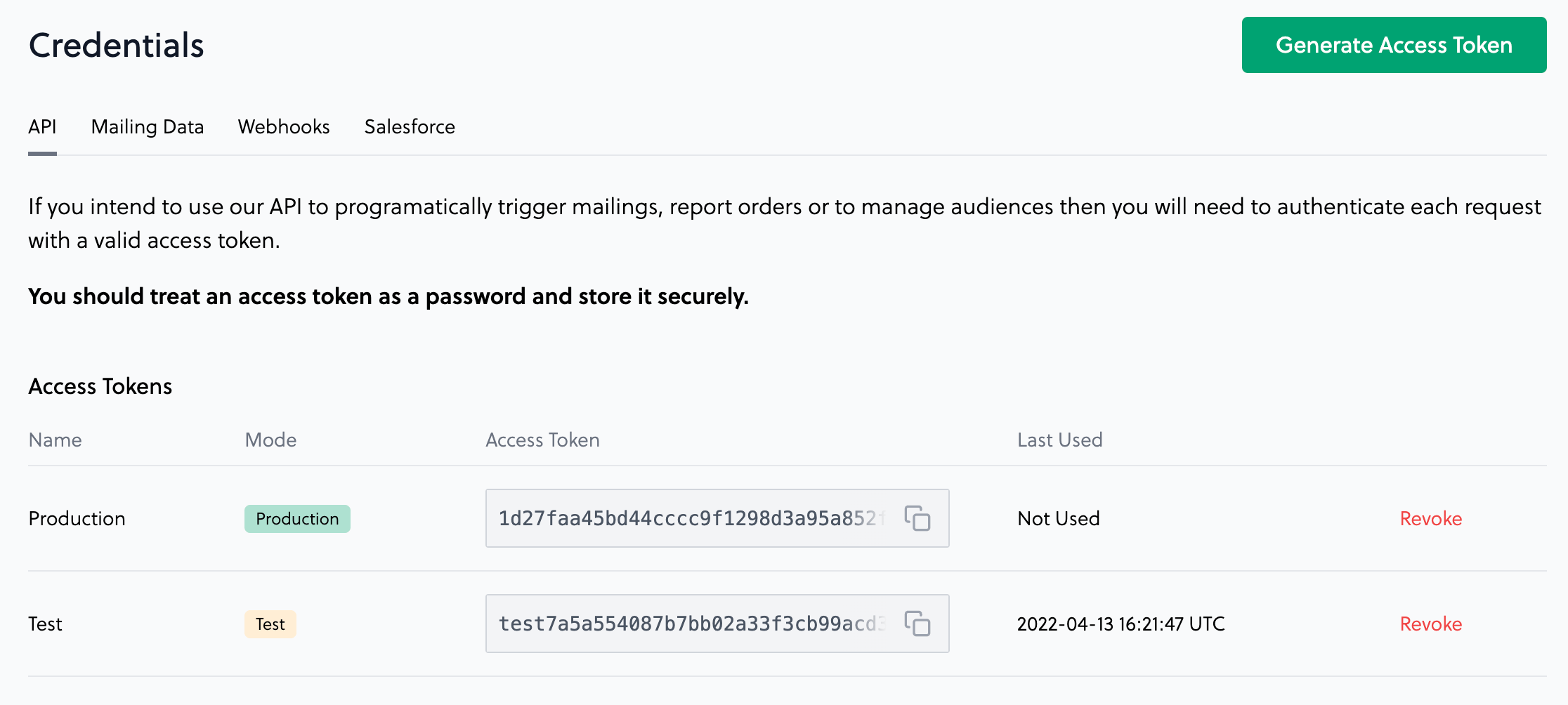
Sync configuration
Once you’ve set up your Poplar destination and have a model to pull data from, you can set up your sync configuration to begin syncing data. Go to the Syncs overview page and click the Add sync button to begin. Then, select the relevant model and the Poplar destination you want to sync to.Segment
Hightouch supports adding customer records based on rows from your model to any of your Poplar audiences.Record matching
You can match rows from your model to customer records in Poplar on the fields:- Identifier
- Hashed Email
- Address
Campaign trigger
Hightouch lets you use records from your models to trigger mail campaigns. This sync triggers a campaign for your Poplar customers based on the recipient’s information. Once configured, your Hightouch sync triggers your campaign once rows appear in your model. Hightouch triggers your campaign for every row in your model the first time you run the sync, whenever you do a full resync, and for every new row added to your query results in subsequent syncs.Creative selection
You can optionally provide a Poplar creative ID for the campaign you want to trigger. If you don’t enter a creative ID, Poplar uses the default creative. If you haven’t sent a default creative, Poplar alternates between all active creatives.Field mapping
You can sync columns from your source to the following native columns in a Poplar campaign trigger:- Company
- First Name
- Last Name
- Address 1
- Address 2
- City
- State
- Postal Code
- Identifier
- Address
Testing
You can test your campaign trigger sync by following these steps:- Use a Test mode API key within your destination configuration.
- Set up your campaign trigger sync and run it on Hightouch.
- Download mailing data by navigating to Integrations > Mailing Data in Poplar.

- Verify that the trigger was set off by comparing the synced records with mailing data.
If you need to make corrections and thus want to re-run the sync, click Resync full query next to the Run button.
Suppression lists
Hightouch supports syncing rows from your model to customer records in your Poplar Do Not Mail list. Members of this list are automatically suppressed across all campaigns.Field mapping
You can add customer records to the Poplar’ Do Not Mail using these fields:- Identifier
- Hashed Email
- Address