

Overview
Your leads and prospects expect you to have the necessary context before engaging with them. You can accomplish this by syncing lead and prospect data from your data warehouse to Pipedrive CRM. You no longer need to worry about executives chasing the wrong leads or engaging with warm ones without proper context.Supported syncing
For more information about sync modes, refer to the sync modes docs.
Connect to Pipedrive
Go to the Destinations overview page and click the Add destination button. Select Pipedrive and click Continue. You can then authenticate Hightouch to Pipedrive with an API key. You can retrieve your Pipedrive API Key under Settings > Personal preferences > API.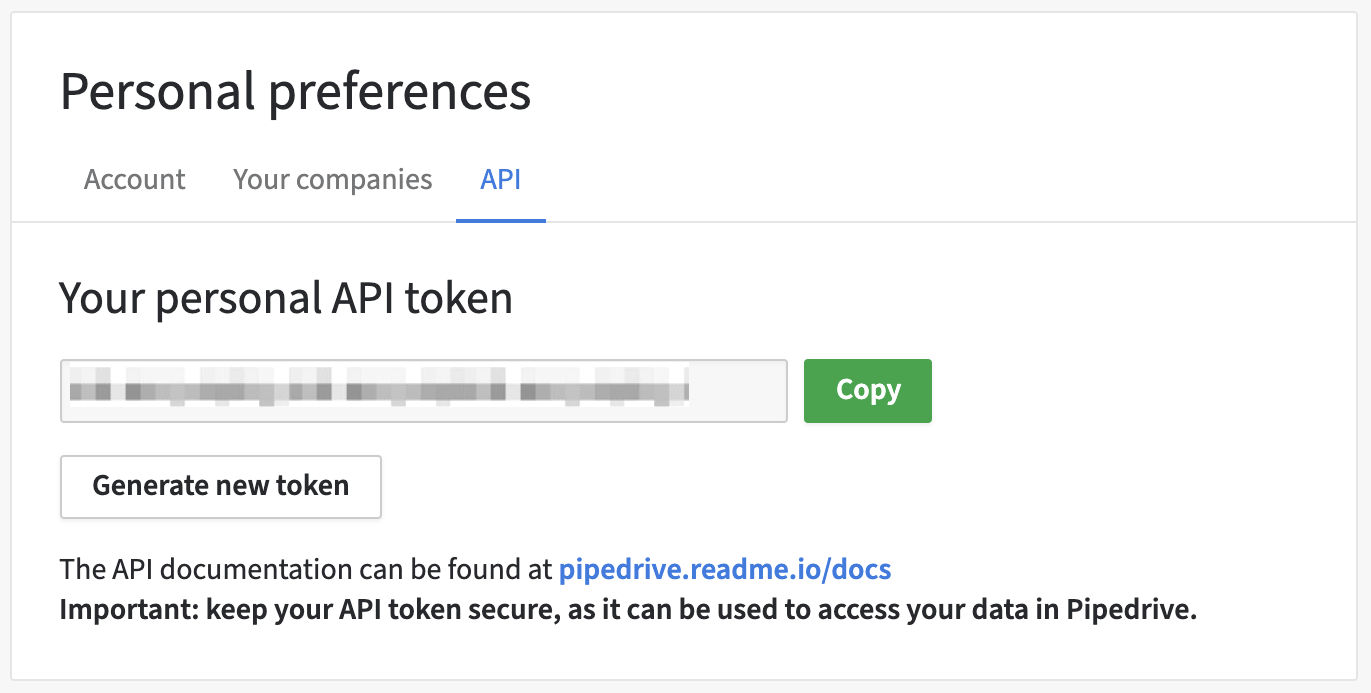
Sync configuration
Once you’ve set up your Pipedrive destination and have a model to pull data from, you can set up your sync configuration to begin syncing data. Go to the Syncs overview page and click the Add sync button to begin. Then, select the relevant model and the Pipedrive destination you want to sync to.Record matching
You can match rows in your model with objects in Pipedrive on any unique property. Pipedrive’sid field is only available in the dropdown menu when using Update mode.