Supported syncing
For more information about sync modes, refer to the sync modes docs.
Setup
After selecting Zoho CRM from our Destinations catalog, you will be prompted to initiate an OAuth flow. Connect Zoho CRM via OAuth by granting permission to the Hightouch app.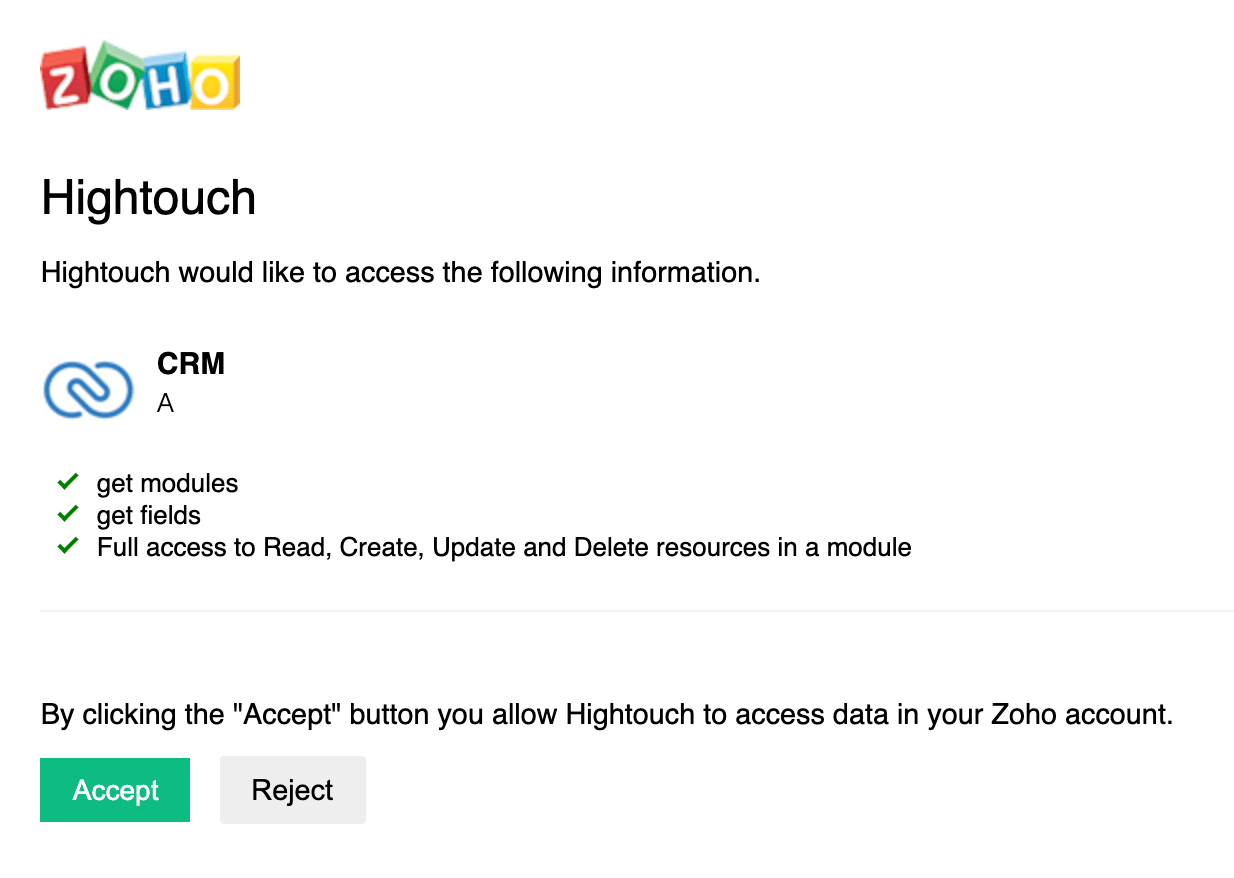
Syncing
Select the Zoho CRM module you want to sync to. Hightouch lists modules that you can create records in, including custom modules. Activity modules, such as Tasks, Calls, and Events, aren’t available. Upsert creates new records in the module and keeps their fields up to date.Record matching
Records can be matched from your source to your Zoho CRM workspace by using Zoho’s System-defined Duplicate Check Fields or an External ID you set for a module in your workspace settings. To know more about each modules’s Sytem-defined Duplicate Check Fields, refer to the Sytem-defined Duplicate Check Fields section in the Upsert Records API. Additionally, to learn about creating an External_ID, refer to this Zoho docs article.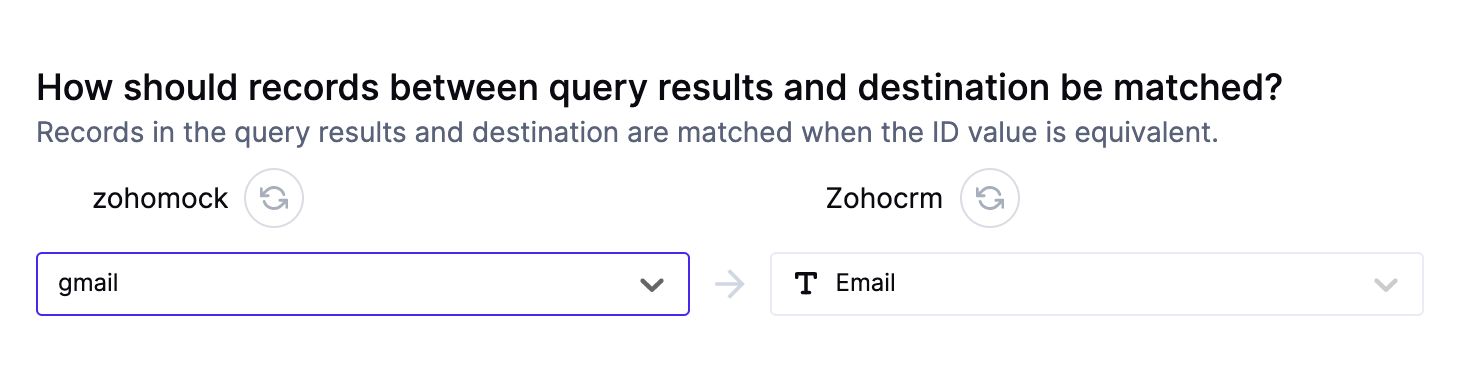
Field mapping
You can sync columns from your model to Zoho’s modules. Ensure the module’s mandatory field is included in the sync and the model columns representing the module fields are of the correct data type. To know more about each module’s mandatory fields, refer to the System-defined mandatory fields for each module section in this Zoho docs page. Additionally, to know more about module field types, refer to the Sample Attributes section.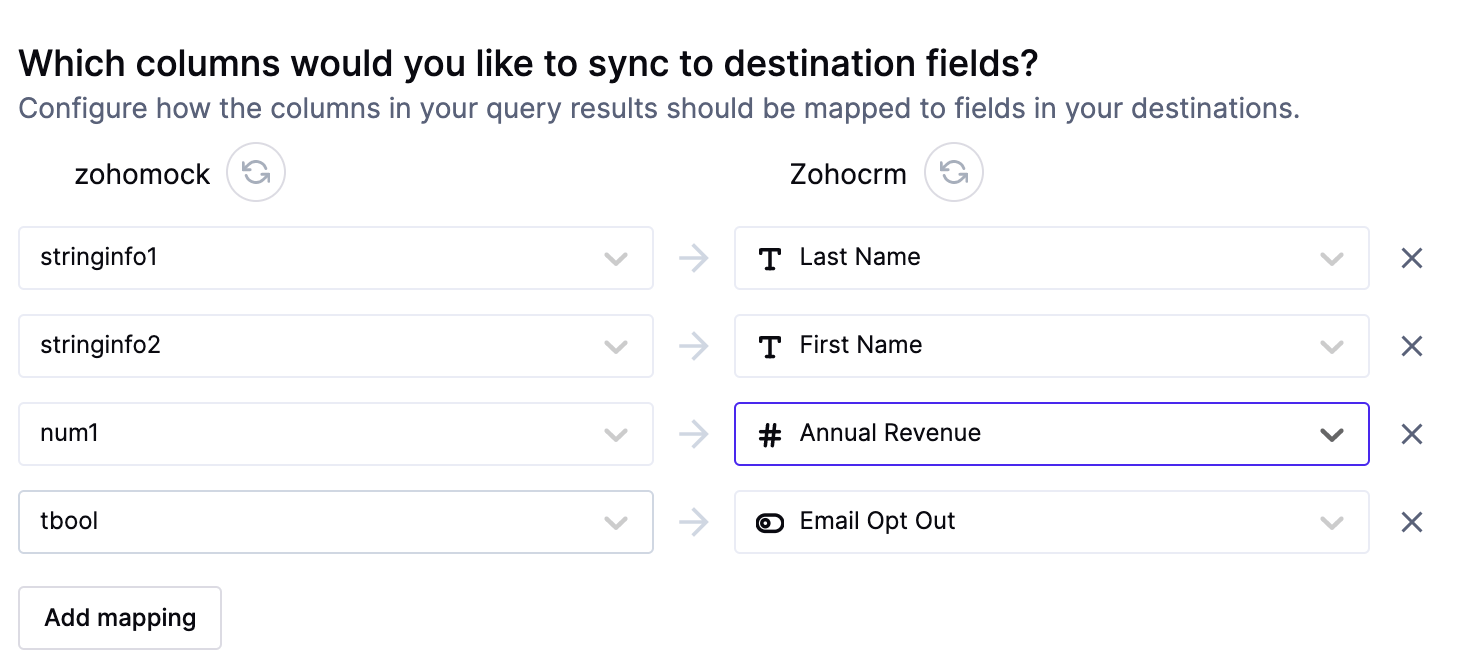
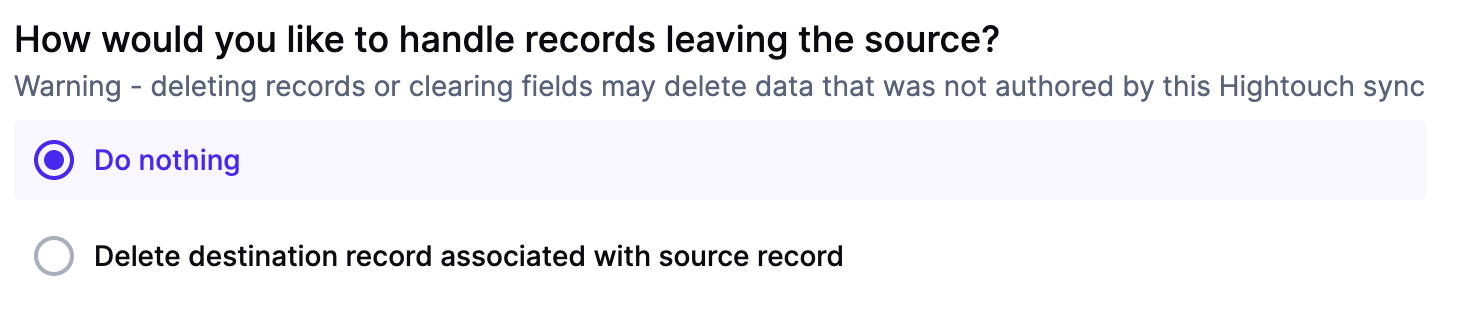
Delete mode
You can choose what Hightouch’s behavior is when records leave the query result set. The default is doing nothing, but you can also set Hightouch to delete the Zoho CRM record.