Supported syncing
For more information about sync modes, refer to the sync modes docs.
Connect to Cordial
Go to the Destinations overview page and click the Add destination button. Select Cordial and click Continue. Enter your API key from your Cordial account. If you don’t have an API key, follow the instructions on Cordial to create API keys. Ensure the API key has write access for the object you are syncing. Based on the sync object, ensure your API key has access to the following API endpoints:
Next, select which Cordial domain your account uses. This will either be
admin.cordial.io or usw2.admin.cordial.io. You can determine which one your account uses by navigating to your Cordial dashboard and checking the website URL.
Sync configuration
Once you’ve set up your Cordial destination and have a model to pull data from, you can set up your sync configuration to begin syncing data. Go to the Syncs overview page and click the Add sync button to begin. Then, select the relevant model and the Cordial destination you want to sync to. Select which object you’d like to sync.Sync mode
- Upsert: pushes new objects to Cordial and updates mapped fields that change in your source.
- Update: updates mapped fields on existing objects in Cordial. New objects are not added.
- Insert: pushes new objects to Cordial. Existing objects are not updated.
Field mapping
Contacts
Cordial has the following contact attribute types:- string
- number
- date (ISO 8601 standard)
- geo
- array
Supplements
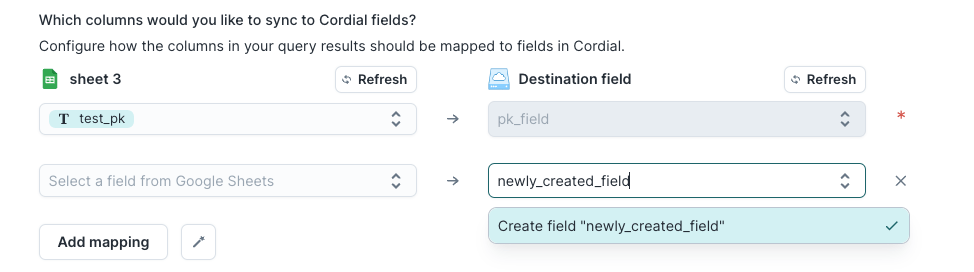
Start syncing supplements by creating a supplement collection on Cordial. Indexes on supplement collections are required mapping fields on Hightouch. If a field you’d like to map to is not available in the mapping dropdown, you can enter the field name manually: