

Supported syncing
For more information about sync modes, refer to the sync modes docs.
Connect to ClickUp
Go to the Destinations overview page and click the Add destination button. Select ClickUp and click Continue. You can then authenticate Hightouch to ClickUp using OAuth. Select Log in to ClickUp and log into your ClickUp account. You then need to select the ClickUp workspace or workspaces you want to connect to.
Sync configuration
Once you’ve set up your ClickUp destination and have a model to pull data from, you can set up your sync configuration to begin syncing data. Go to the Syncs overview page and click the Add sync button to begin. Then, select the relevant model and the ClickUp destination you want to sync to.Syncing tasks
In ClickUp, a task is a specific action or activity that needs to be completed to achieve a particular goal or objective. Hightouch supports syncing tasks and subtasks. To get started, select the ClickUp workspace, space, folder, and list for your tasks. You can then choose to insert new tasks, update existing ones, or do both in upsert mode.Hightouch doesn’t update closed or archived ClickUp tasks.
If your model contains data related to a closed or archived task, the sync creates a new task with the provided data.
Record matching
You can match rows from your model to tasks in ClickUp on identifer fields in ClickUp. The identifer fields you can use depend on your sync mode:- In Upsert mode, you can match on custom fields, which are displayed as id in the dropdown menu.
- In Update mode, you can match on any of the following ClickUp fields:
- In Insert mode, ClickUp automatically generates an identifier for every new record synced, so there is no need to match an existing record.
Field mapping
When creating a new task, ClickUp requires a name for it. Therefore, in upsert and insert modes, you must map the Name field to complete your configuration. You can also map data from any of your model columns to default fields in ClickUp. The following default fields have some special guidelines:- Status: The values you sync must be a valid statuses for your task. Status is case insensitive; for example,
in progressis the same asIN PROGRESS. See ClickUp’s custom status docs for customization information. - Priority: This is a number that corresponds to the priorities available in the ClickUp UI. 1 is the must urgent priority while 4 is the least urgent.
- Time Estimate: This field must be in milliseconds.
Arrays
You can sync array fields to ClickUp by selecting model columns that contain either comma-delimited strings or arrays. If you sync a comma-delimited string, for example"tag1, tag2, tag3", Hightouch transforms it into the array (["tag1", "tag2", "tag3"]) ClickUp expects.
Hightouch overwrites array values rather than aggregating them.
For example, suppose you sync the following array ["tag1", "tag2"] to the tags field of a particular task.
Then, a later sync sends another array ["tag1", "tag3"] to the same task’s tags.
The tasks tags will be ["tag1", "tag3"], not ["tag1", "tag2", "tag3"] after the later sync runs.
References
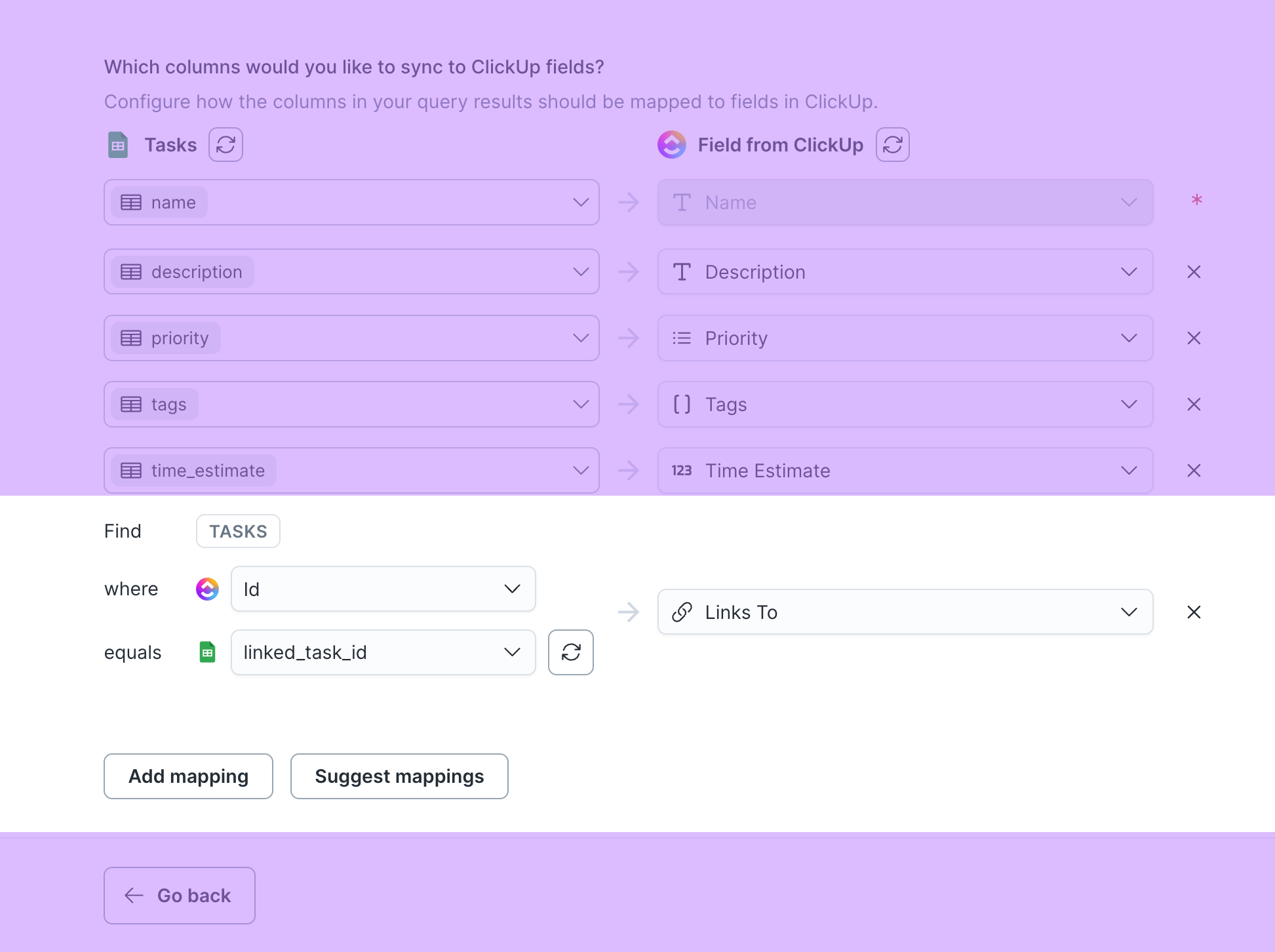
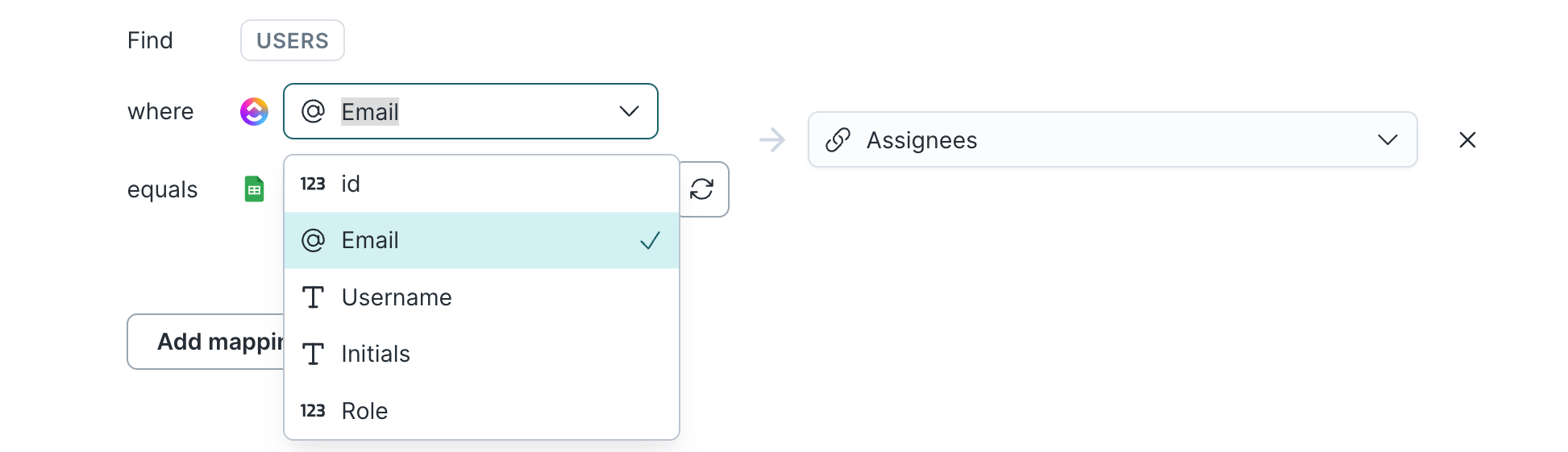
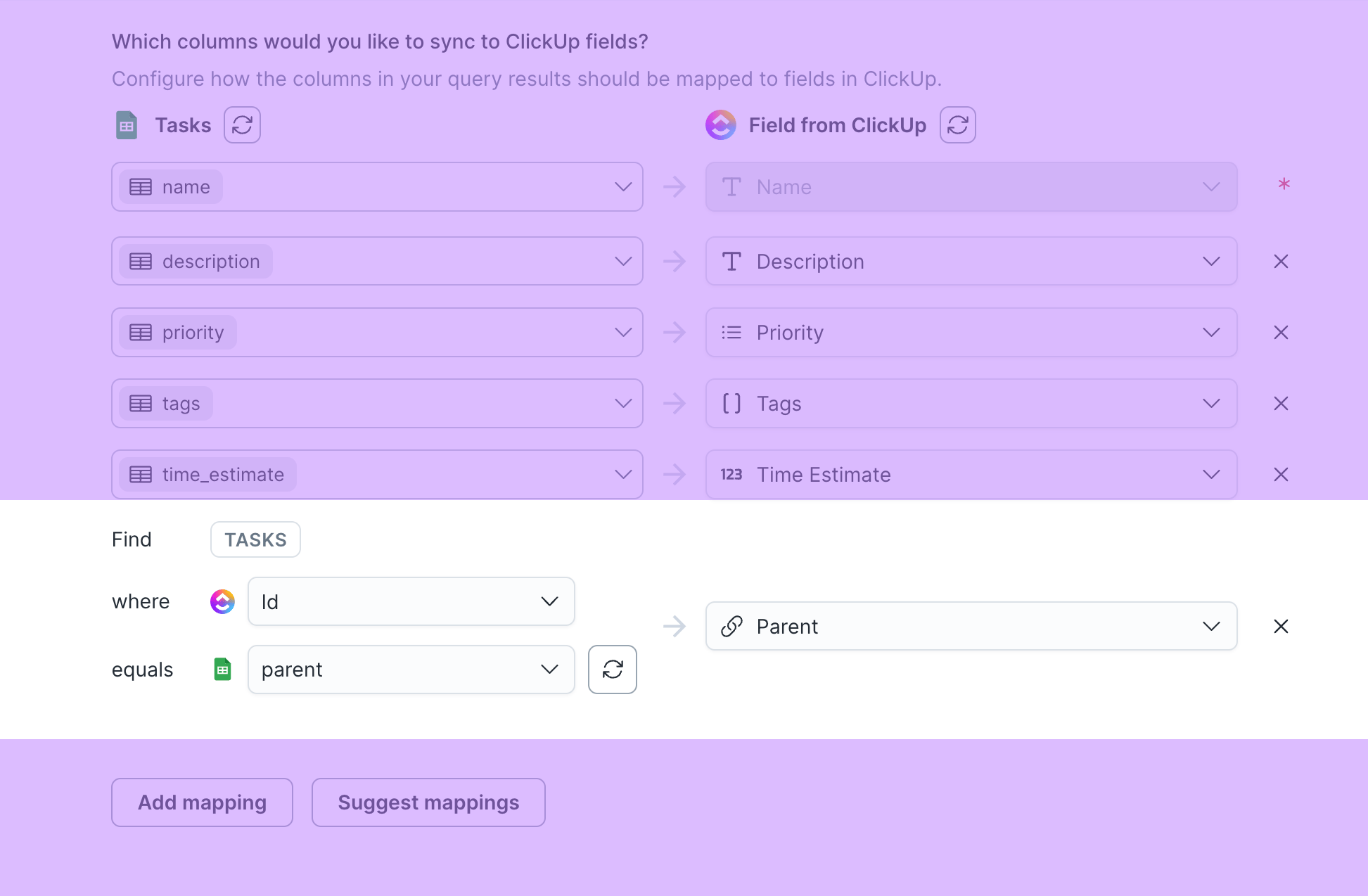
You can relate tasks to other ClickUp objects while field mapping. To do so, select a ClickUp reference field. Hightouch denotes these with a chainlink icon. Begin by selecting one of these fields, for example Links to. The Links To field lets you include a task ID to create a linked dependency for the task you’re syncing.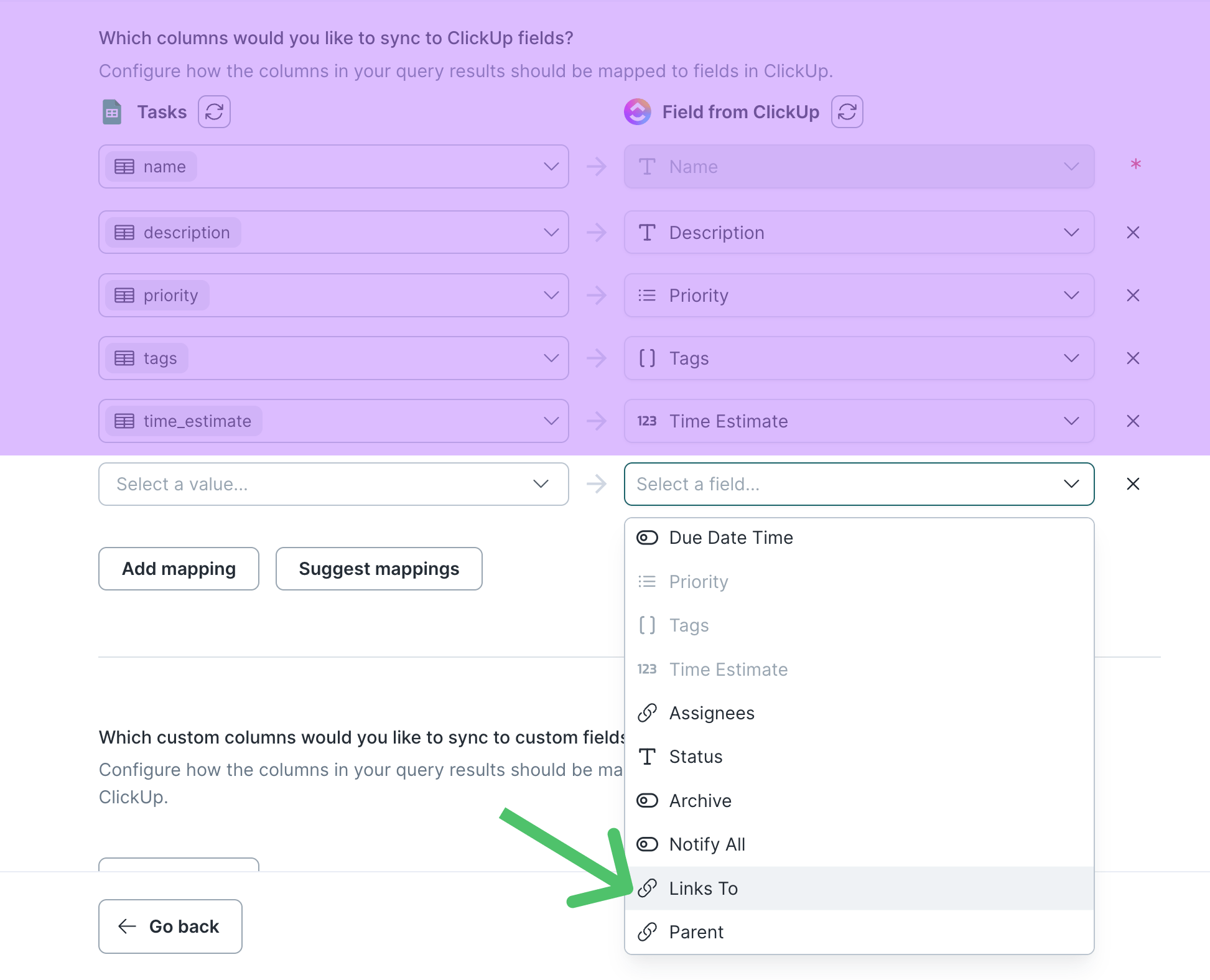
Custom field mapping
Hightouch supports syncing data to these custom field types:Delete behavior
The delete behavior you select dictates what to do when a row no longer appears in your model’s query results. You have the following options for upsert mode:
Update mode has these options:
Insert mode doesn’t support any delete behavior.
Tips and troubleshooting
To see the exact API requests and responses from each sync run, use the live debugger. To get notified by Slack, PagerDuty, SMS, or email when a sync fails, set up sync alerts. If you run into an issue this page doesn’t cover, .Formatting dates
ClickUp expects millisecond Unix timestamps for all date fields. A millisecond timestamp is numerical value with 13 digits, for example,1620170285617, as compared to a traditional Unix timestamp which has ten.
A convenient way to convert your date values to Unix millisecond timestamps is to use the to_unix function in the template mapper.
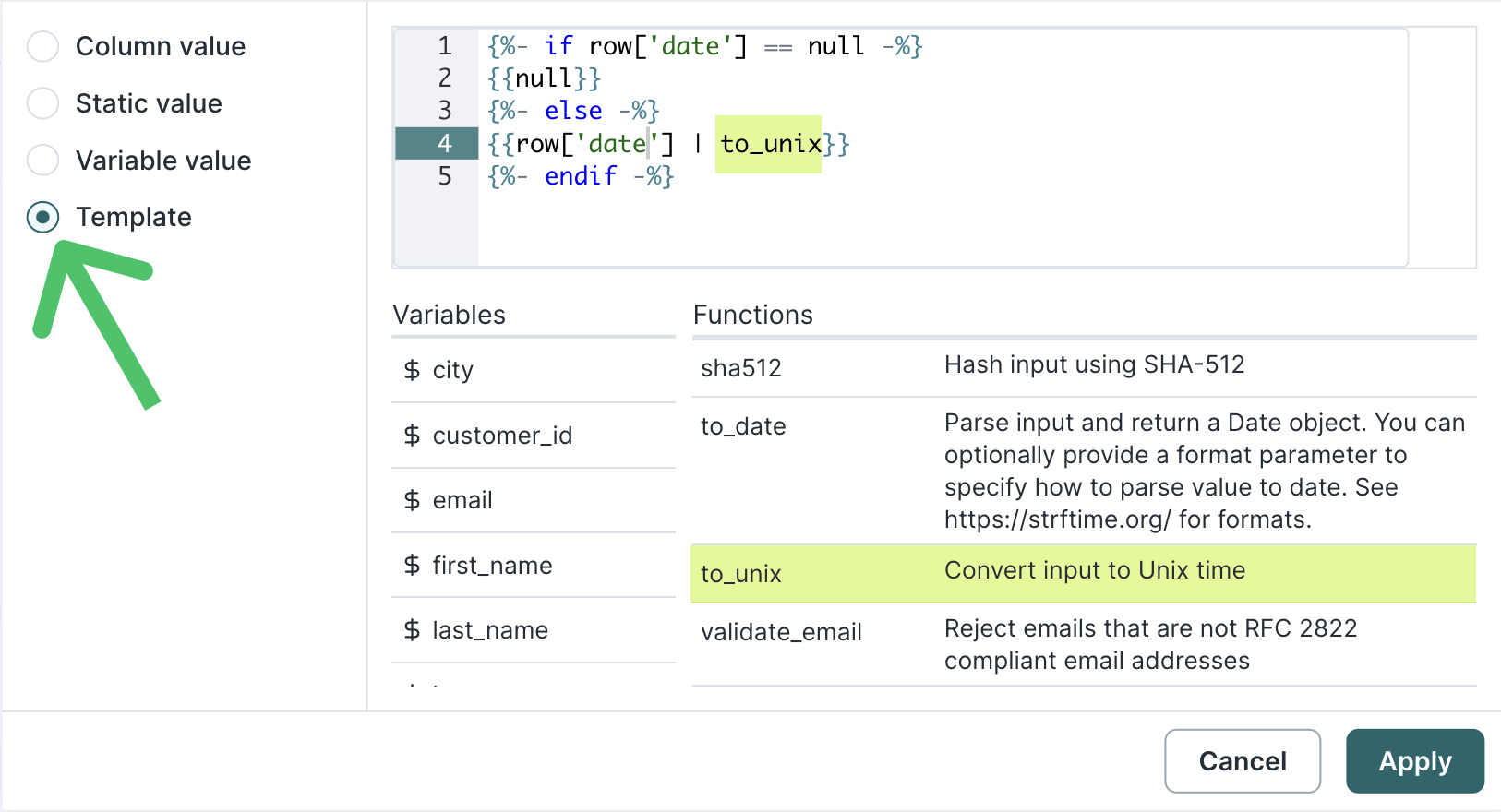
to_unix function throws an error if the input row’s value is null. To avoid this, you can enter this Liquid into the template mapper:
column_name with the name of your model column.