

Overview
Ideally, your data warehouse is the single source of truth for all your customer data. When that’s the case, using your warehouse as the source for your Mixpanel data enables richer product-usage analysis. You can sync enriched data from your warehouse to create more granular segments on Mixpanel as well as bring in data from your engagement tools. Moreover, you can ensure that your product and growth teams work with data that’s always up-to-date and in the expected format. Lastly, if your company also uses a Business Intelligence tool such as Looker or Mode, you can ensure that the data is consistent across both systems.Supported syncing
- In Upsert mode, new users and groups are inserted into Mixpanel and all attributes are kept up-to-date.
- In Insert mode, new events are inserted as track calls.
- In All sync mode, the entire lookup table is replaced with each sync.
Connect to Mixpanel
To configure your Mixpanel destination you need to provide the following information:- Project ID
- Project Token
- Service Account Username and Secret
- Region, which must match your Mixpanel project’s data residency
- Group Keys, when syncing group objects
Project ID
To find your Project ID, click the Settings icon, then Project Settings. Then navigate to Overview > Project Details.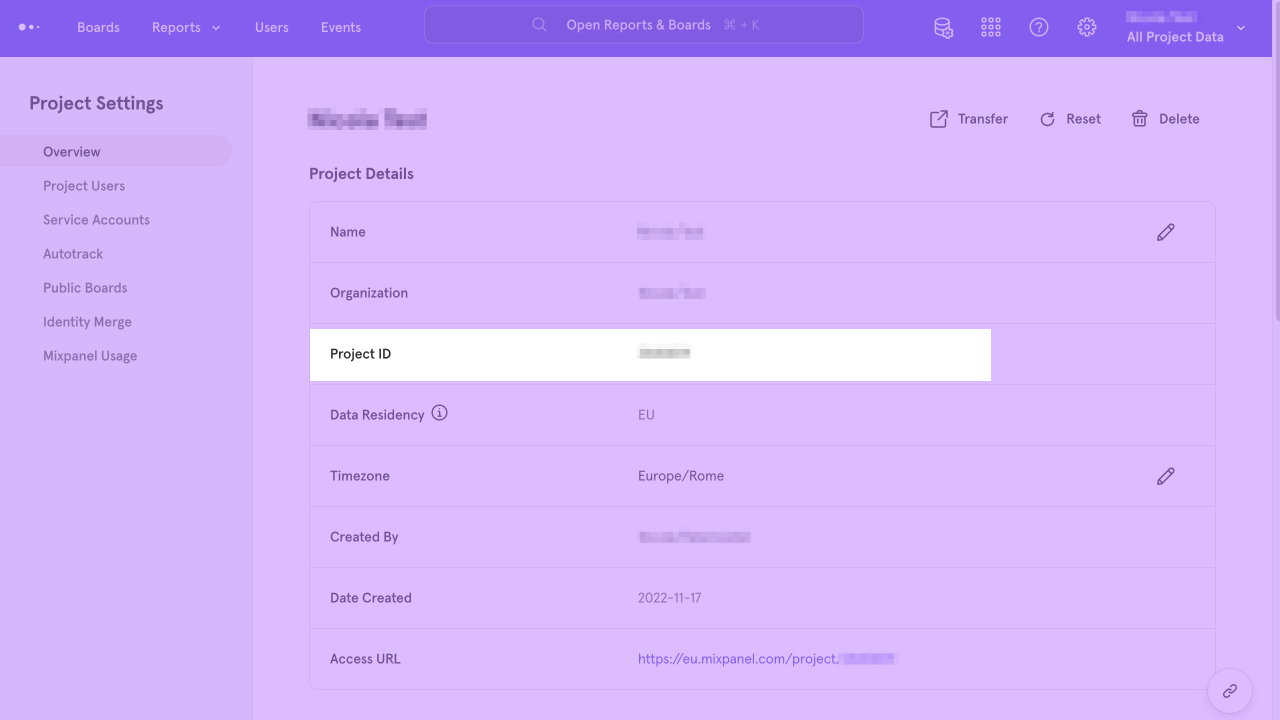
Project token
To find your Project Token, click the Settings icon, then Project Settings. Then navigate to Overview > Access Keys.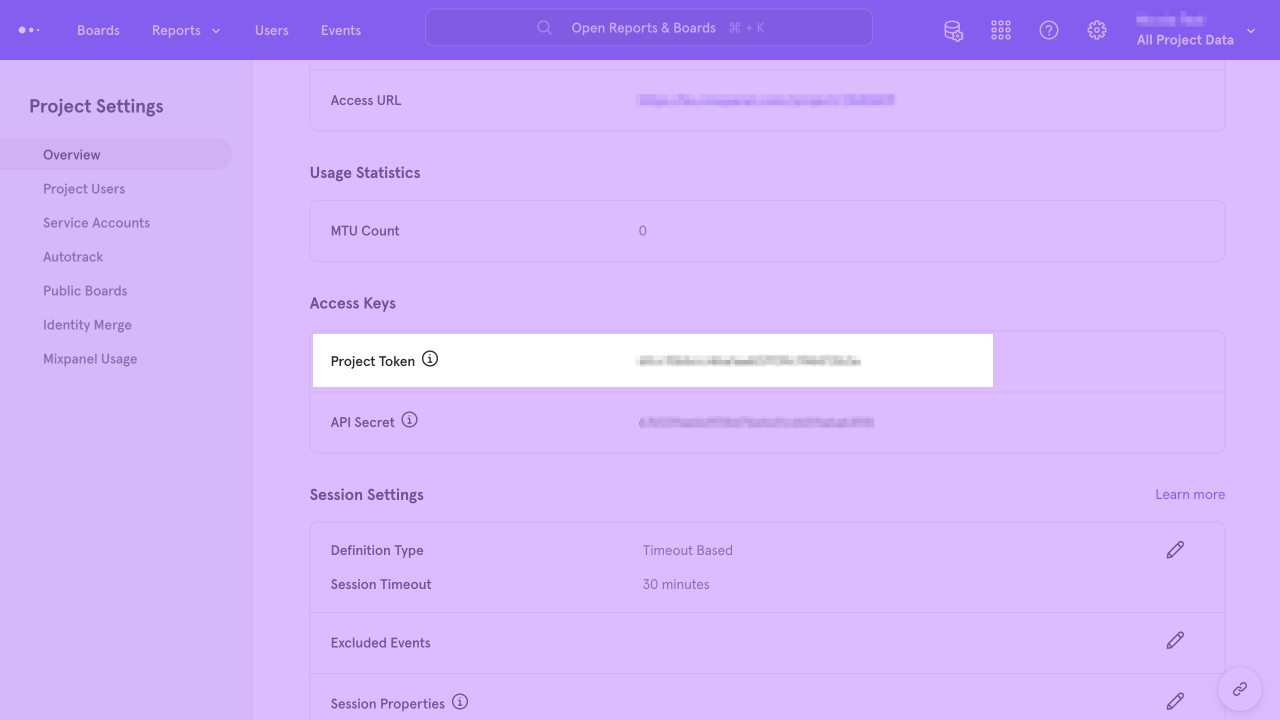
Service account
To receive your Service Account Username and Secret you must first create a Service Account.Click the Settings icon, then Project Settings. Then navigate to Service Accounts > Add Service Account and copy the Username and Secret.
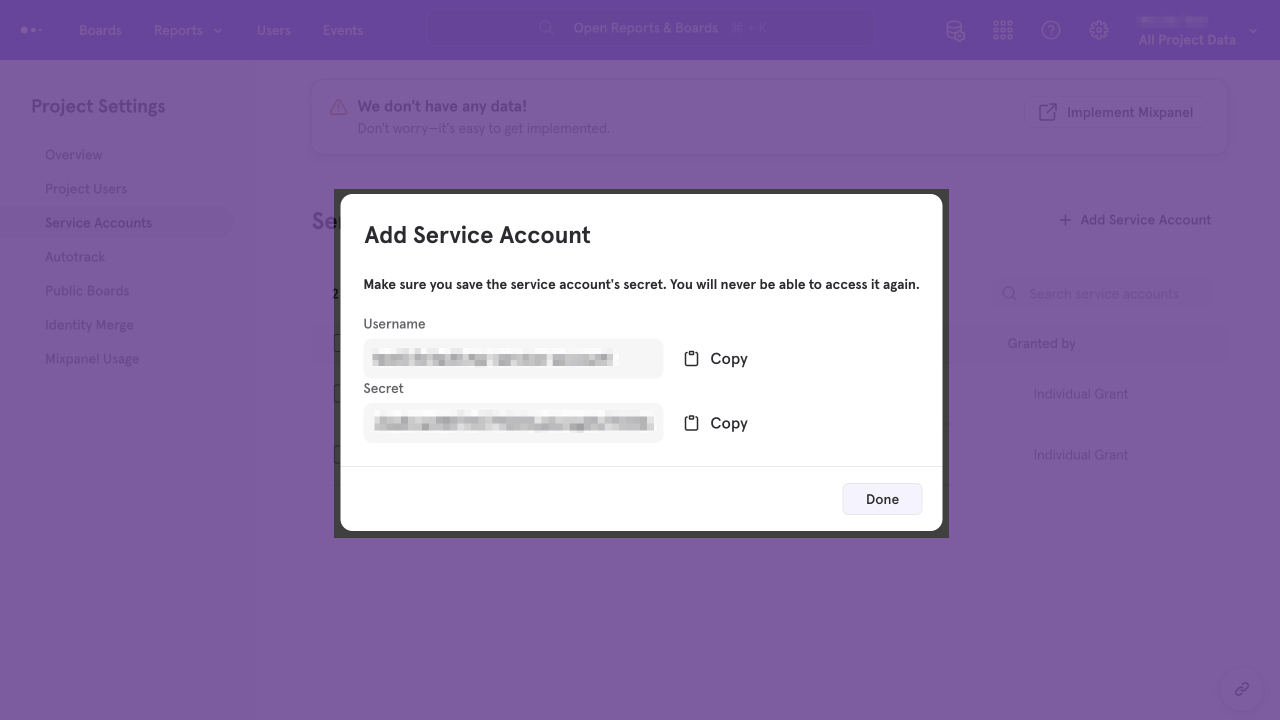
Be sure to give your Service Account Owner or Admin permissions.
Group keys
If you are syncing group profiles or assigning users to groups, you need to indicate which Group Key to use. To find your Group Keys, click the Settings icon, then Project Settings. Then navigate to Overview > Group Keys. Copy the appropriate Key value.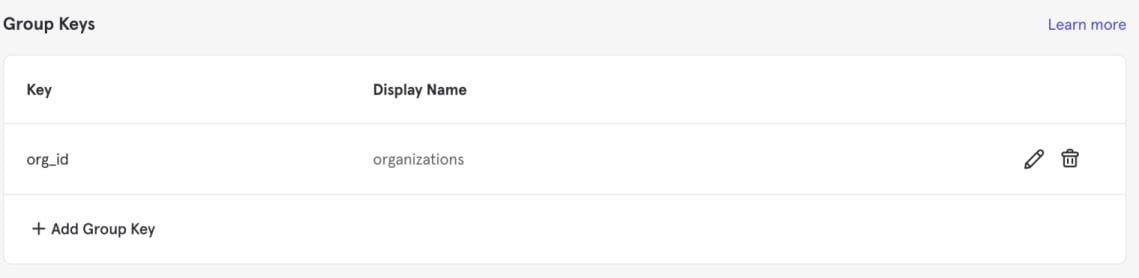
Syncing data
Objects
You can decide to sync either User Objects or Group Objects.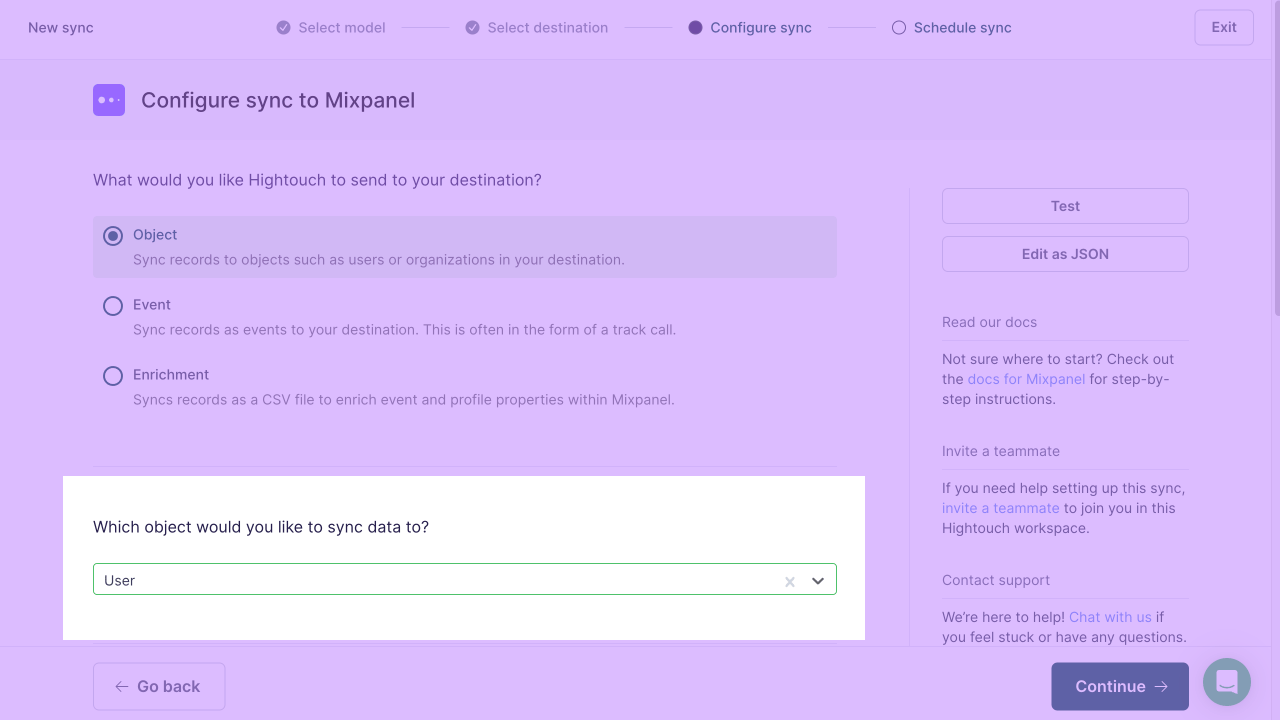
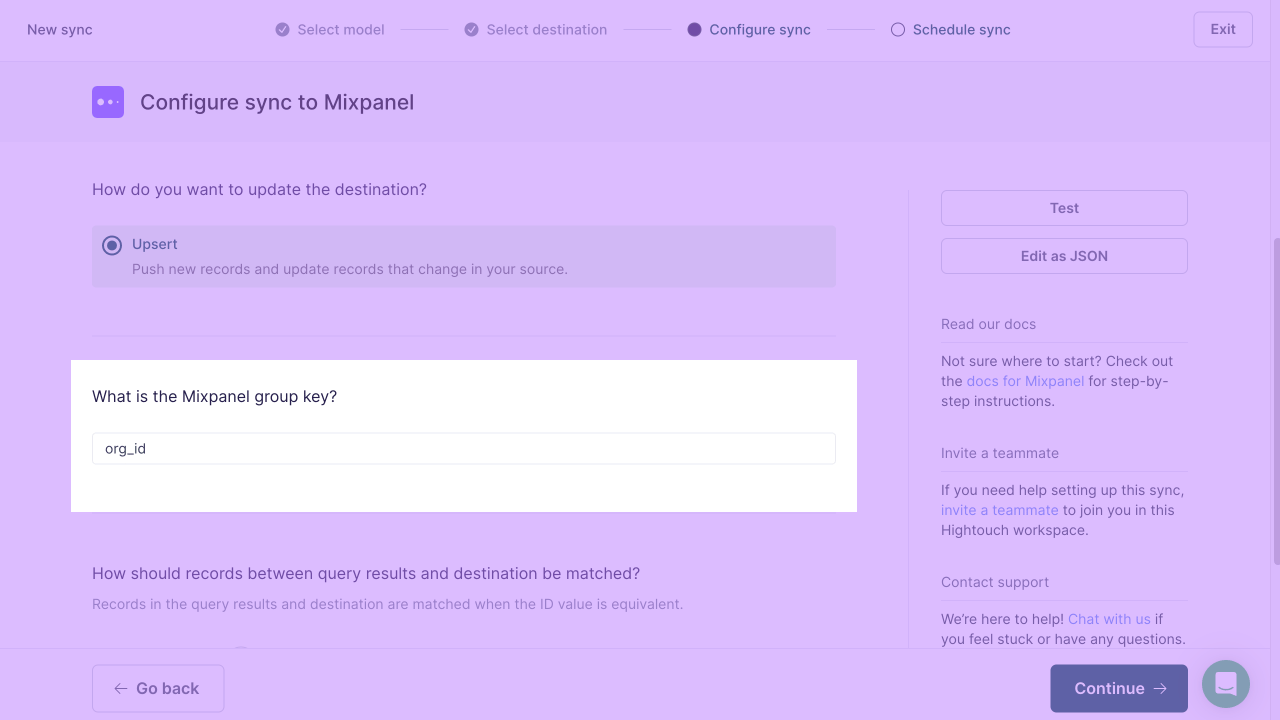
Record matching
You can match records from your source to your Mixpanel workspace by Mixpanel User ID, email or Group ID.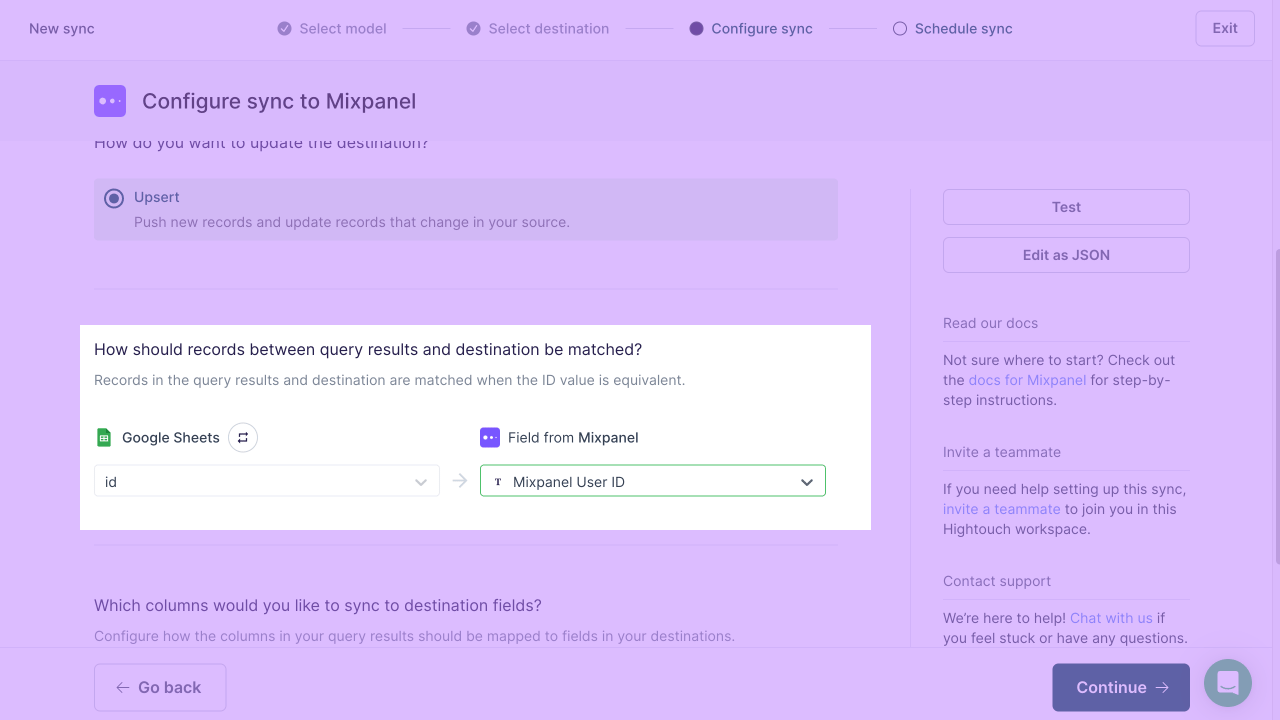
Field mapping
You can sync columns from your source to your default and custom fields in Mixpanel. If you’re syncing User Objects, you can see two sections: one for native Mixpanel fields and one for custom fields.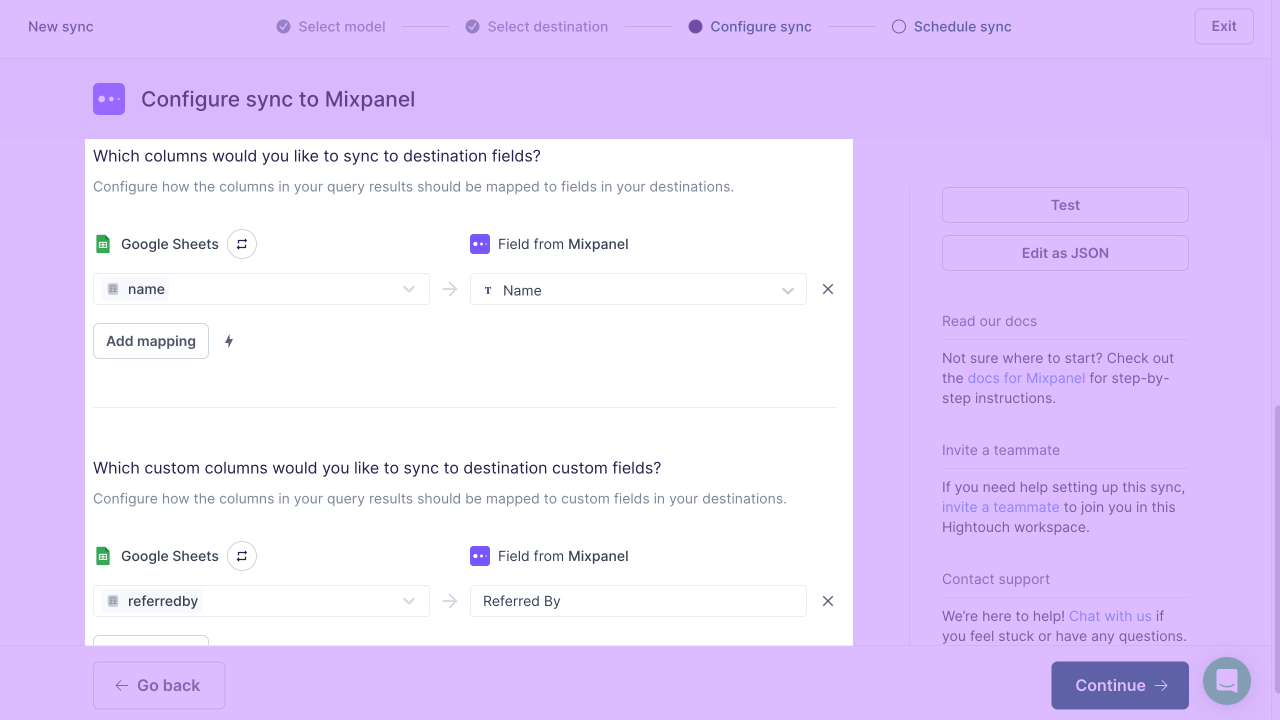
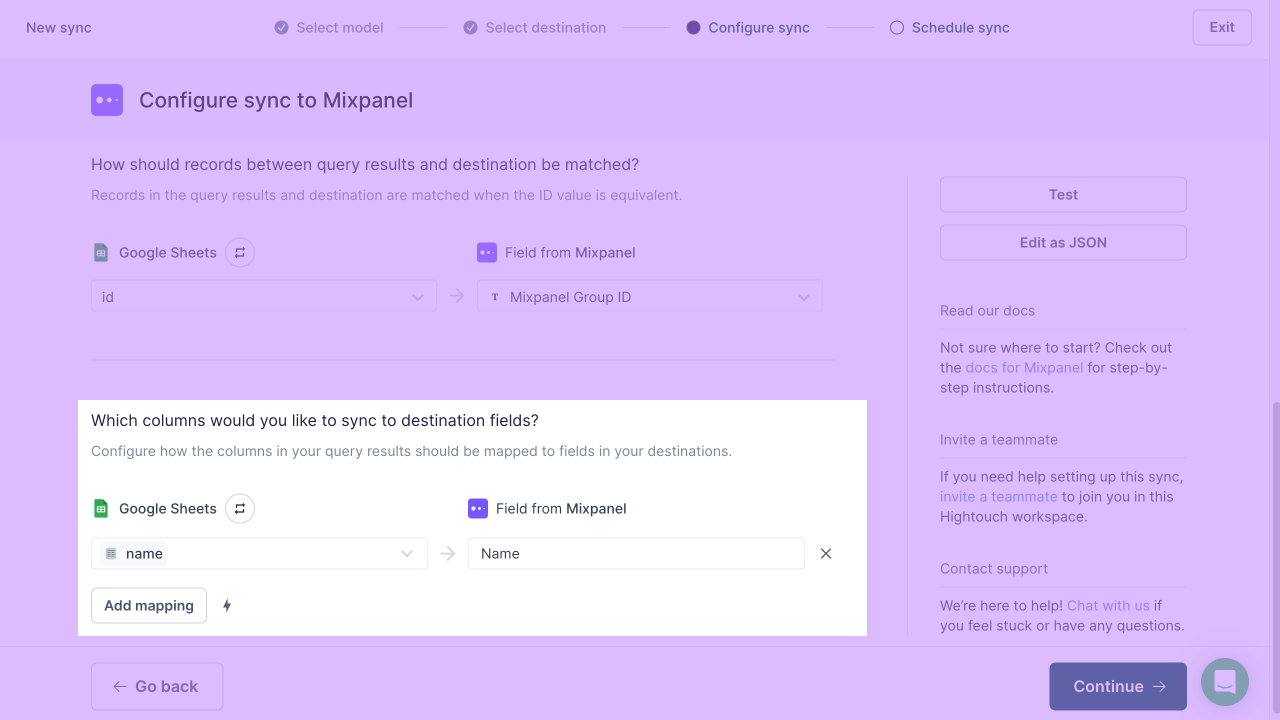
Users location
By default, users uploaded using Hightouch won’t have any associated location in Mixpanel. To set a location, provide an IP address (field$ip), or longitude and latitude coordinates (fields $longitude and $latitude).
For more information, you can visit Mixpanel’s official documentation.
Assigning users to groups
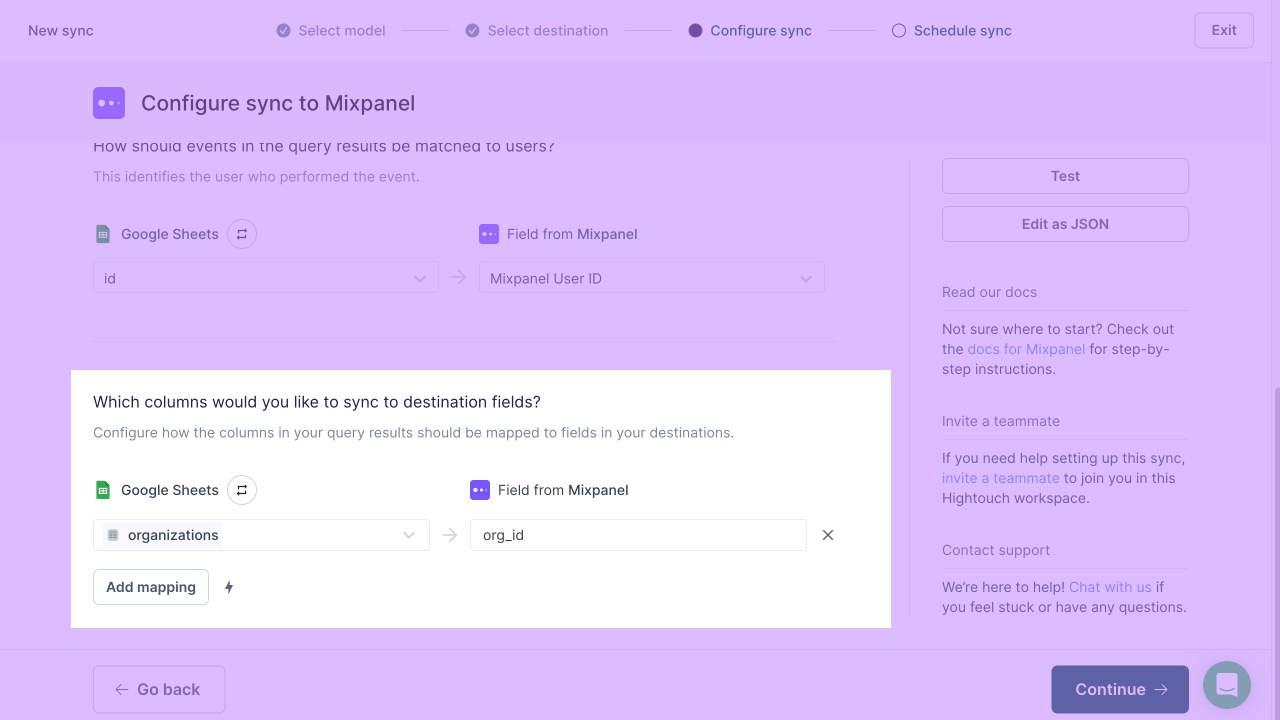
To assign users to groups, create a sync for User Objects. Then, create a column in your model which contains the group IDs that you want to assign the user to. For example, to sync organizations, use a column calledorganizations containing either a group ID (google) or an array of group IDs ([google, apple, microsoft]).
Then, find your group key, and use it as the destination field to sync to.
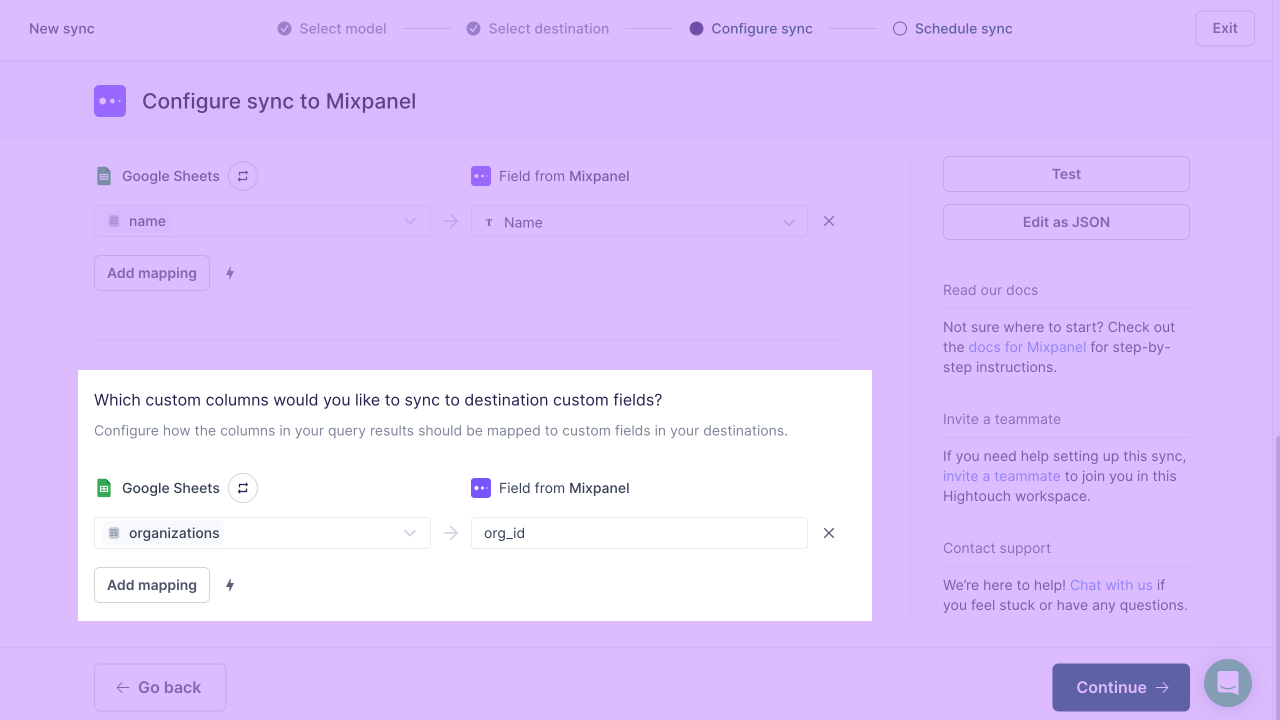
Events
Hightouch supports sending events of a given name, for example,Signed Up.
Hightouch lets you choose the column containing the event timestamp.
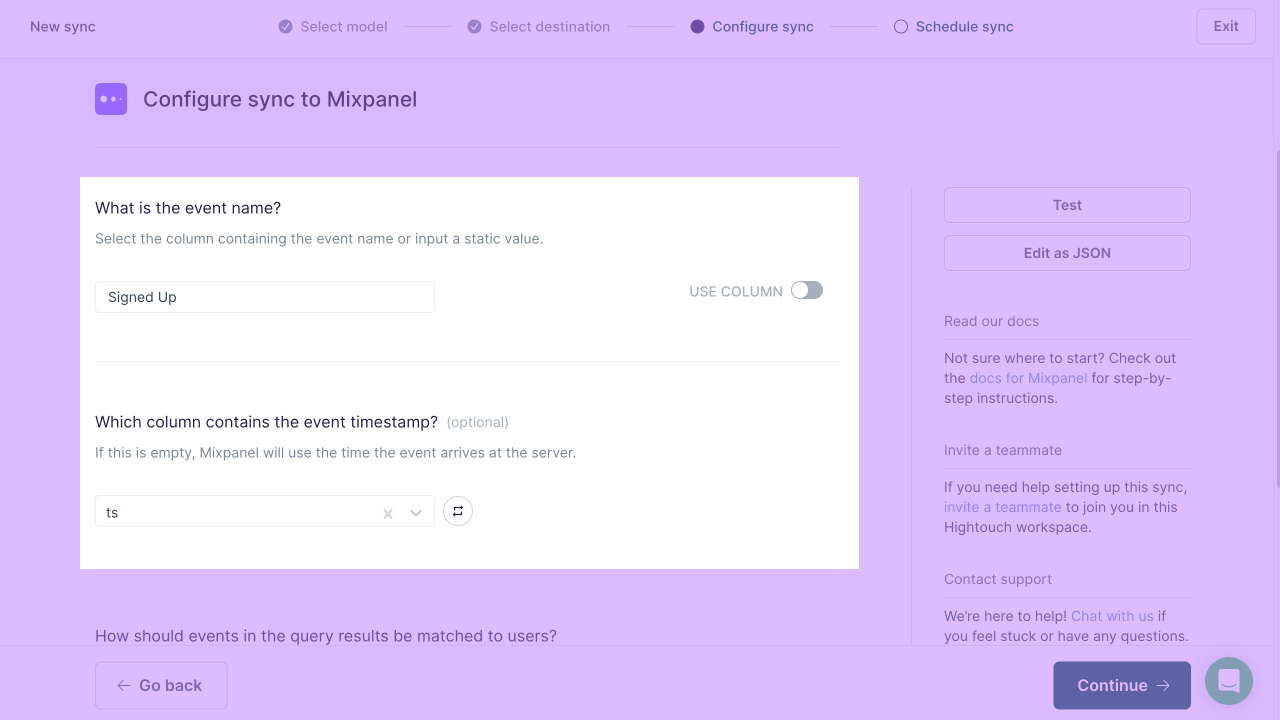
Hightouch accepts various date time formats for the timestamp and automatically converts them to the format required by Mixpanel.
Record matching
You can match records from your source to your Mixpanel workspace by Mixpanel User ID.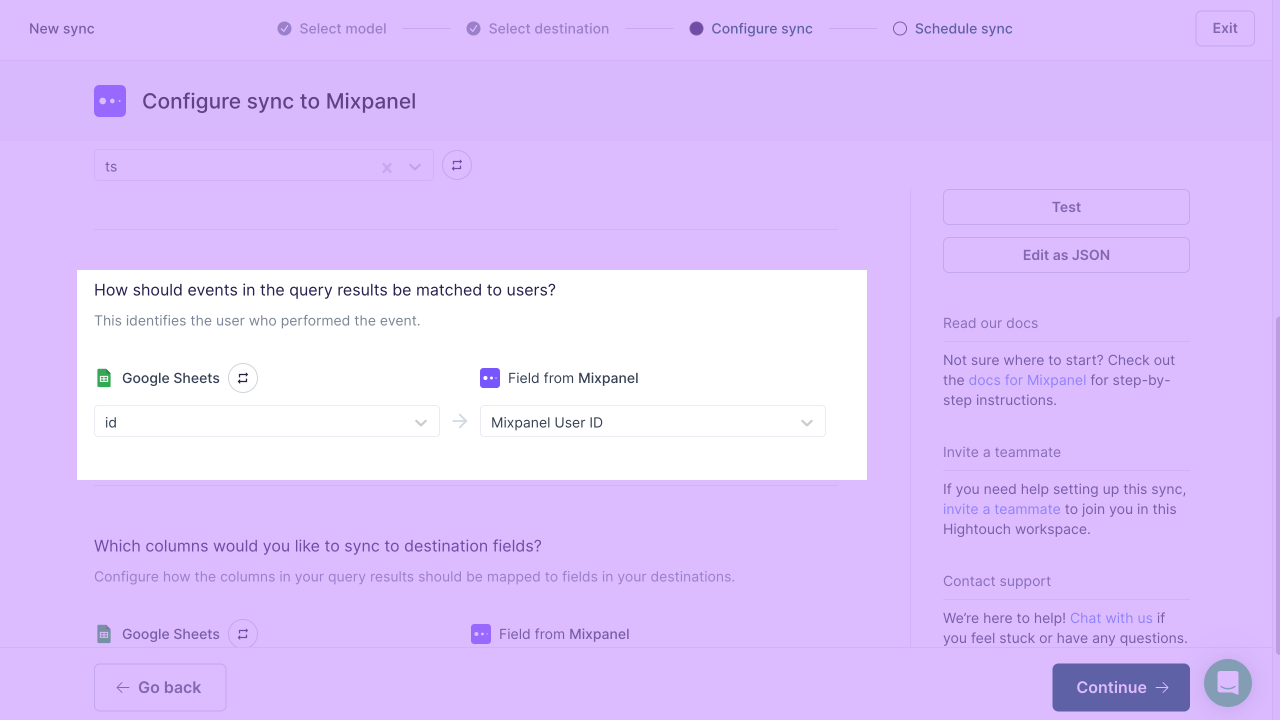
Field mapping
Hightouch allows you to pass data to the event properties of a Mixpanel event.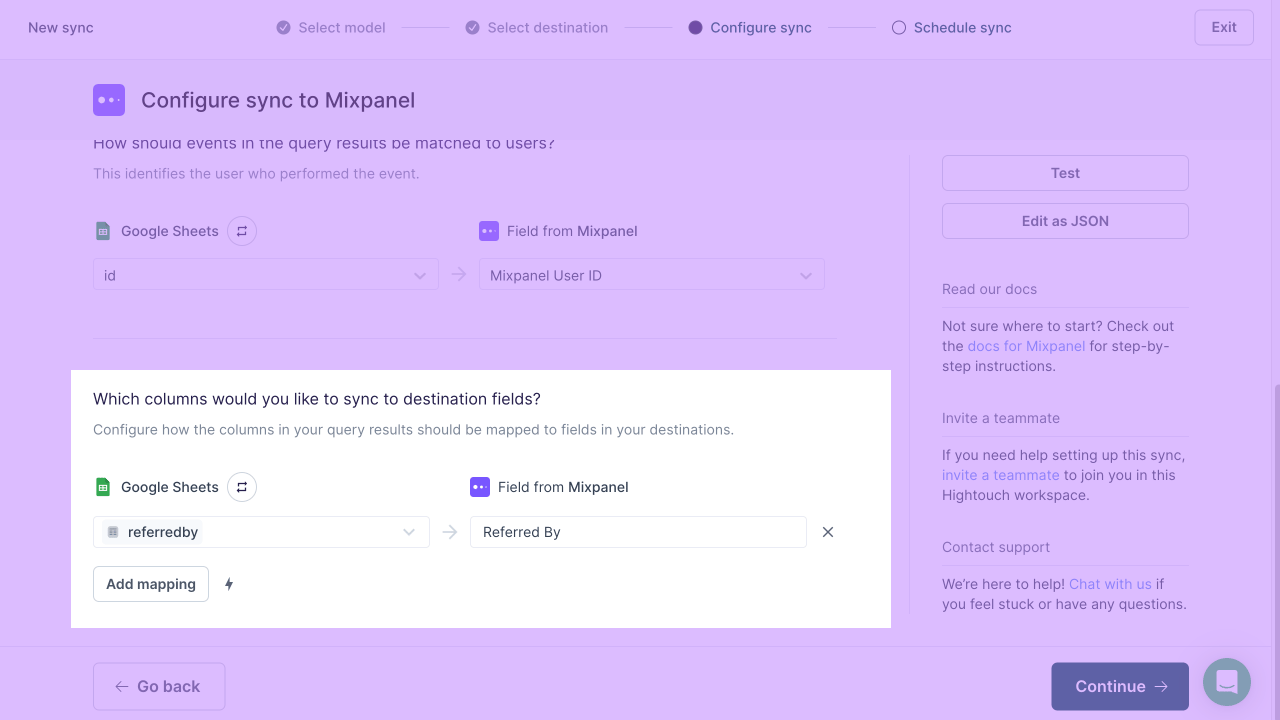
Assigning events to groups
To assign events to groups, create a sync to events. Then, create a column in your model which contains the group IDs that you want to assign the event to.For example, to sync organizations, use a column called
organizations containing either a group ID (google) or an array of group IDs ([google, apple, microsoft]).
Then, find your group key, and use it as the destination field to sync to.
Lookup tables
To sync data to your Lookup tables, choose Enrichment. Then choose the specific Lookup table you want to replace.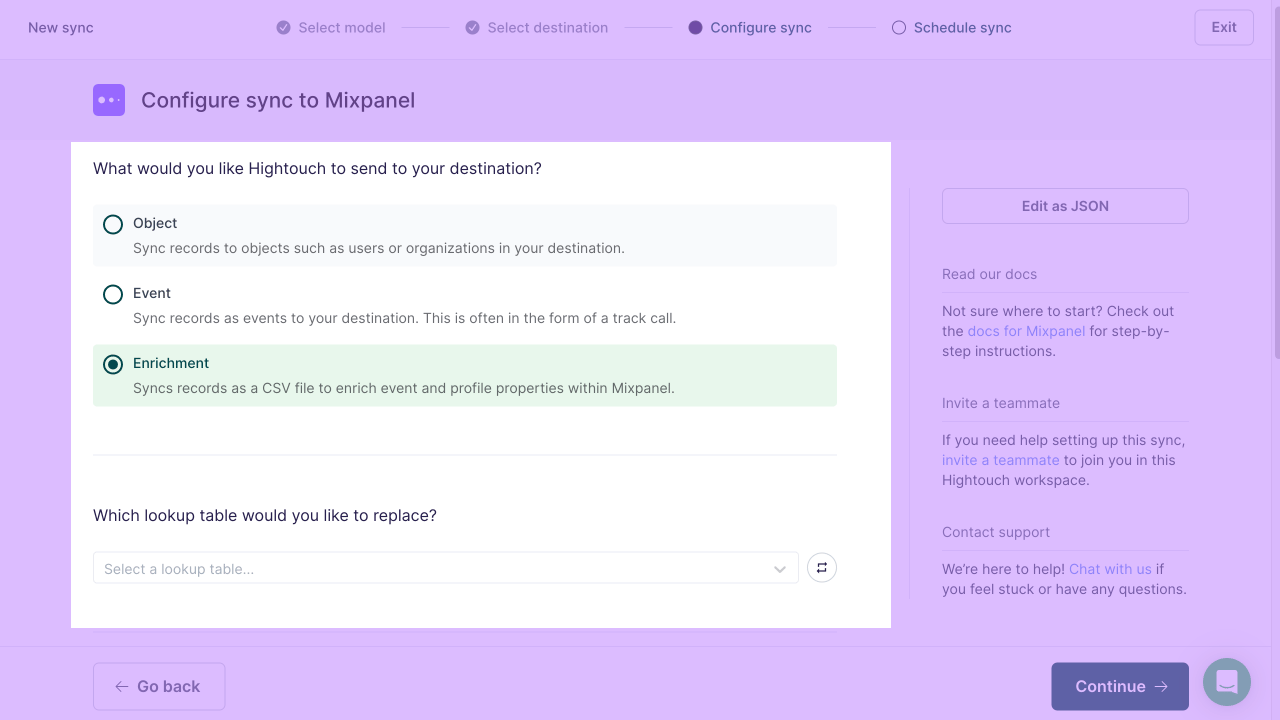
Record matching
You can match records from your source to your Mixpanel workspace by the ID mapping of your choice. The ID mapping should reference the unique identifier field of the events or profiles you are seeking to enrich.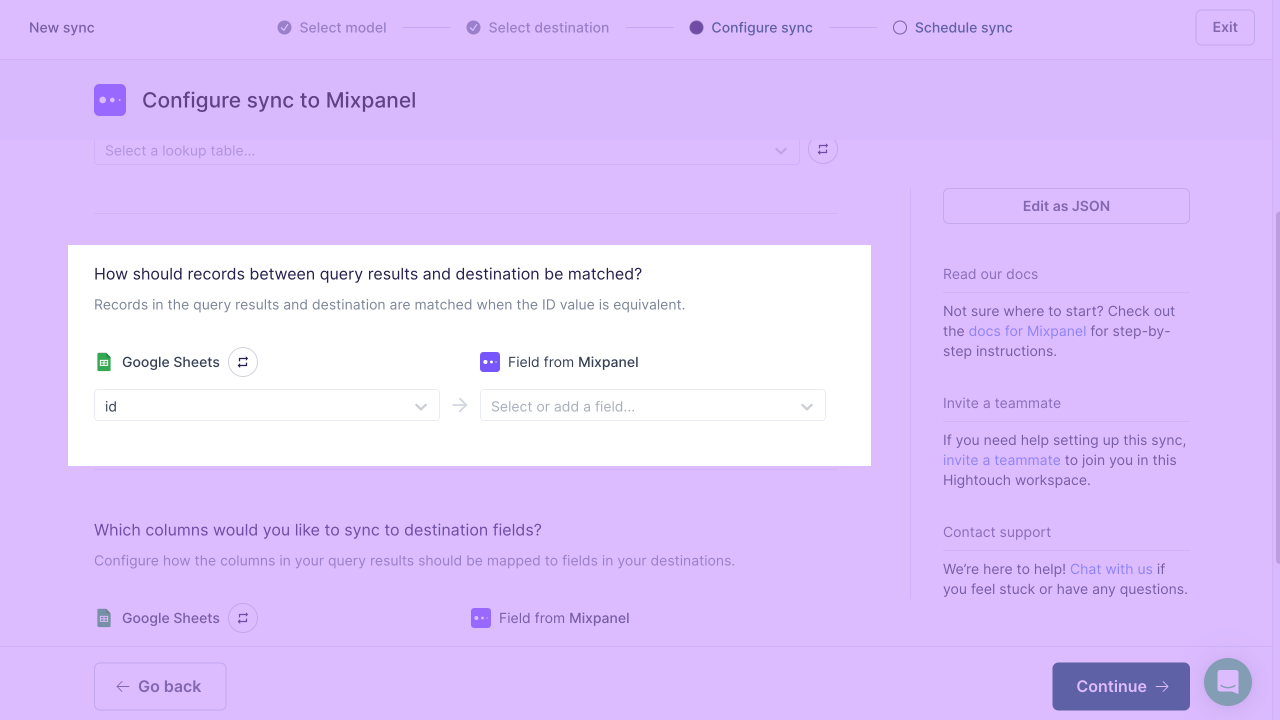
Field mapping
You may also sync columns from your source to your Mixpanel Lookup table’s custom fields.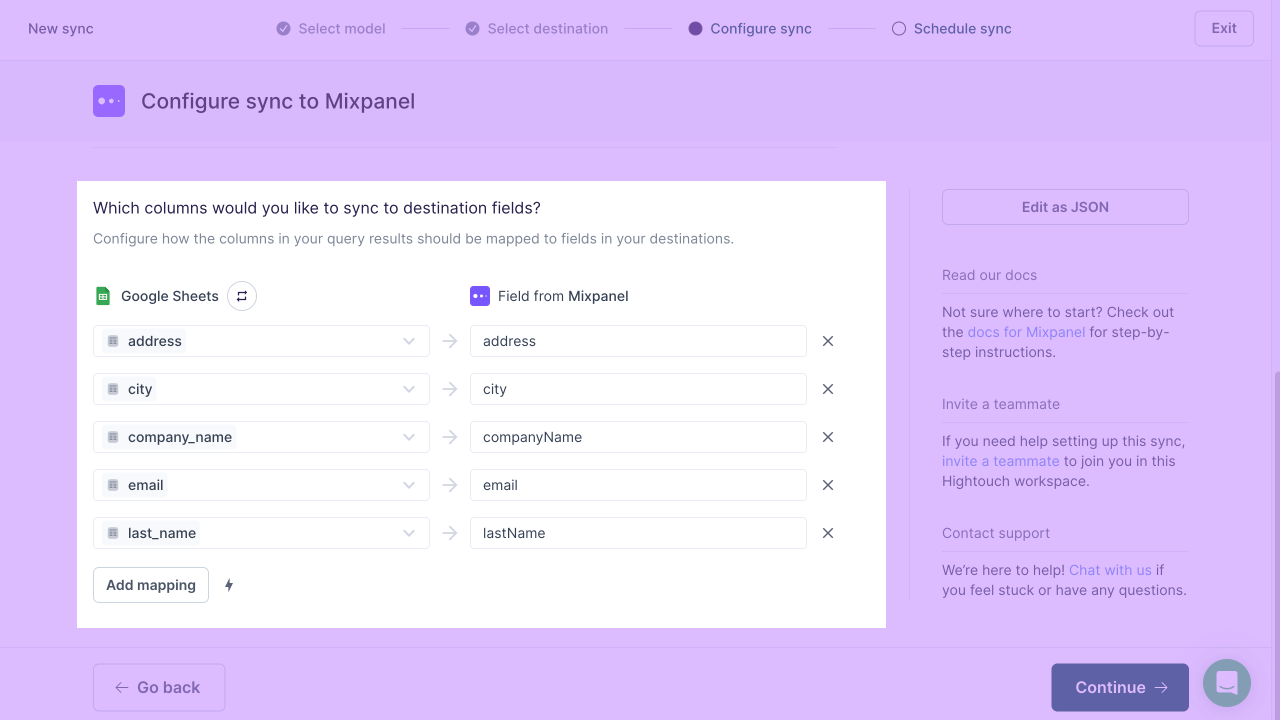
Creating lookup tables in Mixpanel
To create Lookup tables, you can import them directly in Mixpanel. You can do this by clicking on the Data Management icon and then on Lexicon. Navigate to Lookup Tables > Import > Lookup Table.
Limitations
Mixpanel’s Lookup table endpoint comes with the following limits:- Only 100 requests are allowed in a rolling 24 hour period. Please be mindful of this when choosing your sync schedule. Mixpanel recommends updating Lookup tables at most hourly.
- A Lookup table must not exceed 100 MB uncompressed (roughly 1-2M rows).
Tips and troubleshooting
To see the exact API requests and responses from each sync run, use the live debugger. To get notified by Slack, PagerDuty, SMS, or email when a sync fails, set up sync alerts. If you run into an issue this page doesn’t cover, .Common errors
Sync succeeds but data doesn’t appear in Mixpanel
If your sync succeeds in Hightouch but the data doesn’t appear in Mixpanel, check the following:- Project token: The project token in your Hightouch destination must match the token of the Mixpanel project you’re checking.
- Region: The Region you selected in your Hightouch destination (Standard or Europe) must match your Mixpanel project’s data residency. To find it in Mixpanel, click the Settings icon, then go to Project Settings > Overview and check the Data Residency field.