

Supported syncing
For more information about sync modes, refer to the sync modes docs.
Connect to Smartsheet
Go to the Destinations overview page and click the Add destination button. Select Smartsheet and click Continue. You can then authenticate Hightouch to Smartsheet with either a Smartsheet API key or with OAuth.Authenticate with API key
To retrieve an API key, go to your Smarsheet dashboard. Select Account > Apps & Integrations in the side nav.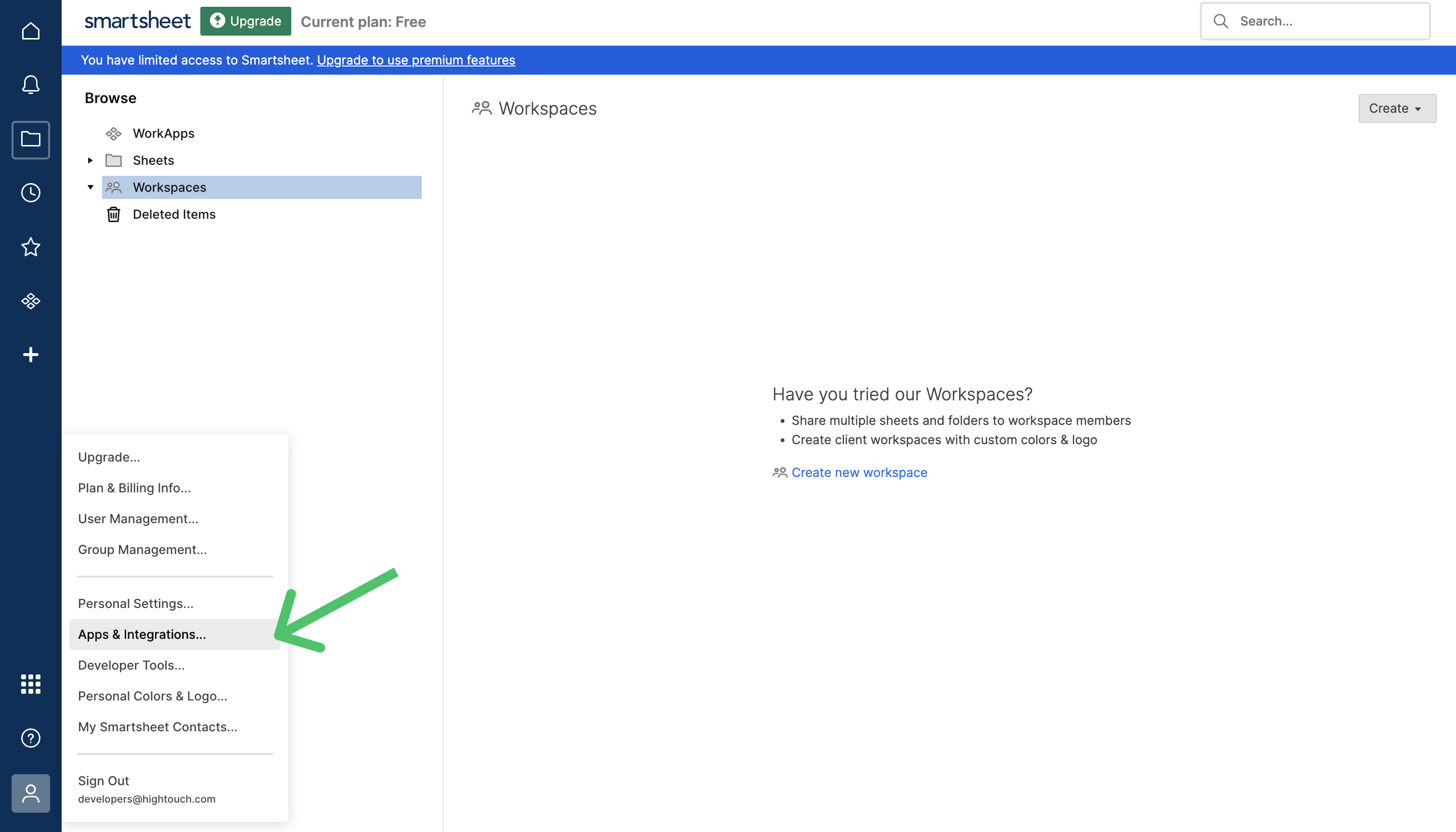
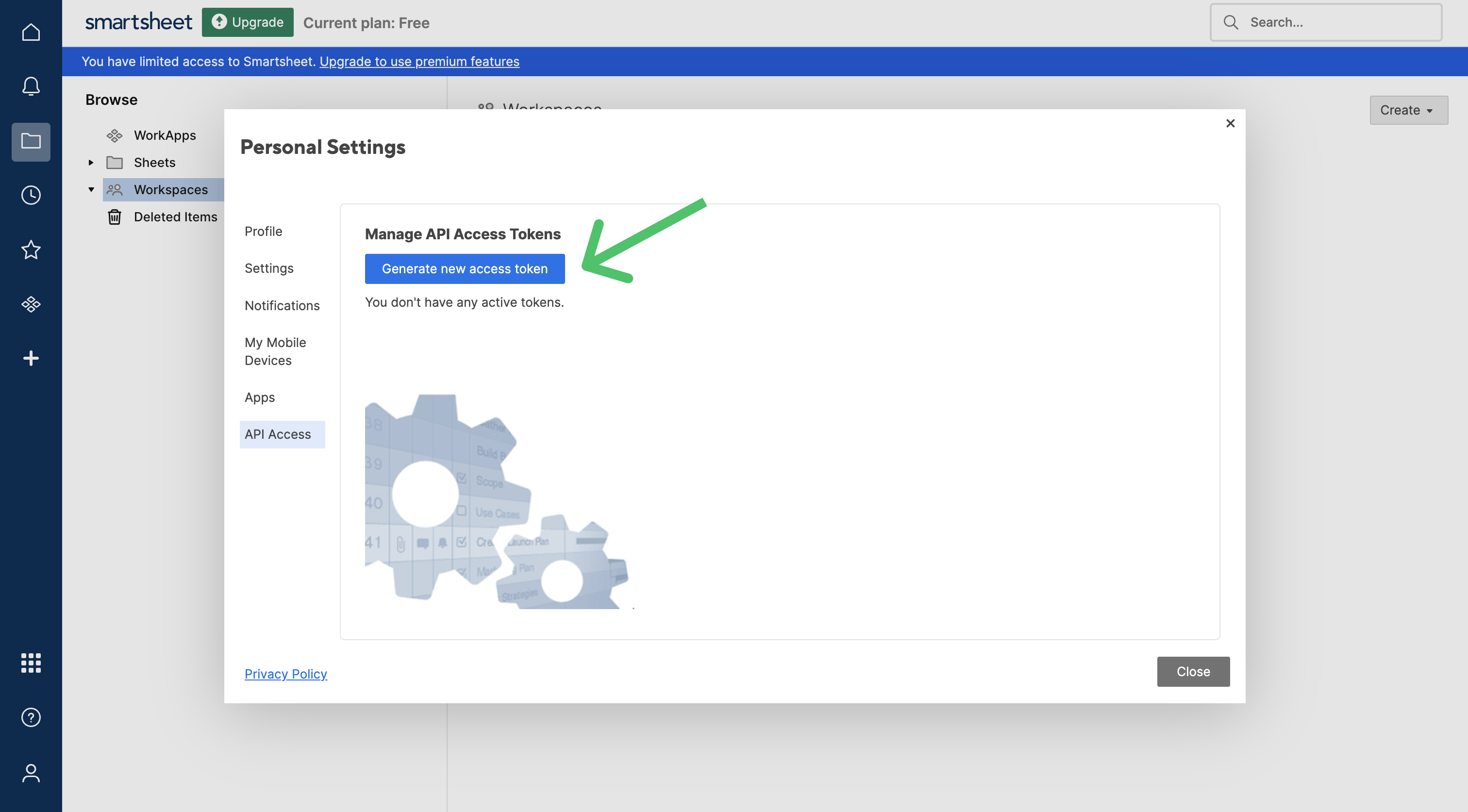
Authenticate with OAuth
For the Authentication method, select Log in to Smartsheet and log into your Smartsheet account. Once successful, you will be redirected back to Hightouch to enter a descriptive name for your destination and complete setup.Sync configuration
Once you’ve set up your Smartsheet destination and have a model to pull data from, you can set up your sync configuration to begin syncing data. Go to the Syncs overview page and click the Add sync button to begin. Then, select the relevant model and the Smartsheet destination you want to sync to.Syncing rows
Hightouch supports inserting, upserting, and updating data as rows into Smartsheet sheets.Record matching
You can match rows from your model to rows in Smartsheet on any column in your model and any field in Smartsheet. Ensure the data types of the model column and Smartsheet field you select match. Refer to the record matching docs for more information.In Insert mode, Smartsheet automatically generates an identifier for every new record synced, so there is no need to match an existing record.
Field mapping
You can sync columns from your model to columns within your selected Smartsheet sheet.Delete behavior
The delete behavior you select dictates what to do when a row no longer appears in your model’s query results. You have the following options:Tips and troubleshooting
To see the exact API requests and responses from each sync run, use the live debugger. To get notified by Slack, PagerDuty, SMS, or email when a sync fails, set up sync alerts. If you run into an issue this page doesn’t cover, .Common errors
Duplicate rows in sheet
As explained in the Values starting with zero section, Smartsheet needs to add a leading apostrophe to any values that start with a leading zero. This process can cause duplicates when updating a sheet via API, so we recommend avoiding any leading zeros in your record matching values. Furthermore, Upsert mode might create duplicates in your sheet if you run your sync too frequently (such as every 24 hours or more often). This is because it calls Smartsheet’s Search sheet API endpoint, which might not return rows that were added or edited during the past 24 hours. To avoid this, you can schedule your sync so it doesn’t run as frequently or you can replace your Upsert mode sync with a two-part setup:- for Update mode: one model, sync (set to Update mode), and Smartsheet sheet
- for Insert mode: another model, sync (set to Insert mode), and Smartsheet sheet