

Supported syncing
- All: All mode creates one file with all the rows in the query results, every time the sync runs.
- Insert: Insert mode creates one file with the rows that were added since the last sync.
- Diff: Diff mode creates three files, one for rows added, one for rows changed, and another for rows removed since the last sync.
- Upsert: Upsert mode creates one file with the rows that were added or changed since the last sync. Removed rows aren’t included.
The order of rows and columns in uploaded files may differ from how they appear in your model. This is expected behavior and applies to all sync modes. Learn more about row and column ordering.
Connect to Google
Go to the Destinations overview page and click the Add destination button. Select Google Cloud Storage and click Continue. You can then authenticate Hightouch to Google Cloud Storage by entering your:- GCP Credentials: if you need to create a cloud credential, consult our documentation
- GCP Project ID: you can follow these steps to find it
- GCP Bucket Name: this should just be the name of the bucket, not a URL
Sync configuration
Once you’ve set up your Google Cloud Storage destination and have a model to pull data from, you can set up your sync configuration to begin syncing data. Go to the Syncs overview page and click the Add sync button to begin. Then, select the relevant model and the Google Cloud Storage destination you want to sync to.Select file format
Hightouch supports syncing JSON, NDJSON, CSV, Parquet, and XML files to Google Cloud Storage.Enter filename
The filename field lets you specify the parent directory and the name of the file you want to use for your results. You can include timestamp variables in the filename, surrounding each with{}.
Hightouch supports these timestamp variables:
YYYY: Represents the full year in four digits.YY: The last two digits of the year.MM: Two-digit month format (01-12).DD: Two-digit day format (01-31).HH: Two-digit hour format in 24-hour clock (00-23).mm: Two-digit minute format (00-59).ss: Two-digit second format (00-59).ms: Three-digit millisecond format.X: Unix timestamp in seconds.x: Unix timestamp in milliseconds.
upload/{YYYY}-{MM}-{DD}-{HH}-{mm}-result.json to dynamically include the year, month, date, hour, and minute in each uploaded file. Hightouch would insert each file in the upload directory, which would need to already exist in your bucket.
You can also use other variable values to include sync metadata in the filename:
{model.id}{model.name}{sync.id}{sync.run.id}
If a file already exists at the path you entered at the time of a sync,
Hightouch overwrites it.
Set filename offset
By default, Hightouch uses the timestamp of the sync run to fill in timestamp variables. You can optionally include an offset in seconds. For example, if you want the filename’s date to be 24 hours before the sync takes place, enter ‘-86400’ (24 hours * 60 minutes * 60 seconds).
Upsert mode
Upsert mode writes the rows that were added or changed since the last sync to a single file. Removed rows aren’t included. Use Upsert when a downstream process only needs incremental updates, for example, a pipeline that ingests new and updated records from one file. If you select the Upsert sync mode, enter the file path in the Which file would you like to sync upserted rows to? field. Timestamp variables work the same way as in the filename field. If a file already exists at the path, Hightouch overwrites it. In the output file, added rows appear before changed rows. Upsert mode has two limitations:- Column mappings are required — Upsert mode doesn’t support the Sync all columns option. Map the columns you want to sync explicitly (see Columns to sync).
- Batching isn’t available — Upsert always merges results into a single file (see Batch size).
Columns to sync
You can export all columns exactly as your model returns them or choose to export specific ones. If you need to rename or transform any column values you’re syncing, you can use the advanced mapper to do so. If you choose this option, Hightouch only syncs the fields you explicitly map.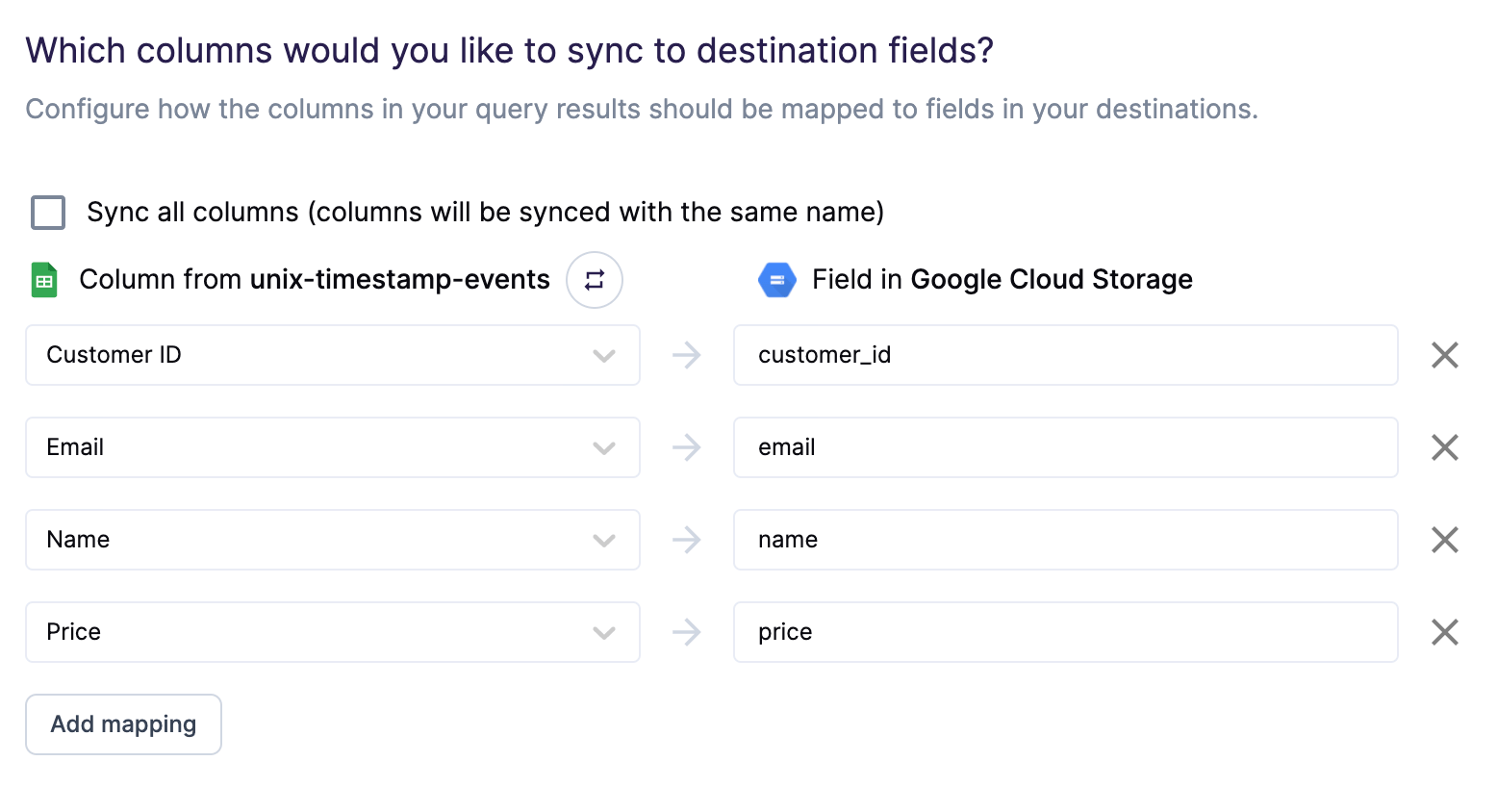
company, email, name, and price fields. Hightouch exports these fields to new fields in the file and ignores all other columns from your results.
CSV options
If you’re syncing to a CSV file, you have additional configuration options:- Delimiter: Your options are comma (
,), semicolon (;), pipe (|), tilde (~), and tab - (Optional) Whether to include a CSV header row in the exported files
- (Optional) Whether to include a byte order mark (BOM) in the exported files, the BOM is
<U+FEFF>